- Related Products
- Log360
- AD360
- ADManager Plus
- ADAudit Plus
- ADSelfService Plus
- Exchange Reporter Plus

 Click here to expand
EventLog Analyzer allows you to export reports, add or remove columns in a report and pin the graph to the dashboard.
In this help document, you will learn to perform the following operations.
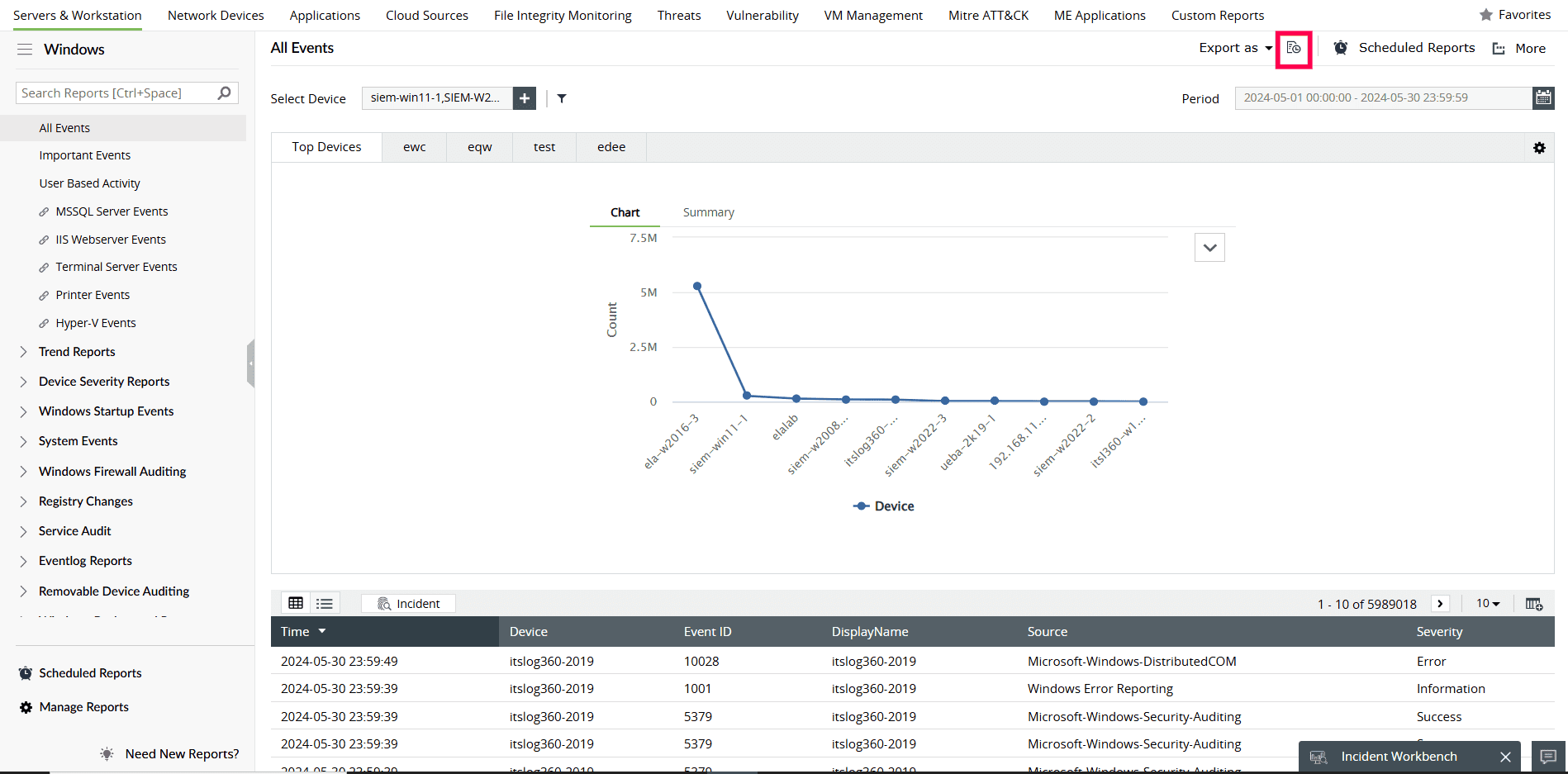
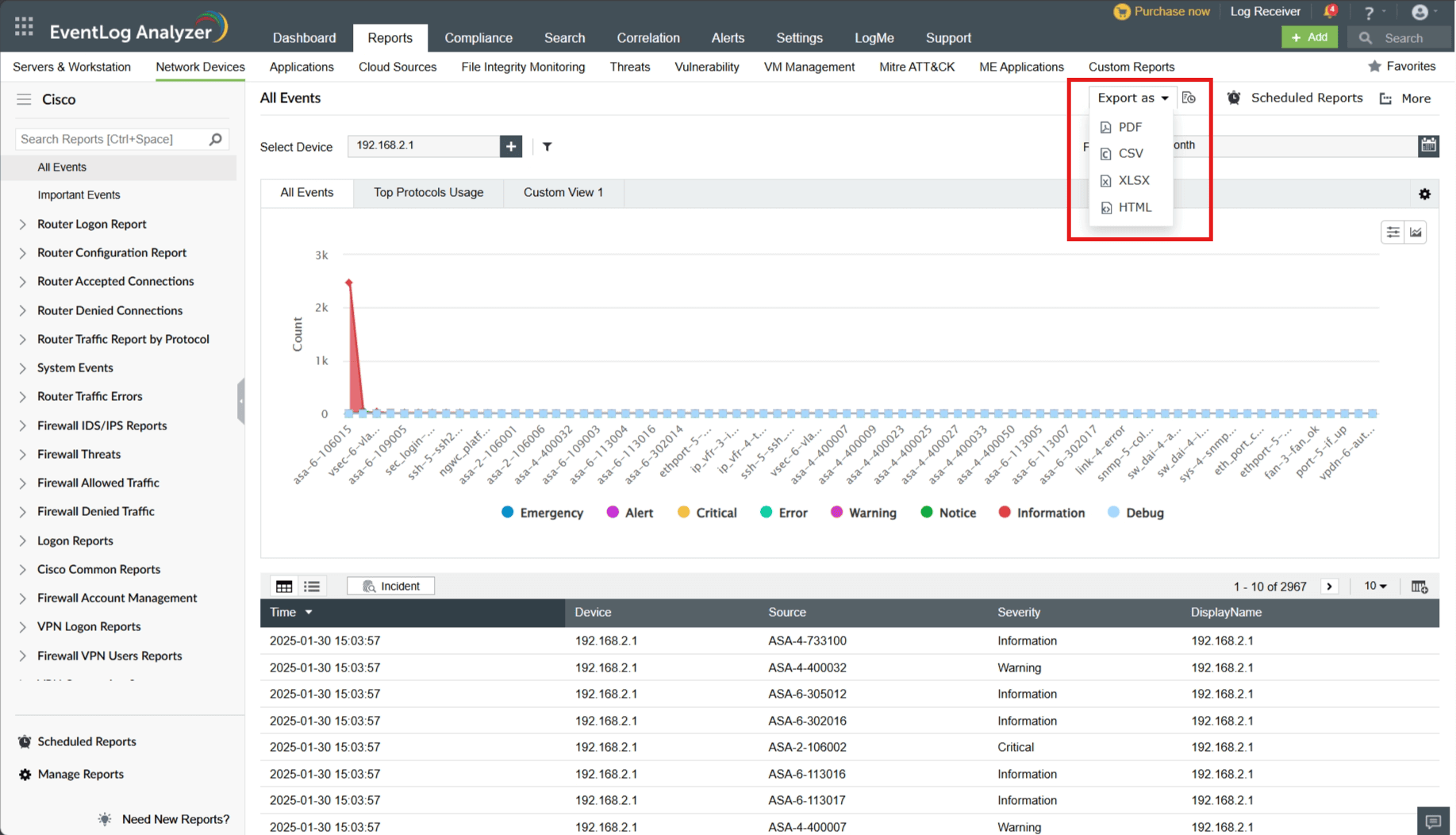
EventLog Analyzer gives users the ability to export reports as PDF, CSV, XLSX( Exports data with a default limit of 50,000 records per sheet) and HTML(Exports data into an HTML file for easier viewing in browsers)
To export reports,
To view export history, click the  at the top-right corner of a report. A list of the most recently exported reports will be displayed.
EventLog Analyzer gives users the ability to add or remove columns to the reports.
To add or remove columns:
 on the top-right corner of the report.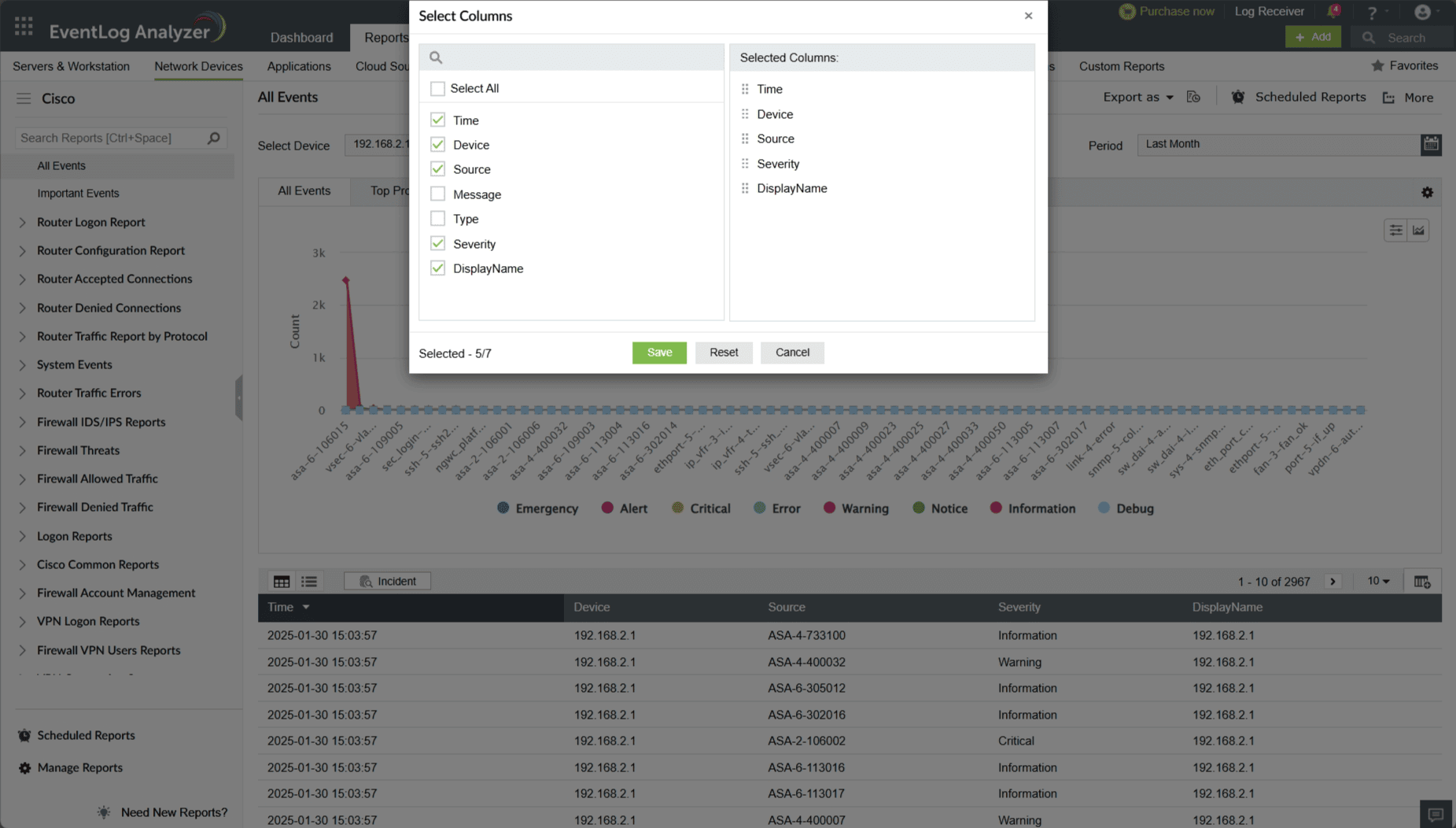
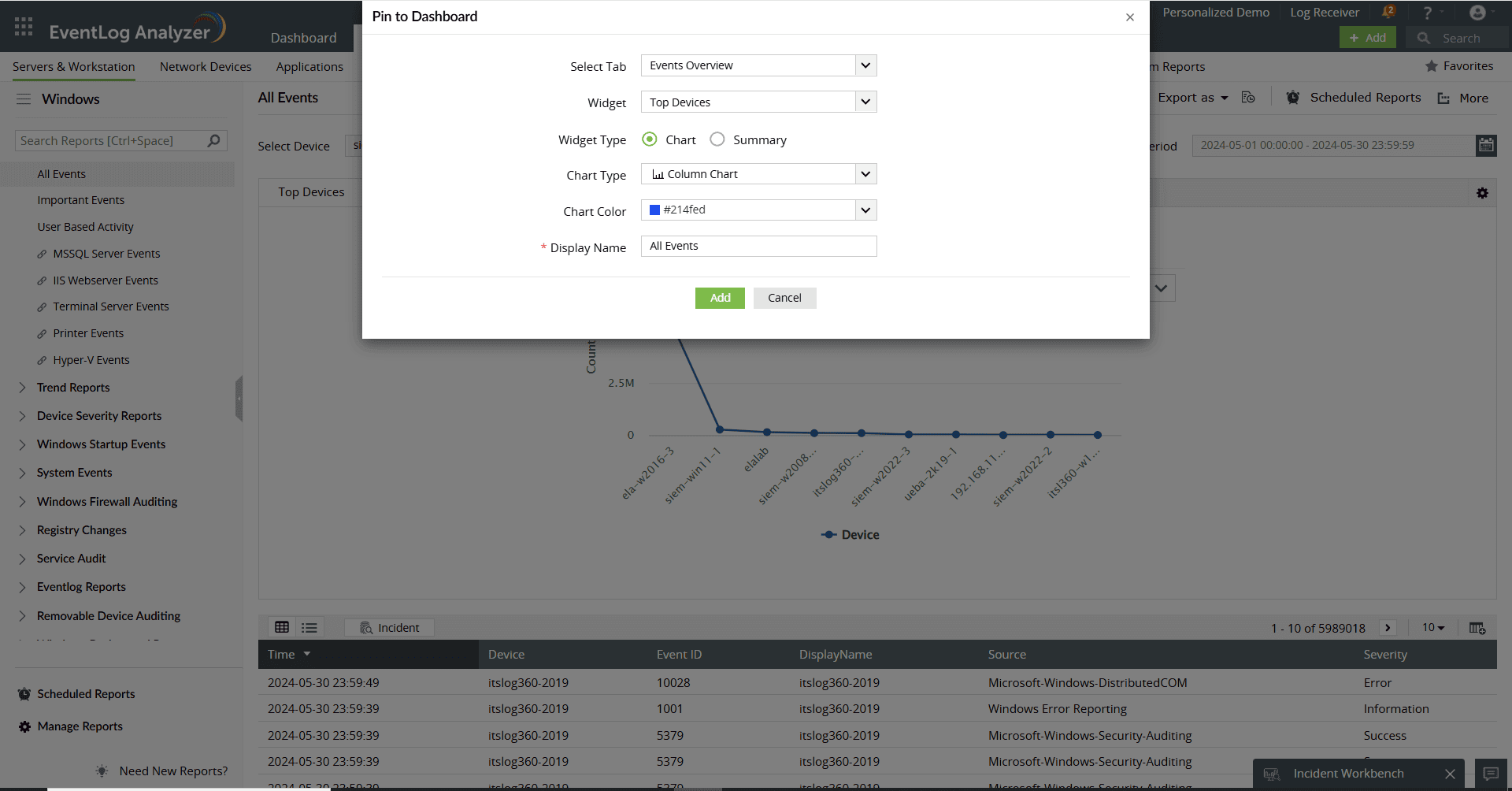
EventLog Analyzer gives users the ability to pin graphs to the dashboard.
To pin a graph:
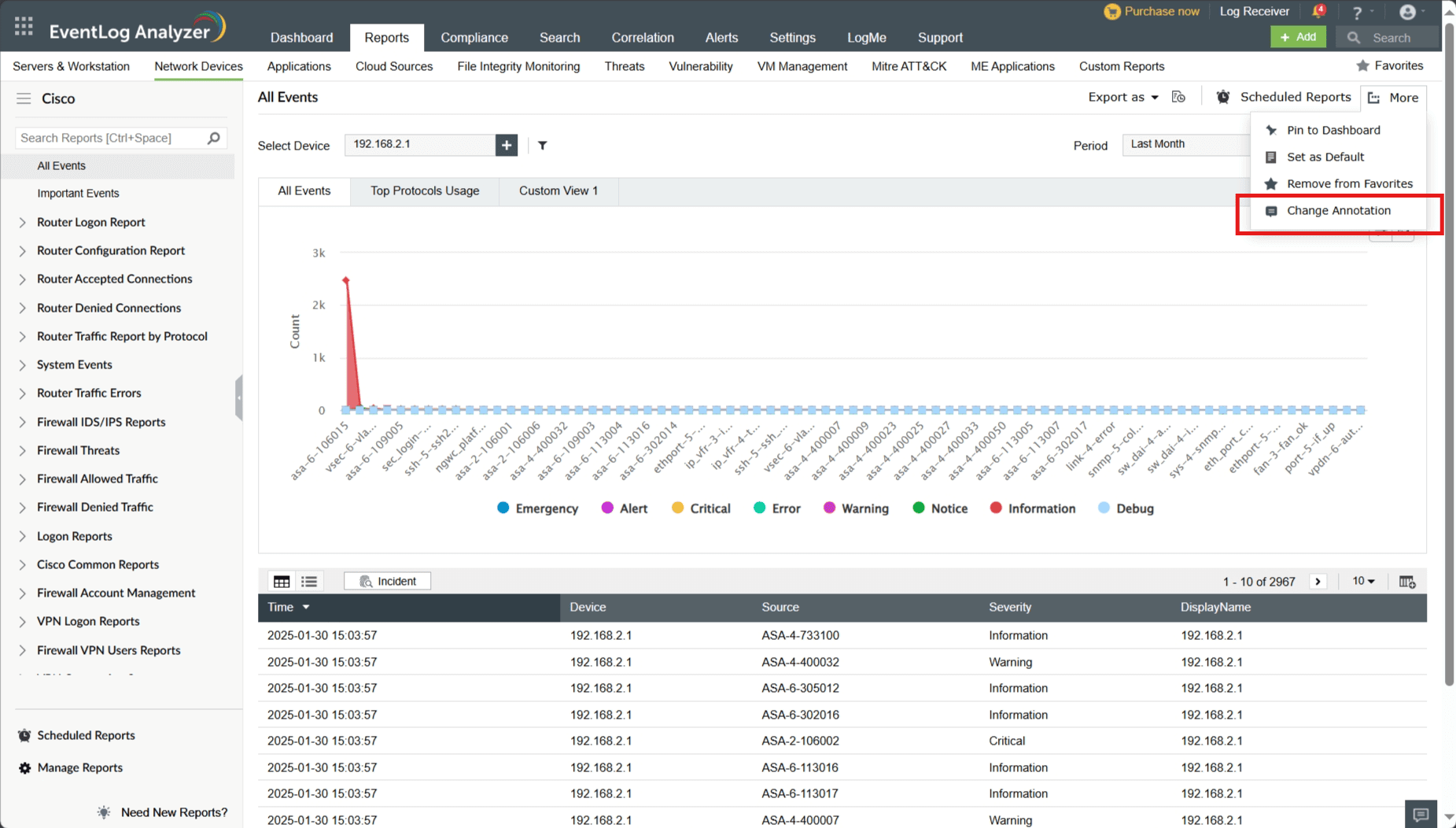
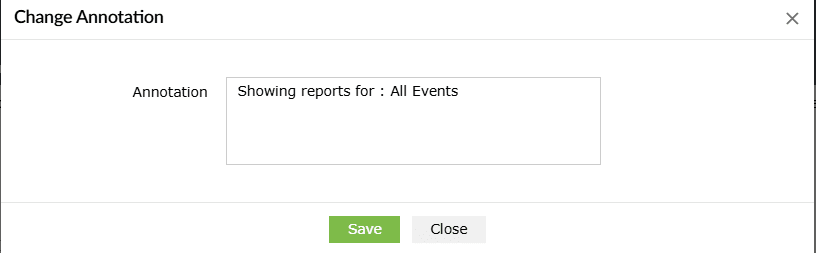
You can add custom annotations for the reports. These annotations will be displayed in PDF, HTML, and XLSX Report exports.
To add annotation,
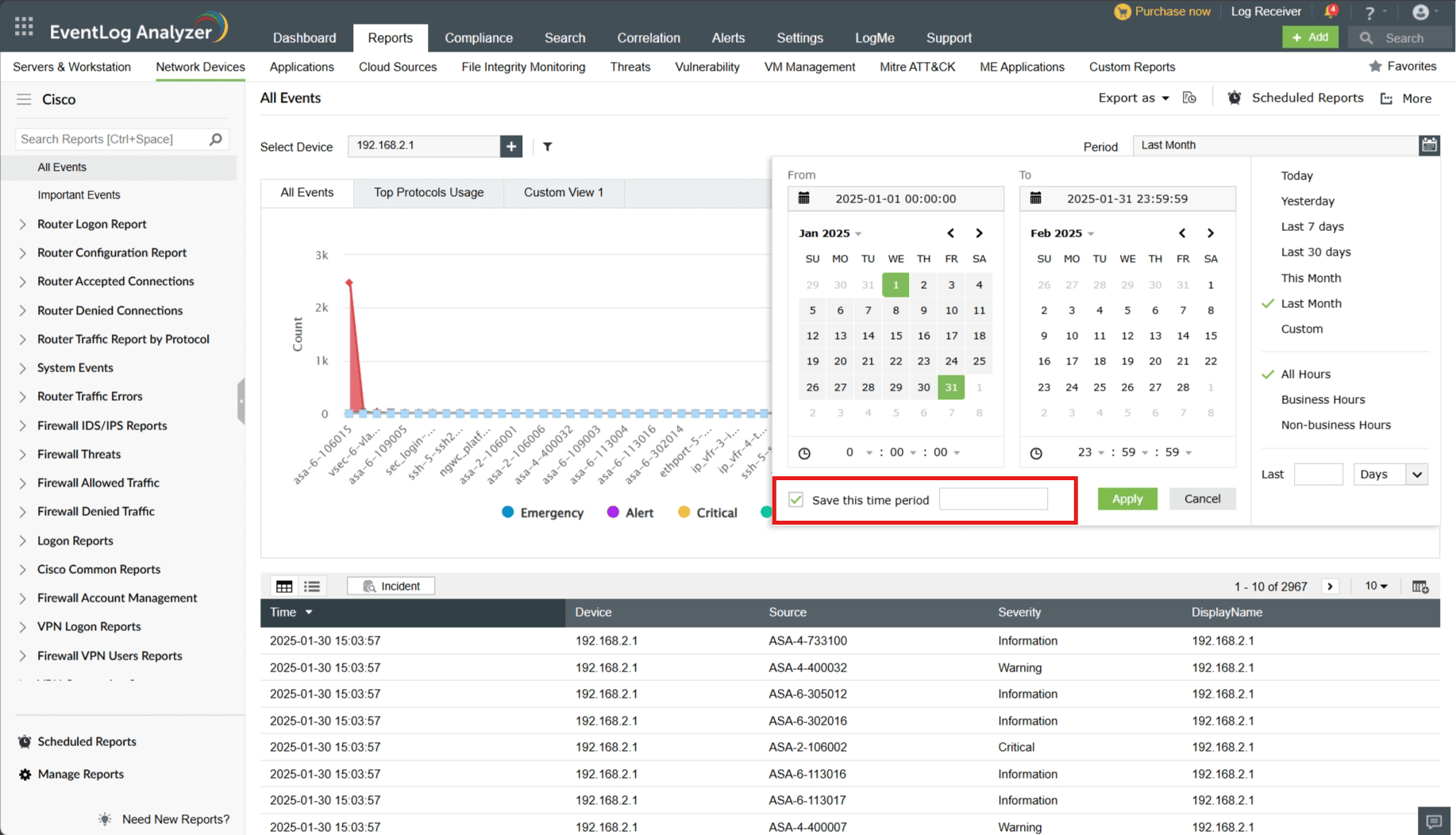
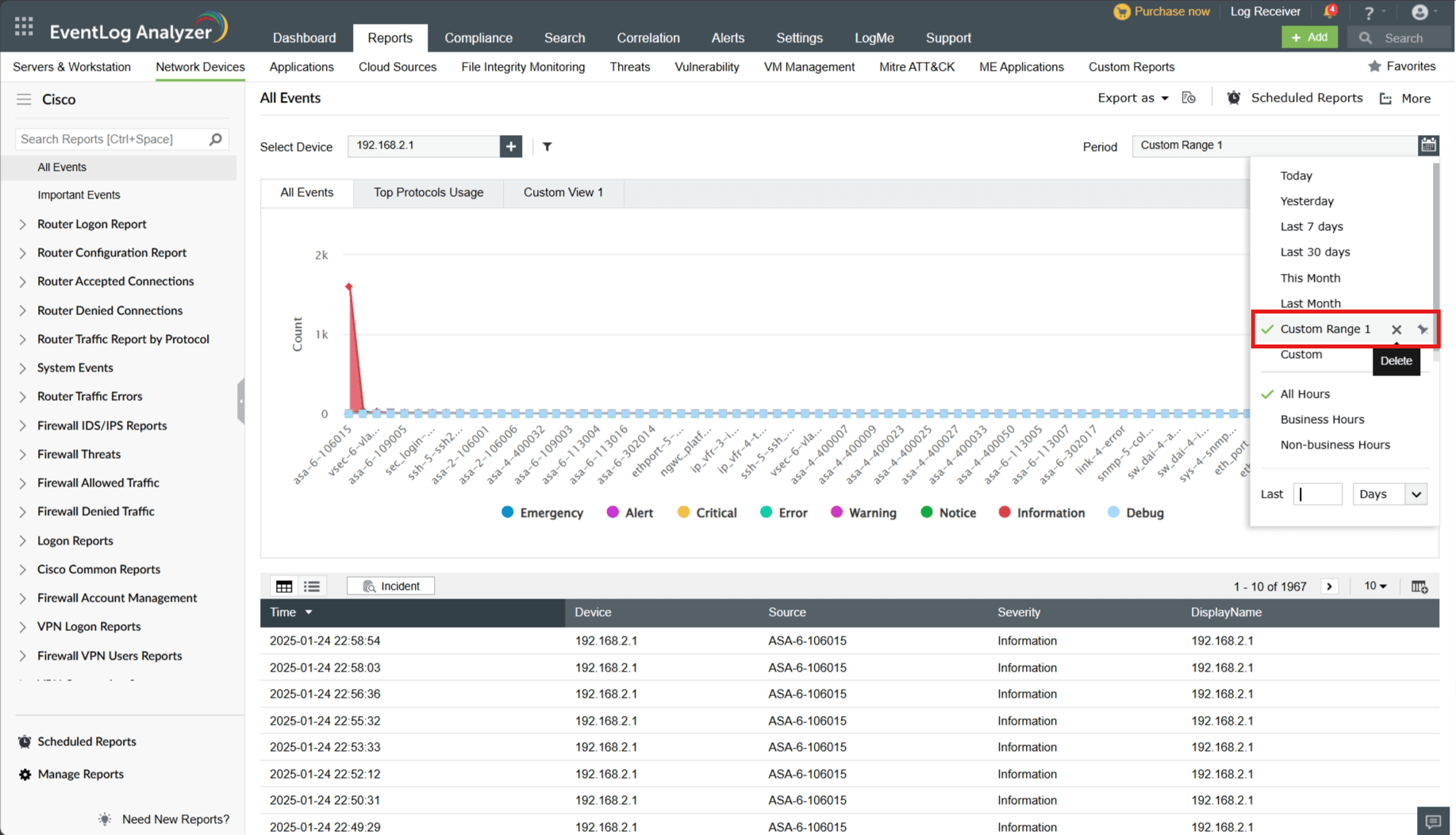
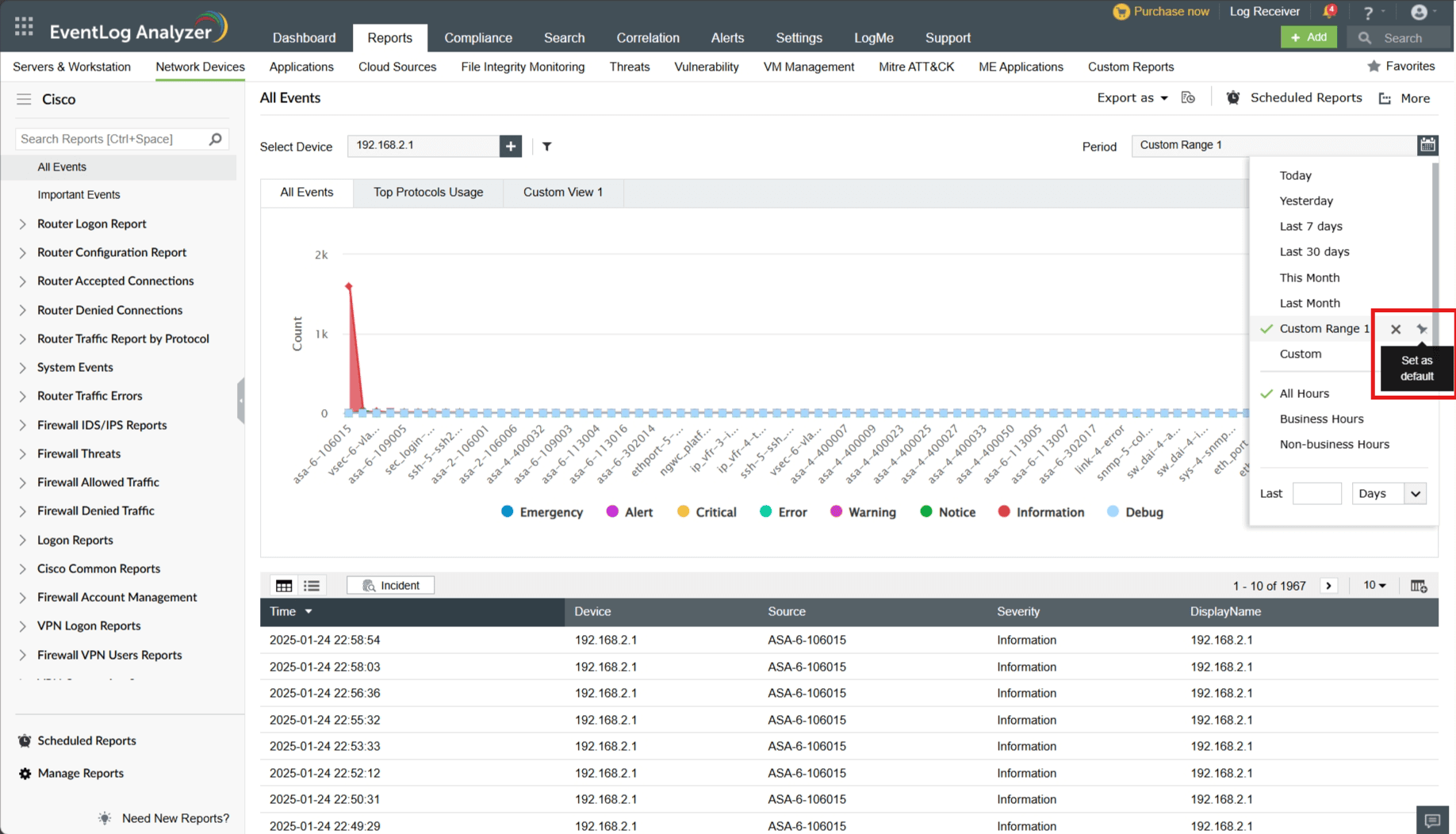
The Calendar Functionality feature introduces enhanced options for managing date ranges. This functionality provides greater flexibility and efficiency when working with date-specific data.
The date ranges can be managed in two ways as follows:
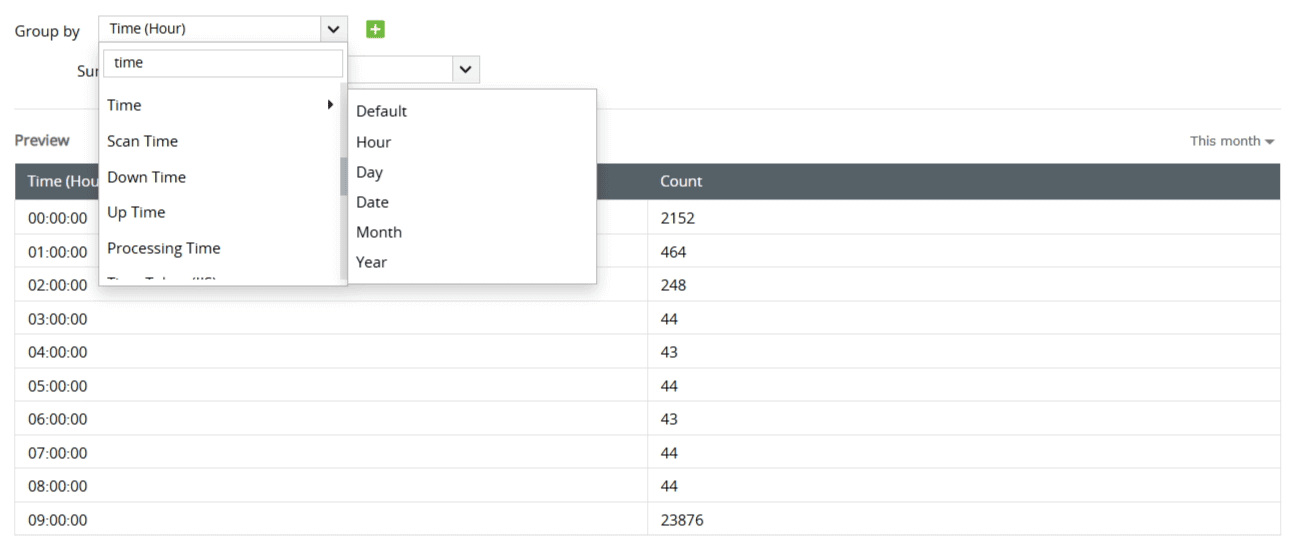
When creating a Custom Report or Report Views based on summary or pivot view, the following units are available for the field Time, which will determine the unit of time:
Hour - The time will be represented hour-wise.
Day - The time will be represented day-wise (by days of the week).
Date - The time will be represented date-wise (by dates of the month).
Month - The time will be represented month-wise (by months of the year).
Year - The time will be represented year-wise.
Default - The time unit will adjust dynamically based on the selected time range in the date range picker. For example, if the time range is more than one hour, the time will be shown hour-wise; if the range exceeds one day, it will be displayed date-wise, and so on.
Note: If a custom report or report view is based on the time unit "Hour", the time range is restricted to a maximum of 12 months for viewing data.
Copyright © 2020, ZOHO Corp. All Rights Reserved.
 Download PDF