How to increase the SharePoint list limit
Last updated on:In this page
How to increase the SharePoint list limit
A SharePoint list is a structured data storage tool in SharePoint that organizes information in rows and columns, similar to a spreadsheet. SharePoint lists are used to track tasks, manage assets, store contacts, and handle a wide variety of business data.
However, Microsoft enforces several limits to ensure that list queries do not affect performance. One of the most important restrictions is th e SharePoint list view threshold, w hich limits the number of items that can be processed in a single view.
This page explains what the SharePoint list limit is, what happens when you exceed it, and how to manage large lists effectively in SharePoint Online and SharePoint Server. We'll also provide information about ManageEngine SharePoint Manager Plus to help simplify management of your SharePoint lists by using a script-free, intuitive GUI and details reports that assist with managing and tracking SharePoint transactions.
- SharePoint Online
- Windows PowerShell
What are SharePoint list limits?
SharePoint enforces several limits to maintain performance and stability across all users and environments. There are three major SharePoint list limits.
- Item hard limit: A single SharePoint list can hold a maximum of 30 millionitems.
- Item list view threshold: A SharePoint list limit on how many items can be processed in a single database operation. It tops out at approximately 5,000 items, which means your SharePoint list view can process 5,000 list items in a single query without indexed filtering.
- File Size Limit: Individual file attachments within a list item are generally limited to 2GB.
How to increase the SharePoint list limit in SharePoint Online
SharePoint list limits in SharePoint Online are enforced at the platform level by Microsoft and cannot be raised, bypassed, or temporarily lifted through any admin setting or configuration. The most effective way to work within this limit is through how you configure your list views—using indexed columns to speed up data retrieval, applying filters to narrow down results to only what's relevant, and keeping view settings lean to reduce query complexity.
If you still face performance issues when navigating your SharePoint lists, you can try modifying the item limit of the SharePoint list view. Adjusting the item limit of a list lets you control how many items users see per page, reducing the number of items loaded per query and making large lists easier to navigate.
How to modify item list view in SharePoint Online
- Open the SharePoint site and open a list from Site Contents.
- Click on the drop-down next to the SharePoint list view you wish to edit and click Edit current view.
- Scroll down to the Item limit option. You have two options to choose from:
- Display items in batches of the specified size and
- Limit the total number of items returned to the specified amount
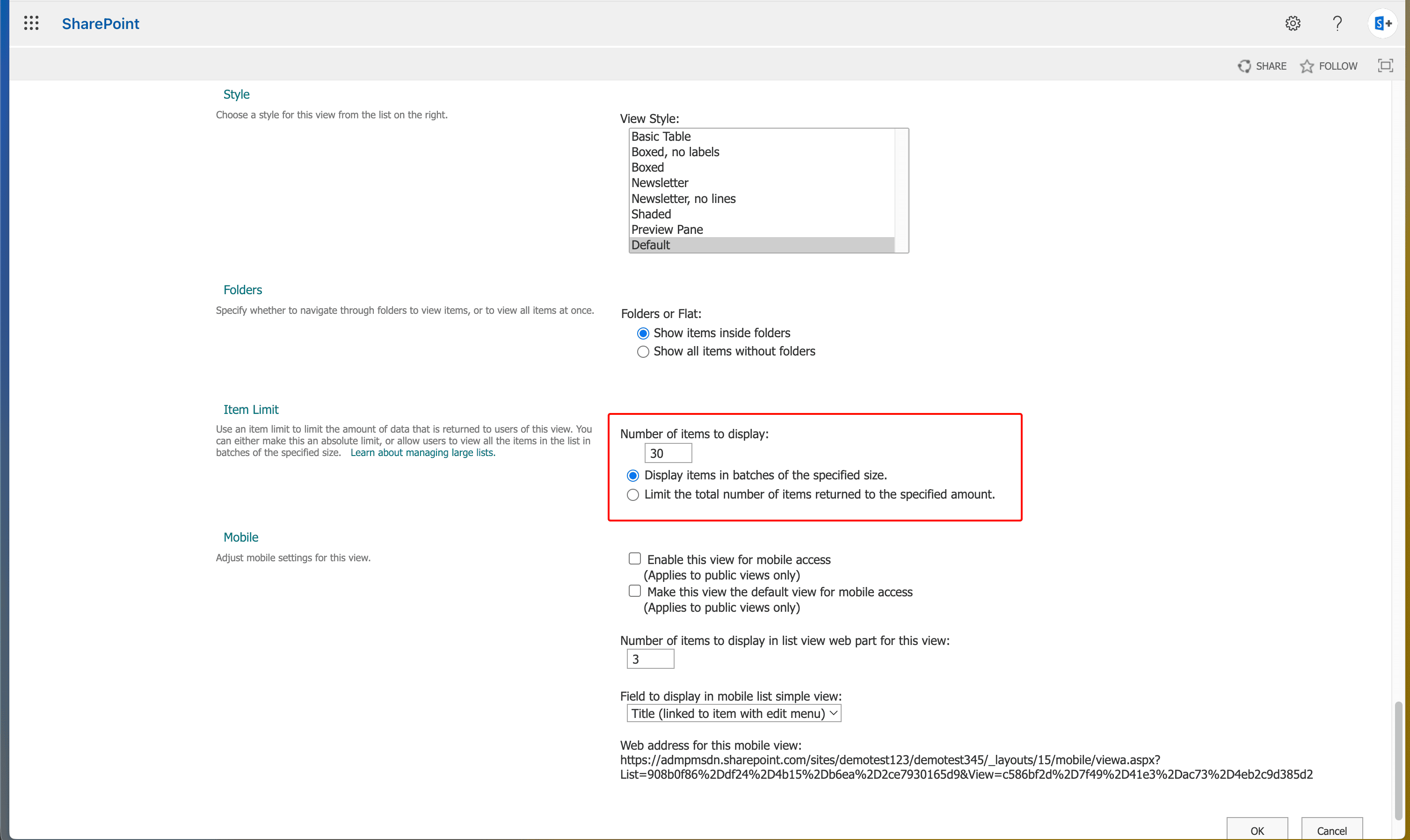
- Once done, click OK to update your new SharePoint list view item limit.

How to increase the SharePoint list limit in SharePoint Server
In SharePoint Server environments (such as SharePoint 2019 or SharePoint Subscription Edition), you can modify the SharePoint list view threshold in a SharePoint web application through SharePoint Central Administration or PowerShell.
Increasing the threshold significantly above 5,000 items in an on-premises environment can cause performance degradati on, SQL Server timeouts, and instability, especially on shared or under-resourced hardware. Threshold increases should be approached with caution and tested thoroughly.
Change the SharePoint list view threshold using SharePoint admin center
Prerequisites to change SharePoint list view threshold using SharePoint admin center
- Ensure you have Farm Administrator privileges in the SharePoint environment.
- Verify that SharePoint Central Administration is installed and accessible on the server.
- Identify the target web application that contains the SharePoint lists you want to manage.
Steps to change SharePoint list view threshold using SharePoint admin center
- Open SharePoint Central Administration.
- Navigate to Application Management.
- Click Manage Web Applications.
- Select the web application you want to modify.
- From the ribbon menu, click General Settings.
- Select Resource Throttling and modify the required SharePoint list threshold limits.
You can toggle Object model override to bypass the SharePoint list view threshold under certain conditions.
From this interface, administrators can:
- Increase the list view threshold above 5,000 items.
- Set a separate, higher threshold for auditors and administrators.
- Configure a daily time window (typically off-peak hours) during which the threshold is temporarily lifted to allow large operations.
Modify the SharePoint list view threshold using PowerShell
In on-premises SharePoint environments, administrators can also modify the list view threshold using PowerShell.
This method is useful when automating configuration changes or managing multiple web applications. Use the following PowerShell script to modify the item view threshold of your SharePoint list.
$webApp = Get-SPWebApplication "http://your-webapp-url"
$webApp.MaxItemsPerThrottledOperation = 10000
$webApp.Update()
This command updates the throttled operation limit for the specified web application.
You can run the following cmdlets for modifying the following SharePoint list limits.
List view threshold
$webApp = Get-SPWebApplication "http://your-webapp-url"
$webApp.MaxListItemsPerQuery = 5000
$webApp.Update()
Threshold for auditors and administrators
$webApp.MaxListItemsPerQueryForAuditors = 20000
$webApp.Update()
File size limit
$webApp = Get-SPWebApplication "http://webapp-url"
$webApp.MaximumFileSize = 2048
$webApp.Update(),
How ManageEngine SharePoint Manager Plus simplifies SharePoint list management
If you have created a SharePoint list, it's important to manage permissions, track changes, and organize list data effectively to ensure collaboration remains secure and structured. ManageEngine SharePoint Manager Plus simplifies managing your lists with a script-free, intuitive GUI.
SharePoint list permissions reporting
Schedule detailed SharePoint list permission reports to view who has access to specific lists; identify users with excessive or unique permissions; and export reports in CSV, PDF, XLSX, or HTML formats for easy auditing and compliance tracking.
Auditing SharePoint list activities
Track changes made to SharePoint list items, such as additions, edits, deletions, or permission updates, along with the exact time and source of the activity. Maintain clear audit trails for compliance reviews and internal investigations.
Manage SharePoint list access
Control permissions for SharePoint lists and list items to ensure least-privilege access. Quickly add, modify, or remove SharePoint list permissions in bulk using CSV imports, reducing manual effort and improving administrative efficiency.
Migrate SharePoint lists
Import SharePoint list data, replicate lists across SharePoint environments, and manage list structures without relying on complex PowerShell scripts.
SharePoint list limit best practices
Index key columns early: Add column indexes to the fields most commonly used for filtering and sorting before your list grows beyond 5,000 items. Once a list exceeds the threshold, adding indexes becomes more difficult.
Use filtered views as default: Set a filtered view as the default view for any list that is expected to grow large. This ensures that users always open a performant, threshold-safe view.
Partition large lists: Consider splitting very large lists into multiple lists organized by year, region, department, or other logical categories to keep each list well within the SharePoint list record limit.
Monitor list growth: Regularly review list item counts using the List Settings page or admin tools to identify lists approaching the threshold before problems occur.
Frequently asked questions
The SharePoint list view threshold is a limit of 5,000 items that controls how many records a single list view or query can retrieve from the database at one time. It applies to all SharePoint Online environments and cannot be modified by end users or administrators in SharePoint Online.
In SharePoint Online, the threshold cannot be increased. In on-premises SharePoint, farm administrators can raise the limit through Central Administration, though doing so might affect system performance and should be done with caution.
The absolute maximum number of items a single SharePoint list can hold is 30 million. However, lists approaching this size will experience severe performance issues unless they are heavily optimized with indexed columns, filtered views, and proper architecture.
Individual files uploaded to a SharePoint list or document library cannot exceed 2GB per file. For bulk operations, SharePoint limits uploads up to 100 items per operation, after which additional batches must be processed separately.
To resolve the SharePoint list view threshold error, create a filtered view that limits query results to fewer than 5,000 items. Ensure that any column used in the filter has an index applied. In SharePoint On-Premises, administrators might also temporarily raise the threshold through Central Administration.

