How to create SharePoint list views
Last updated on:In this page
A SharePoint list view lets users visualize, organize, filter, and sort items without altering the underlying data of the SharePoint list. Administrators use custom SharePoint list views to obtain the information they need from large datasets and ensure that relevant information is highlighted separately for different user groups.
This article describes how to create SharePoint list views using SharePoint Online and Windows PowerShell.
- SharePoint Online
- Windows PowerShell
Method 1: How to create SharePoint list views using the SharePoint Online browser UI
This method helps site owners create views while visualizing the entire process to avoid errors.
Prerequisite
You must have Edit or Design permissions on the SharePoint site to create public list views.
Steps to create SharePoint list views using SharePoint Online browser UI
- Open the SharePoint site and open a list from Site Contents.
- Select + Add view.
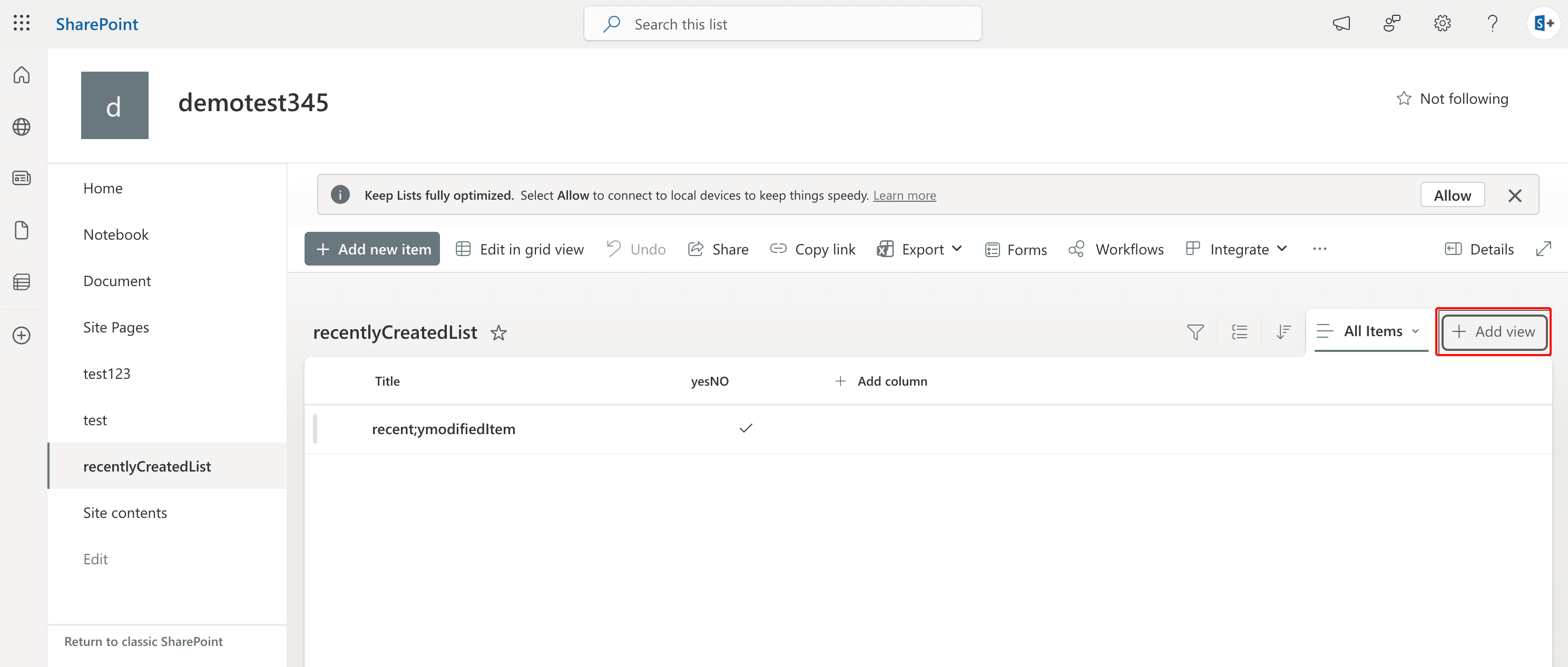
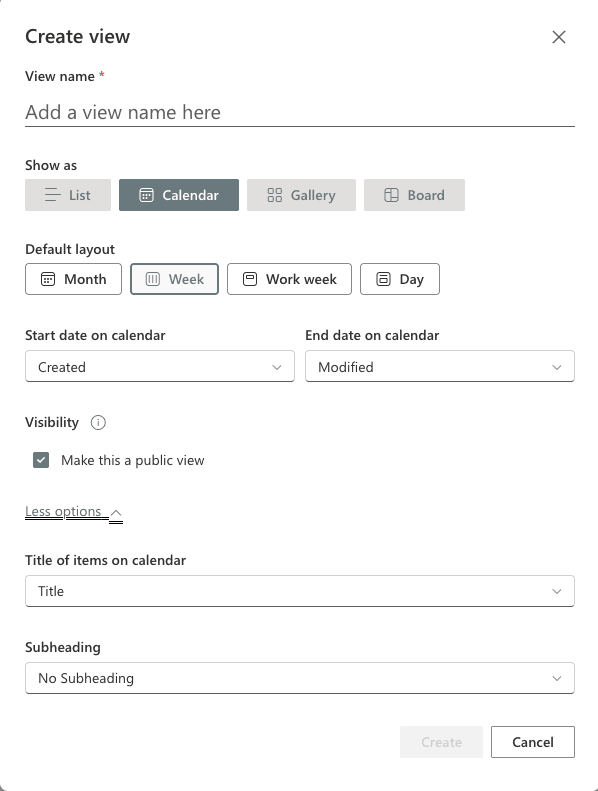
- In the Create View pane, after filling in the View name, you can create four types of SharePoint list views. They are:
- List: Displays items in rows and columns just like the default list view. This view allows users to easily sort and filter data by selecting column headers, such as managing employee details and tracking issues where many details are required.
- Calendar: Displays items as events in calendars and is helpful to track project schedules, keep up with events, or any list where the main property is time. This requires list items to have a Date and Time column.
- Gallery: Visualizes list items as grids with images. Useful as portfolios, product catalogs, galleries, or any list where the image is a significant property.
- Board: Displays items as cards arranged in columns based on a selected field such as Status or Category. Useful for tracking tasks, managing workflows where items move through different stages like To Do, In Progress, and Completed.
- Fill the required fields for the list view that you are creating.
- List and Gallery do not require any configurations.
- For Calendar list views, select a default layout from Month, Week, Work week, or Day to decide how the calendar initially appears, and the columns for the start and end dates.
- For Board views, select a column by which the board decides the stages in the Organize board by drop-down.
- To create a personal view, uncheck Make this a public view. If you wish to create a public view, you can leave it checked.
- Click Create and now you have a new SharePoint list view.


Manage SharePoint list views using SharePoint Online site UI
Once you create a list view, you can modify it to fit your requirements.
- Click on the drop-down next to the SharePoint list view you created.
- Select Format Current View to change the list presentation style.
- Select Rename view to change the name of the list view.
- You can Add or remove fields from your list views and reorder them.
- Set current view as default allows you to display the selected public list view when a user opens the list.
- After modifying your list view, click Save view to save your changes, Save view as to create this version as a separate list view, or Reset view to discard all changes.
Method 2: How to create SharePoint list view using Windows PowerShell
PowerShell allows administrators to create and manage SharePoint list views programmatically. This is useful when you need to create views across multiple lists or automate list configuration tasks.
Prerequisites
- Install the PnP PowerShell module
- You must have sufficient privileges, like Site Owner, Site Collection Administrator, or SharePoint/Global Admin.
- Ensure you have access to the target SharePoint site and list.
Steps to follow
- Connect to SharePoint Online with the admin URL:
Connect-SPOService -Url https://<tenant>-admin.sharepoint.com
- Run the script below to create a SharePoint list view:
Add-PnPView `
-List "Projects" `
-Title "Active Projects View" `
-Fields "Title","Status","AssignedTo","DueDate" `
-Query "<Where><Eq><FieldRef Name='Status'/><Value Type='Text'>Active</Value></Eq></Where>" `
-RowLimit 100 `
-SetAsDefault
Supported parameters
Replace the values in the following parameters with your own data to create SharePoint list views in your environment.
| Parameter | Description |
|---|---|
| -List | Name of the SharePoint list |
| -Title | Name of the SharePoint list view |
| -Fields | The columns to be listed in the SharePoint list view |
| -Query | The CAML query with which the SharePoint list view will be filtered |
| -RowLimit | The maximum number of items that will be presented in the list view. |
Limitations of using PowerShell
- Creating and debugging scripts can be time-consuming for administrators who are unfamiliar with PowerShell.
- SharePoint Online PowerShell requires specific admin roles and familiarity with the SharePoint Online Management Shell, which may not be ideal for all users.
How SharePoint Manager Plus simplifies SharePoint list management
If you have created a SharePoint list, it's important to manage permissions, track changes, and organize list data effectively to ensure collaboration remains secure and structured. ManageEngine SharePoint Manager Plus simplifies managing your lists with a script-free, intuitive GUI.
SharePoint list permissions reporting
Schedule detailed SharePoint list permission reports to view who has access to specific lists; identify users with excessive or unique permissions; and export reports in CSV, PDF, XLSX, or HTML formats for easy auditing and compliance tracking.
Auditing SharePoint list activities
Track changes made to SharePoint list items, such as additions, edits, deletions, or permission updates, along with the exact time and source of the activity. Maintain clear audit trails for compliance reviews and internal investigations.
Manage SharePoint list access
Control permissions for SharePoint lists and list items to ensure least-privilege access. Quickly add, modify, or remove SharePoint list permissions in bulk using CSV imports, reducing manual effort and improving administrative efficiency.
Migrate SharePoint lists
Import SharePoint list data, replicate lists across SharePoint environments, and manage list structures without relying on complex PowerShell scripts.
SharePoint list views best practices
Use sorting and grouping for clarity: Sort items by important fields like priority, due date, or status. Group items by category or status to make lists easier to scan and understand.
Set up item limit: Configure the item limit using the Edit current view option to prevent performance drops from loading too many items at once.
Design with JSON styles: For advanced and responsive designs, use the Format current view's Advanced Mode section to apply custom JSON formatting.
Frequently asked questions
Users with Contribute or Edit permissions can create personal views. To create or modify public views, users typically need Design or Full Control permissions on the list.
Personal views are visible only to the user who created them. Public views are available to everyone who has access to the list and are usually managed by list owners or administrators.
SharePoint enforces a list view threshold of 5,000 items for performance reasons. Views should be filtered or configured with item limits to avoid performance issues when working with large lists.
Users who have permission to modify the SharePoint list view can adjust the item limit settings in the Edit current view option. However, this depends on their permission level and whether they can edit that specific view.
Yes. A single SharePoint list can have multiple views using different view types. Users can switch between them depending on how they want to interact with the list data.
The layout type of a view is defined when the view is created. To use a different layout, users usually need to create a new view with the desired view type.

