

How to create alerts after SharePoint Alerts retirement
In this article
- SharePoint Online
- Power Automate
- SharePoint Manager Plus
SharePoint Alerts help users stay informed about changes to files, folders, lists, and libraries without constantly checking the SharePoint site. Traditionally, SharePoint Alerts sent automatic email notifications when items were added, modified, or deleted, helping teams monitor activity with minimal effort. Alerts could be configured per list or library and managed through the Alert Me and Manage My Alerts interface in SharePoint Online.
Why is SharePoint Alerts being retired?
Microsoft is retiring classic alerts to modernize SharePoint’s notification system and align it with current Microsoft 365 capabilities. The legacy alert framework is email-centric, limited in customization, and difficult to scale in cloud environments.
Phased retirement timeline
- July 2025: Creation of new alerts was blocked for all new tenants.
- September 2025: Creation of new alerts was blocked for existing tenants.
- October 2025: Extension messaging began, requiring users to manually renew existing alerts.
- January 2026: New alert creation was fully disabled for all tenants worldwide.
- July 2026: Full retirement. All remaining legacy alerts will cease to function entirely.
What challenges will users face after SharePoint Alerts retirement ?
The transition away from classic alerts can introduce several operational and usability challenges, especially for teams that relied heavily on them.
- Missed updates and reduced visibility: Users may stop receiving notifications for important changes, leading to delays in response or overlooked tasks.
- Lack of equivalent one-click setup: Modern replacements often require additional configuration, making them less intuitive for non-technical users.
- Permission and governance barriers: Creating rules or automation flows may be restricted to Members or Owners, preventing Visitors from setting notifications.
- Learning curve for new tools: Users must understand how to use Rules or automation platforms, which may require training and documentation.
- Limited coverage for lists vs. libraries: Some modern features primarily target document libraries, leaving gaps for list-based monitoring scenarios.
To minimize disruption, organizations should identify existing alert usage, notify users in advance, and implement suitable replacements. Modern solutions such as built-in library Rules, automation using Power Automate, and third-party SharePoint alerting tools provide richer functionality, including conditional logic, multi-channel notifications, and tighter integration with services like Teams. Moving away from alerts enables better reliability, security, and consistency across the platform.
This article will guide you through different tools and methods that serve as replacements for SharePoint Alerts.
Method 1: Create alerts using the SharePoint Online browser UI
SharePoint Online allows users to configure notifications directly from the browser using classic Alert Me and Manage My Alerts options or modern library Rules, making it easy to receive updates without scripts or additional tools.
Prerequisites
- You must have at least Edit permission.
- Alerts must not be disabled by tenant policies.
- Email notifications must be enabled in Microsoft 365.
- You must have access to the target list or library.
Steps to create an alert using Classic Alerts
Classic Alerts are being retired and should be used only as a temporary solution if the feature is still available in your tenant.
- Sign in to SharePoint Online.
- Navigate to the target list or document library.
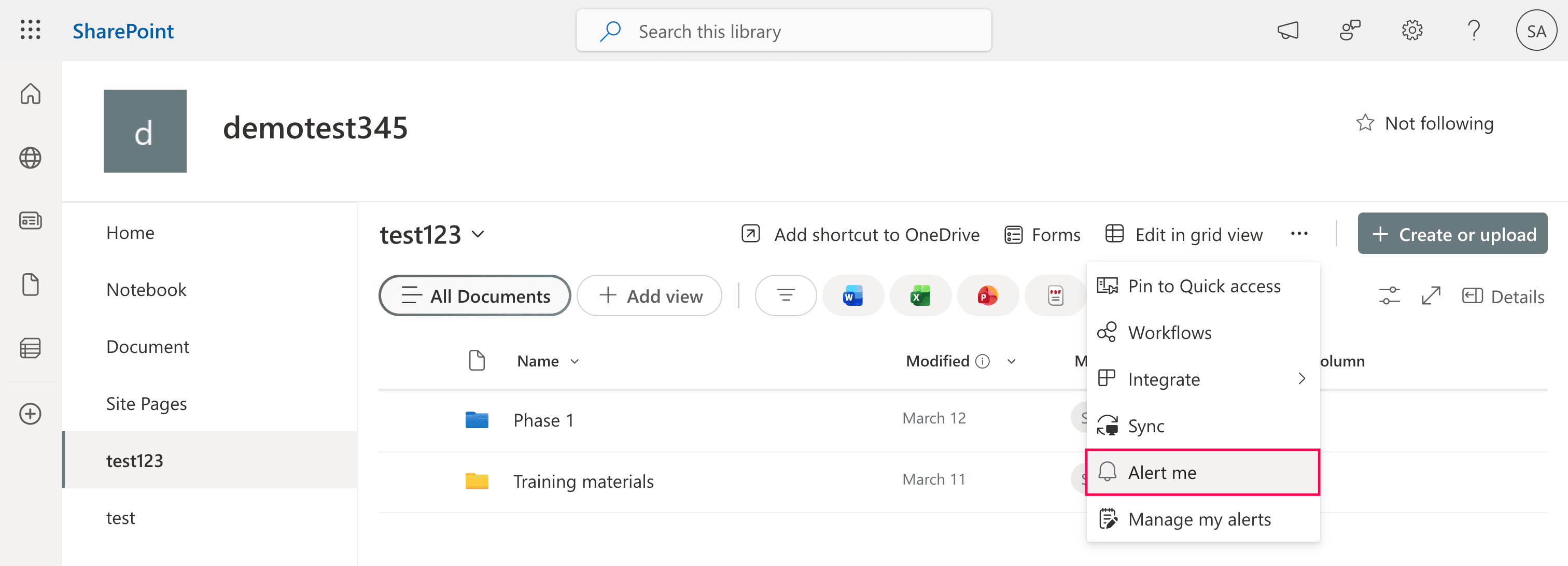
- Click Alert me from the command bar (or click the ellipsis icon (…) and select Alert me).
- In the pop-up window, configure the alert recipients, delivery method, change type, frequency, and expiration.
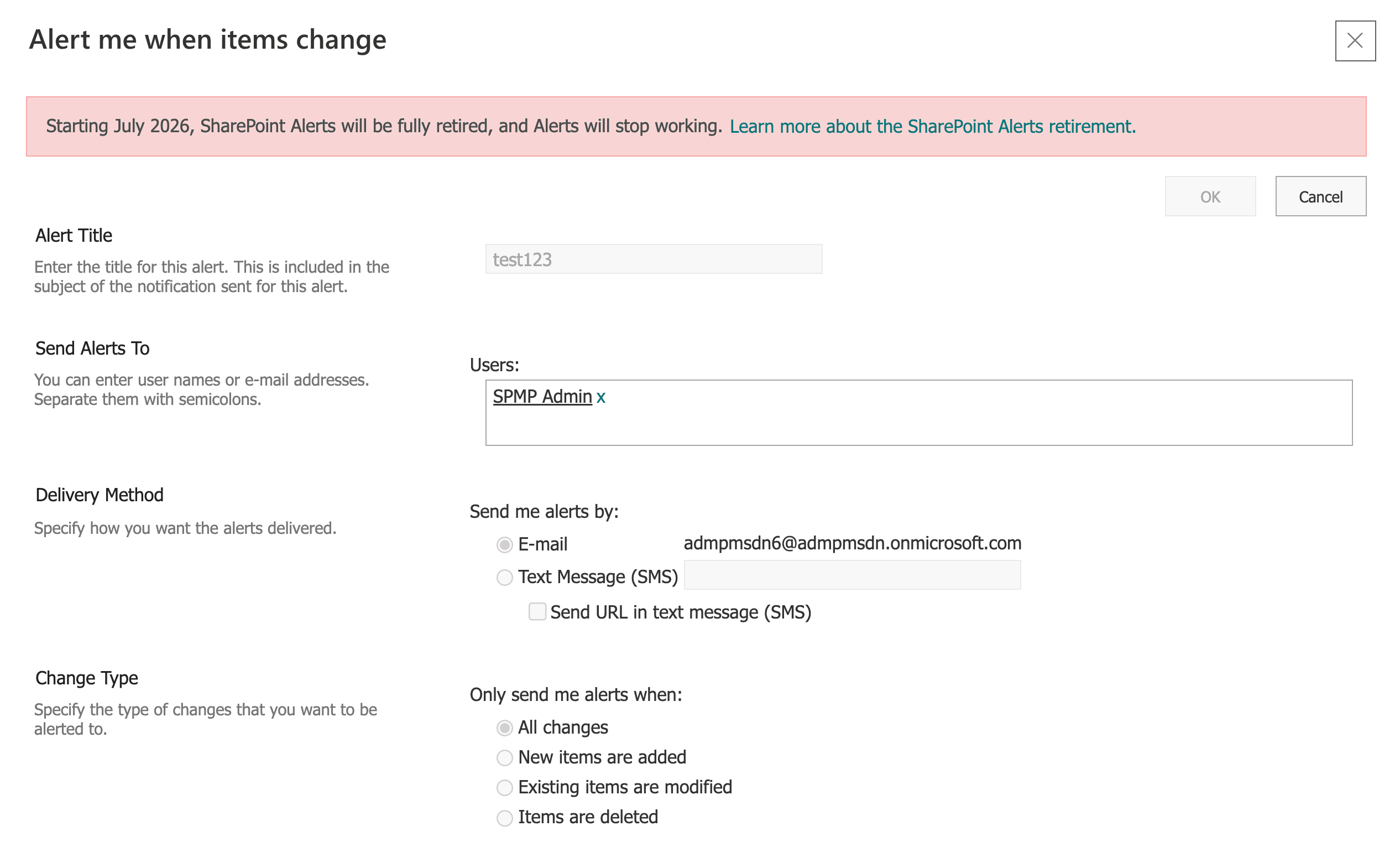
- Click OK to create the alert.


To manage existing alerts, click the ellipsis icon (…) and select Manage my alerts to modify or delete them.
Steps to create alerts using Rules
Modern document libraries provide built-in Rules, which act as a lightweight replacement for classic alerts.
- Open the document library.
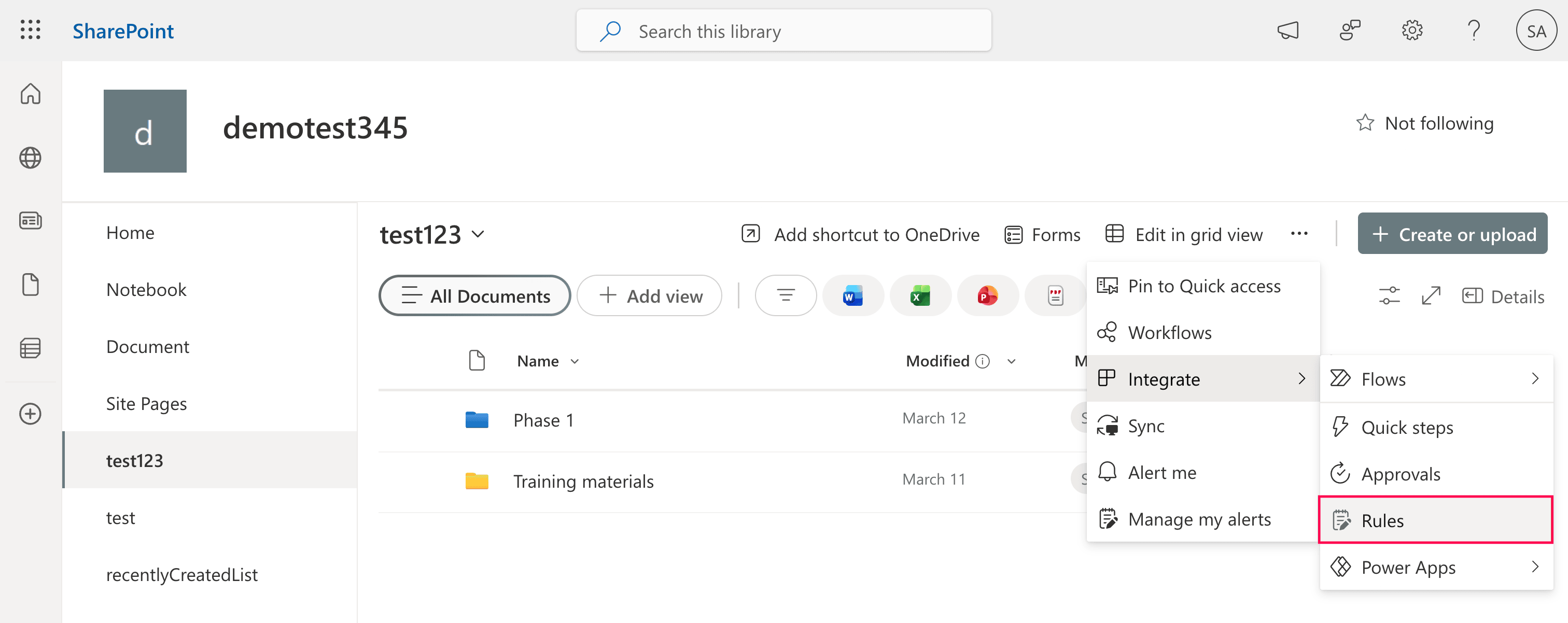
- Click Rules from the command bar (or click the ellipsis icon (...) and select Integrate > Rules).
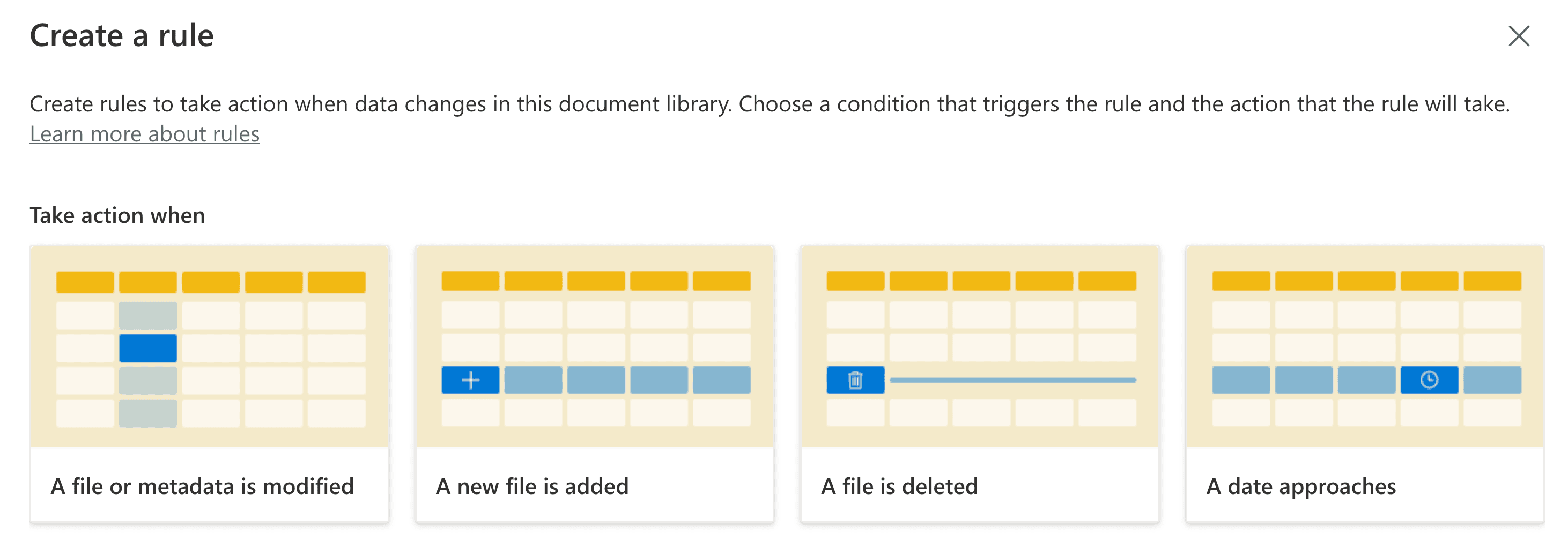
- Choose a trigger condition, such as:
- A file or metadata is modified: Notify when a file is edited or a column value changes.
- A new file is added: Notify when a new document is uploaded or created.
- A file is deleted: Notify when a file is moved to the Recycle Bin.
- A date approaches: Send a reminder a specific number of days before or after a date in a column (e.g., 3 days before "Review Date").
- The UI will present a sentence with underlined words. Click each underlined word to set your logic:
- If: Select the specific column or condition (e.g., Status).
- Condition: Select the change (e.g., is modified or changes to Approved).
- Then: Choose the recipient (e.g., Me, Created By, or Modified By).
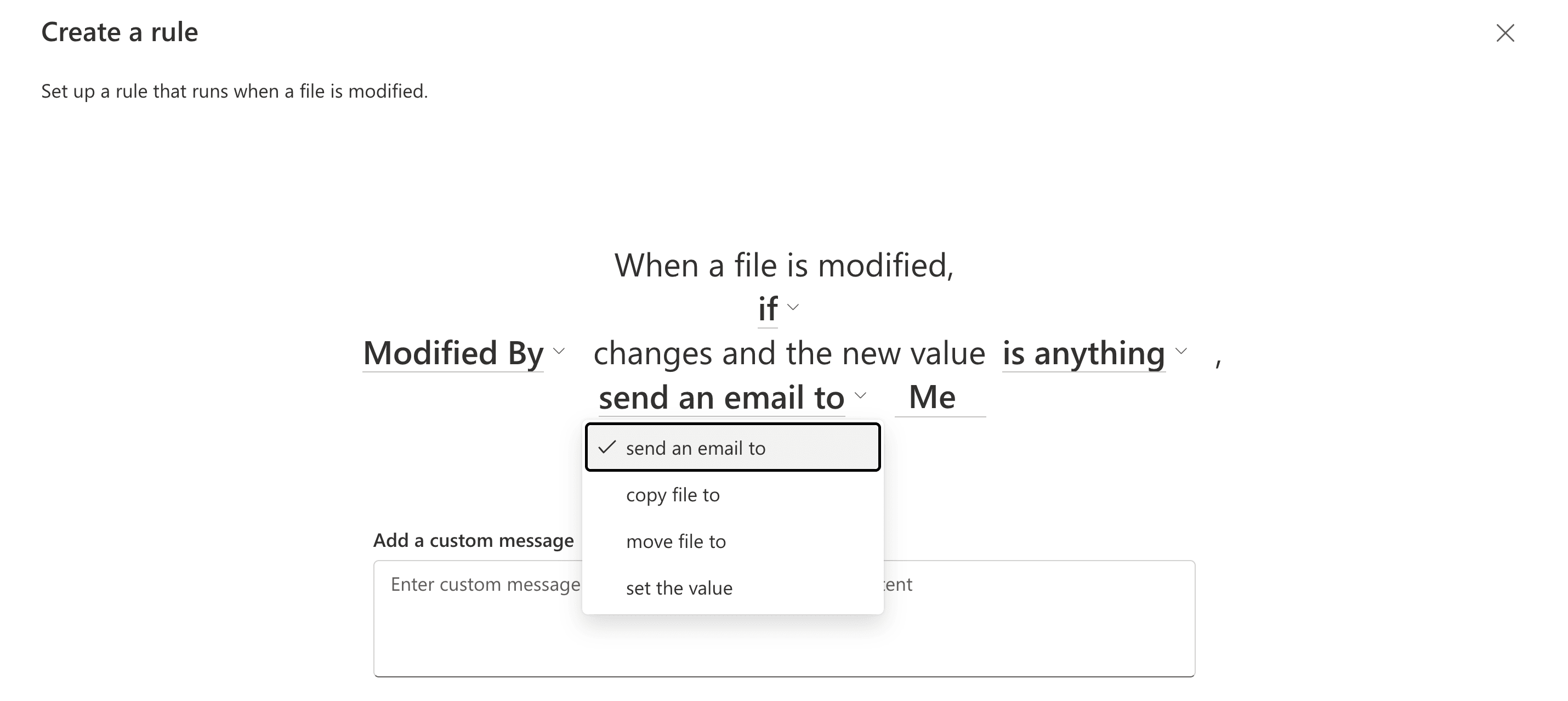
- Click Create.
- Classic alerts are being retired (timeline varies by tenant).
- Alerts typically expire automatically after a set period.
- Each library supports a maximum of 15 rules across all users.
- Rules do not support complex logic or thresholds.


Limitations to consider
Method 2: Create SharePoint alerts using Power Automate
When built-in Rules are insufficient, Power Automate enables advanced notifications, cross-service integrations, and conditional logic. It can monitor SharePoint events and send notifications via email, Microsoft Teams, or other systems.
Prerequisites
- You must have at least Contribute or Edit permissions on the SharePoint site.
- You must have a valid Power Automate license (included in most Microsoft 365 Business/Enterprise plans).
- A connection to SharePoint Online must be configured.
- You must have governance policies allowing flow creation.
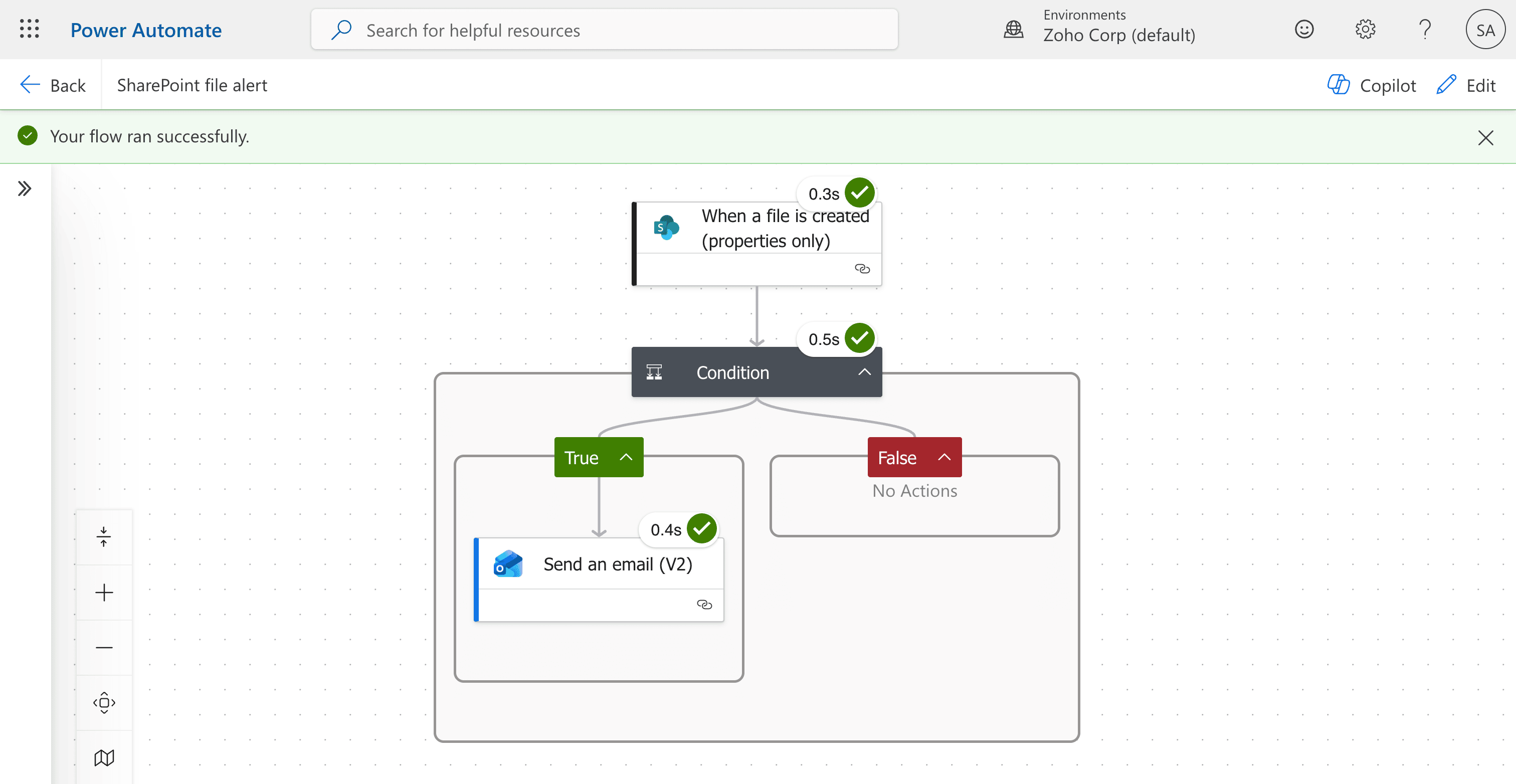
Steps to create a file alert using Power Automate
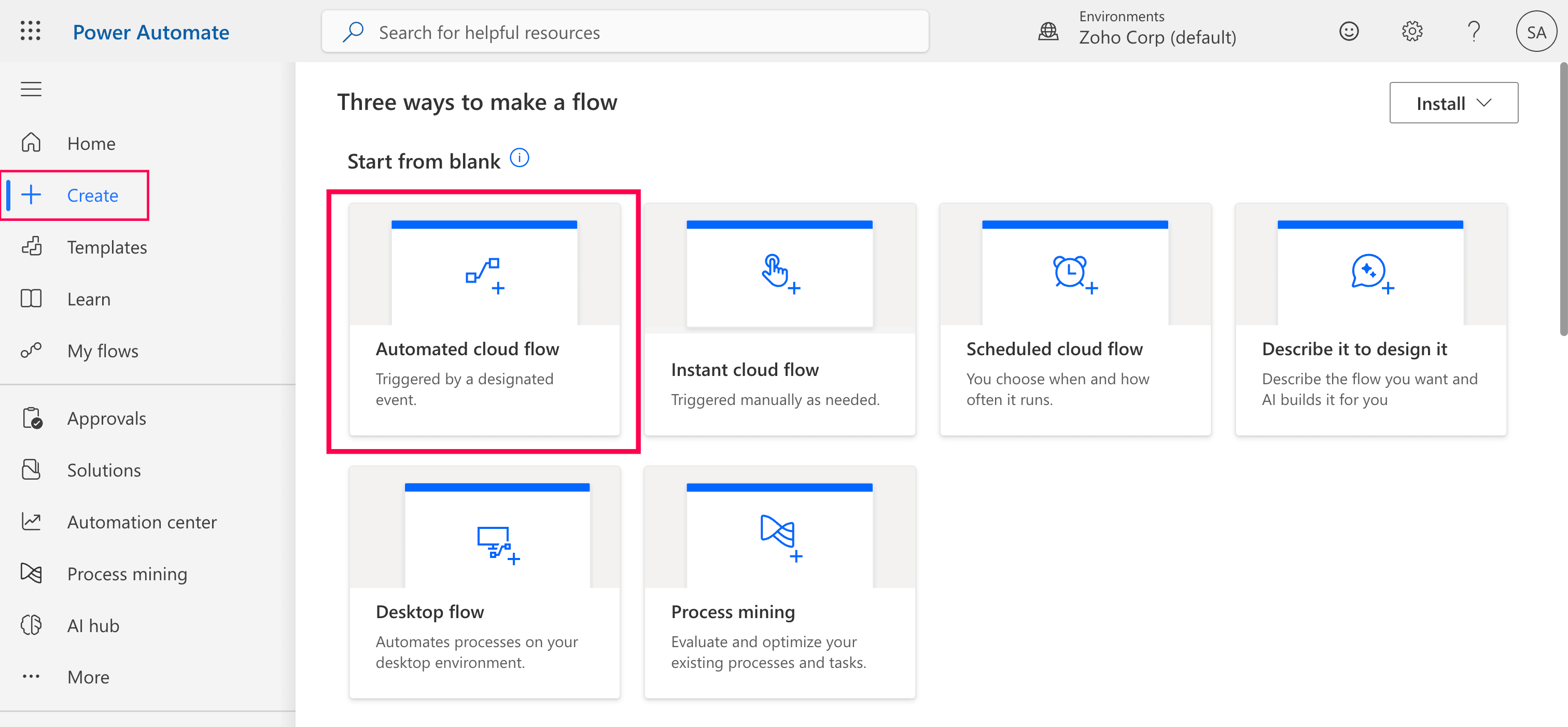
- Log in to Power Automate and click + Create from the left pane.
- Select Automated cloud flow (this runs automatically when an event occurs).
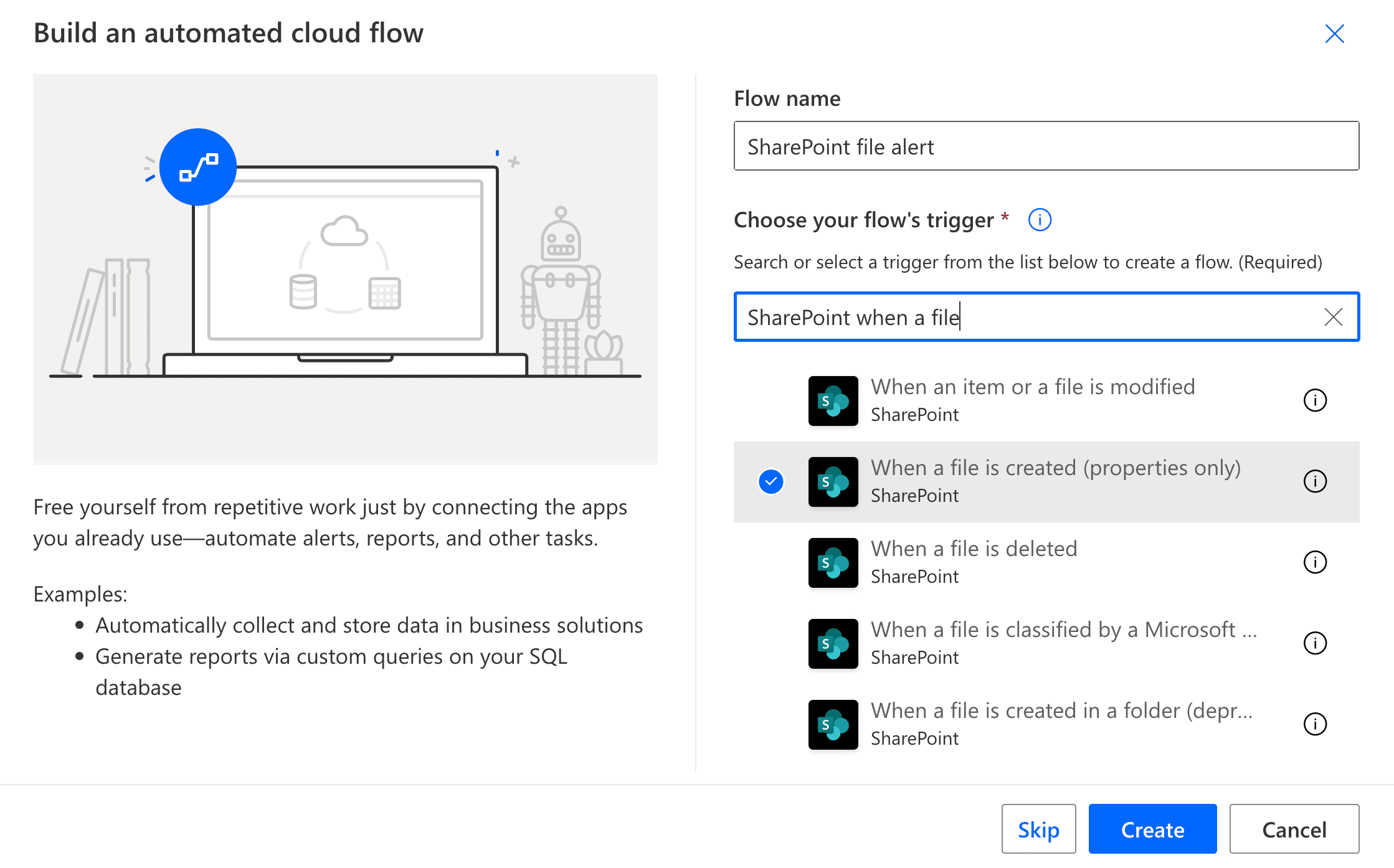
- Enter a clear flow name, search for SharePoint in the trigger box, and select When a file is created (properties only).
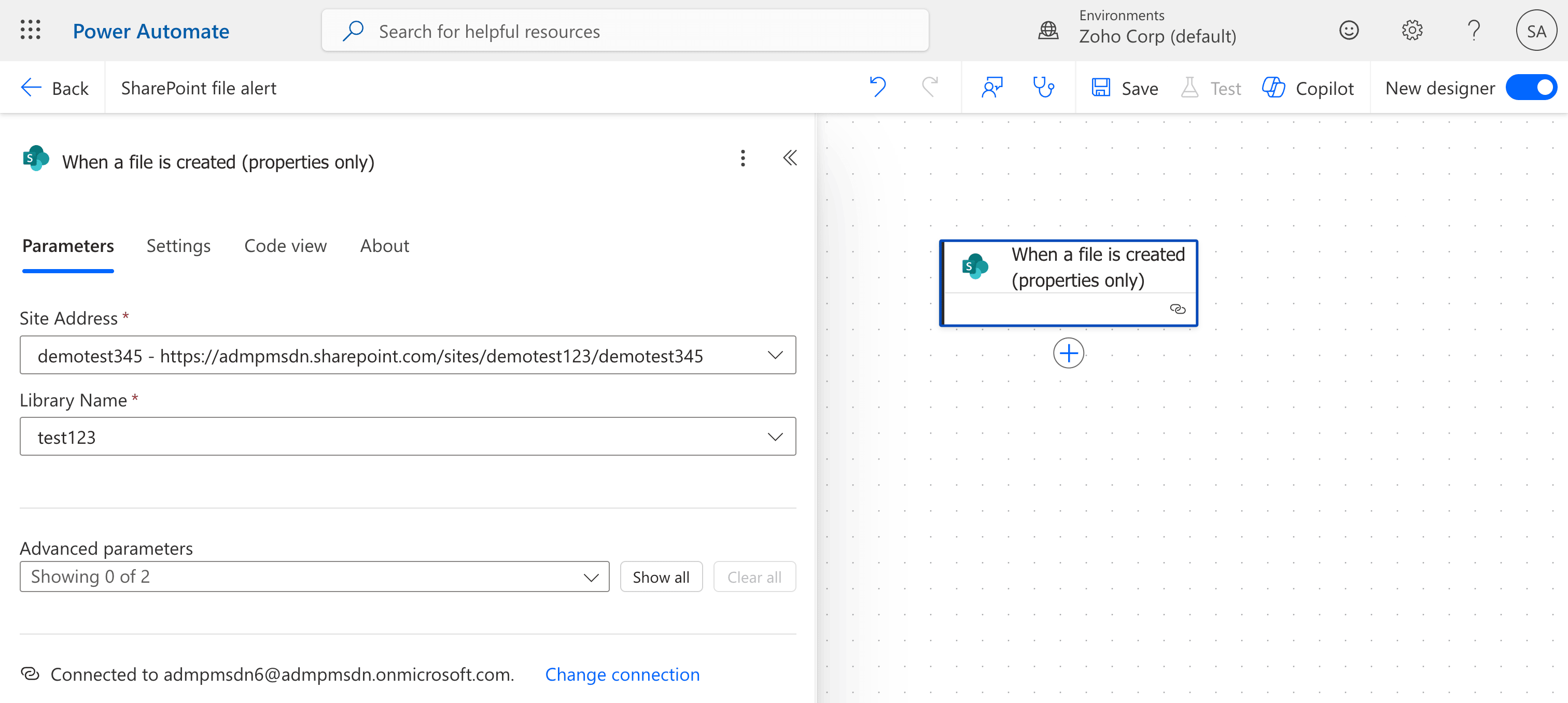
- Configure the SharePoint connection by selecting your Site Address, choosing the Library Name, and optionally specifying a Folder if alerts should apply only to a particular folder.
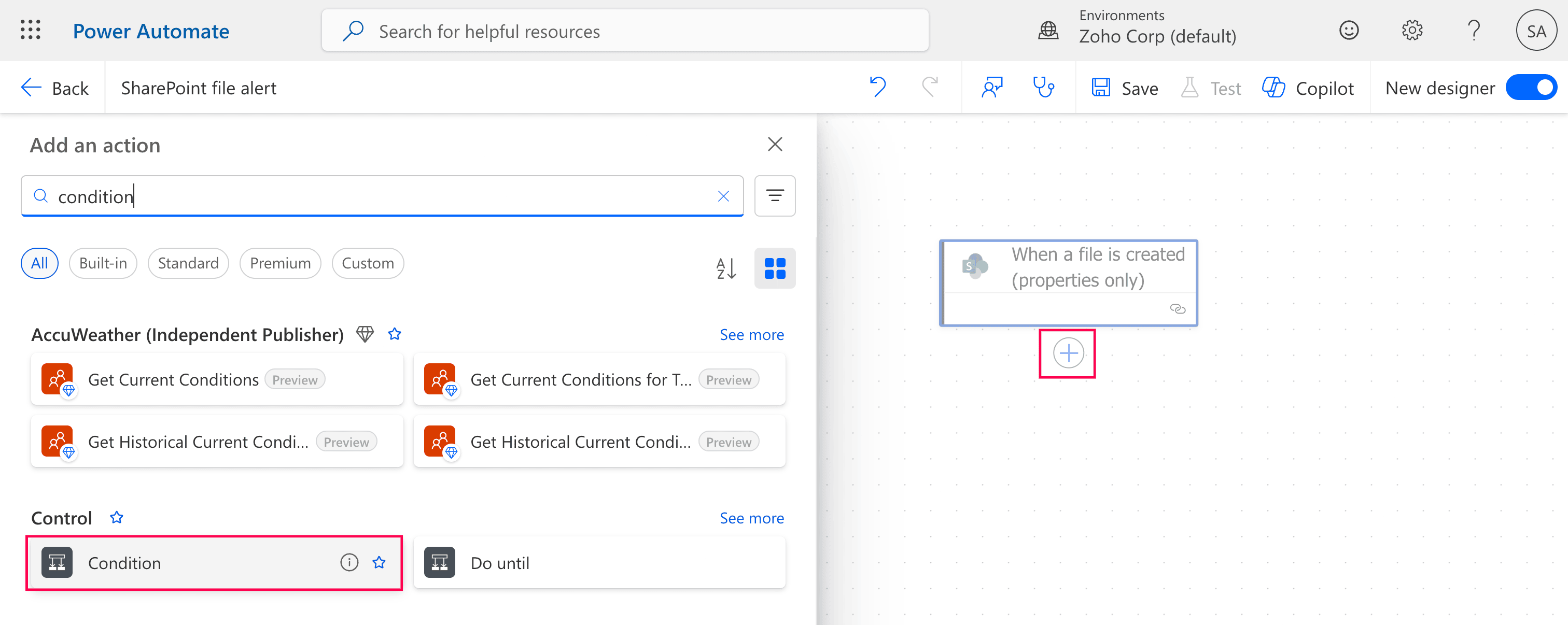
- To filter alerts, click the plus icon
 to add an action, then add Condition.
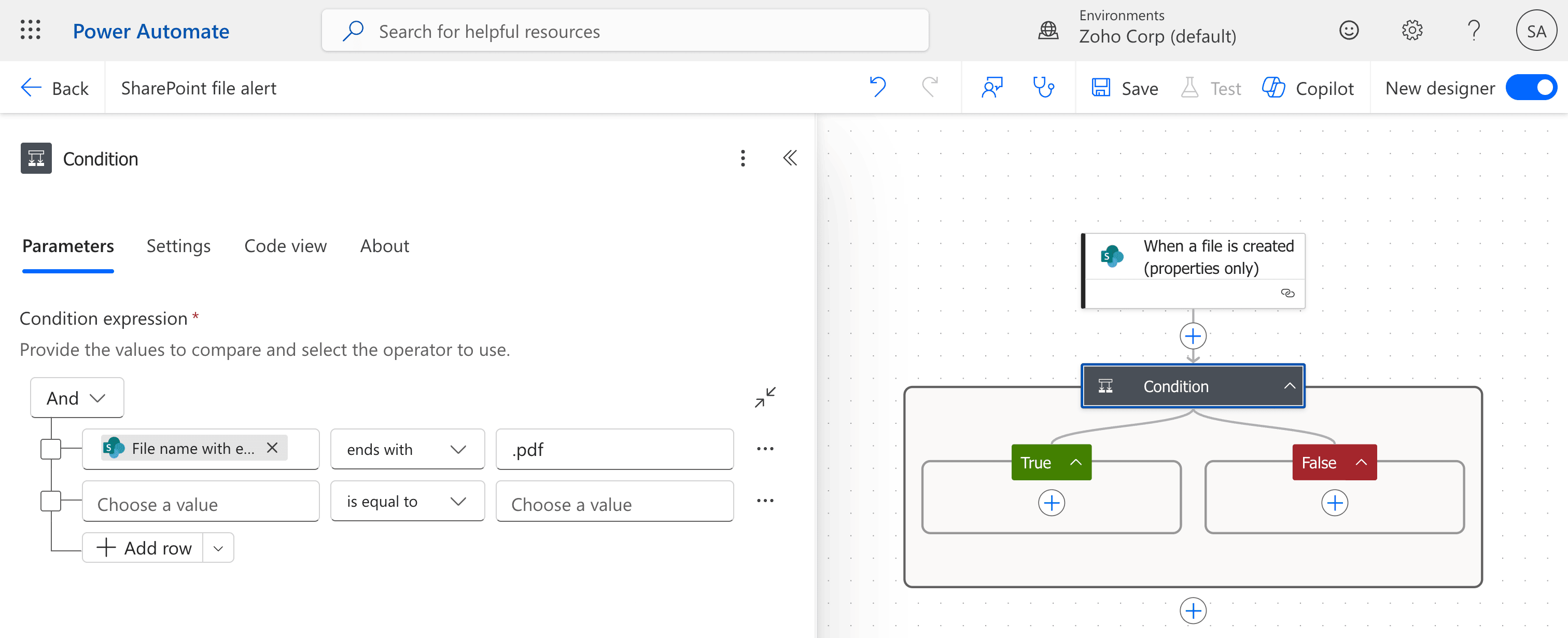
- Type / to add dynamic content, and choose File name with extension. Set the operator to ends with, and enter the file type. We'll use .pdf for this example.
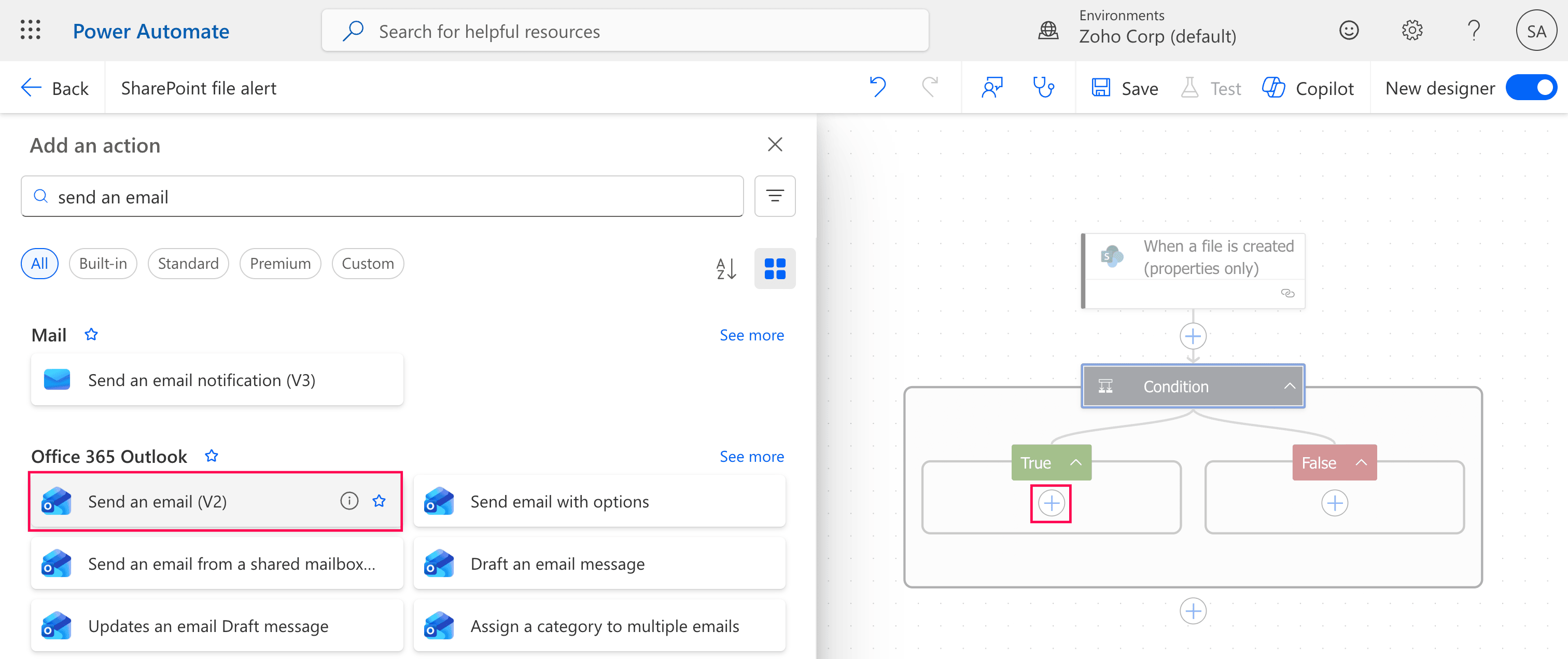
- In the True branch, click the plus icon to add an action and select Send an email (V2).
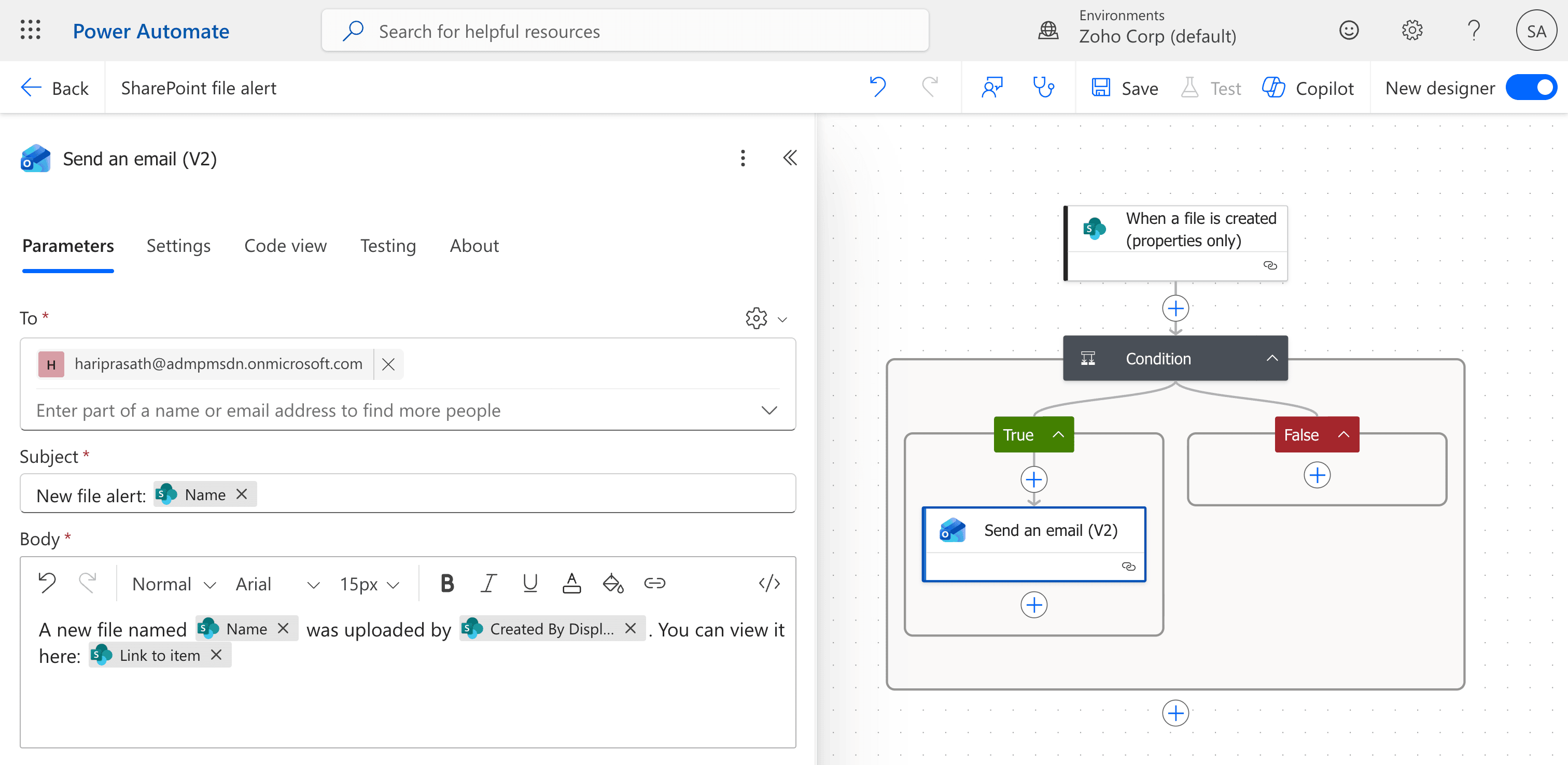
- Enter the recipient email address, add an appropriate subject, and compose the message body using dynamic content (e.g., Name, Created By DisplayName, Link to item).
- Click Save in the top-right corner.
- Click Test in the top-right corner and select Manually. Upload a PDF to the SharePoint library, and confirm the flow run succeeds and the notification is received.


Limitations to consider
- Setup can be complex due to multiple steps and connection dependencies.
- Requires licensing and administrative governance.
- Flows can fail if connections expire.
- Over-notification can occur without filtering.
- Complex flows require maintenance.
- Performance depends on polling or trigger type.
Method 3: Create alerts using SharePoint Manager Plus
Native tools require excessive steps and lack a centralized place to quickly create alerts. ManageEngine SharePoint Manager Plus simplifies alert creation for all activities in SharePoint Online and on-premises environments.
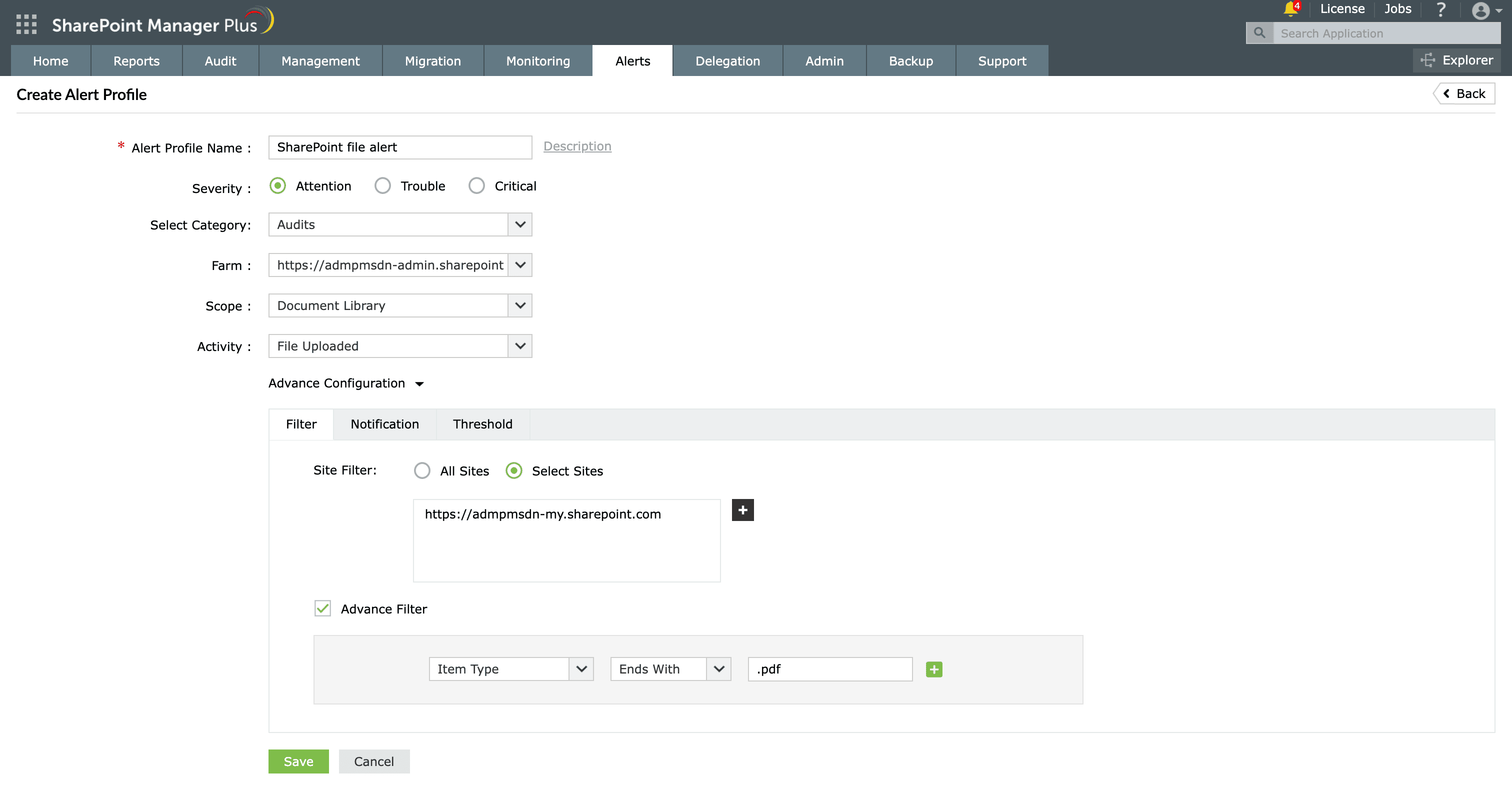
- In SharePoint Manager Plus, navigate to the Alerts tab and select + Create Alert Profile.
- Enter the alert name, and choose the severity, category, and tenant.
- Select Audits from the Select Category drop-down.
- Select Document Library from the Scope drop-down.
- Select File Uploaded from the Activity drop-down.
- In Advance Configuration, choose Select Sites to add the site where your document library resides.
- Enable Advance Filter and configure the item type to end with .pdf.
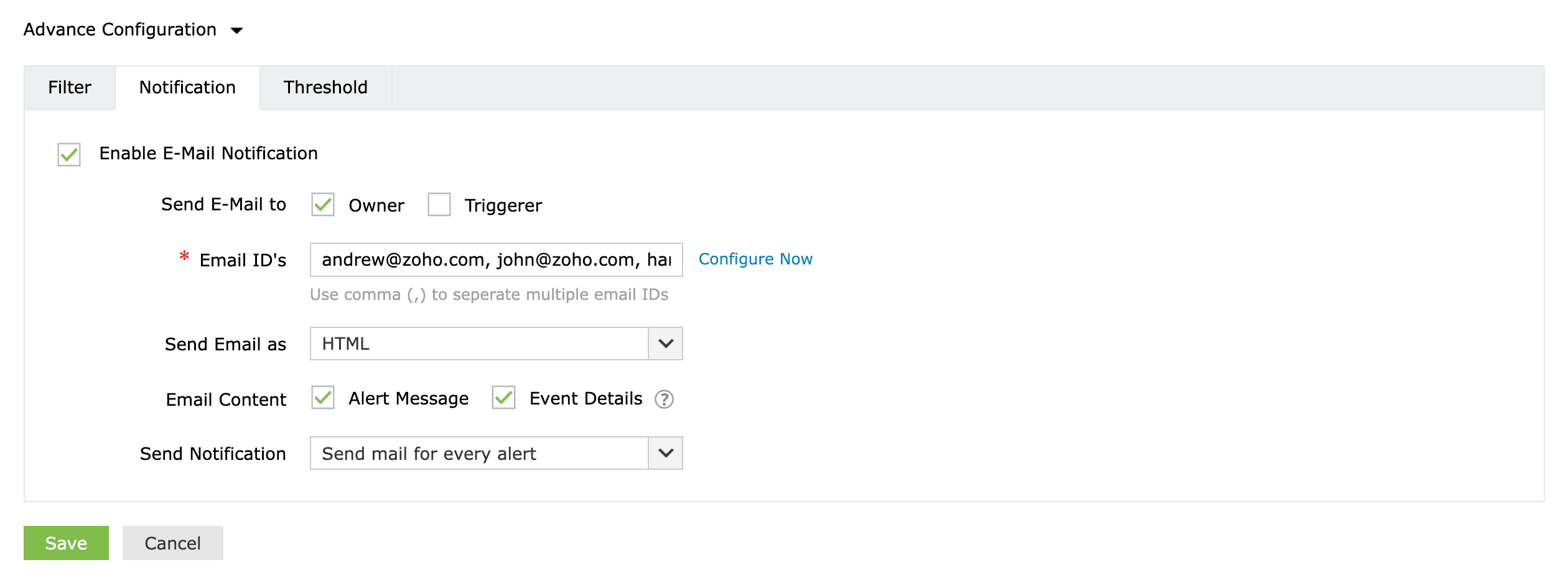
- In the Notification tab, add email recipients and configure notification settings. Click Save.


How to stay informed on SharePoint activity
As classic alerts in SharePoint Online retire, organizations need a reliable way to monitor critical changes without relying on per-library rules or complex workflows. SharePoint Manager Plus provides a centralized, easy-to-use console, without the complexity of Power Automate, and ensures you don’t miss any critical events.
Comprehensive activity-based alerts
Receive notifications for key SharePoint events such as file creation, deletion, modification, sharing changes, and permission updates across sites and libraries.
Advanced filtering and targeted monitoring
Apply filters to monitor specific sites, users, or activities so alerts remain relevant and avoid unnecessary noise. Prioritize workload using different severity levels.
Continuous visibility
Automate report scheduling for sites, lists, libraries, and users, in multiple formats to have them periodically sent to email recipients, facilitating data-driven decisions.
24/7 performance monitoring
Continuous site monitoring ensures you get notified on slow page loads, site inaccessibility, degraded SharePoint services, and storage thresholds.
Permissions and sharing oversight
Detect excessive permissions, monitor external sharing risks, and identify unauthorized access to sensitive content to ensure least-privilege access is consistently enforced.
How to transition to an alternative alerting solution
As classic alerts retire in SharePoint Online, organizations should migrate to modern notification options to avoid missed updates. The right alerts replacement depends on the complexity of alerts and the scope of monitoring required.
Replace simple alerts with library Rules
For basic scenarios such as file add, update, delete, metadata changes, or date-based reminders, built-in library Rules provide a quick alternative. Rules are easy to configure but apply only at the library level, have usage limits, and typically require Member or Owner permissions.
Use automation for advanced needs
For complex notifications, workflows in Power Automate can monitor lists or libraries and send alerts via email or Teams. Automation supports conditions, multiple recipients, and cross-site scenarios that Rules cannot handle.
Implement centralized tools for best results
Enterprise environments may need broader visibility into activities such as permission changes, external sharing, or bulk deletions. Centralized monitoring tools can track these events across sites without relying on individual user configurations.
Address permissions and user readiness
Because notification capabilities vary by role (Visitors vs. Members and Owners), some users may not be able to create Rules or flows. Delegated or third-party alerting tools can allow non-admin users to create alerts without changing native SharePoint permissions.
Frequently asked questions
SharePoint Alerts are email notifications triggered when changes occur to lists or libraries, such as item additions, edits, or deletions. Microsoft is retiring SharePoint Alerts in phases, with full retirement expected by July 2026.
Modern library Rules and automation tools like Power Automate serve as the primary replacements for classic alerts in SharePoint Online. Third-party tools like SharePoint Manager Plus provide intuitive interfaces that help ease the transition without complex workflows.
Possible causes include alert retirement, expired alerts, disabled email notifications, insufficient permissions, or tenant policies blocking alerts.
Typically only site owners or administrators can configure alerts or rules for other users, depending on governance settings. Using SharePoint Manager Plus, admins can configure the alert to be sent to the owner, user who triggered that alert, or as many email recipients as desired.
SharePoint Alerts are legacy email notifications for lists and libraries, while Rules are modern, library-focused notifications with limited triggers but better integration with current SharePoint UI.

