How to create a SharePoint list
In this article
- SharePoint Online
- Windows PowerShell
What is a SharePoint list?
A Microsoft SharePoint list is a structured data container used to store and manage information such as tasks, issues, contacts, assets, or records within a site. A SharePoint list works like a spreadsheet or lightweight database, where information is organized into rows (items) and columns (fields) but with built-in collaboration, security, and automation features. Unlike document libraries that store files, lists are designed specifically for tracking structured data.
Each list can be customized using various column data types (text, number, date, choice, lookup, person, and more) along with views, permissions, and versioning to control how data is entered, displayed, and secured. This makes lists suitable for everything from simple trackers to complex business processes.
Creating lists in SharePoint Online provides several key benefits:
- Centralized data management: Store structured information in one secure location instead of scattered spreadsheets or emails.
- Real-time collaboration: Multiple users can view and update items simultaneously without file conflicts.
- Access control and security:Apply granular permissions to protect sensitive data while enabling team collaboration.
- Workflow automation: Integrate with tools like Power Automate to trigger notifications, approvals, or document generation.
- Scalability and reliability: Handle large datasets with indexing, views, and version history.
- Custom solutions without coding: Build trackers, dashboards, or business apps using templates or custom lists.
Common use cases include task tracking, issue management, help desk requests, asset inventories, and approval workflows. Options such as creating a blank list (custom list), creating from Excel, creating from an existing list, and using templates allow teams to quickly create lists from scratch or reuse existing structures.
Method 1: Create a SharePoint list using the browser UI
SharePoint Online allows users to create lists directly from the browser using built-in templates, blank lists, Excel imports, or existing lists without any scripting.
Prerequisites
- You must have Edit permission or higher on the SharePoint site.
- Have access to the target site in SharePoint Online.
Steps
- Sign in to SharePoint Online.
- Navigate to the site where you want to create the list.
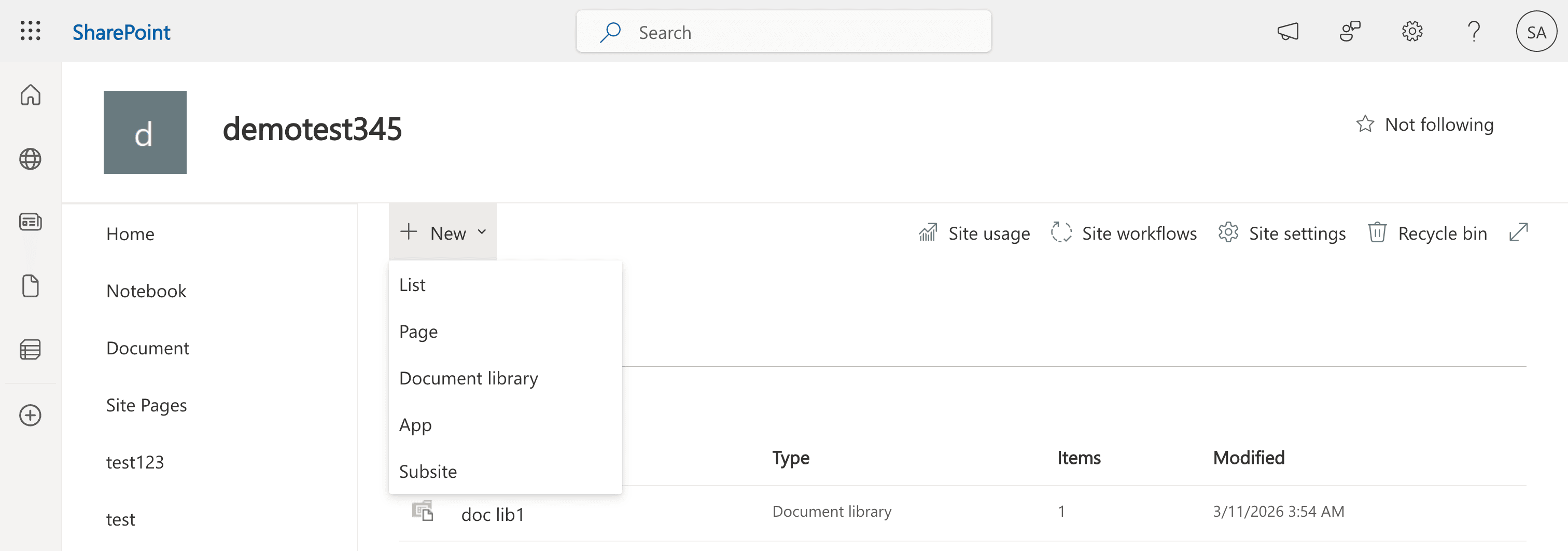
- Open Site contents.
- Click New > List.
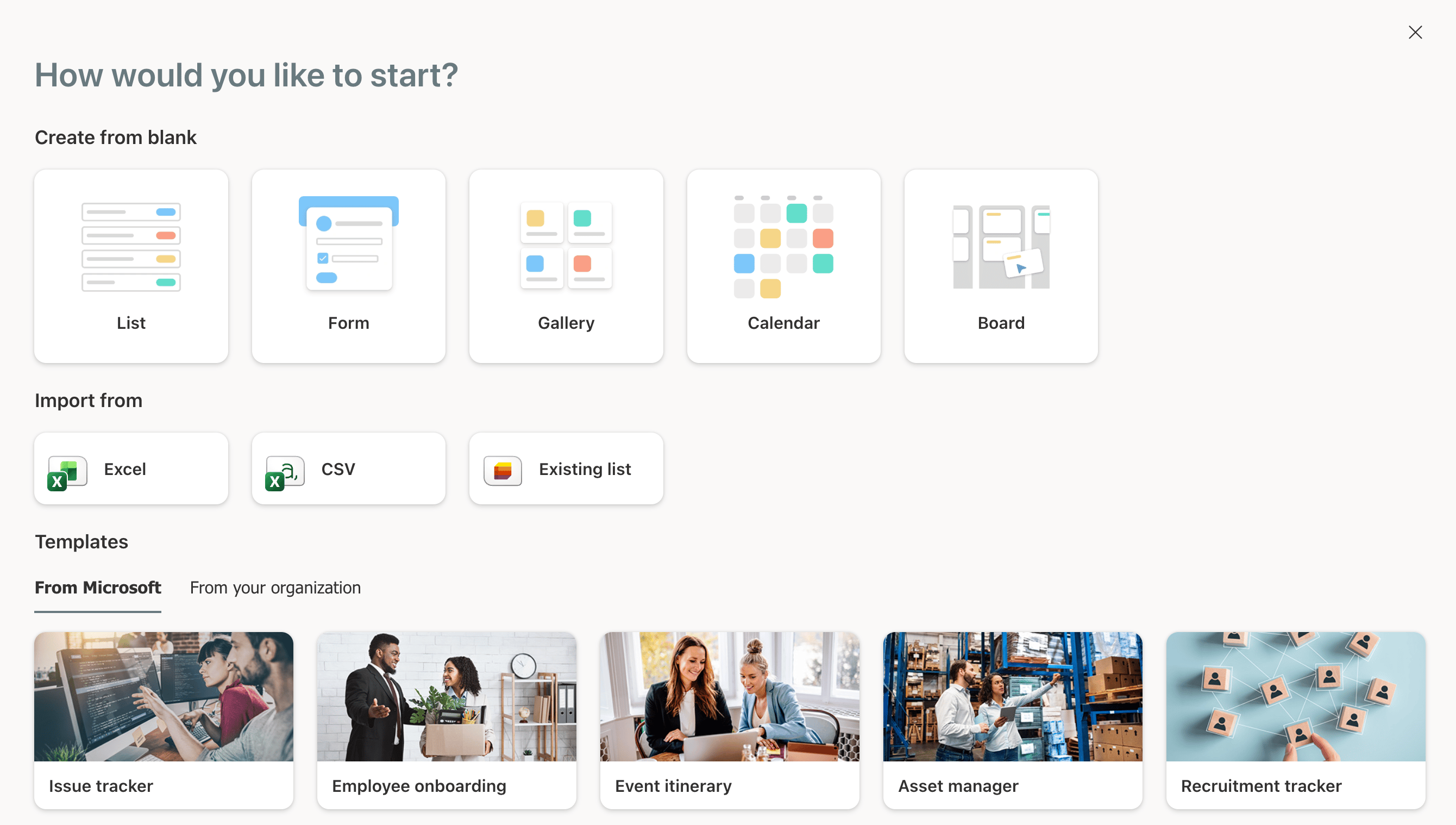
Choose one of the available creation options:
- Create from blank: Start from scratch.
- Import from Excel or CSV: Create a list from spreadsheet data.
- Import from Existing list: Copy structure from another list.
- Templates: Use predefined layouts (e.g., issue tracker, task list).
- Enter the list Name and Description.
- Click Create.


Easily identify a list using the SharePoint list icon from the Site contents tab.
After creation, you can customize:
- Column data types (text, number, date, choice, lookup, etc.)
- Views to filter and display data
- Versioning settings
- Permissions
Limitations to consider
- Lists must be created one site at a time.
- Advanced configuration requires manual setup.
- Large lists may require indexing for performance.
- There is no native reporting on list permissions or usage.
Method 2: Create a SharePoint list using PowerShell
PowerShell enables administrators to create SharePoint lists in bulk or automate deployment using scripts.
Prerequisites
Before using PowerShell, ensure that:
- You have SharePoint Administrator or Global Administrator rights.
- The PnP.PowerShell module is installed.
- You are connected to the target SharePoint site.
Install and connect:
Install-Module PnP.PowerShell -Scope CurrentUser
Connect-PnPOnline -Url https://tenant.sharepoint.com/sites/ProjectSite -Interactive
Creating a new SharePoint list
Use this command to create a single basic list. This is the fastest way to deploy a custom SharePoint list for tracking tasks, requests, or records.
New-PnPList -Title "Project Tasks" -Template GenericList
Creating multiple lists in bulk
This script creates several lists at once by looping through an array of list names. It is useful when provisioning new sites, departments, or project workspaces that require standard trackers.
$lists = @("HR Tasks", "Finance Tracker", "IT Requests")
foreach ($list in $lists) {
    New-PnPList -Title $list -Template GenericList
}
Creating a task list
Use the built-in Tasks template to create a ready-to-use task tracker with predefined columns such as Start Date, Due Date, Assigned To, and Status.
New-PnPList -Title "Team Tasks" -Template Tasks
Creating a list with a custom URL
Specify a clean, predictable URL for the list instead of letting SharePoint generate one automatically. This helps maintain consistent navigation and integrations.
New-PnPList -Title "Vendor Directory" -Template GenericList -Url "VendorDirectory"
Creating a list and adding it to site navigation
Add the list to the Quick Launch (left pane) so users can easily access it after creation.
New-PnPList -Title "Vendor Directory" -Template GenericList -Url "VendorDirectory"
Creating a list from a specific template type
SharePoint supports multiple list templates (e.g., Announcements, Contacts, and Links). This example creates a contacts directory.
New-PnPList -Title "Employee Contacts" -Template Contacts
Supported parameters
The following parameters can be used when creating a list in SharePoint.
| Parameter | Description |
|---|---|
| -Title | The name of the list |
| -Template | The list template type (GenericList, Tasks, etc.) |
| -Url | The custom list URL |
| -EnableVersioning | Enables version history |
| -EnableContentTypes | Allows content types |
| -OnQuickLaunch | Adds list to site navigation |
Limitations to consider
- Requires advanced scripting knowledge.
- Must be run per site connection.
- Errors can occur if templates are unavailable.
- There is no built-in visual interface.
- Troubleshooting can be complex.
How to manage SharePoint lists effectively
After creating lists, administrators must manage access, monitor activity, and maintain governance. ManageEngine SharePoint Manager Plus provides centralized reporting, auditing, migration, and management capabilities through a script-free interface.
List permissions reporting
Identify who has access to lists, detect excessive permissions, and ensure only authorized users can view or modify sensitive data. Schedule reports to have them exported in different formats.
Audit list activities
Track item creation, edits, deletions, and permission changes with timestamps for investigations. Archive audits to SharePoint Manager Plus' database for compliance requirements.
Permission management at scale
Add, modify, or revoke permissions across multiple lists and sites simultaneously without complex scripts.
Migration of lists and list data
Move lists and associated items between SharePoint environments while preserving structure, metadata, permissions, and versions.
SharePoint list best practices
Use appropriate column types
Select suitable column data types (choice, date, lookup, person, etc.) to ensure consistent data entry and enable effective filtering, sorting, and reporting.
Configure useful views
Create custom list views to show only relevant information. Filters, grouping, and sorting make large lists easier to navigate and manage.
Enable versioning
Turn on version history for important lists to track changes and restore previous values when needed, supporting audits and data accuracy.
Apply least-privilege permissions
Grant users only the access they require to protect sensitive data while maintaining collaboration.
Frequently asked questions
A list stores structured data (tasks, records, and items)
- It functions like a web-based spreadsheet where each row is a stand-alone data entry, such as an inventory item or a service request.
- Lists are optimized for tracking metadata and status updates rather than hosting large files or collaborative documents.
A document library stores files and documents
- It is a specialized type of list designed to manage the full life cycle of a file, including version history, check-outs, and real-time co-authoring.
- Libraries allow you to sync files directly to your PC via OneDrive, making them the primary choice for team collaboration and document storage.
Lists resemble spreadsheets but provide collaboration, permissions, automation, and web-based access without file version conflicts. Unlike a static spreadsheet file, a list allows multiple users to edit individual rows simultaneously without the Read-Only or Locked for Editing errors common in shared Excel workbooks.
Lists also integrate natively with Power Automate and Power Apps, enabling you to trigger automatic email notifications or build custom mobile interfaces directly from your data. And when you need a spreadsheet, lists can be exported to Excel.
Yes. Use the From Excel option during list creation to import spreadsheet data and automatically generate columns.
Examples include task tracking, issue management, asset inventories, contact databases, and request tracking systems.
Dataverse is a premium, relational database designed for complex, scalable enterprise applications, while SharePoint lists are best for simple, low-cost, document-centric solutions within Microsoft 365.
When to choose which:
- Use Dataverse for enterprise apps, complex apps requiring robust data modeling, and scenarios needing detailed audit trails and row-level security.
- Use SharePoint Lists for quick internal solutions, small datasets, teams with low budget, and when deep relational data is not needed.

