

How to copy or duplicate a SharePoint site
Last updated on: 25th March, 2026On this page
Copying a SharePoint site is often required when setting up new departments, creating testing environments, restructuring content, or migrating to another tenant. However, SharePoint Online does not provide a simple built-in clone site feature. Administrators typically rely on site templates, migration approaches, or scripted copy operations to duplicate site structure and content. When full site duplication is not required, files and libraries can be copied separately between sites. Choosing the right method depends on scale, permissions, and how closely the destination site must match the source.
- SharePoint Online
- Windows PowerShell
- SharePoint Manager Plus
Method 1: Copy a SharePoint site using the SharePoint Online browser UI
SharePoint Online allows limited site duplication through templates and manual copying, making it suitable for recreating similar sites without scripts.
Prerequisites
- ou must be a Site Owner or have Full Control permissions.
- The destination site must already exist (unless you are creating a new site from a template).
- Custom Script must be enabled in your tenant
- The modern SharePoint experience must be enabled.
Step 1: Duplicate site structure using templates
- Open the source SharePoint site.
- Go to Settings > Site information > View all site settings.
- Under Site Actions, select Save site as template.
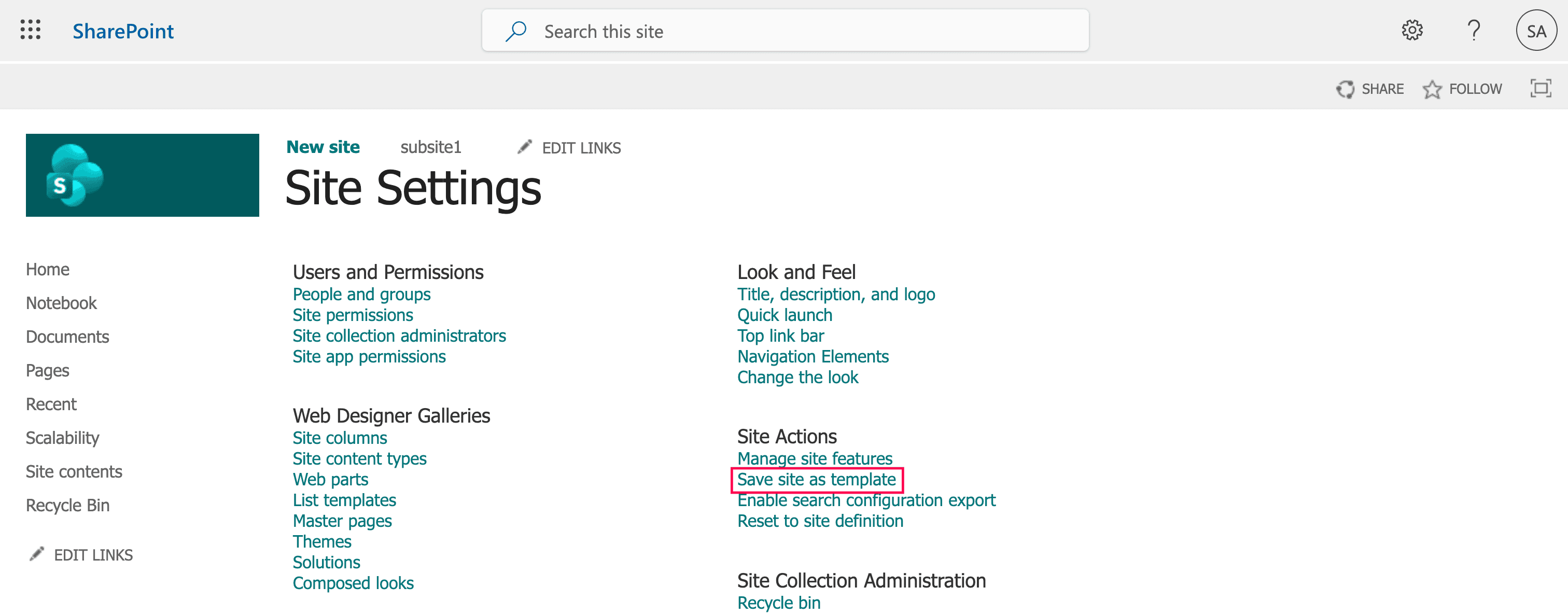
- Enter a File name and Template name, then check the Include Content box if you want to include files and list items (limited to 50MB).
- Once saved, click the link to the Solutions Gallery to ensure the template's status is Activated.
- Go to your SharePoint start page or the admin center to create a new site.
- Select the Custom tab (or Select a template menu) and choose your saved template from the list.
- Finalize your site by applying specific permissions or branding.

This recreates structure, lists, libraries, and layout, but it may not include all content or configurations.
Step 2: Copy site pages to the new site
After creating the destination site:
- In the source site, open Site contents > Site Pages.
- Select the page you want to copy.
- Click Copy to from the command bar (or download and upload the page file if Copy to is unavailable).
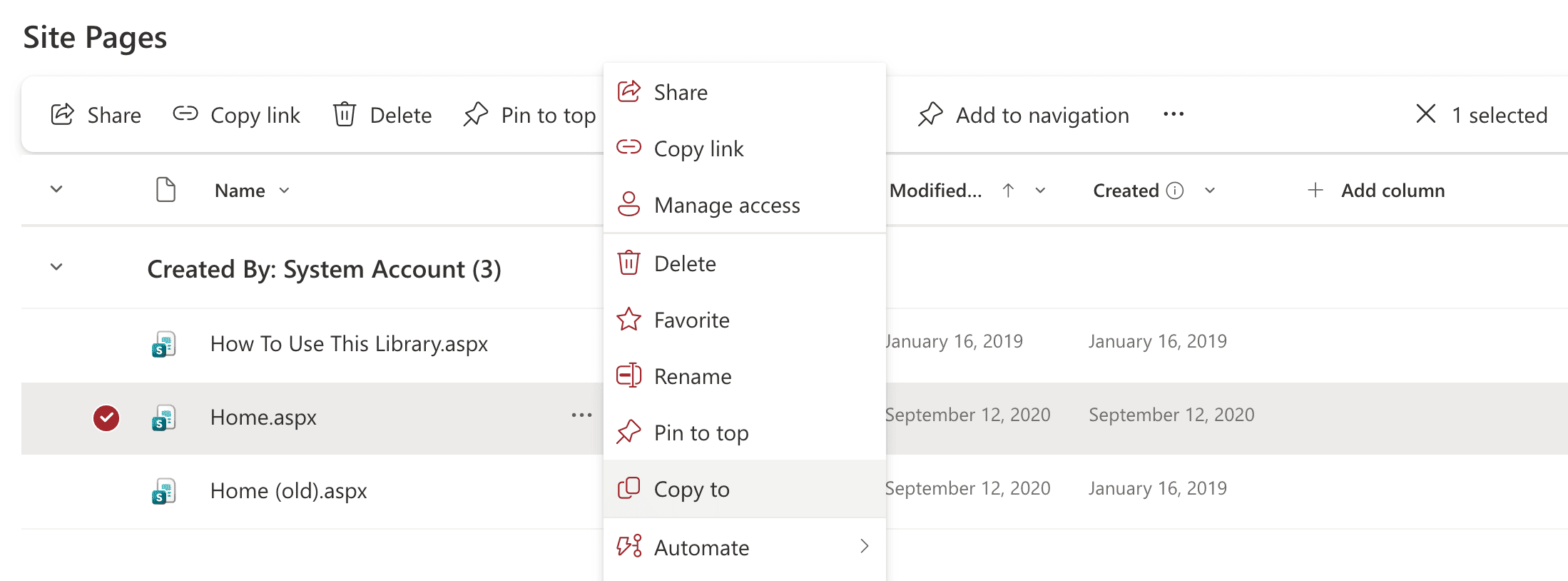
- Choose the destination site’s Site Pages library.
- Publish or republish the page on the target site.

This duplicates the page layout and content; some web parts, links, or data connections may require manual reconfiguration.
Step 3: Copy files from the original site to the new site
- Open the source site’s document library.
- Select files or folders to copy.
- Click Copy to from the command bar.
- Choose the destination site and library.
- Click Copy here.
Limitations to consider
- There is no one-click method to clone an entire SharePoint site; files and libraries must be copied manually.
- Templates may not include all content, and some modern sites do not support saving as templates.
- Requires elevated administrative privileges.
- Enabling Custom Script typically requires PowerShell.
Method 2: Copy a SharePoint site using Windows PowerShell
PowerShell enables administrators to duplicate site structures and copy content programmatically, making it suitable for automation and bulk operations.
Prerequisites
Before using PowerShell, ensure that:
- You have SharePoint Administrator or Global Administrator rights.
- The PnP.PowerShell module is installed.
- Source and destination sites exist and are accessible.
- You are connected to SharePoint Online.
Install and connect by running the script below:
Install-Module PnP.PowerShell -Scope CurrentUser
Connect-PnPOnline -Url https://tenant.sharepoint.com/sites/SourceSite -Interactive
Export and apply a site template (structure duplication)
Export the configuration of the source site. This duplicates lists, libraries, branding, and settings but may not copy all data.
Get-PnPSiteTemplate -Out "SiteTemplate.xml"
Connect to the destination site and apply the template:
Connect-PnPOnline -Url https://tenant.sharepoint.com/sites/TargetSite -Interactive
Invoke-PnPSiteTemplate -Path "SiteTemplate.xml"
Copy files from one SharePoint site to another
Copy-PnPFile -SourceUrl "Shared Documents/Report.docx" `
             -TargetUrl "/sites/TargetSite/Shared Documents/Report.docx" `
             -OverwriteIfAlreadyExists
Copy an entire folder
Copy-PnPFile -SourceUrl "Shared Documents/Projects" `
             -TargetUrl "/sites/TargetSite/Shared Documents/Projects" `
             -OverwriteIfAlreadyExists
Supported parameters
The following parameters can be used while copying sites in SharePoint:
| Parameter | Description |
|---|---|
| -SourceUrl | The path of the source item |
| -TargetUrl | The destination location |
| -OverwriteIfAlreadyExists | Replaces existing files |
| -IgnoreVersionHistory | Skips version history |
| -Connection | Uses an existing connection |
Limitations to consider
- Requires advanced scripting knowledge.
- Templates, permissions, and workflows may not transfer correctly.
- Troubleshooting large migrations can be difficult.
- There is no built-in scheduling or progress dashboards.
Method 3: How to Duplicate a SharePoint Site
SharePoint Manager Plus provides migration capabilities that effectively copy a SharePoint site within the same tenant or to another SharePoint environment. This copies the entire site structure, content, and access settings in a controlled manner.
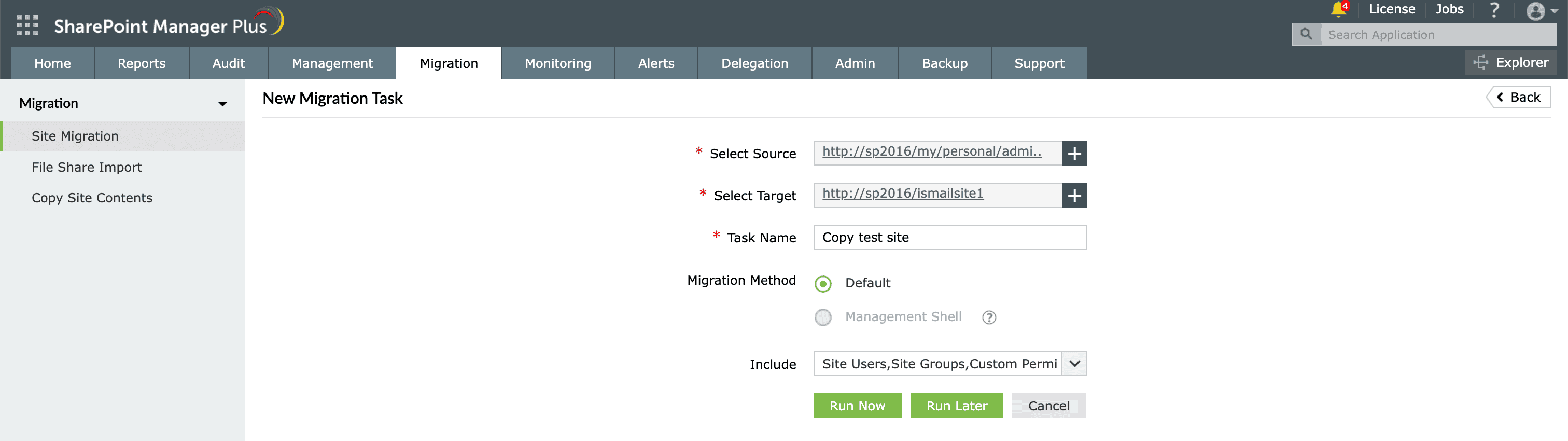
- Navigate to Migration > Site Migration, then click + Add Migration Task.
- Choose the source and destination sites using the Select Source and Select Target fields.
- Select objects to include, such as site users, groups, permissions, lists, and libraries.
- Click Run Now or Run Later to schedule the task.
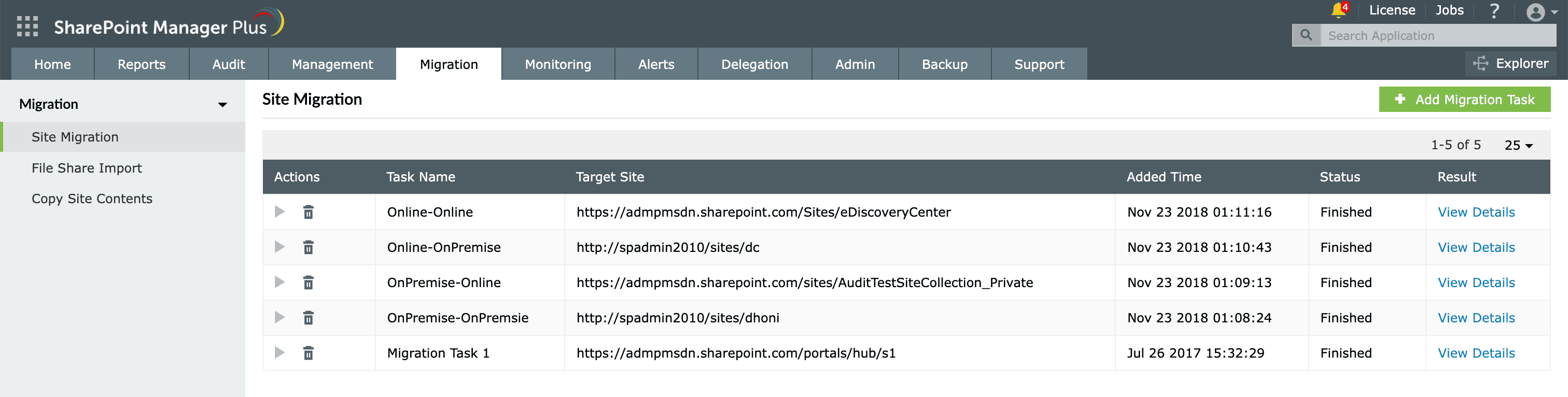
- Monitor progress on the Site Migration tab.
- After completion, click View Details to view the summary report.


Simplify SharePoint site duplication and migration with SharePoint Manager Plus
Duplicating a few files manually is manageable, but copying entire SharePoint sites across environments requires automation, reliability, and visibility. ManageEngine SharePoint Manager Plus streamlines large-scale site duplication and migration through an intuitive graphical interface.
Completely copy sites across tenants or farms
Replicate SharePoint sites to SharePoint Online or on-premises environments without complex PowerShell scripts. Copy individual files with granular control and incremental capabilities.
Preserve structure, users, and permissions
Maintain libraries, lists, groups, and access controls during migration. Track progress, identify failures, and generate detailed reports. Run migrations immediately or during planned maintenance windows.
Get detailed migration reporting
Run detailed reports ahead of and after migrations to verify site statistics, permissions, activity, and more. Schedule reports to have them delivered automatically to email addresses of your choice.
Govern site access
Control site permissions for users and groups at scale with CSV imports. Manage group memberships to maintain proper access control across duplicated environments.
Important tips
Plan site duplication carefully
Analyze your site architecture to determine whether you need only the structure (lists, libraries, pages, and settings) or a full copy including files, permissions, and configurations, as the wrong approach can lead to incomplete results or unnecessary effort.
Clean up unnecessary content before migration
Remove orphaned users, unused files, and redundant data beforehand. This reduces migration time and minimizes the risk of copying outdated or sensitive information.
Test the process in a staging environment first
Perform a trial run on a non-production site to validate the method, identify errors, and estimate duration. This helps avoid disruption to active users and critical business operations.
Frequently asked questions
Select the file you wish to copy and click Copy to from the toolbar. Choose your destination library or folder, then click Copy here. For copying to sites to a different tenant and for incremental capabilities, third-party tools are more suitable.
To duplicate a SharePoint page or copy a page to another site, follow the steps below:
- Go to the source SharePoint site.
- Navigate to Site contents > Site Pages.
- Select the page you want to duplicate.
- Click Copy to from the command bar.
- Choose the destination site (or the same site) and select the Site Pages library.
- Click Copy here.
- Open the copied page in the destination location.
- Edit if needed, then click Publish or Republish.
Power Automate does not have a Copy Site action. To replicate a whole site, you would need a complex flow that loops through every library, list, and page. For full site duplication, migration tools are recommended. To copy only site pages using Power Automate, follow these steps:
Step 1: Initialize the flow
- Go to make.powerautomate.com and sign in.
- Click Create > Instant cloud flow.
- Select Manually trigger a flow and click Create.
Step 2: Add the copy action
- Click New Step (or the + icon).
- Search for Copy file and select the SharePoint - Copy file action.
Step 3: Configure the parameters
To copy a site in terms of its layout and content, you must target the Site Pages library or a specific document library:
- Current Site Address: Select the URL of your source site.
- File to Copy: Use the file picker to navigate to Site Pages and select the specific page (e.g., Home.aspx) or file.
- Destination Site Address: Paste the URL of your target site.
- Destination Folder: Select the corresponding library in the target site (e.g., /Site Pages/).
- If another file is there: Select Copy with a new name (to avoid errors) or Replace.

