CloudSpend application for iOS devices
View and control your multi-cloud usage from your iOS device with the CloudSpend app. To download and install the app, scan the QR code or tap the App Store badge below.


Alternatively, in the Apple App Store, search for CloudSpend, select the app, and follow the installation steps.
Signing in
To sign in, use the same credentials you use for the web app. If you do not already have a CloudSpend account, sign in or sign up with your Apple ID.
Notifications
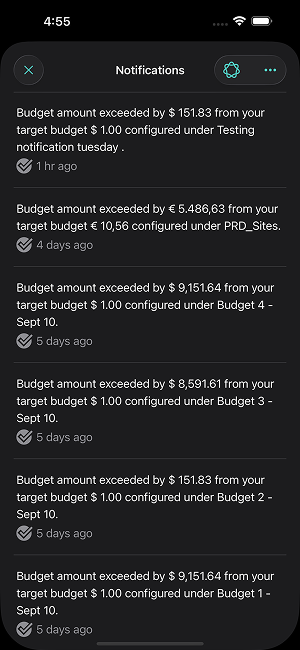
Tap the bell icon in the top-right corner to view your budget notifications. Tap any budget breach push notification to open the Budget Details screen.
Mobile app settings
You can configure the following settings:
- About Us: Overview of the app.
- Tour: Walkthrough of major features.
- Analytics:
- Share usage statistics: Share usage data with developers.
- Enable crash reporting: Share crash data when the app closes abruptly.
- Terms: View the terms and agreement.
- Privacy Policy: View the app’s privacy policy.
- Push Notification: Enable push notifications to get alerts when actual spending exceeds the budget.
- Appearance: Choose System Default, Light, or Dark themes.
Accounts
Get an overview of your cost accounts and current budget. Tap Schedule Report to schedule reports, or Edit to update details. Use Suspend or Delete to manage the account.

Business Units
View and analyze your cost accounts in the Business Units tab. Tap a unit to view its Spend Analysis. Schedule reports, edit details, or delete accounts as needed.


Reports
Use the Reports tab to filter, search, and view reports by tags like Region, Service, and Billed Account. Each report card shows its type, linked accounts, and saved reports, with an option to mark favorites.

Admin
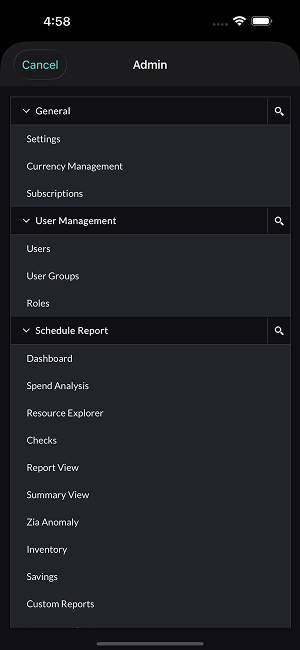
The Admin tab provides access to General, User Management, and Schedule Report settings. Manage multiple currencies, reports, Tag Profiles, and budget profiles here.
Integrate Account
- Tap the + button at the bottom.
- Select Integrate Account.
- Provide the required details.
- Tap Save.
Configure Business Unit
To configure Business Units for your cost account:
- Tap the + button at the bottom.
- Select Configure Business Unit.
- Provide the required details.
- Tap Save.
Configure Budget
To configure a budget check for your cost account:
- Tap the + button at the bottom.
- Select Configure Budget.
- Provide the required details.
- Tap Save.
Configure Anomaly
To configure an anomaly check for your cost account:
- Tap the + button at the bottom.
- Select Configure Anomaly.
- Provide the required details.
- Tap Save.