Service pack installation for Log360

Update Path Finder


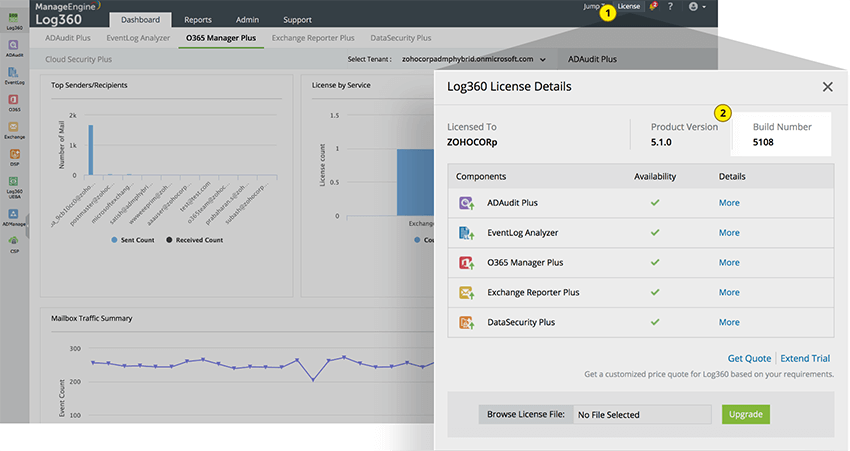
How do I find my current build number?

Important:

  • We strongly recommend you to take backups before applying the service pack. This helps prevent accidental loss of data. Steps to update builds
  • For builds 5500–5567, migrate your deployment to Unified Log360.
  • The ADManager Plus add-on and the Exchange server auditing add-on has been removed from Log360 effective from build 13000. For further queries, please contact support@log360.com
  • Before applying this service pack, restart the service. Applying this service pack without restarting the server may cause the update to fail.

Service packs

If your build number is Update to build number SHA256 Checksum hash value
13000 to 13070
13071Latest
Readme
Download
655a708f02c93fa26eace882a83f31b789f3917086d0d1a75366cc0fa2fde213
5500 to 5567
de588ea97d75aadb2a02727eef834313976246aff3a8c042b2da6cc392a09f9f
5400 to 5499
20b9c190ea62a4865714ba53b4de3ab3e5fea903890893473a6a4aea45c94c52
5201 to 5346
7593b8e645af299ae2adecd32d390725f7d9ba9c88ea5cd8bb11a66b63f3948a
5030 to 5200
9e7e7b9b038012dcd293e6a2234a7eb6c9b5c46996be995073d53a8b2af1227f

Service pack installation steps

Important notes (pre-upgrade checklist)

The following pre-upgrade notes are mandatory before proceeding.

  • Stop the product service and take a full backup of the installation folder (or a server snapshot). Back up is mandatory so that you can restore the installation to the previous version in case of upgrade failure.
  • Before proceeding with the upgrade, ensure sufficient disk space is available on the server where Log360 is installed.
  • If you use a MS SQL database, take a snapshot of the database as well.
  • If you need to apply more than one service pack, start the application after each service pack upgrade before applying the next.
  1. If running as an application: Start → All Programs → Log360 → Stop Log360.

  2. If running as a Windows service: Start → Run → type services.msc → Stop ManageEngine Log360.

  3. Open Command Prompt with administrative privileges.

  4. Back up Log360 by zipping the contents of the <Log360> directory.

    1. If you are using an external database server (Microsoft SQL), then ensure to take a backup of the database too.
  5. Navigate to <Log360 Home>\bin folder.

  6. Run the following commands to ensure complete shutdown:

    1. shutdown.bat
    2. stopDB.bat (if PostgreSQL is the default DB; skip if using MS SQL)
    3. stopSEC.bat
  7. Run setAppPermission.bat to apply the required permissions for the currently logged-in Windows user.

  8. Open Command Prompt and execute the UpdateManager.bat file under the <Log360>\bin directory.

    1. For Windows Server 2008 and higher with User Account Control (UAC) enabled, start Command Prompt as Administrator (right-click → Run as Administrator).
  9. Click Browse and select the downloaded PPM file.

  10. Click Install and wait for the upgrade to complete.

  11. Do not terminate or interrupt the upgrade process prematurely. Having problems?

  12. Click Close and then Exit to quit the Update Manager tool.

  13. Start the application and check the build number.

    1. If running as an application: Start → All Programs → Log360 → Start Log360.
    2. If running as a Windows service: Start → Run → type services.msc → Start ManageEngine Log360.
Migrate to Unified Log360

This service pack enables eligible standalone Log360 deployments and Log360 deployments integrated with EventLog Analyzer to migrate supported configurations to the Unified Log360 architecture.

Why migrate to Unified Log360?

Unified Log360 consolidates supported Log360 components into a single, centralized platform, simplifying deployment, management and administration. By migrating, you can:

  • Retain supported configurations during migration, reducing the need for manual reconfiguration.
  • Simplify future product upgrades and maintenance.
  • Ensure your environment is positioned to benefit from future platform enhancements delivered through the Unified Log360 architecture.
Is migration mandatory?

No. Existing deployments can continue to function as expected. However, migrating to Unified Log360 is recommended for eligible environments to benefit from the latest platform improvements and future enhancements. The migration process is designed to preserve supported configurations and minimize operational disruption.

Is this a one-time migration?

Yes. Migration to Unified Log360 is a one-time activity for eligible deployments. Once completed, all future updates, feature enhancements, and maintenance are performed directly within the Unified Log360 environment.

Before you migrate

Before starting, ensure your deployment meets all prerequisites and review the supported deployment scenarios, migrated configurations, known limitations, and post-migration considerations.

Choose the appropriate migration guide based on your deployment:

Each guide covers prerequisites, supported deployment scenarios, migration steps, post-migration tasks, and configuration details.

How do I import a certificate?

Download the certificate from one of the links below:

Console Mode:

  • Run the UpdateManager.bat / UpdateManager.sh file with -c as a command-line argument.
  • After invoking UpdateManager in command-line mode, select option c from the list of options to import the certificate and enter the path of the certificate when requested.
  • To install a ppm file, type i and press enter. Now enter the path of the ppm file to be installed and press enter.
  • To view installed service pack version, type v and press enter.
  • To exit the console mode, type e and press enter.

UI mode:

  • Execute UpdateManager.bat/sh.
  • Open the import certificate tool by clicking the Import Certificate button on the top-left corner.
  • Select the shared certificate using the Browse button to locate the file.
  • Click Import to pull in the certificate and proceed with steps 8–13.
Cluster upgrade steps

Upgrade order

Always start with the primary log processor (Log Processor-1). Secondary nodes (Log Processor-2 or Log Processor-3) cannot be upgraded until the primary is upgraded.

No mixed versions

Do not restart or bring the cluster online if log processors are running different versions. Secondary nodes will show a version-mismatch error until they match the primary.

Database operations

Database backup and related operations run only during the primary upgrade. These steps are automatically skipped on secondary nodes to avoid repeated or conflicting changes.

Upgrade sequence

Upgrade each node one at a time in this order:

  • Log Processor-1 (Primary)
  • Log Processor-2 (Secondary)
  • Log Processor-3 (Secondary)

After all upgrades are complete, restart the cluster in the documented startup order.

Post-upgrade checks

After the cluster restarts:

  • Confirm all Log Processors are online and healthy.
  • Ensure all nodes show the same version.
  • Verify that all services are running as expected.
UpdateManager SHA256 values (for verification)
File SHA256 Value
UpdateManager_Windows.zip d3e8ada38e46c20c8b5a70c5dceb11f0550b25bbbefe61decce03fb9e61d8dab
UpdateManager_Linux.zip 3ad1dda4d1799acc4010bd9f53841e0864130c88e5b86b7f9a492667f280c7ce