Privileged Resource Management in PAM360
In today's digital landscape, with the growing cyber threats and stricter regulatory mandates, privileged resource management is no longer a luxury but a necessity. Data breaches and cyberattacks targeting privileged accounts are on the rise, making secure management of privileged resources more critical than ever before.
In any organization, the IT network will consist of numerous critical resources including servers, databases, network devices, cloud resources, applications, and more. Each of these resources often contains multiple privileged accounts with elevated access privileges. PAM360 classifies all the critical machines, such as workstations, servers, databases, network devices, and applications, that hold sensitive data or control essential business functions as a Resource. Privileged Accounts are high-level user accounts with elevated permissions that allow administrative access to privileged resources. These accounts include system administrators, database administrators, service accounts, etc., which can modify configurations, access sensitive data, or execute critical system operations.
Efficiently identifying and onboarding these resources is essential to ensure no privileged resource is left unmanaged, thereby minimizing the risk of security gaps and unauthorized access. Additionally, effective privileged resource management ensures centralized visibility, access control, and governance, helping organizations meet compliance standards and reduce the risk of insider threats and external attacks.
This help document covers the following topics in detail:
- What are Privileged Resources?
- Overview of the Resources Tab
- Password Explorer Tree
- Actions and Configurations
1. What are Privileged Resources?
PAM360 classifies all critical machines, such as workstations, servers, databases, network devices, and applications, that hold sensitive data or control essential business functions as a Resource. Common privileged resources include:
- Servers - Systems that offer a range of functionalities and services across the IT infrastructure, such as hosting applications, managing user accounts, running processes, etc
- Databases - Structured repositories for storing, managing, and retrieving sensitive business information, such as customer records, employee details, financial transactions, inventory details, application configurations, etc
- Workstations - Employee devices, such as desktops and laptops used for day-to-day operations, that hold sensitive files, locally saved credentials, business software, user activity logs, etc
- Network Devices - Hardware devices that manage data traffic and connectivity across the IT infrastructure, including routers, switches, firewalls, and load balancers
- Cloud Resources - Cloud-based infrastructure and services such as virtual machines, databases, identity services, etc., hosted on platforms like AWS, Azure, or Google Cloud Platform
- Web Applications - Privileged accounts associated with web-based applications, portals, and SaaS tools used across the organization
Privileged Accounts are high-level user accounts with elevated permissions which includes root accounts in Linux, administrator accounts in Windows, enable-mode credentials for network devices, DBA accounts in databases, superuser roles in cloud platforms, etc. Due to their extensive access capabilities and sensitive nature, these accounts are prime targets for cyberattacks and should be strictly monitored, protected, and managed regularly to prevent misuse or unauthorized access.
The Resources tab in PAM360 offers a centralized view of all the privileged resources and the associated accounts in your environment. From the Resources tab, administrators can seamlessly discover, add, and manage all the privileged resources in their environment from the Resources tab. By leveraging its intuitive interface and streamlined functionalities, administrators can ensure comprehensive management of all critical IT assets, minimizing security gaps, and compliance with regulatory standards.
The Resources tab serves as the primary interface for managing your organization's critical IT infrastructure from PAM360. It consolidates all privileged resources and associated accounts in one place, streamlining management. This centralized approach supports better visibility, simplifies day-to-day operations, and strengthens the overall security posture of your organization.
2. Overview of the Resources Tab
From the Resources tab, administrators can manage the privileged resources they own and those shared with them, while users can perform key actions such as view/request passwords, launch remote connections to the privileged accounts shared with them, and export passwords. This structured layout enhances visibility, streamlines privileged access management and usability, and ensures secure and efficient handling of sensitive credentials.
The Resources tab features a Password Explorer tree on the left pane, which categorizes resources and passwords into organized groups. When you select a category in the password explorer tree, a detailed list of all resources and accounts available under that category appears on the right pane. Refer to the upcoming sections to learn more about the Password Explorer tree in detail.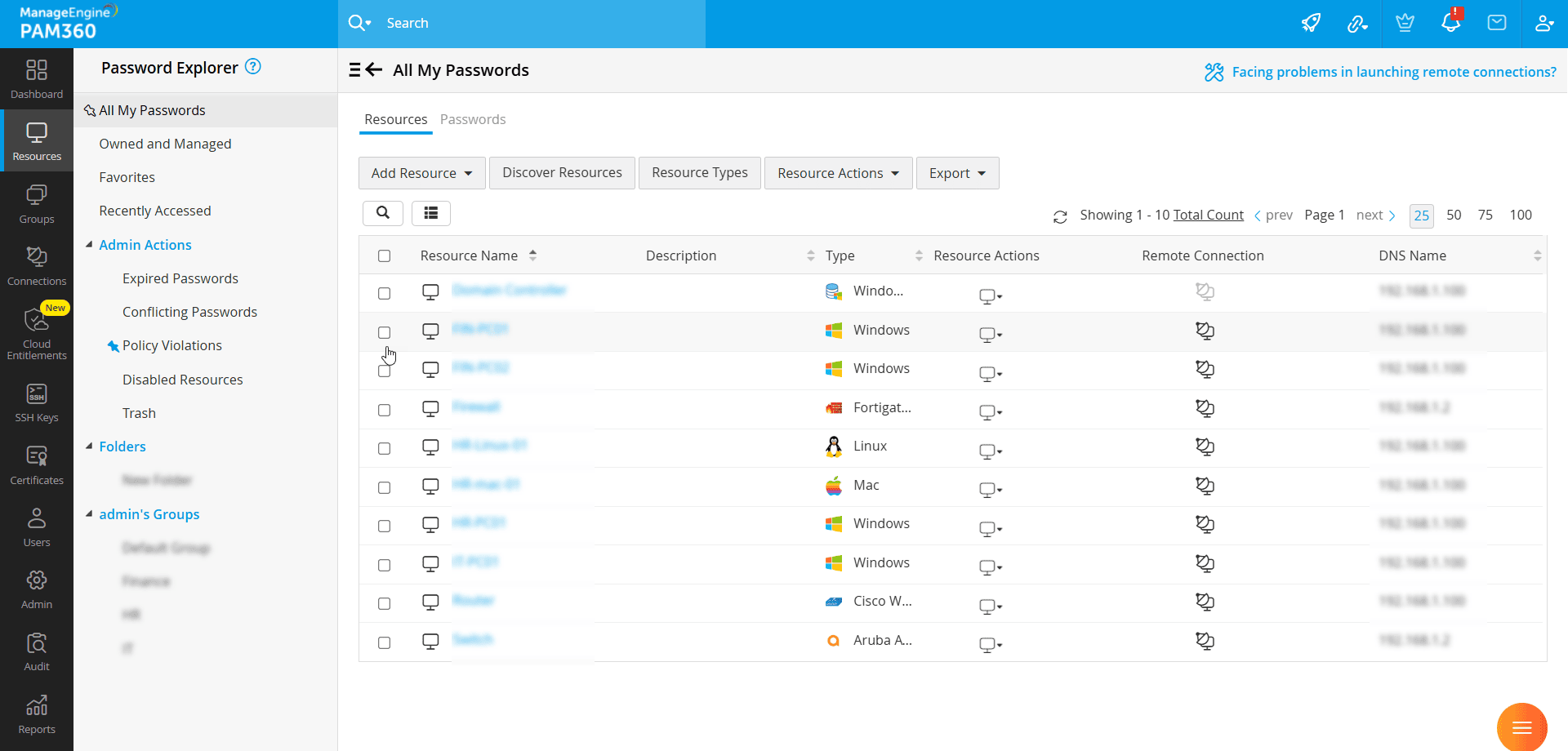
3. Password Explorer Tree
The Password Explorer tree, located on the left pane of the Resources tab, displays the list of categories into which all available resources and passwords are grouped. This organized view allows users to navigate and access specific resources or passwords quickly. Click on the desired category to view the associated resources or passwords available under that category.
- All My Passwords - By default, the All My Passwords view is displayed when you access the Resources tab. This view is divided into two sections: Resources and Passwords.
- The Resources view displays the list of all the resources you own, manage, or those shared with you. Click on the desired resource to reveal the associated accounts and their corresponding passwords.
- The Passwords view displays a consolidated list of all accounts associated with the privileged resources in your environment that are shared with you or those you manage.
- Owned and Managed - All the resources that you own and manage are listed under this category. This category is specific to users with administrator privileges. It is also divided into resources and passwords tabs.
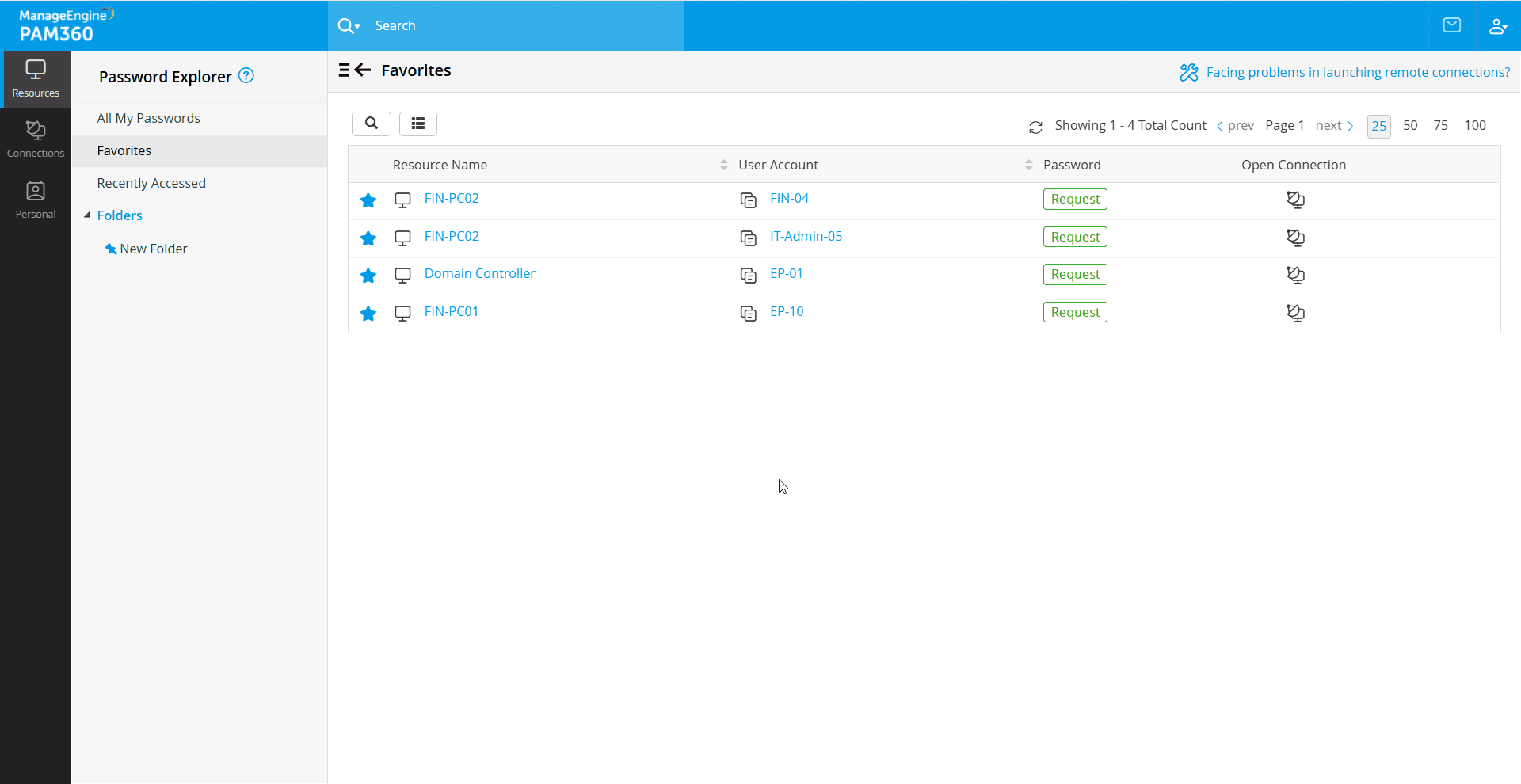
- Favorites - All accounts marked as favorites on the Passwords tab are listed here. To mark an account as a favorite, navigate to Resources >> Password, and click the star icon (*) beside an account name.
- Recently Accessed - All the user accounts that you recently accessed will be listed here for quick and easy reference.
- Admin Actions - This section provides a consolidated view of all the accounts whose passwords need immediate attention. While the PAM360 Dashboard provides a global view of expired/conflicting passwords and passwords with policy violations, the Admin Actions section within the password explorer tree gives a view of only the passwords owned and managed by you. This section is specific only for administrators.
- Expired Passwords - Displays a list of all accounts whose passwords are not reset within the set maximum duration defined in the applied password policy. Each password policy in PAM360 specifies a maximum password age, after which passwords should be rotated. Any password that remains unchanged beyond this period is flagged as expired.
- Conflicting Passwords - Identifies user accounts whose password stored in PAM360 does not match the actual credentials on the target system. This mismatch typically happens when a password reset is performed in PAM360 without updating the remote resource or vice versa. If unresolved, these conflicts can lead to authentication failures and security risks. To prevent such issues, PAM360 periodically runs a password integrity check, ensuring that stored passwords align with those on remote systems. Any mismatched passwords are flagged and displayed in this section.
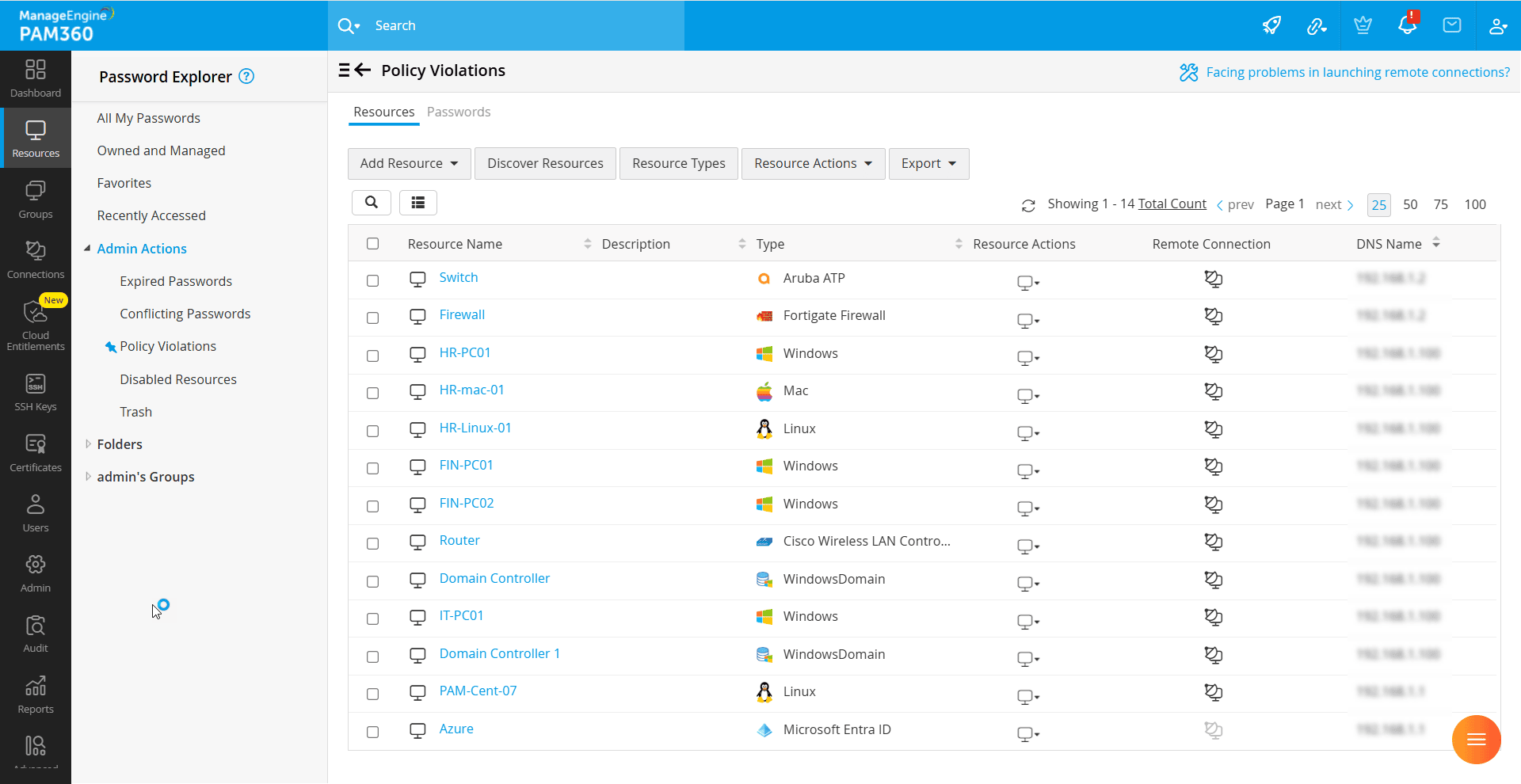
- Policy Violations - Lists passwords that do not comply with the applied password policies. PAM360 provides three predefined password policies: Strong, Medium, and Low, each with different complexity requirements. Additionally, administrators can define custom password policies to enforce specific security standards. Any password that fails to meet the assigned policy’s complexity requirements is flagged and listed in this section.
- Disabled Resources - When importing resources from Active Directory/LDAP into PAM360, you can choose to include disabled machines. All the disabled resources imported from AD/LDAP are displayed under this section for easy identification and management.
- Trash - Any resource moved to trash from the Resources tab will be listed under this section. Administrators can review the resources and restore deleted resources if required or permanently delete them from the PAM360 inventory. Explore this link for more details about deleting resources in PAM360.

- Folders - Provides a structured way for the users to organize and manage passwords by grouping them into custom-defined folders. Users can hover over the Folders section and click the (+) icon to create a custom folder and associate passwords to the created folder from the Passwords tab. This section is specific to each user, and is not visible to others. Explore this link for more details about folder management in PAM360.
- Resource Groups - Lists all the resource groups owned, managed, or those shared with the user. Administrators can perform all the account and resource management operations for the member resources from the resource group. Explore this link for more details about resource groups in PAM360.
- Default Groups - This section is specific to users with the administrator user role. All the resource groups created by the logged in administrator will be displayed here.
When you select a category from the Password Explorer tree, the right pane dynamically displays the list of resources or passwords available under the selected category. Depending on the category, the right pane is either split into Resources and Passwords sections or shown as a single section displaying a consolidated list of all passwords available under the selected category.
3.1 Resources View
The Resources section within the right pane of the Resource tab displays the list of resources that you own, manage, or those shared with you, based on the category selected on the Password Explorer tree. The resources are displayed in a tabular format, where each row represents an individual resource and each column displays various resource attributes such as the Resource Name, Description, Type (e.g., Windows, Linux, Oracle, Cisco), DNS Name, etc., for easy identification. Additionally, for each resource, the table includes the following options:
- Remote Connection - Launch remote sessions using the configured account
- Resource Actions - Access key operations for efficiently managing the selected resource
Furthermore, the resources section features a Search option to quickly locate the desired resource based on its attributes and a Column Chooser to customize the tabular view by choosing the desired columns to be displayed. From the tabular view, you can click on the desired resource to access the Account Details window, where you can view the list of accounts available under that resource, along with their corresponding passwords. Click on the asterisks beside the desired account to view its password. If access control workflow is enforced in your environment, click the Request button to request its password. Additionally, for each account, the table includes the following options:
- Open Connection - Launch remote sessions using the selected account
- Account Actions - Access key operations for efficiently managing the selected account
The top pane features the bulk operation buttons, such as Resource Actions and Export buttons that allow you to efficiently manage multiple resources at once. Select the desired resources from the list and click the appropriate button to execute the required action.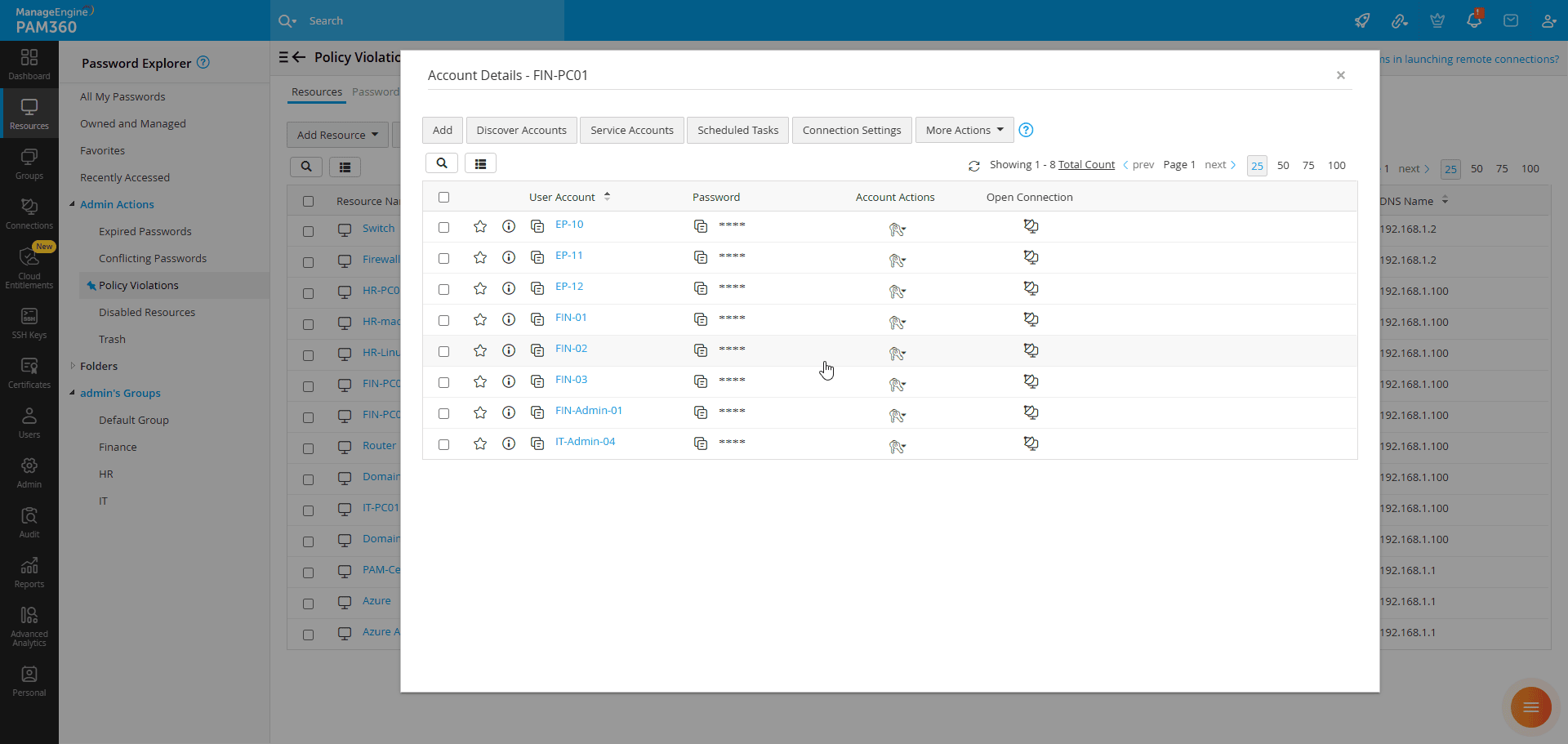
3.2 Passwords View
Depending on the category selected on the Password Explorer tree, the Passwords section within the right pane of the Resource tab displays a list of all the privileged accounts along with their corresponding passwords that are shared with you. Accounts are displayed in a tabular format, where each row represents an individual account and each column displays various account attributes such as the resource name, account name, password, etc, for easy identification and management. For each account, the table includes the following options:
- Resource Actions - Access key operations for efficiently managing the associated resource.
- Account Actions - Perform various actions related to the account and its password, such as view and modify account details, reset password, etc.
- Open Connection - Launch remote sessions and securely transfer files to the resource using the selected account.
- Key Actions - Execute key-based operations for SSH-based resources.
Additionally, the Passwords section features a Search option to quickly locate specific accounts based on their attributes and a Column Chooser to customize the tabular view by choosing the desired columns to be displayed.
The top pane features the bulk operation buttons, such as, Account Actions, Key Actions, and Export buttons that allow you to efficiently manage multiple accounts at once. Select the desired accounts from the list and click the appropriate button to execute the required action.
4. Actions and Configurations
From the Resources and Passwords sections in the right pane of the Resources tab, you can perform various resource, account, and password management operations, enabling seamless management of the privileged resources and their associated accounts via PAM360.
4.1 Resource-Based Operations
From the Resources section, you can perform the following resource-based operations on the resources listed under the selected category:
- Add Resources
- Import Resources
- Discover Resources
- Manage Resources
- Manage Resource Types
- Share Resources
- Associate to Folders
4.2 Resource-Based Advanced Configurations
From the Resources section, you can perform the following configurations on the resources listed under the selected category:
4.3 Account-Based Operations
From the Passwords section, you can perform the following operations on the accounts and passwords listed under the selected category:
4.4 Account-Based Advanced Configurations
From the Passwords section, you can perform the following configurations on the accounts listed under the selected category: