

- Free Edition
- Quick Links
- Active Directory Auditing
- Active Directory auditor
- Active Directory monitoring
- Account lockout analyzer
- Login monitoring software
- Active Directory change notifier
- User logon audit reports
- AD logon logoff tracker
- User logon failure auditing
- Login history tracking tool
- AD change auditor
- Insider threat detection software
- Permissions change auditing
- Entra ID reporting
- Privileged user monitoring
- User behavior analytics tool
- Active Directory security monitoring
- Group Policy auditing tool
- GPO change auditor
- Entra ID auditing
- Audit user account management
- OU change auditor
- Audit group membership changes
- Active Directory auditing and reporting tool
- GPO reporting tool
- Remote desktop monitoring software
- PowerShell logging and auditing
- Azure password protection auditing
- Azure sign-in risk detection
- File Server Auditing
- Windows Server Auditing
- Employee Tracking
- Workstations Auditing
- Compliance Auditing
- Other features
- SIEM Integration
- Windows DNS - Schema Auditing
- Windows security event log monitoring
- SIEM audit solution
- Schedule Active Directory change reports
- Reports from Archived Data
- Aggregated summary reports
- AD new/old attribute changes
- Audit trail
- Audit Active Directory LAPS
- Scheduled Reports & Alerts
- Account lockout examiner
- Industry
- Documents
- Success Stories
- Related Products
- Log360 (On-Premise | Cloud) Comprehensive SIEM and UEBA
- ADManager Plus Active Directory Management & Reporting
- EventLog Analyzer Real-time Log Analysis & Reporting
- ADSelfService Plus Identity security with MFA, SSO, and SSPR
- DataSecurity Plus File server auditing & data discovery
- Exchange Reporter Plus Exchange Server Auditing & Reporting
- M365 Manager Plus Microsoft 365 Management & Reporting Tool
- RecoveryManager Plus Enterprise backup and recovery tool
- SharePoint Manager Plus SharePoint Reporting and Auditing
- AD360 Integrated Identity & Access Management
- AD Free Tools Active Directory FREE Tools
How to check domain users netlogon
Written by Mahidhar Adarsh, IT security team, ManageEngine Updated on July 2026
Netlogon is a Local Security Authority service that runs in the background. It handles authenticating users in to the domain. Executing a few commands within an elevated prompt enables the logging of Netlogon events. After this you can access the Netlogon file to check events and troubleshoot. them. You can also assign a Netlogon file to a particular user or users in an so you can track a user's activity when they login.
Step 1: Create the login script
- In the Domain Controller locate C:\Windows\SYSvol\sysvol\[domain].com\scripts. You can also do this via 'My Computer'. Replace [domain] with the name of the domain your workstations log into.
- Type printmanagement.msc, then press Enter. Print Management will open.
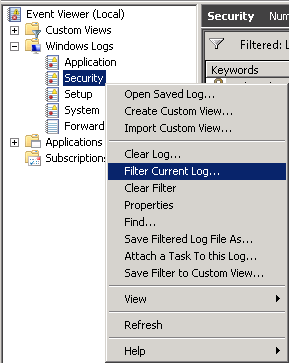
- On the File menu, you can create a new folder to maintain all your Netlogon files. In this folder also create a 'New Text Document'.
- Double-click the 'New Text Document' icon to open it in Notepad.
- Enter the any commands as required.
- Click om the 'File' menu, and select 'Save As'. This pulls up the 'Save As' dialog box. Change the 'Save as type' to 'All Files' and save this file with the name user1_logon.bat.
- Exit Notepad and 'My Computer'
Step 2: Assign the login script to a particular domain user
- In your 'Server Manager' go to 'Tools' and click on 'Active Directory Users and Computers'.
- In the 'Active Directory Users and Computers' snap-in, click the Users folder in the Tree pane.
- Select the user you want to add the login script for. Right click and select 'Properties'. In the 'Logon script' text box, type 'user1_logon.bat'. Click 'OK'.
- You can repeat this procedure for every user you want to assign the login script to.
Step 3: Access your Netlogon files and understand common Netlogon codes
- You can view your Netlogon files by entering the following command in the 'Run' Dialog box.
- Below is a snippet of the Netlogon log file for a user showing a successful LOGON event.
Here Folder name is the name of the folder you created to store your Netlogon files.
Here are a few codes you can use to understand the LOGON activity in a user's log file.
| Log Code | Description |
|---|---|
| 0x0 | Successful login |
| 0xC000006D | Unsuccessful attempt to login due to bad username |
| 0xC0000072 | Disabled user account |
| 0xC000006F | Unsuccessful login attempt due to time restrictions |
| 0xC0000071 | An account's password has expired |
| 0xC000006A | Incorrect password entered |
| 0xC000006C | Password policy has not been followed |
| 0xC0000224 | Password must be changed before the first login attempt |
| 0xC000006E | Login has failed due to user account restrictions |
| 0xC0000193 | User account has expired |
| 0xC0000234 | User account has been automatically locked |
| 0xC0000064 | User does not exist |
Active Directory Auditing just got easier!
ADAudit Plus comes bundled with more than 300 predefined reports that makes your AD auditing easier. The solution also sends real-time alerts for critical events and thereby help you to secure your network from threats and boost your IT security posture. Check out the capabilities of ADAudit Plus here.