

- Free Edition
- Quick Links
- Active Directory Auditing
- Active Directory auditor
- Active Directory monitoring
- Account lockout analyzer
- Login monitoring software
- Active Directory change notifier
- User logon audit reports
- AD logon logoff tracker
- User logon failure auditing
- Login history tracking tool
- AD change auditor
- Insider threat detection software
- Permissions change auditing
- Entra ID reporting
- Privileged user monitoring
- User behavior analytics tool
- Active Directory security monitoring
- Group Policy auditing tool
- GPO change auditor
- Entra ID auditing
- Audit user account management
- OU change auditor
- Audit group membership changes
- Active Directory auditing and reporting tool
- GPO reporting tool
- Remote desktop monitoring software
- PowerShell logging and auditing
- Azure password protection auditing
- Azure sign-in risk detection
- File Server Auditing
- Windows Server Auditing
- Employee Tracking
- Workstations Auditing
- Compliance Auditing
- Other features
- SIEM Integration
- Windows DNS - Schema Auditing
- Windows security event log monitoring
- SIEM audit solution
- Schedule Active Directory change reports
- Reports from Archived Data
- Aggregated summary reports
- AD new/old attribute changes
- Audit trail
- Audit Active Directory LAPS
- Scheduled Reports & Alerts
- Account lockout examiner
- Industry
- Documents
- Success Stories
- Related Products
- Log360 (On-Premise | Cloud) Comprehensive SIEM and UEBA
- ADManager Plus Active Directory Management & Reporting
- EventLog Analyzer Real-time Log Analysis & Reporting
- ADSelfService Plus Identity security with MFA, SSO, and SSPR
- DataSecurity Plus File server auditing & data discovery
- Exchange Reporter Plus Exchange Server Auditing & Reporting
- M365 Manager Plus Microsoft 365 Management & Reporting Tool
- RecoveryManager Plus Enterprise backup and recovery tool
- SharePoint Manager Plus SharePoint Reporting and Auditing
- AD360 Integrated Identity & Access Management
- AD Free Tools Active Directory FREE Tools
How to disable removable storage using GPO
Written by Mahidhar Adarsh, IT security team, ManageEngine Updated on July 2026
Since removable storage devices are commonly used to exfiltrate data out of a company, auditing them is imperative. You can set up GPOs to audit external storage devices or if you find it necessary, you can disable it altogether. The steps below will guide you to disable removable storage usage on your network and prevent users from accessing the files on the device
Step 1: Enable Group Policy Auditing
- Launch the 'Server Manager'and open the Group Policy Management Console(GPMC).
- In the left pane, expand the 'Forest'and 'Domains' nodes to reveal the specified domain you want to track the changes for.
- Expand the domain a right click 'Default Domain Policy'.You can also choose a domain policy that is universal throughout the domain, or create a new GPO and link it to the Default Domain Policy.
- Click on 'Edit' of the desired group policy, to open up the Group Policy Management Editor.
- Expand 'Computer Configuration'-->Policies-->Windows Settings-->Administrative
Templates-->System-->Removable Storage Access.
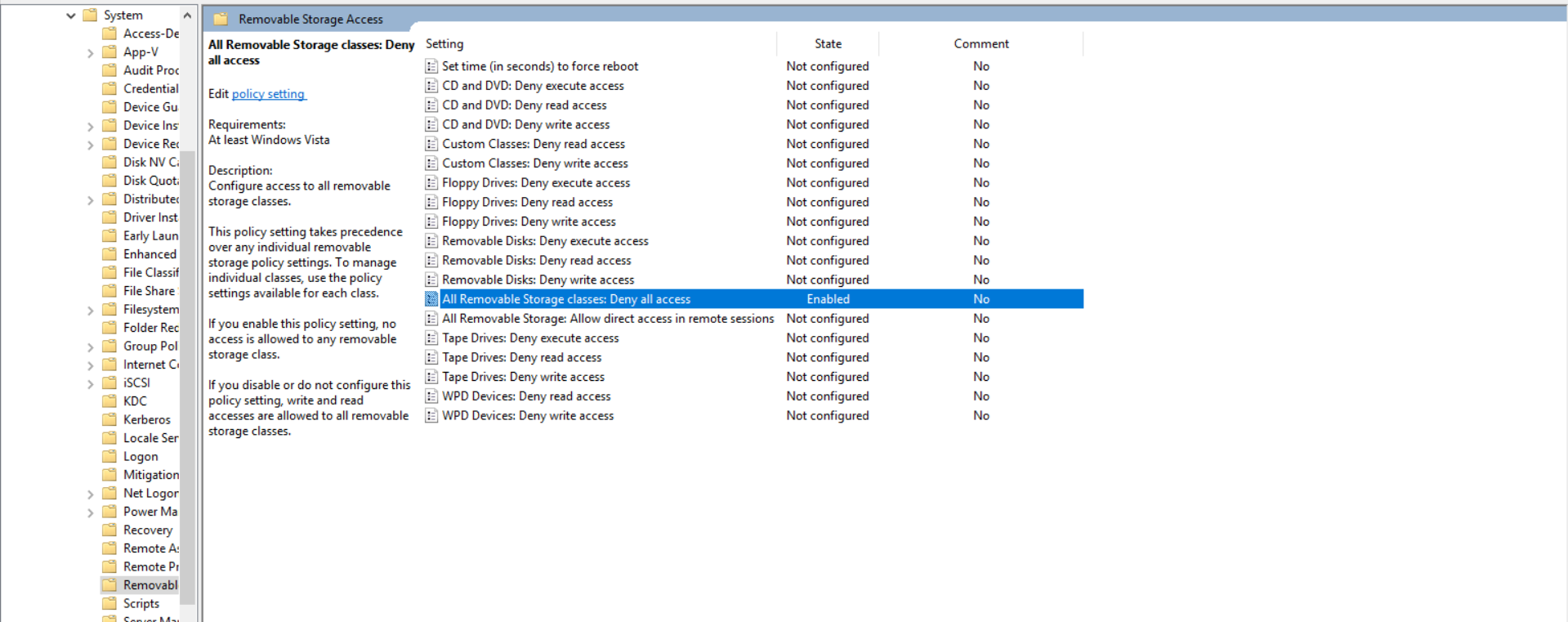
- Double click the All Removable Storage classes: Deny all access policy. Select Enabled and click OK.
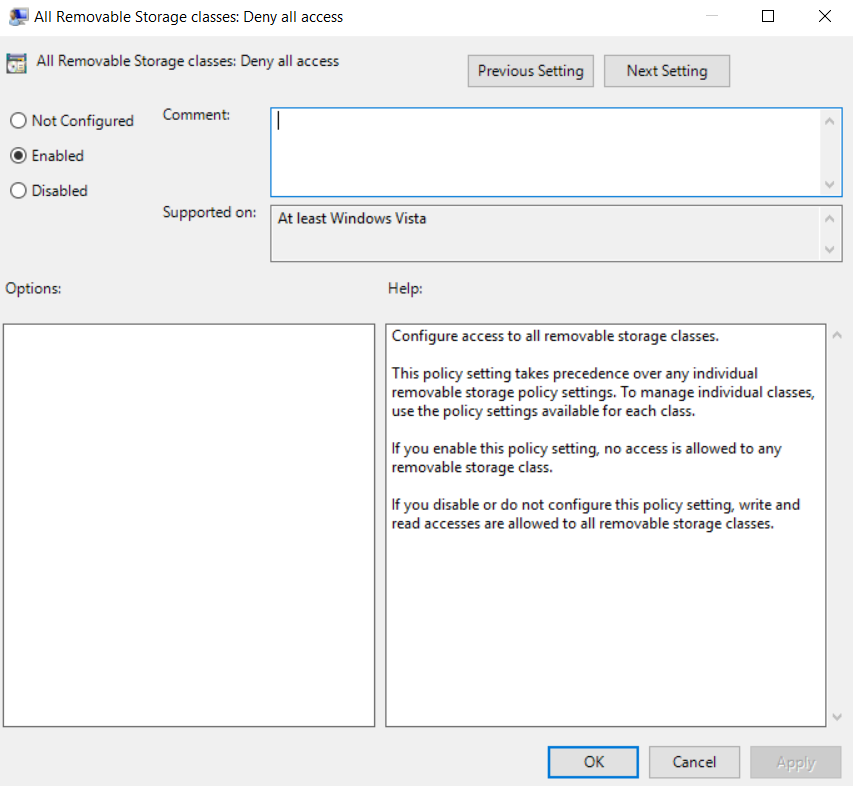
- Close the Group Policy Editor
- Restart the computer to apply the changes.
Active Directory Auditing just got easier!
ADAudit Plus comes bundled with more than 300 predefined reports that makes your AD auditing easier. The solution also sends real-time alerts for critical events and thereby help you to secure your network from threats and boost your IT security posture. Check out the capabilities of ADAudit Plus here.