

- Free Edition
- Quick Links
- Active Directory Auditing
- Active Directory auditor
- Active Directory monitoring
- Account lockout analyzer
- Login monitoring software
- Active Directory change notifier
- User logon audit reports
- AD logon logoff tracker
- User logon failure auditing
- Login history tracking tool
- AD change auditor
- Insider threat detection software
- Permissions change auditing
- Entra ID reporting
- Privileged user monitoring
- User behavior analytics tool
- Active Directory security monitoring
- Group Policy auditing tool
- GPO change auditor
- Entra ID auditing
- Audit user account management
- OU change auditor
- Audit group membership changes
- Active Directory auditing and reporting tool
- GPO reporting tool
- Remote desktop monitoring software
- PowerShell logging and auditing
- Azure password protection auditing
- Azure sign-in risk detection
- File Server Auditing
- Windows Server Auditing
- Employee Tracking
- Workstations Auditing
- Compliance Auditing
- Other features
- SIEM Integration
- Windows DNS - Schema Auditing
- Windows security event log monitoring
- SIEM audit solution
- Schedule Active Directory change reports
- Reports from Archived Data
- Aggregated summary reports
- AD new/old attribute changes
- Audit trail
- Audit Active Directory LAPS
- Scheduled Reports & Alerts
- Account lockout examiner
- Industry
- Documents
- Success Stories
- Related Products
- Log360 (On-Premise | Cloud) Comprehensive SIEM and UEBA
- ADManager Plus Active Directory Management & Reporting
- EventLog Analyzer Real-time Log Analysis & Reporting
- ADSelfService Plus Identity security with MFA, SSO, and SSPR
- DataSecurity Plus File server auditing & data discovery
- Exchange Reporter Plus Exchange Server Auditing & Reporting
- M365 Manager Plus Microsoft 365 Management & Reporting Tool
- RecoveryManager Plus Enterprise backup and recovery tool
- SharePoint Manager Plus SharePoint Reporting and Auditing
- AD360 Integrated Identity & Access Management
- AD Free Tools Active Directory FREE Tools
How to install SSL certificates in Active Directory?
Written by Mahidhar Adarsh, IT security team, ManageEngine Updated on July 2026
Active Directory read and write requests made across the network can be made secure using SSL. It requires a CA (Certificate Authority) certificate. This article explains the steps to be followed while configuring SSL certificate in Active Directory.
Prerequisites to install SSL certificates:
- Internet Information Services - IIS is required before you install
Windows Certificate services. - Windows Certificate services.
Steps to install SSL certificate:
Step 1: Install Active Directory Certificate Services
- Log into your Active Directory Server as an administrator.
- Open Server Manager → Roles Summary→ Add roles.
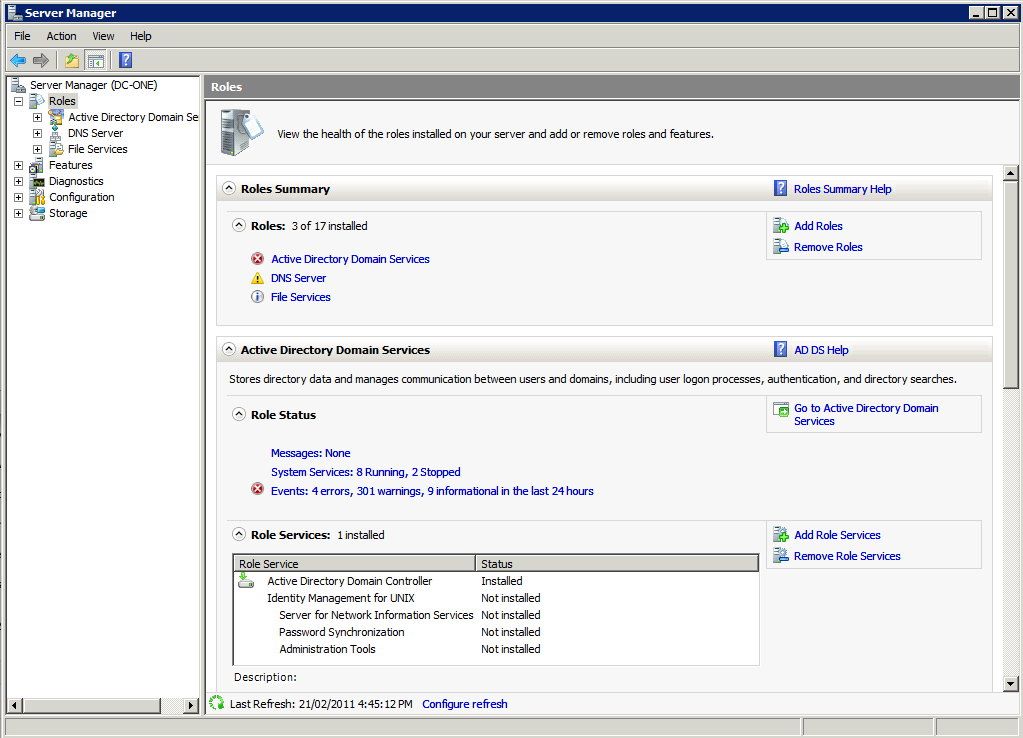
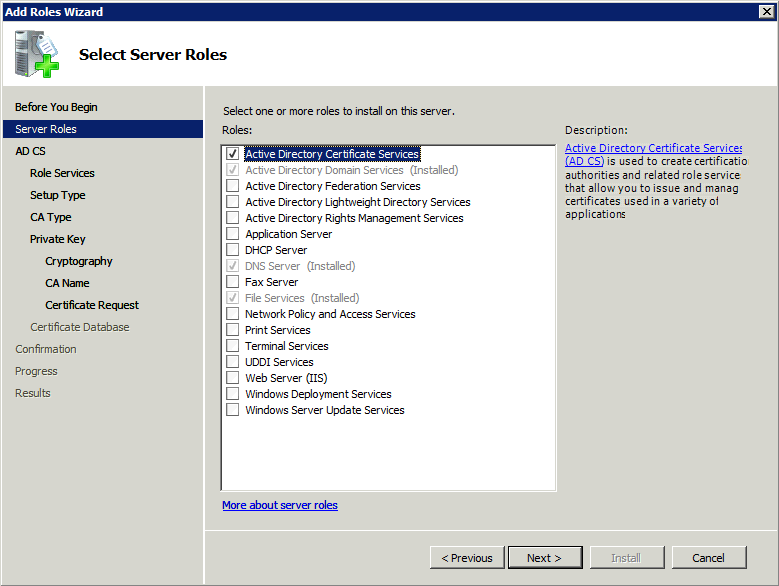
- In the Add Roles Wizard, select Server Roles. From the options listed, select Active Directory Certificate
Services, and click next. In the next screen, click Next again to proceed.
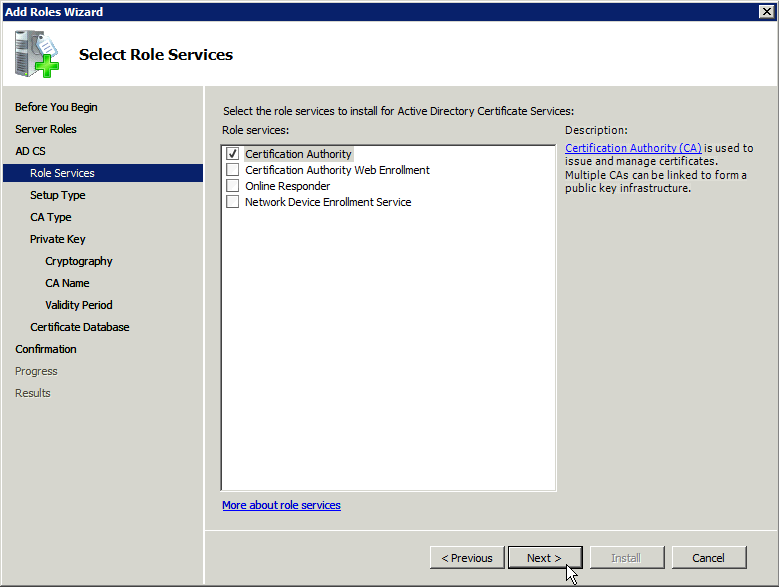
- On the next page, select Certification Authority role service to issue and manage certificates.
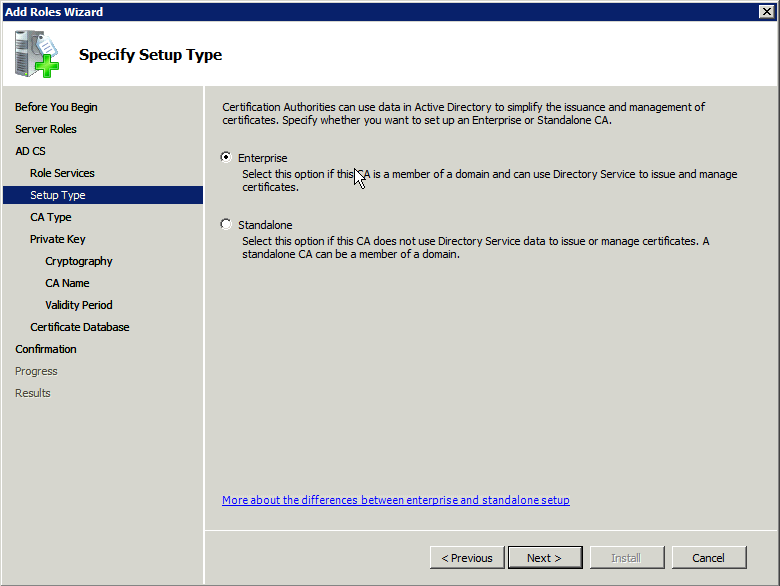
- In the Specify Setup Type page, select Enterprise as your server is a part of the AD environment. Click Next.
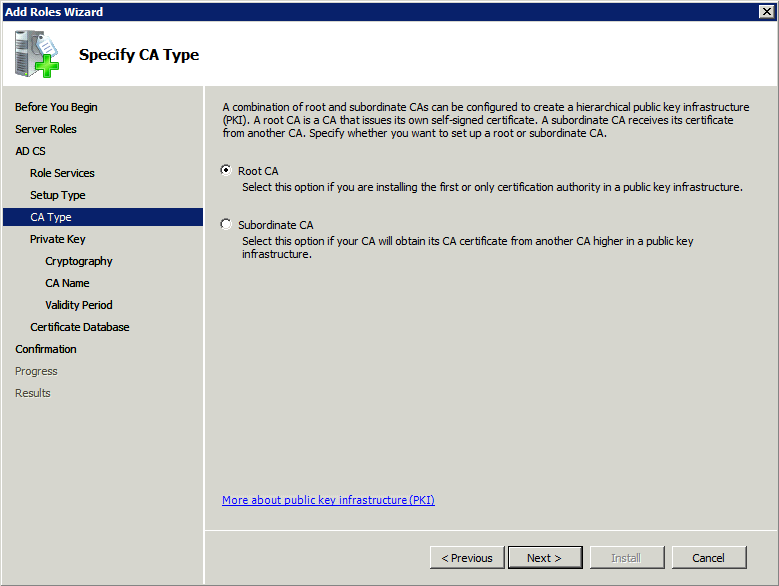
- Next is the "Specify CA Type" page. If this is your first CA, select Root CA. Else, select Subordinate
CA.
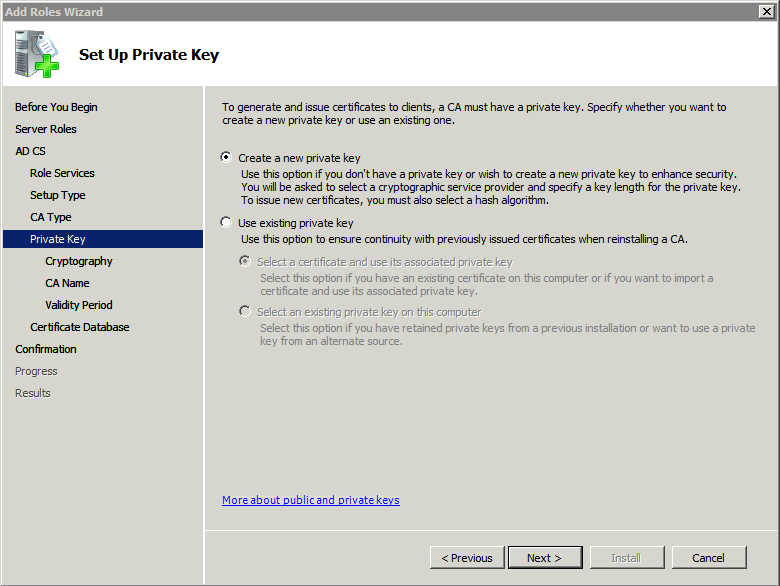
- Set the private key to be used for this CA.Since this is a new CA, select "Create a new private key"
and click Next. In the next screen, click Next again to proceed.
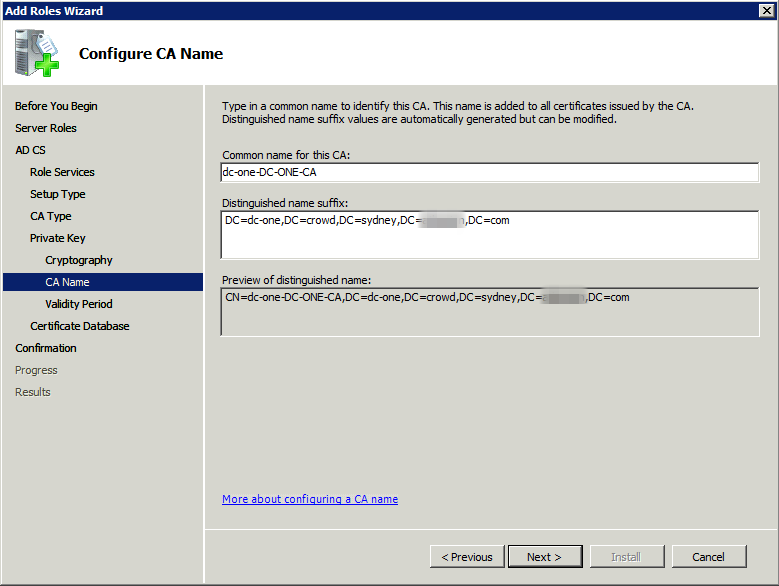
- On the next page, choose a common name and a distinguished name suffix for your CA. Check the preview of your
CA's complete distinguished name, then click Next if you are satisfied with your selections.
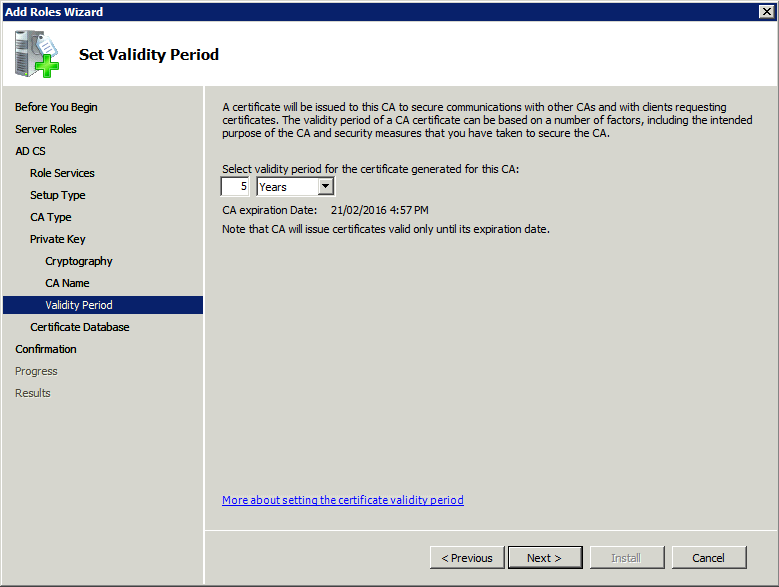
- In the "Set validity page", accept the default value or set a validity period of your own. The CA will
issue certificates that are valid only till this period.
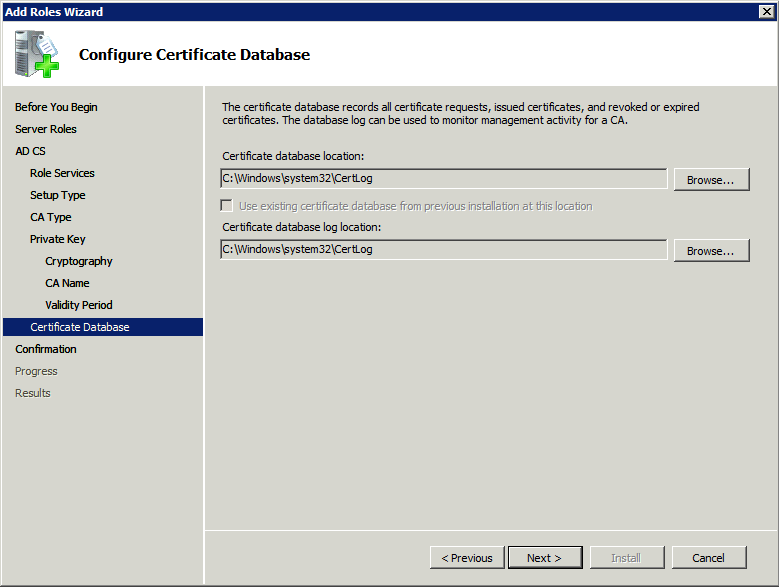
- Select a location for storing the Certificate database and the Certificate database logs.
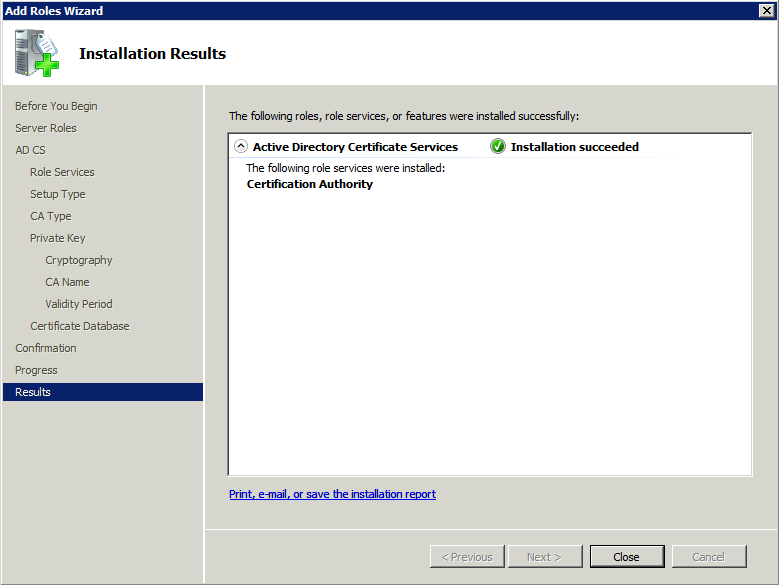
- Confirm your installation configurations and click Install. Once the installation is completed successfully,
close the wizard.
Step 2: Obtain the server certificate
After installing the Certification Authority, you now need to add the SSL certificates that are used by your application servers to the list of accepted certificates.
The Active Directory certificate is automatically generated and stored in the root of the C drive. To export the
certificate, execute this command on the server:
certutil -ca.cert client.crt
Step 3: Import the server certificate
The certificate has to be imported into your Java Runtime Environment for an application server to trust your AD certificate. The JDK stores trusted certificates in a file called a keystore. The default keystore file is called cacerts and it is stored in the jre\lib\security sub-directory of your Java installation. Run the following commands on your server to import the certificates.
- Navigate to the directory in which Java is installed.
cd /d C:\Program Files\Java\jdk1.5.0_12 - Run the command mentioned below, where server-certificate.crt is the name of the file from your directory
server.
keytool -importcert -keystore .\jre\lib\security\cacerts -file server-certificate.crt - Enter the default keystore password changeit when prompted.
- When prompted Trust this certificate? [no]: enter yes to confirm the key import:
Enter keystore password: changeit
Owner: CN=ad01, C=US
Issuer: CN=ad01, C=US
Serial number: 15563d6677a4e9e4582d8a84be683f9
Valid from: Tue Aug 21 01:10:46 ACT 2007 until: Tue Aug 21 01:13:59 ACT 2012
Certificate fingerprints:
MD5:D6:56:F0:23:16:E3:62:2C:6F:8A:0A:37:30:A1:84:BE
SHA1:73:73:4E:A6:A0:D1:4E:F4:F3:CD:CE:BE:96:80:35:D2:B4:7C:79:C1
Trust this certificate? [no]: yes
Certificate was added to keystore - Change 'URL' to use LDAP over SSL and use the 'Secure SSL' option when connecting your application to your directory server.
Once the certificate has been imported as per the above instructions, you will need to restart the application to apply the changes made.