How to deploy Windows 11 using Endpoint Central
For seamless deployment of Windows feature pack updates, we suggest using the Patch Management module.
- Deploy Windows 11 21H2 updates
- Deploy Windows 11 22H2 updates
- Deploy Windows 11 23H2 updates
- Deploy Windows 11 24H2 updates
- Deploy Windows 11 25H2 updates
This document provides you the steps required to upgrade the Windows operating system to Windows 11 using Endpoint Central. Deploying Windows 11 will not impact any data on the target computers and only the operating system will be upgraded.
Table of contents
Prerequisites
System Requirements
You can upgrade your Windows operating system to Windows 11, only if the following system requirements are met:
- The computer should be running on Windows 10 version 2004 or later versions.
- A minimum of 64GB storage is required to install Windows 11. Additional storage space might be required to download updates and enable specific features.
- A minimum of 4GB RAM memory is required
Note: Windows 11 can only run on 64-bit CPUs.
You can refer to this link for more details: Windows 11 System Requirements
Downloading the ISO file
Download Windows 11 Enterprise ISO file from Microsoft Admin Center.
Note: You can also download the Professional,Home or Education ISO from Microsoft Software Download center if you have a license key to deploy the package.
Rename the downloaded ISO file to 'windows11'. Renaming the ISO file is mandatory.
ISO FileName:windows11.iso
Note: Ensure that the editions, architecture and OS languages of your target computers are compatible with the downloaded ISO file.
You have successfully downloaded the ISO file and it is ready to be deployed using Software Deployment feature in Endpoint Central.
Creating the Package using Templates
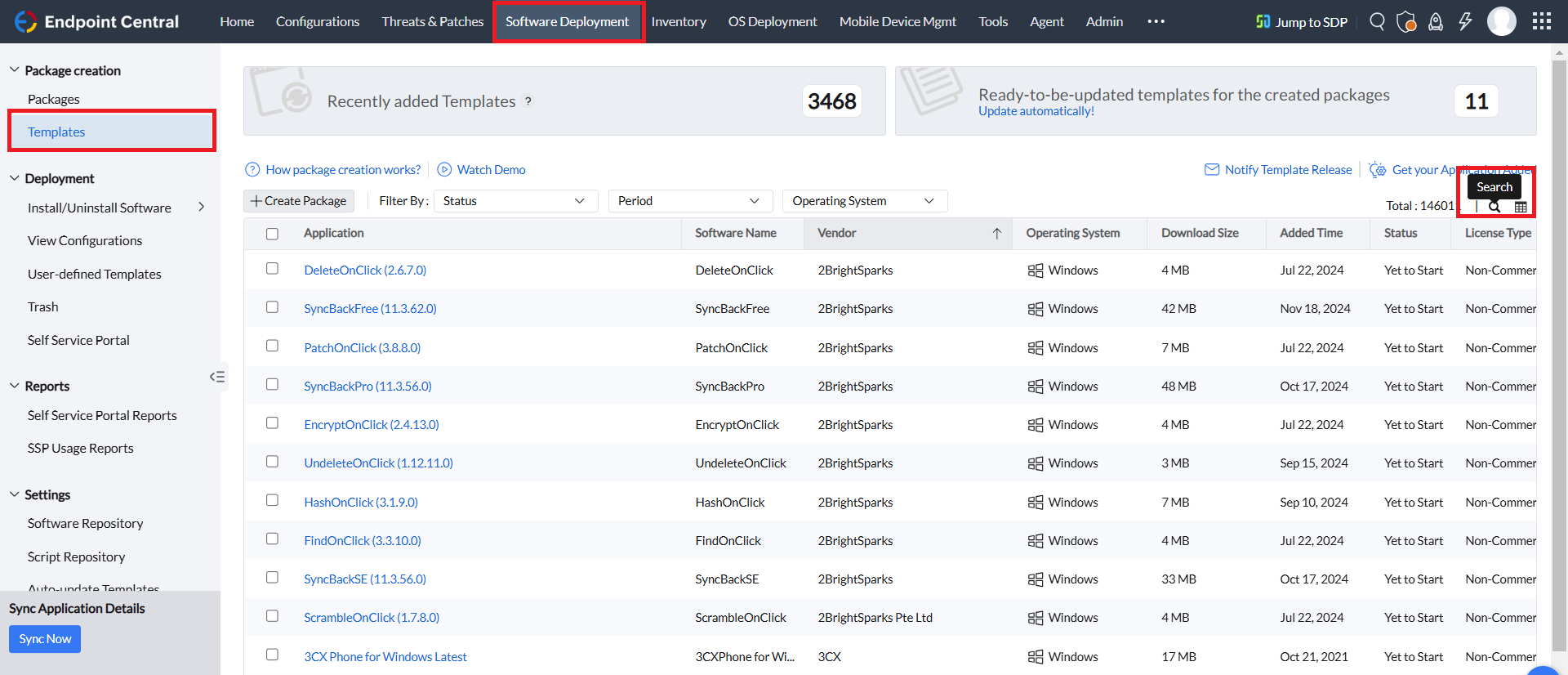
- Navigate to Software Deployment tab in the Endpoint Central console.
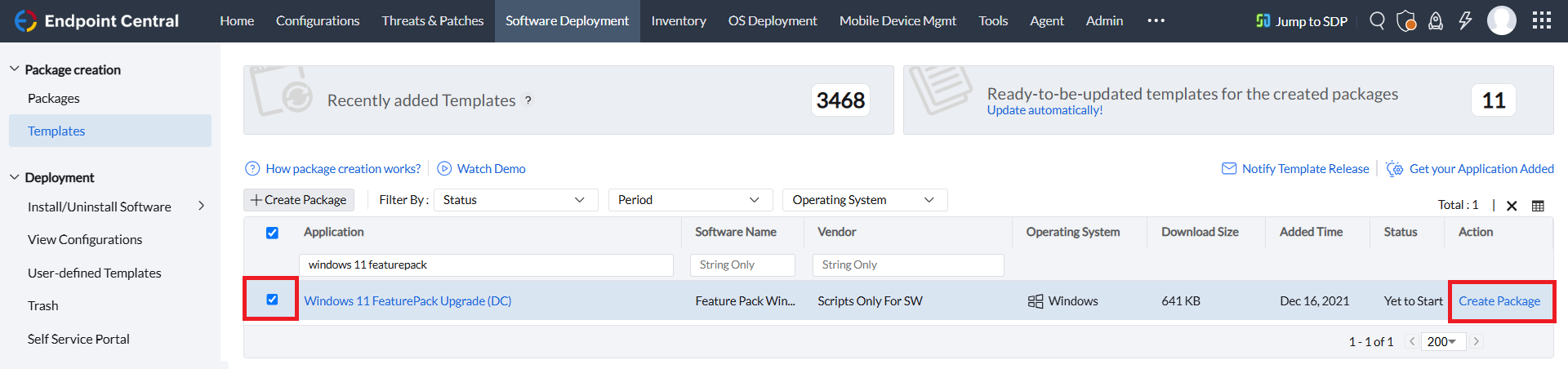
Under Templates, using the search tool select the application Windows 11 FeaturePack Upgrade (DC) and click Create Package.
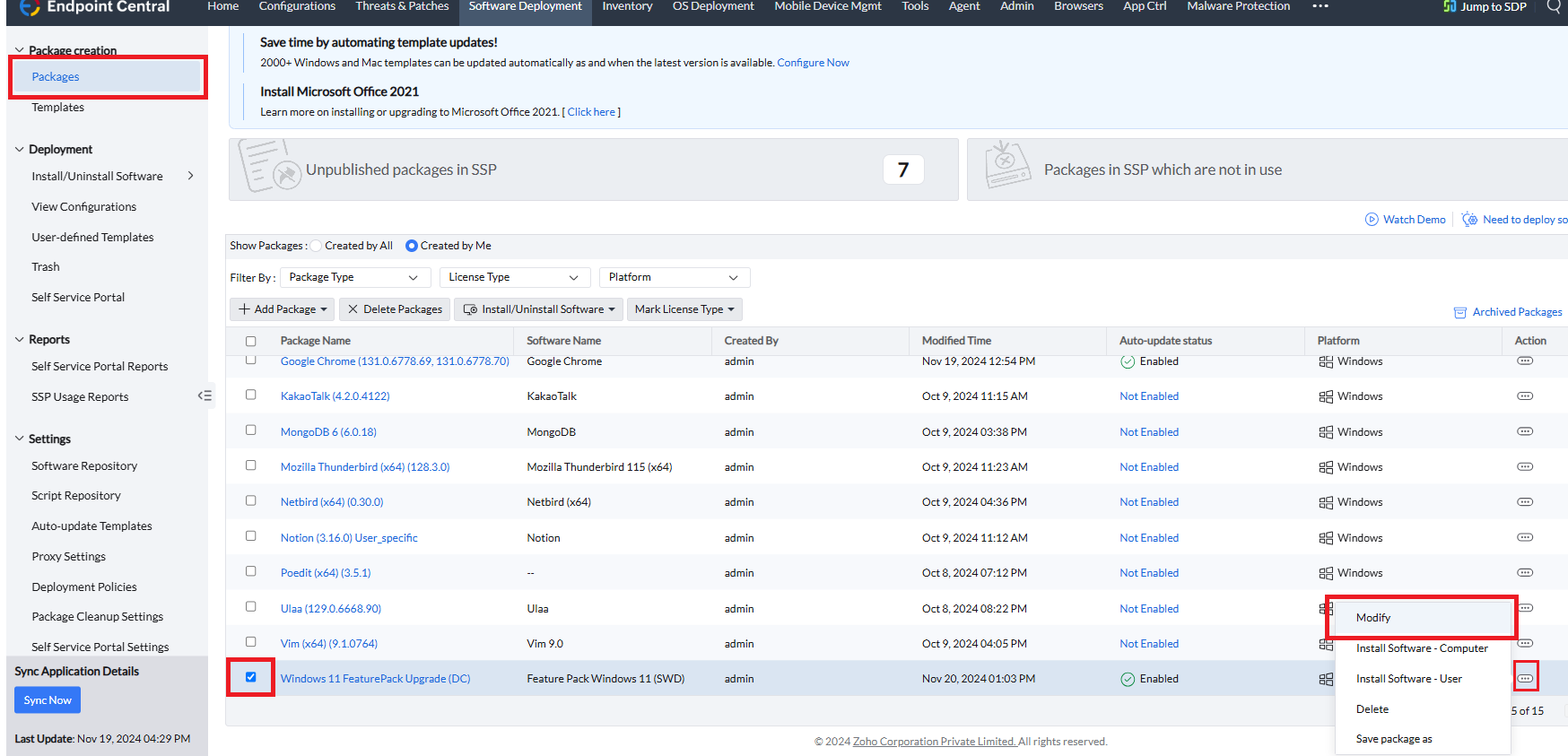
Navigate to Packages and select the package that you have added and click Modify.
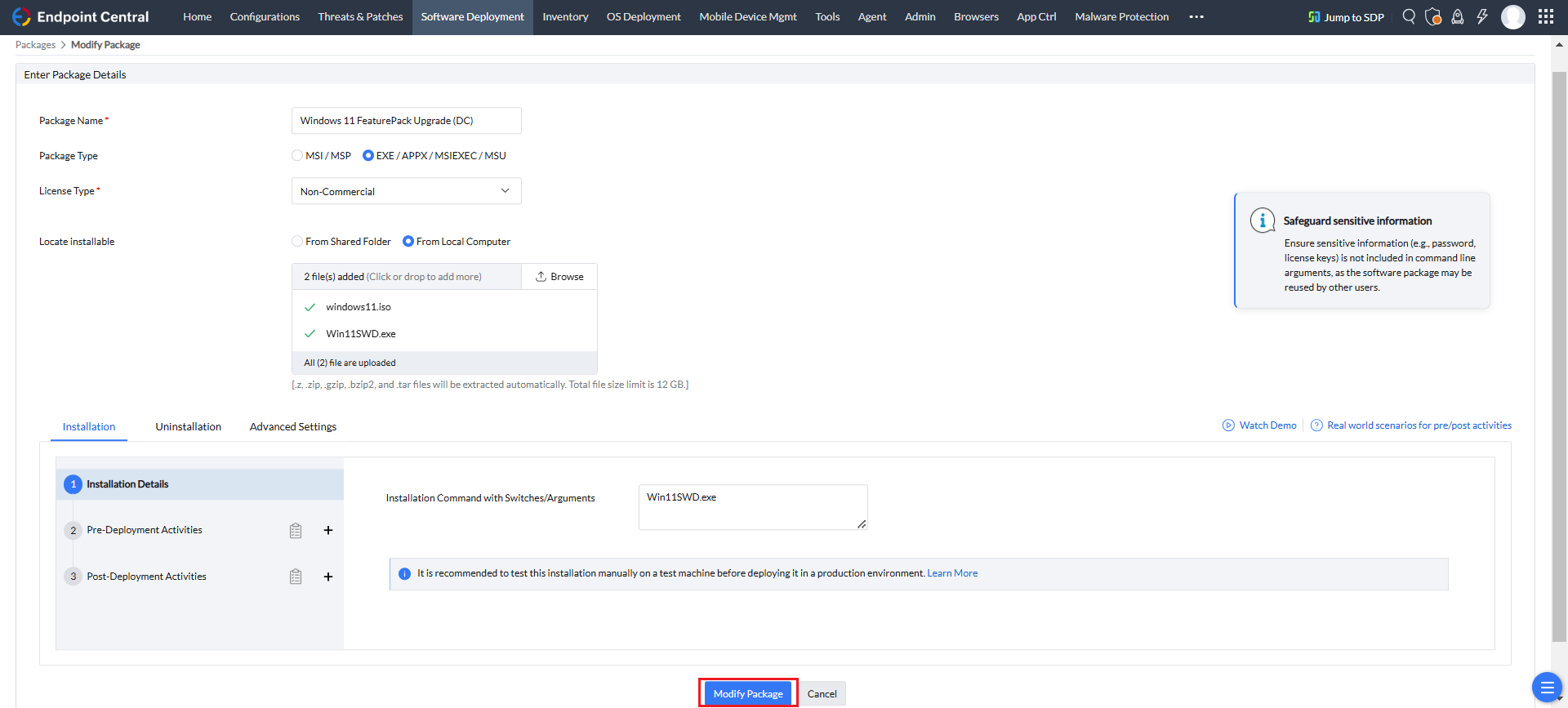
- Upload the windows11.ISO file.
Click on Modify Package to save the modified package.
Deploying the package to Target Computers
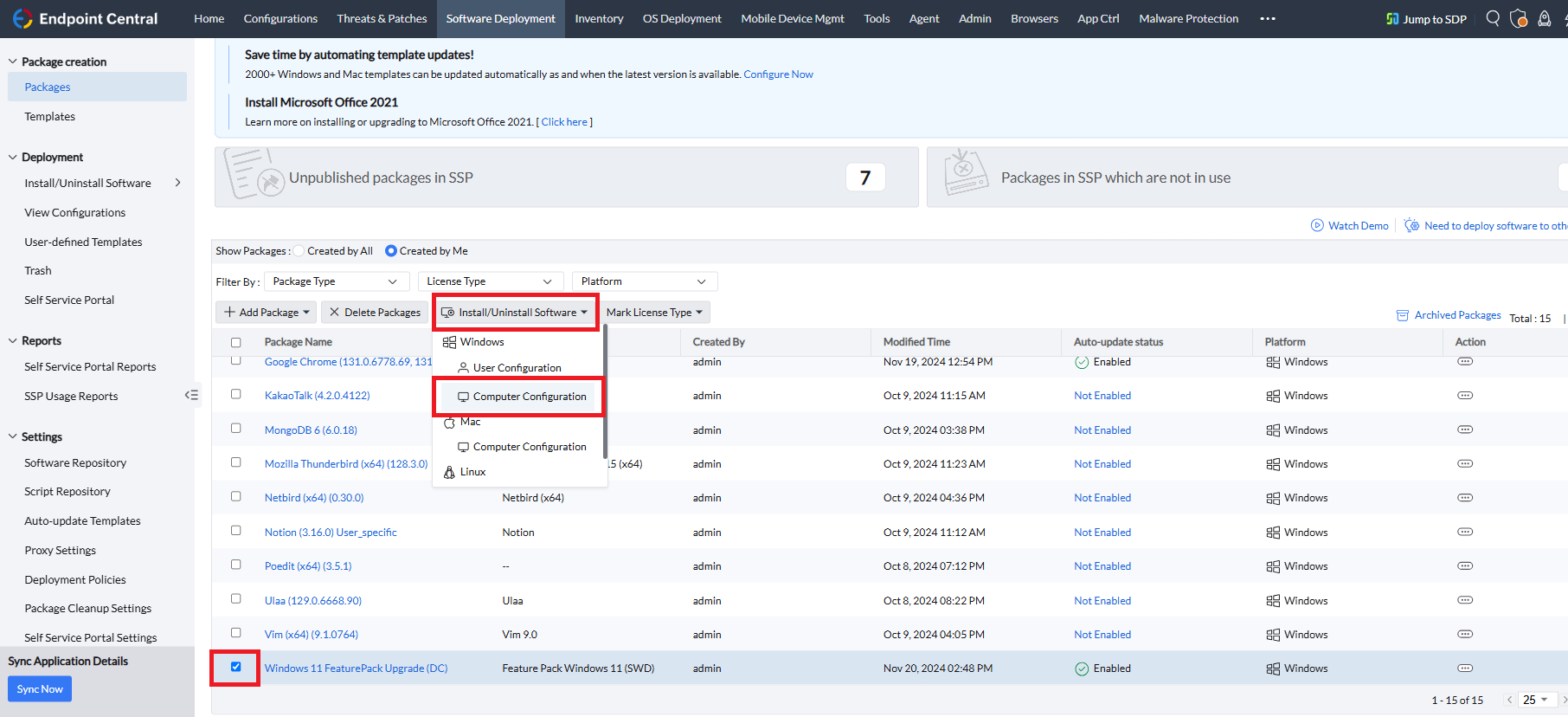
Select the package and click Install/Uninstall Software > Windows > Computer Configuration.
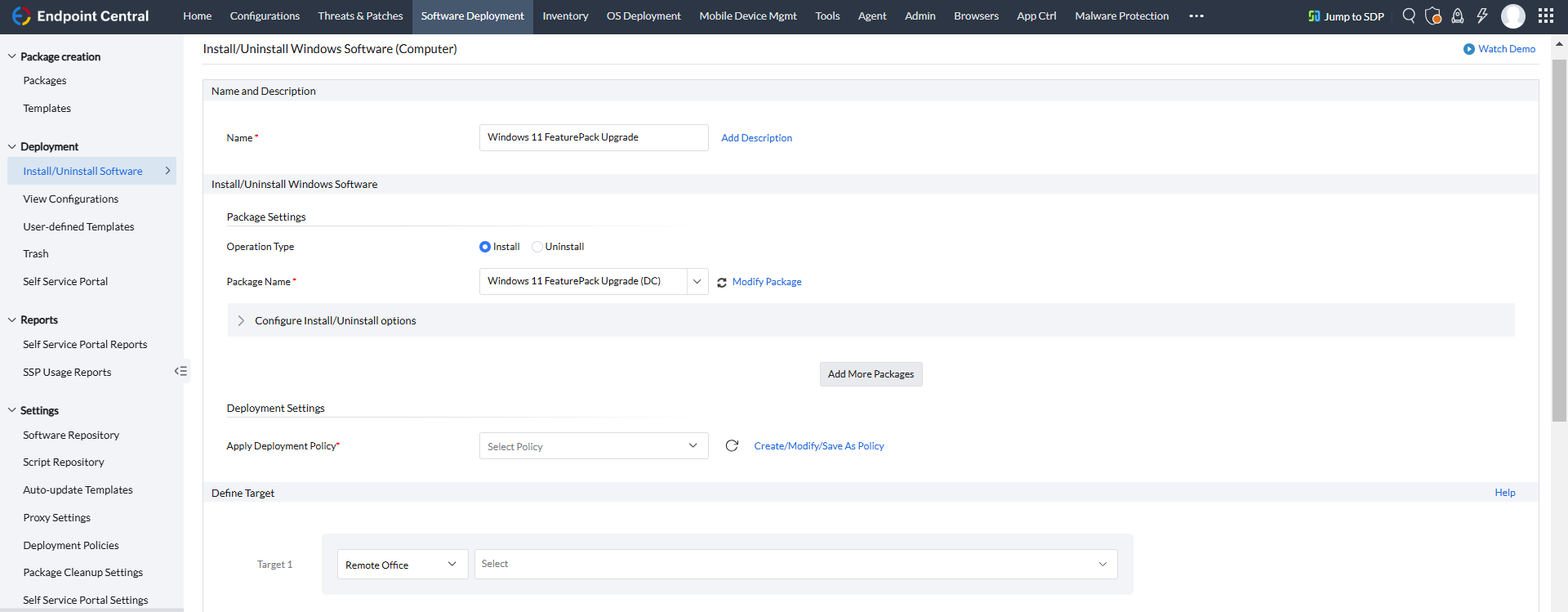
- Enter a Name and Description for the configuration.
- Define the Package Settings.
- Configure the Deployment Settings.
- Define the Target computers.
- Configure the Scheduler Settings, if required.
- Click Deploy/Deploy Immediately to deploy your configuration.