×![]()
×
×![]()
×
×
Data Leakage Prevention Browser Configurations
Configuring Data Leakage Prevention
Data Leakage Prevention helps to avoid sensitive information from being inadvertently shared through the browser. It blocks actions like uploading confidential files to websites, capturing screenshots, or transmitting crash reports to external parties. This document will explain how to create the policy and about each configuration provided by Endpoint Central.
Kindly follow the steps given below to successfully create and deploy Data Leakage Prevention policy:
- Open Endpoint Central console and navigate to Browsers -> Policies -> Data Leakage Prevention.
- Click Create Policy and select the OS platform.
- Give a name for the policy.
- Refer below to know more about the Data Leakage Prevention settings.
- Click Save to save the policy as draft. Click Save & Publish to save the policy.
- Associate the policy to computers/groups of computers in which you want the isolation of web-applications to take place.
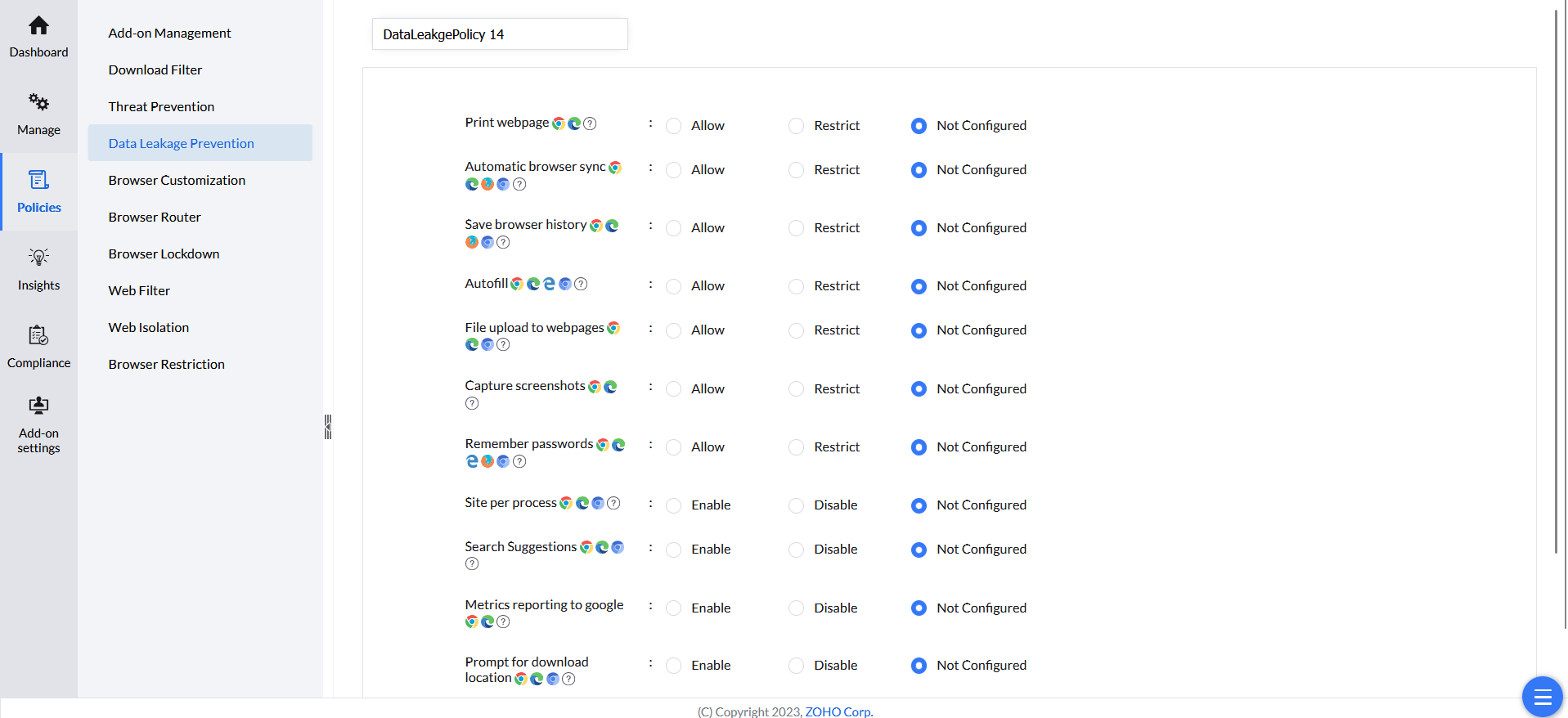
Settings under Data Leakage Prevention
This document will explain each configuration under Data Leakage Prevention provided by Endpoint Central and the browsers it is applicable for.
| Configuration | Description | Supported Browsers | Supported Platforms |
| Print webpage | By restricting this, Printing a web page is disbaled in the Browser | Chrome, Edge, Ulaa | Windows, Mac |
| Automatic browser sync | By disabling this, syncing details such as Bookmarks, passwords, browser themes will be disabled | Chrome, Edge, Firefox, Ulaa, Chromium Browsers | Windows, Mac |
| Autofill | By disabling this, Auto filling to the form is restricted. | Chrome, Edge, Internet Explorer, Ulaa, Chromium Browsers | Windows, Mac |
| File upload to webpages | By Restricting this, File upload to the web pages are restricted. NOTE: This only disables the upload using File selection dialog box, where as drag & drop, Copy paste will still works | Chrome, Edge, Ulaa, Chromium Browsers | Windows, Mac |
| Screen Capture and Mirroring | By restricting this, Screen capturing, screen mirroring using Google Chrome Cast will be disabled. NOTE: Here screen capture is prevented when either Site | Browser Extension try to take a screenshot, still end user can able to take screenshot using Windows Shortcuts | Snipping tools, etc., | Chrome, Edge | Windows, Mac |
| Remember passwords | This policy controls whether the browser remembers passwords, enabling or disabling the automatic saving of login credentials for websites to facilitate easier access during future visits. | Chrome, Edge, Internet Explorer, Firefox, Ulaa, Chromium Browsers | Windows, Mac |
| Site per process | This policy enables Site Per Process in the browser, isolating each website in its own process for enhanced security and stability, preventing one site from affecting others or accessing data across different sites. | Chrome, Edge, Ulaa, Chromium Browsers | Windows, Mac |
| Search Suggestions | This policy controls whether search suggestions are shown in the browser's address bar or search box, allowing or preventing the browser from displaying autocomplete suggestions as users type in search queries. | Chrome, Edge, Ulaa, Chromium | Windows, Mac |
| Metrics reporting to google | This policy controls whether the browser sends metrics and usage data to Google, enabling or disabling the reporting of information like performance data, errors, and other usage statistics to help improve Google services. | Chrome, Edge, Ulaa | Windows, Mac |
| Prompt for download location | This policy controls whether the browser prompts users for a download location each time they download a file, allowing or preventing the automatic saving of files to the default download folder. | Chrome, Edge, Ulaa, Chromium | Windows, Mac |
| Browser history deletion | By disabling this, end user can't able to delete the Browser history that they have visited. | Chrome, Edge, Ulaa, Chromium | Windows, Mac |
| Background processing | By disabling this, the Background Processing of Browser process will be disabled | Chrome, Edge, Ulaa, Chromium | Windows |
| Network Prediction | This policy controls whether the browser uses network prediction to preload content, such as DNS lookups and page resources, to improve browsing speed by anticipating user actions. | Chrome, Edge, Ulaa, Chromium | Windows, Mac |
| GenAI DLP Protection |
| Chrome, Edge, Ulaa, Chromium browsers | Windows, Mac |
| Email tracker | Specify the email domain(s)to be monitored for email activity tracking in [example.com] format. Multiple accounts or domains can be configured as needed. | Chrome, Edge, Firefox, Ulaa, Chromium browsers | Windows, Mac |
| Third Party Cookies |
| Firefox | Windows, Mac |