Distribute Extensions
Bulk-deploy browser extensions to groups of computers at once instead of installing them one machine at a time.
Deployment
Distributing extensions
Group similar websites and web apps together, then push extensions to many targets in one action.
Bulk-deploy extensions to targets
Similar websites and web applications can be grouped for easier management, which enables efficient deployment to multiple targets at the same time. Distribute Extensions builds on this by letting you bulk-deploy extensions to target machines in a single operation, saving time over installing them individually.
Before a pilot deployment: Check Browsers → Add-on Settings → Install Browser Security extensions on managed browsers. This automatic installation setting applies at customer scope. Selecting a group or computers for this distribution does not limit that separate setting. Review both settings before using targeted distribution for a pilot.
Changing an automatic installation setting is separate from confirming removal of an extension that is already installed. Verify the extension state on the affected browser after using the supported removal procedure.
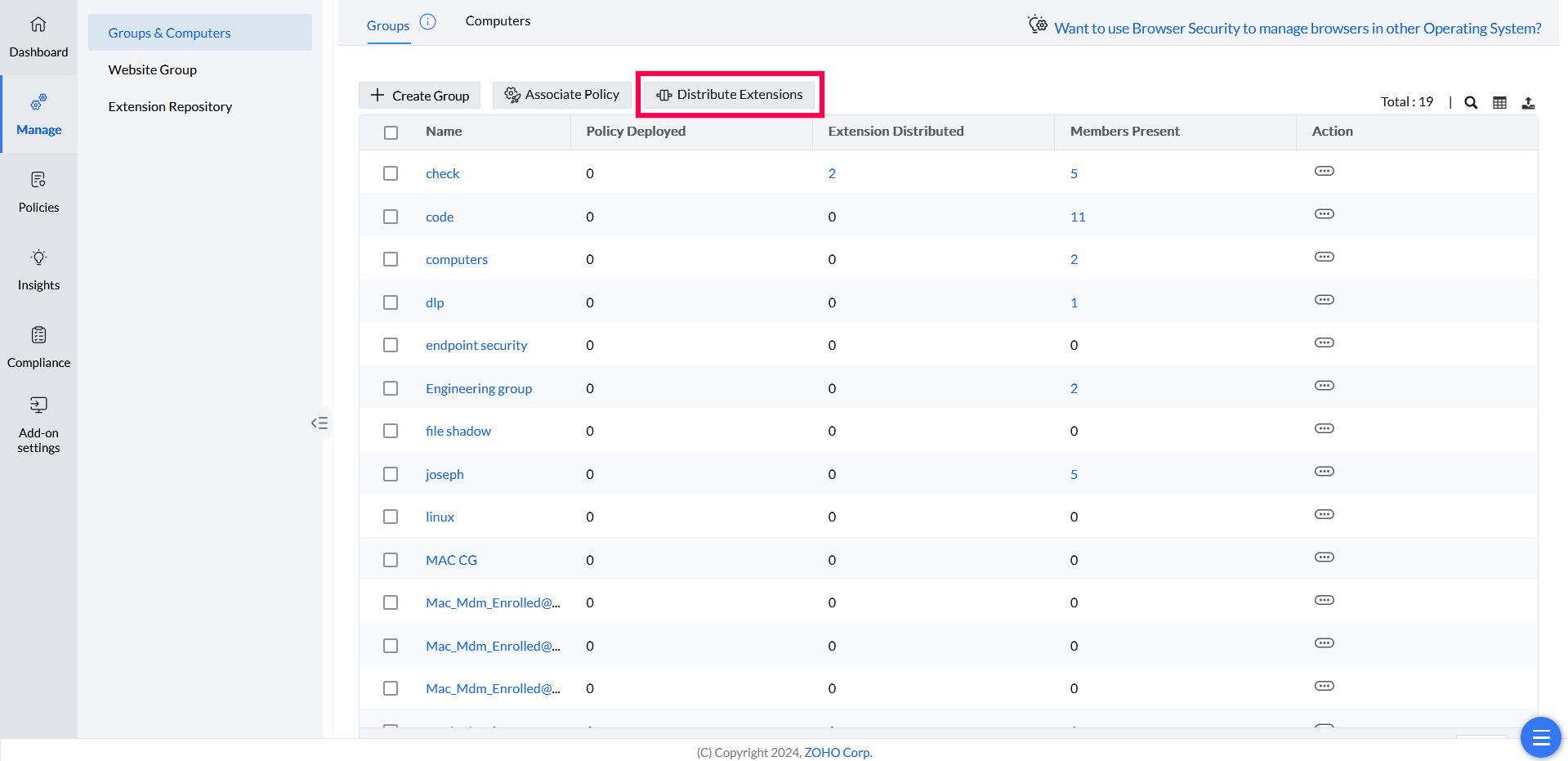
- In the Endpoint Central console, go to Browsers → Manage → Groups & Computers.
- See creating the extension repository for how to set one up.
- Select the custom groups to distribute the extensions to. To target individual computers instead, go to Computers and select the desired devices.
- Click Distribute Extensions.
- Choose the extensions to distribute. Available extensions are listed under Available Extensions; extensions you've chosen appear under Selected Extensions.
- Once you've selected the extensions to distribute to the groups or computers, click Distribute Extensions.
Extension Repository distributes packages to selected computers or groups. Browsers → Add-on Settings controls automatic first-party extension deployment at customer scope. Add-on Management controls restrictions and existing-extension actions. Review all sources when an extension is unexpectedly installed, blocked or removed.
Select the extension repository workflow
Where Extension Repository displays New and Legacy tabs, check which tab contains the extension. Follow the displayed migration guidance for New extensions: distribution is managed through an Add-on Management policy. The legacy computer/group distribution steps do not describe that new workflow.
If migration is offered, review the extensions assigned to each Add-on Management policy, then publish, deploy and verify the intended policy. The tabs and migration actions depend on feature availability. Do not infer a universal macOS distribution limitation from the legacy procedure; confirm the workflow and platform exposed in your console.
Verify an extension distribution
Review Distributed Computers/Groups results and remarks. In progress is not confirmed installation. After completion, check the intended browser profile and compare its extension identifier/version with the repository entry.
Reported success does not prove all profiles have the extension enabled. Removal also requires endpoint processing. If progress stops, provide target, action time, last contact, package/version and remark to support.