Frequently Asked Questions (FAQ)
Comprehensive Coverage
- For CVEs, support is provided within 24 hours of its disclosure.
- For zero-days, support is provided within 7 hours of its disclosure.
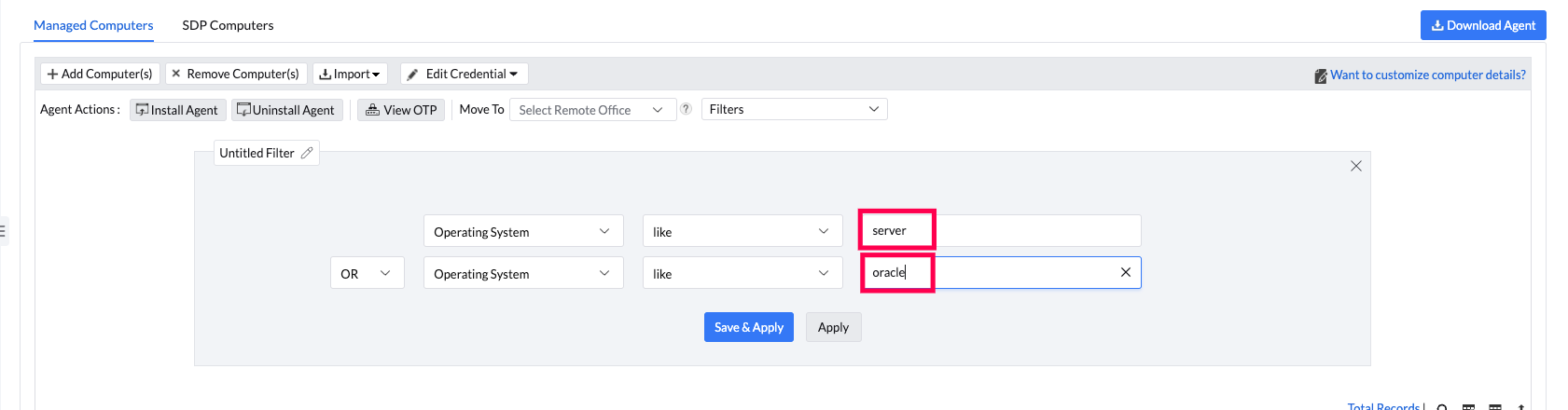
- If the operating systems' name contains the keyword "server"
- If the machine with Red Hat Enterprise Linux OS has a Server subscription
- If the machine has Oracle Linux OS
Vulnerability Detection and Remediation
- During daily Vulnerability Database synchronization, whether automatic or manual.
- Immediately after a patch is installed through Install Patch Configuration, APD Deployment, or Test and Approve.
- Following a system reboot, if the reboot was required after patch installation.
- When patches in an APD task or Test Group are either approved, not approved, or declined.
- When a scan is manually triggered via the product console or from the Agent Tray icon.
- After the agent is installed on a system, provided the Perform Patch Scanning option is enabled in SoM Settings.
You can initiate a manual scan on a local computer via Agent Tray icon → Scan → Initiate Patch Scan, or via the product console by navigating to Systems → Scan Systems. Choose the computers to be scanned and click Scan Systems. To scan all systems, click Scan All. Please note that this option is limited to a maximum of 100 computers.
Note: Web/database servers will be detected only when they are actively running.
Endpoint Central detects cURL-related vulnerabilities. For cURL included with Windows, Microsoft provides fixes through Windows cumulative updates rather than separate cURL patches.
- If Microsoft has not released a fix, Patch Availability is shown as Not Available. Review the remediation information and wait for the official cumulative update.
- After Microsoft releases the fix, Patch Availability can be shown as Manual Fix Required. Open the vulnerability and review the Remediation information to identify and deploy the applicable Windows cumulative update.
- After the update is installed, run a vulnerability scan. The vulnerability is cleared when the scan confirms that the installed cURL version is no longer affected.
For the complete workflow, refer to Remediating Vulnerabilities without a Deployable Patch.
On the other hand, Vulnerability Manager Plus is a security-focused solution that specializes in identifying, prioritizing, and remediating vulnerabilities across the network. It provides advanced vulnerability scanning, risk-based prioritization using CVSS scores and threat intelligence, exploit detection, configuration audits, and compliance reporting. While both products include patch and vulnerability management capabilities, Endpoint Central provides more endpoint administration features, whereas Vulnerability Manager Plus focuses exclusively on vulnerability detection and risk mitigation.
This typically happens when Firefox is running in the background during deployment or when related processes/services are active, preventing proper file replacement. To resolve this:
- Ensure all Firefox instances and related processes are completely closed.
- Reopen Firefox and verify the file version details again.
- Perform a rescan to update the vulnerability status.
Comply with Specific CIS and STIG Rules
1. Misconfigurations: Misconfiguration Name, Category, Severity, Remediation Availability, and Post Deployment Issue.
2. Systems: Computer Name, Platform, Domain Name, Branch Office, Custom Group, Operating System, Language, and Agent Live Status.
You can filter Web Server Misconfigurations on the basis of:
1. Misconfigurations: Misconfiguration Name, Category, Severity, Web Server Name, and DB Server Name.
2. Systems: Computer Name, Platform, Domain Name, Branch Office, Custom Group, Operating System, Language, and Agent Live Status.
Compliance
- For On Premises, patches will be downloaded from the server as server-to-agent communication will remain active regardless of the system's quarantine status, so the patching process will happen in the usual manner.
- For Cloud agents, patches will be downloaded directly from the vendor websites. If a system is quarantined, the URL from which the patches need to be downloaded will be temporarily allowlisted. Once the patch is downloaded, the URL will be automatically blocklisted by the quarantine policy.
- Patch Database Synchronization
- Patch Installation
- System Reboot
- APD/Test Group Actions
- Manual Scan (On-demand)
- Agent Installation
Vulnerability Audit & Reports
Exceptions
Network Devices Firmware Vulnerability Detection
- Ensure the device is reachable from the VMP server.
- Ensure the prerequisites from "<server-home>/bin/nmap" are installed, specifically Npcap and vcredist. You can find these in the Control Panel as Npcap OEM and Microsoft Visual C++ 2013 Redistributable (x86) - 12.0.21005.
Discovery may take time depending on the number of IP addresses provided. If the subnet contains a large number of IPs, the process could be slower. Try entering one or two known IP addresses to check if discovery is successfully identifying network devices.
- Ensure the device is reachable (try pinging it from the VMP server).
- Confirm that the VMP server's IP address is added to the SNMP host list in the device's SNMP configuration.
- Verify that the SNMP community string or password is correct and valid.
- Ensure that SSH is enabled and the device is reachable.
- Verify that the correct username and password are being used.
- Check if the correct prompt is configured by logging in to the device manually.
- Most firmware details can be retrieved in user mode; privileged mode is rarely required. Therefore, enable credentials are typically not necessary. If you choose to provide them, please ensure they are valid.
- Enable SNMP (v1/v2c/v3) or SSH on the devices.
- Ensure VMP communication over SNMP/SSH is allowed by the firewall.
- Add appropriate credentials in VMP scan settings.
Visit the Supported Network Devices page.
When a network device is flagged as "unsupported," it indicates that the device's firmware or model is not currently recognized by Vulnerability Manager Plus for vulnerability detection. To address this issue, follow these steps:
1. Collect Device Details:
- Identify the vendor name (e.g., Cisco, Juniper, Fortinet).
- Determine the model and series (e.g., Catalyst 2960, FortiGate 60E).
2. Retrieve sysObjectID:
- Use an SNMP walk tool or MIB browser to query with the following command:
snmpwalk -v2c -c [community_string] [device_ip] .1.3.6.1.2.1.1.2.0- This helps Vulnerability Manager Plus identify the exact device family.
3. Get Firmware Version via SSH:
- Log in to the device using PuTTY/SSH.
- Execute the appropriate command to retrieve the firmware version (this varies by vendor, e.g.,
show versionfor Cisco). - Copy the output.
4. Submit the Details to Support:
- Compile all collected details and submit them to support for further assistance.
Miscellaneous
Vulnerability Manager Plus is a dedicated patch management solution from Vulnerability Manager Plus that focuses solely on identifying and deploying patches for operating systems and over 1100 third-party applications across Windows, macOS, and Linux environments. It is available in both cloud and on-premises versions, making it ideal for organizations seeking a straightforward, platform-agnostic patching tool. In contrast, Vulnerability Manager Plus offers a more comprehensive security solution that includes not just all features of patch management but also vulnerability scanning and detection, security configuration audits, and compliance reporting. It is available only as an on-premises solution and is better suited for organizations looking for deeper vulnerability insights and threat-based remediation. In short, while Vulnerability Manager Plus is ideal for focused patching needs, Vulnerability Manager Plus serves as a full-fledged vulnerability management platform with integrated patching capabilities. To know more about the differences, refer to this page.
Yes. ManageEngine Vulnerability Manager Plus is now available in both cloud and on-premises versions. You can choose the deployment model based on your organization's requirements.
Refer to this page to know all the supported applications. Support is provided only for the mentioned.
Vulnerability Manager Plus is now available as a SaaS (cloud) solution. However, Vulnerability Manager Plus and Patch Manager Plus Cloud continue to be separate products, and Vulnerability Manager Plus is not provided as an add-on to Patch Manager Plus Cloud.
You can renew the license by filling the details in this page.
You can download the latest Vulnerability Manager Plus hotfix from the Service Packs and Hotfixes page. Follow the instructions provided there to apply it to your setup.
Yes. We offer support based on the OS version mentioned in this page. Irrespective of the hardware.
For each machine, under specific System summary -> Installed software tab, the installed software table will be available. Export for the same will be available in the right side top of the table.
Vulnerability checks require no specific configuration. Once the agents are installed, the next Vulnerability and Patch scan will automatically use the detection checks available from the Security Research Team's findings through a vulnerability database sync.
No. As of now we do not have provision for checking the files for detecting credentials and passwords.
No. Vulnerability Manager Plus does not support general software installation. It is built for vulnerability remediation (patch and hotfix deployment), while regular software deployment should be handled through software deployment tools.