
Invoking connections
Last updated on:
In this page
Overview
Connections are invoked by integrations that require communication with an external service. Instead of requiring repeated authentication, modules such as Applications, Custom Widgets, and Custom Functions automatically use the existing connection you have configured. This ensures secure and seamless access to the external service.
This section explains how connections are invoked within the Applications, Custom Widgets and Custom Functions modules.
Invoking connections from Applications
- In the product console, go to the Settings tab and select Admin.
- Under Log Source Configuration, select Applications.
- In the Applications page, go to the Other Applications tab.
- Select a Log Source Type for which you want to create a connection.
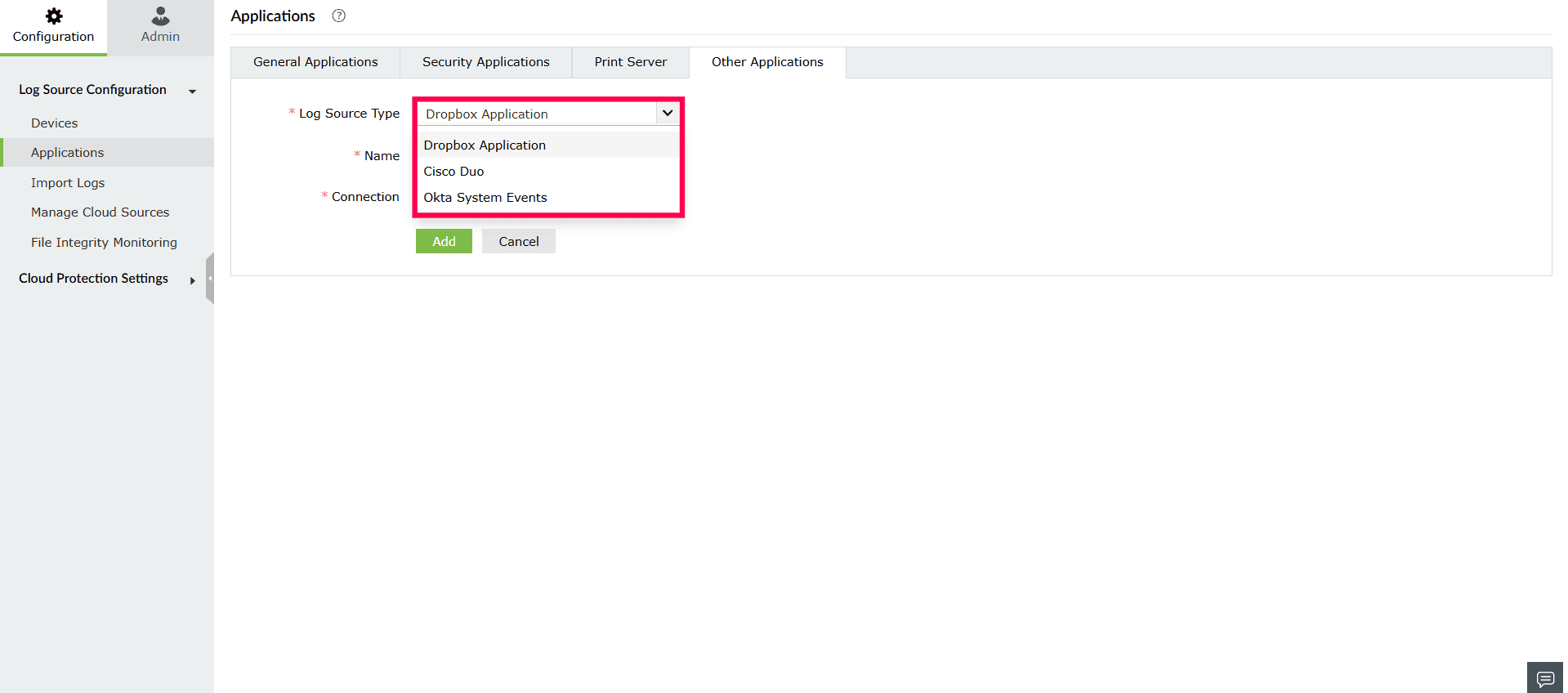
Figure 1: Selecting log source type - Enter a Name for the application in the Name field.
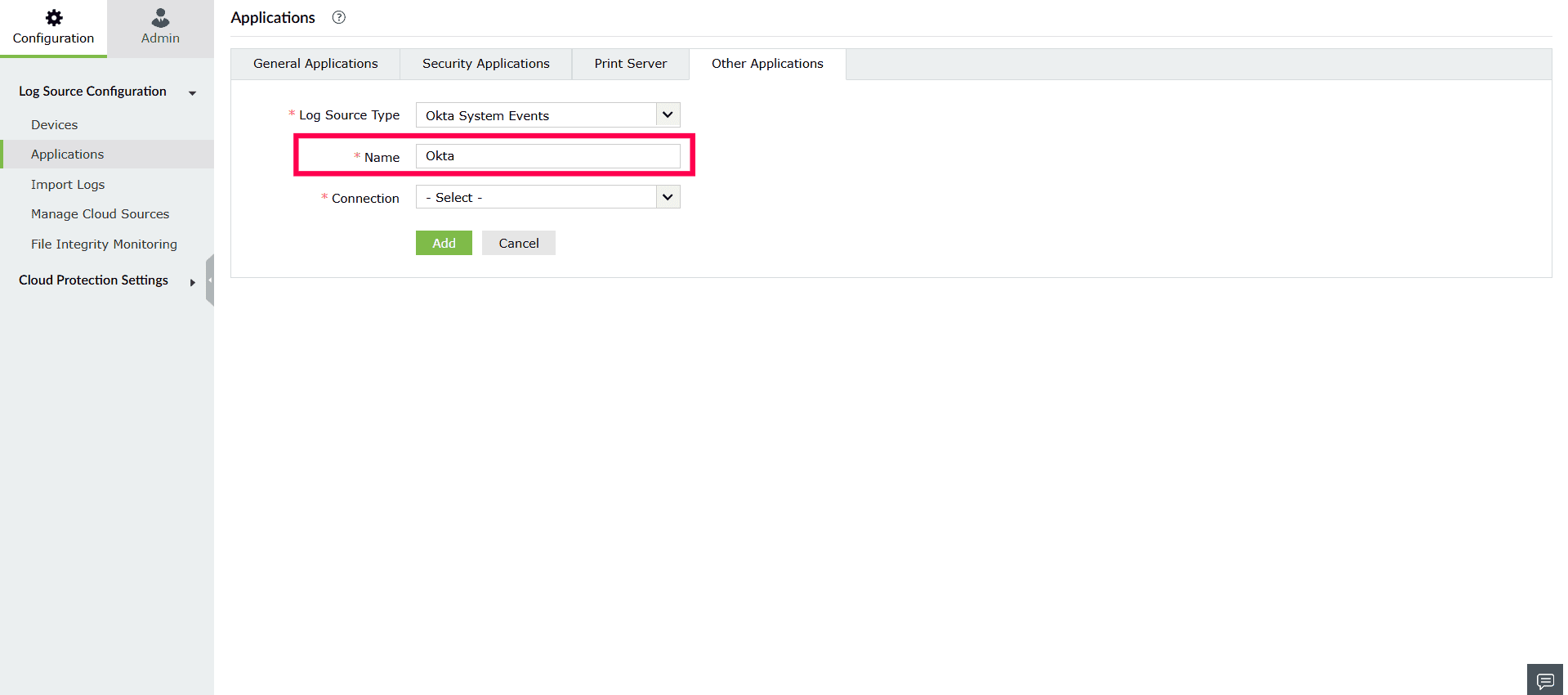
Figure 2: Entering a name - In the Connection dropdown, click to open the available list.
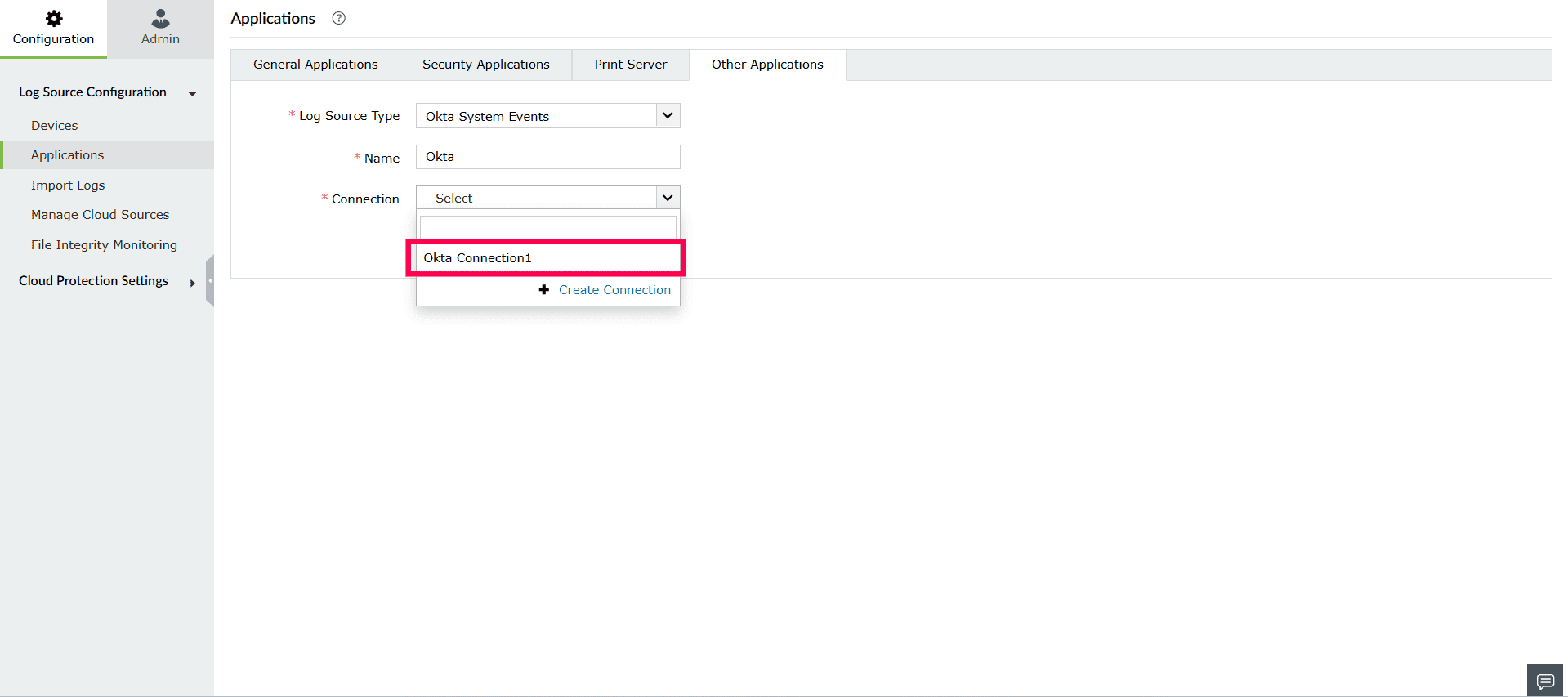
Figure 3: Selecting a connection NOTE If no existing connections are available, you will see No results found.- Click Create Connection.
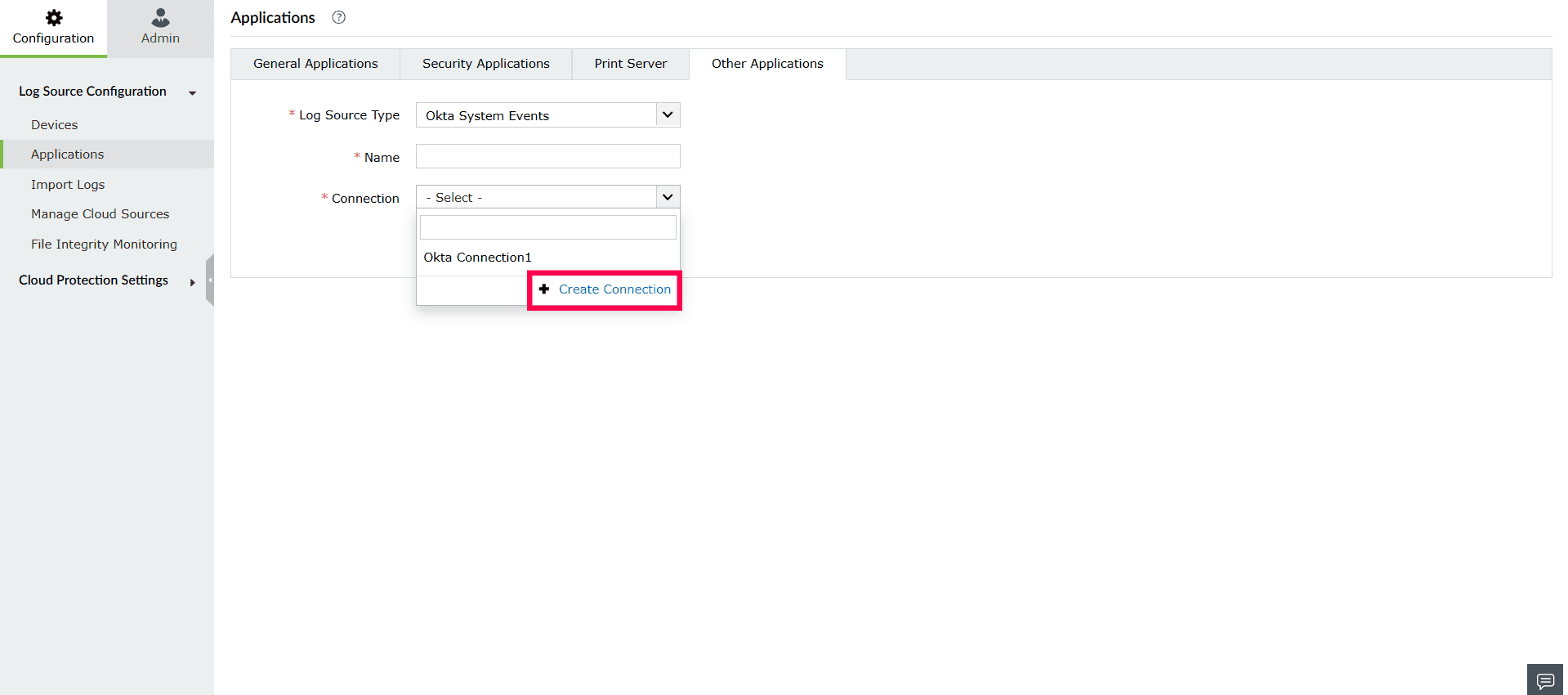
Figure 4: Creating a connection - The Create Connection window opens.
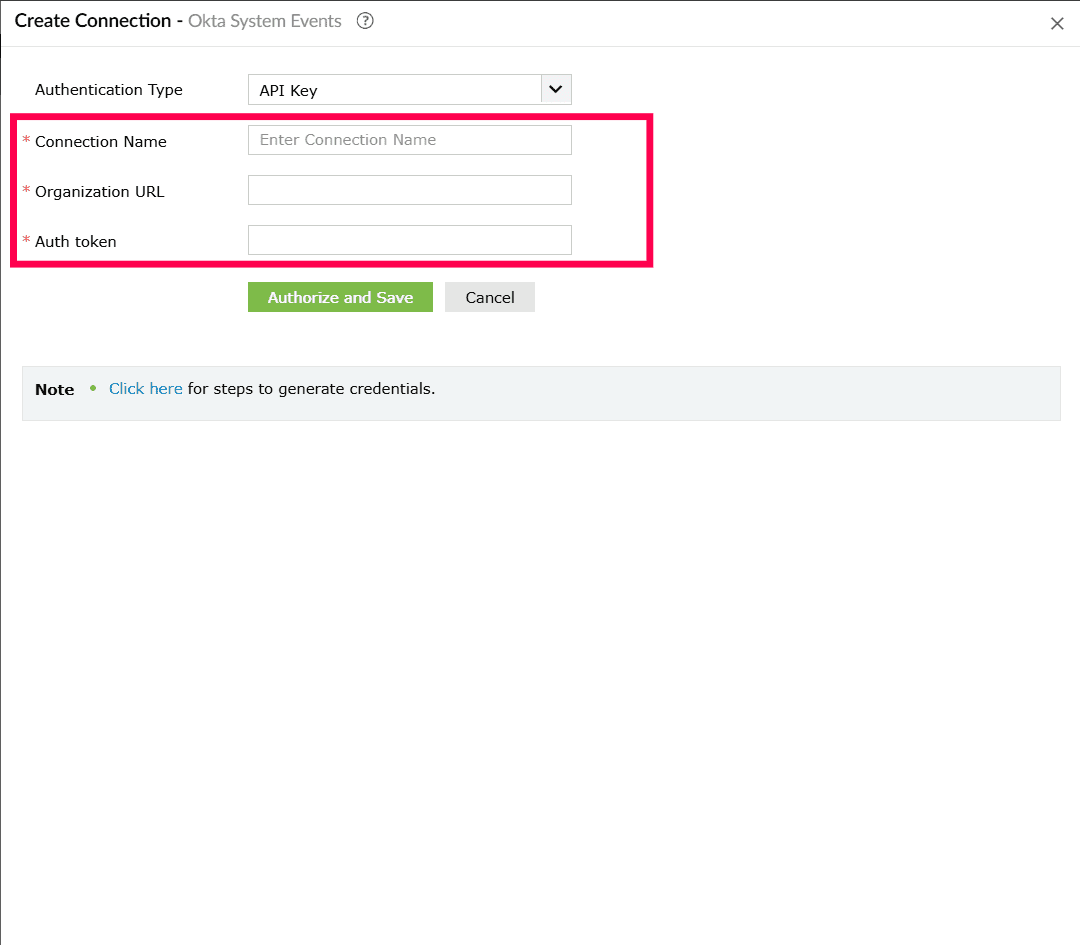
Figure 5: Configuring authentication setup - Authorize and Save the connection by following the appropriate steps, depending on the service type. For pre-defined services, refer to Creating connections for pre-defined services. For custom services, refer to Creating a connection.
- Once the connection is authorized and saved, it becomes available for selection in the Connection dropdown.
- Click Create Connection.
- Click Save to add the connection.
Invoking connections from other modules
In other modules of the product console, such as:
You can choose an existing connection when configuring widget or a function that interacts with an external service.
Read also
This page explained how connections are invoked across different modules in Log360 Cloud. For related setup and configuration details, refer to the following articles: