

- Free Edition
- Quick links
- Active Directory management
- Active Directory reporting
- Active Directory delegation
- Active Directory permissions management and reporting
- Active Directory automation
- Governance, risk, and compliance
- Microsoft 365 management and reporting
- Microsoft 365 management and reporting
- Microsoft 365 management
- Microsoft 365 reports
- Microsoft 365 user management
- Microsoft 365 user provisioning
- Microsoft 365 license managementn
- Microsoft 365 license reports
- Microsoft 365 group reports
- Dynamic distribution group creation
- Dynamic distribution group reports
- Exchange management and reporting
- Active Directory integrations
- Popular products
Understanding Active Directory photo attributes
In any modern organization, having an Active Directory user photo goes beyond mere aesthetics. These images integrate seamlessly across Microsoft 365, SharePoint, and other applications and help foster a more collaborative environment by putting a face to a name.
But to manage these photos, it's crucial to first understand where they are stored. This data isn't just a file in a folder; it's saved as binary data within specific attributes on the user object in Active Directory. Different applications may pull from different attributes, making it essential to manage the right ones.
Here are the key attributes you need to know:
- thumbnailPhoto: This is the primary and most common attribute used for storing Active Directory user photos. It is natively read by most Microsoft applications, including Outlook, Teams, and SharePoint Online, and has a size limit of 100KB.
- jpegPhoto: As the name implies, this attribute is also designed to store a user's picture, specifically in JPEG format. It's often used as an alternative to thumbnailPhoto or by various third-party applications that are coded to look for this specific attribute.
- exchangePhoto: This is a legacy attribute primarily used by older, on-premises Microsoft Exchange Server environments. It was often used to store higher-resolution photos than what was allowed in the thumbnailPhoto attribute.
- photo and thumbnailLogo: These are more generic attributes available in the Active Directory schema but are rarely used for standard user profile pictures. They are typically reserved for other object types or specific custom application integrations.
While Active Directory provides these attributes, managing them presents significant challenges for IT administrators. I t's possible to add a photo to an Active Directory user account using native methods, but the process is often cumbersome and inefficient, especially at scale. This is where ADManager Plus, an Active Directory management tool, becomes essential, transforming a difficult task into a simple, intuitive process.
Seamlessly manage Active Directory users' photos
ADManager Plus, an Active Directory photo management tool, comes with bulk picture management capabilities, enabling administrators to add, edit, or remove user photos seamlessly without using scripts. It also offers a built-in search feature that helps you locate any particular Active Directory user and add or modify their picture in Active Directory in just a few clicks. With ADManager Plus, you can easily:
- Bulk upload Active Directory photos: Import user photos in bulk directly from a shared folder and map photos to the correct user accounts based on employee ID, sAMAccountName, or other attributes, making the initial rollout or a company-wide update effortless.
- Resize pictures: Crop and resize existing Active Directory images to comply with organizational standards and avoid thumbnailPhoto size limit issues.
- Use the right photo attribute: Define the specific Active Directory attribute where the photo should be stored. You can choose from common attributes like thumbnailPhoto, jpegPhoto, exchangePhoto, thumbnailLogo, or photo to ensure compatibility with all your integrated applications.
- Delete users' photos: Remove non-compliant user photos by locating the users using the built-in search option or by using predefined Active Directory reports.
- Integrate photos into User Management Templates: Add a photo field to your user creation or modification templates with just drag and drop actions, allowing HR or help desk staff to add a picture to an Active Directory profile as a standard part of the onboarding or update process.
- Automate photo management: Automate photo updates by identifying users without photos and automatically mapping images to their accounts from a specified folder based on file naming conventions.
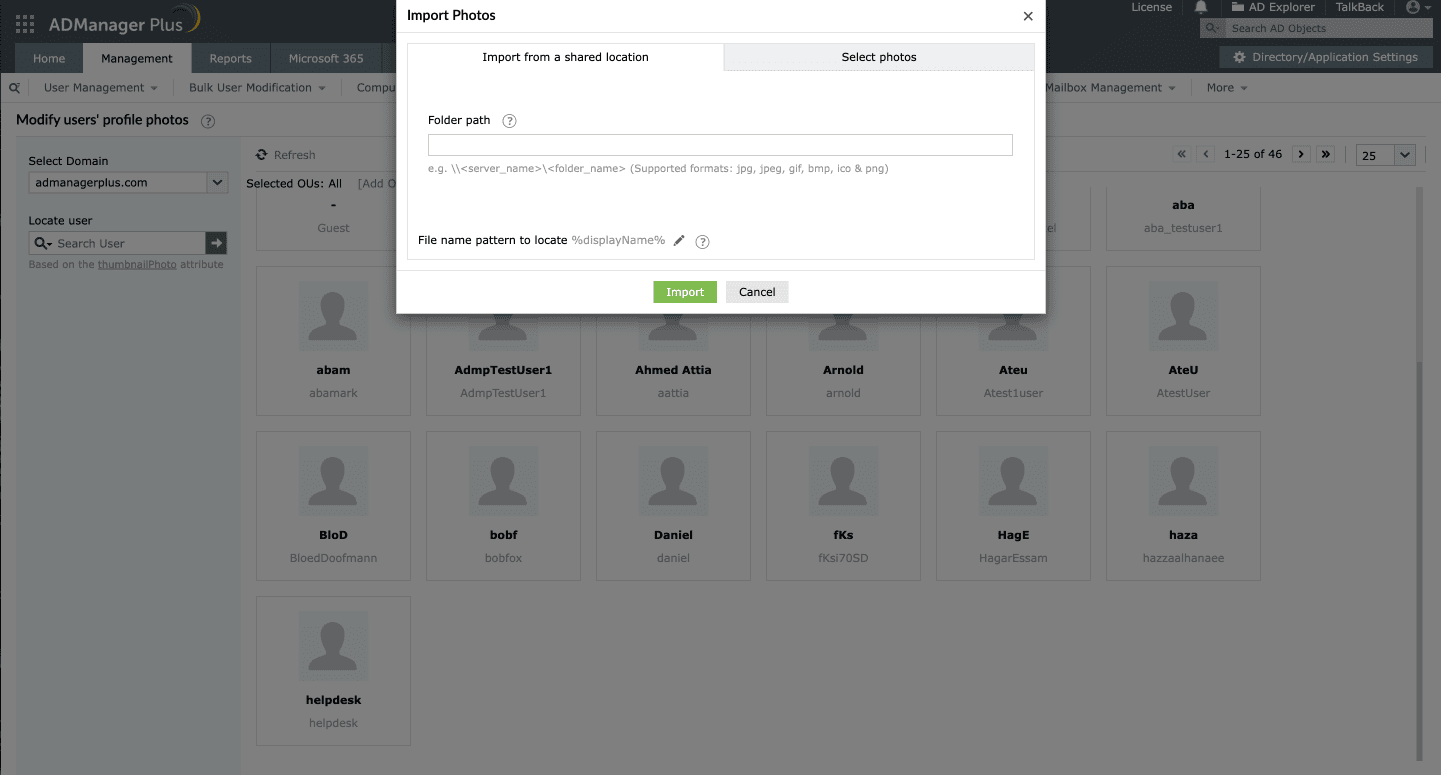
Steps to update Active Directory user photos
Managing user photos in ADManager Plus is an intuitive process designed to save you time and eliminate complexity. By following these three simple steps, you can efficiently update Active Directory photos in no time:
Locate and select the target users
Specify which user accounts you would like to modify using ADManager Plus' built-in search or bulk import users' photos. You can also use the Photo Based Reports in ADManager Plus to identify the users you would like to manage.
Upload photos
Select the folder containing the user photos. For automatic mapping, ensure each image file is named after a unique user attribute.
Verify and execute
Ensure that correct photos are matched with the correct user accounts and execute the update.

Troubleshooting common Active Directory photo management issues
Here are some common issues that administrators encounter while managing Active Directory photos and their solutions.
- I uploaded a photo, but it's not appearing in Outlook or Teams.
This is the most common issue and is almost always caused by caching and replication delays.
- Active Directory replication: After you update the thumbnailPhoto attribute, it must replicate to all your domain controllers. This can take anywhere from a few minutes to several hours, depending on your Active Directory site topology.
- Outlook Cache: Outlook downloads the Global Address List as an Offline Address Book (OAB). The OAB is typically rebuilt on the Exchange server only once every 8-24 hours. After that, the client must download the new OAB. This is why it can take up to 48 hours for a photo to appear in Outlook.
- Teams Cache: Microsoft Teams has its own caching mechanism. You can try forcing a cache clear by signing out, fully quitting the Teams application, and signing back in.
- I received an error while trying to upload a photo.
This is usually related to either permissions or file size.
- Check file size: Ensure the photo you are uploading is under the 100KB size limit for the thumbnailPhoto attribute.
- Check permissions: The account you are using must have Write permissions on the thumbnailPhoto attribute of the target user objects.
- The photo is visible in AD, but not in a specific application.
If the photo shows in some places but not others, it's likely an attribute mismatch. The application in question might be configured to read from a different attribute, like jpegPhoto, instead of the standard thumbnailPhoto. Use ADManager Plus to ensure you are writing the photo to the correct attribute that your application expects.
- My bulk photo import failed or matched photos to the wrong users.
This is typically a naming or mapping issue. When performing a bulk import, the tool needs a unique way to match each photo file to a user. Using ADManager Plus, you can choose to map photos based on unique Active Directory user attributes. For example, if you choose sAMAccountName, the image file for user "john.doe" must be named john.doe.jpg.
Why choose our Active Directory picture management tool?
- Bulk photo management: Upload, replace, and delete photos for multiple users at once without using any scripts.
- Complete attribute control: Whether your environment uses thumbnailPhoto, jpegPhoto, or thumbnailLogo, ADManager Plus lets you select and update the right one effortlessly.
- Secure delegation: Empower non-admin teams to change pictures in Active Directory securely without granting excessive permissions.
- Built-in reporting: Track which users have missing or outdated Active Directory photos with built-in reports.
- Automate photo updates: Set up scheduled tasks to automatically sync new Active Directory profile pictures from shared folders.
FAQs
The widely accepted size limit for the thumbnailPhoto attribute in Active Directory is 100KB. Storing images larger than this can cause replication issues.
You can view the thumbnail photo of Active Directory users by generating the Photo Based Users report in ADManager Plus.
Yes. ADManager Plus allows you to grant specific OUs or user groups the rights to edit, upload, or replace Active Directory profile pictures without granting them full permissions.
thumbnailPhoto is the standard attribute used natively by the Microsoft ecosystem, including Outlook, Teams, and SharePoint, to display user pictures. jpegPhoto, on the other hand, is an alternative attribute often used by third-party applications or in custom integrations that are specifically configured to read image data from it instead.
When you add a photo to an Active Directory user account, it replicates across your entire Microsoft environment to personalize communication and collaboration.
To add a photo using PowerShell, you must first read the image file from your disk into a byte array, then use the Set-ADUser cmdlet with the -Replace parameter to write that byte array to the thumbnailPhoto attribute. This process requires scripting knowledge and, crucially, will fail if the image file is over the 100KB size limit, meaning you must manually resize and validate every photo before attempting to upload it.
Other features
Active Directory Management
Manage AD, Microsoft 365, Exchange, Skype for Business, and Google Workspace accounts of users, single or bulk, using CSV files or smart templates.
200+ Active Directory Reports
Built-in report library with over 200+ reports on AD, Exchange, Microsoft 365 users. Export them as CSV, PDF, and XLSX files.
Active Directory User Modification
Modify users in bulk using templates or CSV files. Move users, unlock users, modify their group memberships and, more.
Active Directory User Reports
Get instant information on Active Directory user accounts such as locked-out users, disabled users, account expired users, and users' logon data without using PowerShell scripts
Microsoft 365 User Management
Create Microsoft 365 accounts, assign, revoke or remove their licenses, reset the password of accounts, and more.
Google Workspace Provisioning
Create accounts in Google Workspace simultaneously while creating Active Directory accounts from one single console using CSV files.
Need Features? Tell Us
If you want to see additional features implemented in ADManager Plus, we would love to hear. Click here to continue


