Direct Inward Dialing: +1 408 916 9393
Searching Active Directory (AD) for accounts by their state, such as locked out, disabled, inactive, or expired, lets you find the accounts that need attention without knowing their names. This makes it a routine part of help desk triage, security reviews, and a stale account cleanup before an audit. This guide explains how to search AD for accounts using PowerShell, Active Directory Users and Computers (ADUC), and ManageEngine ADManager Plus.
Import-Module ActiveDirectory
Use Get-ADUser to search for users by their name, email address, department, or other attributes. To retrieve a specific user by their logon name (sAMAccountName), use -Identity:
Get-ADUser -Identity "jbond"
To find users whose Name attribute starts with Bond, use -Filter with a wildcard:
Get-ADUser -Filter "Name -like 'Bond*'" |
    Select-Object Name, SamAccountName
To find objects with names starting with Sales, including users, computers, and groups, use Get-ADObject:
Get-ADObject -Filter "Name -like 'Sales*'" | Select-Object Name, ObjectClass
For a raw LDAP query, -LDAPFilter takes a standard LDAP search filter. For example, to find all users in one department, use the following:
Get-ADUser -LDAPFilter "(department=Sales)" | Select-Object Name, SamAccountName
Search-ADAccount finds accounts based on their state, such as locked out, disabled, expired, or inactive. For example, to find locked-out accounts, run the following:
Search-ADAccount -LockedOut -UsersOnly |
    Format-Table Name, SamAccountName, LockedOut -AutoSize
The -LockedOut switch returns locked-out accounts within the specified search scope. Pipe the result to Format-Table for a clean list, or add -UsersOnly to exclude computer accounts.
The same cmdlet finds other account states through their switches. -AccountDisabled returns disabled accounts, -AccountExpired returns accounts for which the expiration date has passed, and -AccountInactive with -TimeSpan returns accounts that haven't signed in within a period. This is useful for cleanups:
# Disabled accounts
Search-ADAccount -AccountDisabled -UsersOnly | Select-Object Name, SamAccountName
# Expired accounts
Search-ADAccount -AccountExpired -UsersOnly | Select-Object Name, SamAccountName
# Inactive for more than 90 days
Search-ADAccount -AccountInactive -TimeSpan 90.00:00:00 -UsersOnly |
    Select-Object Name, SamAccountName, LastLogonDate
The -TimeSpan value uses the days.hours:minutes:seconds format, so 90.00:00:00 is 90 days. You can also pass it a New-TimeSpan -Days 90 object if you prefer.
To find accounts with an expired password, use the -PasswordExpired switch:
Search-ADAccount -PasswordExpired -UsersOnly |
    Format-Table Name, SamAccountName -AutoSize
Scope any of these searches to a single OU with -SearchBase, giving the OU's distinguished name (DN), which keeps the search fast in a large directory:
Search-ADAccount -LockedOut -SearchBase "OU=Sales,DC=corp,DC=com" -UsersOnly |
Select-Object Name, SamAccountName| Parameter or cmdlet | Description |
|---|---|
| Search-ADAccount | Finds accounts by their state (locked, disabled, inactive, or expired) |
| -LockedOut | Returns accounts that are currently locked out |
| -AccountDisabled | Returns disabled accounts |
| -AccountExpired | Returns accounts that are past their expiration date |
| -AccountInactive -TimeSpan | Returns accounts with no logon within the given period |
| -PasswordExpired | Returns accounts with an expired password |
| -UsersOnly or -ComputersOnly | Limits the results to user or computer accounts |
| -SearchBase | Scopes the search to a specific OU |
| Get-ADUser -Filter or Get-ADUser -LDAPFilter | Searches by the attribute rather than the account state |
The Find option can’t filter by a locked-out, inactive, or expired status. For account state searches, enable Saved Queries instead: In ADUC, right-click Saved Queries, click New > Query > Define Query, and select a common query such as Disabled accounts or Non expiring passwords, or supply a custom LDAP filter.
Native tools often require separate steps to search for accounts, export results, or configure scheduled reports. ADManager Plus simplifies these tasks with a single console for AD, Exchange, and Microsoft 365 management and reporting, with object searches and prebuilt reports that require no scripting.
For an ad hoc lookup by the name or attribute, the AD object search tool finds users, computers, and groups across OUs and domains in one search.
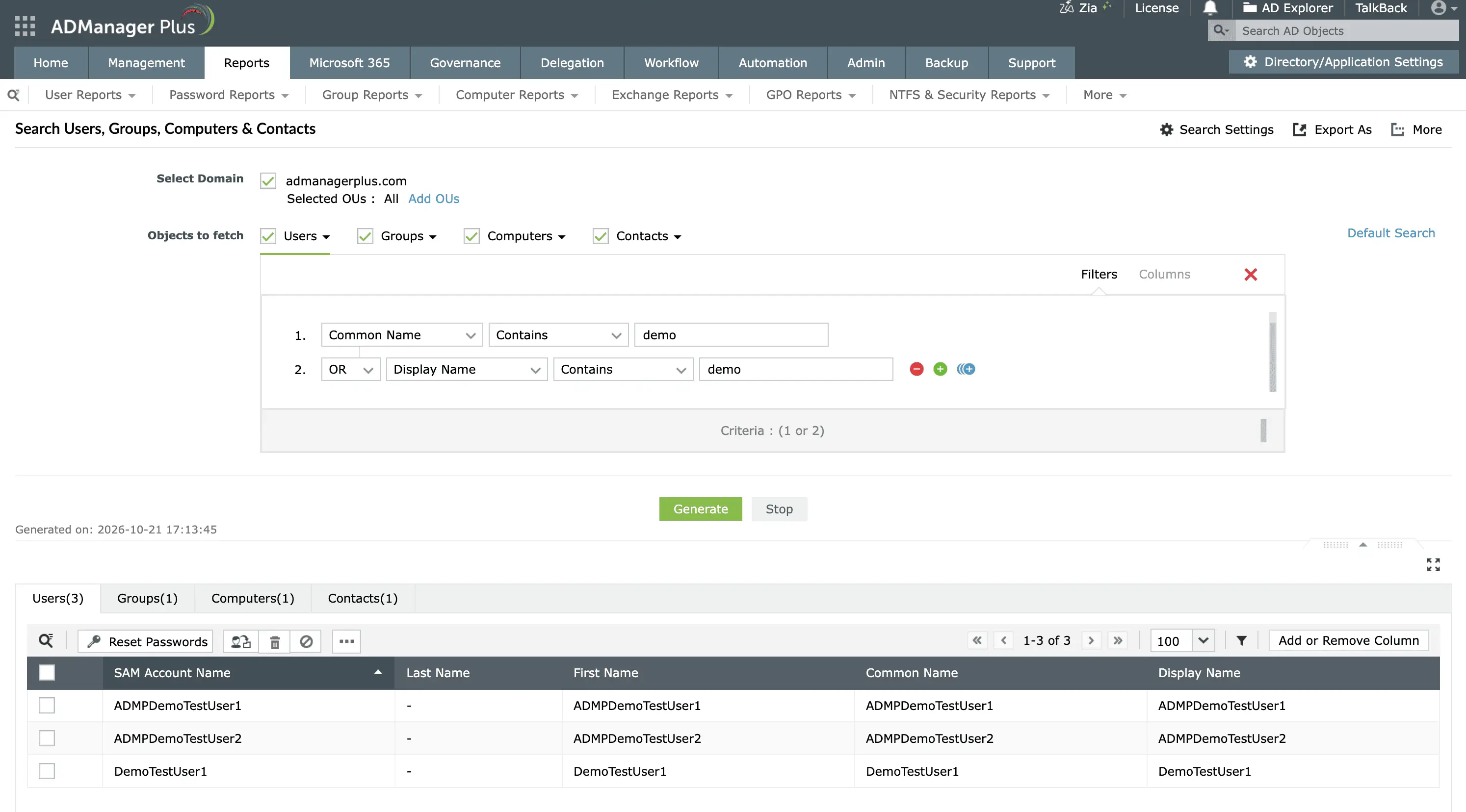
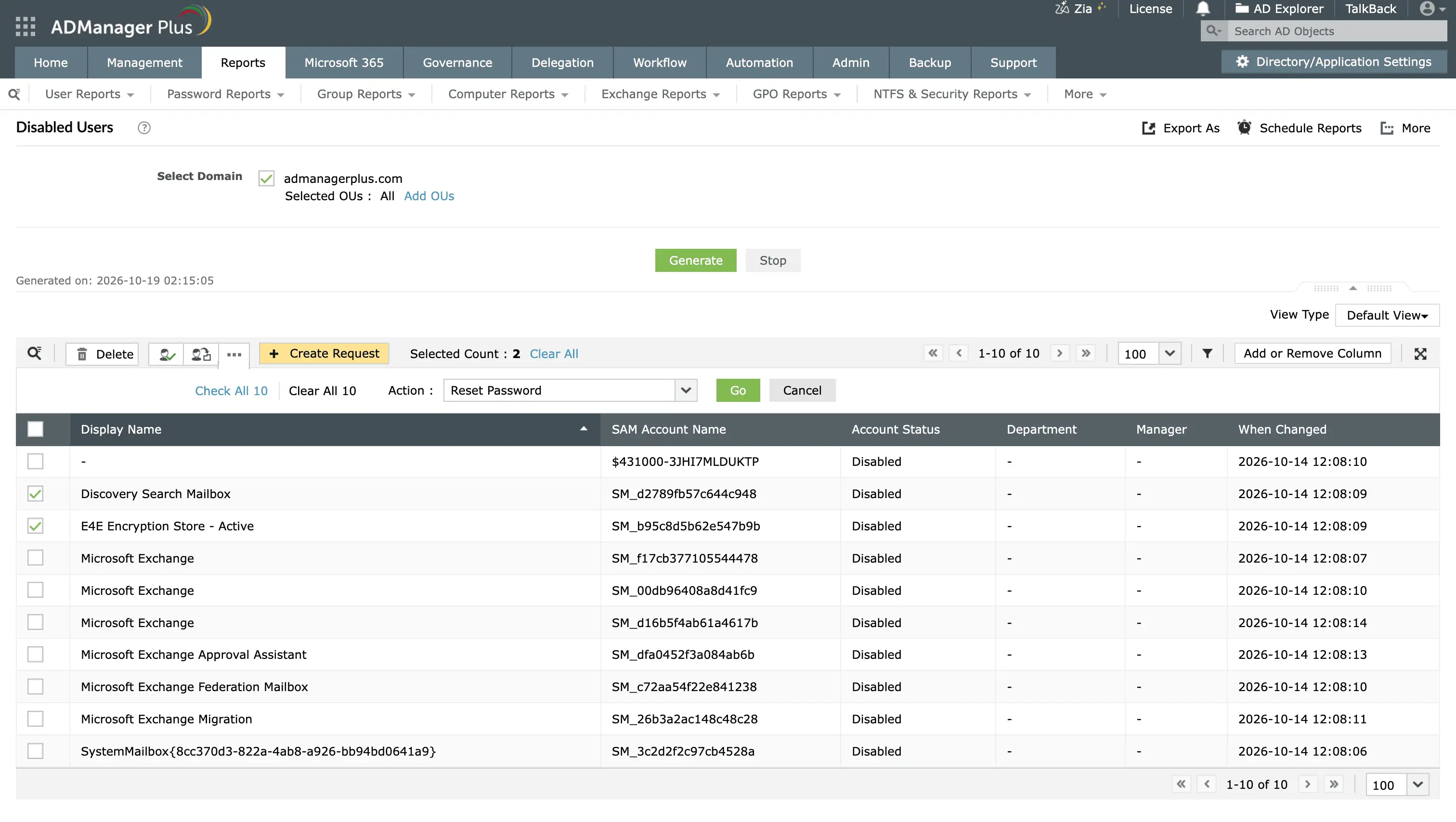
ADManager Plus replaces scripts and one-off searches with a single console for AD, Microsoft 365, and Exchange management and reporting:
A frequent help desk task is finding which accounts are locked, often to unlock them. Search-ADAccount -LockedOut lists them, and you can pipe the result straight into Unlock-ADAccount.
# List locked accounts
Search-ADAccount -LockedOut -UsersOnly | Select-Object Name, SamAccountName
# Find and unlock them in one line
Search-ADAccount -LockedOut -UsersOnly | Unlock-ADAccount
The Search-ADAccount state switches are mutually exclusive, so a single call cannot combine searches for disabled, expired, and inactive accounts. For a combined report, retrieve users with Get-ADUser and use Where-Object with OR logic:
now = Get-Date
$cutoff = $now.AddDays(-90)
Get-ADUser -Filter * -Properties Enabled, AccountExpirationDate, LastLogonDate |
    Where-Object {
        ($_.Enabled -eq $false) -or
        ($null -ne $_.AccountExpirationDate -and $_.AccountExpirationDate -lt $now) -or
        ($null -ne $_.LastLogonDate -and $_.LastLogonDate -lt $cutoff)
    } |
    Select-Object Name, SamAccountName, Enabled, AccountExpirationDate, LastLogonDate
This retrieves all users in the search scope and filters them locally, returning those that are disabled, expired, or have a recorded LastLogonDate older than 90 days. Users without a recorded LastLogonDate are included only if they are disabled or expired.
LastLogonDate is updated periodically and may lag behind actual activity. Review the results before using them for an account cleanup.
Running a single account status report combines these states without running or merging separate queries.
Search-ADAccount doesn’t return group memberships, so you can’t filter its results by memberOf directly. Pipe its output into Get-ADUser to add the memberOf property, then filter the inactive users to include only direct members of the group:
Search-ADAccount -AccountInactive -TimeSpan 90.00:00:00 -UsersOnly | Get-ADUser -Properties MemberOf | Where-Object { $_.MemberOf -like "*CN=Finance,*" } | Select-Object Name, SamAccountNameThis finds accounts that have been inactive for over 90 days and are members of the named group, which is useful for targeting an AD cleanup at one team or access level.
Combine the Inactive Users report with a group filter to get the same cross section from the console, without any piping.
Auditors often ask for a list of service accounts (frequently those set to never expire) or members of privileged groups. For the former, Search-ADAccount with a filter for non-expiring accounts helps; for the latter, resolve a privileged group's membership. A common starting point is finding accounts with a password that never expires:
# Accounts whose password never expires (often service accounts)
Get-ADUser -Filter "PasswordNeverExpires -eq '$true'" -Properties PasswordNeverExpires |
    Select-Object Name, SamAccountName
# Members of a privileged group
Get-ADGroupMember -Identity "Domain Admins" -Recursive |
Select-Object Name, SamAccountNameSearch-ADAccount finds accounts by their state, such as locked, disabled, inactive, or expired, through dedicated switches and covers both users and computers. Get-ADUser finds users by the attribute using -Filter or -LDAPFilter. Use Search-ADAccount for account state questions and Get-ADUser to search by the name, email, department, or other attributes.
Search-ADAccount includes both user and computer accounts by default since both can be locked, disabled, or inactive. Add -UsersOnly to limit the results to user accounts, or add -ComputersOnly to return only computers.
Use Get-ADUser and read the DistinguishedName property, which is returned by default:
Get-ADUser -Identity "jbond" | Select-Object Name, DistinguishedName
The distinguished name (DN) is the user’s full path in the directory, such as CN=James Bold,OU=Sales,DC=corp,DC=com. In ADUC, click View, enable Advanced Features, open the user’s Properties, and find the DN on the Attribute Editor tab (as distinguishedName) or on the Object tab as the canonical name. ADManager Plus shows the DN as a column in its user reports.