

Last updated on: June 26, 2025
Imagine this scenario as an IT change manager. You're preparing to implement a crucial change to your IT infrastructure: an upgrade to a database server. As the team completes implementation, there is an outage of critical enterprise services connected to that database server. All this time, you and your team believed this change carried a low risk of failure. This is an example of poor change risk assessment (CRA).
Failure to assess change risks and their impact can cause cascading IT failures that lead to revenue and reputation loss.
CRA is important for change managers, line managers, and change implementation teams to identify potential bottlenecks and address them, ensuring safe and successful change deployments.
In this guide, we'll help you understand the role of CRA and guide you through building and implementing one using ServiceDesk Plus.
What is change risk assessment?

A CRA is a structured questionnaire that helps you identify and evaluate potential risks associated with any kind of addition or modification to your IT systems. It focuses on understanding how different aspects of the change, such as the historical success rate, number of stakeholders, or levels of testing, impact the likelihood of change failures by ascribing a weighted score to each aspect.
Depending on the risks, you can add multiple checks and balances, such as additional layers of approvals, conditional checks, or CXO notifications.
Use case: CRA in ServiceDesk Plus
Zylker, a leading music streaming service company, planned to upgrade all of its database servers to Microsoft SQL Server 2022. During previous database server migrations, the implementation faced multiple change failures that impacted the music streaming service. The implementation of large-scale changes of this type typically involves five to six teams. To accurately quantify the change risk moving forward, Zylker's change manager built a questionnaire within the change template.
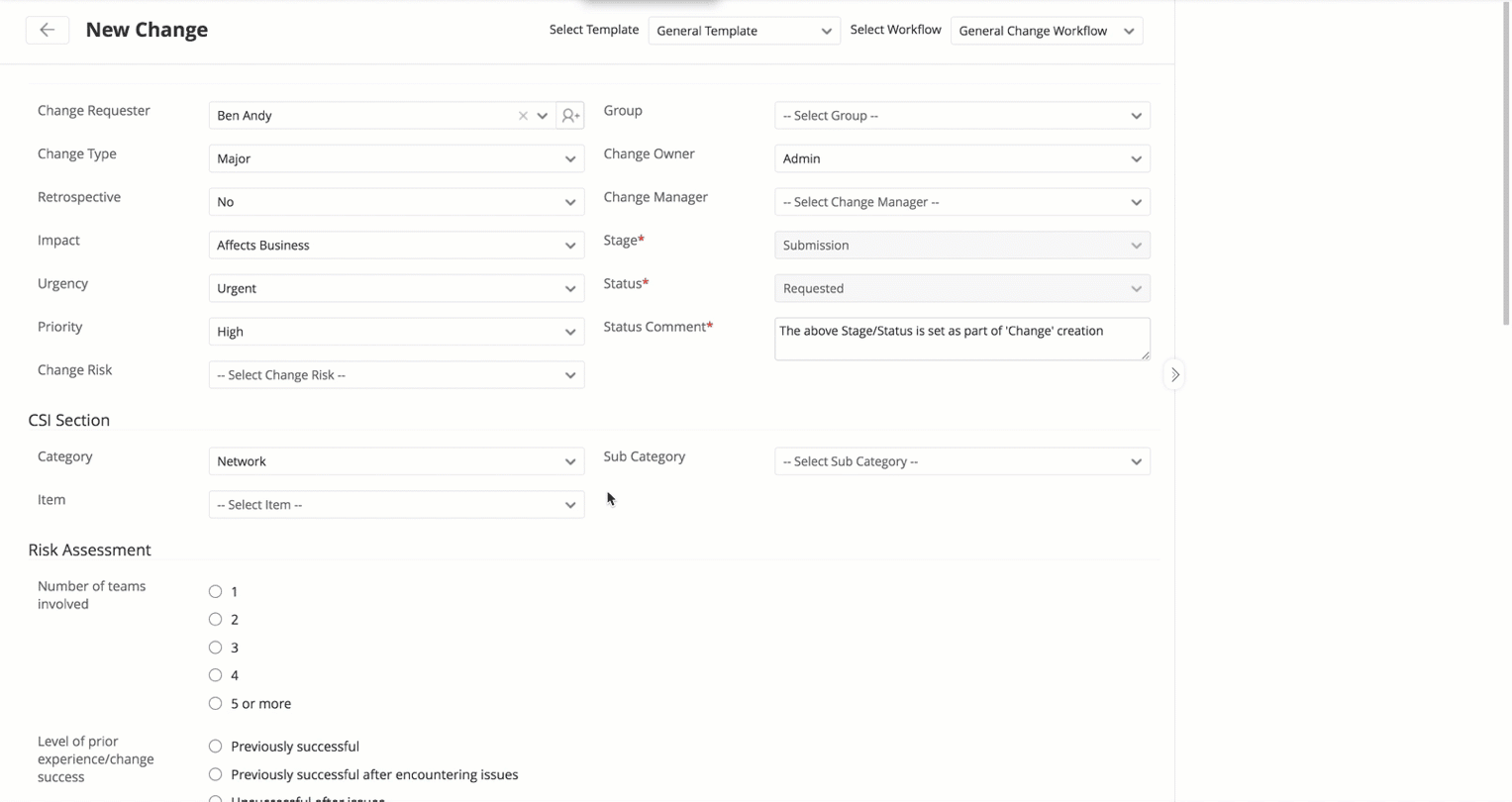
Configuring a CRA

Let's walk through how you can build a similar CRA that can improve your change success rates.
1. Build a set of questions for the CRA
ServiceDesk Plus tip: Create custom fields using Additional Fields.
The first step to building a detailed CRA questionnaire is to come up with a set of questions and add them into the change template in ServiceDesk Plus. Zylker's change manager leveraged the Additional Fields option in ServiceDesk Plus to create different questions that helped accurately map the company's change risk.
ServiceDesk Plus allows you to create additional fields for core ITSM practices that help you collect contextual data beyond the fields available out of the box.
To create new additional fields, navigate to Setup > Customization > Additional Fields. Using the drop-down menu, select Change Additional Fields. These fields can also be dragged and dropped into the Change Template across every stage of the change, from Submission to Close.
Choose from a variety of field types, such as single-line, multi-line, pick list, radio button, and percentage, to craft your risk questionnaire. Zylker used the questions shown in Tab. 1 as part of its CRA.
| Field name | Field value | Field type |
| Number of teams involved |
|
|
| Level of prior experience/change success |
|
|
| Level of testing |
|
|
| Expected service outage |
|
|
| Reversal time |
|
|
2. Include the CRA within Request For Change forms
ServiceDesk Plus tip: Drag and drop the Additional Fields into your Change Templates.
After Zylker created the list of questions for its CRA, it was time to make these questions visible to the change requester.
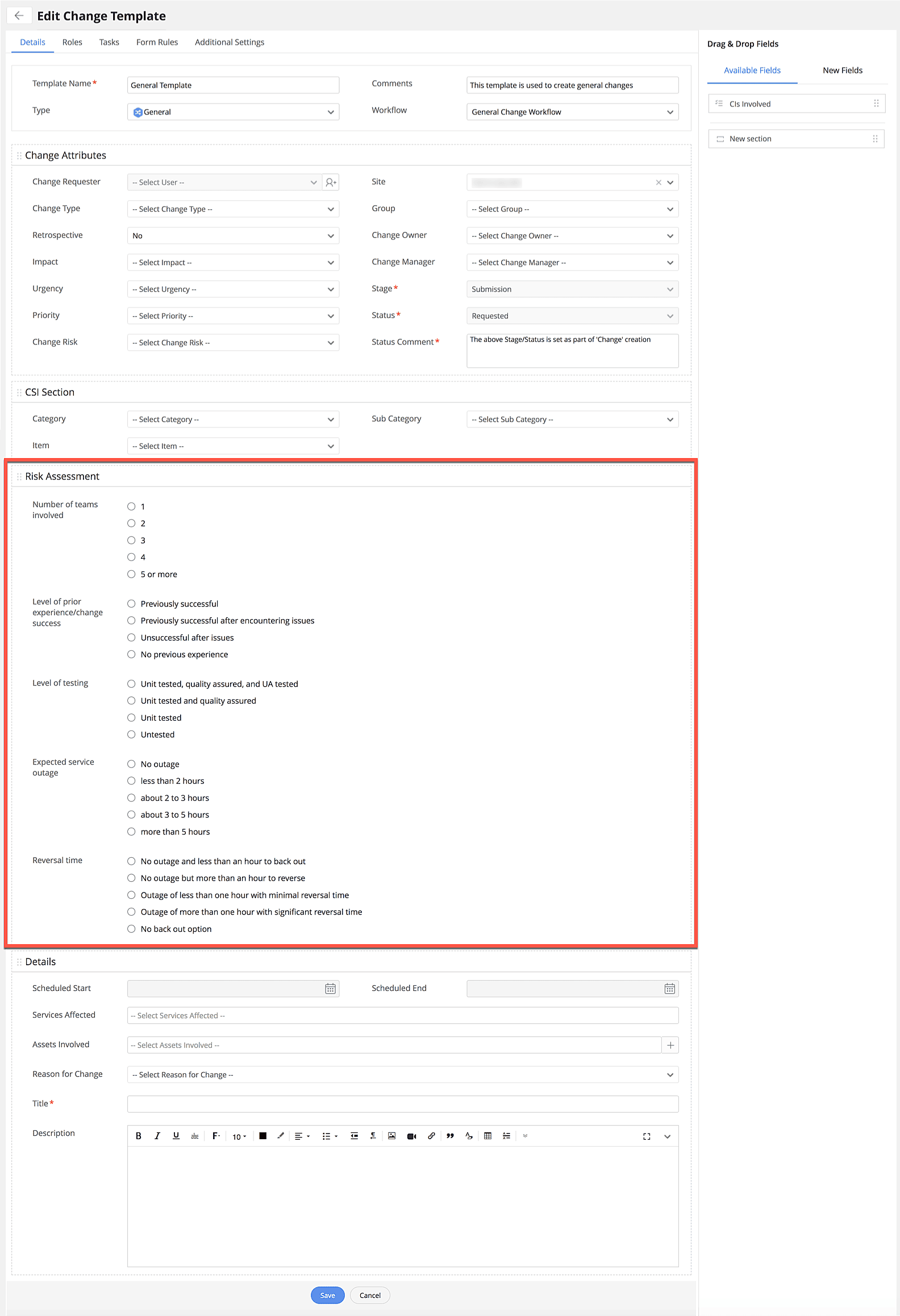
In your instance, add the Additional Fields (i.e., the CRA questions) into the relevant Change Template. ServiceDesk Plus will use the Additional Fields to gather the Change Requester's input in order to calculate the risk of the specific change request.
Go to Setup > Templates & Forms > Change Template. Add the created Additional Fields to a new template or to any existing templates. You can add the Additional Fields under a separate section called Risk Assessment for easy understanding, as shown in Fig.2.
3. Create a scoring table for the risk assessment questions
ServiceDesk Plus tip: Create a Custom Module and map the assessment responses to scores.
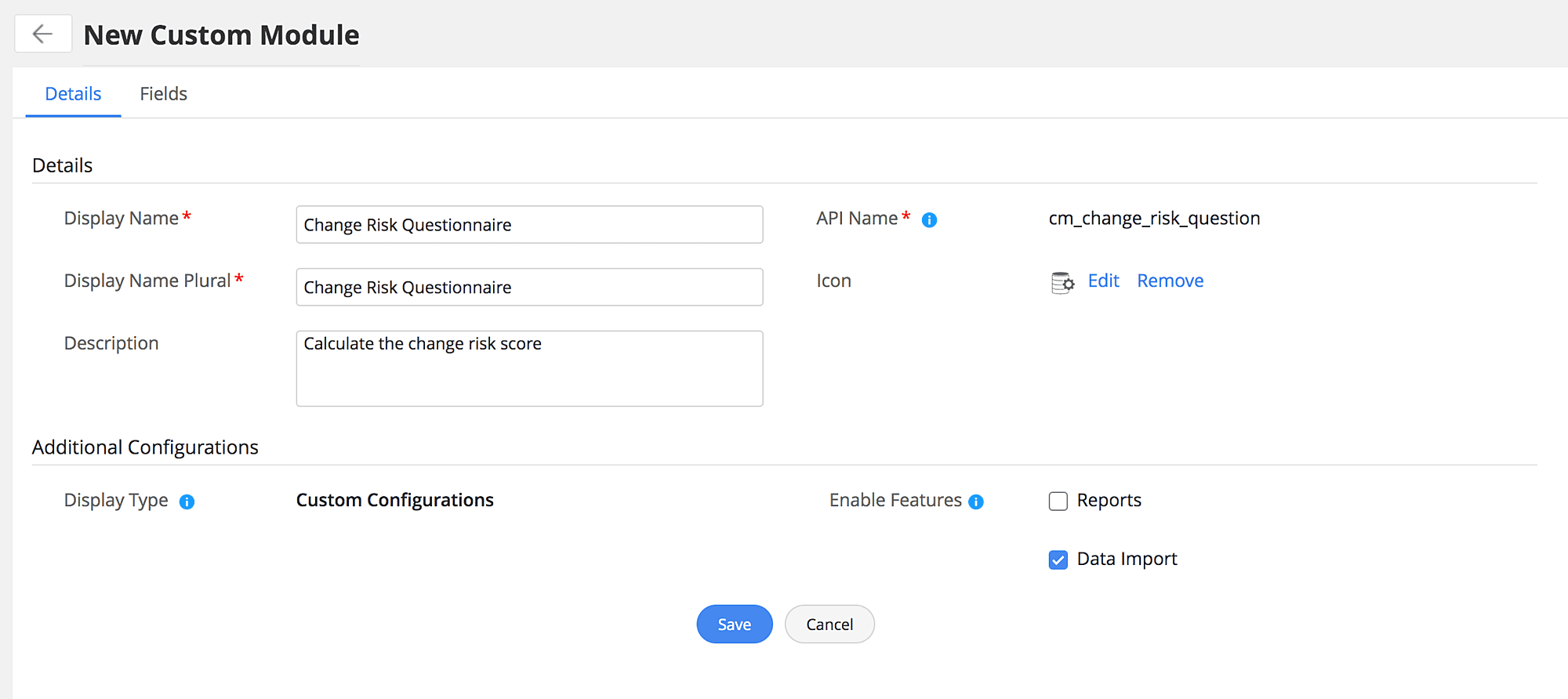
After the change risk questionnaire was added to the Change Template, Zylker's change manager used a new Custom Module as a reference table of change risk scores and to assign a score to each of the predefined questionnaire responses.
A Custom Module is a bespoke module that can be created and customized to fit an organizaton's unique requirements beyond the predefined ITSM practices in ServiceDesk Plus.
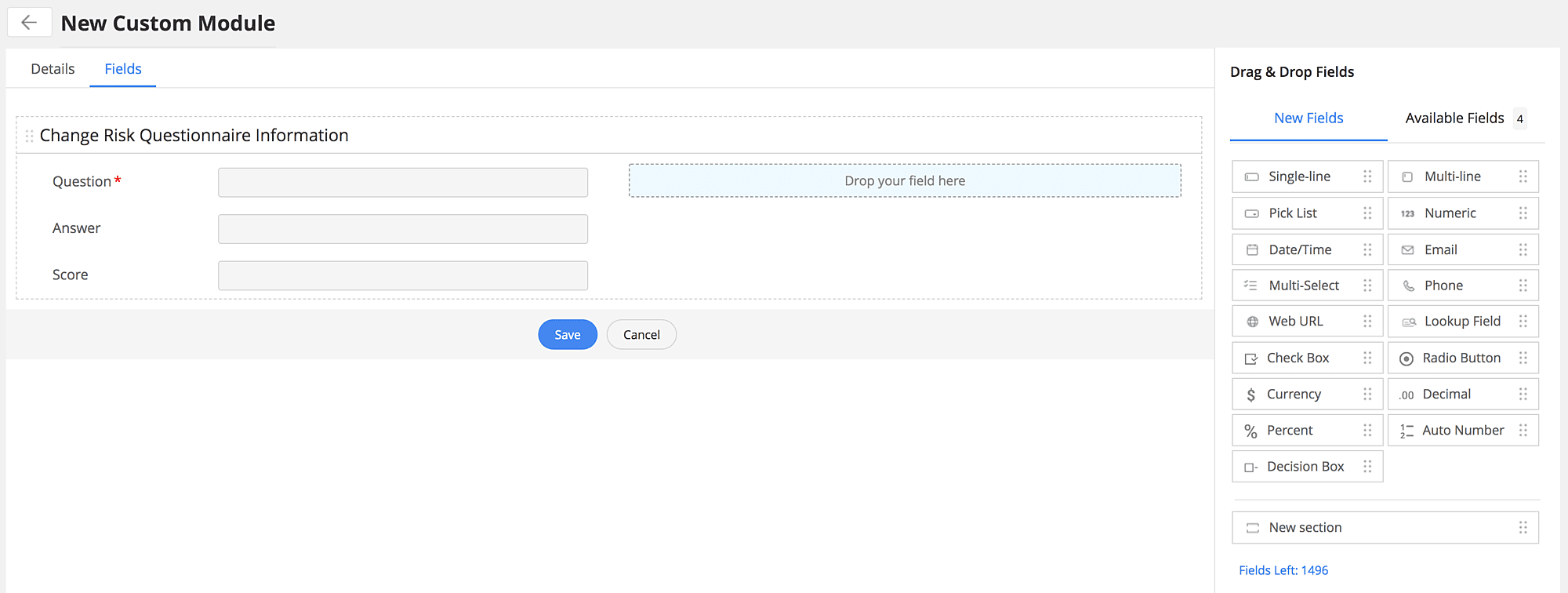
To create a Custom Module, go to Setup > Developer Space > Custom Module and click New. Fill out the fields in the New Custom Module form as shown in Fig. 3 and save the module's details.
Once you've created the Custom Module, you can replicate Zylker's CRA scoring table by defining the responses and their corresponding scores as fields.
Under the Fields section, edit the mandatory default field name as Question. Create two single-line type fields from the drag-and-drop section on the right-hand side of the page. Name the fields as Answer and Score.
This custom function will map these fields to the responses provided through the available options in additional fields. The Answer is the response to the CRA Questions, and the response is given a Score.
For example, if only one team is involved in the change, and the following conditions apply: 1. there is no prior experience; 2. the testing is untested; 3. there is no expected service outage; and 4. there is no back-out plan in place for reversal, then each of these factors will be considered as part of the answer. Based on these responses, the solution will calculate a final risk score.
4. Populating the scoring table
ServiceDesk Plus tip: Import the sample questionnaire data into the Custom Module.
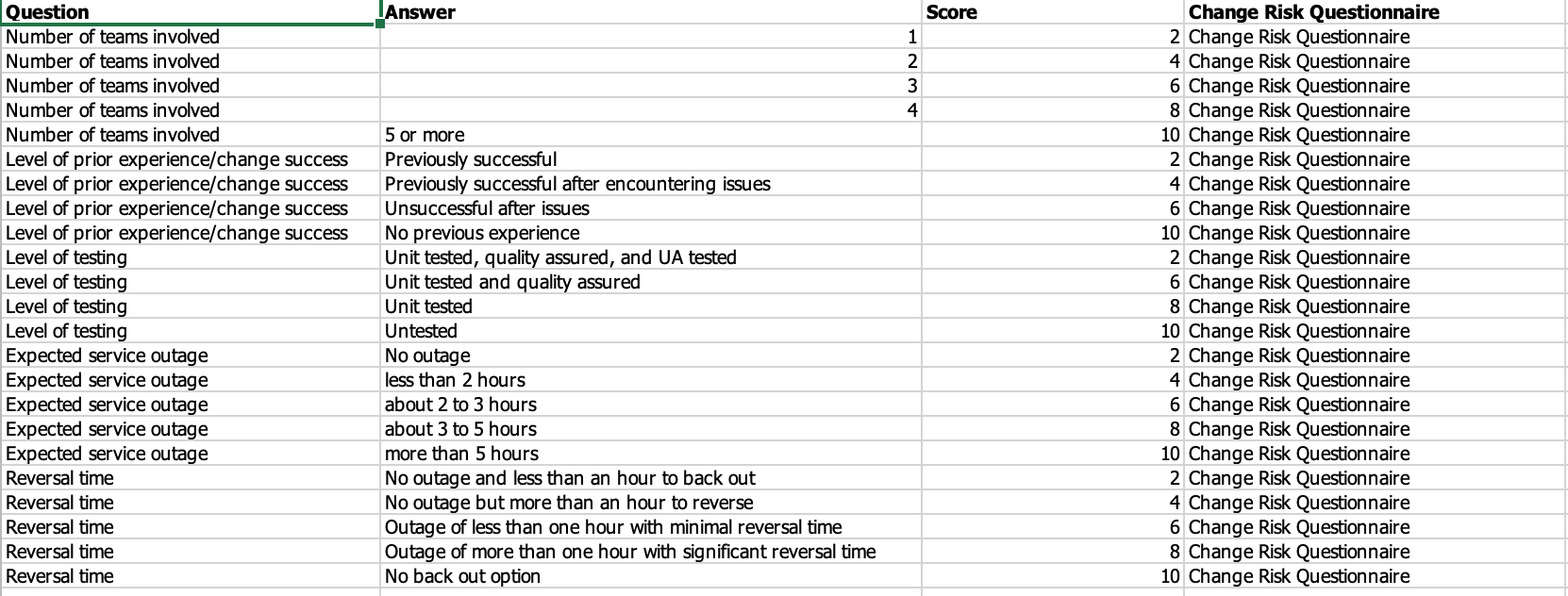
After the Custom Module was created, Zylker's change manager needed to calculate the risk score using a predefined sample data set (i.e., data where the different permutations and combinations of responses are analyzed and assigned a score). Luckily, ServiceDesk Plus already provides sample data for the questionnaire.
To download the sample data, click here and import the XLS file of sample data into your ServiceDesk Plus instance for training. Based on the inputs for the Question, Answer, and Score, the custom function will help validate and determine the risk score using this sample data.
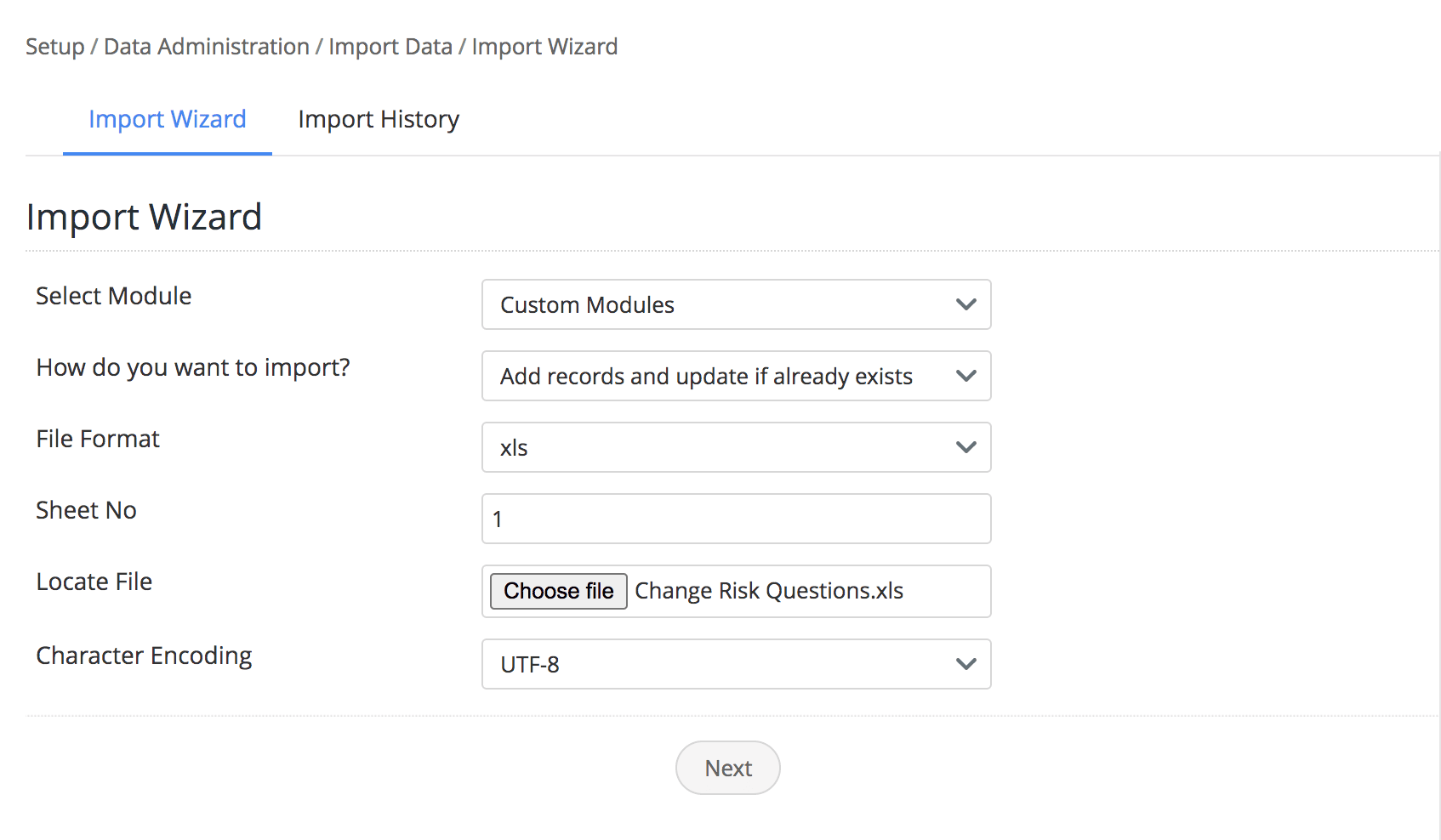
To import the downloaded sample data into your ServiceDesk Plus instance, go to Setup > Data Administration > Import Data. In the Import Wizard, select the field values as shown in the image below. Click Next after specifying the field values
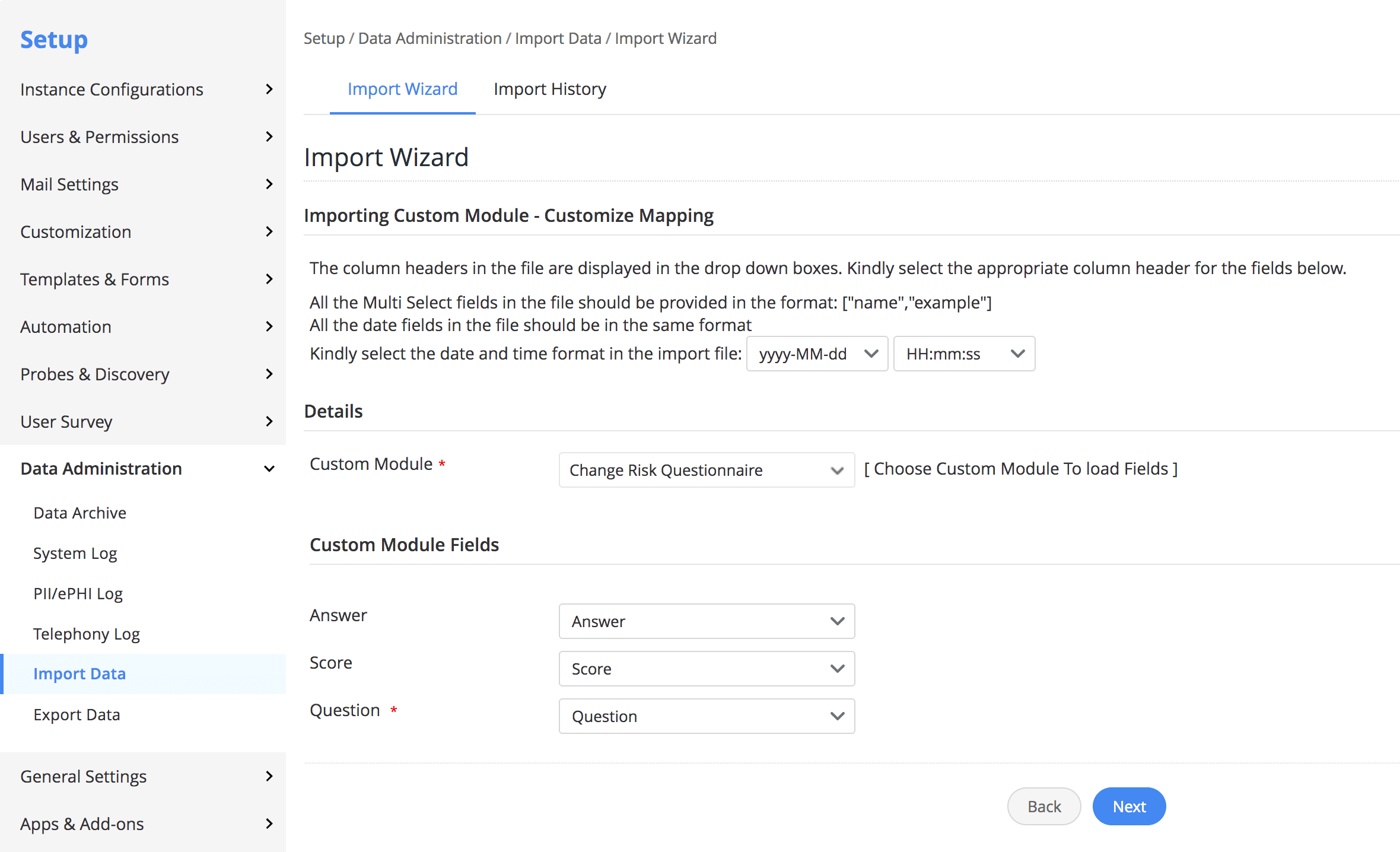
Under the Details section, choose the custom module as Change Risk Questionnaire and map the custom module fields with the XLS field columns as shown below and click Next.
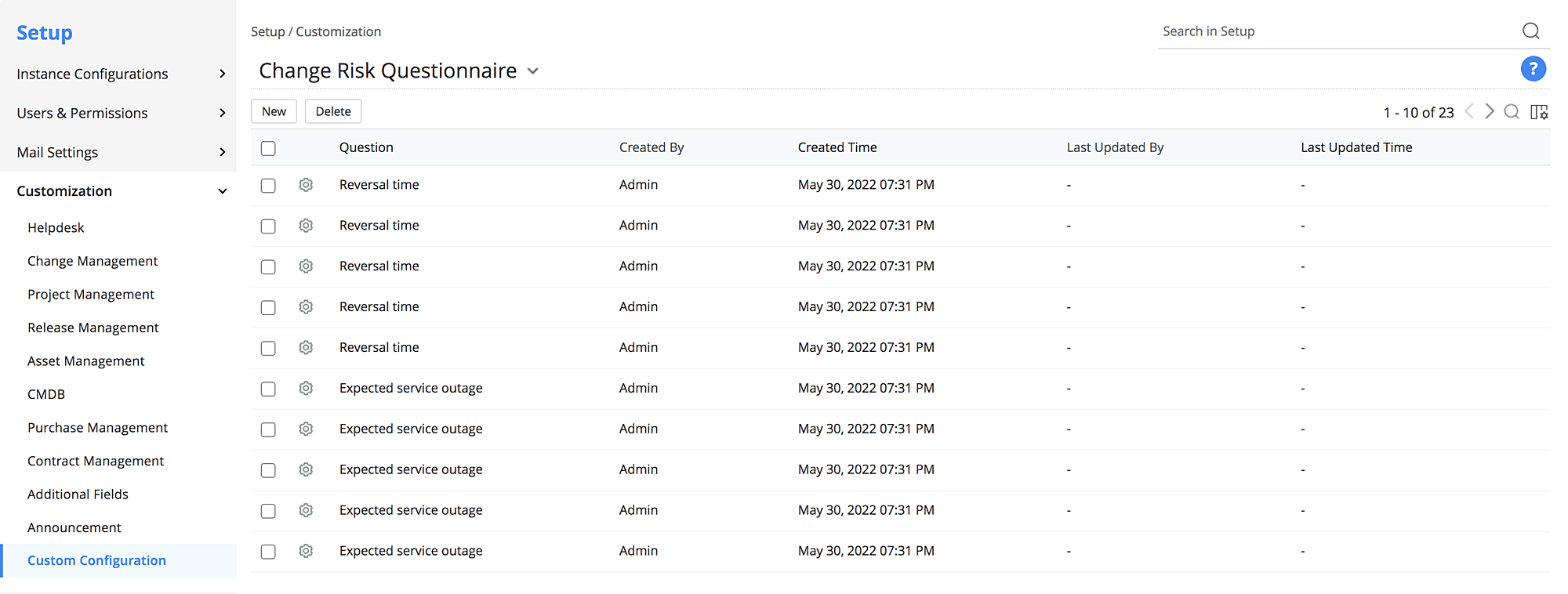
Once you have successfully imported the data, you can verify the imported data in the Custom Module that you created, under Setup > Customization > Custom Configuration as shown in Fig. 7.
5. Operating the change risk calculator
ServiceDesk Plus tip: Create a change trigger to calculate the risk score using a Custom Function.
Once the sample data was imported, Zylker's change manager could set up a change trigger. This change trigger is used to operate the change risk calculator with the help of a Custom Function. Based on the change manager's response in the questionnaire, the risk was calculated and the risk level updated in the change ticket.
To do this, go to Setup > Automation > Triggers. Navigate to Triggers for Change and click New Trigger.
Under the Trigger definition, enter the name, description, condition, and action as given below:
- Name: Enter the trigger name as Change Risk Calculator Trigger.
- Description: Add a description to outline the functioning of the trigger. Execute when a Change is Created and Edited, and Execute during Any time. Also ensure to select the Enable Trigger checkbox.
- Conditions: Apply this trigger on change:
- Choose Apply conditions based on criteria and specify the following two criteria with the AND operator:
- Execute Trigger when a change is edited: Choose to execute the trigger Every Time the criteria is met.
Column Operator Value Template Is Choose the templates for which you want to calculate the change risk score. Stage Is Submission Table 2: Change Trigger conditions. - Actions: Select Custom Functions as the custom action to be executed. In the Choose Custom Function pop-up, click New Custom Function on the left pane. Specify a name and description for the custom function. Copy-paste the custom function code into your instance. Then, save the Custom Function along with the Trigger.
modifiedfields = context.get("modifiedFields");
oldBean = context.get("initialObj");
if(oldBean == null || modifiedfields != null && (modifiedfields.contains("udf_char1") || modifiedfields.contains("udf_char2") ||
modifiedfields.contains("udf_char3") || modifiedfields.contains("udf_char4") || modifiedfields.contains("udf_char5")))
{
listInfo = {"list_info":{"row_count":100,"start_index":1}};
riskCalcutorScoreObj = zoho.sdp.invokeurl
[
url :"/app/" + context.get("instance") + "/api/v3/cm_change_risk_question"
type :GET
parameters:{"input_data":listInfo}
];
riskCalcutorScore = riskCalcutorScoreObj.get("cm_change_risk_question");
// converting riskdata to hashMap data for enhancing search through values
question_map = Map();
for each riskCalcData in riskCalcutorScore
{
question = riskCalcData.getJSON("cm_attributes").get("txt_name");
if(question_map.containKey(question))
{
temp_map = question_map.get(question);
temp_map.put(riskCalcData.getJSON("cm_attributes").get("txt_answer"),riskCalcData.getJSON("cm_attributes").get("txt_score"));
}
else
{
temp = Map();
temp.put(riskCalcData.getJSON("cm_attributes").get("txt_answer"),riskCalcData.getJSON("cm_attributes").get("txt_score"));
question_map.put(question,temp);
}
}
//field vs question_mapping
questionVsUdfFieldMapping = Map();
questionVsUdfFieldMapping.put("Number of teams involved","udf_char1");
questionVsUdfFieldMapping.put("Level of prior experience/change success","udf_char2");
questionVsUdfFieldMapping.put("Level of testing","udf_char3");
questionVsUdfFieldMapping.put("Expected service outage","udf_char4");
questionVsUdfFieldMapping.put("Reversal time","udf_char5");
udf_fields = changeObj.get("udf_fields");
score = 0;
for each questionField in questionVsUdfFieldMapping.keys()
{
score_map = question_map.get(questionField);
score_map = score_map.toMap();
tempScore = score_map.get(udf_fields.get(questionVsUdfFieldMapping.get(questionField)).toString());
if(tempScore != null)
{
score = score + tempScore.toNumber();
}
}
info "Score : " + score;
// risk assessment based on total score
risk = "None/Minimal";
if(score >= 8 && score < 16)
{
risk = "Low";
}
else if(score >= 16 && score < 24)
{
risk = "Medium";
}
else if(score >= 24 && score < 31)
{
risk = "High";
}
else if(score >= 31)
{
risk = "Critical";
}
info risk;
// update change with risk only if there is a difference
changeRisk = changeObj.get("risk");
if(changeRisk == null || changeRisk.get("name") != null && changeRisk.get("name") != risk)
{
update_param = {"change":{"risk":{"name":risk}}};
update_response = zoho.sdp.invokeurl
[
url :"/app/" + context.get("instance") + "/api/v3/changes/" + changeObj.get("id")
type :PUT
parameters:{"input_data":update_param}
];
info "====================";
info update_response;
}
}
Once a change requester creates a change request with one of the templates selected in the change trigger and answers the change risk questionnaire, ServiceDesk Plus Cloud will calculate the composite risk score of the change request. Based on the calculated score, the Change Risk field will be updated on the change details page.
| Score | Change Risk |
| Less than 16 | Low |
| Between 16 to 24 | Medium |
| Between 24 to 31 | High |
| Greater than 31 | Critical |
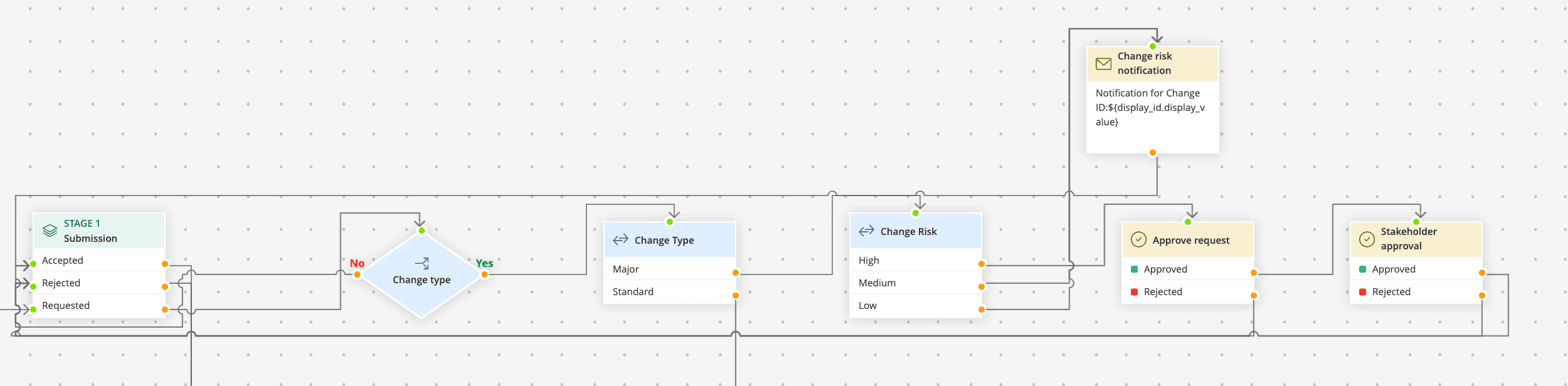
The change risk is assigned based on the calculated composite score. For IT change managers, while it is imperative to ensure the least risk score in order to avoid encountering potential roadblocks, they also need to build checks and balances into their workflows depending on the calculated risk level.
Steer clear of
change risks with ServiceDesk Plus

By building a custom CRA questionnaire within ServiceDesk Plus, Zylker's change manager accurately identified and measured change risks, ensuring a higher change success rate for the company. ServiceDesk Plus, an AI-driven unified service management platform, combines IT service management essentials, asset management, and CMDB with enterprise service management capabilities. This powerful combination provides a comprehensive platform for designing, managing, and delivering IT and business services. ServiceDesk Plus also offers comprehensive change management capabilities that support IT teams in minimizing the risks associated with enterprise-wide changes to their IT infrastructure.
Want to give ServiceDesk Plus a go? Try it for free for 30 days.