

- Free Edition
- Quick links
- Active Directory management
- Active Directory reporting
- Active Directory delegation
- Active Directory permissions management and reporting
- Active Directory automation
- Governance, risk, and compliance
- Microsoft 365 management and reporting
- Microsoft 365 management and reporting
- Microsoft 365 management
- Microsoft 365 reports
- Microsoft 365 user management
- Microsoft 365 user provisioning
- Microsoft 365 license managementn
- Microsoft 365 license reports
- Microsoft 365 group reports
- Dynamic distribution group creation
- Dynamic distribution group reports
- Exchange management and reporting
- Active Directory integrations
- Popular products
Streamlining AD user reorganization
Moving user accounts in Active Directory (AD) is a core admin task. Whether you're restructuring, reorganizing departments, or tidying up your directory, you might need to move AD user accounts; by doing this, you are applying new Group Policies, delegating permissions, and much more on the users. While this task is common, using native AD tools to perform it can be complex—and a simple departmental reorganization can turn into hours of tedious work, with a high risk of error. ADManager Plus, an AD management tool, enables administrators to move users in bulk in just a few clicks, eliminating common PowerShell pitfalls and errors.
How to move AD users to another OU in 3 clicks
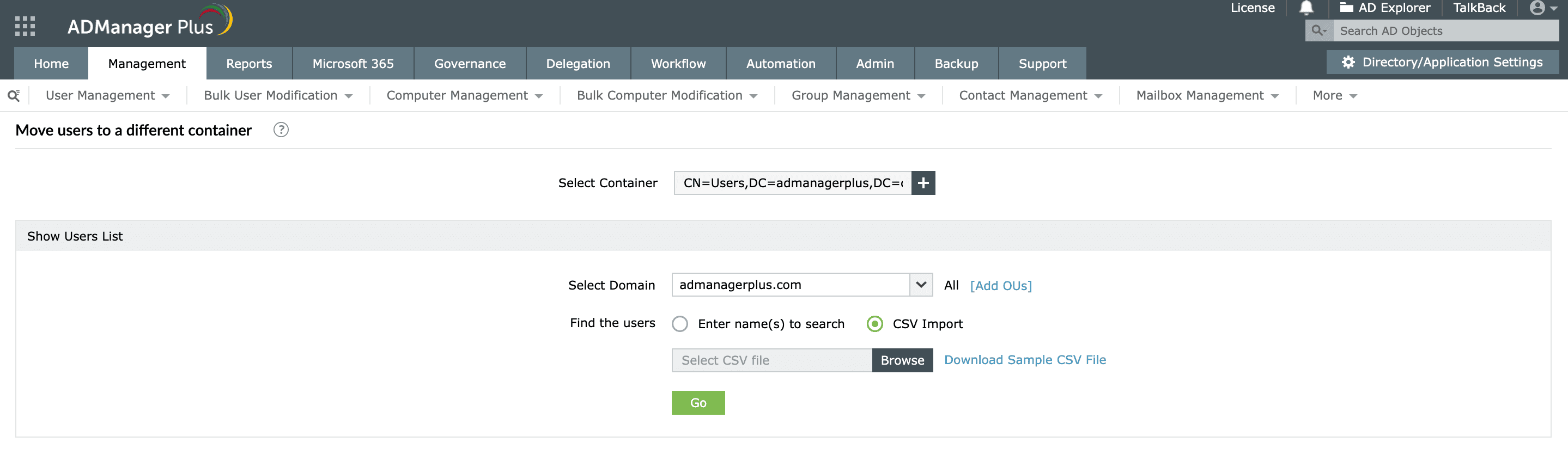
ADManager Plus turns this complex task into a simple, three-step process. You can securely move AD users to another OU in seconds, individually or in bulk.
- Select your users
Import a simple CSV file with a list of users or run a predefined report to find them.
- Select your destination
Simply browse your AD tree and select the target OU. You can also create a new OU and then select it as the target OU.
- Move users
Execute the action and move users instantly.

A complete solution for moving and managing users
With ADManager Plus, you get a full suite of features to simplify all your AD management tasks.
- Move users in bulk: Effortlessly move users from one OU to another in one operation.
- Smart selection: Run predefined AD reports to find users and move them instantly. For example, find all inactive users and move them to a disabled OU.
- Safe delegation: Securely delegate the task to move an AD user to your help desk. You can limit their permissions to only move users and only between specific OUs.
- Audit and reporting: Track who moved which user and meet compliance requirements without gaps.
Use cases
In most organizations, changes to business structure or policy often require IT admins to move AD user accounts between OUs or reorganize users to align with updated Group Policies. Below are some real-world situations where ADManager Plus simplifies this task.
Use case 1: Department merger
When two departments merge, their users may need to inherit a new set of policies and permissions. For example, if your organization combines the Sales East and Sales West teams into Sales Global, you can instantly move AD users from one OU to another OU that represents the merged department. ADManager Plus allows you to move hundreds of users in one go, enabling you to reassign users to the new OU in a few clicks, ensuring consistent access rights and group memberships.
Use case 2: Office relocation or site migration
When employees relocate to a new office or region, their user accounts must be updated to reflect the new location's OU structure. For instance, if your company expands to a new branch, you might need to move users in AD to the new branch. With ADManager Plus, you can find all the affected users using reports, choose the target OU, and execute a bulk operation without any downtime.
FAQs
You have multiple options to move AD users in bulk. You can easily import a list of users from a CSV file or search and locate the desired users. You can also run a report to find the users, export them in a CSV format, and upload the file.
Unlike a PowerShell script where a typo is disastrous, our tool lets you visually browse and select the target OU, minimizing errors. Furthermore, its powerful delegation feature allows you to restrict help desk technicians to only move users to specific OUs, making it impossible for them to make this mistake.
Yes, ADManager Plus enables you to move other AD objects as well. You can move computers, OUs, groups, and contacts between OUs just as easily as you move AD users.


