High Availability
Note Users on Build 4501 or earlier, including those who set up High Availability, should refer to this page.
Things to remember:
- Configure an external database (PostgreSQL or Microsoft SQL) before enabling high availability.
- External database hostname must not be set to “localhost” when enabling high availability.
- Install the same product version on all machines, and ensure they can communicate without firewall or antivirus restrictions.
- Use the same port number across all servers as configured on the primary server.
- Configuration changes can be made only from the primary server.
- If HTTPS is required for the high availability access URL, enable HTTPS on all servers in the cluster.
- To use same-subnet access mode, all servers must be on the same subnet.
- If the primary server and secondary servers are in different subnets, a virtual IP cannot be used.
- The user running the product must have admin privileges to bind/unbind the virtual IP for same-subnet mode.
- Minimum of two servers are required to configure high availability.
- Choose one instance as the primary server; the rest act as secondary servers and use the database configured on the primary.
- Ensure the Cluster port (default: 7800) and the product port are open and reachable on all configured servers.
- Scheduled jobs run on the primary server by default. If the primary server fails, the jobs run on the secondary server which takes over as serving server. The serving server can be identified from the high availability configuration page.
Steps to configure High Availability:
- Log in to AD360 and navigate to the Admin tab.
- In the left pane, under Administration, click High Availability.
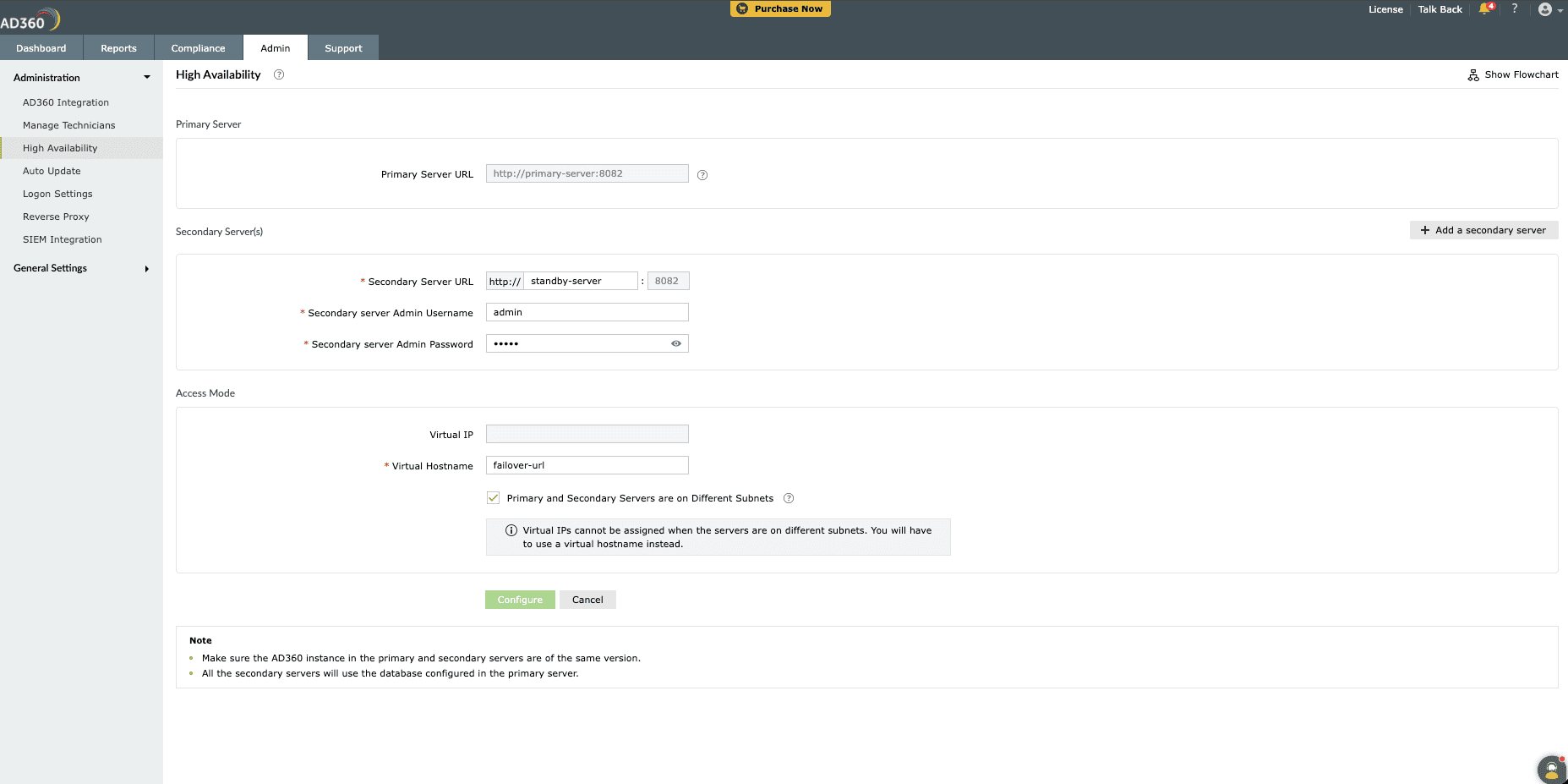
- Click on Click to Configure to open the configuration page.
- In the Secondary Server(s) section, enter the host name or IP address of AD360 instance that you would like to configure as a secondary node in the Secondary Server URL field.
- Enter the admin username and password of the secondary server.
- If additional secondary servers are needed, click on Add Secondary Server, then repeat steps 4 - 5 to add multiple servers.
- In the Access Mode section,
- If the primary and secondary(s) servers are in the same subnet:
- Enter a virtual IP address and hostname in the Virtual IP and Virtual Hostname fields.
- Leave the Primary and Secondary Servers are on Different Subnets checkbox unchecked.
Note The virtual IP automatically binds to the active server in the high availability setup. You can map this IP to a virtual hostname in DNS.
- If the primary and secondary server(s) are in different subnets:
- Check the Primary and Secondary Servers are on Different Subnets checkbox.
- Create a virtual host and provide the hostname in the Virtual Hostname field.
- If the primary and secondary(s) servers are in the same subnet:
- After completing the above steps, click Configure.
Steps to modify high availability configuration:
Note Changes to the high availability configuration can be made only on the primary server.
- Modifying access mode configuration
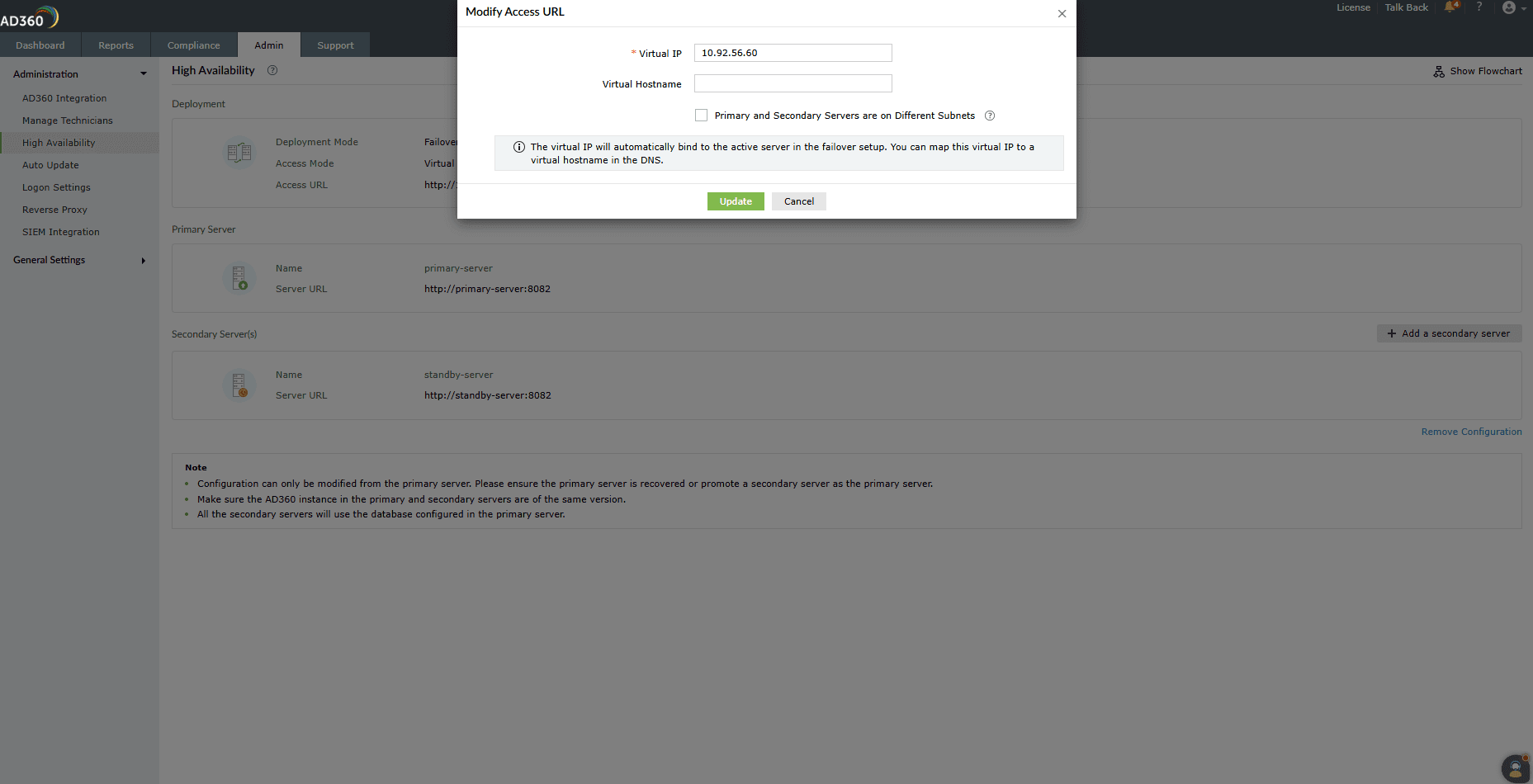
- In the Deployment section, click the Edit icon to modify the virtual IP or virtual hostname.
- You can update the high availability setup to operate in the same subnet mode or a different subnet mode, based on your deployment requirements.
- If the primary server and secondary servers are in different subnets, a virtual IP cannot be used.
- When changing the configuration from different subnets to the same subnet, ensure that primary and secondary servers are within the same subnet.
- Steps to edit secondary server(s):
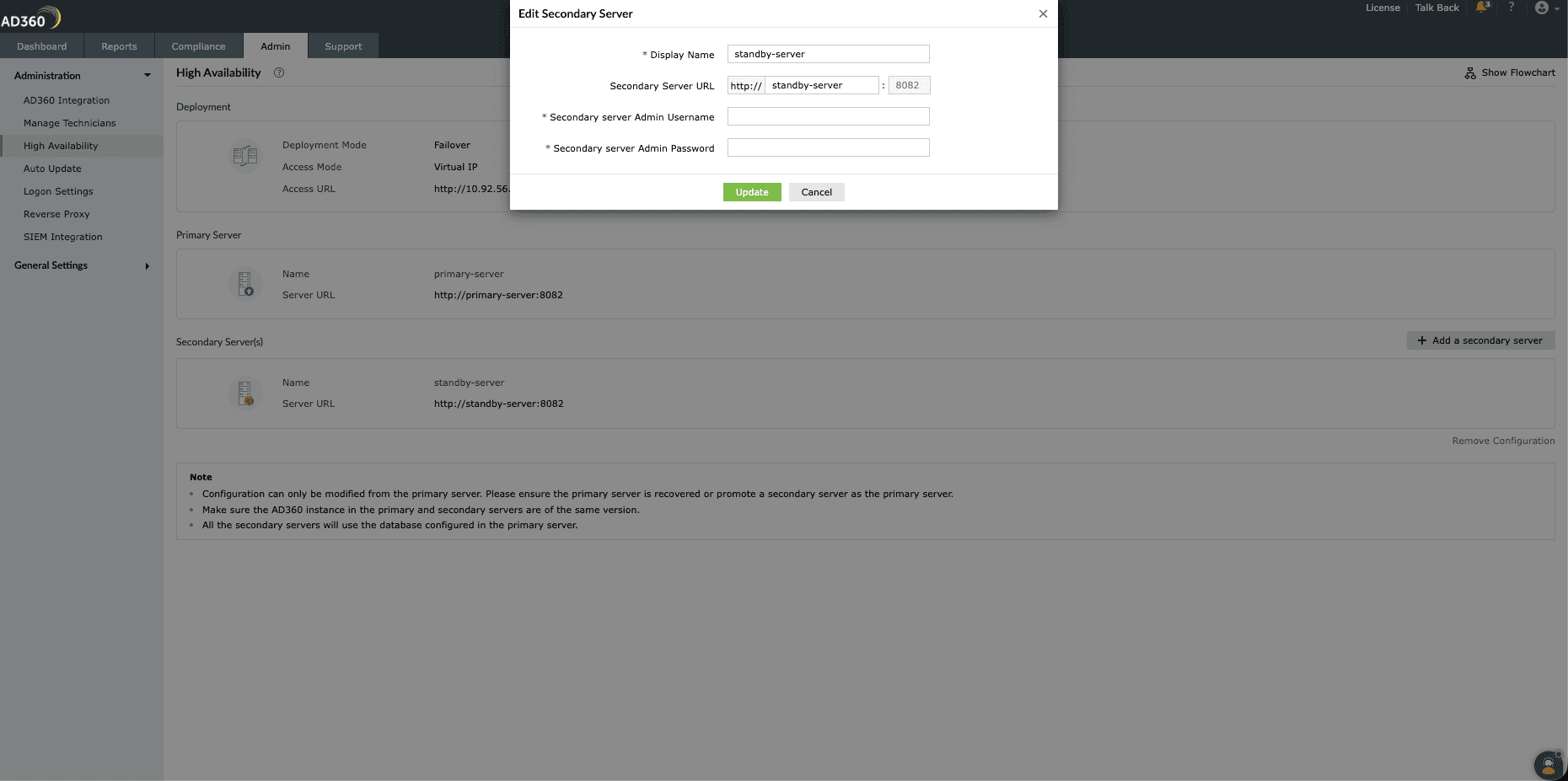
- In the configuration page, hovering over the Secondary Server section reveals an Edit option. Use this option to modify the details of any secondary server.
- You can modify the Display Name and Host Name for a secondary server. Use the super admin username and password to apply these changes.
- Steps to add secondary server(s):
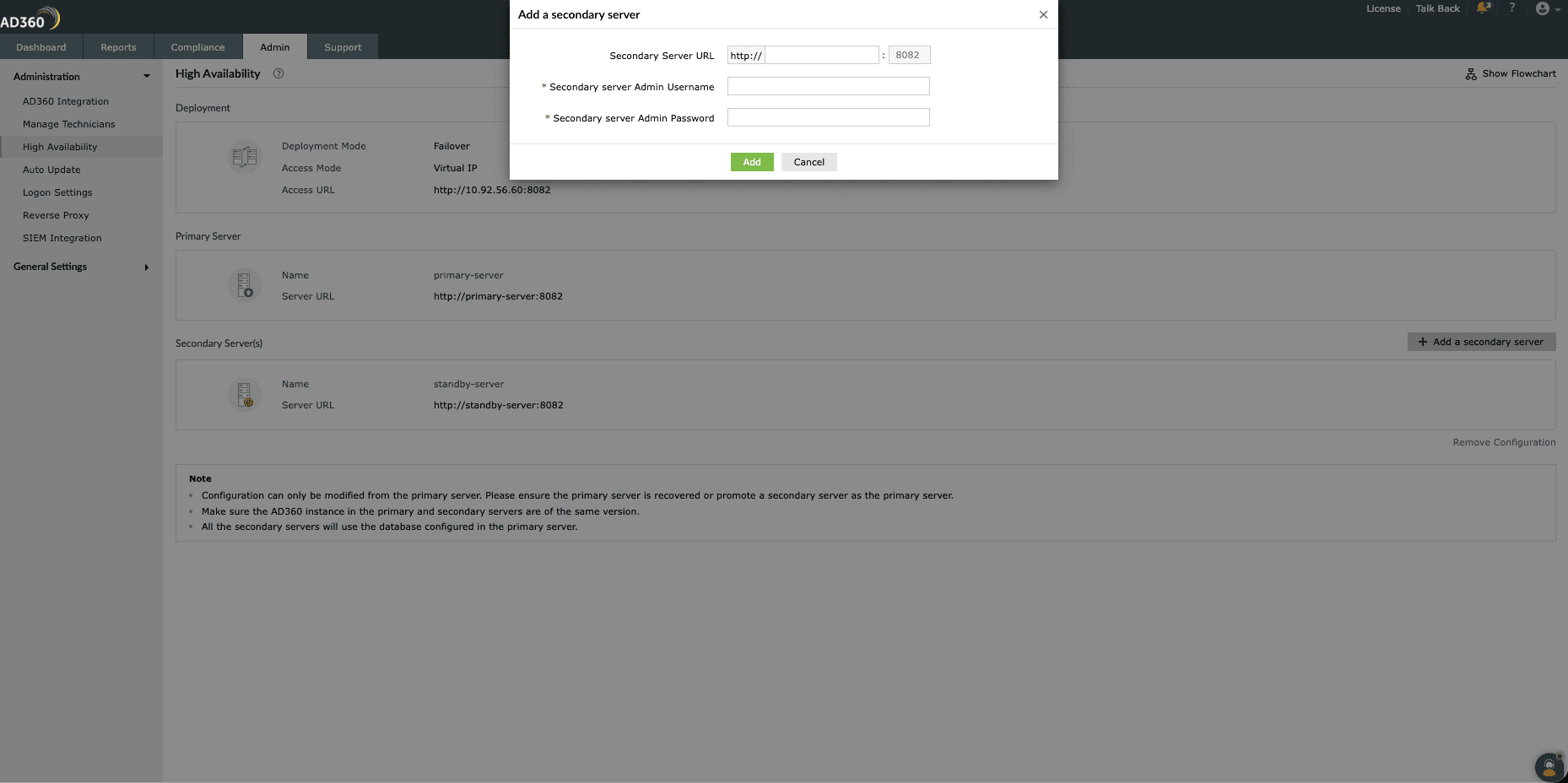
- In the configuration page, click on Add Secondary Server
- Enter the secondary server's host name or IP address.
- Enter the admin username and password of the secondary server.
- Click Configure
- Steps to remove high availability configuration:
- Steps to remove a secondary server
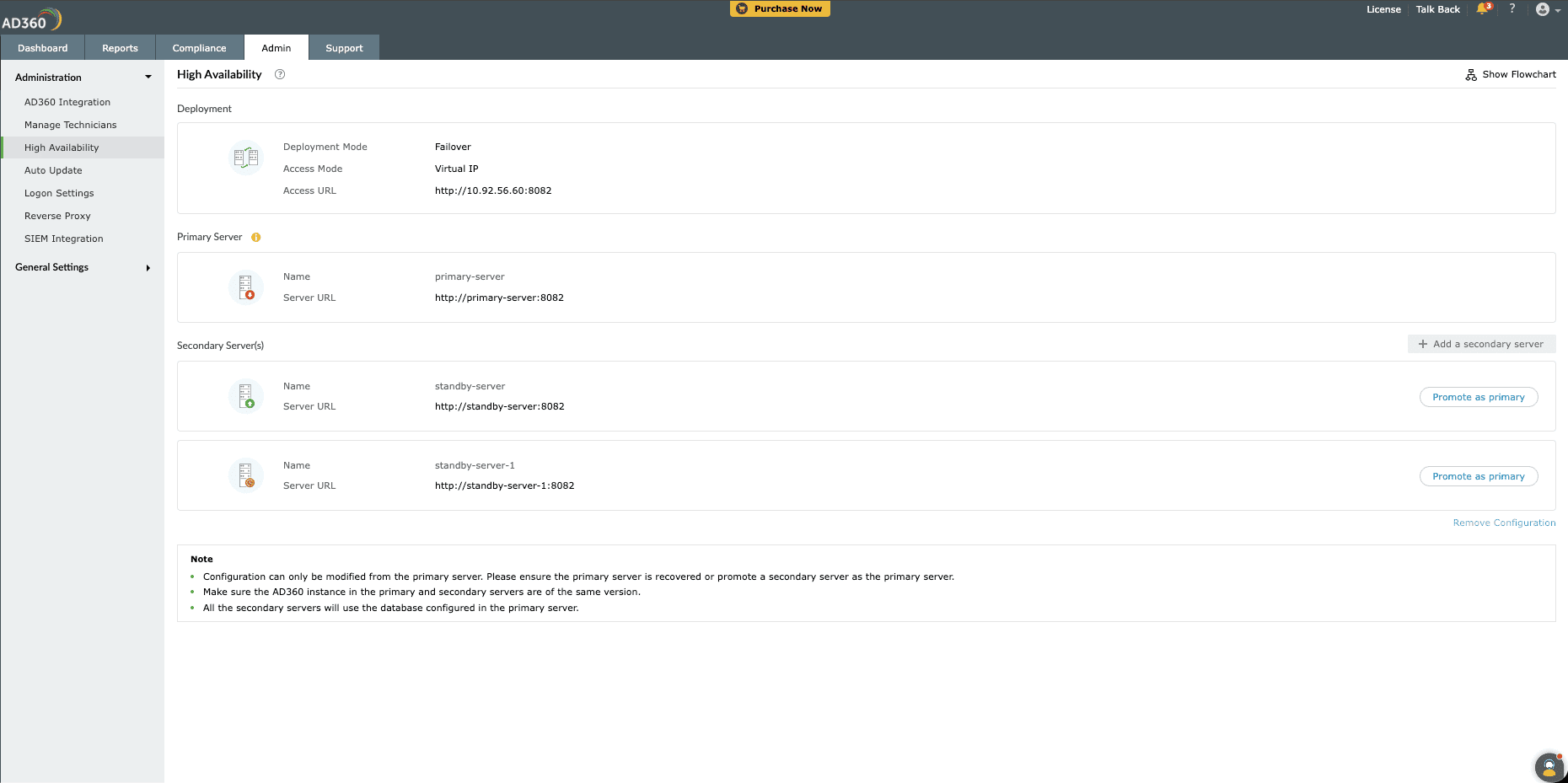
- To remove a secondary server from the high availability configuration, hover over the secondary server entry and click on remove icon
- A confirmation pop-up appears. Confirm the action to remove the secondary server from the configuration.
- Steps to remove a high availability configuration
- Click Remove Configuration to delete the entire high availability setup.
- After the configuration removal is completed, the primary server restarts and the secondary servers will be inaccessible.
- Steps to remove a secondary server
Steps to promote Secondary server to Primary server:
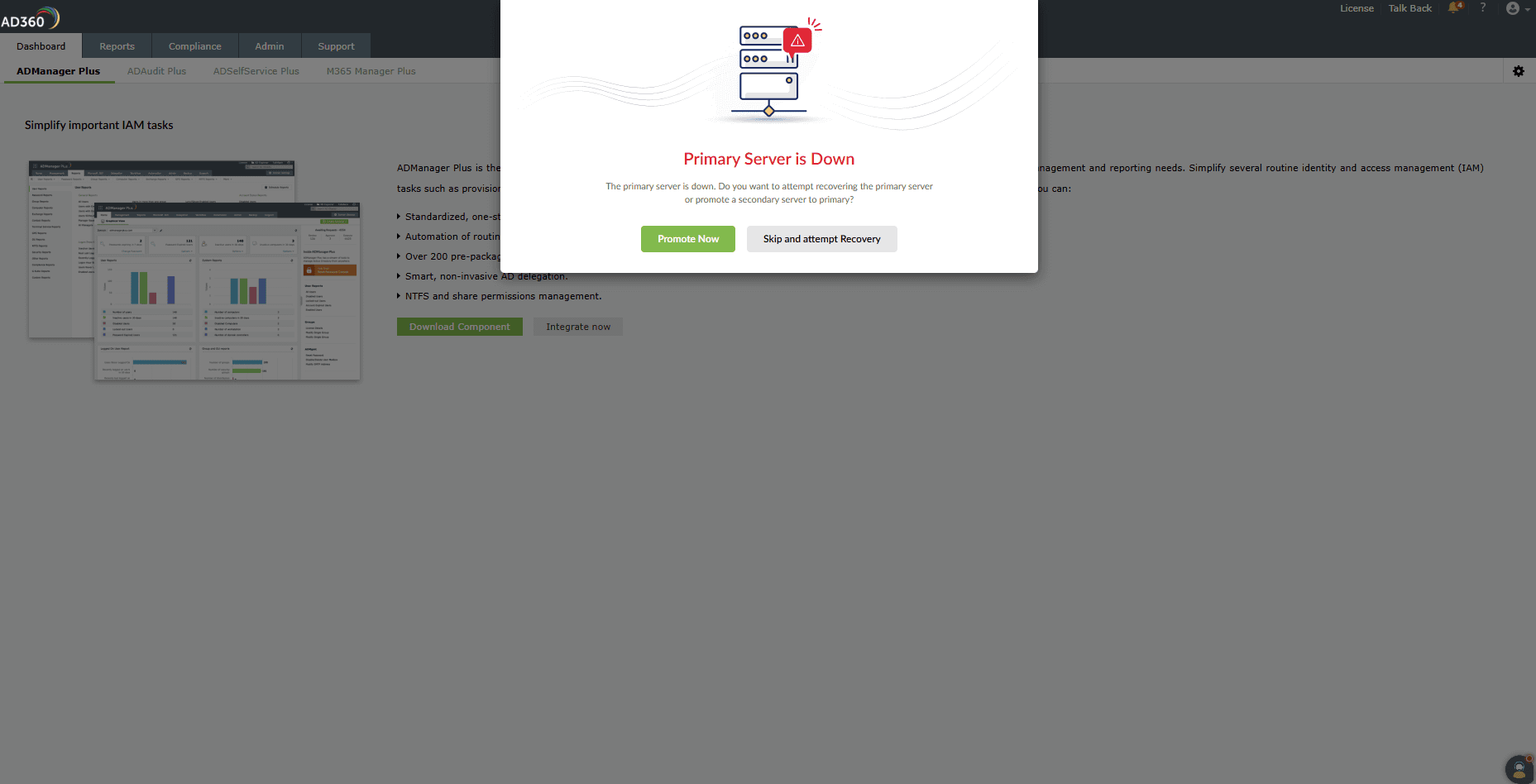
Note This option is to promote any available secondary server to the primary role when the primary server is down and cannot be recovered.
- Log in to the Secondary Server.
- A popup will appear. Click Promote Now.
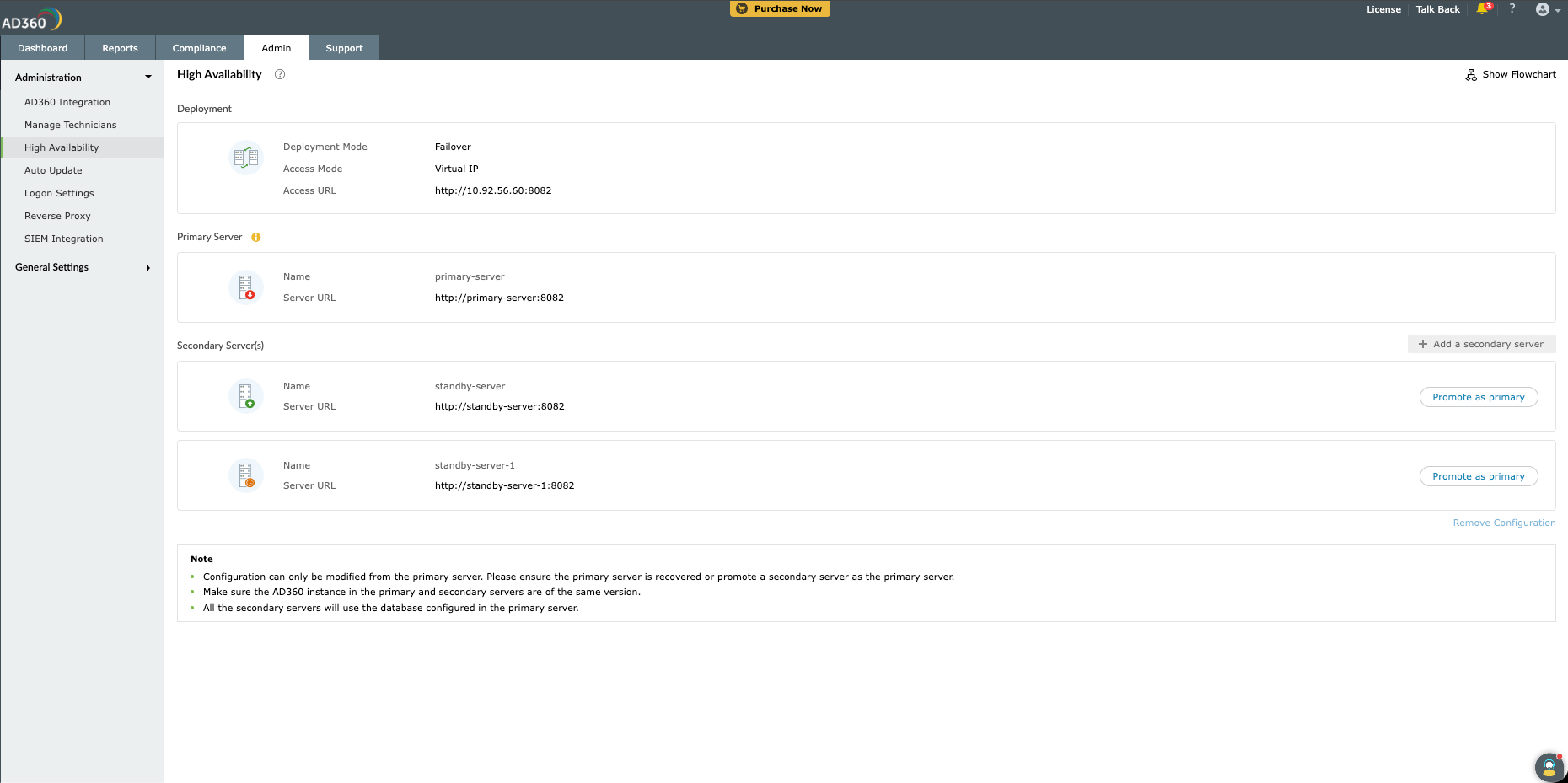
- The page will redirect to the High Availability Configuration page
- On this page, all available standby servers are listed with the option Promote as Primary
- Click Promote as Primary for the required secondary server to be promoted as primary server.
Troubleshooting tips:
1. Build number differs from the primary server
Cause: This error occurs when the build number of the instance configured as the secondary server does not match the build number of the primary server in the high availability configuration.
Solution: Make sure you update all AD360 instances configured as secondary servers to match the build number of the AD360 configured as the primary server. Refer to the Service Pack page to learn how to update AD360.
2. Protocol/port mismatch found. Ensure all servers in the high availability configuration use the same port and protocol.
Cause: This error occurs when a secondary server uses a different port or protocol than the primary server.
Solution: All secondary servers in the high availability configuration must use the same protocol and port as the primary server. For example, if HTTPS is enabled on the primary server, enable HTTPS on all secondary servers as well.
3. Communication issue. Ensure port 7800 is not blocked by the firewall on both the primary and secondary servers. If the issue persists, click here to troubleshoot.
Cause:
- There may be a network connectivity issue between the primary and secondary servers.
- The high availability service on the primary server runs on a port different from the product instance. By default, the high availability service uses port 7800. If port 7800 is in use, port 7801 is assigned; if unavailable, port 7802 is assigned, and so on. This error occurs when the default port used by the high availability service is blocked by the firewall.
Solution:
- Ping the secondary server from the primary server to check for connectivity issues.
- Verify that port 7800 is open and available on both the primary and secondary servers. If available, ensure it is not blocked by the firewall on either server. If port 7800 is unavailable, try port 7801, then port 7802, and so on.
4. A server is unreachable.
Cause: This error may occur for the following reasons:
- The server is down.
- The server's IP address has changed.
- There is a communication error between the primary server and the affected server.
Solution: Restart the server and verify whether the issue is resolved. Also ensure the primary server and the affected server can communicate with each other without interruption.
5. This server is already part of a cluster. Remove the existing configuration before adding it, or use a different server.
Cause: The secondary server being configured is already part of another high availability setup.
Solution: Ensure that the server intended for secondary server configuration is not already part of another high availability setup.
6. The servers configured are not in the same subnet, so the virtual IP cannot be updated.
Cause: The Virtual IP access mode is being used to configure servers that are not on the same subnet.
Solution: Ensure that all servers used in the high availability configuration are on the same subnet when using Virtual IP access mode.
7. Authentication failed. Please enter valid super admin credentials.
Cause: The entered credentials may not belong to a super admin, or they may be invalid.
Solution: Ensure that the credentials entered are correct and belong to a valid super admin on the server being configured.
8. Failed to add this server. Ensure that the external database configured on the primary server is accessible from this server.
Cause: The external database used by the primary server is not accessible from the secondary server being configured.
Solution:
- Verify that the external database hostname and port are accessible from the secondary server, are not blocked by the firewall, and that the database configuration allows connections from the secondary server.
- For MSSQL, ensure that the SQL Server Native Client is installed on the secondary server and that it can establish a connection to the MSSQL server. Please refer to this link for database migration prerequisites.
- If MSSQL is configured with SSL, install the SSL certificate in the secondary server's Java keystore. Please refer to this link for database migration prerequisites.