
Auto-upgrade in Log360 MSSP
Last updated on:
Overview
The auto-upgrade capability in Log360 MSSP Edition enables seamless version management by automatically applying service packs across all integrated customer servers once the MSSP server is upgraded. This eliminates the need for manual upgrades on individual customer instances. Administrators only need to apply the service pack on the MSSP server, and the rest is taken care of automatically—provided the feature remains enabled under Customer Management settings.
Auto-upgrade configuration
When auto-upgrade is enabled, the MSSP server will automatically distribute service packs to upgrade all Log360 customer servers after completing its own upgrade. This helps to automatically update the customers build to the MSSP build version by applying the service pack only once.
To upgrade the MSSP setup of Log360, carry out the steps given below.
- Apply the service pack only to the MSSP server.
Instructions to apply service packs
Important note
- Please stop the existing Log360 service and take a copy of the entire Log360 folder or a server snapshot. Please note that backing up Log360 is mandatory so that you can restore the installation to this version in case of upgrade failures. If you are using the MSSP Edition of Log360, back up the MSSP server and all customer servers.
- Before you proceed with the upgrade process, please ensure the availability of enough disk space on the server where Log360 is installed.
- If you use a MS SQL database, we strongly recommend you take a snapshot of your database as well.
- If you've deployed the MSSP Edition of Log360, please apply the service pack only on the MSSP server. The MSSP server will auto-upgrade all the reporting customer servers, and the customer servers will automatically update the agents if they are in use.
- In case you apply more than one service pack at a time, please start the Log360 application after each service pack upgrade.
For Standalone and MSSP Editions of Log360, please update using the following steps.
Windows
- Stop the Log360 service.
- Open the Command Promptt with administrative privileges.
- Navigate to the <Log360 Home>\bin folder.
- Type these three commands to ensure the proper shutdown of the application: shutdown.bat, stopDB.bat, and stopSEC.bat.
NOTE StopDB.bat is only meant for the default database (PostgreSQL). If you use MS SQL, please ignore this command. Kindly execute shutdown.bat and stopSEC.bat.
- Execute UpdateManager.bat.
- Click on Browse and select the appropriate PPM file.
- Click on Install. Please wait for it to complete.
- Start the application and check the build number.
Linux
- Take a backup of the server.
- Log360 can be stopped by executing the below command.
- service log360 stop OR
- systemctl log360 stop
- Followed by executing shutdown.sh, stopDB.sh, stopSEC.sh (To ensure that the product is completely stopped) from the installation directory, i.e. /ManageEngine/Log360/bin folder
- Once the product is stopped, execute sudo UpdateManager.sh (For Linux with GUI) or sudo UpdateManager.sh -c (For CLI-based Linux).
- Now choose i to initiate the PPM installation and specify the path [Eg: /home/ubuntu/**.ppm] in which the PPM files are downloaded
- Once the upgrade is successful, start Log360 using the below command,
- service log360 start OR
- systemctl log360 start
To open UpdateManager in console mode
Windows: UpdateManager.bat -c
Linux: ./UpdateManager.sh -c

- To Import Certificate, type c and press enter.
Now enter the path of the certificate to be imported.

- To install a PPM file, type i and press enter.
Now enter the path of the PPM file to be installed and press enter.

- To view installed service pack version, type v and press enter.
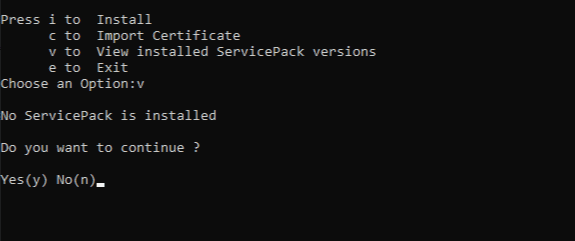
- To exit the console mode, type e and press enter.
- Select the shared certificate by using the Browse button to locate the file.
- Next, select Import to pull in the certificate and proceed with steps mentioned above.
How to import certificate?
Please follow the below steps to import certificate. Download the certificate from one of these links below
Certificate link: https://www.manageengine.com/certificate/ppmsigner_publickey.crt
Updated Certificate link: https://updates.manageengine.com/certificates/latest.crt
For the files ppmsigner_publickey.crt and latest.crt, the SHA256 value is 2baeaee89ad91824b3ceca55499eebeb7a5c02d4b751bddfa2c2149ea2102155
Console mode:
- Run the UpdateManager.bat/sh file with -c as a command line argument.
- After invoking UpdateManager in command line mode, select option c from the list of options provided to import the certificate.
- Enter the path of the certificate when requested and proceed with the steps mentioned above.
UI mode:
- Execute UpdateManager.bat/sh
- Open the import certificate tool by clicking the Import Certificate button on the top-left corner.
- Select the shared certificate by using the Browse button to locate the file.
- Next, select Import to pull in the certificate and proceed with the steps mentioned above.
Do not interrupt or revert the upgrade process. In case of upgrade failure, please contact Log360 MSSP support team.
The MSSP server will auto-upgrade the reporting customer servers, and the customer servers will automatically update the agents in use.
- Navigate to the Settings tab in the header pane and click on the Customer Management option.
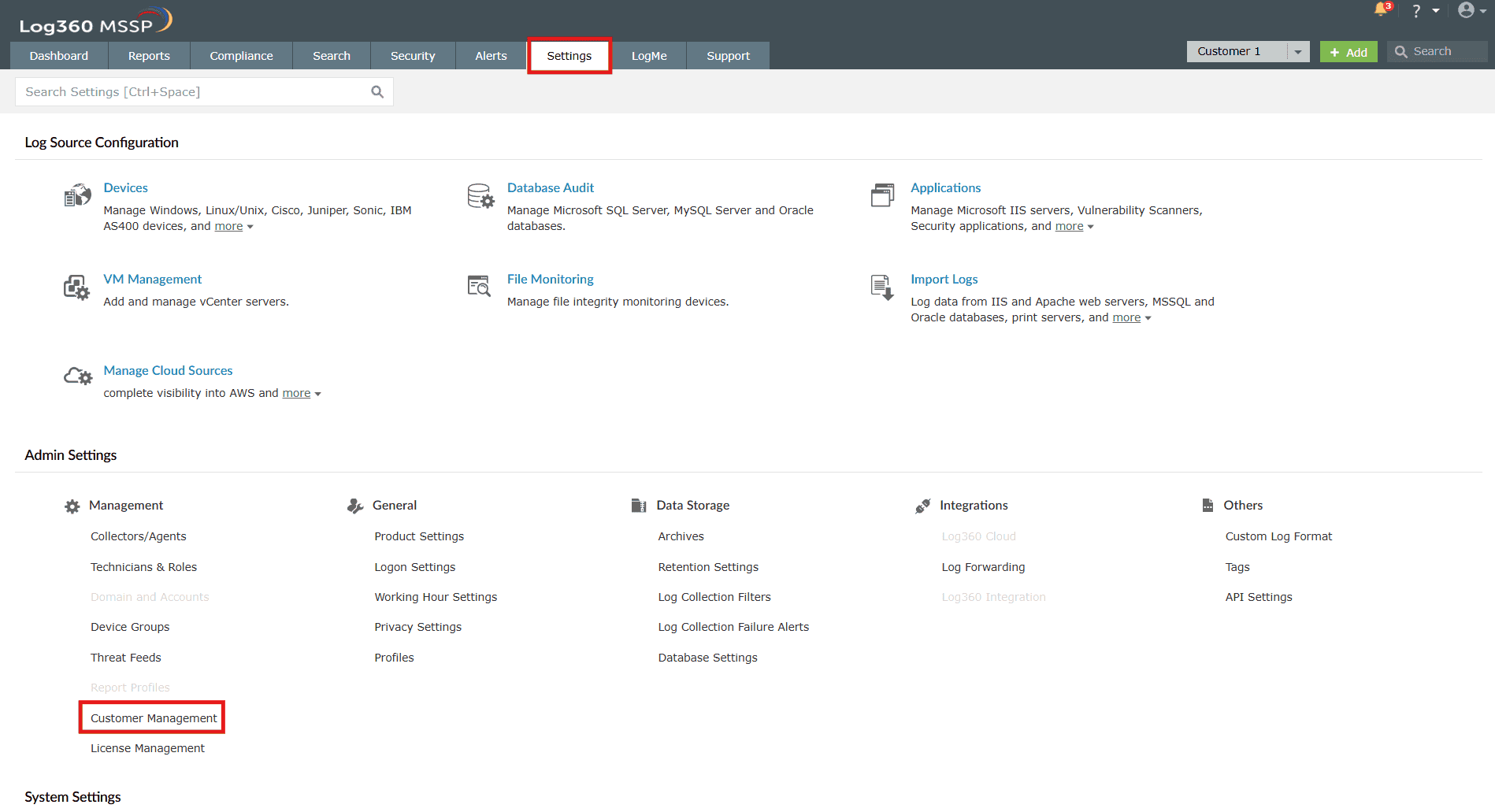
Image 1: Customer management via the Settings tab in Log360 MSSP - Click on the Settings link in the Customer Management page.
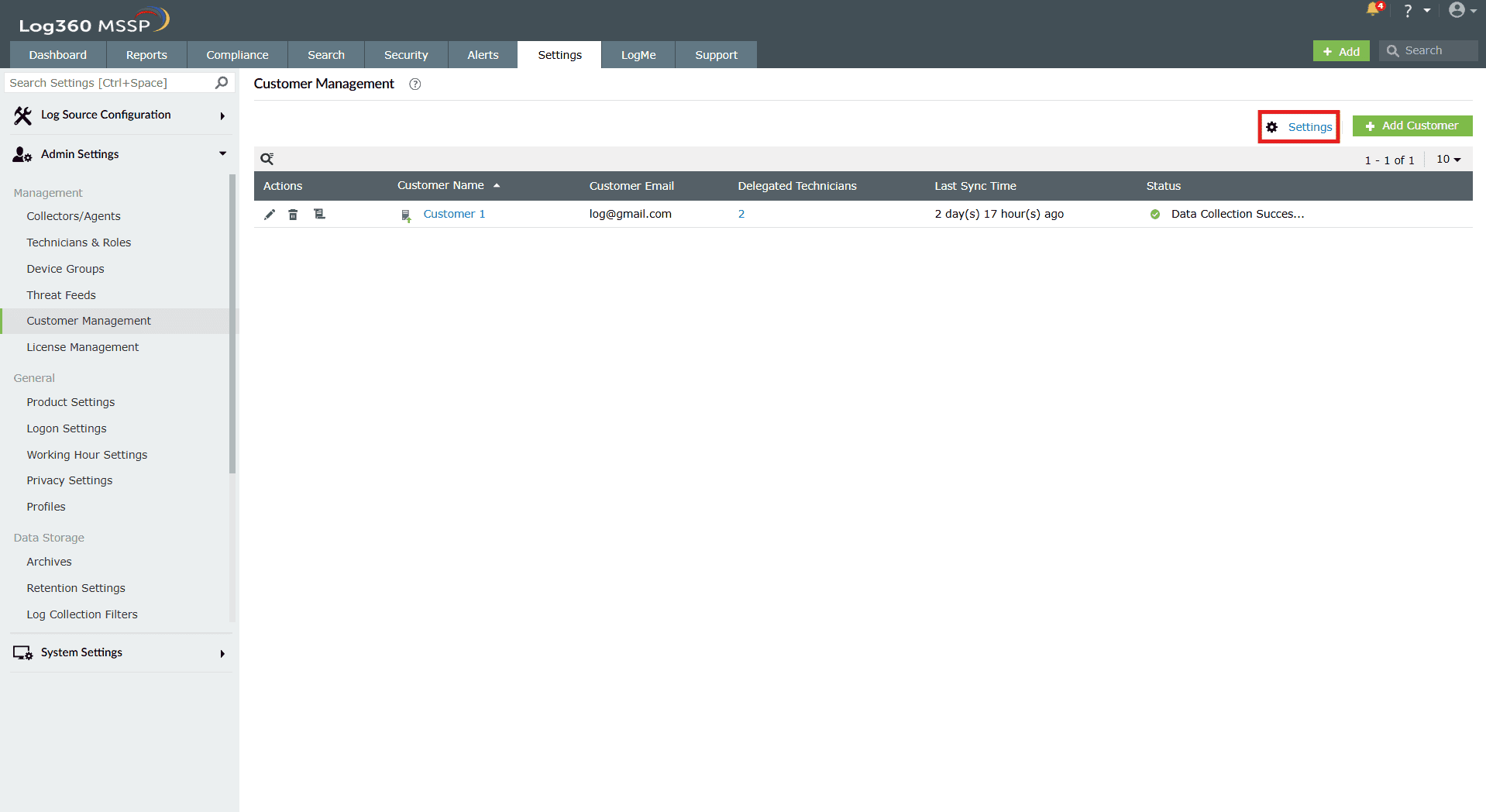
Image 2: Customer management settings in Log360 MSSP NOTE The Auto-Upgrade toggle will be enabled by default. Disabling the toggle will disable auto-upgrade of all customer servers by the MSSP server.
- Click on the toggle and turn it off in case you wish to disable auto-upgrade. When disabled, Log360 servers must be upgraded individually using the Upgrade Now option in the Status column on the Customer Management module.
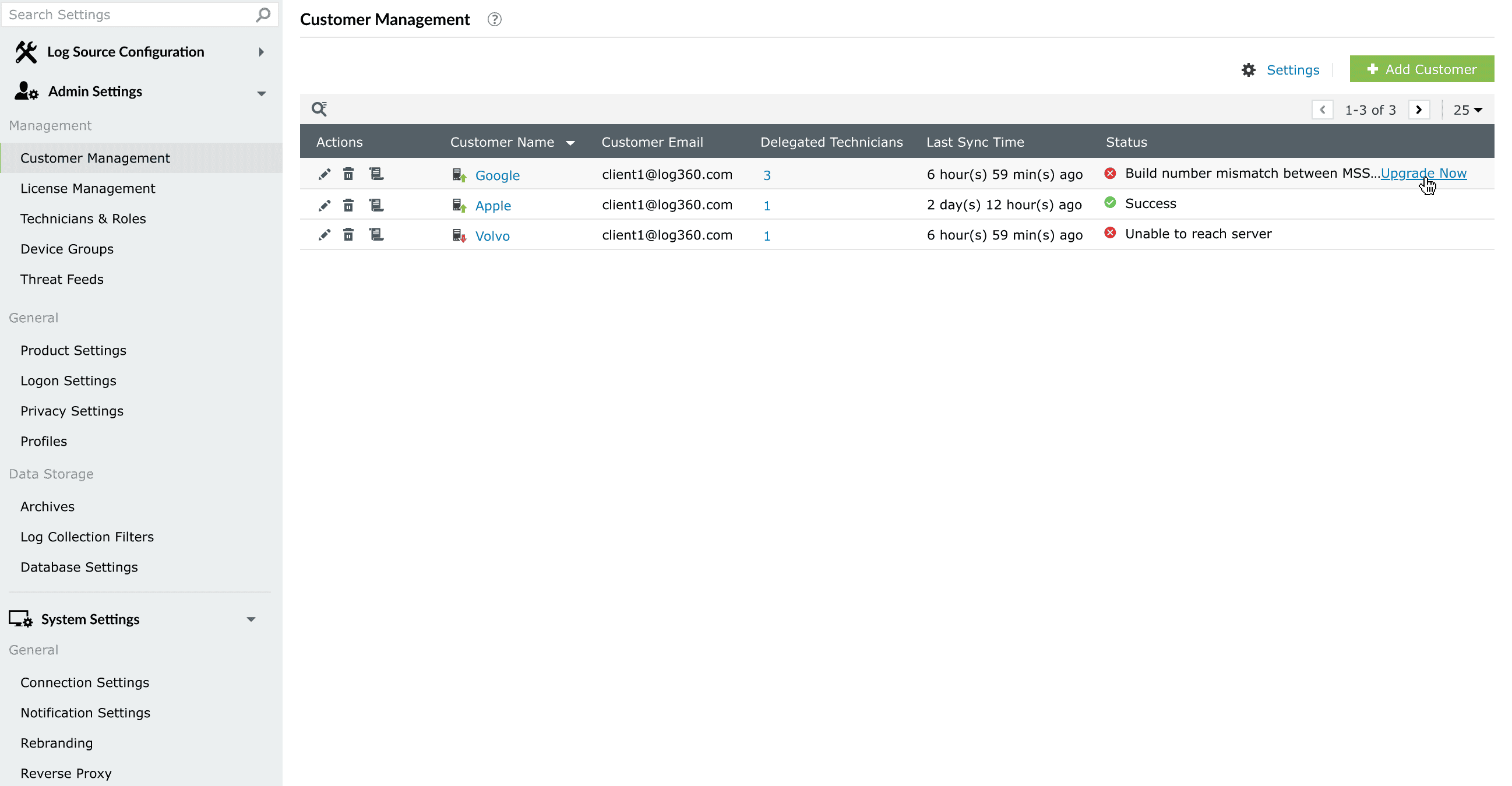
Image 3: Upgrade customer servers in Log360 MSSP
MSSP edition upgrade best practices
This guide explains how you can upgrade the Log360 MSSP Edition. In order to access the latest features and enhancements, users are required to upgrade to the latest version.
Prerequisites
- During the upgrade within the same storage drive of Log360, a backup is executed. Hence, it is important to ensure that there is sufficient space available for backup.
- The customer servers should be synchronized and integrated with the MSSP server, facilitating a proper connectivity between them. This ensures a seamless auto upgrade without any issues.
- Before upgrading, you need to backup both the customer servers and MSSP servers. This is essential in the event of an upgrade failure, ensuring a swift recovery.
Below are the steps for upgrading:
Phase 1: Taking a manual backup of MSSP Server
- Shutdown the Log360 MSSP server.
- Copy the following folders/files as backup.
<Home>/Conf
<Home>/adsdata
<Home>/lib/AdventNetLicense.xml
- Database backup: Take a snapshot of the database for having a database backup.Please follow the same steps as for Standalone server .
Phase 2: Taking a manual backup of Customer Server
- Shutdown the Log360 customer server(s).
- Copy the following folders/files as backup
<Home>/Conf
<Home>/adsdata
<Home>/lib/AdventNetLicense.xml
- Database backup: Take a snapshot of the database for having a database backup. Please follow the same steps as for Standalone server.
Phase 3: Performing the upgrade on the MSSP Server:
Apply the latest service pack in the PPM on the MSSP Server. Please check the instructions to apply service pack.
Phase 4: Upgrading Customer Servers:
Upon completion of the MSSP Server upgrade, the subsequent step involves upgrading the customer servers.
There are two ways to achieve this:
Case-1: Auto upgrading all customer servers through the MSSP Server.
Case-2: Manually upgrading customer servers.
Case-1: Auto upgrading all customer servers through the MSSP Server
When the MSSP server is upgraded through a service pack, all its customer servers will be automatically upgraded by default.
Below are the steps for auto upgrading the customer servers:
- Shutdown the MSSP server and all the customer servers.
- Take either a snapshot or ensure a folder backup of all the servers.
- Apply the service pack in the MSSP server.
- Start the MSSP server.
- After ensuring that the MSSP server is up and running, start all the customer servers one by one.
- Wait for the MSSP server to upgrade all the customer servers before applying the next PPM (the service pack) on the MSSP server.
Case-2: Manually upgrading customer servers
In this case, the customer servers will be upgraded individually. During this process, a space check is conducted on the customer servers before applying the service pack.This is to ensure that there is enough storage space to accommodate the backup files of the existing system.
In the event of a backup failure, due to insufficient storage or other reasons, users can choose to skip the backup provided they have manually taken the backup of the customer servers as mentioned in Phase 2.
Below are the steps to manually upgrade each customer server
- Shutdown the MSSP server and all the customer servers.
- Take either a snapshot or ensure a folder backup of all the servers.
- Add DisablePPMCheck=true in enterprise.txt of all the customer servers.
- Upgrade the customer server one by one using updatemanager.bat
- After upgrading all the customer servers, apply PPM on the MSSP server.
- Start the MSSP server.
After ensuring that MSSP server is up and running, start all the customer servers one by one.
Read also
This document explained how customer upgrades and backups are handled in the Log360 MSSP Edition, including the steps to apply service packs, perform pre-upgrade backups, and ensure successful version synchronization across customer servers.