Create EPM Policy
Build a Privileged Application List, choose an elevation mode, and define the applications or rules that govern how users gain elevated access.
If a standard user is prompted for administrator credentials when opening an application, review this elevation workflow after confirming the application is allowed to run.
Overview
EPM policy creation workflow
Privilege elevation is controlled through a Privileged Application List that is then associated with specific device groups.
The policy creation workflow
Implementing privilege management in Endpoint Central starts with an EPM policy. The policy controls how users access and run applications with elevated rights. Administrators define a Privileged Application List — the set of applications requiring administrative access — then associate that list with specific custom groups containing the user devices that need the elevated access. After deployment, selected users can run approved applications with elevated privileges. They retain standard user rights for other activities.
The permanent Privileged Application List selects applications and is associated with computer groups. This provides control over the application selection and target computers; it does not create a separate permanent elevation list for each logged-in user on a shared computer.
Setup
Create Privileged Application List
The standard Privileged Application List is managed for the current customer scope. Associating it with additional custom groups reuses that list rather than creating an independent per-group application list. Review the effect on every associated group before changing its applications or elevation settings.
Choose an elevation mode and scope it to all or specific applications. Go to Application Control -> Privilege Management and click Create for a new list or Modify to update an existing one.
Not configured
Not configured leaves the manual reason/request elevation flow unconfigured. Review Configure specific application to run with elevated privileges and Auto Elevation separately: those are distinct controls, so the option alone does not establish that every elevation path is disabled.
Self-elevation: Allow users to elevate on reason
The Allow users to elevate applications on reason option lets users elevate specific applications by providing a justification. The justification is logged and accessible under Reports → Applications Elevated with Reason Report.
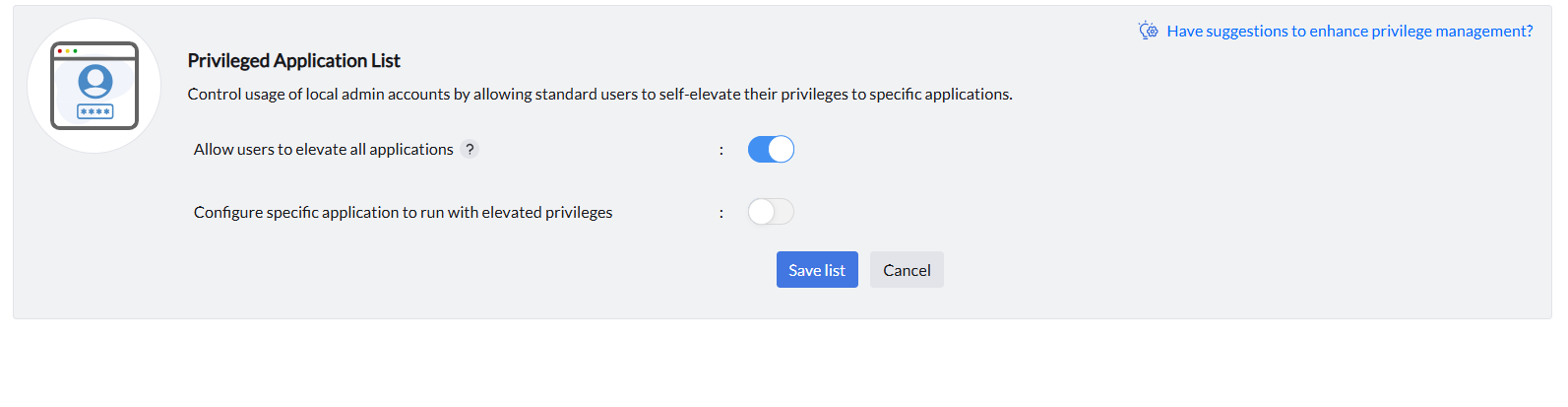
The following notification appears on the endpoint when a user tries to self-elevate an application:
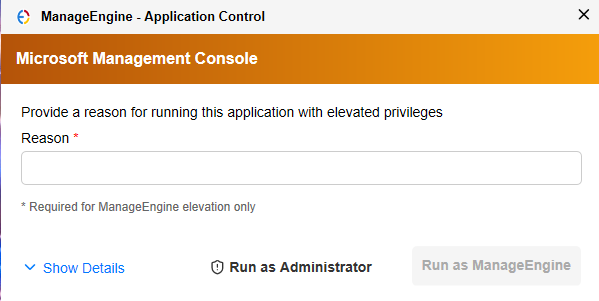
Self-elevation: Allow users to elevate on request (JIT)
The Allow users to elevate applications on request option enables users to request Just-In-Time elevation for a specific time duration, with a mandatory justification. Each request goes to an administrator for approval before elevation is granted.
Learn more about user-initiated elevation requests
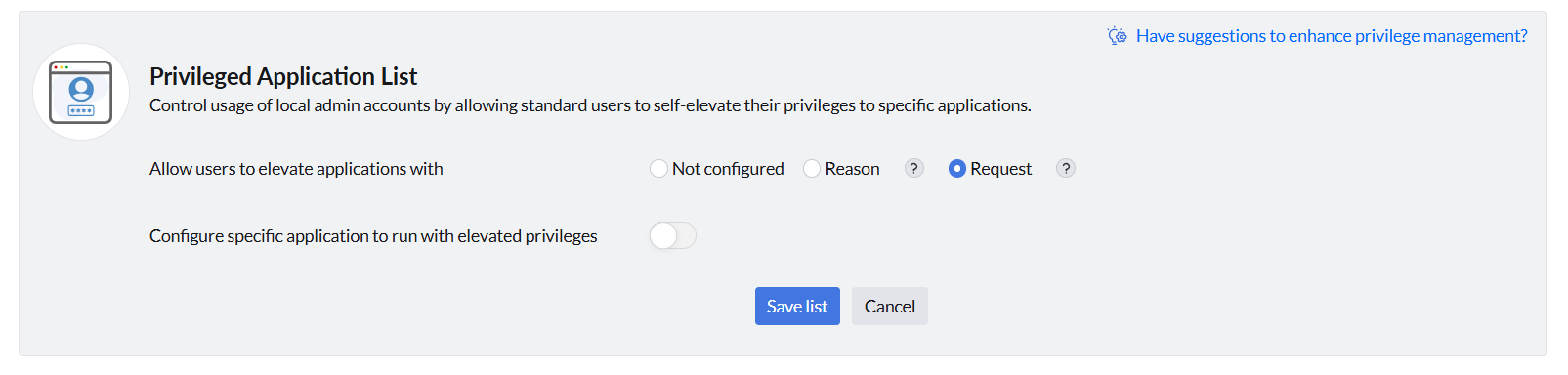
Elevation to all allowed applications
When this option is selected, the custom groups associated with the Privileged Application List during policy deployment can self-elevate privileges to all allowlisted applications — no per-application selection needed.
Excluding applications from all-allowed elevation
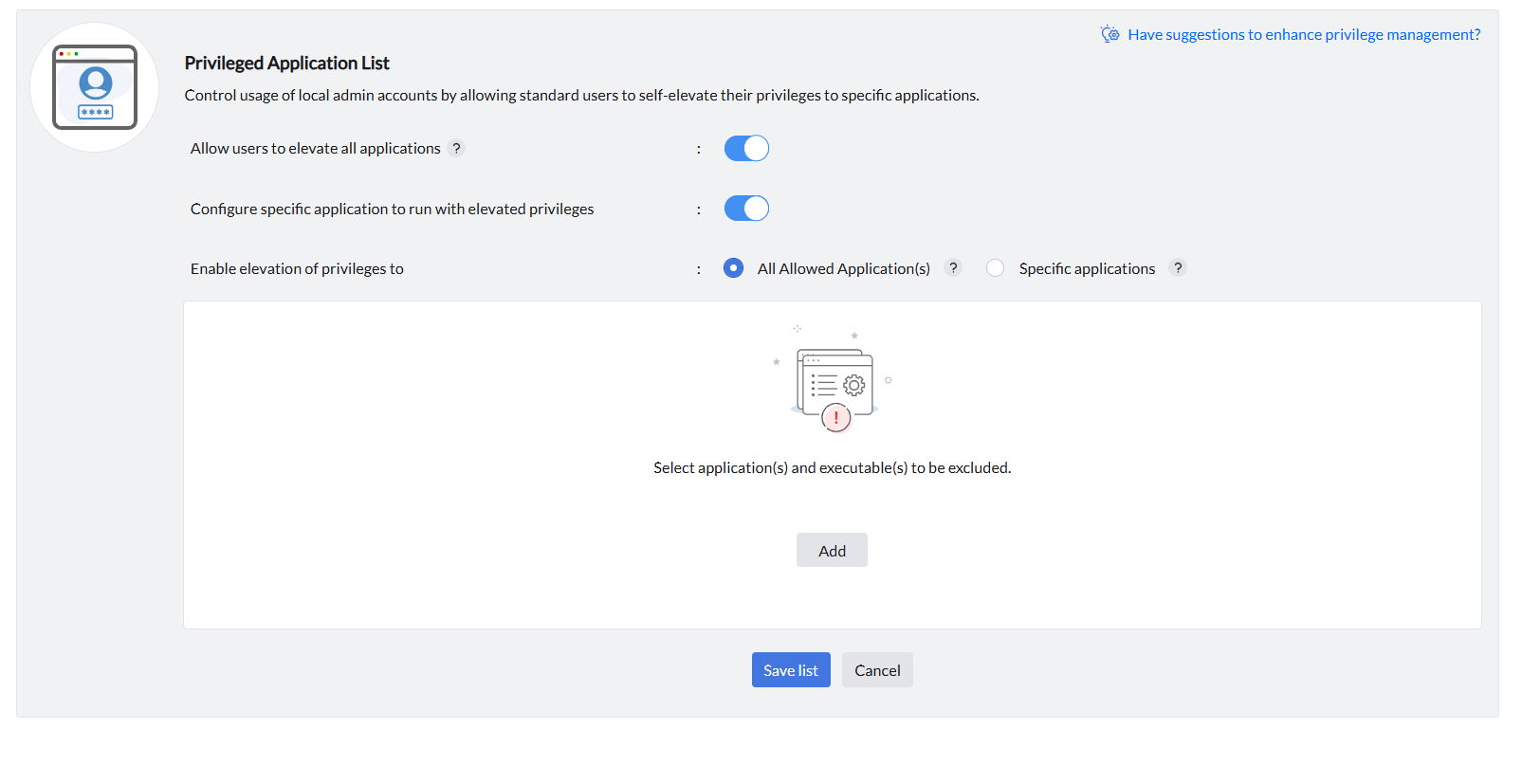
When using the All Allowed Application(s) elevation mode, you can exclude specific applications from receiving elevation using the Exclude application(s) and executable(s) panel. Click Add to select the applications and executables you want to exclude. Even though the app is in your allowlist, it will not receive elevation privileges under this policy. Users will not be able to run that application with administrative permissions through this privilege management list.
Elevation to specific applications
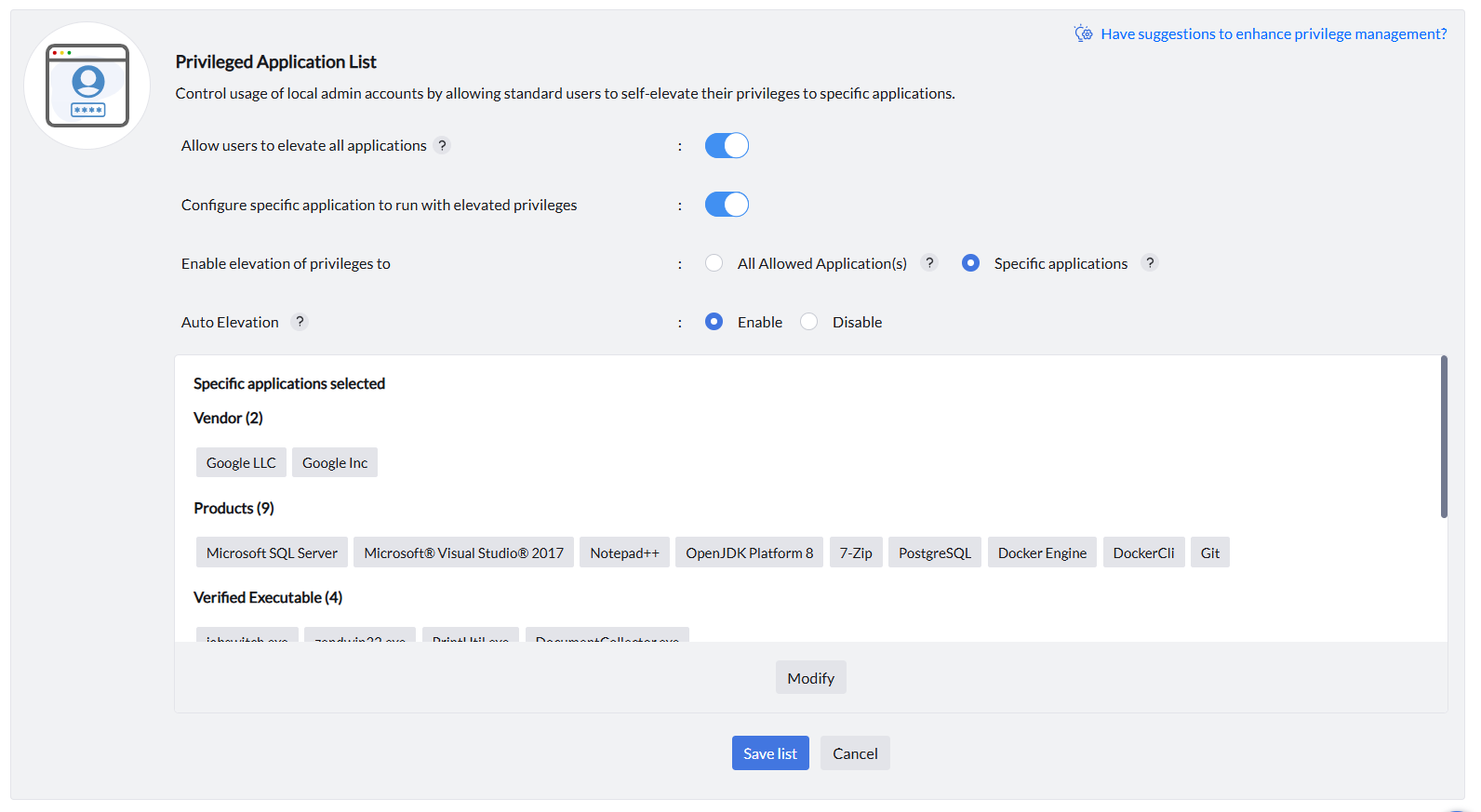
When this option is selected, only the chosen applications can be elevated. Specific applications can be added using rule types including Vendor, Products, Verified Executable, File Hash, CLSID, and Folder Path. Learn more about configuring specific applications for elevation below.
Auto Elevation
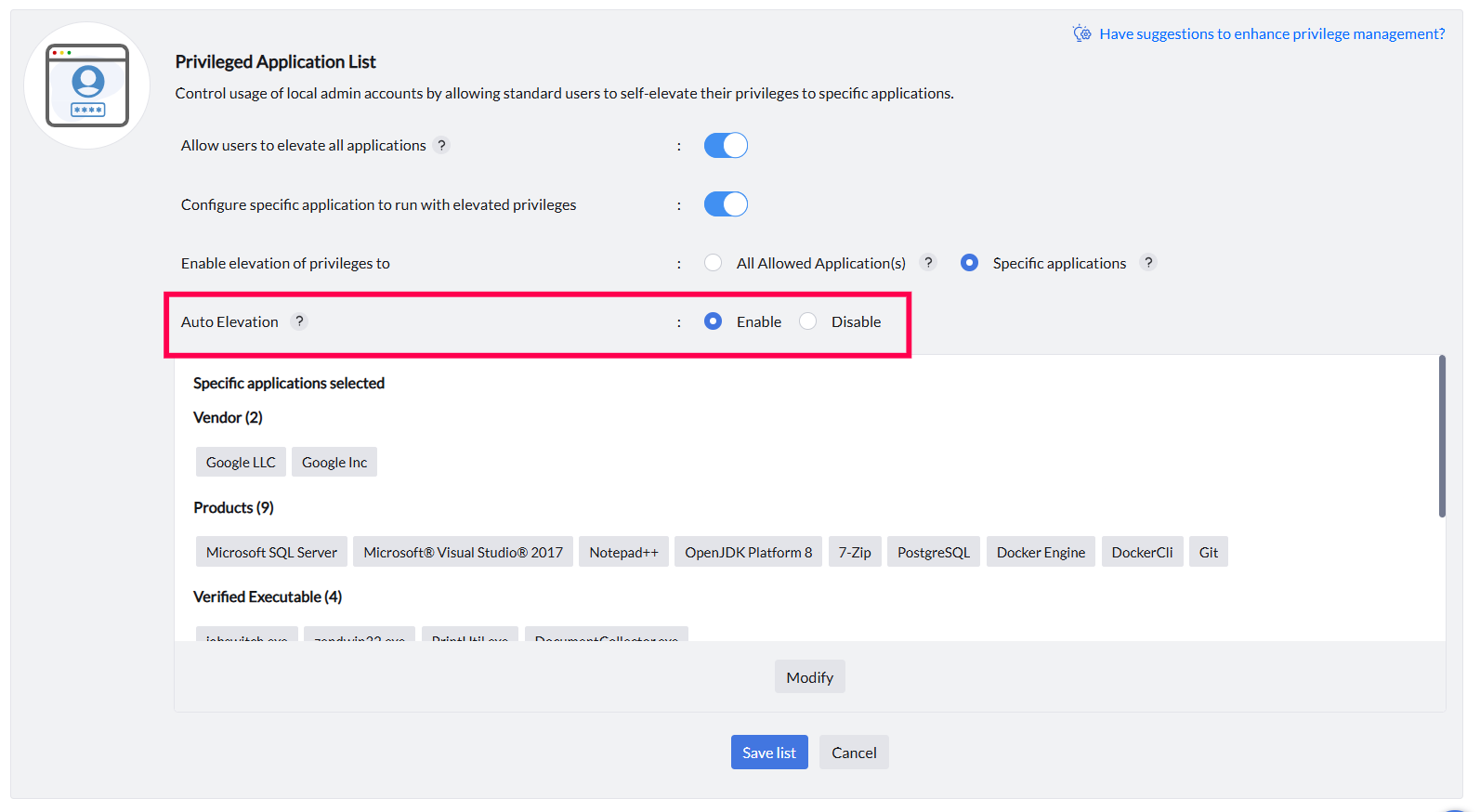
With Auto Elevation enabled, applications in the associated groups run automatically with elevated privileges — no user prompt or request required. Use this for trusted administrative tools used regularly when manual elevation would delay work.
Rules
Select specific applications and custom rules
Use specific rule types to limit elevation to the required executables.
Available rule types for specific application elevation
When scoping elevation to specific applications, choose from the following rule types: Vendor, Products, Verified Executable, File Hash, CLSID, and Folder Path.
Vendor, Product, Verified Executable, File Hash, CLSID and Folder Path identify applications or components. They do not select a Windows user account for the permanent Privileged Application List. If different users share one computer, review the effect of these rules on every eligible standard user before deployment.
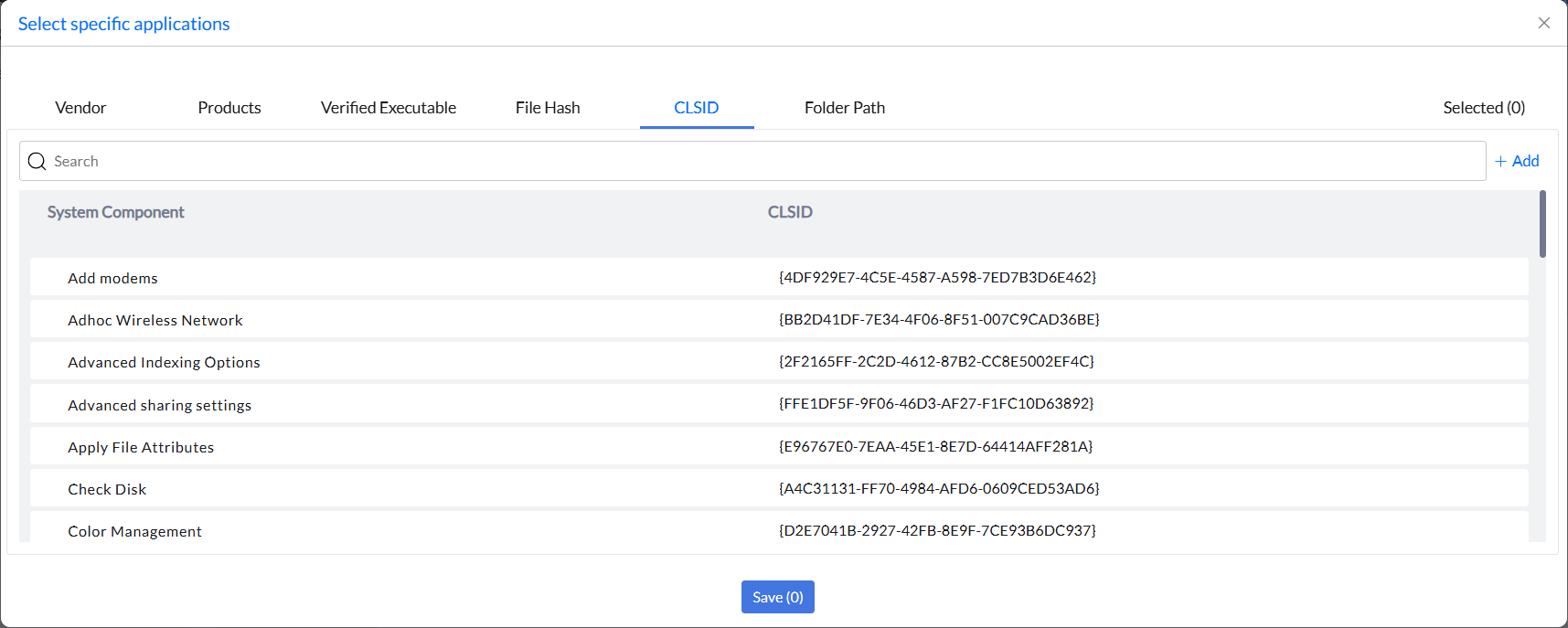
The CLSID rule type controls COM object elevation by referencing the unique Class ID of each component rather than an executable or path. This applies elevation rules directly to Windows system components or registered COM objects — reducing reliance on mutable file attributes and providing granular control over built-in OS functions.
Create custom rules
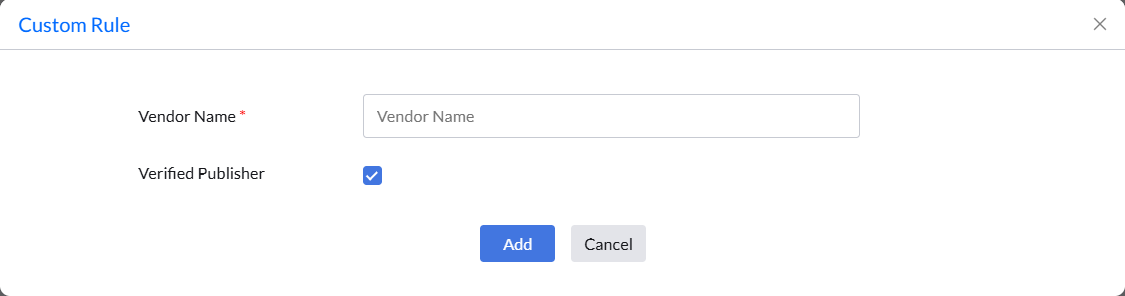
Define custom rules for applications not yet detected in your network. Click Add under the relevant rule type to specify criteria such as vendor, product name, verified executable, file hash, or CLSID manually.