Just-In-Time Privilege Elevation
Grant temporary, scoped privilege elevation only when needed — eliminating standing admin rights while keeping operations running smoothly.
Just-In-Time Access Explained
Two elevation models — admin-configured and user-requested — both time-bound and fully auditable.
What JIT access does for privilege management
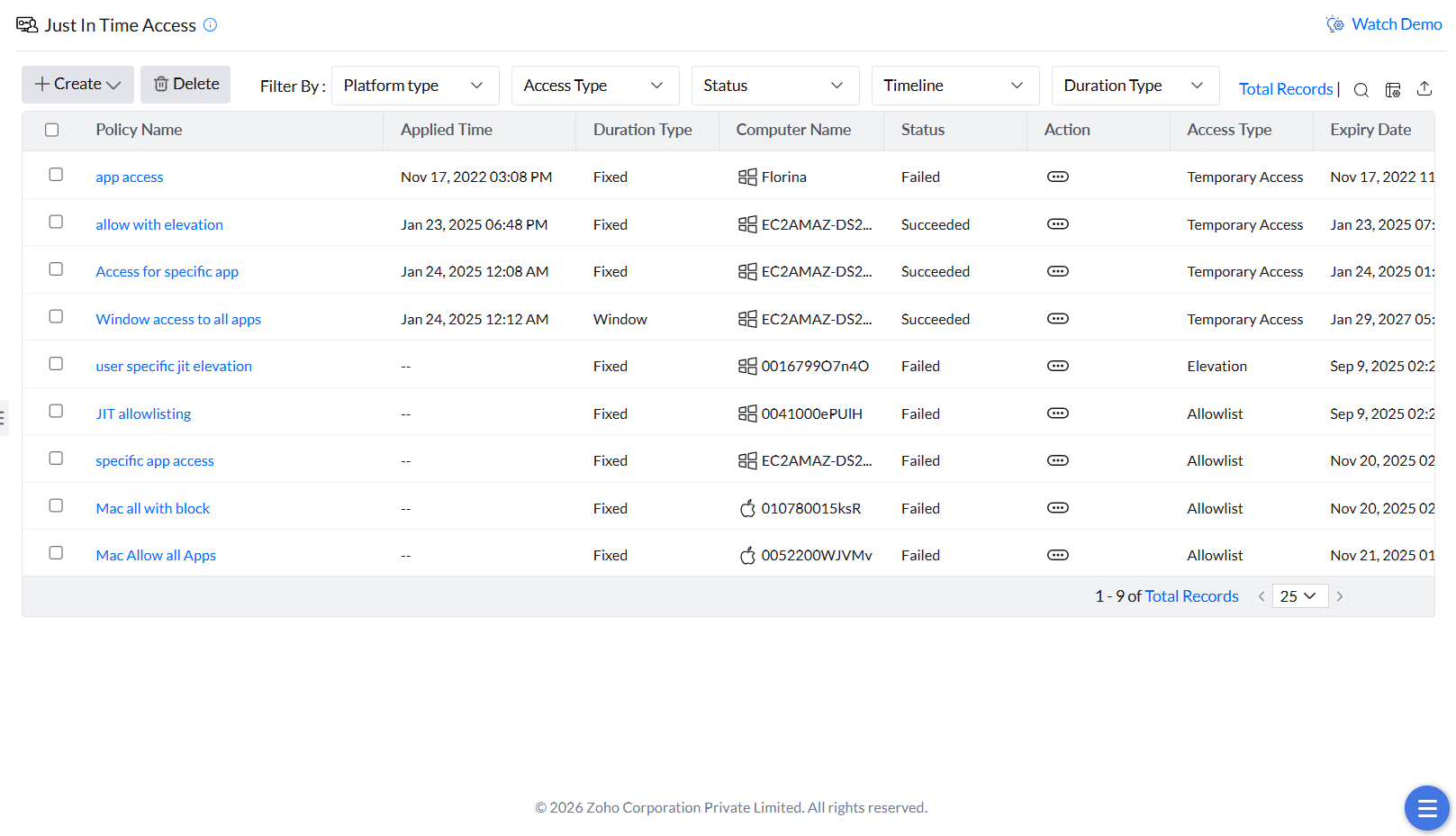
Just-in-Time (JIT) access in Endpoint Central gives administrators a way to provide users with temporary, scoped privileges only when required for specific tasks — eliminating the need for standing administrative rights. JIT access supports two models:
- Admin-configured policies — proactively grant access based on predefined criteria for known use cases.
- Request-based elevation — users initiate privilege elevation on demand with a justification and a defined time duration.
In both cases, access is tightly controlled, time-bound, and can be scoped to specific applications using criteria such as vendor, file hash, folder path, and more.
Why JIT access strengthens security posture
Permanent administrative rights expand the attack surface and increase the risk of both insider threats and unauthorized access. JIT access eliminates this exposure — privileges are granted only when needed, only to the right users, and only for as long as necessary.
The request-based model adds a further layer of accountability: users must provide a justification before access is approved, creating a clear and auditable trail of privilege usage. Together, these capabilities help enforce the principle of least privilege and significantly reduce the likelihood of data breaches.
Configuring Just-In-Time Access
Create an admin-configured JIT policy with a defined scope and duration.
Creating a JIT elevation policy
- Navigate to Just in Time Access under Policies.
- Click Create, then select Application Elevation.
- Enter a Name and Description for the policy.
- Enter the Computer Name and select the User Name (or choose All users to apply to everyone on the device).
- Select a duration type: Fixed (a set duration) or Window (a specific time frame during which access is active).
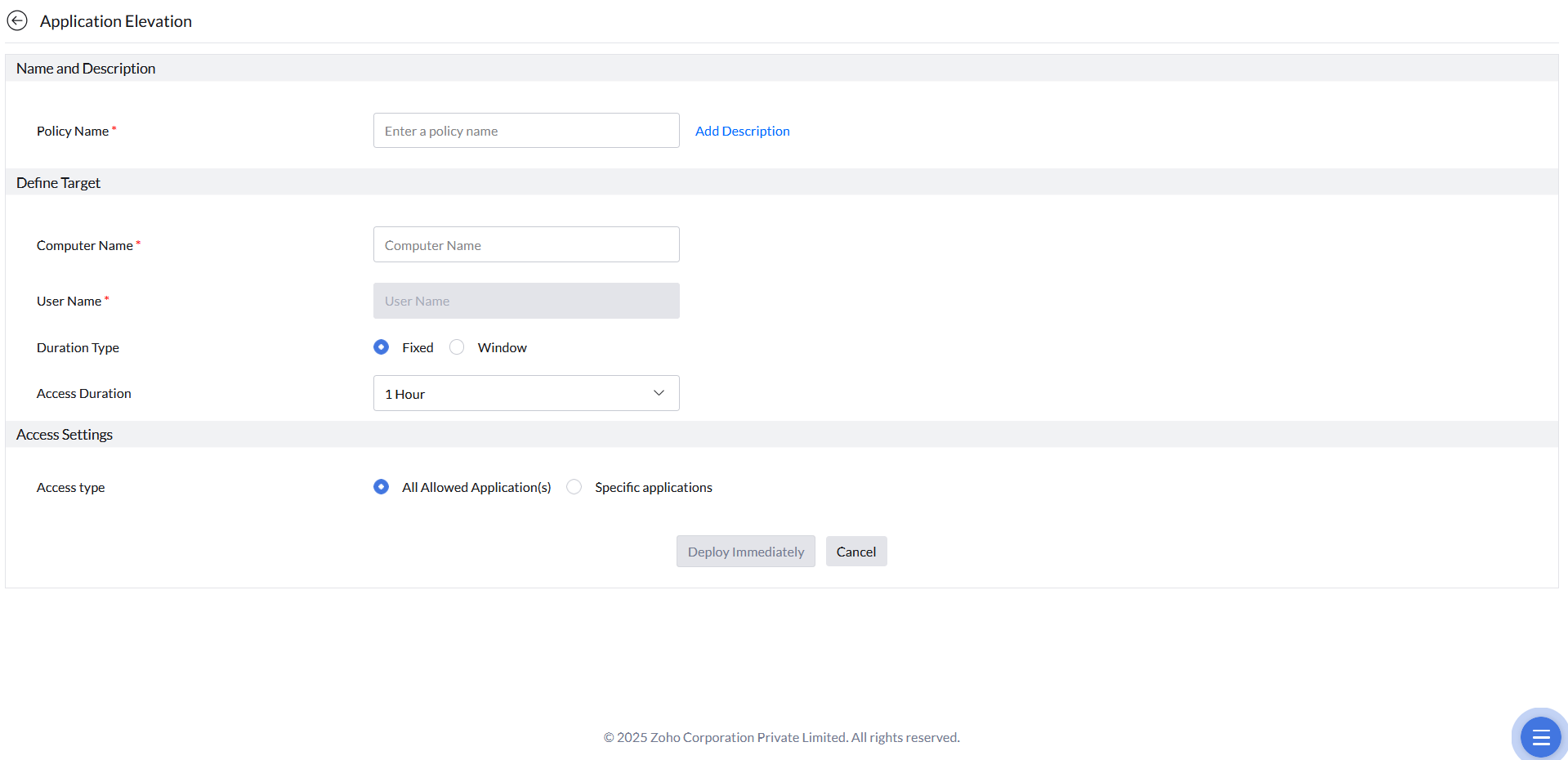
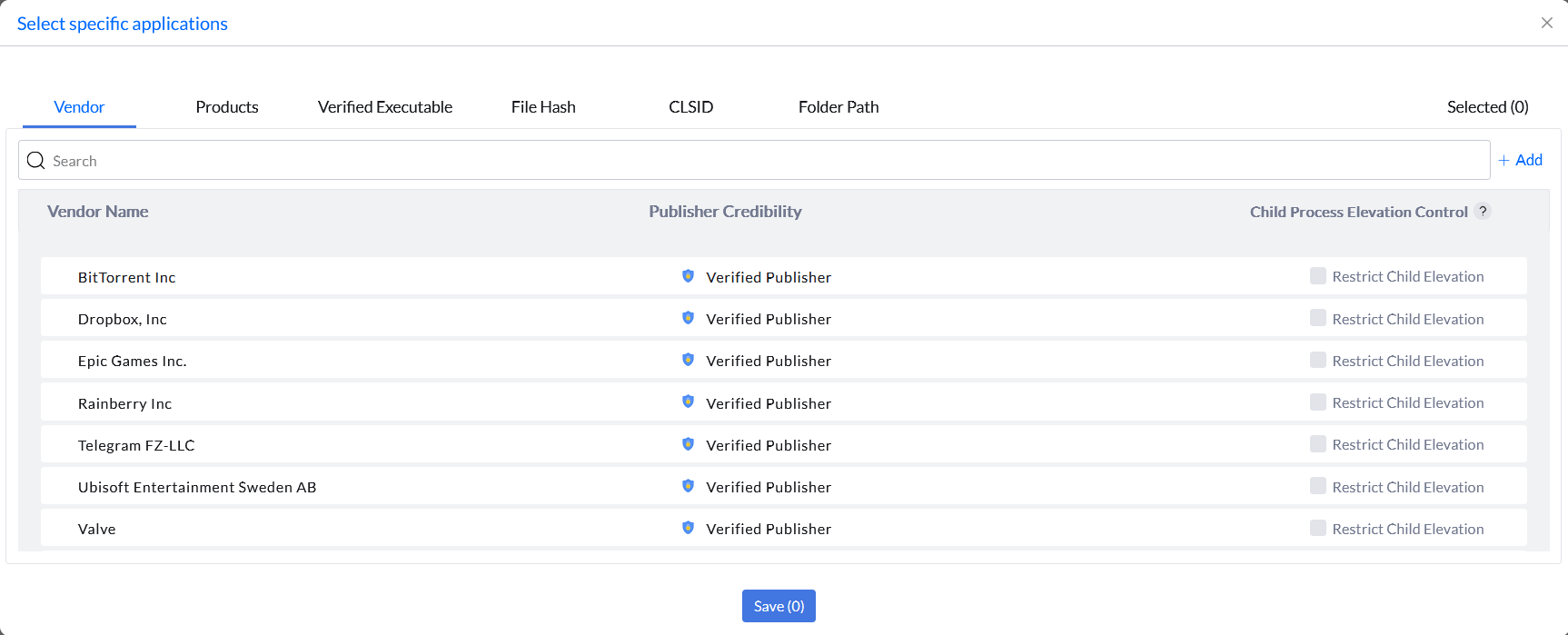
- In Access Settings, choose the elevation scope: All Allowed Application(s) (any allowlisted app) or Specific Applications (only selected apps, defined by Vendor, Products, Verified Executable, File Hash, CLSID, or Folder Path).
- Click Deploy Immediately.
User-Initiated Elevation Requests
Users can request temporary elevation on demand, without waiting for an admin to pre-configure a JIT policy.
Submitting and reviewing elevation requests
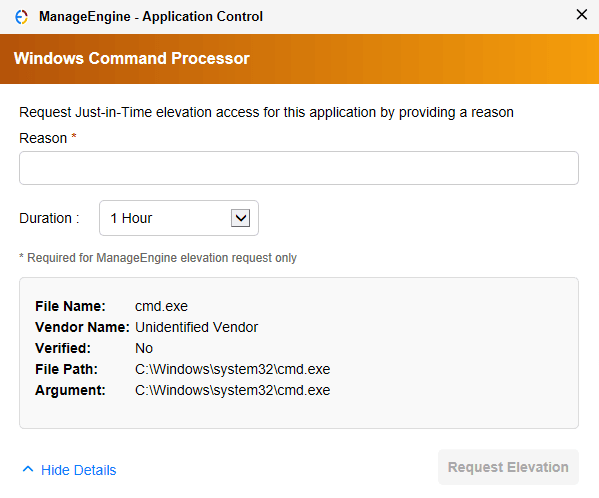
In addition to admin-configured JIT policies, Endpoint Central supports a request-based model where users initiate elevation on their own. When a user attempts to run an application requiring elevated privileges, they see a prompt to submit a JIT elevation request — specifying a time duration and a justification.
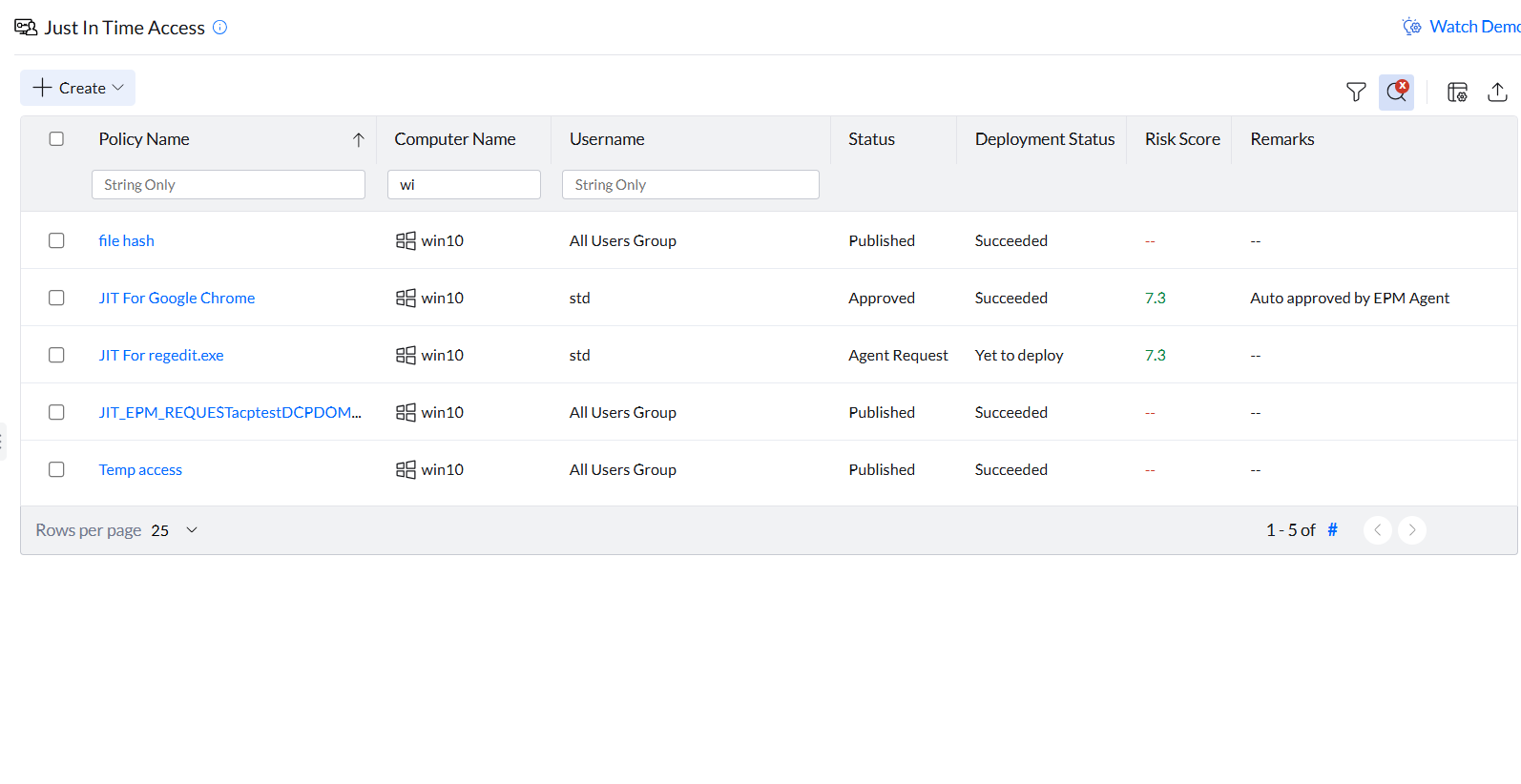
All pending requests appear in the Just-In-Time Access tab for administrator review. Approved access is automatically revoked when the requested time duration expires. Administrators can also manually revoke active access at any time from the console.
Autonomous Approval
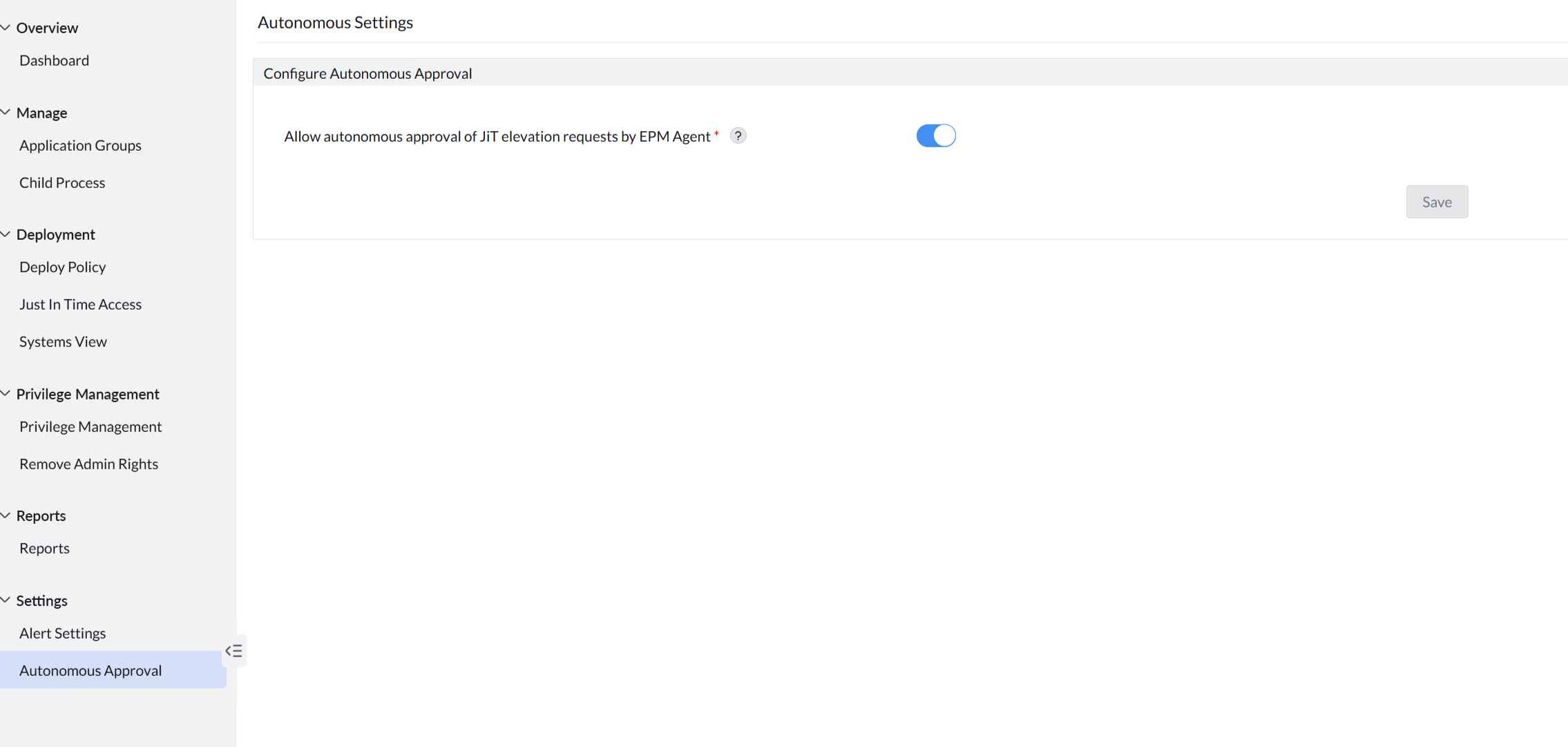
For trusted users or low-risk applications, administrators can enable Autonomous Approval. When configured, eligible elevation requests are automatically approved without requiring manual admin action — reducing overhead while maintaining governance and auditability. Enable this under Settings → Autonomous Approval.
JIT Events Report
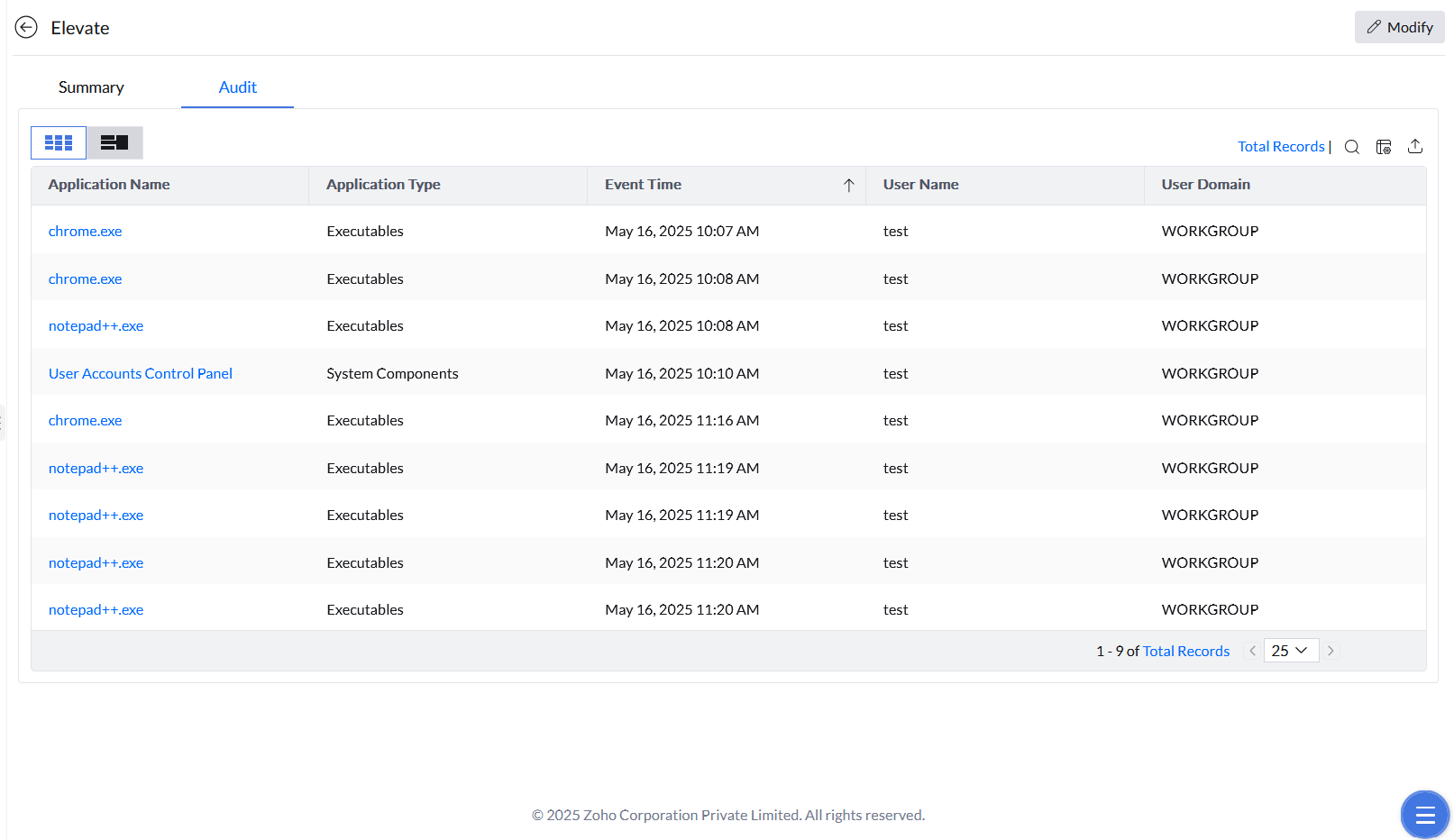
Events generated under each JIT policy are accessible by clicking the policy and opening the Audit tab. Use this report to verify that elevation occurred as expected and to investigate any anomalous activity.