How to check the size and status of archive mailboxes in Microsoft Exchange using PowerShell scripts

Your download is in progress and it will be complete in just a few seconds! If you face any issues, download manually here

Thank you for registering with ManageEngine.

We will send the download link to the registered email ID shortly.

Stay informed about Exchange with Exchange Reporter Plus

  •  
  •  
  •  
  • By clicking 'Download 30-day free trial' you agree to processing of personal data according to the Privacy Policy.

Exchange Online Reports

Using PowerShell scripts to check the size and status of archive mailboxes in Exchange involves running commands that query system resources used by Exchange processes. This typically includes utilizing the Get-MailboxStatistics cmdlet to fetch information regarding a mailbox, such as its size. The steps mentioned below can be used to check the size and status of archive mailboxes in your Exchange environment using Windows PowerShell. ManageEngine Exchange Reporter Plus—an extensive tool used for reporting, auditing, monitoring, and creating alerts for critical activities in your Exchange environment—can also be used for this purpose.

The following table is a comparison on how to check the size and status of archive mailboxes in Microsoft Exchange using Windows PowerShell and Exchange Reporter Plus.

Windows PowerShell

Steps to check the size and status of archive mailboxes using Windows PowerShell

  • Note down the required parameter exchangeserver, where exchangeserver refers to the Exchange server containing the archive mailboxes for which you would like to check the size and status.
  • Execute the following PowerShell script with the required parameter and its value.

    Get-MailboxStatistics

     Copied
    -Server <exchangeserver>
    Click to copy entire script
  • To retrieve information about the archive mailboxes present within a particular Exchange server in a list format, execute the following PowerShell cmdlet with the required parameter exchangeserver.

    Get-MailboxStatistics

     Copied
    -Server <exchangeserver> | Format-List
    Click to copy entire script

Exchange Reporter Plus

Steps to check the size and status of archive mailboxes using Exchange Reporter Plus

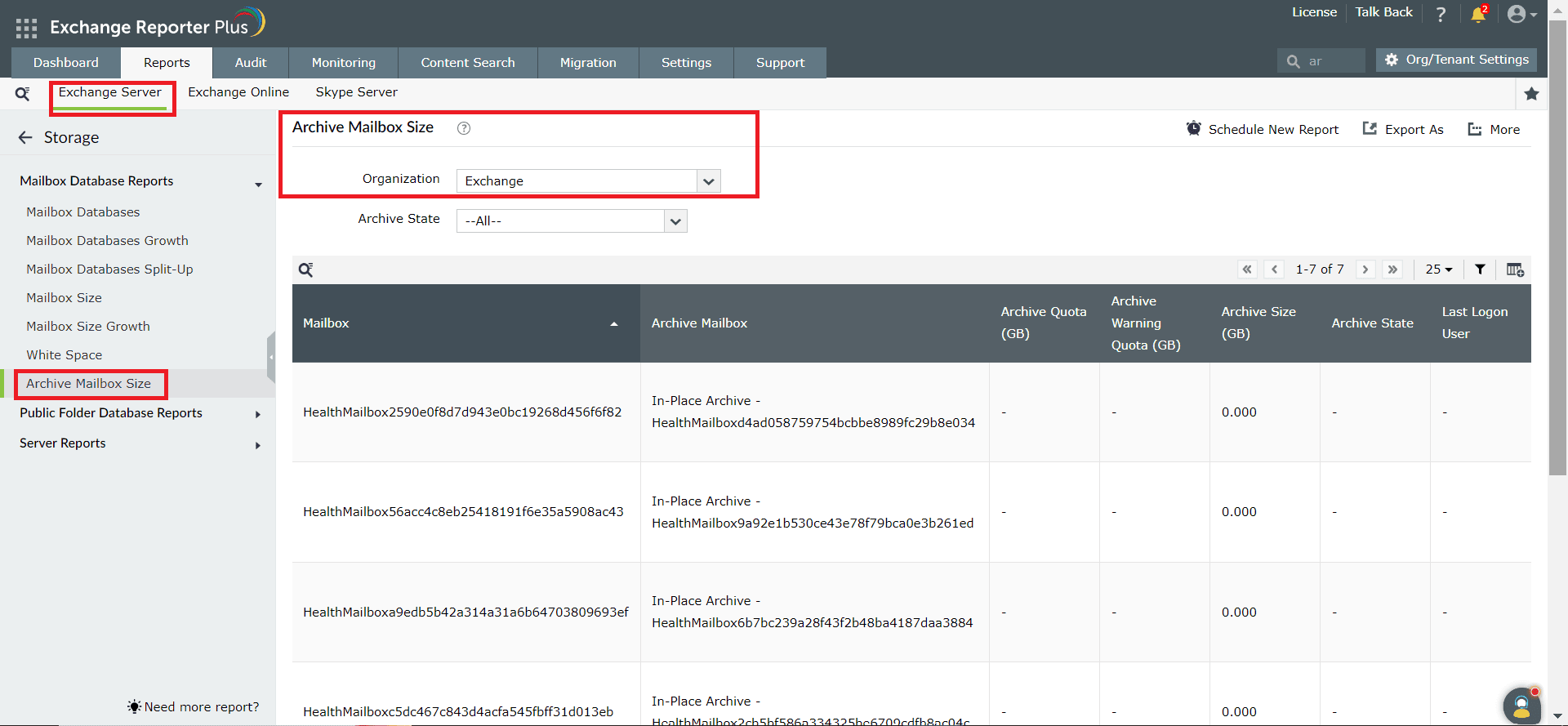
  • Log in to Exchange Reporter Plus and navigate to Reports > Exchange Server > Mailbox Database Reports Storage > Archive Mailbox Size.
  • Select the Exchange Organization.

Limitations of using Windows PowerShell for checking the size and status of archive mailboxes

  • Administrators must have the following permissions if they wish to execute the above-mentioned PowerShell script:
    • Local Administrator rights
    • The exchange Organization Management role
    • Remote PowerShell access
  • Only technicians with PowerShell expertise can execute these commands, and the time-consuming nature of PowerShell scripts can impact productivity.

Benefits of using Exchange Reporter Plus to check the size and status of archive mailboxes

  • Eliminate Exchange privilege elevation: Delegate custom roles to technicians to fetch reports regarding your Exchange environment without the need to elevate their native Exchange privileges.
  • Script-free reporting: Generate comprehensive reports on various aspects of your Exchange environment without the need to memorize or execute complex PowerShell scripts.
  • Over 450 intuitive reports: Generate comprehensive reports on all aspects of Exchange Server, Exchange Online, and Skype for Business. These reports can be exported as CSV, HTML, PDF, XLS, or XLSX files.
  • Customized audit profiles: Create actions that you want to audit, and schedule profiles to generate audit reports at regular intervals.
  • 24/7 endpoint and service monitoring: Monitor Exchange Server services, databases, database availability groups, storage, and email queues to ensure a hassle-free environment.
  • Mailbox content search: Perform pattern- and keyword-based searches to find important information in your organization's mailboxes.
  • Real-time alerts: Configure alert profiles to receive immediate SMS or email notifications when a specific alert is triggered.
  • Exchange migration: Transfer emails, contacts, tasks, and calendars from Exchange Server to Exchange Online with ease.
A single pane of glass for Exchange Server Monitoring, Reporting and Auditing