- Knowledge base
- Active Directory management
- Active Directory reports
- Active Directoy integrations
- Active Directory automation
- Active Directory delegation
- Governance, risk, and compliance
- Microsoft 365 management and reporting
- AD migration
- Access certification
- Identity risk assessment
- Risk exposure management
- FAQs
- Pricing
- Online demo
- Request support
- Get quote
What is the Active Directory Administrative Center?
The Active Directory Administrative Center (ADAC) is Microsoft's modern graphical console for Active Directory (AD) administration. It was introduced to simplify common AD management tasks using a PowerShell-backed interface. Unlike traditional AD admin tools, ADAC provides a task-oriented experience that allows administrators to manage users, groups, computers, domains, and password policies more efficiently.
Every action performed in ADAC is executed through Windows PowerShell in the background, which offers transparency and consistency for AD administration.
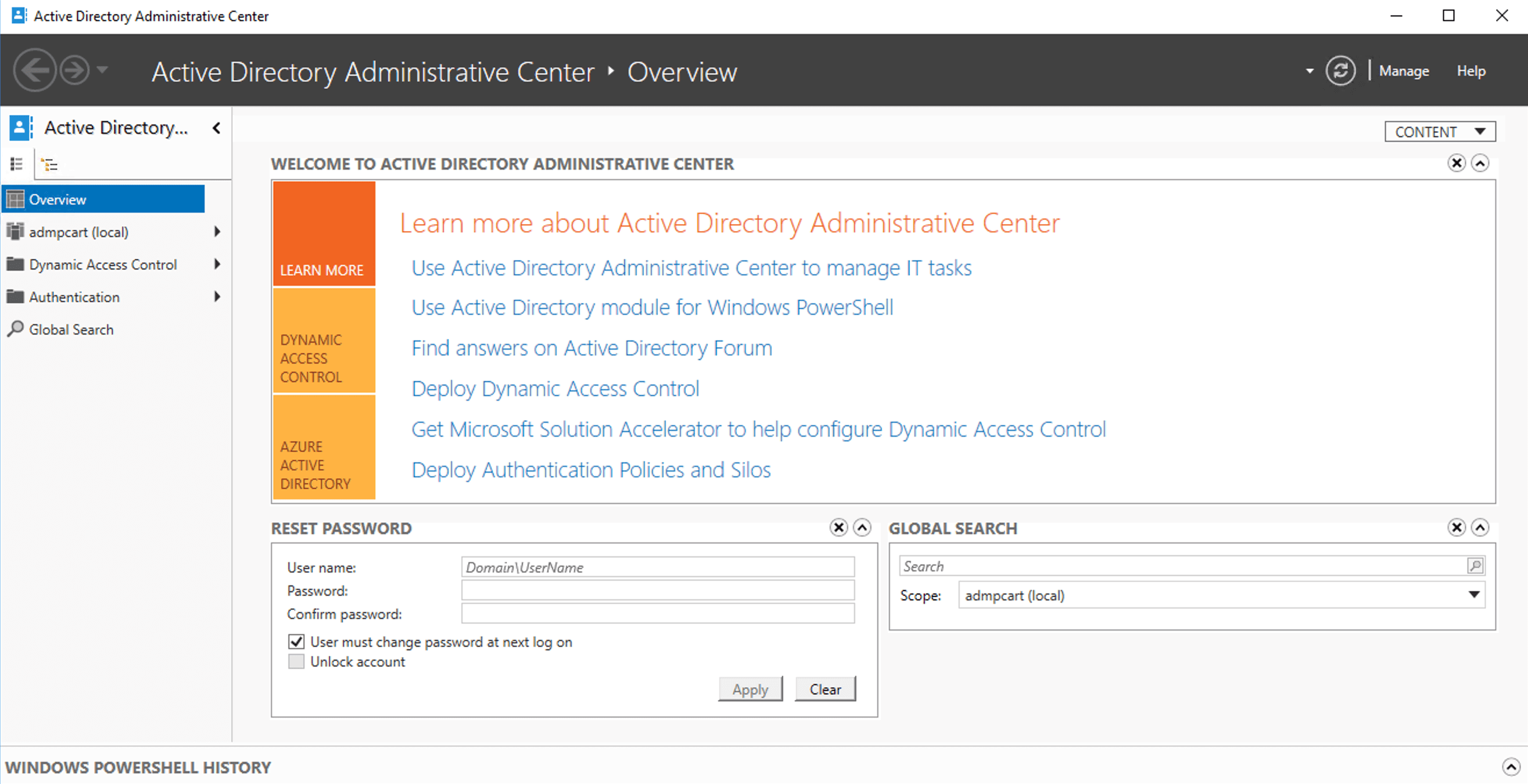
ADAC vs ADUC
While ADUC (Active Directory Users and Computers) remains widely used, ADAC introduces several enhancements that improve day-to-day AD administration:
- Built-in Windows PowerShell History Viewer
- Graphical access to the AD Recycle Bin
- Simplified configuration of fine-grained password policies
- Improved object navigation and global search
- Faster execution of common AD administration tasks
This makes ADAC a preferred AD admin console for modern Windows environments.

Features introduced by ADAC
AD Recycle Bin
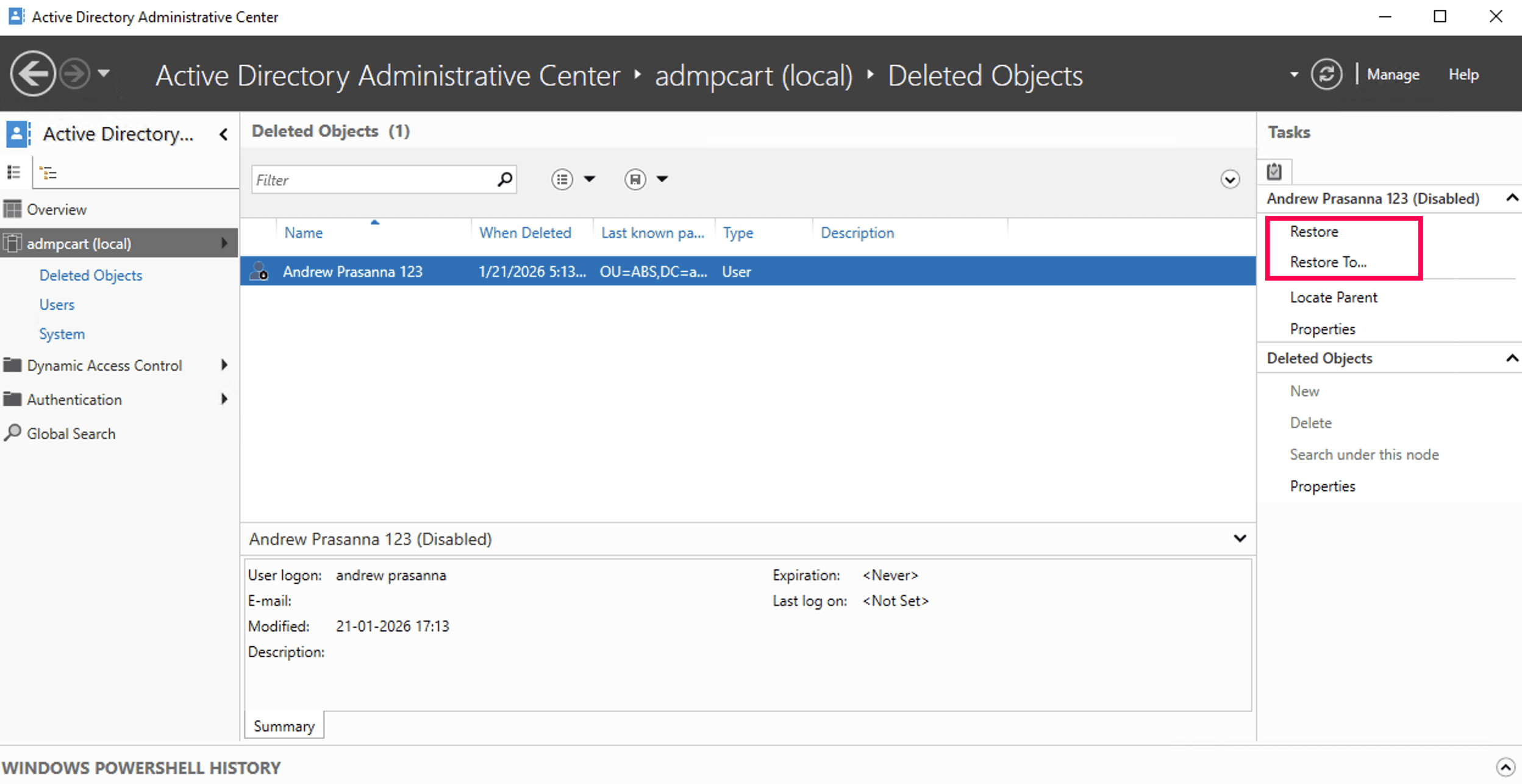
The AD Recycle Bin enables administrators to restore deleted AD objects. Although this feature was introduced in Windows Server 2008 R2, it was initially only accessible through the command line using PowerShell. With Windows Server 2012, ADAC provides a graphical interface to enable and manage the recycle bin, making object recovery significantly easier.
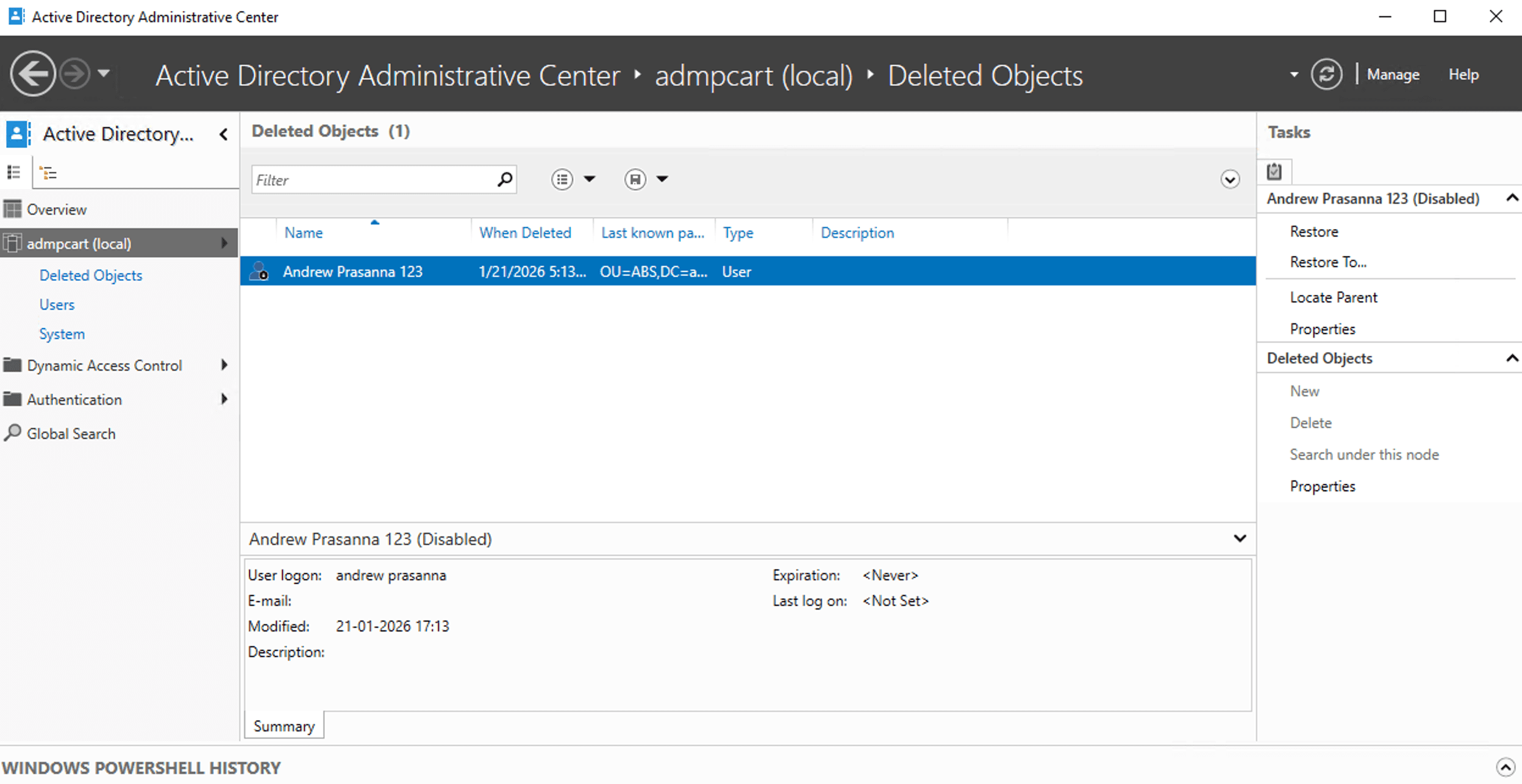
Note: The forest must be running at the Windows Server 2008 R2 functional level or higher. At least one domain controller should be running Windows Server 2012, and all other DCs must run Windows Server 2008 R2 or later.
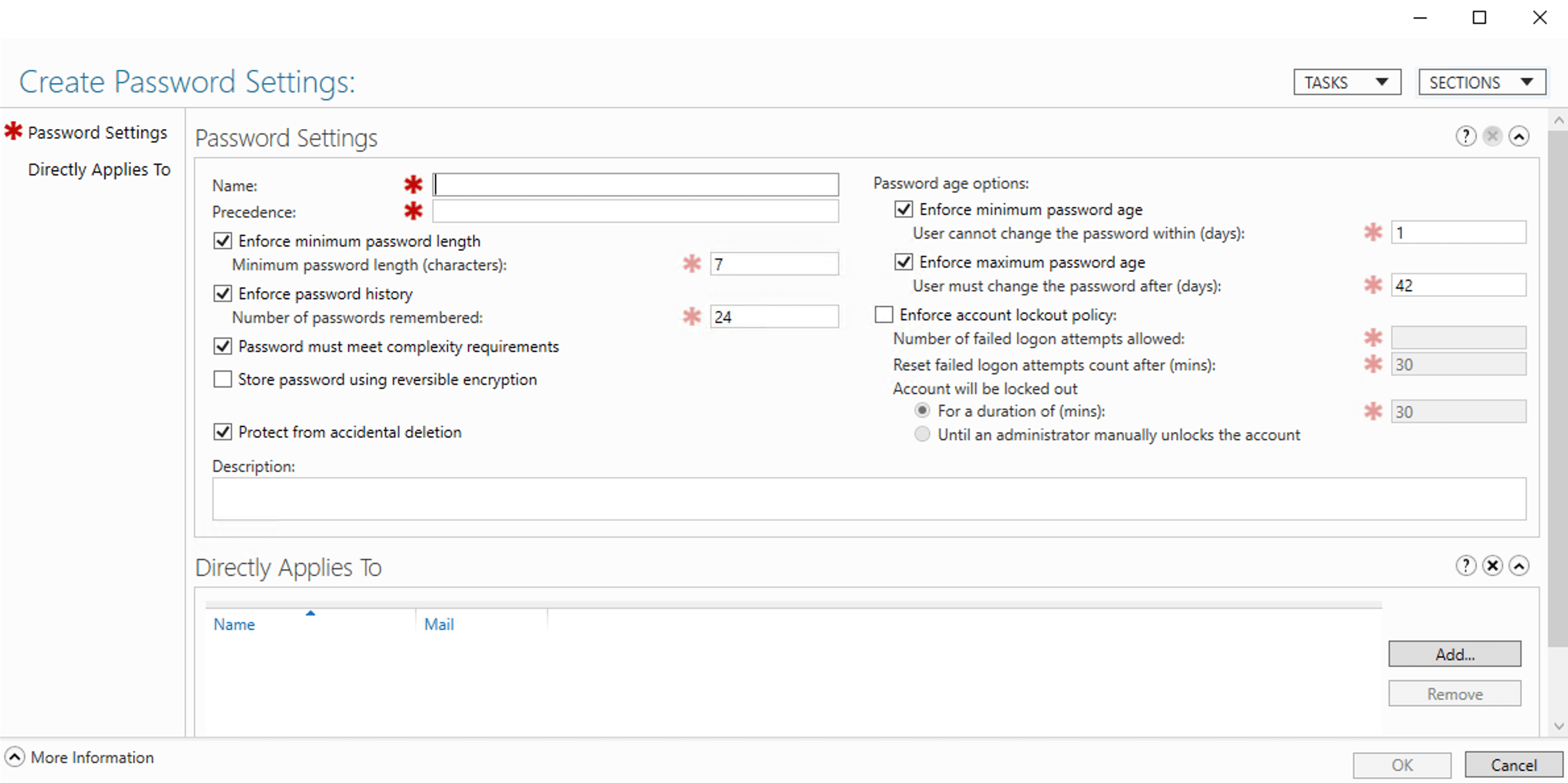
Fine-grained password policy
Earlier versions of AD required administrators to configure fine-grained password policies exclusively through PowerShell. The Windows Server 2012 ADAC simplifies this by allowing administrators to set password policies directly from the ADAC interface.
Note: The domain functional level must be Windows Server 2008 or higher.
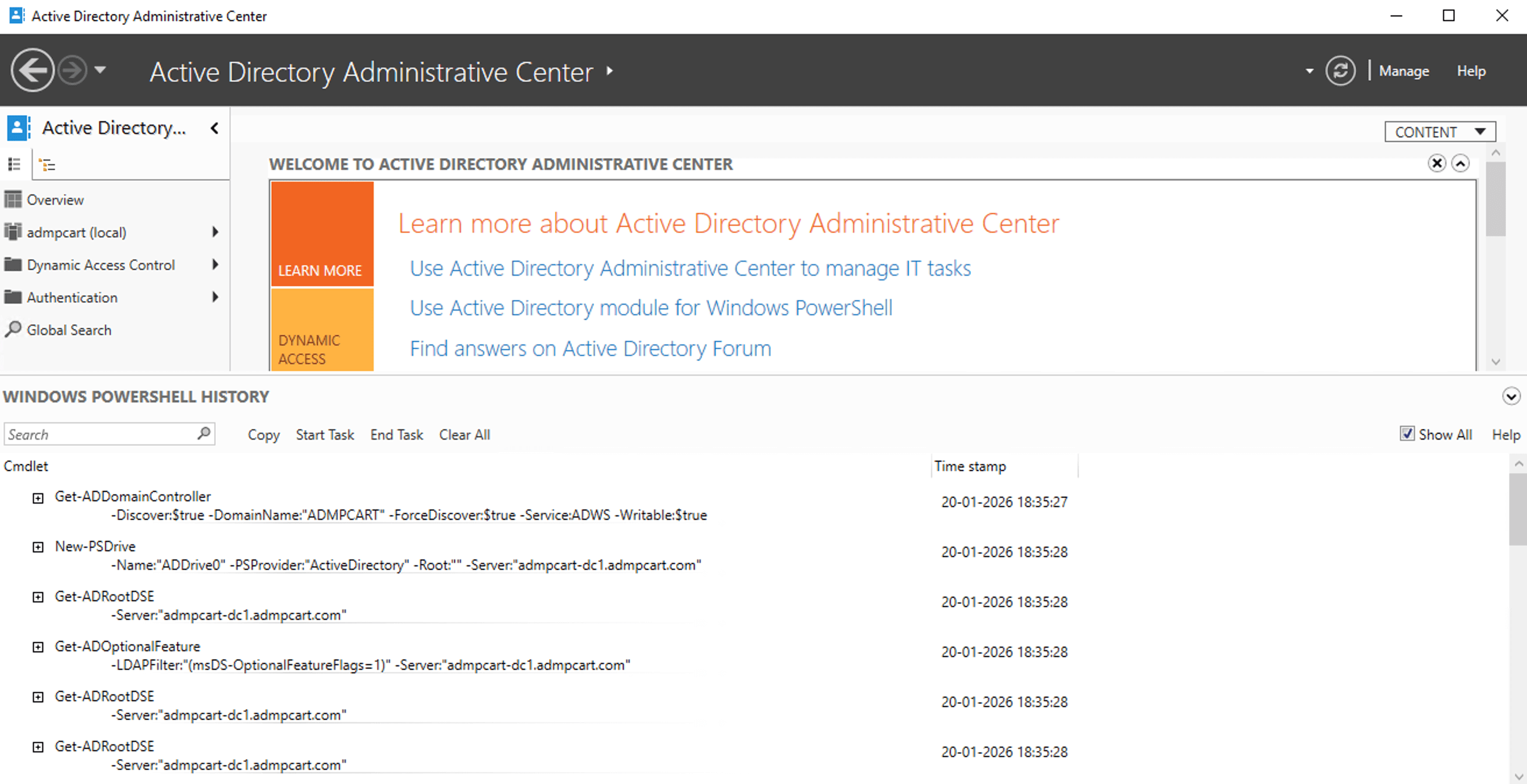
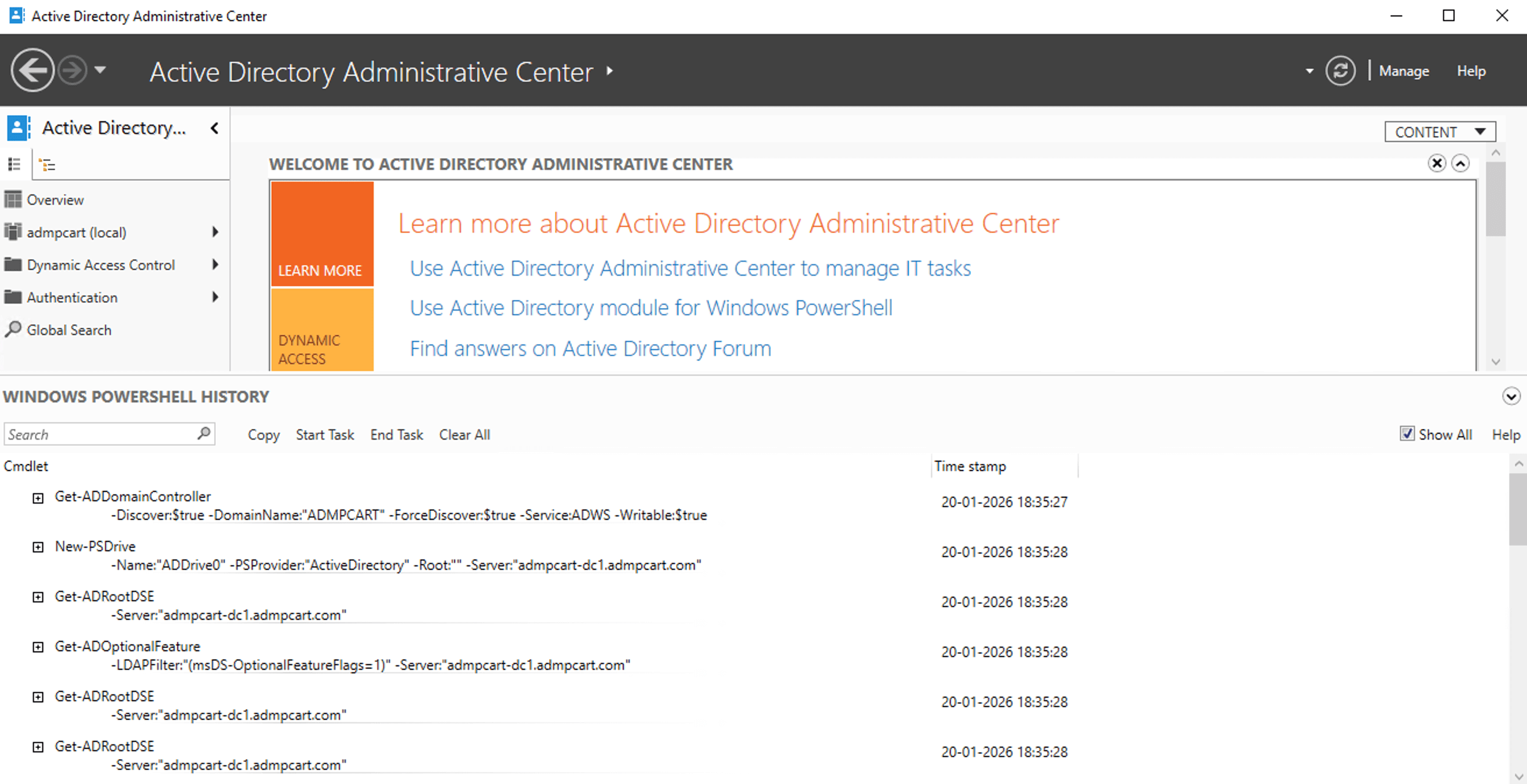
Windows PowerShell History Viewer
The Windows PowerShell History Viewer in ADAC displays all administrative actions performed through ADAC as PowerShell commands. This built-in audit trail improves transparency and is especially useful for troubleshooting and validating AD administration tasks.
Dynamic Access Control
Dynamic Access Control (DAC) enables granular access control by evaluating user claims, device claims, and resource properties at the time of access for NTFS file shares. ADAC provides a centralized interface to create, view, and manage DAC components without relying entirely on PowerShell.
For example, administrators can define permissions based on the department attribute, for which the access is automatically updated when the user account changes departments. This helps organizations enforce fine-grained authorization policies and maintain consistent access control across file servers in the AD environment.
Note: DAC requires Windows Server 2012 or later, and file servers must support DAC for policies to be enforced.
Global Search
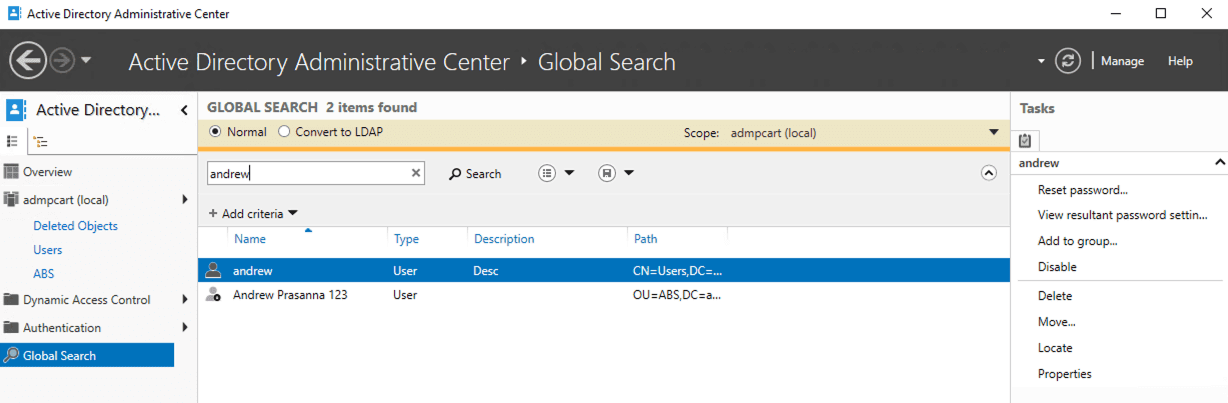
Global Search allows administrators to quickly locate AD objects across multiple domains in a forest from a single interface. ADAC's search capabilities are more robust than ADUC, offering enhanced filtering options that enables the narrowing of results based on attributes such as account status, OU, or other object-specific criteria. This makes it significantly easier to manage large or complex AD environments.
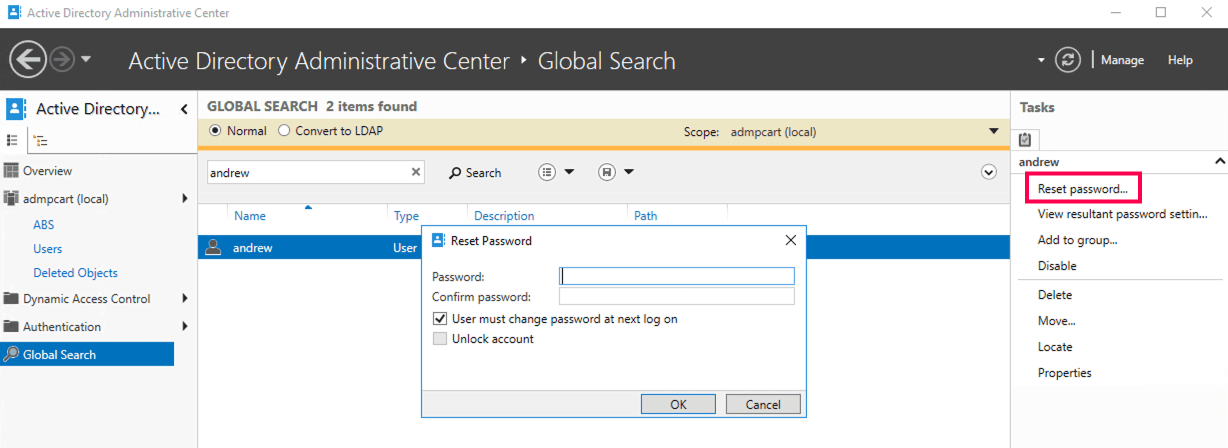
Search results are displayed in a unified view, enabling administrators to view object properties immediately and perform administrative actions like resetting passwords, modifying attributes, or deleting objects.
Recent changes to ADAC
ADAC remains stable and unchanged in core functionality from Windows Server 2022, continuing its role as a PowerShell-driven console for task-oriented AD management. Recent changes to ADAC primarily include:
- Improved reliability and performance when managing large AD environments.
- Better compatibility with newer Windows Server and Windows client releases.
- Ongoing PowerShell module updates, ensuring ADAC actions continue to align with supported AD cmdlets.
- Security and hardening updates inherited from the Windows Server operating system.
While ADAC's core capabilities like Global Search and fine-grained password policy management remain unchanged, these updates ensure that ADAC continues to function reliably in modern, security-focused AD deployments.
How to install ADAC
ADAC is installed by default on most supported Windows Server editions. On Windows 10 and Windows 11, ADAC is available through Remote Server Administration Tools (RSAT). Older versions of Windows 10 (prior to 1809) require downloading RSAT from Microsoft's website.
Steps to install ADAC in Windows 10 version 1809 and later
- Open Settings.
- Navigate to Apps > Optional features and click Add a feature.
- Locate and install RSAT: AD DS and LDS Tools.
- Restart the system if prompted.
How to open ADAC
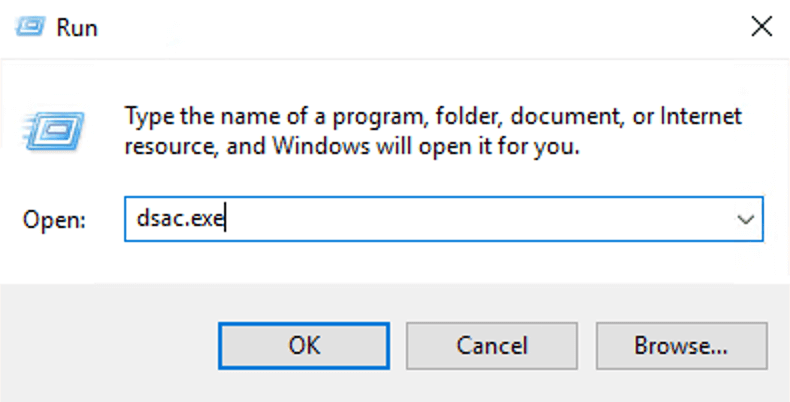
Once installed, you can access ADAC from the Start menu or by running dsac.exe.
Steps to install Windows Server 2012 and later
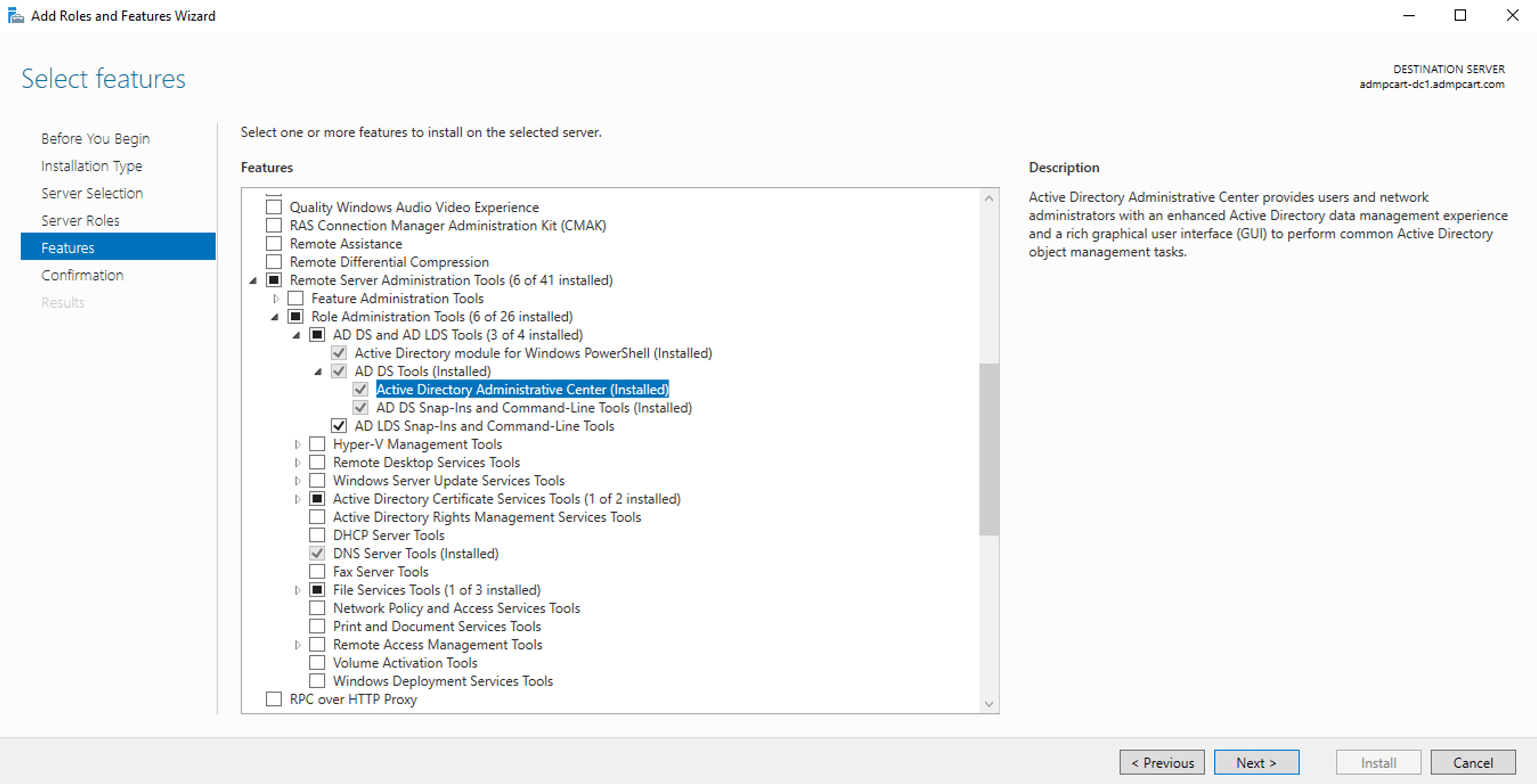
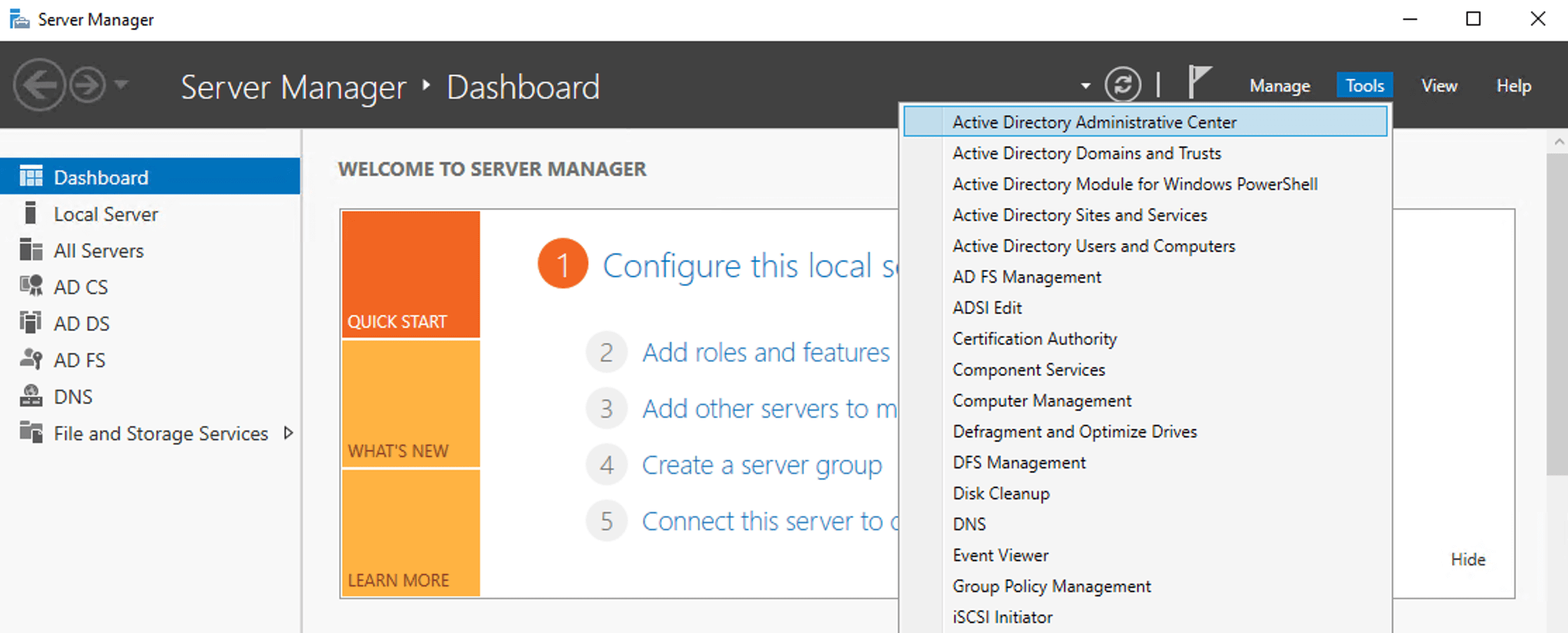
Steps to install ADAC using PowerShell
How to manage Active Directory using ADAC
Using ADAC, administrators can perform a wide range of AD administration tasks, including the following:
Create and manage users and groups
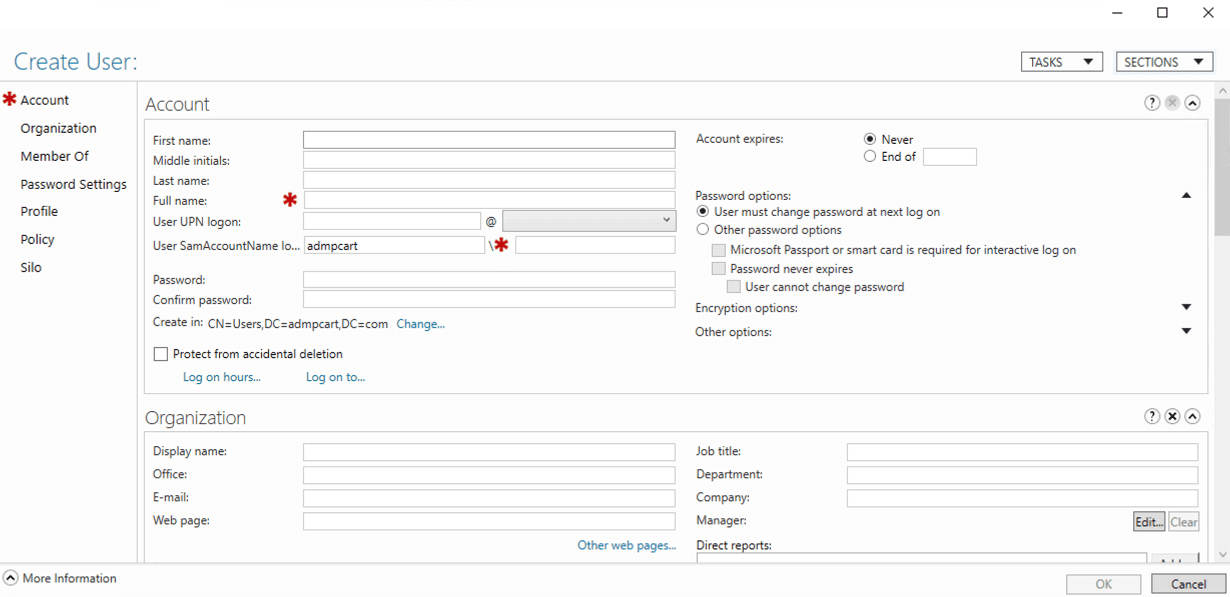
To create a new user:
- Select the required domain or OU.
- Click New > User from the Tasks pane at the right.
- Enter user details and configure required attributes.
- Click OK to create the user.
To create a group and manage group membership:
- Navigate to the target OU.
- Click New > Group from the Tasks pane at the right.
- Specify the group name, scope, and type.
- Add members during creation or modify membership later from the group's Members tab.
- Click OK to save.
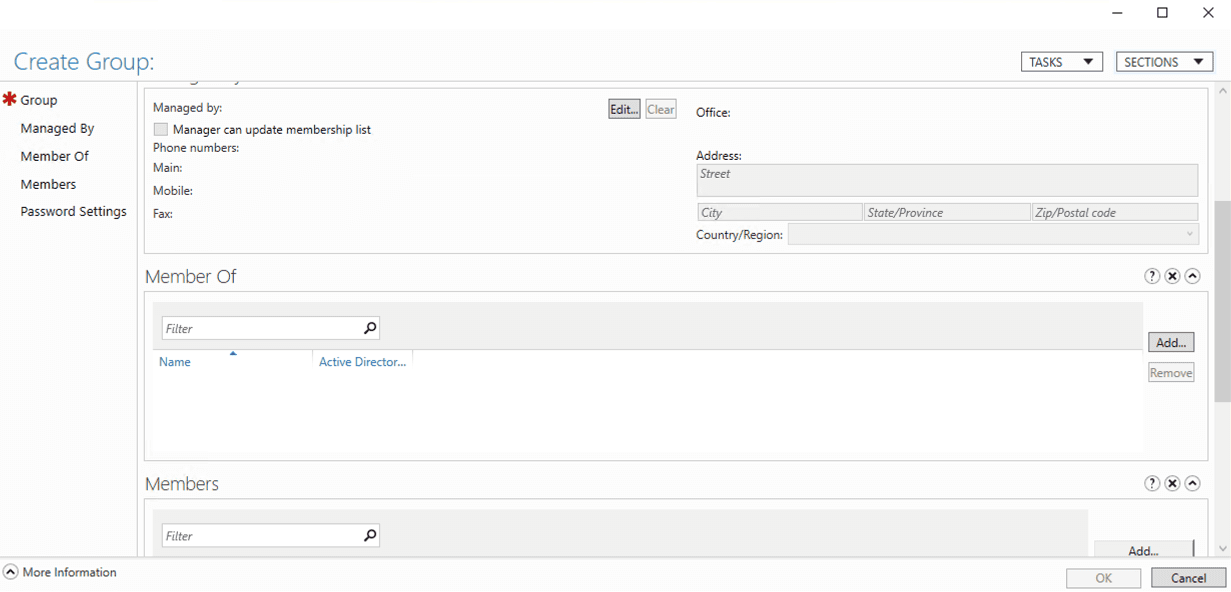
To manage users or groups:
Select the object and use the Tasks pane to edit properties, add members, or delete objects.
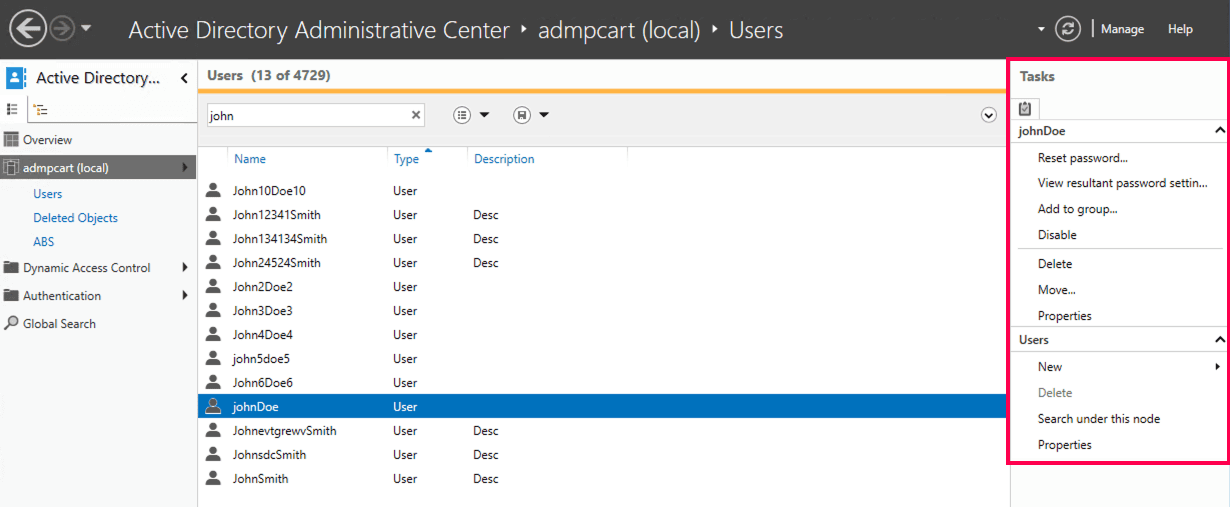
Reset passwords and unlock user accounts
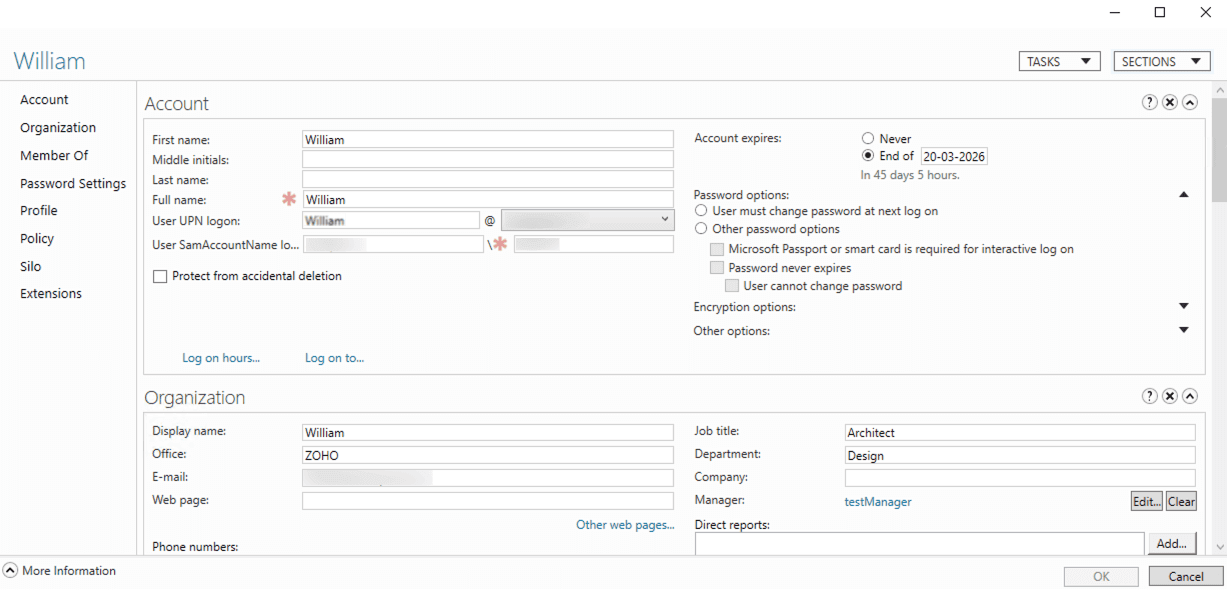
Modify commonly used user attributes
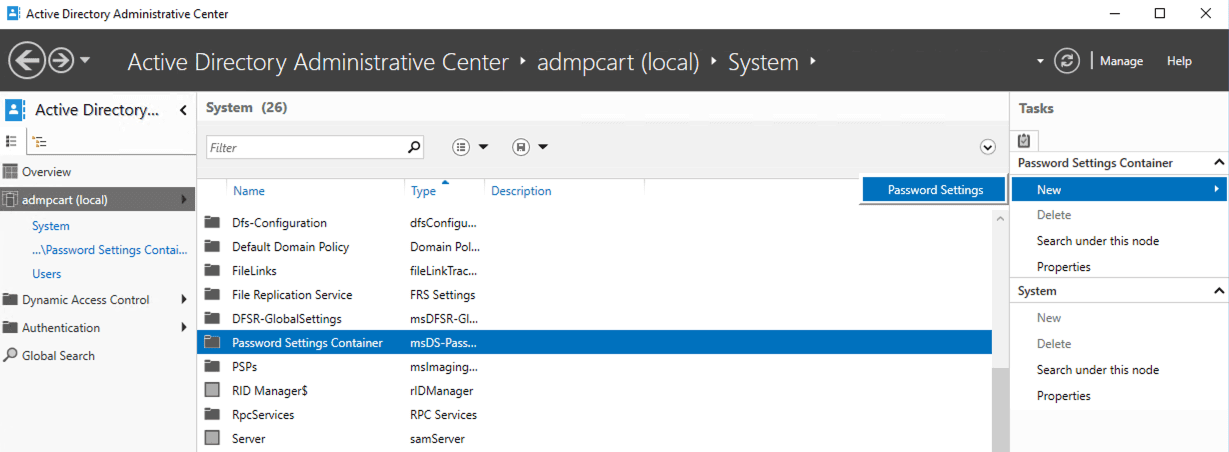
Configure fine-grained password policies
Restore deleted objects from Recycle Bin
Use Global Search
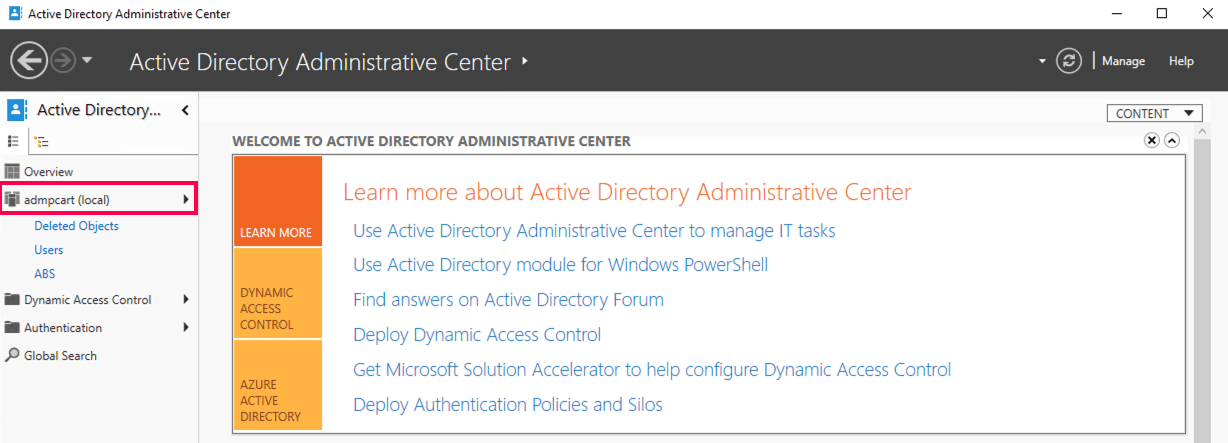
Switch between domains in a forest
View PowerShell commands executed for each task
Limitations of ADAC
While ADAC offers a more capable and modern experience than ADUC, it still has limitations when managing complex or large-scale environments, such as:
- No bulk management or automation at scale
- Limited reporting and auditing
- No built-in approval workflows
- Minimal delegation and role-based access control
- Relies heavily on manual operations
Why choose ADManager Plus for AD administration
While ADAC improves native AD administration, organizations often need more control, visibility, and scalability. ManageEngine ADManager Plus extends AD administration by offering:
- Centralized AD, Microsoft 365 and Exchange management
- Bulk user provisioning and cleanup
- Prebuilt and customizable AD reports
- Role-based delegation for help desk teams
- Approval workflows and task tracking
- Mobile AD administration
Troubleshooting common ADAC issues
1. ADAC cannot connect to any domain
If ADAC cannot connect to any domain, verify the following:
- The machine has network connectivity to a doma in controller
- D NS is correctly configured and resolving the domain
- You are signed in with an account that has AD admin privileges
- The system time is synchronized with the domain
- Required ports for AD communication are open
This issue is common when using the ADAC from Windows 10 or Windows 11 systems that are not properly domain-connected.
2. Active Directory Administrative Center not opening
If the ADAC is not opening, check that:
- RSAT: AD DS and LDS Tools are installed (Windows 10/Windows 11)
- The correct Windows edition is used (Pro, Enterprise, or Education)
- You are launching ADAC using dsac.exe
- Windows updates are fully applied
Reinstalling RSAT often resolves issues with ADAC Windows installations.
3. ADAC cannot find objects
If ADAC opens but fails to display users, groups, or OUs:
- Ensure the correct domain is selected in the left navigation pane
- Use Global Search to confirm objects exist in the domain
- Verify permissions to read objects in the selected OU
- Refresh the console or reconnect to the domain
This behavior is more noticeable in multi-domain forests if the wrong domain context is selected.
4. AD Recycle Bin option is missing in ADAC
If the AD Recycle Bin is not visible or cannot be enabled:
- Confirm the forest functional level is Windows Server 2008 R2 or higher
- Verify at least one domain controller is running Windows Server 2012 or later
- Ensure the Recycle Bin has not already been enabled (it is a one-time operation)
Once enabled, the Recycle Bin cannot be disabled.
5. Fine-grained password policy options are unavailable
If you cannot configure fine-grained password policies in ADAC:
- Confirm the domain functional level is Windows Server 2008 or higher
- Verify you have sufficient permissions to create password settings objects
- Check that you are navigating to the Password Settings Container
These policies only apply to users or groups, not to OUs.
6. PowerShell History pane is not visible
If the Windows PowerShell History Viewer is not displayed:
- Expand the lower pane of the ADAC window manually
- Perform an action (such as resetting a password) to populate the history
- Restart ADAC if the pane fails to load
The history viewer only displays actions performed during the current session.
7. ADAC is slow or unresponsive
Performance issues in ADAC may occur due to:
- Large domains with a high number of objects
- Network latency between the console and domain controllers
- Insufficient system resources on the client machine
Using Global Search, limiting OU scope, or running ADAC closer to the domain controller can improve responsiveness.
FAQs
1. What is the difference between ADUC and ADAC?
ADUC is the traditional MMC-based tool used for routine AD administration, such as managing users, groups, and OUs. It is familiar and reliable but offers limited access to advanced features.
ADAC is Microsoft's modern AD admin center, built on Windows PowerShell. It provides a more intuitive interface, graphical access to features like the Recycle Bin and fine-grained password policies, and visibility into the PowerShell commands executed for each task. This makes ADAC better suited for modern and multi-domain AD administration environments.
2. Does ADAC support bulk user management?
No, ADAC does not support bulk operations or automation at scale. For bulk provisioning, reporting, and workflow-based management, third-party tools like ADManager Plus work best.
3. Can I manage multiple domains simultaneously in ADAC?
Yes. Unlike the older ADUC, which requires you to manually change the domain focus, ADAC allows you to add multiple domains from the same or different forests to the navigation pane. This provides a centralized view, and the Global Search feature can query across all connected domains at once.
4. Can I use ADAC to manage Group Policy Objects (GPOs)?
No, ADAC is designed for managing objects (users, groups, computers) and specific AD features (Recycle Bin, Password Policies). To manage Group Policy, you must still use the Group Policy Management Console (GPMC) or third party tools like ADManager Plus, which provide comprehensive Group Policy management and reporting capabilities.
5. What is the Precedence value in Fine-Grained Password Policies?
A user can be a member of multiple security groups, therefore, they might technically fall under multiple password policies. The Precedence value (an integer) acts as a tie-breaker. The policy with the lowest number (e.g., 1) takes priority over higher numbers (e.g., 10).
6. Is the AD Recycle Bin enabled by default?
No, while ADAC provides the interface to manage it, the Active Directory Recycle Bin must be manually enabled first. Once enabled, it cannot be disabled. To enable it, right-click your domain in ADAC and select Enable Recycle Bin.
7. Does ADAC replace the Attribute Editor tab from ADUC?
Yes, and it improves it. In ADAC, when you open a user's Properties, the Extensions section contains many of the raw attributes. However, the main ADAC interface also reveals many attributes that were previously hidden in ADUC unless Advanced Features was toggled on.
Related Tools
Talk to our AD experts
Have questions about Active Directory configuration or management? Fill out this form and our specialists will reach out to assist you right away.
Thank you!
We've received your callback request and will get back to you shortly.