How to enable logon restrictions during non-business hours in Active Directory
Last updated on:In this page
Objective
Restricting user logons during non-business hours helps organizations enforce access policies and reduce the risk of unauthorized access outside approved working hours. Using ADManager Plus, administrators can configure logon hour restrictions for multiple AD users in bulk, making it easier to manage access for employees, contractors, or other users who require time-based access controls.
Prerequisites
- You must be logged in as an ADManager Plus administrator or a help desk technician with permissions to modify user logon hours.
- If you're using the CSV import option, prepare a CSV file containing the user accounts whose logon hours need to be restricted.
Steps to restrict user logons during non-business hours
- Log in to the ADManager Plus.
- Navigate to the Management tab > User Management > Bulk User Modification > Logon Hours.
- Click Select Hours, specify the days and time period for which the logon restriction should apply, and then click Deny to restrict logons during the selected period.
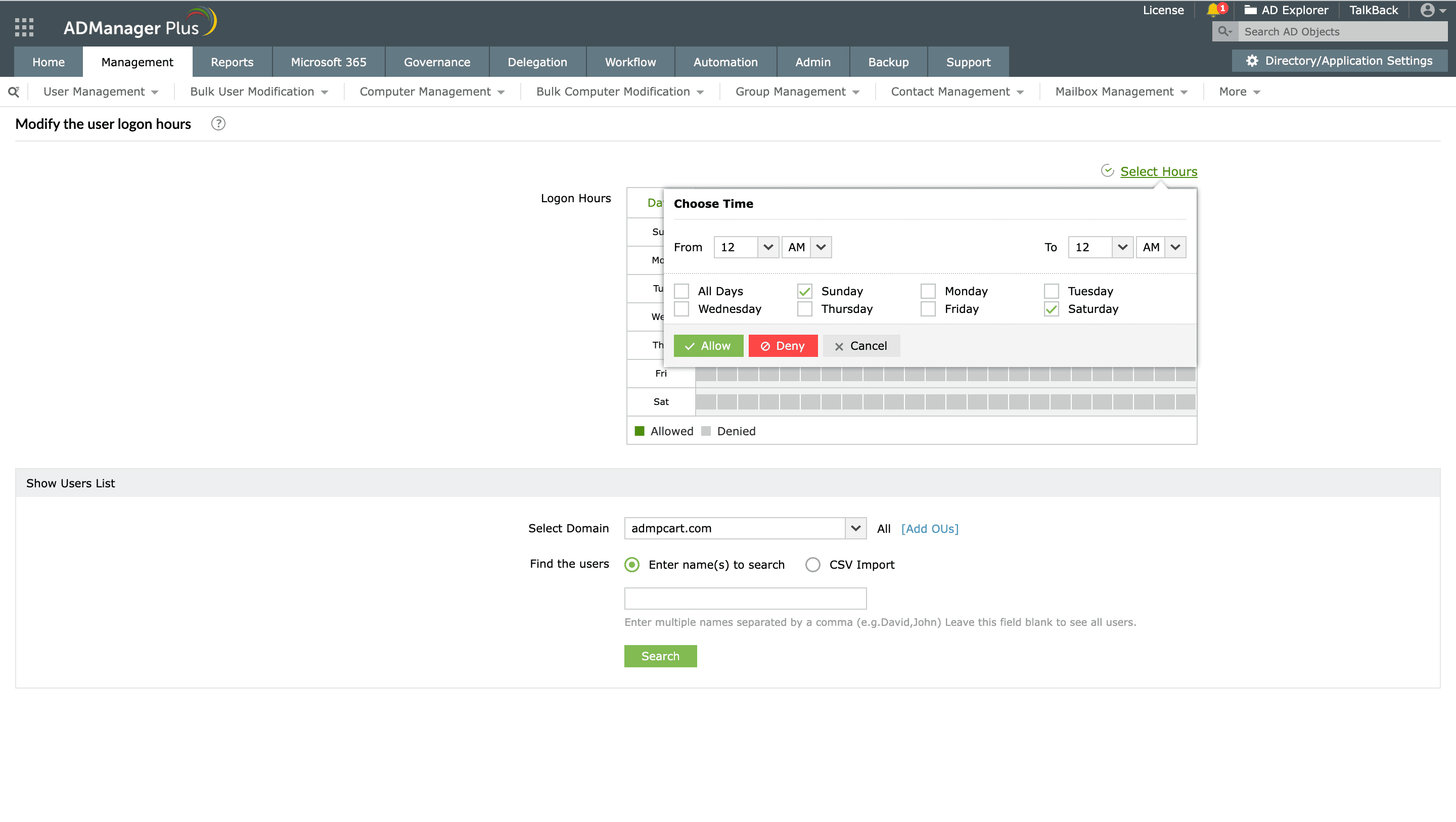
The Modify User Logon Hours page in ADManager Plus with a weekly schedule grid for defining allowed and denied logon times. - Select the required domain from the Select Domain field, or click Add OUs to specify the organizational units to which the logon hour restrictions should be applied.
- Identify the users whose logon hours need to be modified by:
- Searching for specific user accounts. Enter one or more usernames separated by commas, or
- Importing a CSV file containing the user accounts. You can learn more about CSV import here.
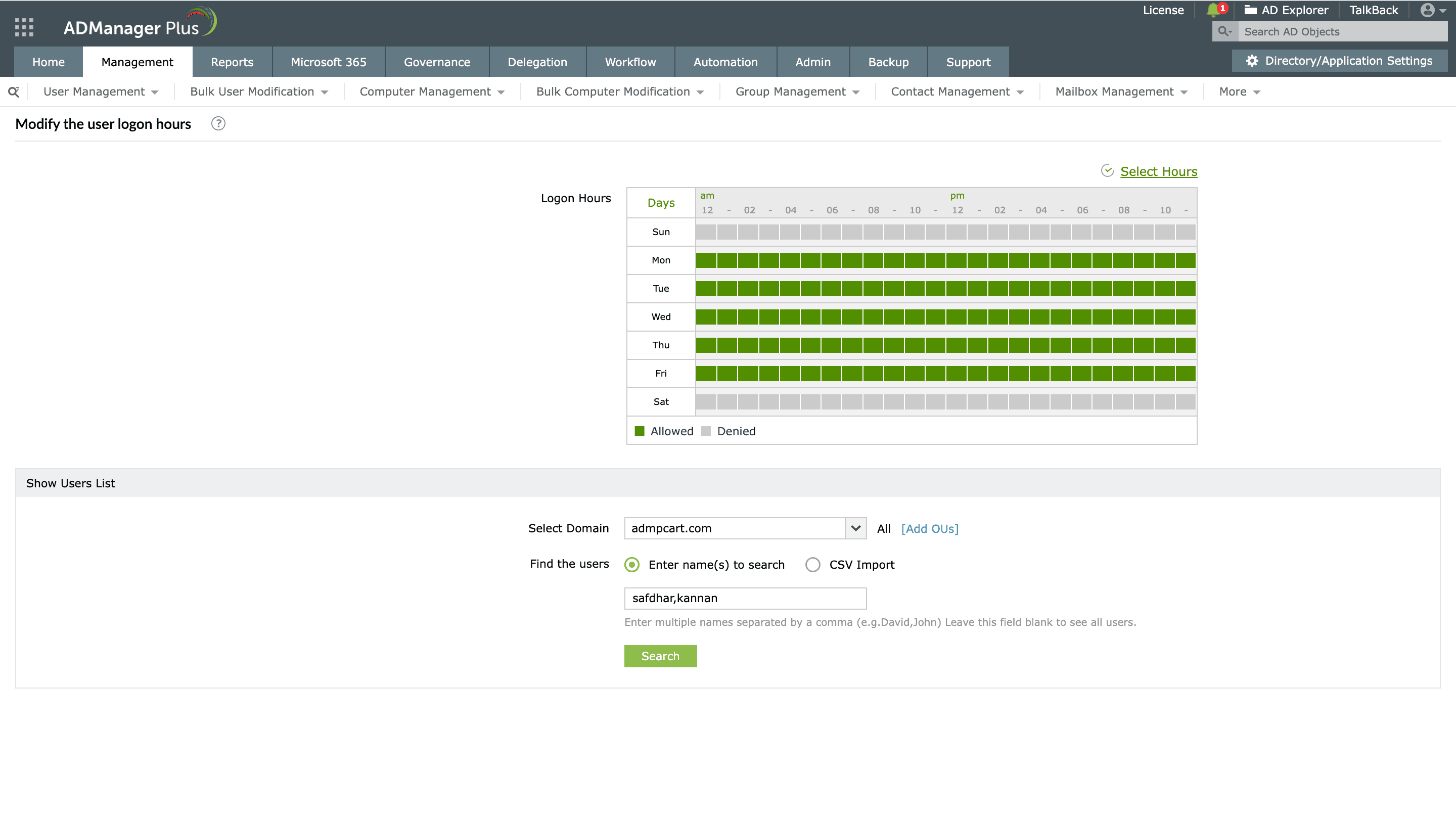
Choose Time dialog in ADManager Plus used to allow or deny user logon access during specific days and time ranges. - Select the required user accounts from the displayed list.
- Click Apply to configure the logon hour restrictions.
- Review the operation results and export them if required.


Tips
- Verify the selected time zones before applying logon restrictions to avoid unintentionally blocking user access.
- Test the configuration on a small group of users before applying it organization-wide.
- Use CSV import when configuring logon restrictions for a large number of users.
- Regularly review logon hour policies to ensure they align with organizational security requirements.