Modify remote access permission for an Active Directory user
Last updated on:In this article
Objective
This article explains how to modify the remote access permission for Active Directory (AD) users using ManageEngine ADManager Plus. You can allow, deny, or control Dial-in and VPN access through remote access policy for individual or multiple users using bulk CSV modification, user modification templates, or scheduled automation. This helps standardize remote access control during routine user management, onboarding, and offboarding.
What is remote access permission in AD?
Remote access permission is a per-user AD setting that determines whether the account is allowed or denied Dial-in or VPN access. It can be set to explicitly allow access, deny access, or to control access through remote access policy, which defers the decision to Network Policy Server or an equivalent policy.
This setting is stored in the msNPAllowDialin LDAP attribute on the user object. When you configure remote access permission in ADManager Plus, this attribute is updated accordingly, allowing the same setting to be applied consistently through CSV imports, templates, and automation.
Prerequisites
- User permissions: The ADManager Plus technician account (or delegated help desk role) needs rights to modify the user objects whose remote access permissions you intend to change.
- For CSV-based methods: A CSV file containing the users to modify. For the bulk method, the relevant LDAP attribute is msNPAllowDialin; see the CSV import for user modification help page for the file format.
Steps to configure remote access permission
ADManager Plus provides three ways to configure remote access permissions for AD user accounts: a one-time bulk change via CSV import, a reusable template, and a scheduled automation. Choose the one that matches whether this is a one-time change, a repeatable standard, or an ongoing policy.
Method 1: Bulk user modification using CSV import
Use this method to allow or deny Dial-in/VPN access for many users in a single operation.
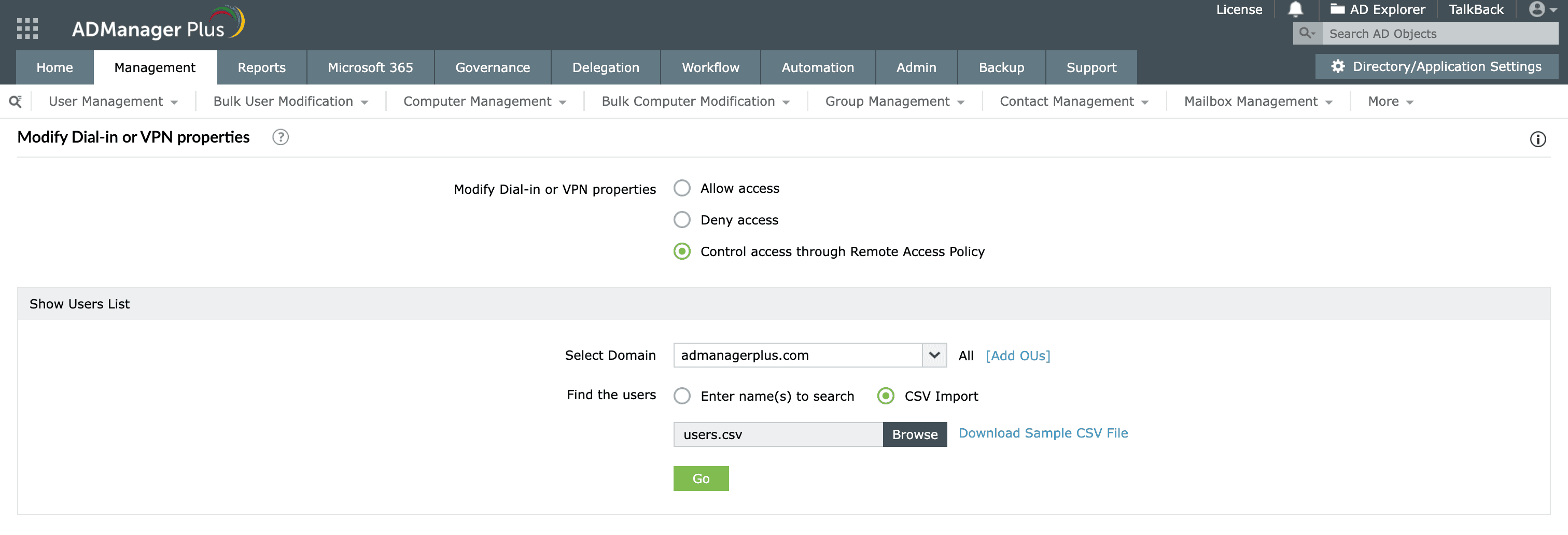
- Log in to ADManager Plus and navigate to Management > User Management > Bulk User Modification > Terminal Services > Dial-in or VPN Properties.
- Select your desired Dial-in access option: Allow, Deny, or Control access through Remote Access Policy.
- Select the domain containing the users you want to modify. You can either select users individually or use the CSV Import option to modify users in bulk.
- On the next screen, verify the users selected and click Apply.
Method 2: Using user modification templates
Create a reusable template so the same remote access permission can be applied consistently to individual or multiple users.
Creating the template
- Navigate the Management > User Management > User Templates > User Modification Templates.
- Click + Create New Template.
- Enter a name and description for the template, then click the Terminal tab.
- Choose the desired remote access permission settings under the Sessions/Remote Control section.
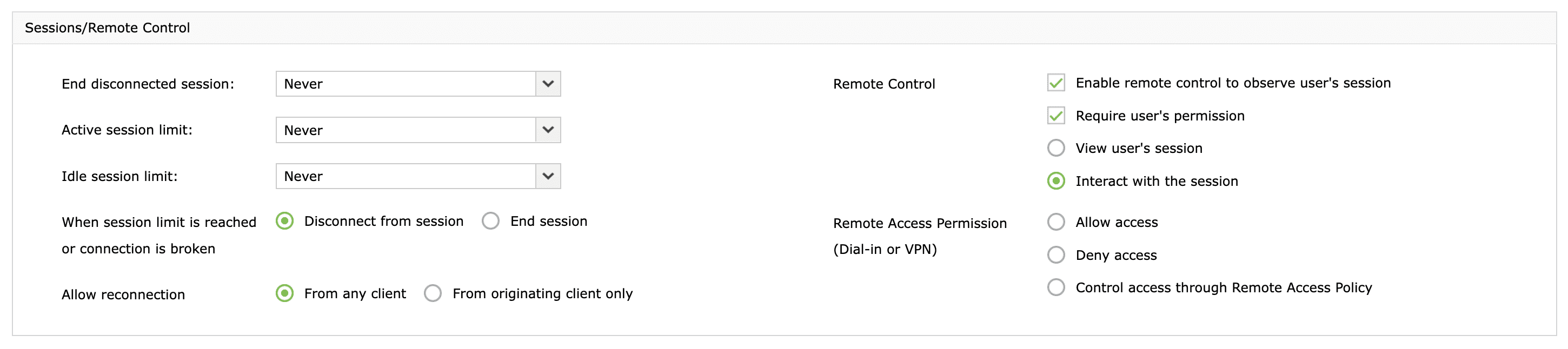
- Click Save Template. You can now use this template for future modifications.
Applying the template
- Navigate to the Management > User Management > User Modification > Modify Single User (or Modify Bulk Users if you want to modify multiple users).
- Select the user you wish to modify; for bulk modification, import a CSV file containing the user details.
- Choose the modification template you created from the Select Template drop-down.
- Click Preview to confirm that the changes are correct, then click Update User.
Method 3: Using automation
Use automation to apply the remote access permission on a schedule, for example, to continuously enforce Deny access for accounts returned by a report.
- Create a modification template as described in Method 2.
- Navigate to Automation > + Create New Automation.
- Set a suitable Automation Name and Description. Choose User automation as the Automation Category and select the domain for which you want to configure the automation.
- Under the Tasks to automate section, select Modify user by template as the automation task, then select the user modification template you created earlier.
- Choose the Dial-in Deny Access report as the report from which objects are to be chosen.
- Set the execution time and frequency, and enable notifications so you get notified each time the automation runs.
- Click Save.
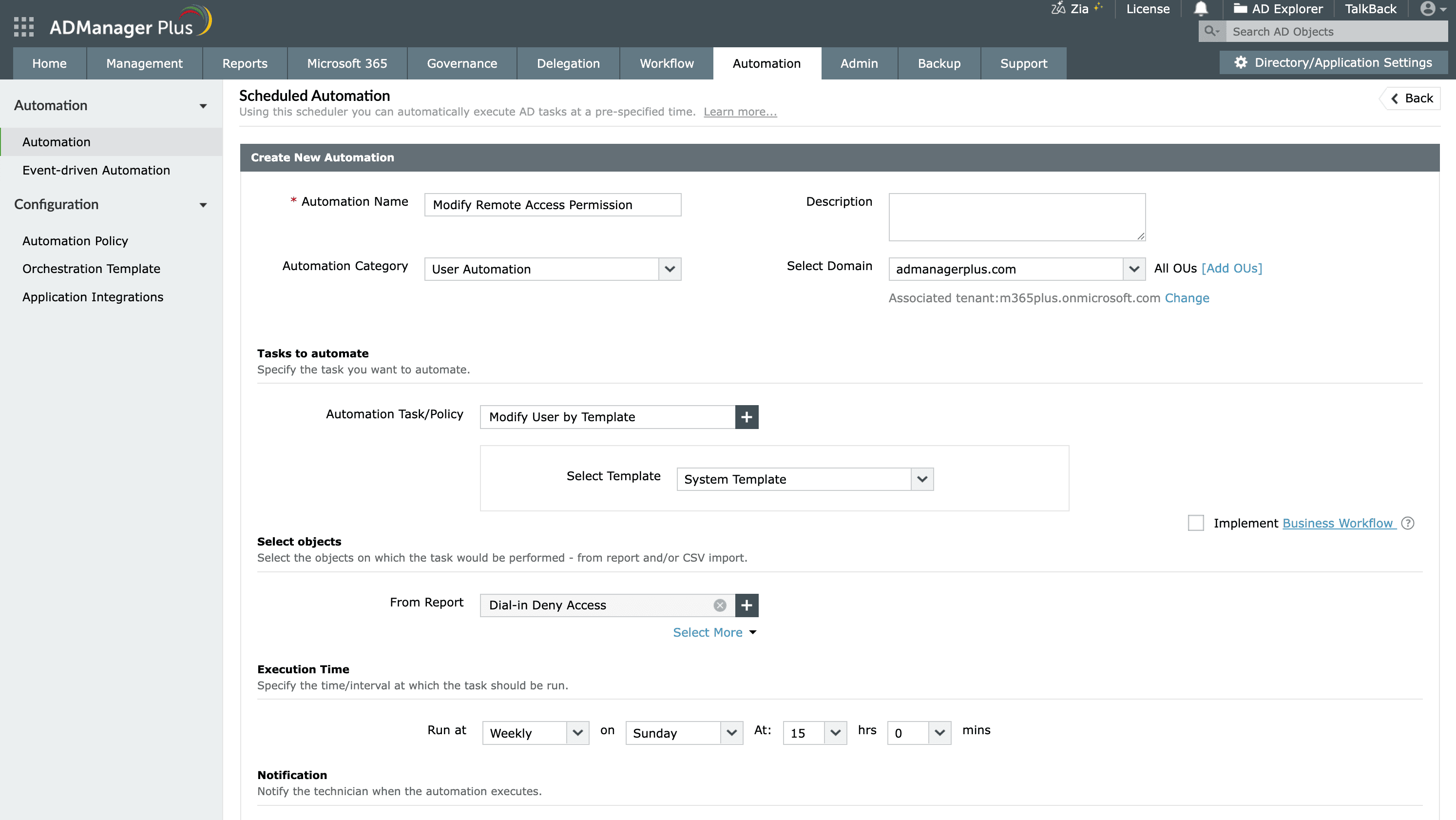
Bonus tip: Enable Implement Business Workflow if you want this task to be reviewed and approved before it runs.
Validation and confirmation
After applying the change, confirm that the remote access permission was set as intended:
- For template and single-user changes, use the Preview step before applying to verify the pending change.
- Run the Dial-in Allow Access or Dial-in Deny Access report to confirm that the affected accounts now reflect the correct setting.
- For a spot check, open a modified user in ADManager Plus and verify that the required setting is configured.
Tips
- Preview bulk and template changes before applying them. Remote access is a security-sensitive setting, and previewing the changes can help catch errors before they affect multiple accounts.
- Use a template when the same remote access permission needs to be applied repeatedly, so the setting remains consistent across administrators.
- Pair automation with the Dial-in Deny Access report to continuously enforce your policy for newly non-compliant accounts.
- Enable a workflow for approvals when the change should be reviewed before it takes effect.
- Use the Global Search shortcut (Ctrl + Space) to jump directly to the Dial-in/VPN properties window.
Related topics and articles
- CSV import for AD user modification
- Configuring approval workflows in ADManager Plus
- AD bulk user management
- AD user management
- Managing remote employees in AD
Frequently asked questions
1. What LDAP attribute controls remote access permission?
The Dial-in/VPN remote access permission maps to the msNPAllowDialin attribute on the AD user object. ADManager Plus writes this attribute when you set Allow, Deny, or control-through-policy.
2. Can I change remote access permission for many users at once?
Yes. Use the Bulk User Modification method with CSV import to allow or deny Dial-in/VPN access for many users in a single operation, or use a modification template applied to bulk users.
3. How do I enforce remote access permission on an ongoing basis?
Create a user modification template with the desired setting and attach it to a scheduled automation that draws from the Dial-in Deny Access report, optionally gated by an approval workflow.