Direct Inward Dialing: +1 408 916 9393
If you're new to Active Directory (AD), you're probably focused on managing your users, groups, and permissions. But underneath those concepts lies something more fundamental: AD attributes.
Attributes aren't just fields where data live. They shape how users log in, how policies are applied, and how systems integrate. They're everywhere, but rarely talked about until something breaks or you need to automate, delegate, or troubleshoot your AD environment.
In this blog, we'll break down what AD attributes are and where they reside, plus we'll explore how they are managed, drive your AD identity and access management, and are crucial for AD automation.
At its core, an AD attribute is a field that stores information about an object like a user's email address, a computer's name, or a group's description. It's the smallest unit of structured data in AD, and it's how AD identifies each object and what it represents.
When you see a user's profile in Active Directory Users and Computers (ADUC), the form fields you see, like First Name, Department, or Manager, are just the labels for the underlying attributes of givenName, department, and manager, respectively.
Your AD attributes define the object's identity, behavior, and relationships within your directory, just as cells in a spreadsheet define the values of the rows and columns that hold them. Each attribute is tied to one or more object types, so only relevant fields appear depending on whether the object is a user, computer, or group. The values of these fields are stored in a replicated directory database, ensuring all your domain controllers share the same information. You interact with these fields through LDAP queries or tools like PowerShell, updating or retrieving details similarly to filling out or reading a form.
Beyond storing data, attributes drive policies, permissions, group membership, and automation. They are used in everything from login behavior to access control. If you have ever filtered users by department, delegated access to HR, or run a cleanup script, your AD attributes were behind these crucial operations.
To understand where AD attributes come from and what they can be used for, you need to know about the AD schema and object class.
Schema: Your AD schema is the blueprint of the entire directory. It defines every object type that can exist (think users, groups, and computers), and every attribute those objects can hold. Without the schema, there would be no structure that defines what these objects do.
Object class: An object class is a collection of AD attributes that act as a template for the object you are creating. For example, the user object acts as a template to represent your AD users, and it consists of attributes most of your users need to be identified, such as DisplayName, UserPrincipalName (UPN), department, manager, and more. If you wish to assign an AD attribute that is not present in an object class, it has to be done by modifying the AD schema.
AD objects, such as users, groups, or computers, may look different, but they all have one thing in common: individual objects, regardless of their class, are identified and represented by their AD attributes. These attributes provide critical identity and access information, some unique to their object class and others shared across multiple classes.
To make things clearer, here's a breakdown of commonly used attributes, grouped by the object they belong to.
| Attribute | Purpose | Used in |
|---|---|---|
| description | Free-text field for notes or explanations. | Users, Groups, Computers |
| distinguishedName | Full LDAP path of the object. | Users, Groups, Computers |
| memberOf | Lists the groups an object belongs to. | Users, Computers |
| objectGUID | Unique identifier assigned at creation. | Users, Groups, Computers |
| whenCreated | Date and time when the object was created. | Users, Groups, Computers |
| whenChanged | Date and time when the object was last modified. | Users, Groups, Computers |
| lastLogonTimestamp | Approximate timestamp of last login. | Users, Computers |
| managedBy | Distinguished Name (DN) of the object that manages this object. | Groups, Computers |
| userAccountControl | Bitmask that controls account behavior and state. | Users, Computers |
| displayName | Name displayed in the address book or UI. | Users, Groups |
| Email address associated with the object. | Users, Groups | |
| telephoneNumber | Primary phone number. | Users, Groups |
| company | Organization associated with the object. | Users, Groups |
| department | Department or business unit. | Users, Groups |
| Attribute | Purpose |
|---|---|
| userPrincipalName | Logon name in email address format (e.g., john@domain.com). |
| title | Job title or role (e.g., Developer, Director). |
| manager | DN of the user's manager. |
| employeeNumber | Additional identifier for payroll or HR integration. |
| department | Business unit or team assignment. |
| company | Organization the user is associated with. |
| homeDirectory | Path to the user's home directory (for mapped drives). |
| homeDrive | Drive letter mapped to the home directory. |
| logonHours | Binary blob specifying allowed logon times. |
| accountExpires | Timestamp indicating when the account should expire. |
| badPwdCount | Number of failed logon attempts. |
| lockoutTime | Timestamp of the most recent account lockout. |
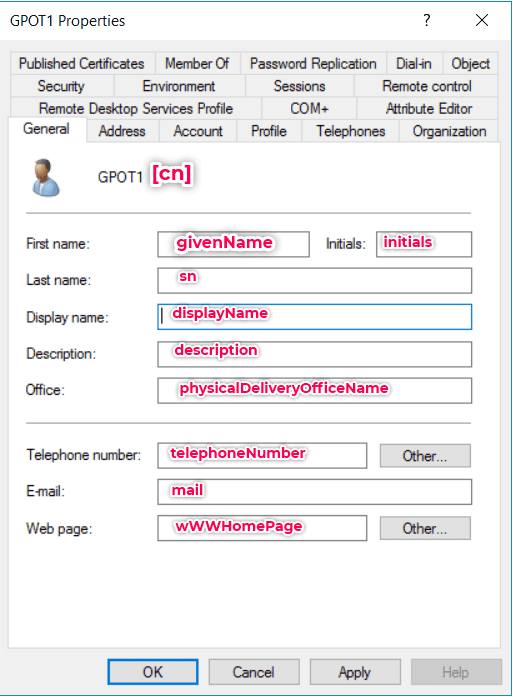
| Attribute | Purpose |
|---|---|
| member | Lists the users, groups, or computers that are members of this group. |
| groupType | Defines the scope (Global, Domain Local, Universal) and type (Security/Distribution). |
| mailNickname | Alias used for mail-enabled groups, especially in Exchange environments. |
| msExchRecipientTypeDetails | Specifies the type of Exchange recipient (used in hybrid/cloud scenarios). |
| managedBy | DN of the user or group that manages this group. |
| isCriticalSystemObject | Indicates whether the group is a critical system object (e.g., Domain Admins). |
| msExchHideFromAddressLists | Boolean flag to hide group from Exchange address lists. |
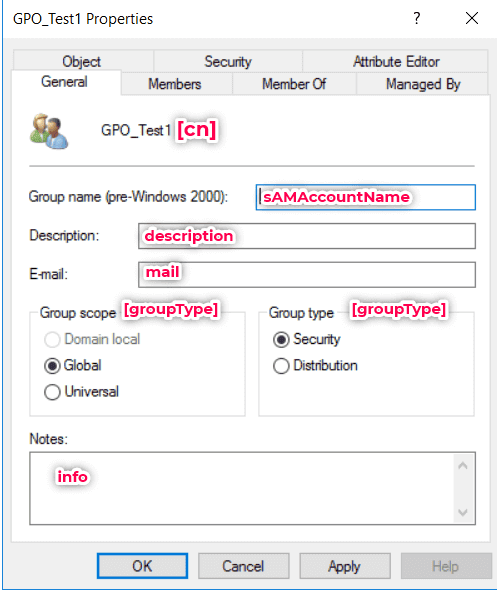
| Attribute | Purpose |
|---|---|
| dNSHostName | Fully Qualified Domain Name (FQDN) of the computer. |
| operatingSystem | Name of the OS installed (e.g., Windows 11 Pro). |
| operatingSystemVersion | OS version number (e.g., 10.0.19045). |
| operatingSystemServicePack | Service Pack level of the OS. |
| servicePrincipalName | SPNs used for Kerberos authentication. |
| lastLogonTimestamp | Approximate last logon date of the computer. |
| logonCount | Number of times the computer has logged on to the domain. |
| msDS-ManagedPasswordInterval | Number of days before the machine account password is rotated. |
| msDS-ManagedPassword | Contains the managed password used by gMSA accounts. |
| userCertificate | Certificates associated with the computer object. |
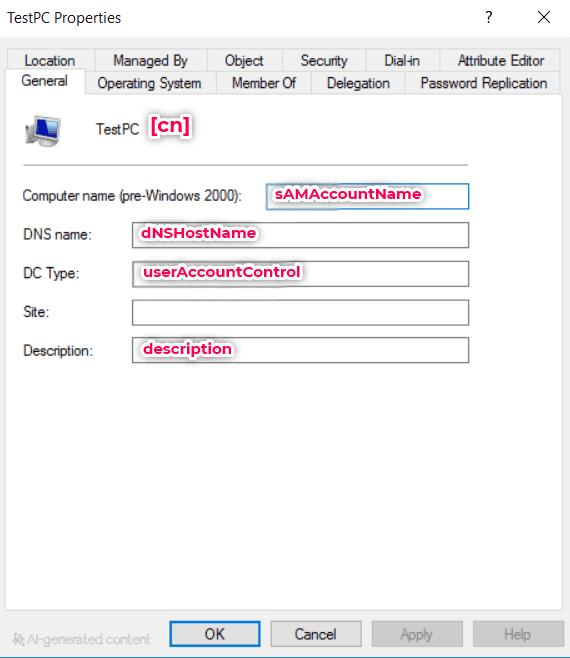
As you move deeper into AD, knowing which attributes live where and what they do becomes essential for clean management, delegation, and troubleshooting.
Most of the time, AD gives you all the fields you need. But there are some cases that validate needing an AD attribute not available in AD. For example:
That's where AD custom attributes come in.
To create a new attribute, you have to extend the AD schema. This is a permanent change that affects the entire forest. You will need to be a Schema Administrator to make changes to the AD schema.
Note: Schema changes are irreversible. Plan carefully and execute them in a test environment first.
Even after creating or populating a custom attribute, it won't show up in the default tabs of ADUC (like General or Organization). It will only appear under:
Once you understand how AD attributes work, the next step is knowing how to access and manage them. There are two ways to do this: ADUC and PowerShell.
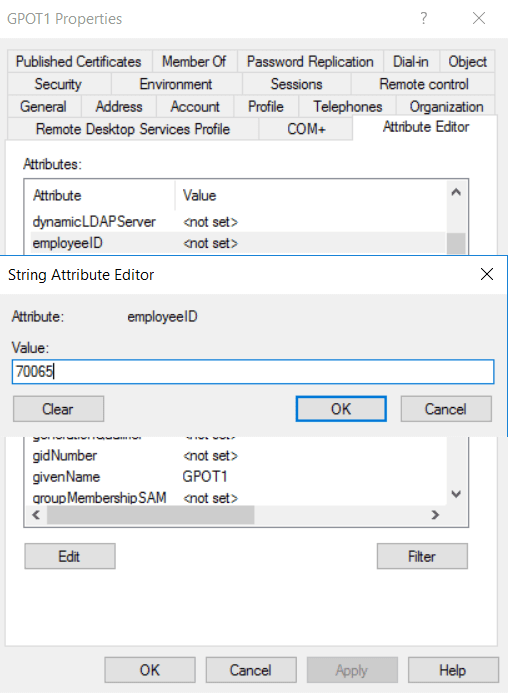
ADUC is the most common GUI for managing objects. By default, you will see basic fields (e.g., name, title, phone number, etc.) To see a list of all attributes, including custom attributes, enable Advanced Features from the View menu. You can then right-click an AD object and click Properties and navigate to the Attribute Editor tab. From there, you can read and edit nearly any attribute, provided you have the right permissions.
Tip: Use ADUC when you're doing one-off updates or reviewing an object manually.
PowerShell is a command-line tool developed by Microsoft that lets you control and automate almost every part of Windows, including AD.
Unlike point-and-click tools like ADUC, PowerShell lets you run commands and scripts to search, update, or report on multiple AD objects in a single operation. You can query or modify attributes for one or many objects.
Tip: Use PowerShell when you're automating across multiple AD objects in fewer operations.
By now, it's clear that AD attributes are core to how users are identified, grouped, and managed in AD. But the more users and objects you manage, the harder it becomes to handle attributes manually when delegating updates or enforce consistency across teams.
Native tools such as ADUC and PowerShell work well for small environments or skilled admins. But as scale increases, so does complexity.
Some common issues that show up when attribute management grows:
Even routine tasks like updating job titles for 100 users is time-consuming when done with ADUC or risky with PowerShell.
That's where an identity governance tool—especially one that's efficient and cost effective like ManageEngine ADManager Plus—steps in to deliver the best of both worlds.
ADManager Plus, a identity governance and administration tool with comprehensive AD management and reporting capabilities, is designed to manage your AD objects and their AD attributes at scale, without relying on code, manual processes, or deep AD security configuration. By eliminating the need for complex scripts like PowerShell demands or per-object modification like with ADUC, ADManager Plus lets IT teams take control of object management, AD attribute updates, and secure delegation effortlessly.
ADManager Plus enables you to:
With ADManager Plus, you can elevate AD attributes from just a field that stores data to an integral part of your identity management. Here's what else you can do with your AD attributes with ADManager Plus by your side.
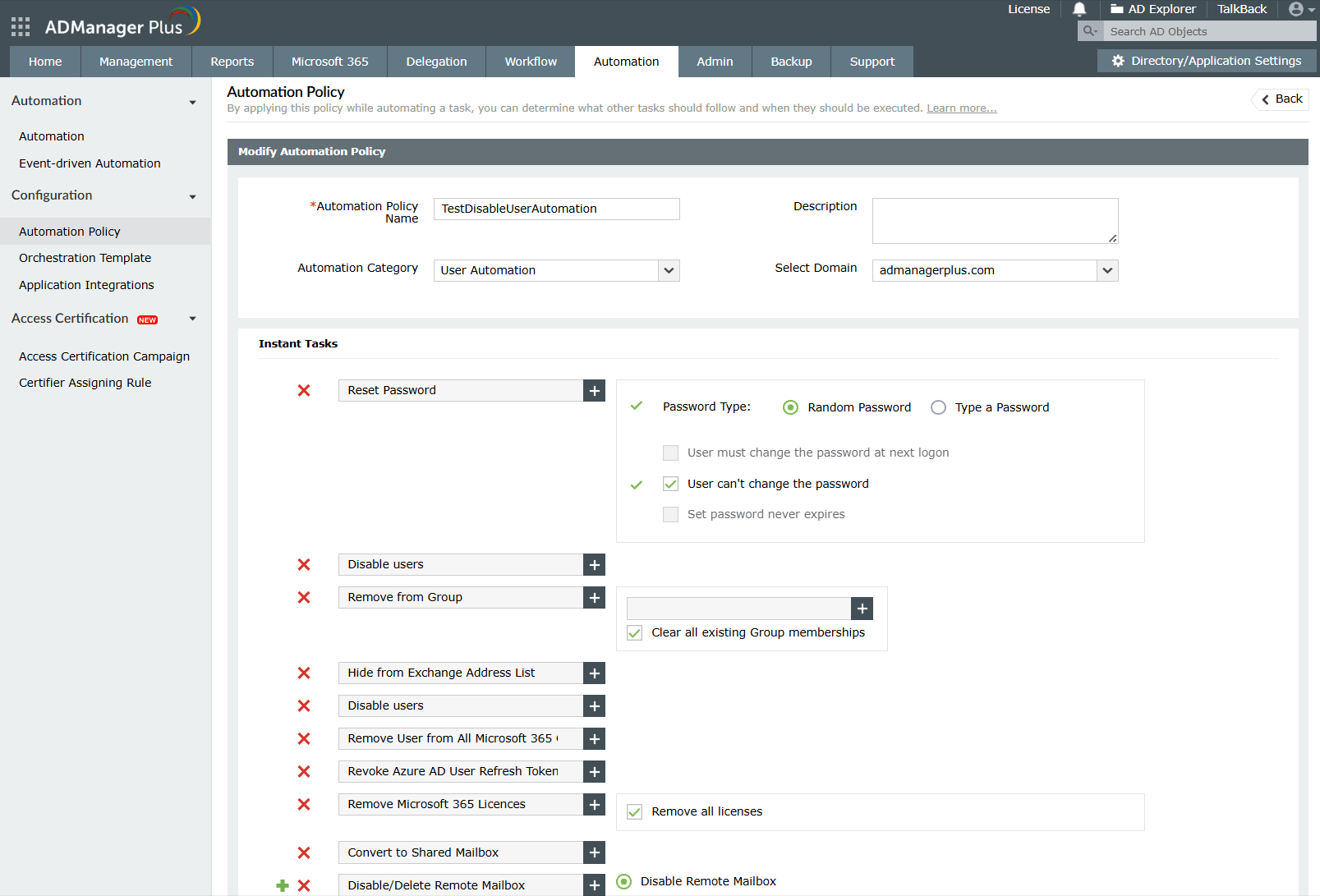
ADManager Plus brings automation to the forefront of AD attribute handling. Using its automation and orchestration module, routine tasks like updating user information, provisioning or deprovisioning accounts, and syncing changes across systems can be fully automated. You can schedule automation tasks, apply conditions, and even integrate with workflows for approvals.
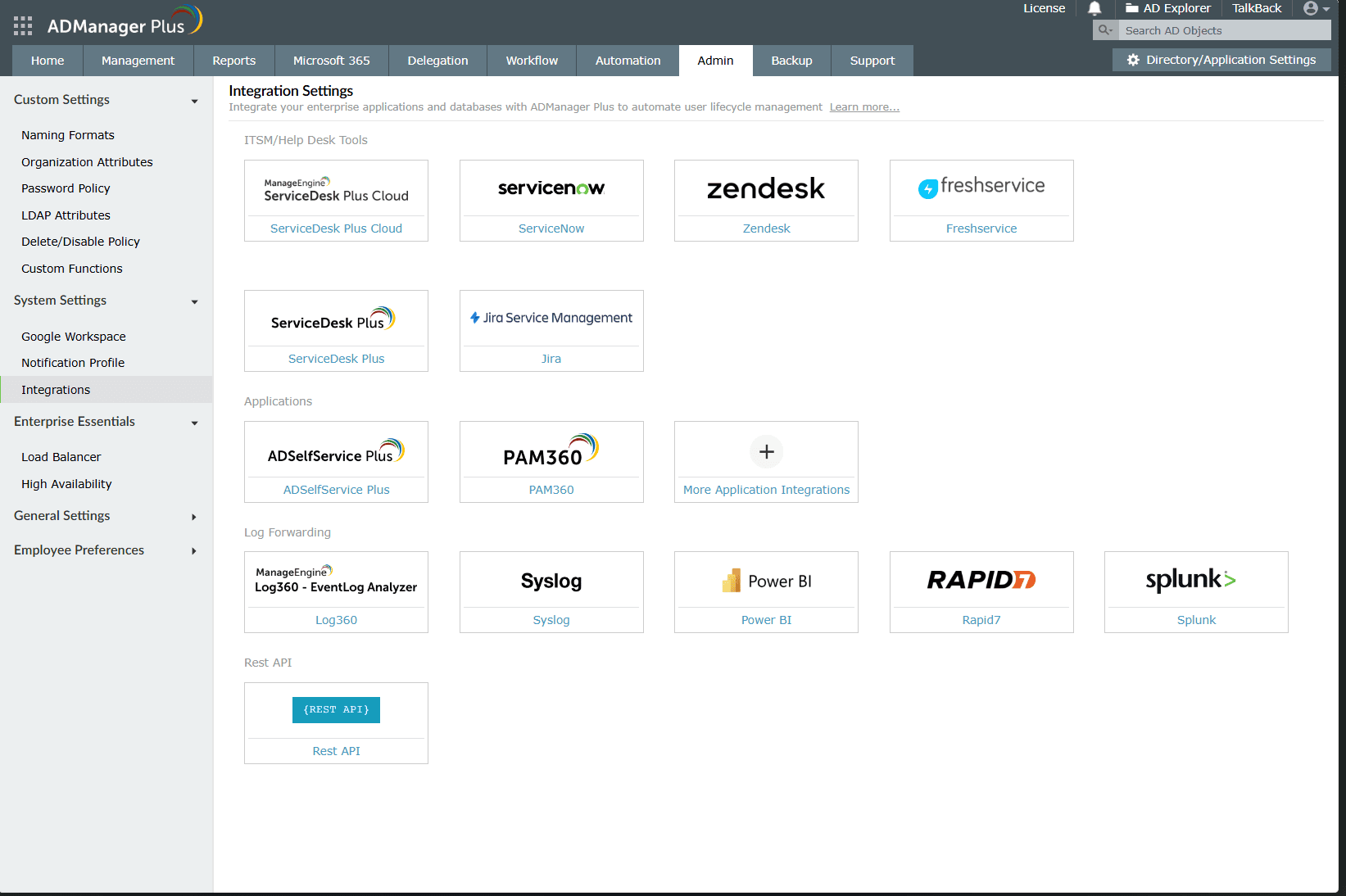
Imagine syncing employee data from an HR system directly into AD or updating SaaS access rights just based on changes to your AD attributes. Through its app integration capabilities, ADManager Plus connects your AD environment with third-party apps like HRMS, ITSM, or identity providers. Your AD attributes can be automatically fetched or updated across systems, ensuring consistency and minimizing manual data entry errors.
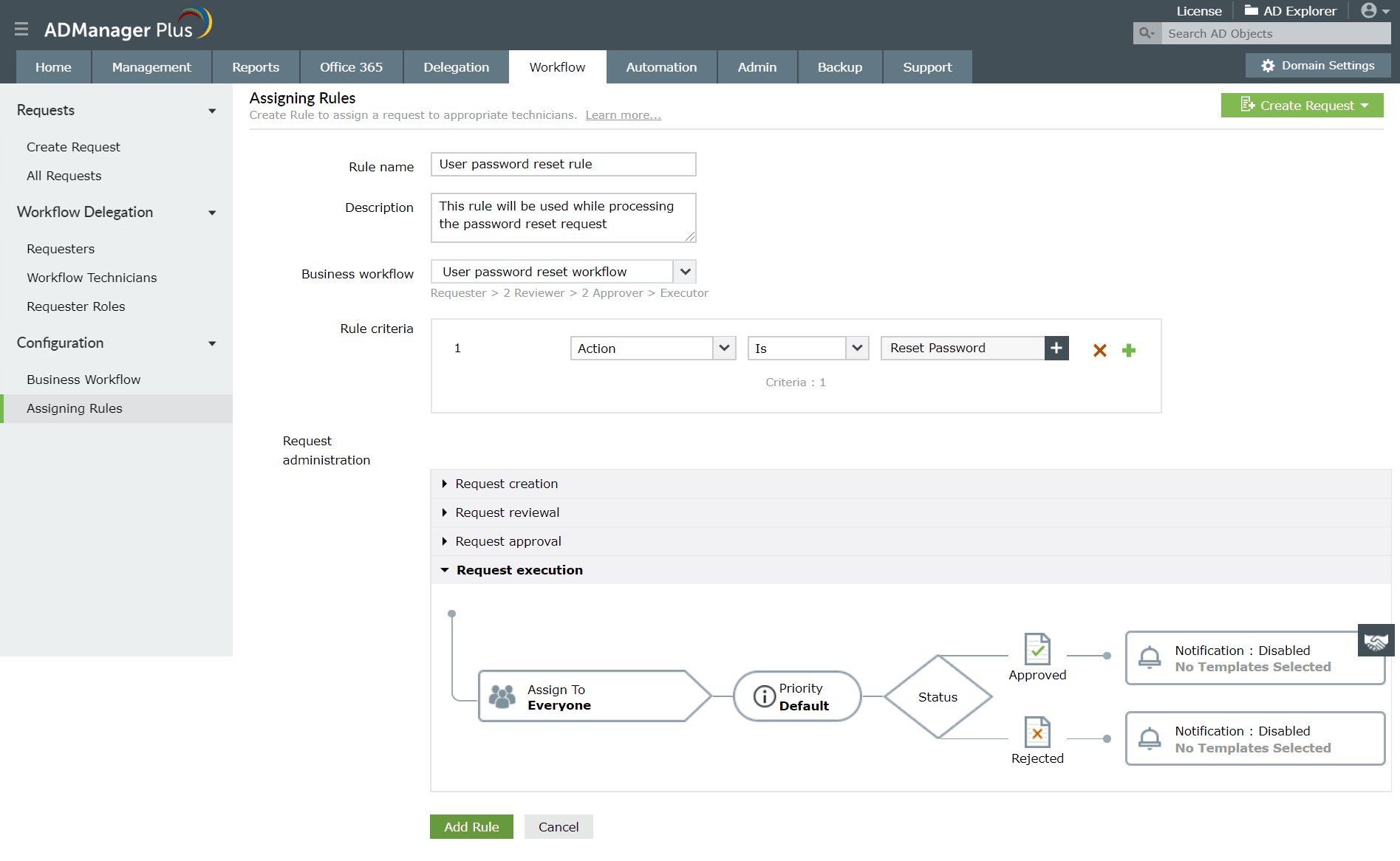
With the workflow module in ADManager Plus, every action taken on AD attributes is governed by a clear process. You can set up multi-level approval chains, log all actions, and define who can perform which tasks, adding an essential layer of accountability. This governance model ensures that no critical changes go unreviewed, such as updates to access permissions or group memberships, reducing risks of insider threats or accidental misconfigurations.
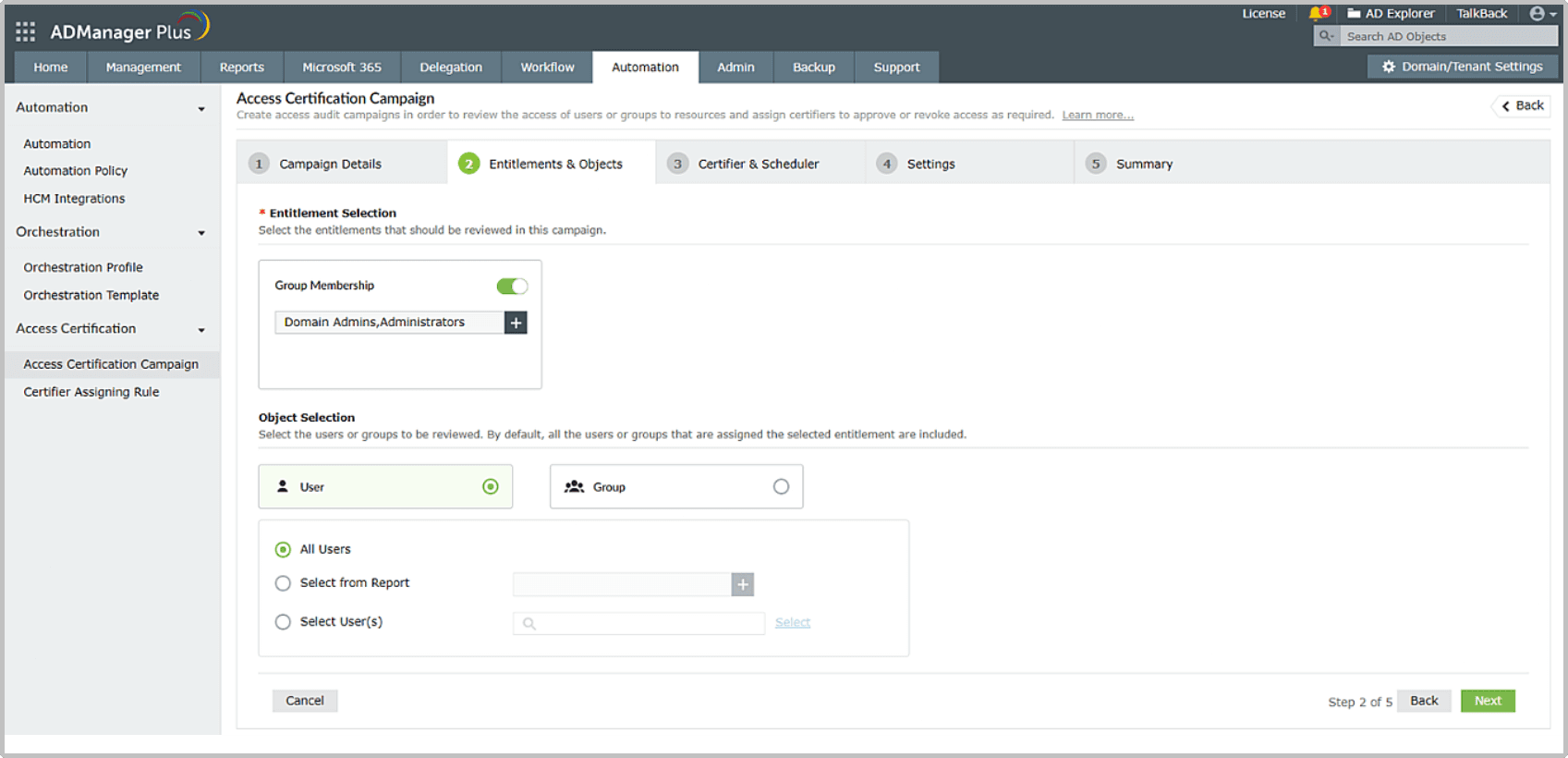
Using ADManager Plus's Access Certification Campaigns, IT teams can periodically verify that users have appropriate access based on AD attributes such as current role, department, or office. You can define certification campaigns, set review cycles, and audit results, making it easier to detect privilege creep or orphaned accounts while maintaining a least-privilege environment.
Take a 30-day, free trial or schedule a personalized demo with one of our product experts today.