Wi-Fi monitoring tool
Monitor the signal quality, client load, traffic, and the performance of every Wi-Fi access point with ManageEngine OpManager!
What are Wi-Fi monitoring tools?
Wi-Fi monitoring tools collect data from your wireless LAN controllers (WLCs) and access points using protocols like SNMP, ICMP, or gNMI. They are used by network engineers and IT teams of all sizes to monitor the uptime and performance of their wireless networks. ManageEngine OpManager is a network monitoring tool with powerful Wi-Fi monitoring capabilities.
OpManager's Wi-Fi monitoring capabilities
Discover, classify, and analyze Wi-Fi components
Large wireless networks have many moving parts. You might have several WLCs, hundreds of access points (AP), and thousands of clients. Adding each one by hand isn't practical.
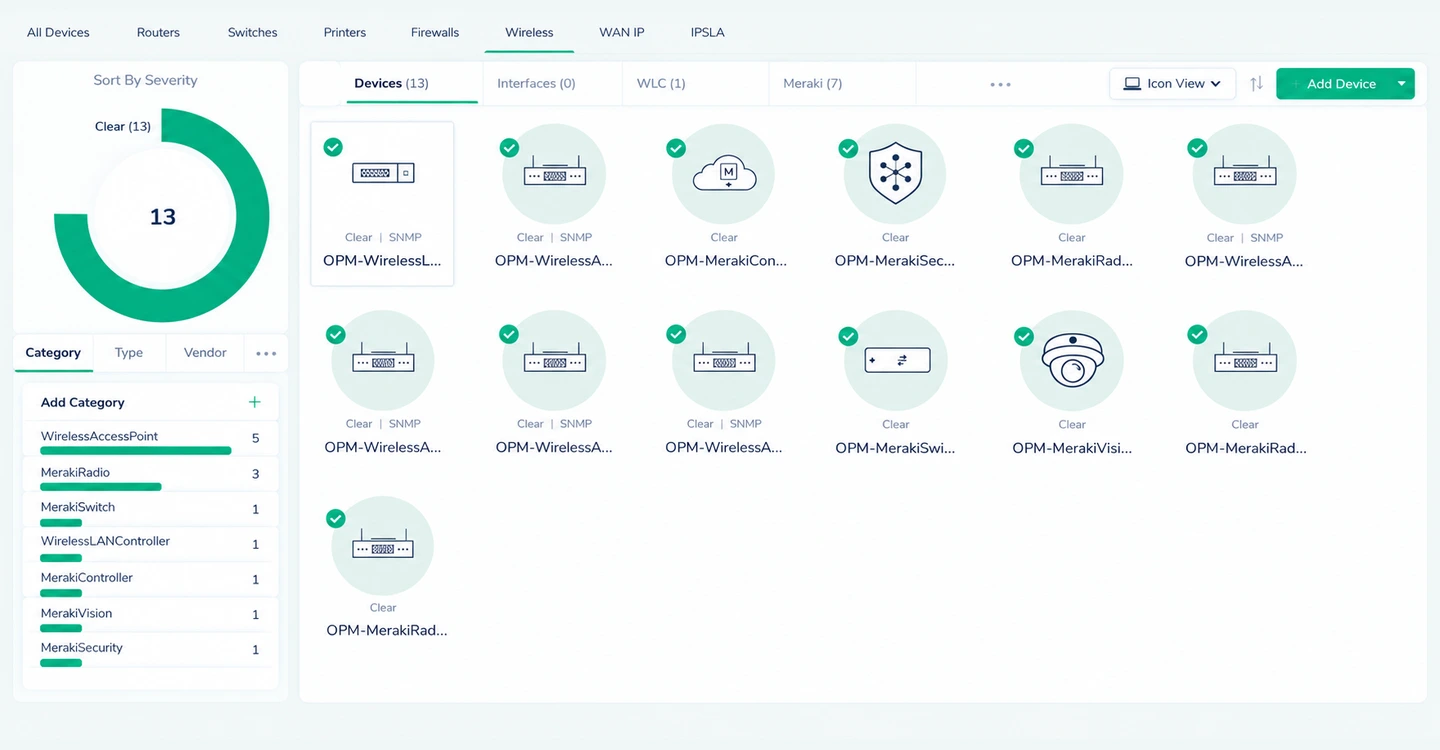
- OpManager automates the discovery, classification, and inventory of your Wi-Fi components. Once a device is classified, OpManager's device templates curate a predefined set of monitors to it.
- When you add a WLC, OpManager lists the APs, SSIDs, and clients tied to it. You can then turn on advanced monitoring for APs to analyze them in more depth
- You can configure failover controllers in OpManager's interface. When the primary controller goes down and the secondary WLC takes over, wireless LAN controller monitoring continues without disruptions.
Analyze key Wi-Fi performance metrics
Wi-Fi performance can drop fast when metrics like SNR, client load, and packet loss are unmonitored. OpManager comes with a wide range of built-in monitors that track these metrics for every access point.
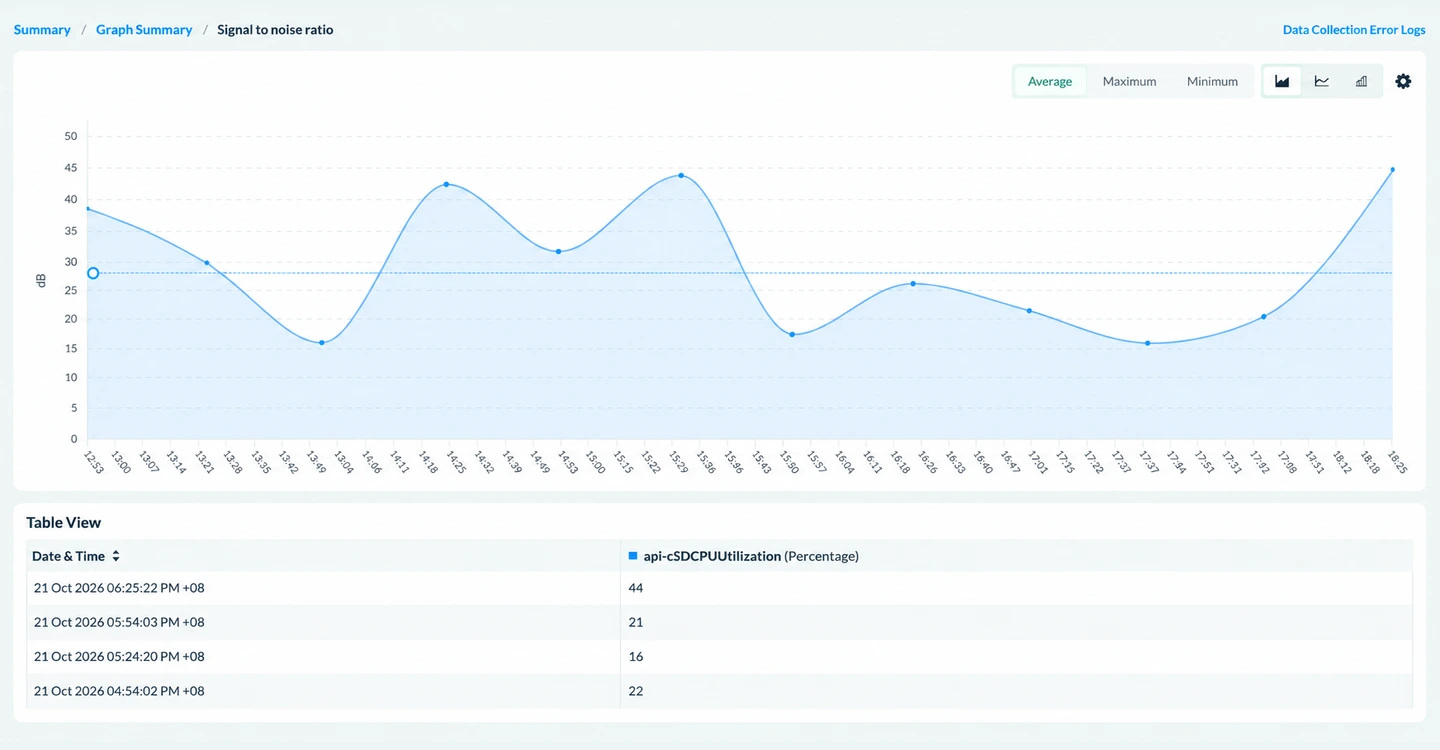
- Signal monitoring: Track signal strength (RSSI) and SNR for each access point and the noise in each channel.
- Client metrics: Track total and active clients, and clients per 2.4GHz, 5GHz, and 6GHz bands. This highlights APs close to their limit, or clients unevenly spread across bands.
- Traffic statistics: Track total bytes sent by each AP and channel, total bytes received by clients, and transmission rates.
- Resource usage: Track CPU utilization, memory utilization, and system uptime for APs and controllers.
Detect and resolve Wi-Fi issues proactively
Static thresholds don't always fit Wi-Fi networks. Usage shifts by time of day, day of the week, and season. A client count that's normal at 10 a.m. might be unusual at 10 p.m.
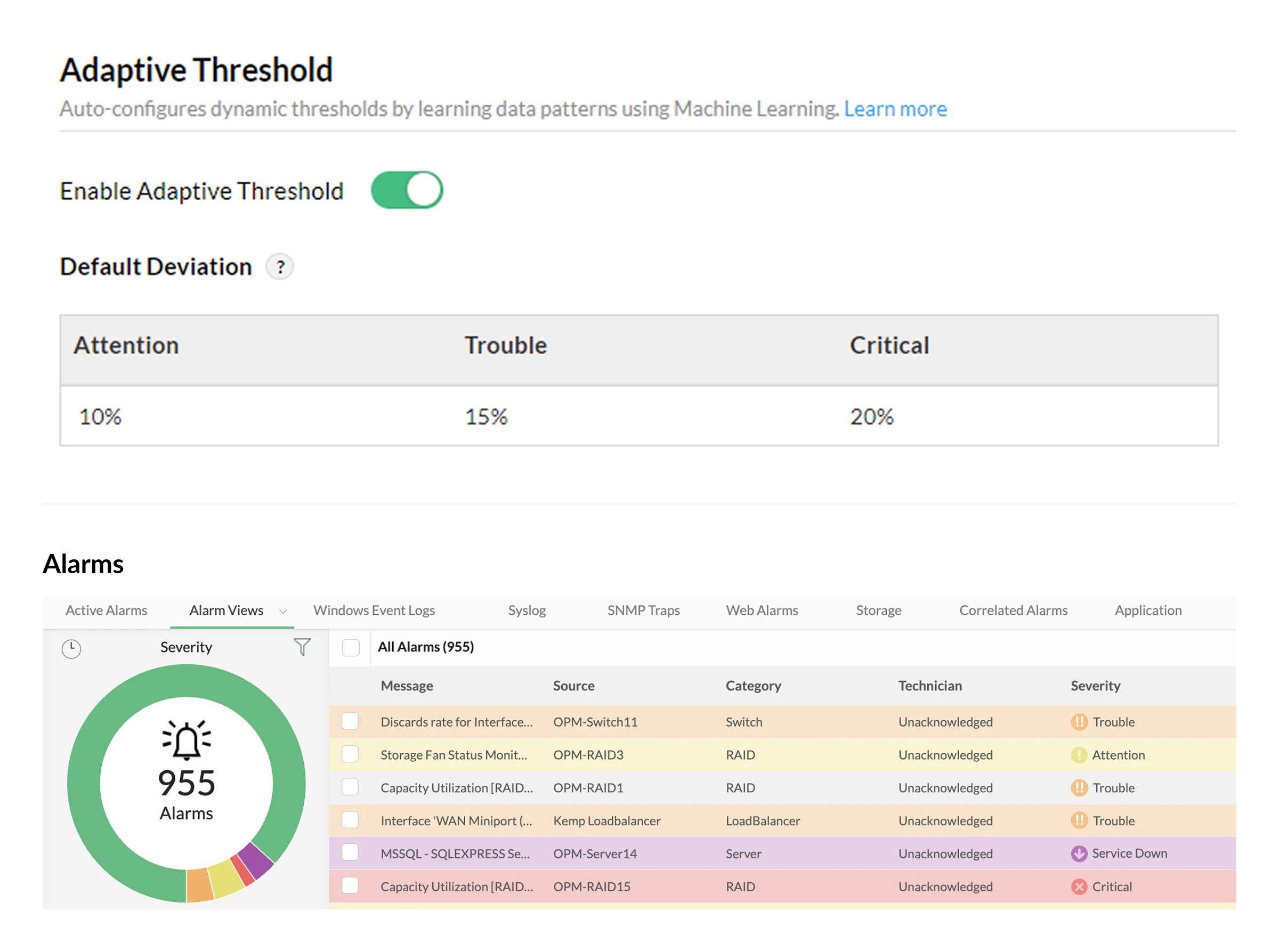
- OpManager uses ML-based adaptive thresholds. They study the past behavior of each monitor and adjust on their own. That way, OpManager flags real problems while ignoring normal spikes and dips.
- When a threshold is breached, OpManager sends alerts by email, SMS, chat tools, or push notifications.
- Build code-free workflows that respond on their own, such as running connectivity checks or raising tickets. This helps you troubleshoot issues before they turn into outages.
- A busy port or a failing up-link can feel like a Wi-Fi issue. OpManager helps you pin-point where the issue is: The AP, or the wired network behind it.
Troubleshooting Wi-Fi issues with OpManager

Eliminating Wi-Fi dead zones in offices
At a corporate headquarters with hybrid work, employees complain about dropped video calls in conference rooms and certain floor areas, even though every AP reports as "up." Availability checks alone can't explain poor user experience.
- OpManager goes beyond up/down status and measures the signal quality users actually get.
- Wireless signal monitoring tracks RSSI, signal-to-noise ratio, and client counts per AP, highlighting areas where coverage is weak or APs are overloaded.
- Threshold rules alert IT when signal strength or SNR drops below the level real-time voice and video limits, so issues are found before users raise them.
- Historical graphs show when quality dips. For example, they can reveal a conference-room AP overloaded with clients during all-hands meetings, which guides AP placement and band-steering changes.

Diagnosing RF interference on factory floors
A manufacturing plant runs autonomous APs serving handheld terminals, AGVs, and tablets that display work instructions. Heavy machinery, metal structures, and neighboring networks cause interference and intermittent disconnects, which can halt automated material movement on the floor.
- OpManager monitors RF conditions on each AP to separate interference problems from hardware failures.
- Channel utilization, noise, and signal quality are monitored on each autonomous AP via SNMP, with no controller required.
- AI/ML-driven anomaly detection flags unusual drops in signal quality or spikes in retransmissions that line up with specific machinery or shifts.
- Customizable alerts send RF issues to the plant network team and device-down alerts to field technicians, so each problem reaches the right people.

Unifying cloud-managed and on-premises Wi-Fi
A firm uses cloud-managed APs for regional offices and a controller-based deployment at headquarters. Its business apps are split between on-prem and the cloud. This slows troubleshooting as the team lacks a unified view of the cloud-based and on-premises estates.
- OpManager brings both wireless architectures into one monitoring view.
- Cloud-managed APs are monitored alongside controller-based ones, giving a consistent view of AP status, client counts, and signal metrics across every office.
- Unified alerting and reporting replace separate notification streams, giving IT one place to set thresholds and track trends.

Balancing guest and corporate SSID traffic
A bank offers free Wi-Fi in its branches, broadcast from the same APs that serve tellers' tablets and internal apps. On busy days, guest devices take up airtime and bandwidth, slowing critical services, and branch IT locate the SSID responsible.
- OpManager provides per-SSID visibility so the bank can protect business-critical traffic.
- Client counts and traffic are monitored per SSID on each AP, which makes it clear when guest usage is crowding out the corporate network.
- OpManager's NetFlow add-on identifies the top applications and talkers on the guest VLAN, helping the team set and verify QoS or bandwidth limits.
- Threshold alerts fire when guest client counts or bandwidth exceed set limits. The ticketing integration logs each incident for follow-up and compliance records.
Frequently asked questions about WiFi monitoring tools
- Downtime
- CPU
- Memory
- Temperature
- Received and transmitted bytes
- Signal strength (RSSI)
- Signal to noise ratio
- Channel noise
- Active clients
- Connected clients
- Connected time
- 2.4GHz User count
- 5 GHz User Count
- Clients connected per AP/SSID/Controller
- SSID name
- Rogue SSIDs
- Traffic usage at the AP/SSID/Client level, etc.
- Authentication count
Learn more about Wi-Fi monitoring
Seven best practices for optimizing your WiFi networks
Optimize the WiFi management lifecycle: from designing for capacity to monitoring for performance.
Learn more →Unlock more value with add-ons
Extend easily with complementary products — add deeper traffic visibility, configuration management, and more.
Bandwidth monitoring
Layer NetFlow-based traffic analysis to see who and what is driving every byte across the network.
Try free trial →Firewall management
Audit firewall rule changes, spot shadow rules, and tie every config change back to the network event.
Try free trial →Network configuration
Back up configs, detect drift, and push standardized changes across thousands of devices.
Try free trial →