Linux password reset
Overview
IT admins often face surges in Linux password reset and account unlock requests, which hamper productivity. ADSelfService Plus streamlines this by allowing users to reset their Active Directory (AD) domain passwords directly from their Linux login screen, leveraging Linux AD integration. This ensures secure, self-service access for users in Linux-based Active Directory environments.
With ADSelfService Plus, users perform self-service password reset from:
- The logon screens of their Windows, Linux, or macOS machines.
- Web browsers by accessing the ADSelfService Plus portal, which can be configured to be accessed through all major web browsers.
- Their mobile devices by accessing the ADSelfService Plus iOS or Android mobile app or mobile site.
- Their private networks, even remotely. Furthermore resetting their passwords, ADSelfService Plus also lets users update their cached credentials.
Prerequisites
- The ADSelfService Plus login agent needs to be installed on Linux systems. Administrators can deploy it either through:
- The ADSelfService Plus admin console, or
- Manual installation on individual machines.
- End users must be enrolled in ADSelfService Plus before using self-service features. Enrollment is a one-time setup where users provide their mobile number, email ID, and responses to security questions, along with other required details, to activate self-service password management.
Steps to perform Linux password reset
Steps to reset Linux password using command line
One way to reset a forgotten Linux password is by using the GRUB bootloader. This method requires booting into single-user or recovery mode and running commands to update the password. Follow these steps:
- Open the GRUB menu: GRUB (GNU GRUB bootloader) is the default bootloader for most Linux systems. Restart or power on your machine, and as soon as the boot process starts, hold down the Shift key to display the GRUB menu.
- Switch to Edit Mode: Before the system boots, select the default boot option (usually the first one listed) using the arrow keys. Press E to edit the boot entry.
- Adjust the boot parameters: To access single-user mode, you need to tweak the boot parameters:
- Locate the line beginning with linux or linux16.
- Find the parameter ro quiet, change ro to rw, and add the command single or init=/bin/bash at the end (depending on your distribution).
- Press Ctrl + X or F10 to boot with these changes.
- Remount the root filesystem with write access: Since the system may load in read-only mode, enable write access with the command:
mount -n -o remount,rw /
- Change the user password: Use the passwd command to reset the password. Replace username with the account you're updating:
passwd username
- Enter the new password twice when prompted.
- Reboot the machine: Once the password is updated, reboot the system to return to normal operation:
sync
reboot -f
- The new credentials should now work, allowing you to log in with the updated password.
Steps to reset Linux password using ADSelfService Plus
- ADSelfService Plus places a Reset Password/Unlock Account link (also called the login agent) on the login screen of Linux OS machines, making Linux password reset simple and secure.
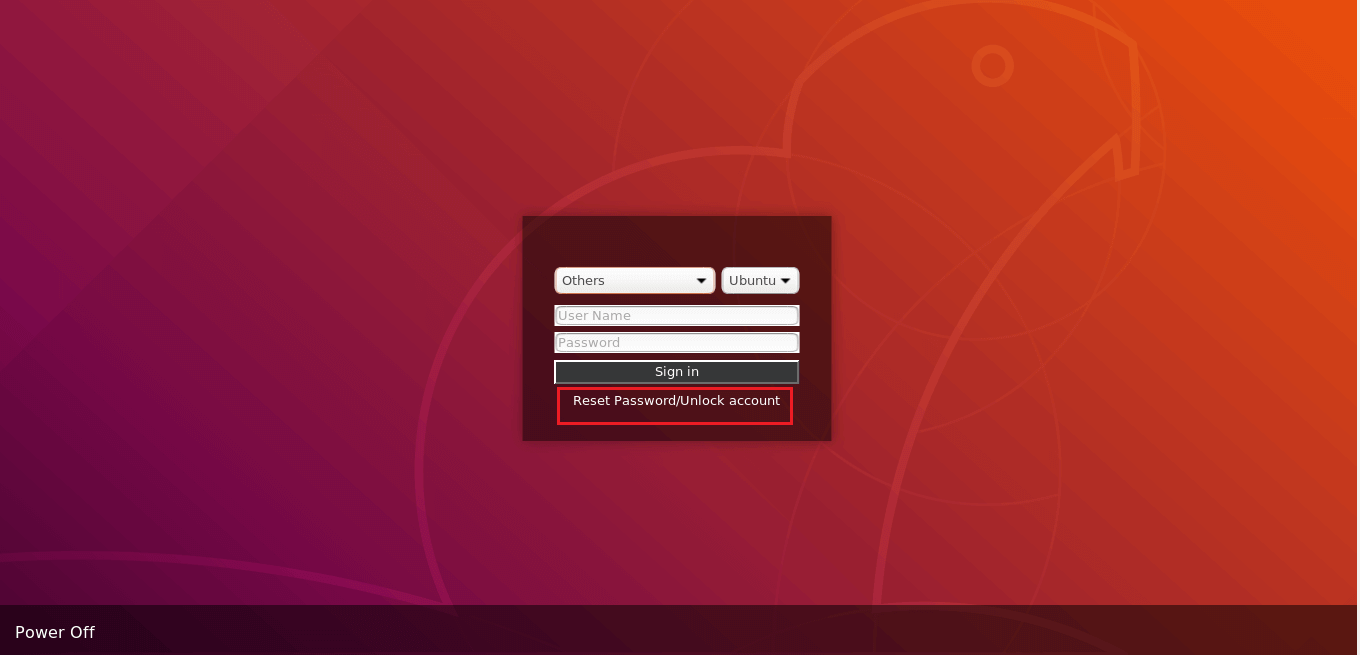
- Clicking this link will open the password reset portal. Users are required to prove their identity through any of the enforced authentication methods, such as SMS-based one-time passwords (OTPs), email-based OTPs, Google Authenticator, Duo Security, and RSA SecurID.
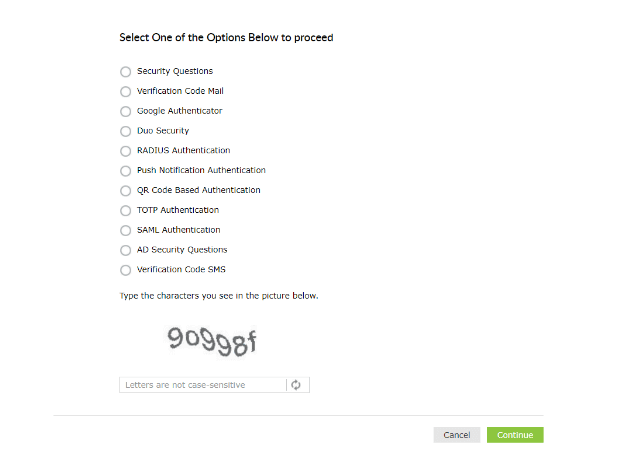
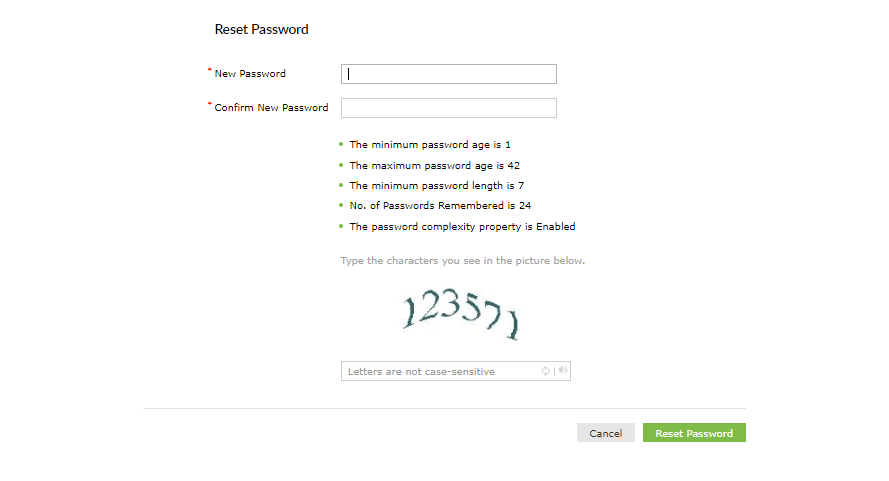
- Once the user's identity is successfully verified, they will be allowed to reset their forgotten AD domain passwords.
Tip: Improve password security. Do you think users are employing weak passwords to secure their Linux machines? Help them create strong user passwords with the Password Policy Enforcer.
Validation and confirmation
- After completing the steps, log in with your new password to confirm it works.
- Administrators can audit reset actions using Reset Password Audit Report, detailing usernames, time of password reset, and device IPs.
Tips
Highlights of ADSelfService Plus
Allow Active Directory users to self-service their password resets and account unlock tasks, freeing them from lengthy help desk calls.
Get seamless one-click access to 100+ cloud applications. With enterprise single sign-on, users can access all their cloud applications using their Active Directory credentials.
Intimate Active Directory users of their impending password and account expiry via email and SMS notifications.
Synchronize Windows Active Directory user passwords and account changes across multiple systems automatically, including Microsoft 365, Google Workspace, IBM iSeries, and more.
Strong passwords resist various hacking threats. Enforce Active Directory users to adhere to compliant passwords by displaying password complexity requirements.
Enable Active Directory users to update their latest information themselves. Quick search features help admins scout for information using search keys like contact numbers.
 Free Edition