How to set up Salesforce Authenticator for identity verification
In this article
Objective
ManageEngine ADSelfService Plus supports custom time-based one-time password (TOTP) authenticators, enabling organizations to use Salesforce Authenticator as a multi-factor authentication (MFA) method for identity verification.
With this integration, administrators can secure password resets, account unlocks, machine logins, VPN access, OWA logins, and enterprise app logins using an authenticator app users already trust. This document outlines the Salesforce Authenticator setup process in ADSelfService Plus.
Why choose Salesforce Authenticator?
Salesforce Authenticator adds an extra layer of identity verification beyond passwords. It generates TOTPs for end users as part of the MFA process, helping reduce the risk of credential theft, phishing, and unauthorized access.
It is especially useful for organizations that want a familiar mobile authenticator app while enforcing stronger access controls through ADSelfService Plus.
ADSelfService Plus supports the use of TOTPs with Salesforce Authenticator. TOTPs are temporary numeric codes that refresh automatically after a short interval. By requiring users to enter the TOTP displayed on the app, the authentication process is upgraded with a possession factor apart from the default knowledge factor such as a password or PIN.
Prerequisites
- End users must have Salesforce Authenticator installed on an iOS or Android device.
- SSL must be enabled in ADSelfService Plus. To enable this, log in to the ADSelfService Plus web console with admin credentials. Navigate to Admin > Product Settings > Connection. Select the ADSelfService Plus Port [https] option. Refer to this guide to learn how to apply for an SSL certificate and enable HTTPS.
- Access URL must be set to HTTPS. To do this, navigate to Admin > Product Settings > Connection > Connection Settings > Configure Access URL and set Protocol to HTTPS.
- Install the ADSelfService Plus client software login agent for Windows, macOS, and Linux on the machines for which you want to enable MFA. For steps to install the ADSelfService Plus login agent, see this guide.
Steps to set up Salesforce Authenticator in ADSelfService Plus
- Navigate to Configuration > Self-Service > Multi-factor Authentication > Authenticators Setup.
- Select the required policy from the Choose the Policy drop-down menu.
- Click Custom TOTP Authenticator.
- Configure the following settings:
- Authenticator Name: Display name shown to users.
- Passcode Length: Number of digits in the verification code.
- Passcode Expiration Time: Validity period of each code.
- Passcode Hashing Algorithm: Security algorithm used for code generation.
- Account Name Format: Naming format shown in the authenticator app.
- Upload the Salesforce Authenticator logo if required.
- Click Save.
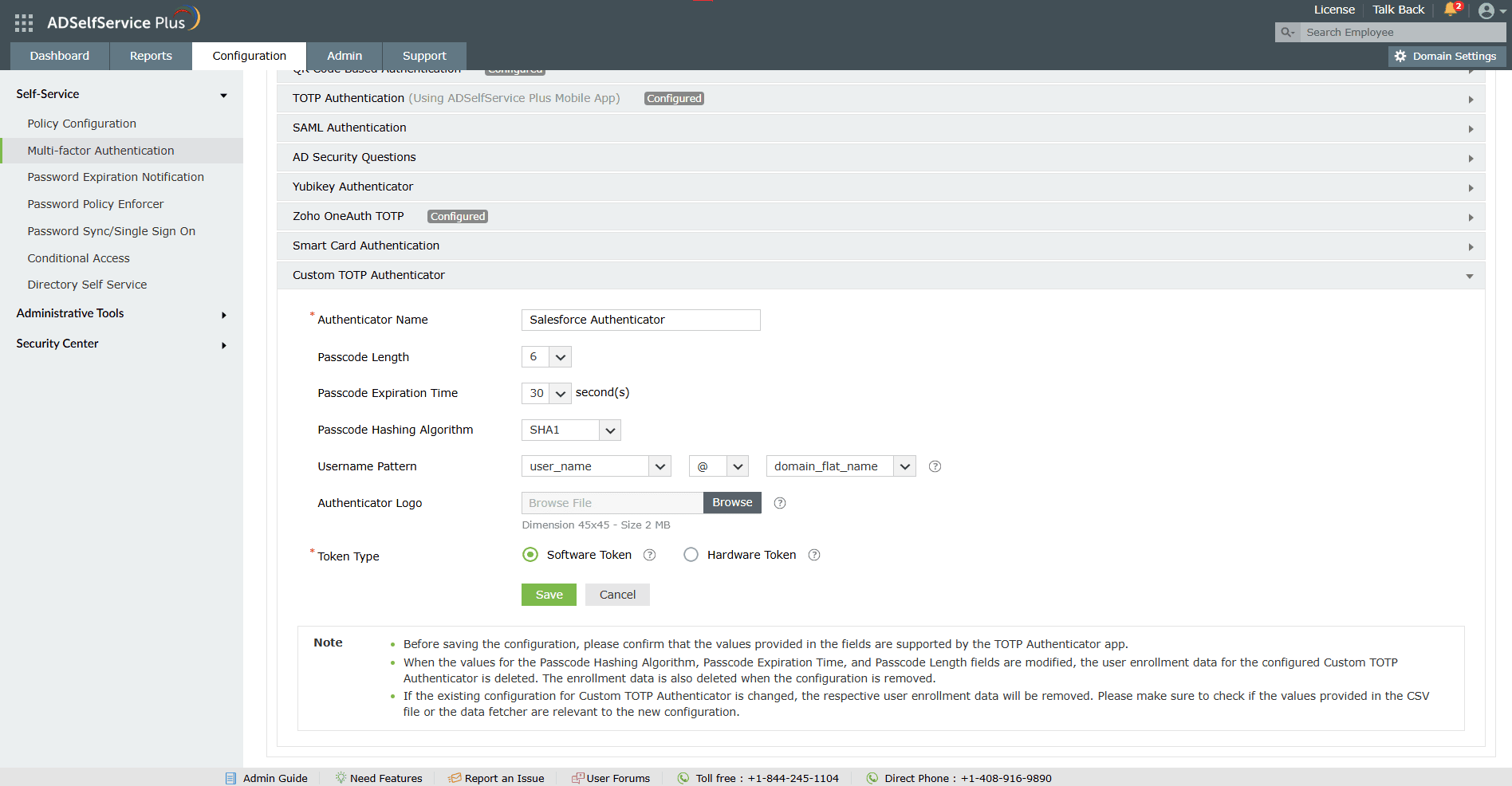
Image 1. Custom TOTP Authenticator configuration.
Steps to set up Salesforce Authenticator to secure enterprise endpoints
- Go to Configuration > Self-Service > Multi-factor Authentication > MFA for Endpoints.
- Select a policy from the Choose the Policy drop-down menu. This will determine which authentication methods are enabled for which sets of users.
ADSelfService Plus enables you to create OU and group-based policies. To create a policy, go to Configuration > Self-Service > Policy Configuration > Add New Policy. Click Select OUs/Groups, and make the selection based on your requirements. You need to select at least one self-service feature. Click Save Policy.
- Enable Salesforce Authenticator for the desired endpoint in the following sections:
- MFA for Machine Logins: Check the box to enable the required number of factors for machine login and choose Salesforce Authenticator from the drop-down menu.
Select the Choose Authenticators for Offline Machine Login MFA option and select the authentication methods you prefer for offline MFA from the drop-down menu.
- MFA for OWA Logins: Check the box to enable the required number of factors for OWA/EAC logins and choose Salesforce Authenticator from the drop-down menu.
- MFA for VPN Logins: Check the box to enable the required number of factors for VPN logins and choose Salesforce Authenticator from the drop-down menu.
- MFA for Enterprise Applications: Check the box to enable the required number of factors for app logins and choose Salesforce Authenticator from the drop-down menu.
- Click Save Settings.
- Navigate to the MFA for Reset/Unlock tab.
- Choose the number of authenticators you wish to enable in the drop-down field.
- In Select the authenticators required field, check the box next to Salesforce Authenticator.
- Click Save Settings.
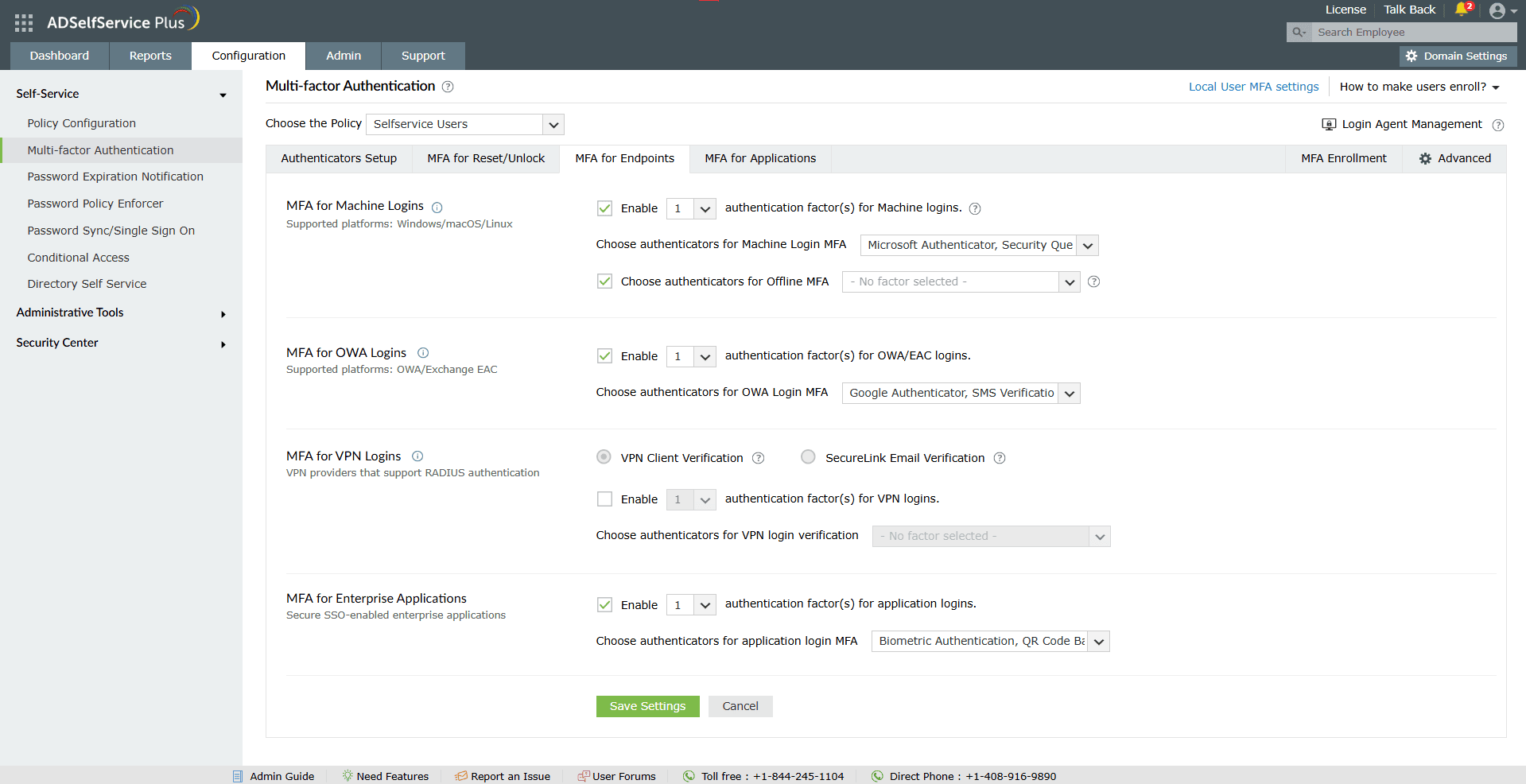
This allows users to verify their identities when accessing critical enterprise endpoints.
Steps to enroll Salesforce Authenticator for MFA
After you have set up Salesforce Authenticator, end users can enroll their Salesforce Authenticator app for MFA.
- Sign in to the ADSelfService Plus user portal.
- Navigate to Enrollment > Salesforce Authenticator.
- A QR code will be displayed on screen.
- Open Salesforce Authenticator on the mobile device.
- Tap Add an Account.
- Select Scan QR Code.
- Scan the QR code shown in the portal.
- The account will be added automatically.
- Enter the passcode generated in the app to complete enrollment.
QR code recommendations
If the QR code does not scan:
- Increase screen brightness.
- Clean the phone camera lens.
- Hold the device steady and retry.
- Ensure camera permission is enabled for the app.
- Refresh the enrollment page and generate a new QR code.
Modify or remove the configuration
- Navigate to Configuration > Self-Service > Multi-factor Authentication > Authenticators Setup.
- Click Custom TOTP Authenticator.
- Click Modify to edit settings.
- Click Remove Configuration to delete the setup.
- Click Save.
Note:
- Removing or modifying the configuration deletes existing user enrollment data for that authenticator.
- If a user moves from one policy to another without the same TOTP authenticator configuration, they must re-enroll.
- Consistent authenticator settings across policies help avoid re-enrollment.
Validation and confirmation
- After configuration, users must complete identity verification in ADSelfService Plus using Salesforce Authenticator.
- During login, password reset, or endpoint access, enter the TOTP from the app.
- A successful TOTP entry confirms the account connection process is working correctly.
- TOTPs act as a fallback authentication method when push approval or connectivity is unavailable.
Tips
- Perform a machine login or VPN login to confirm MFA works as expected.
- Sync the device time between the mobile phone hosting the Salesforce Authenticator and the end-user's machine to avoid invalid TOTP.
- If users face repeated verification issues, re-enroll them.
- Keep alternative MFA methods enabled in ADSelfService Plus as a fallback option in the event that the Saleforce Authenticator app is down.
Highlights of ADSelfService Plus
Allow Active Directory users to self-service their password resets and account unlock tasks, freeing them from lengthy help desk calls.
Get seamless one-click access to 100+ cloud applications. With enterprise single sign-on, users can access all their cloud applications using their Active Directory credentials.
Intimate Active Directory users of their impending password and account expiry via email and SMS notifications.
Synchronize Windows Active Directory user passwords and account changes across multiple systems automatically, including Microsoft 365, Google Workspace, IBM iSeries, and more.
Strong passwords resist various hacking threats. Enforce Active Directory users to adhere to compliant passwords by displaying password complexity requirements.
Enable Active Directory users to update their latest information themselves. Quick search features help admins scout for information using search keys like contact numbers.

 Free Edition