Learn to enable password writeback for self-service password reset in Azure AD
With Azure AD's self-service password writeback feature, users can reset or change their passwords and unlock their accounts using Azure AD or Microsoft 365, and these changes can be synchronized with their on-premises AD accounts. This lets users maintain a single set of credentials across both Azure AD and on-premises AD, making it easier to create and remember complex domain passwords that are difficult to hack.
Steps to enable password writeback in Azure AD
Prerequisites
- An Azure AD tenant with at least a Premium P1 or trial license enabled.
- A Global Administrator Azure AD account.
- Self-service password reset configured in Azure AD.
- An existing on-premises AD DS environment configured with a current version of Azure AD Connect.
To use password writeback, domain controllers can run any supported version of Windows Server.
Step 1: Configure account permissions for Azure AD Connect
- Open Active Directory Users and Computers using a Domain Administrator account.
- Click View and, from the menu that appears, click Advanced features to turn them on.
- In the pane on the left, right-click the object that represents the domain root and click Properties. In the Properties window that opens, go to Security > Advanced.
- In the window that opens, go to Permissions > Add.
- For the Principal option, select the domain account used for Azure AD Connect. The permissions will be applied to this account.
- From the Applies to drop-down, select Descendant User objects.
- Under Permissions, select Reset password.
- Under Properties, select Write lockoutTime and Write pwdLastSet.
- Click Apply or OK.
Once the above steps are complete, it may take an hour or more for the newly set permissions to be applied to all the objects in AD.
Note: The on-premises domain password policy may prevent the password writeback feature from working properly. The minimum password age requirement in the domain password policy must be zero for proper functioning. This setting can be found under Computer Configuration > Policies > Windows Settings > Security Settings > Account Policies within the Group Policy Management Console.
If you update the Group Policy, wait for the updated policy to replicate, or use the gpupdate /force command.
Step 2: Configure Azure AD Connect to enable password writeback
- Log in to the Azure AD Connect server and open the Azure AD Connect configuration wizard.
- On the Welcome page, select Configure.
- In the Additional tasks section that appears, select Customize synchronization options and then click Next.
- In the Connect to Azure AD section that opens, enter the credentials of a Global Administrator account and click Next.
- The Connect directories section will appear. Here, click Next.
- Then, the Domain/OU filtering section will appear. Click Next again.
- In the Optional features section, select Password writeback and click Next.
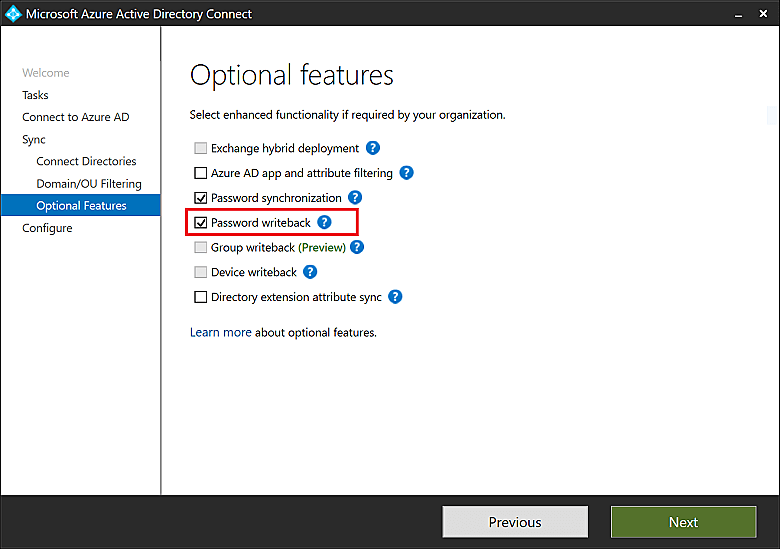
- In the Directory extensions section that opens, select Next.
- The Ready to configure section will now open. Here, click Configure and wait for the process to finish.
- Once configuration is complete, click Exit.
Step 3: Implement password writeback for self-service password reset
- Log in to Azure as a Global Administrator.
- Go to Azure Active Directory > Password reset > On-premises integration.
- Select Yes for Write back passwords to your on-premises directory?
- Select Yes for Allow users to unlock accounts without resetting their password?
- Select Azure AD self-service password reset for password writeback.
- Click Save.
While the password writeback feature helps users maintain a single set of AD credentials, by syncing password changes made to the Azure AD account with the on-premises AD account, the feature does not work the other way around. Additionally synchronizing AD passwords with enterprise applications accounts requires additional configuration.
A one-stop password synchronization solution for AD and enterprise applications
ManageEngine ADSelfService Plus offers AD-based password synchronization. The feature synchronizes users' AD domain passwords, along with any changes to them, with their Azure AD accounts, Microsoft 365 accounts, and other enterprise applications such as AD Lightweight Directory Services, Google Workspace, and Salesforce.
Key benefits to implementing this feature include:
- Self-service password reset: ADSelfService Plus offers a secure self-service password reset portal that lets users reset their passwords and have the changes synced to integrated enterprise accounts.
- Granular configuration: Password synchronization to particular applications can be enabled for users belonging to specific domains, OU, and groups.
- Advanced password policies: Resets or changes made to the passwords will be governed by the Password Policy Enforcer. This feature can implement advanced password requirements including bans on dictionary words and patterns.
- Application-specific sync: Users can choose to sync the changes across all the integrated applications accounts or only desired applications.
- Synchronized account status: Self-service domain account unlocks will unlock other integrated enterprise accounts.
Highlights of ADSelfService Plus
Allow Active Directory users to self-service their password resets and account unlock tasks, freeing them from lengthy help desk calls.
Get seamless one-click access to 100+ cloud applications. With enterprise single sign-on, users can access all their cloud applications using their Active Directory credentials.
Intimate Active Directory users of their impending password and account expiry via email and SMS notifications.
Synchronize Windows Active Directory user passwords and account changes across multiple systems automatically, including Microsoft 365, Google Workspace, IBM iSeries, and more.
Strong passwords resist various hacking threats. Enforce Active Directory users to adhere to compliant passwords by displaying password complexity requirements.
Enable Active Directory users to update their latest information themselves. Quick search features help admins scout for information using search keys like contact numbers.
 Free Edition