Pricing  Get Quote


Enable biometric, QR code, push notification, and TOTP based verification for self-service password reset

Solution

ADSelfService Plus supports multi-factor authentication (MFA) to verify and secure the identity and access of users. The ADSelfService Plus mobile app verifies the identities of users through the following authentication methods:

  • Fingerprint authentication
  • QR code-based authentication
  • Push notification authentication
  • Time-based one-time passcode (TOTP) authentication

Deploying a custom blend of these authentication methods proves effective in keeping attackers at bay. And, with administrators holding the power to determine how end users can authenticate themselves, the process can be controlled and monitored.

This article will help you enable the required identity verification techniques for verifying user identities via the ADSelfService Plus mobile app.
Steps involved:

  • Log in to ADSelfService Plus as an administrator.
  • Navigate to Configuration → Multi-factor Authentication → Authenticators Setup.
  • Select the appropriate policy from the drop-down list.
    Note: To create or edit a policy, navigate to the Configuration tab → Self-Service → Policy Configuration. You can either create a new self-service policy by clicking the +Add New Policy button, or edit the existing default policy. For detailed steps, click here.
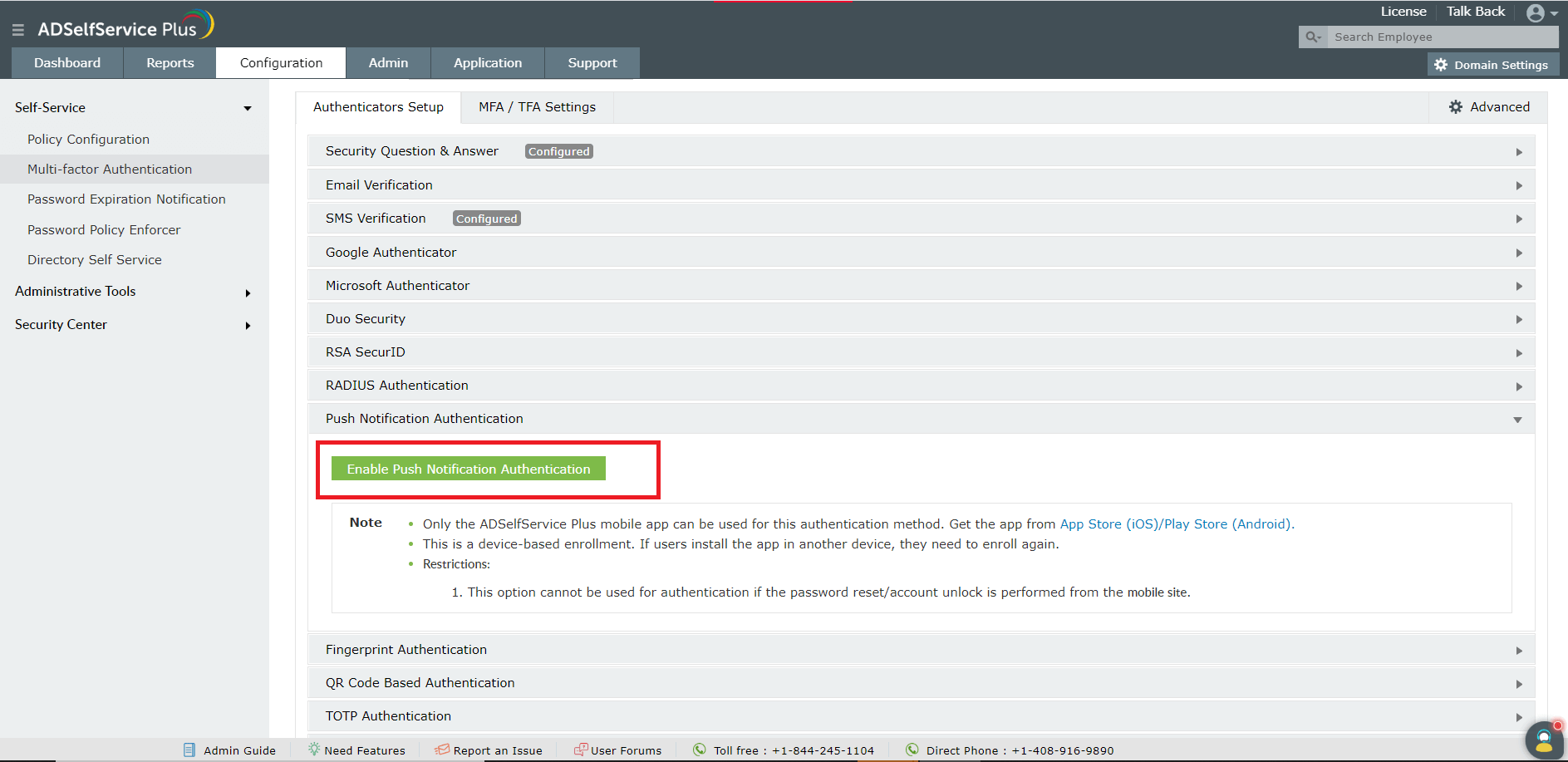
  • Click the Push Notification Authentication section if you wish to enable this feature. From the panel that opens, click the Enable Push Notification Authentication button.
  • Follow the same procedure with Fingerprint Authentication, QR Code Based Authentication, and TOTP authentication if you wish to enable those features.

    Mobile App Authenticator
    Mobile App Authenticator

  • Click Save.
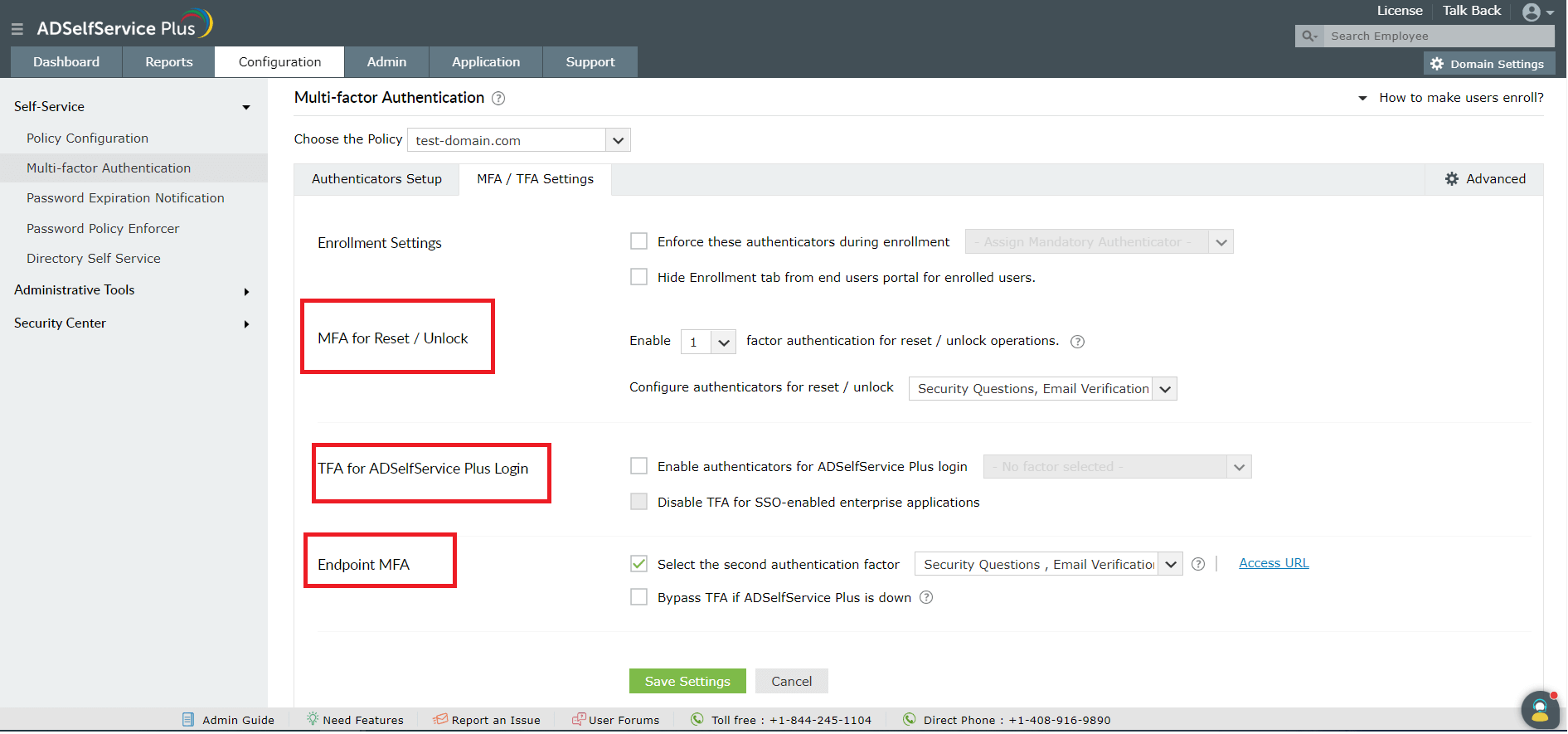
    Note: Once you have enabled these features, you need to associate them to any of the following operations:
    1. Password reset/account unlock
    2. ADSelfService Plus login
    3. Endpoint two-factor authentication (2FA).
  • Navigate to Configuration → Multi-factor Authentication → MFA/TFA Settings, and select the operations you want to enable the authenticators for.

    Mobile App Authenticator

You are all set to verify the identities of your users via the ADSelfService Plus mobile app!

Request for Support

Need further assistance? Fill this form, and we'll contact you rightaway.

  • Name
  •  
  • Business Email *
  •  
  • Phone *
  •  
  • Problem Description *
  •  
  • Country
  •  
  • By clicking 'Submit' you agree to processing of personal data according to the Privacy Policy.
Highlights of ADSelfService Plus

Password self-service

Allow Active Directory users to self-service their password resets and account unlock tasks, freeing them from lengthy help desk calls.

One identity with single sign-on

Get seamless one-click access to 100+ cloud applications. With enterprise single sign-on, users can access all their cloud applications using their Active Directory credentials.

Password and account expiry notification

Intimate Active Directory users of their impending password and account expiry via email and SMS notifications.

Password synchronization

Synchronize Windows Active Directory user passwords and account changes across multiple systems automatically, including Microsoft 365, Google Workspace, IBM iSeries, and more.

Password policy enforcer

Strong passwords resist various hacking threats. Enforce Active Directory users to adhere to compliant passwords by displaying password complexity requirements.

Directory self-update and corporate directory search

Enable Active Directory users to update their latest information themselves. Quick search features help admins scout for information using search keys like contact numbers.


ADSelfService Plus trusted by

Embark on a journey towards identity security and Zero Trust