Pricing  Get Quote


How to fight password theft using the multi-factor authentication techniques available in ADSelfService Plus

Issue: One of the main intrusion techniques used by hackers is password theft. In fact, stolen credentials ranked among the top 5 data breach action types in 2022.

Use case: Most organizations rely heavily on passwords to secure their network resources. However, users deal with their password saturated lives by often creating weak passwords and reusing them across critical business accounts. This makes stealing passwords the easiest way to get hold of network resources. Hackers only need to crack one user's password to enter an organization's network and cause havoc.

Solution: ADSelfService Plus makes stolen passwords ineffective by enabling additional layers of authentication using:

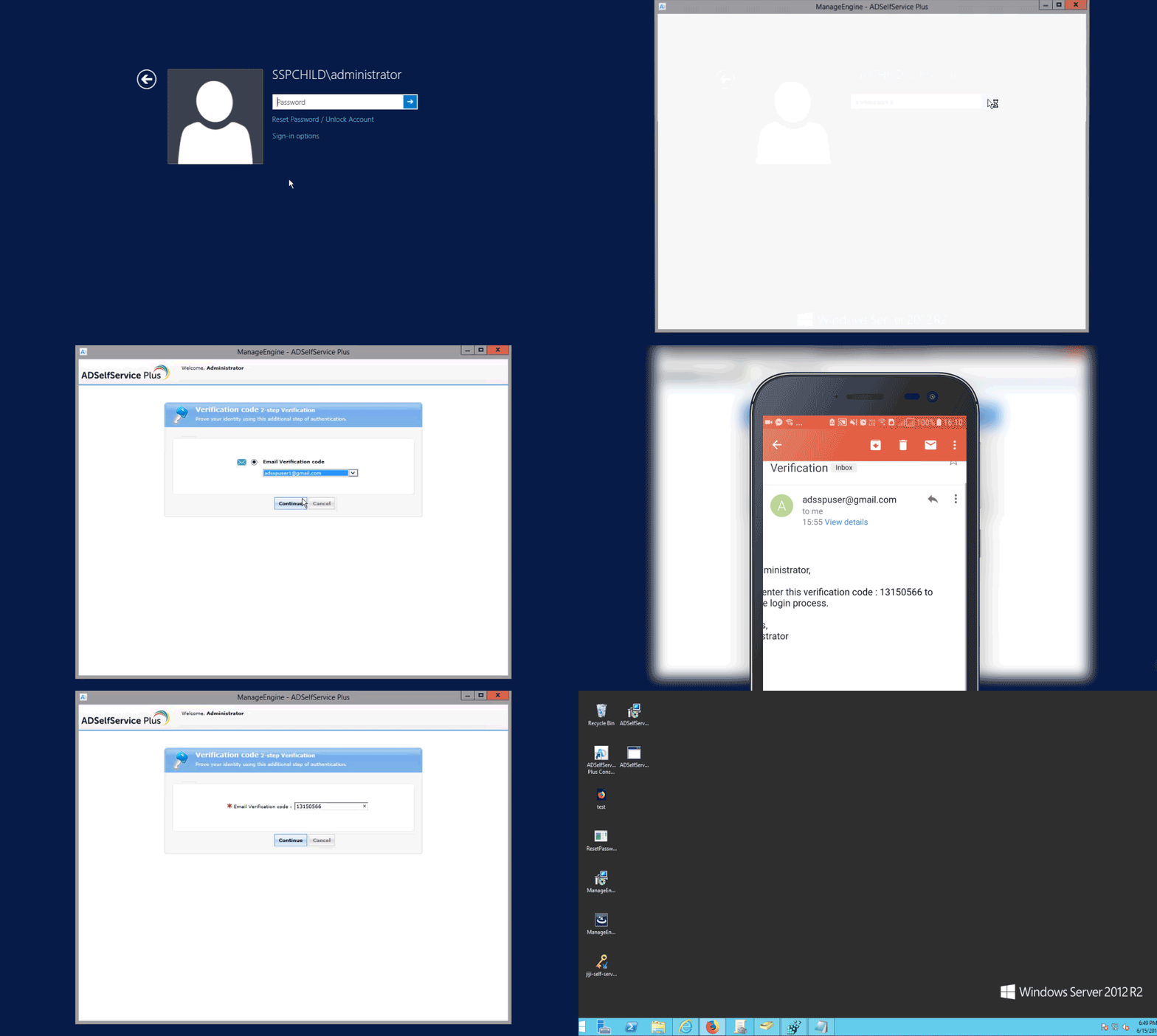
  1. MFA for Windows, macOS, and Linux systems, on-premises or remotely.
  2. MFA for cloud applications
  3. MFA for VPN providers like Fortinet, Cisco AnyConnect, Pulse, and more.
  4. OWA MFA
  5. Offline Windows and macOS logins

The solution supports upto 19 methods for MFA including Fingerprint or Face ID Authentication, YubiKey Authentication, Google Authenticator, Microsoft Authenticator, and Azure AD MFA. Click here to get the complete list of authenticators.
Prerequisites for enabling Windows/macOS/Linux OS MFA

  1. Your ADSelfService Plus license must include Endpoint MFA. Visit the store to purchase it.
  2. SSL and TFA must be enabled in ADSelfService Plus.
  3. The Windows and macOS logon agents, which come bundled with ADSelfService Plus, must be installed through the GINA/Mac/Linux Installation option available in the admin console.
  4. The authentication techniques you'd like to enforce for users to prove their identity need to be configured in ADSelfService Plus.

Steps involved:

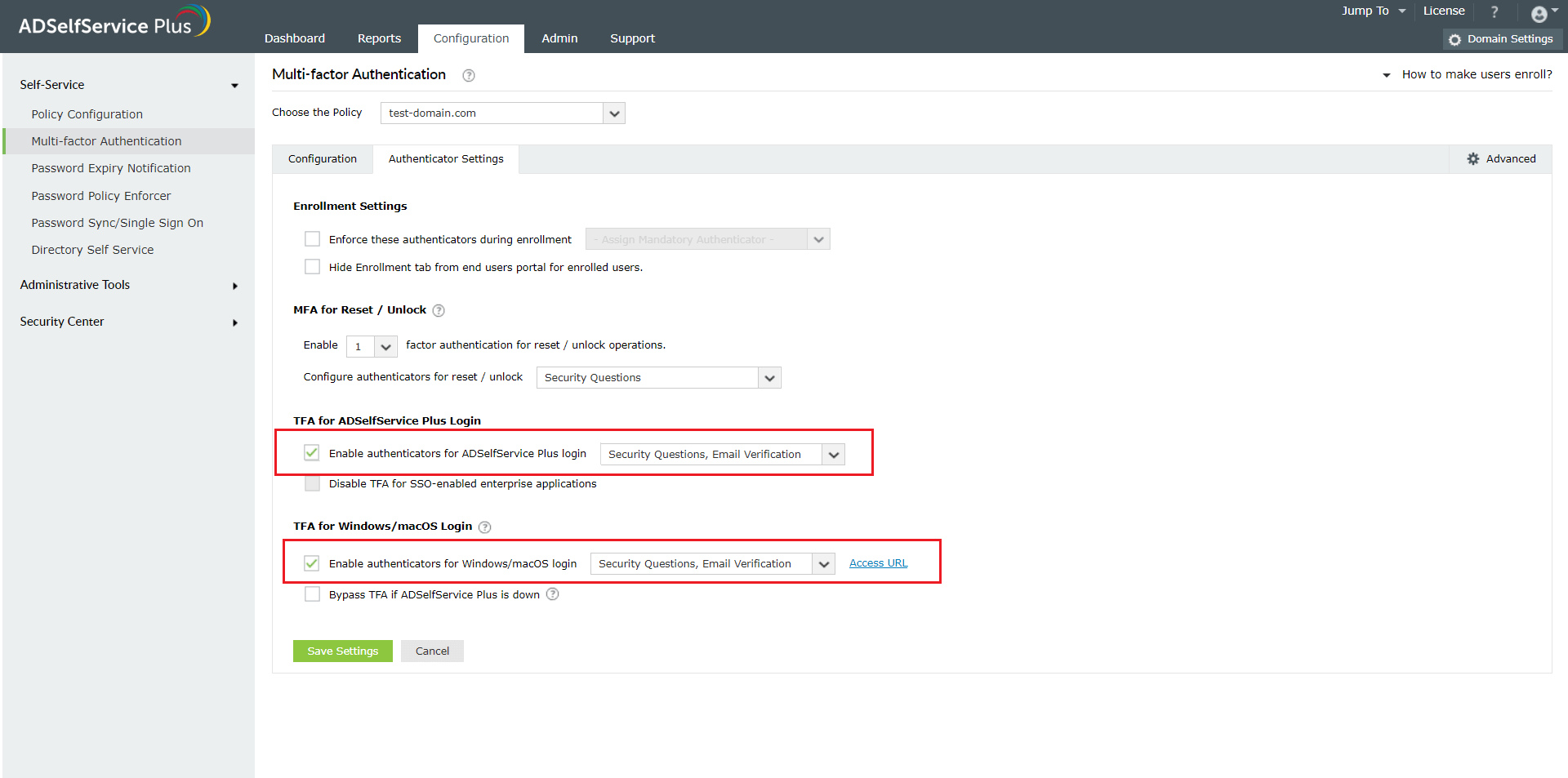
  1. Navigate to Configuration > Self-Service > Multi-factor Authentication > MFA for Endpoints > MFA for Machine Logins.
  2. Choose the Policy from the drop-down.
    Note: ADSelfService Plus allows you to create OU and group-based policies. To create a policy, go to Configuration → Self-Service → Policy Configuration → Add New Policy. Click Select OUs/Groups, and make the selection based on your requirements. Select at least one self-service feature. Finally, click Save Policy.
  3. Enable the Select the authenticators required checkbox.
  4. Use the Enable _ authentication factors option next to MFA for Machine Login to select the number of authenticators.
  5. Select RSA SecurID and other necessary configured authenticators from the drop-down.
  6. Click Save Settings.

    multi-factor-authentication-configuration

To enforce MFA for Windows/macOS/Linux logons logons

  1. In the Endpoint MFA section, click the select the second authenticator option, and mandate the authenticator of your choice from the drop-down.

To enforce 2FA for SAML-enabled cloud applications
  1. Navigate to Configuration > Self-Service > Multi-factor Authentication > MFA for Endpoints > MFA for Cloud Applications Login.
  2. Choose the Policy from the drop-down.
  3. Check the box next to Enable authenticators, enter the number of authentication methods to be enforced and select the authentication methods from the drop-down.
  4. Select Save Settings.

To enforce 2FA for SAML-enabled cloud applications

Request for Support

Need further assistance? Fill this form, and we'll contact you rightaway.

  • Name
  •  
  • Business Email *
  •  
  • Phone *
  •  
  • Problem Description *
  •  
  • Country
  •  
  • By clicking 'Submit' you agree to processing of personal data according to the Privacy Policy.
Highlights of ADSelfService Plus

Password self-service

Allow Active Directory users to self-service their password resets and account unlock tasks, freeing them from lengthy help desk calls.

One identity with single sign-on

Get seamless one-click access to 100+ cloud applications. With enterprise single sign-on, users can access all their cloud applications using their Active Directory credentials.

Password and account expiry notification

Intimate Active Directory users of their impending password and account expiry via email and SMS notifications.

Password synchronization

Synchronize Windows Active Directory user passwords and account changes across multiple systems automatically, including Microsoft 365, Google Workspace, IBM iSeries, and more.

Password policy enforcer

Strong passwords resist various hacking threats. Enforce Active Directory users to adhere to compliant passwords by displaying password complexity requirements.

Directory self-update and corporate directory search

Enable Active Directory users to update their latest information themselves. Quick search features help admins scout for information using search keys like contact numbers.


ADSelfService Plus trusted by

Embark on a journey towards identity security and Zero Trust