Free Edition
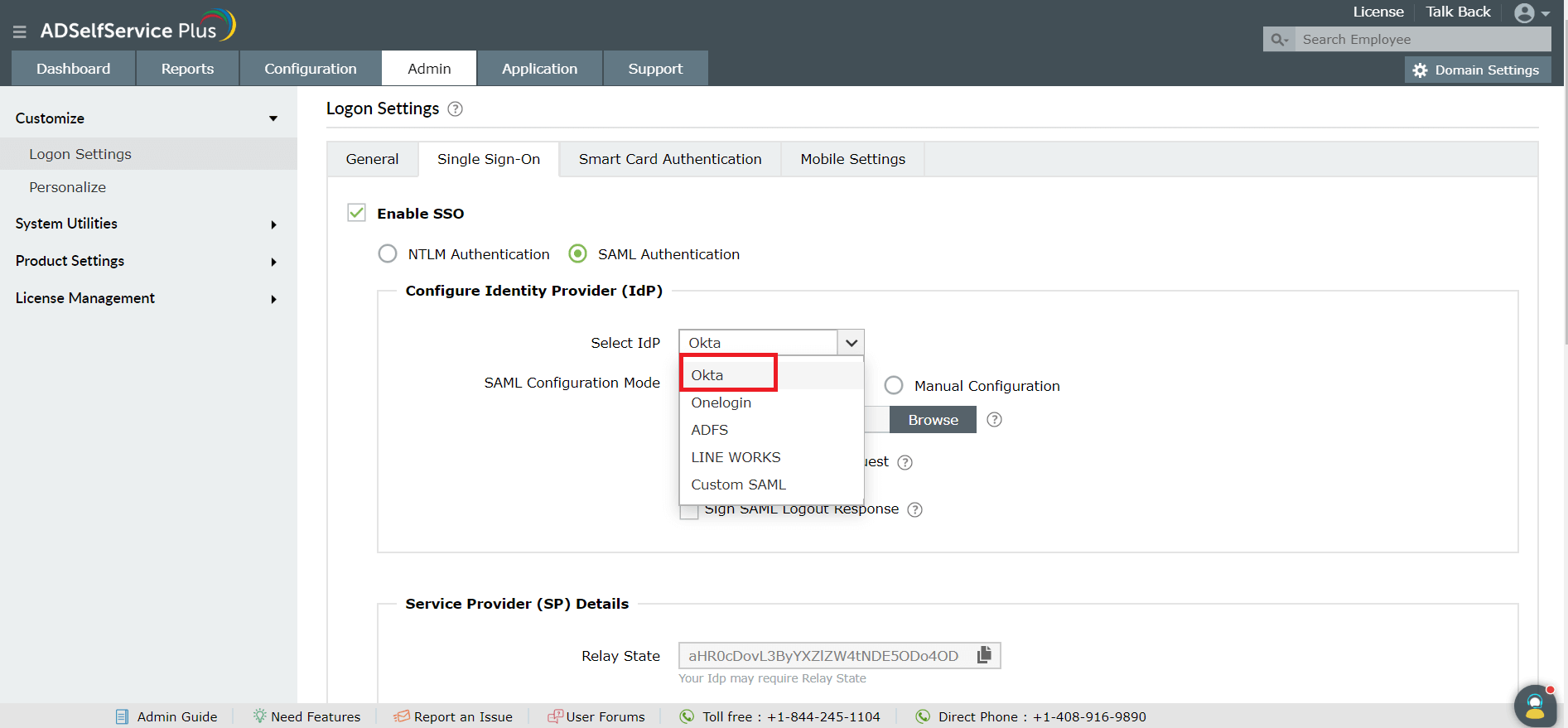
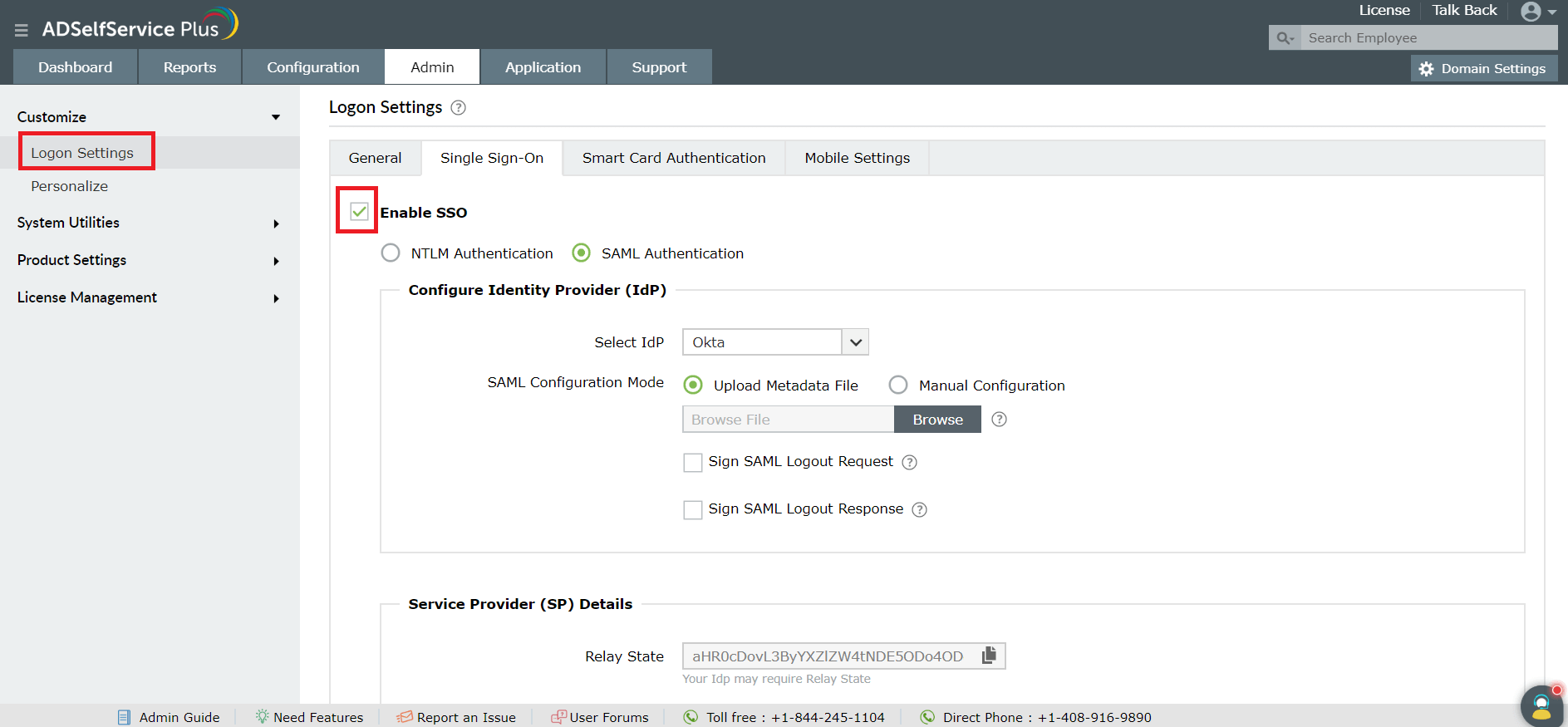
If your organization uses SAML-based identity provider (IdP) applications such as Okta, you can enable single sign-on (SSO) to ADSelfService Plus' web console.
Once SSO is enabled, whenever a user attempts to log on to ADSelfService Plus’ web console, the user will be redirected to Okta. Upon successful authentication, Okta will grant access to the ADSelfService Plus portal. If a user is already logged in to Okta and tries to access ADSelfService Plus, the user will be granted access automatically.
If you do not find ADSelfService Plus in the list of supported applications in Okta, follow these steps to add it to the list.
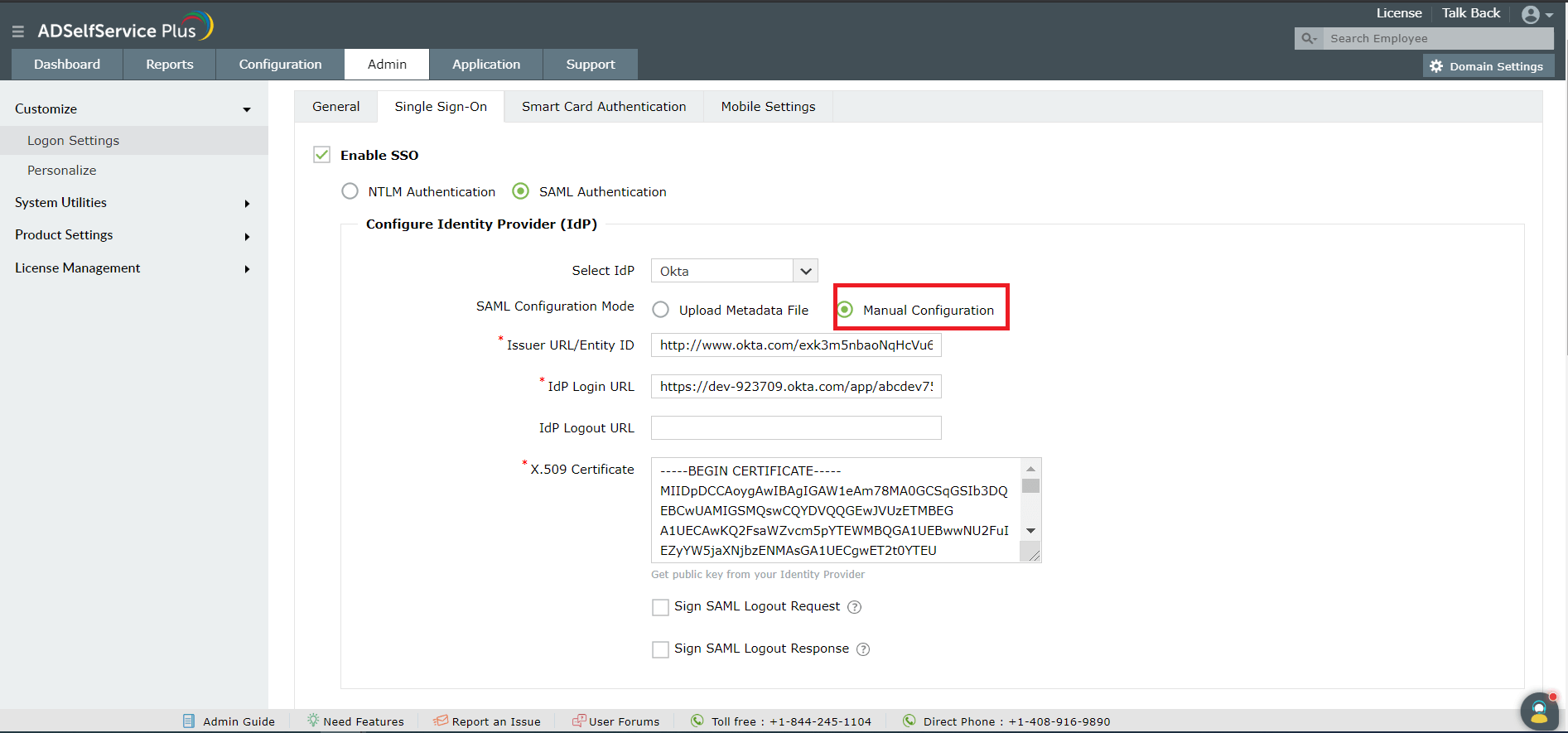
Log in to your Okta account with admin credentials and navigate to ADSelfService Plus from the list of applications supported. Either download the Metadata in XML format, or get the required data by copying the Issuer URL/Entity ID, IdP Login URL, IdP Logout URL, and the X.509-certificate.
Like this tip? Get the most out of ADSelfService Plus by checking out more tips and tricks here.
Need further assistance? Fill this form, and we'll contact you rightaway.
Allow Active Directory users to self-service their password resets and account unlock tasks, freeing them from lengthy help desk calls.
Get seamless one-click access to 100+ cloud applications. With enterprise single sign-on, users can access all their cloud applications using their Active Directory credentials.
Intimate Active Directory users of their impending password and account expiry via email and SMS notifications.
Synchronize Windows Active Directory user passwords and account changes across multiple systems automatically, including Microsoft 365, Google Workspace, IBM iSeries, and more.
Strong passwords resist various hacking threats. Enforce Active Directory users to adhere to compliant passwords by displaying password complexity requirements.
Enable Active Directory users to update their latest information themselves. Quick search features help admins scout for information using search keys like contact numbers.