Integrating AWS Certificate Manager with Key Manager Plus Cloud
Key Manager Plus Cloud integrates with AWS Certificate Manager (ACM)—a service that manages public and private SSL/TLS certificates. This integration allows:
- Requesting and importing certificates from ACM into Key Manager Plus Cloud
- Deploying certificates from Key Manager Plus Cloud to ACM
- Renewing ACM certificate requests
- Automating the complete lifecycle management of SSL/TLS certificates issued and managed by ACM
By the end of this guide, administrators will understand the followings:
- How the Key Manager Plus Cloud — ACM Integration Works
- Discovering Certificates from ACM
- Deploying Certificates to ACM
- Requesting Certificates from ACM
- Managing Certificates Issued by ACM
1. How the Key Manager Plus Cloud—ACM Integration Works
Using Key Manager Plus Cloud's certificate discovery feature, ACM certificates can be imported into the certificate inventory. Once discovery is complete, all AWS certificates from all regions are listed under the AWS tab. Refer to the AWS documentation for the list of supported regions.
ACM supports two certificate types:
- Public Certificates — Provided by ACM or imported into ACM.
- Private Certificates — Issued by ACM Private CA, which can also automate renewals.
In Key Manager Plus Cloud, new certificates can be created and managed directly within the platform. While ACM itself does not support certificate creation, certificates can be created, requested, or imported in Key Manager Plus Cloud and then pushed to ACM. These certificates can also be managed from the AWS Management Console.
For more information, refer to AWS documentation on importing certificates into ACM.
Caution
Ensure that you have the following permissions for the integration:
- AWS Permissions - Administrator access with the AWSCertificateManagerFullAccess policy to perform all ACM actions and access all ACM resources.
- API Credentials - An AWS Access Key and Secret Key are required to perform ACM integration and certificate discovery.
2. Discovering Certificates from ACM
Key Manager Plus Cloud supports discovery of SSL/TLS certificates from:
- AWS Certificate Manager (ACM)
- AWS Identity and Access Management (IAM)
Once discovered, certificates can be imported and configured for expiry notifications. For step-by-step instructions on discovering ACM certificates into Key Manager Plus Cloud, refer to this document.
In the Integrations >> Others >> AWS tab:
- Public certificates requested from Amazon are labeled Amazon Issued.
- Private certificates are labeled Private.
- Certificates imported from Key Manager Plus Cloud to ACM are labeled Imported.
3. Deploying Certificates to ACM
Key Manager Plus Cloud's integration with AWS facilitates users to deploy certificates to the ACM and manage them from their console. Before deploying the certificates from Key Manager Plus Cloud to AWS, ensure that the AWS credentials are added properly.
To deploy certificates to ACM, follow the steps below:
- Navigate to SSL >> Certificates and select the required AWS certificate.
- Click Deploy >> AWS-ACM from the top menu.
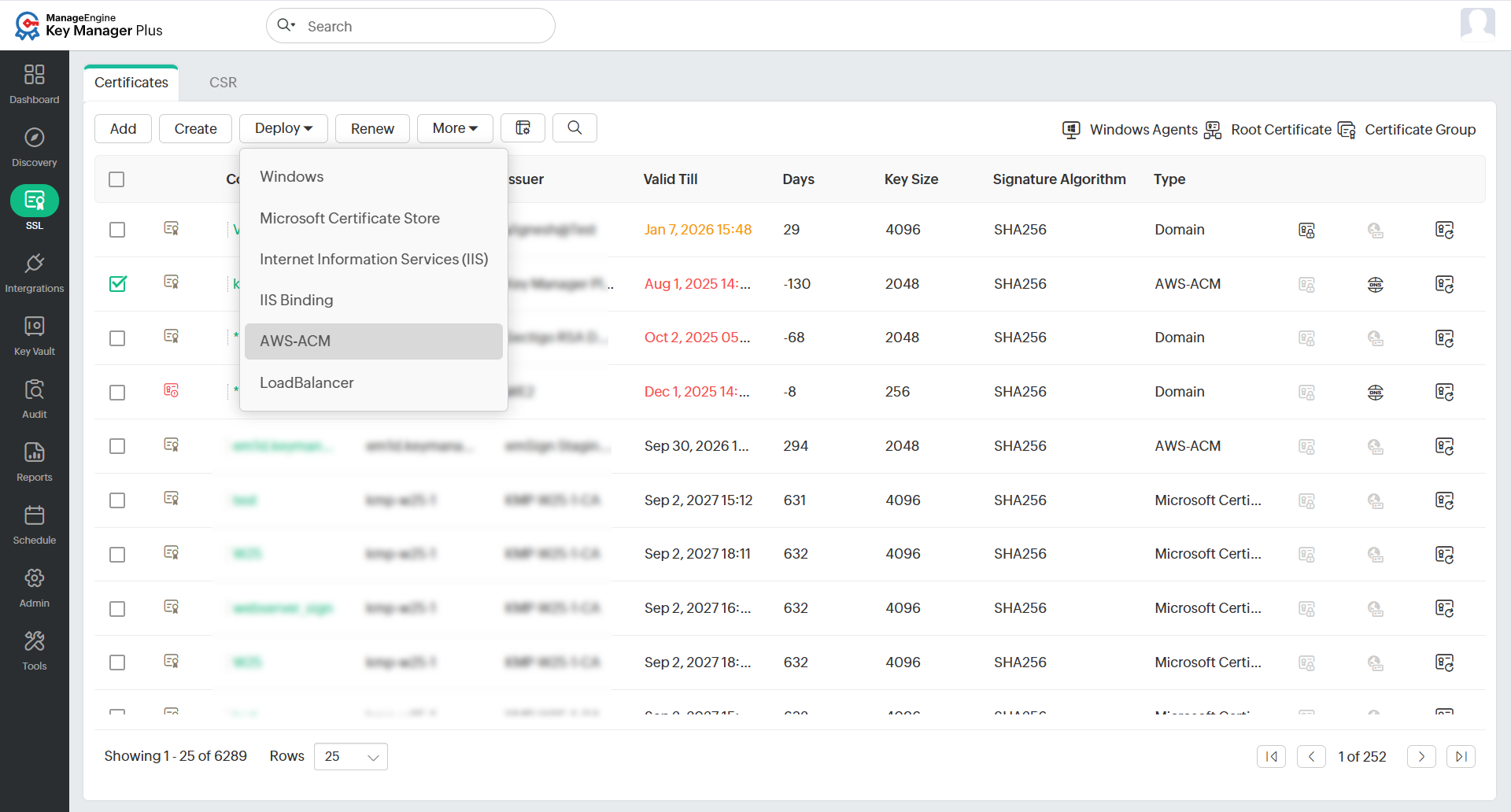
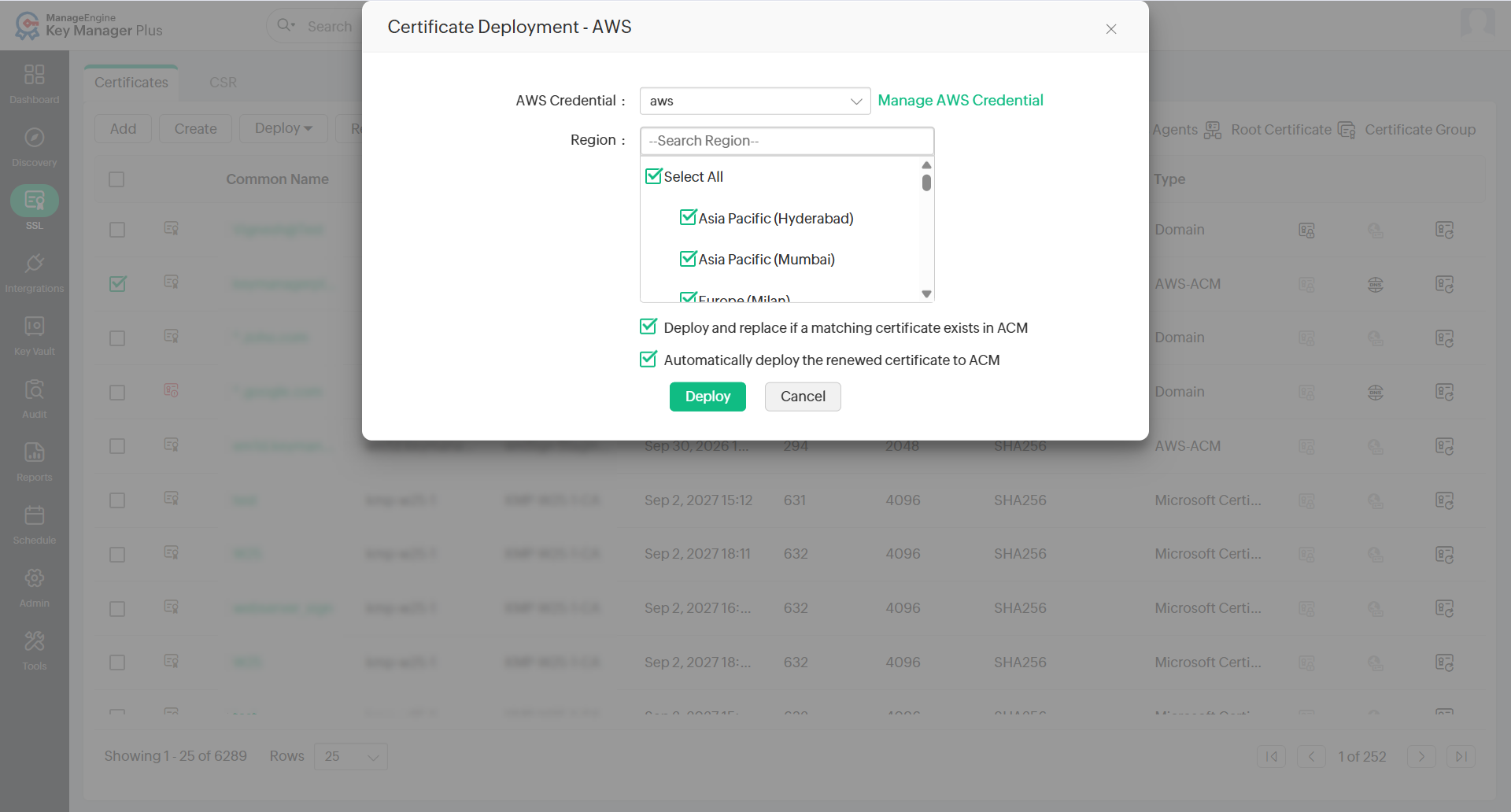
- In the dialog box that appears, choose the following attributes:
- AWS Credential from the dropdown.
- Select one or more regions using the checkboxes.
- Certificates can be deployed to all the supported regions provided the private keys are available.
- Deploy and replace if the same certificate is found in ACM: If you wish to replace the certificate in ACM after deployment, in case it turns out to be a duplicate, select this option.
- Automatically re-deploy the certificate to ACM upon renewal: Select this option to automatically re-deploy the certificate to ACM every time it is renewed so that the certificate in Key Manager Plus Cloud and AWS are always in sync.
If there is a mismatch in the deployed certificates, they will be marked in red in the AWS tab within Key Manager Plus Cloud.
4. Requesting Certificates from ACM
Key Manager Plus Cloud allows users to request both public and private certificates from AWS and manage its interface.
4.1 Requesting Public Certificates
- Navigate to Integrations >> Others >> AWS.
- Click the Request Certificate dropdown and select Public Certificate.
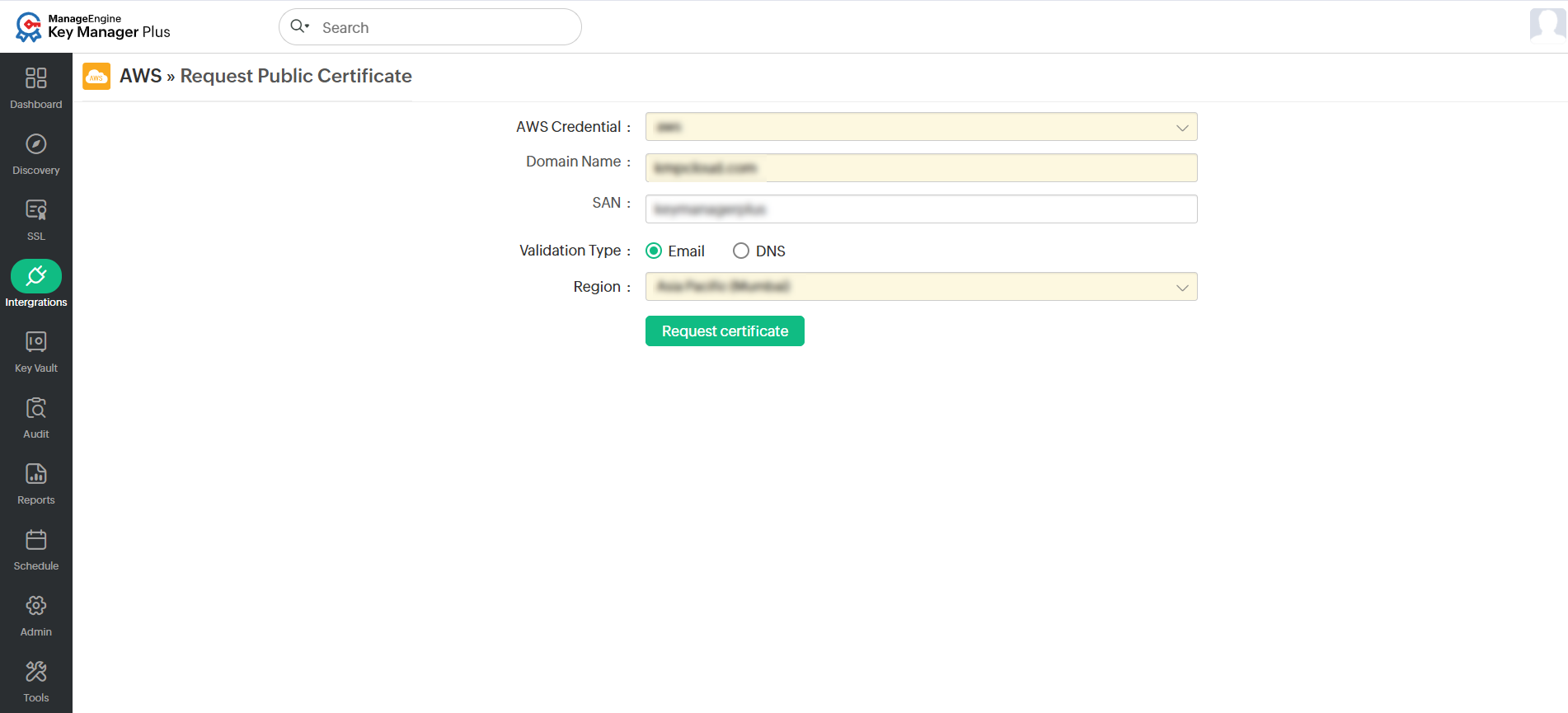
- On the page that appears, fill in the following attributes:
- Select the AWS Credential from the dropdown.
- Enter the Domain Name and SAN.
- Choose a Validation Type:Email or DNS.
- If DNS is selected as the validation type, select the DNS account configured.
Additional Detail
For DNS-based domain validation in the ACM certificate, configure the DNS account in Key Manager Plus Cloud and specify it in the 'DNS' field. This will take you further through the challenge verification procedure. To add or configure your DNS account, refer to this document.
- Click the Region from the dropdown.
- Now, click Request Certificate.
The certificate matching the credentials you have provided will be imported into Key Manager Plus Cloud. Please note that Public Certificates from ACM do not have a private key.
4.2 Requesting Private Certificates
- Navigate to Integrations >> Others >> AWS.
- Click the Request Certificate dropdown and select Private Certificate from the top menu.
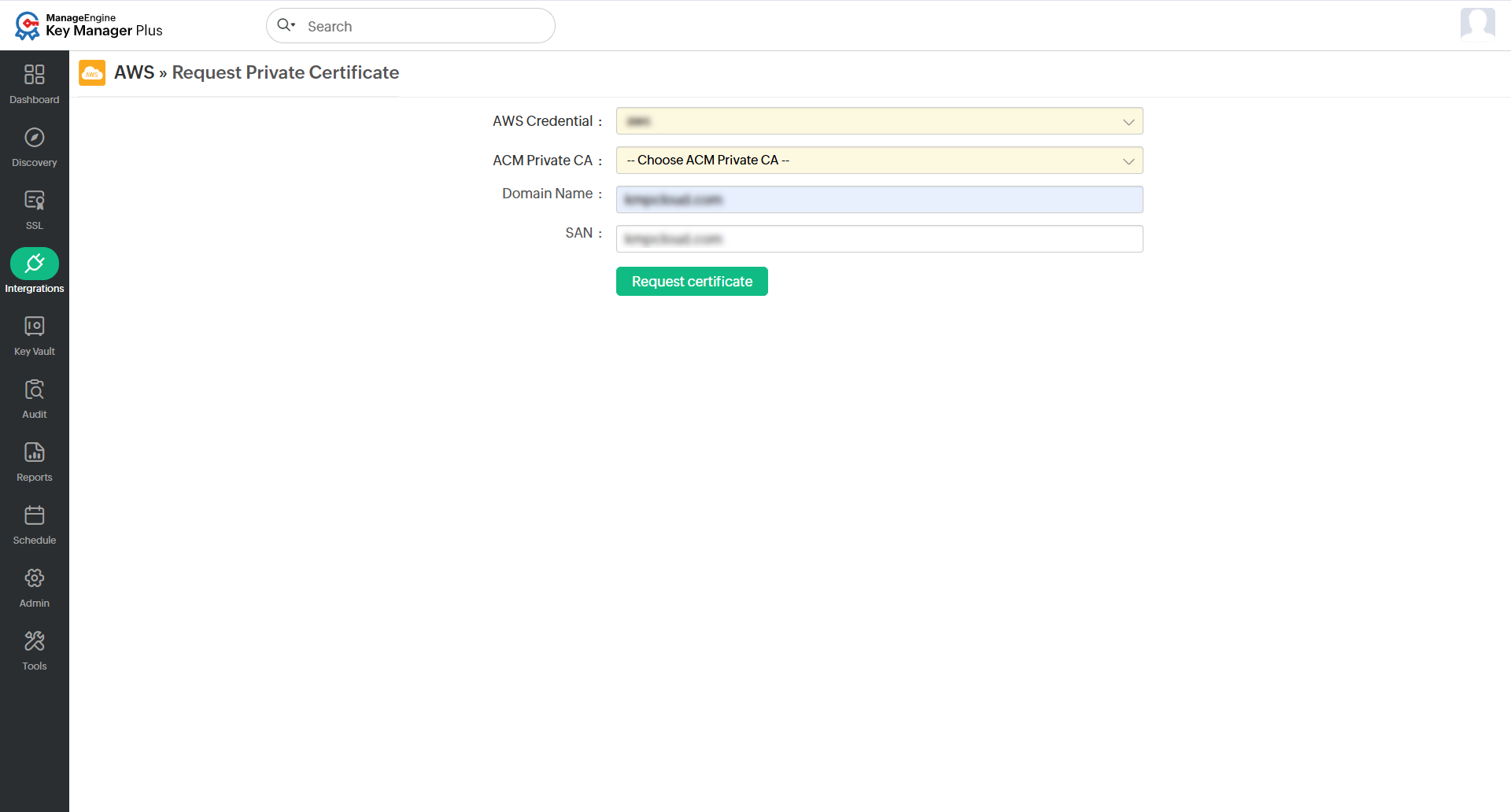
- On the page that appears, fill in the following attributes:
- Select your AWS Credential from the dropdown.
- Select an ACM Private CA from the dropdown.
- Enter the Domain Name and SAN.
- Now, click Request Certificate.
The requested certificates will be issued and added to the inventory upon validation.
4.3 Requesting Status
After requesting certificates from AWS,
- Click the Request Status option from the top menu to view and validate the status of the certificates.
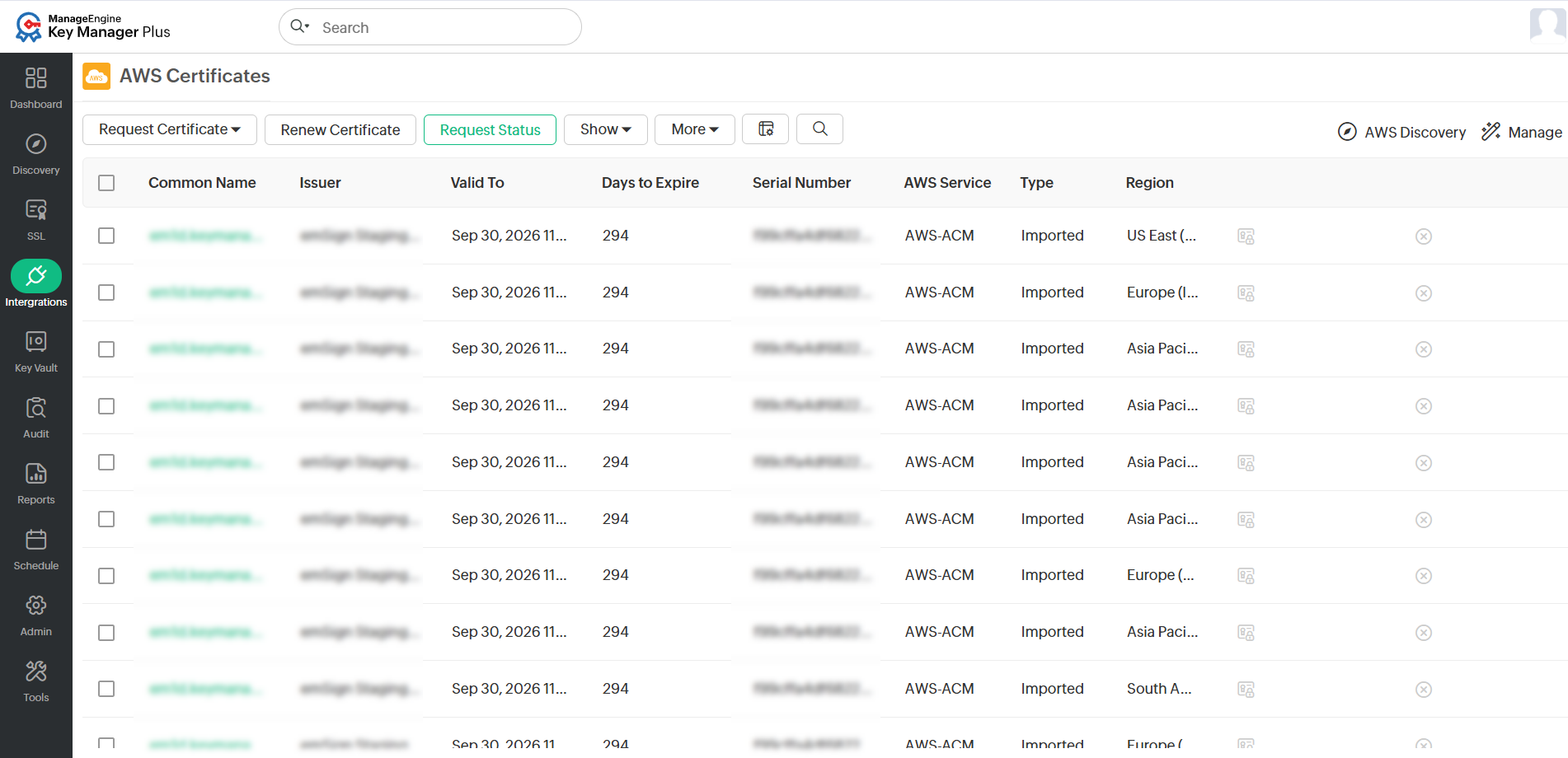
- On the page that appears, users can view the request, renewal, and domain validation status of both private and public certificates. Once a certificate request is created, the status of the certificate will appear in this table as Pending Validation.
- If you have configured DNS-based challenge verification, click the status to deploy the challenge. The status will change to Deploy Challenge, and the validation process will begin.
- Once it is completed, click Save Certificate to save the certificate to the inventory.
Once the certificate authority receives your order, you will have to go through a Domain Control Validation (DCV) process called domain validation and prove your ownership over the domain upon the completion of which you will receive the certificate. To perform the DCV process, refer to this document.
Caution
- To complete the DNS validation, go to the Request Status page and click Pending Validation to complete the validation process. Please note that DNS validation is done only for Public Certificates.
- If you have already configured the domain and server details under Manage >> Deploy, the challenge verification and the subsequent deployment of certificates is carried out for that specific domain and server alone.
5. Managing Certificates Issued by ACM
Key Manager Plus Cloud allows you to renew private certificates. When a certificate renewal is requested from Key Manager Plus Cloud, the renewed certificate will be retrieved from ACM. However, when the certificate in ACM is renewed, it is not automatically updated in Key Manager Plus Cloud. To fix the mismatch, rediscover the certificates in Key Manager Plus Cloud and re-populate the data.
Caution
Only the certificates that satisfy all criteria mentioned here will be renewed. Click here to read about AWS's eligibility criteria for certificate renewal.
5.1 Manual Certificate Renewal
To renew the desired certificates manually, perform the steps that follow:
- Navigate to Integrations >> Others >> AWS.
- Select the required order and click Renew Certificate from the top menu.
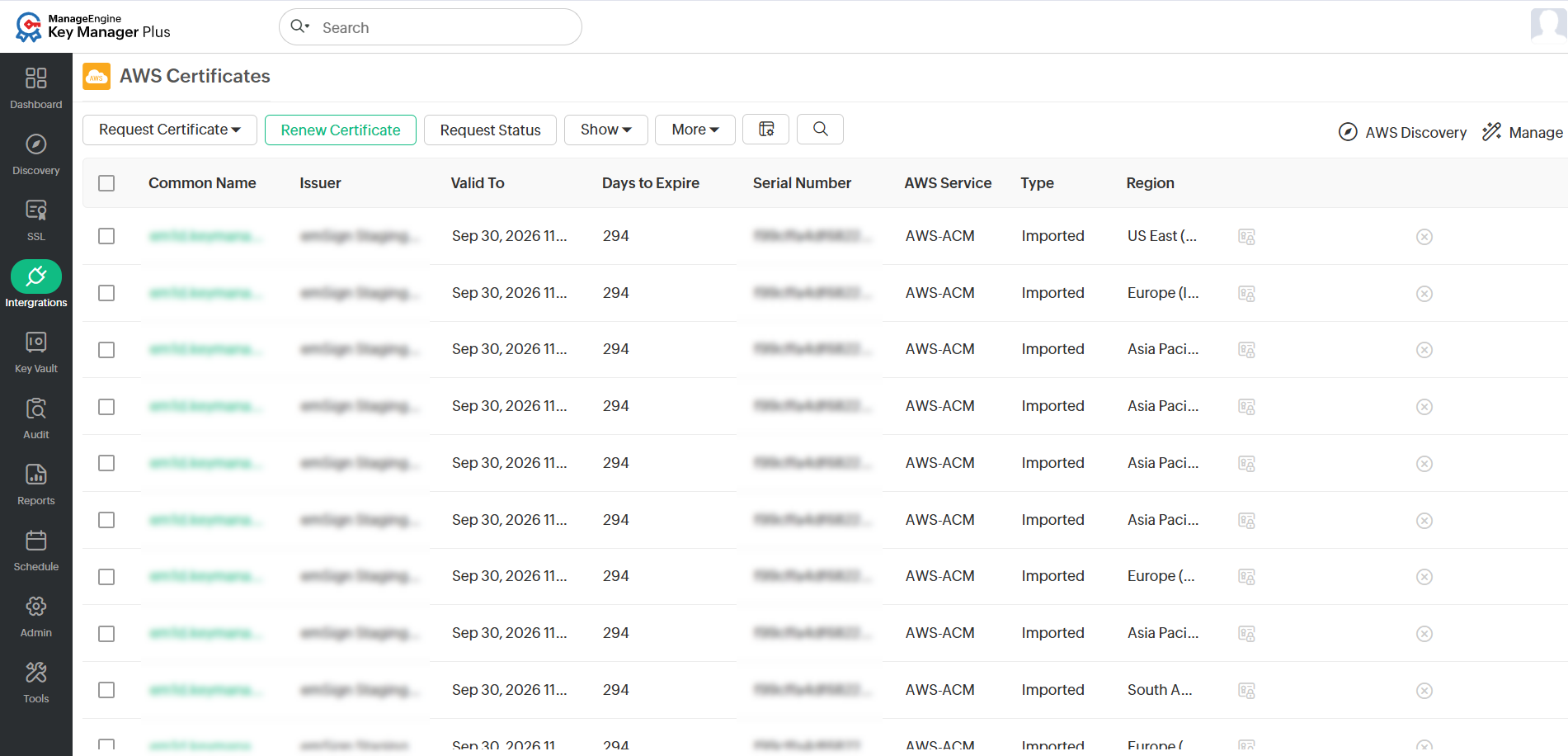
- Complete the DNS validation procedure if necessary.
- On successful validation, the certificate is issued and the new version is automatically updated in SSL >> AWS tab.
5.2 Automated Certificate Renewal
To configure the auto-renewal process for the desired certificates, perform the steps that follow:
- Navigate to Integrations >> Others >> AWS and click Manage from the top right pane.
- From the page that appears, navigate to the Auto-Renewal section and enable the auto-renewal process.
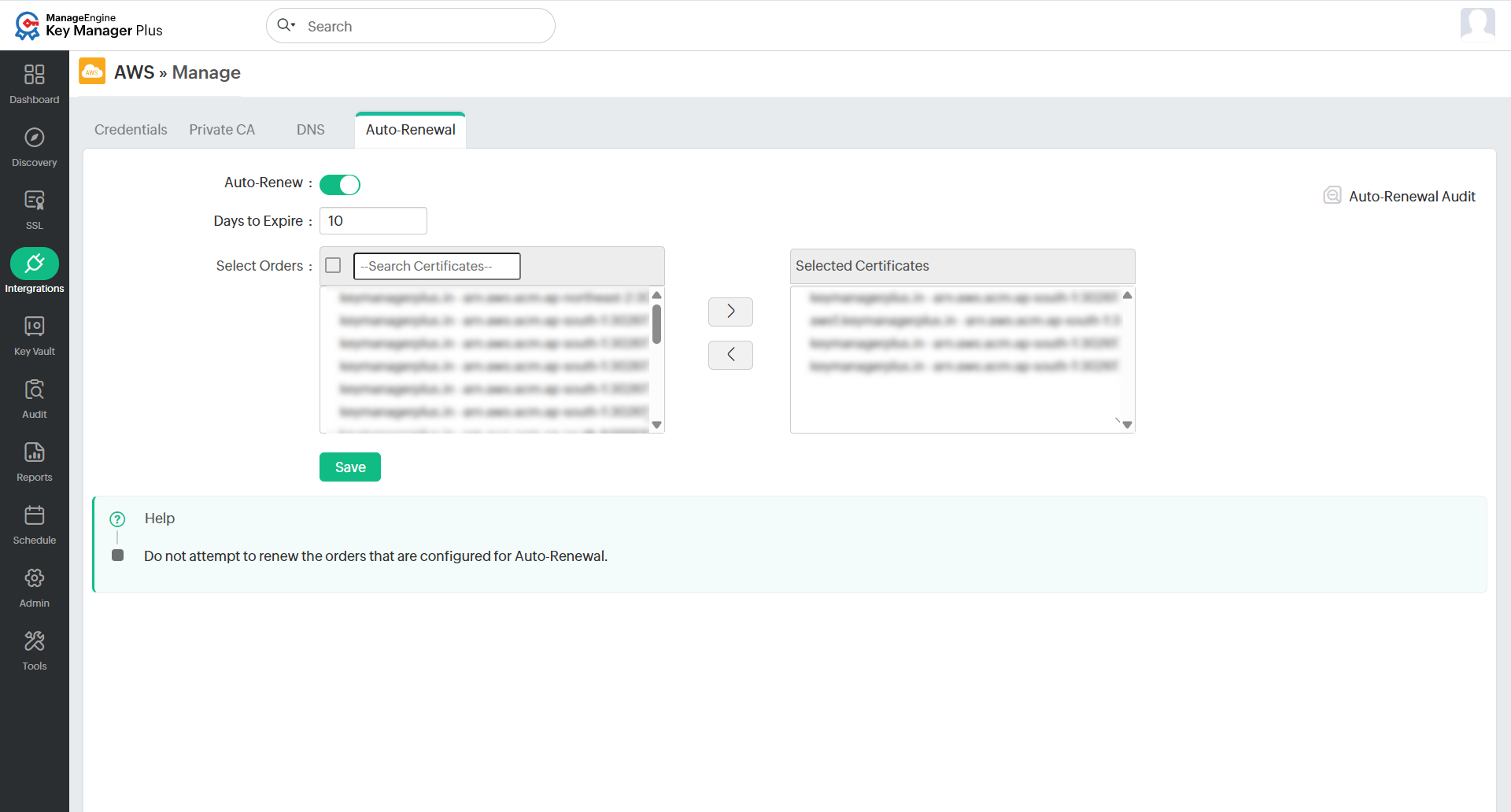
- Enter the number of days before expiry in which the auto-renewal process is to be carried out.
- Select the desired certificates that are to be auto-renewed and click Save.
- Based on the configured details, the auto-renewal process will be carried out. Click Auto-Renewal Audit to get insights about the certificates renewed through the auto-renewal process.
5.3 Revoking Certificates
To revoke the certificates, do the steps that follow:
- Navigate to Integrations >> Others >> AWS.
- Select the certificate that needs to be revoked and click More >> Revoke Certificate.
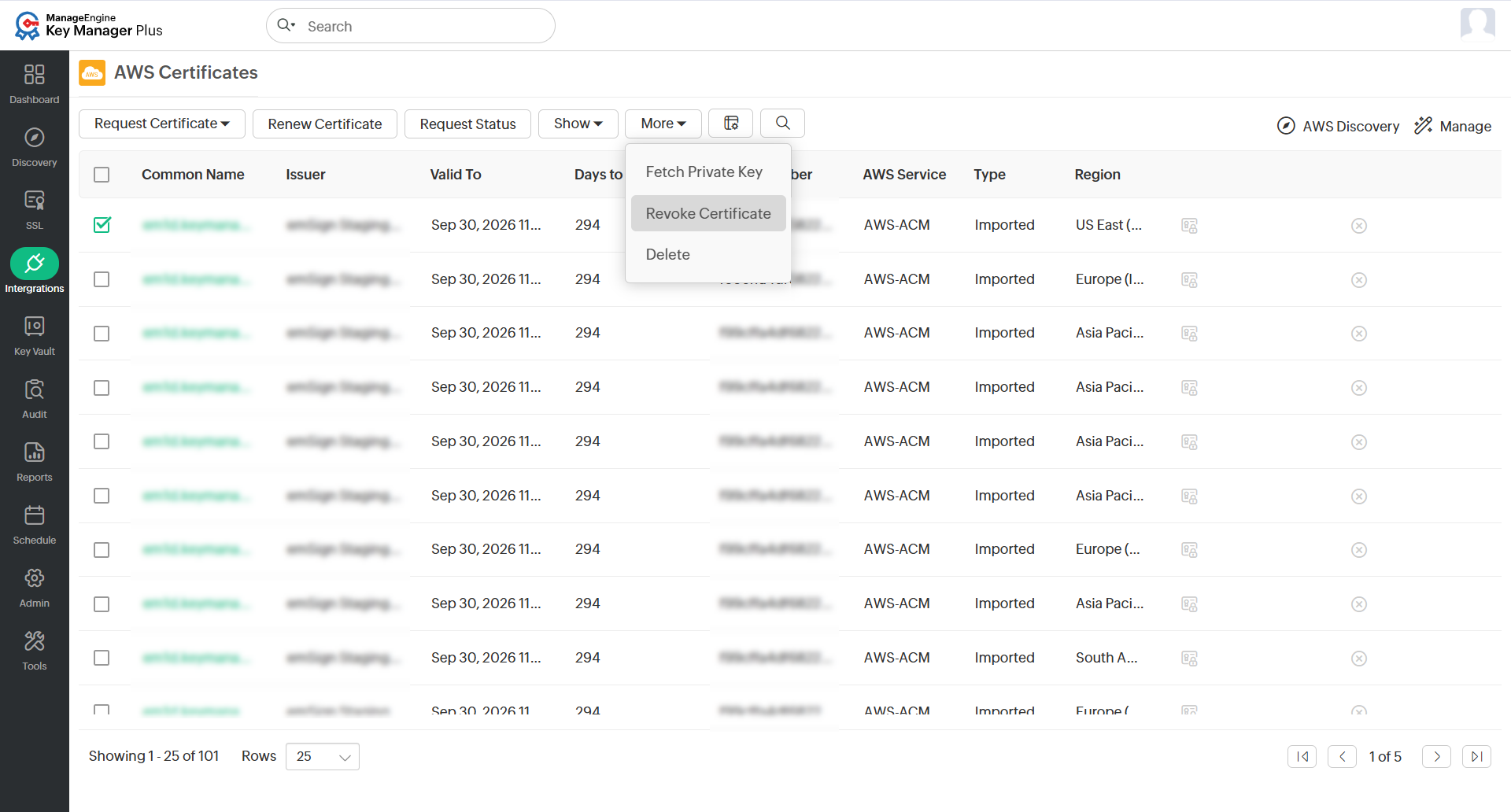
Please note that the revoke option applies only to private certificates in ACM. Revoking a certificate request removes the certificate entry from Key Manager Plus Cloud only.
5.4 Fetching Certificate's Private Key
To fetch the private key of a certificate, do the steps that follow:
- Navigate to Integrations >> Others >> AWS.
- Select the required Private Certificate and click More >> Fetch Private Key from the top menu.
This operation fetches the private key of the selected private certificate from ACM. Please note that is a paid option and might incur costs as per your AWS license.
5.5 Deleting Certificates
To delete the certificates, do the steps that follow:
- Navigate to Integrations >> Others >> AWS.
- Select the required certificate and click More >> Delete from the top menu.
- The certificate request is deleted from the AWS tab.
Additional Detail
Using the Delete option simply removes the certificate from Key Manager Plus Cloud, and users can no longer manage it from the product. However, it does not delete the certificate from ACM - the certificate can still be viewed and managed from the AWS console.