SSL Certificate Operations in Key Manager Plus Cloud
Key Manager Plus Cloud provides a centralized platform for managing SSL/TLS certificates throughout their lifecycle. From importing and exporting certificates to managing certificate groups, requests, and expiry notifications, the platform ensures secure and streamlined certificate administration. This document details a few SSL certificate operations supported in Key Manager Plus Cloud, enabling IT teams to maintain compliance, avoid service disruptions, and improve visibility across the certificate infrastructure.
The various operations performed using SSL certificates are:
- Import and Export Certificates
- Edit and Delete Certificates
- Certificate Requests
- Control Expiry Notification Schedules
- Domain Expiration
- SSL Certificate Group
- Export a Private Key or Keystore File
- Update Servers with the Latest Certificate Versions
1. Import and Export Certificates
Key Manager Plus allows importing and exporting certificates in the following formats: .cer, .crt, .pem, .der, .p7b, .pfx, .p12, .pkcs12, .jks, .keystore. For detailed instructions about importing and exporting certificates, refer to the below sections.
1.1 Import SSL Certificates into Key Manager Plus Cloud
Caution
- Before uploading the CSV file, ensure that the certificate details are entered in the following order: Certificate Name, Serial Number, Valid From, Expiry Date, Issuer, Organization, Organization Unit, and Description. For example: testing.com, 12345678, 01-01-2022, 05-02-2022, test issuer, test organization, test organization unit, test description.
- Among the fields mentioned above, the following are mandatory: Certificate Name, Serial Number, Valid From, and Expiry Date. Even if one mandatory field is missing in the CSV file, the file will not be uploaded.
- The Valid From date and Expiry date should be entered in the following format: DD-MM-YYYY. Example: 18-09-2022.
- The maximum character length allowed for the Description field in the CSV file is 250.
- The maximum number of lines allowed in the CSV file is 500. If the line count exceeds the limit, the file will not be uploaded.
- Certificate details added via this method will impact your licensed key count.
In addition to certificate discovery, Key Manager Plus Cloud offers multiple ways to manually add SSL certificates to its inventory by following the steps listed below:
- Navigate to SSL >> Certificates and click Add from the top menu.
- In the Add Certificate window that appears, import certificates using any of the following methods:
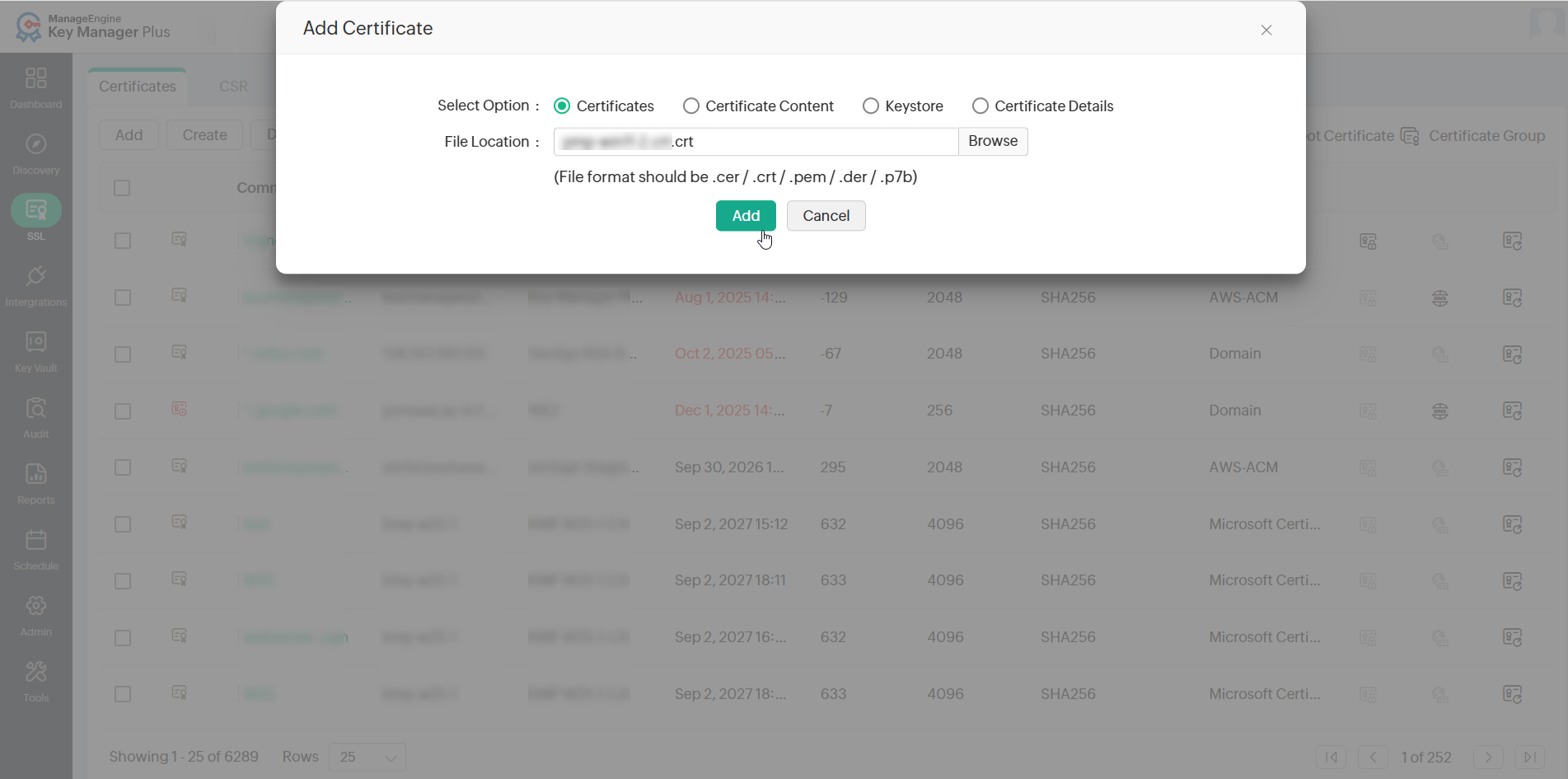
- Certificates - Browse and upload the desired certificate file from your machine.
- Certificate Content - Copy the certificate content and paste it into the text box.
- Keystore Based - Click Browse and select the desired Keystore file. If the Keystore file is password-protected, enter the password in the designated field. Tick the checkbox Add Keystore digital certificates in a certificate group to add the digital certificates from the Keystore file to a new certificate group and enter a name for the certificate group in the given field.
- Certificate Details - Browse and select the .csv file with the required certificate details.
- Click Add to import the certificates into the Key Manager Plus Cloud inventory.
1.1.1 Import Certificate Details
In addition to importing SSL certificates, Key Manager Plus Cloud allows users to import certificate details into the inventory. This option comes in handy in cases where the details of an SSL certificate are available but not the certificate itself. Below are a few real-time scenarios where certain users may not have access to SSL certificates:
- An IT admin who manages a set of SSL certificates deployed to servers that reside in a demilitarized zone from which Key Manager Plus Cloud cannot discover the certificates.
- A compliance manager whose responsibility is to ensure that all digital identities used in their environment, including SSL certificates to which they do not have access, are documented in order to stay compliant and adhere to security standards.
- The procurement team in an enterprise that handles the business side of things, such as purchases, will not have direct access to SSL certificates like the engineering team, which takes care of the deployment and management of the certificates. Without direct access, the procurement team may struggle to determine when to renew existing SSL certificates or acquire new ones. Without timely renewal of certificates, there is a huge risk of exposing the enterprise's domains to cyber threats.
In the scenarios presented above, the end user does not possess the SSL certificates for various reasons. By adding certificate details to Key Manager Plus Cloud, users can ensure that no certificate in your environment goes forgotten or undocumented. The Certificate Details feature helps users consolidate and track the expiration of the certificates from a centralized console in the product and send out scheduled alerts.
SSL certificate details added using this method will appear under the the type 'Vault' in the Certificates tab. In the SSL >> Certificates tab, click the column chooser to display the Type column in the certificates table.
1.2 Import Issuer Certificates
Key Manager Plus Cloud allows users to import issuer certificates into the inventory and build a complete certificate chain in the product.
- Navigate to SSL >> Certificates and select the required end certificate.
- Click More from the top menu and select Import Issuer from the drop-down list.
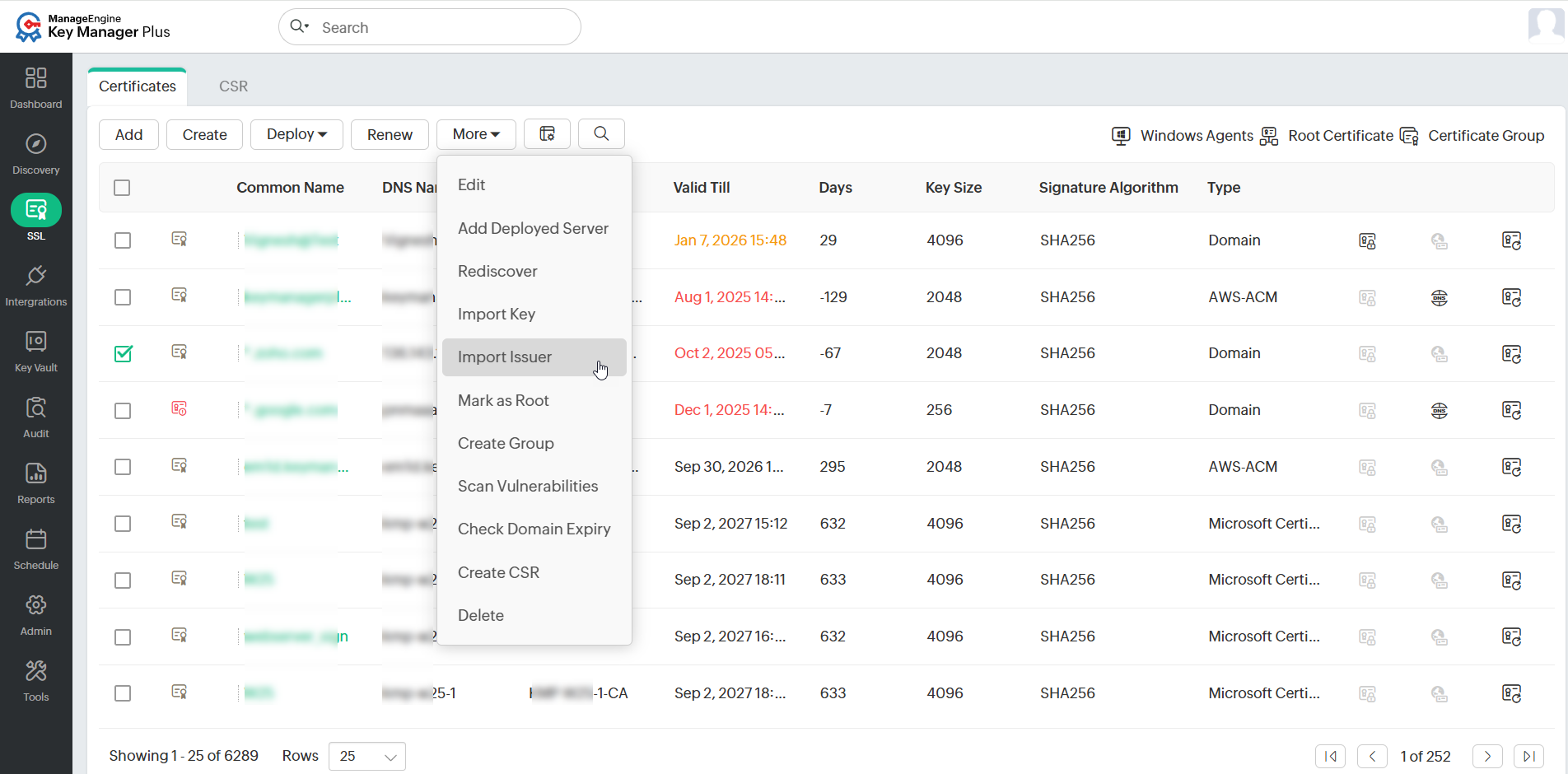
- In the pop-up window that appears, browse and add the issuer certificate.
The issuer certificates are appended to the existing SSL certificate in the inventory based on the issuer name. To download the complete chain with the private key, export the certificate in JKS, PKCS, or PEM formats.
1.3 Export Certificates from Key Manager Plus Cloud
To export an SSL certificate from Key Manager Plus Cloud to the local machine, follow these steps:
- Navigate to SSL >> Certificates.
- On the page that appears, click on the certificate name that you want to export.
- On the Certificate Details page that appears, click Export at the top-right corner and select the certificate format.
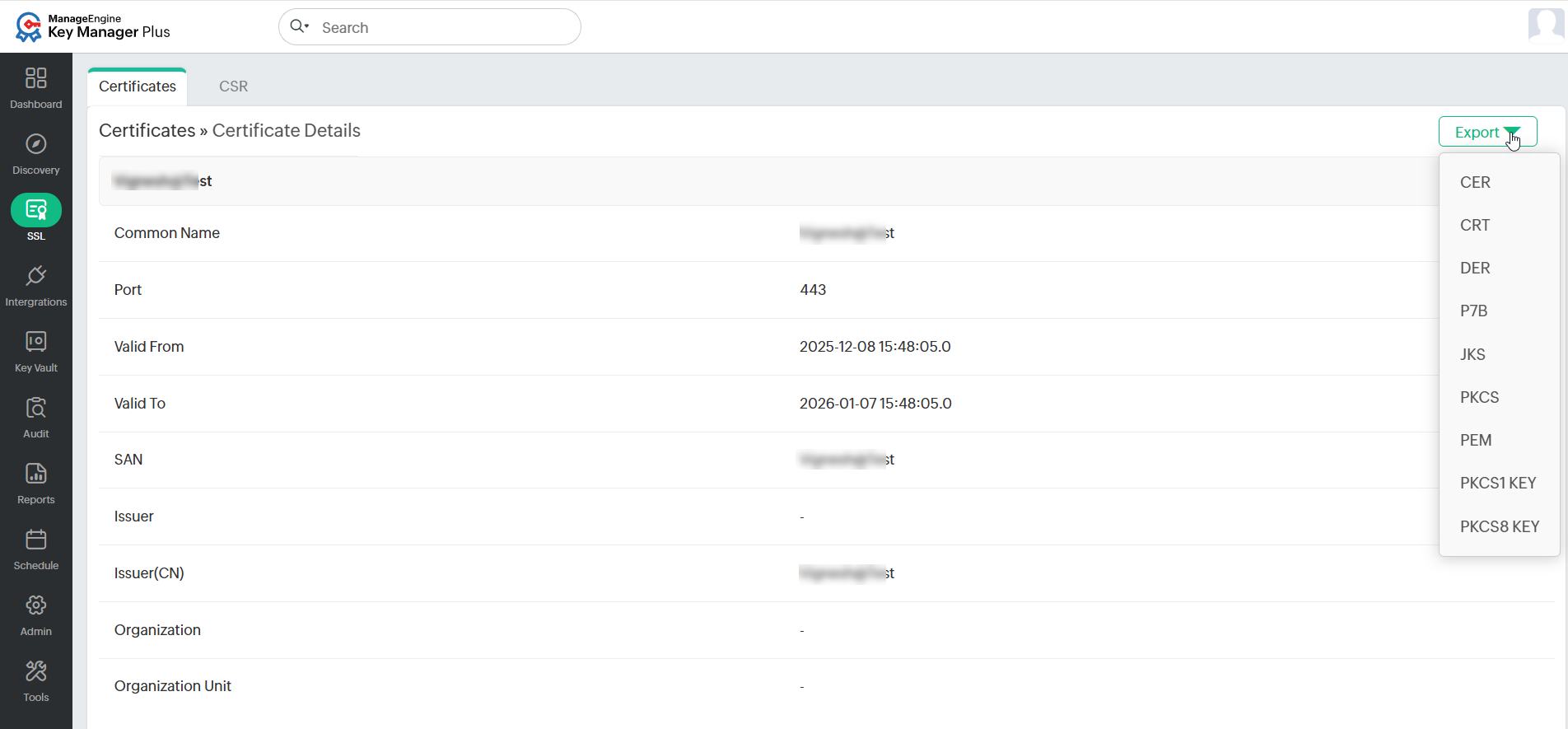
The certificate will be downloaded to your machine in the selected certificate format.
2. Edit and Delete Certificates
2.1 Edit an SSL Certificate
To edit the details of an SSL certificate in Key Manager Plus Cloud, follow the steps below:
- Navigate to the SSL >> Certificates tab.
- Select the certificate that you want to edit and click More >> Edit from the top menu.
- In the Edit Certificate pop-up that appears, edit the DNS Name, Port, Description, Expiry Notification Email, Type, and Provisioning Type as required.
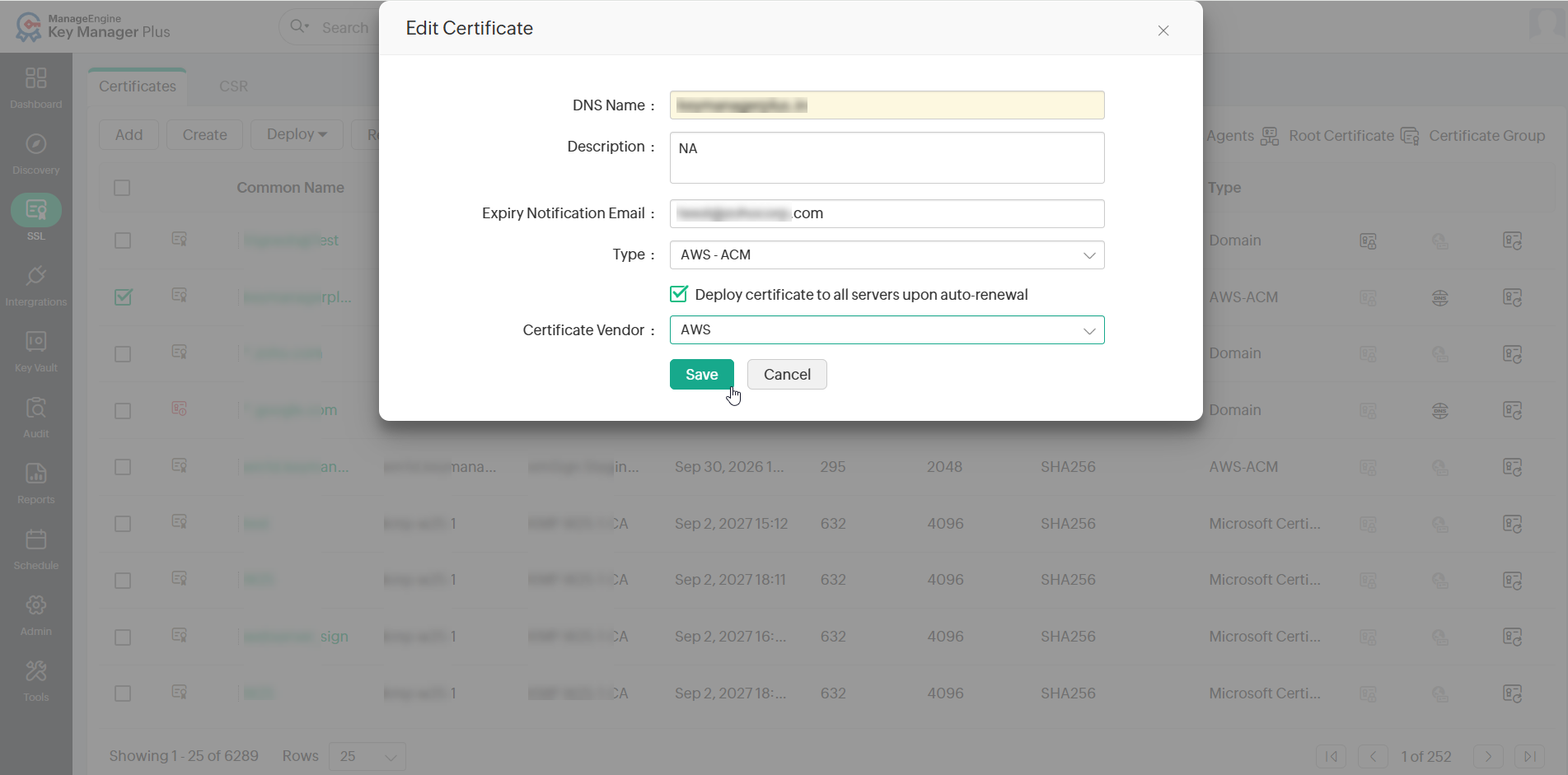
- To deploy the new certificate to all servers on auto-renewal, tick the Deploy certificate upon auto-renewal checkbox.
- Click Save to apply the changes.
Additional Details
- Deploying a certificate to all the servers during auto-renewal is applicable only if the user credentials are available.
- Users can modify the text and dropdown values in the additional fields configured for the certificate.
- To view the certificate details, click on the respective certificate from the table in the Certificates tab.
2.2 Delete an SSL Certificate
To delete the SSL certificates that are currently not in use from the Key Manager Plus Cloud inventory, follow the steps below:
- Navigate to the SSL >> Certificates tab.
- Select the certificates to be deleted.
- Click More and select Delete from the dropdown.
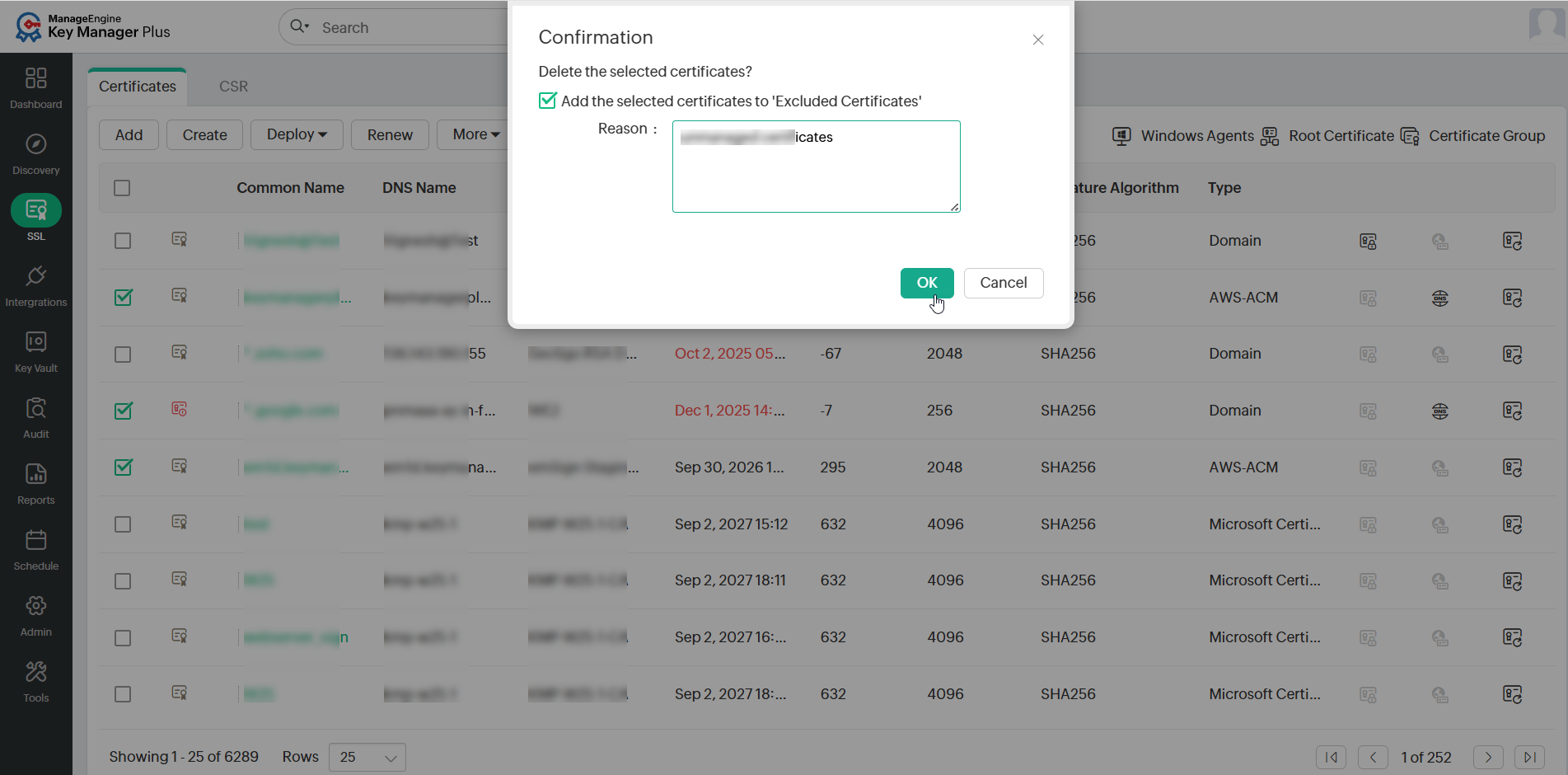
- In the pop-up that appears, click OK to confirm deleting the selected certificates. In case, you want to add the certificates to the excluded certificates list, select the checkbox and click OK.
3. Certificate Requests
The Certificate Requests feature in Key Manager Plus Cloud enables administrators to raise and track requests for SSL/TLS certificates. Requests can be made for either:
- New Certificates - Requesting a fresh SSL/TLS certificate for a domain.
- Domain Additions - Adding sub-domains to existing certificates already stored in the inventory.
Each request follows a lifecycle that starts with request creation and ends with request closure once the certificate is issued and imported into the inventory.
The workflow comprises the following steps:
3.1 Add a Certificate Request
To add requests for new certificates or the addition of sub-domains to the existing certificates in Key Manager Plus Cloud, follow the steps below:
- Navigate to SSL >> CSR >> Certificate Request and click Add Request from the top menu.
- Select New Certificate or Domain Addition as the Request Type.
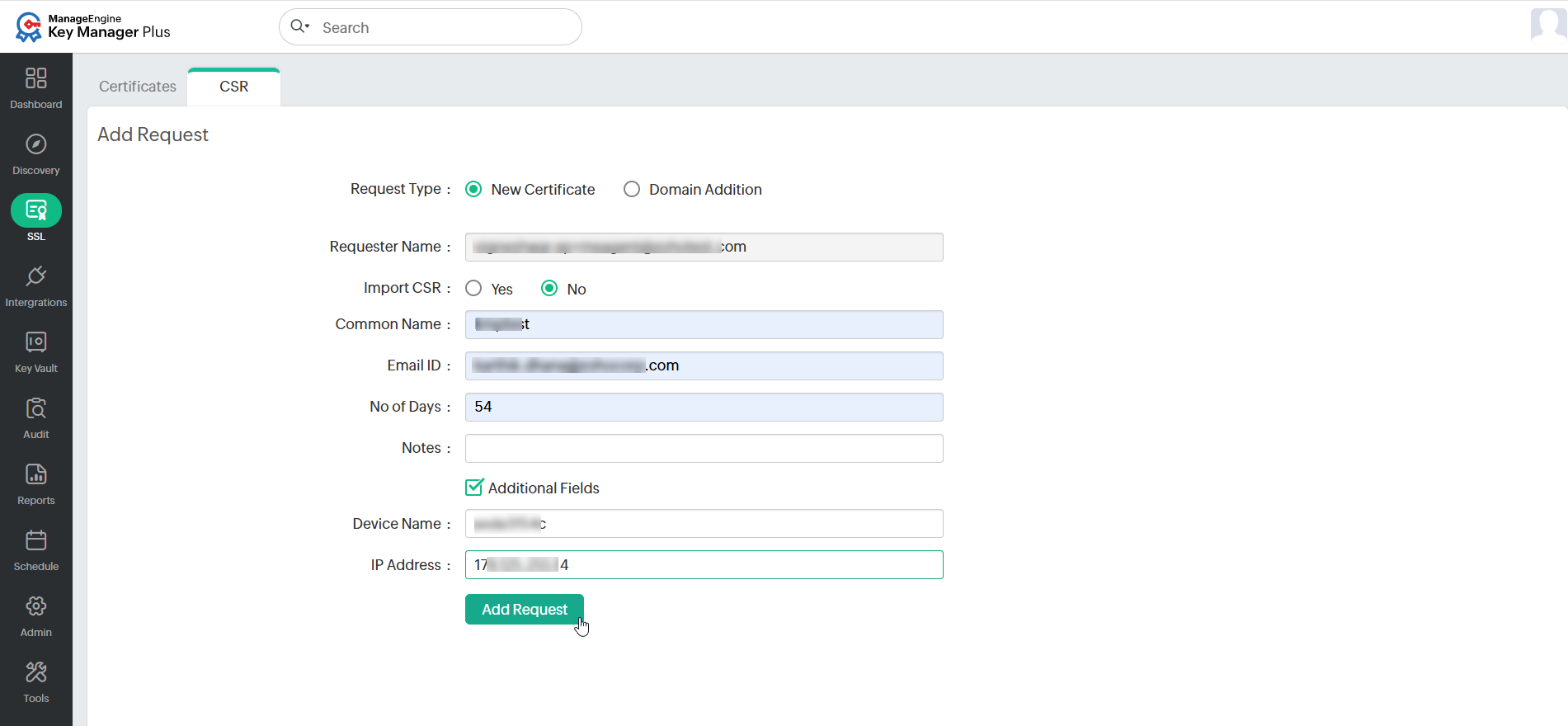
- New Certificate - Attach a CSR to your request (optional) and a domain name for the new certificate.
- Domain Addition - Enter the name of the new domain and select a parent domain from the certificates added to the Key Manager Plus Cloud inventory.
- Enter the Email ID to which you would like to send the request and specify the certificate validity period. These mail addresses can be that of an administrator, an intermediary who handles certificate requests, or even your help desk software to raise the certificate request as a ticket. For eg., admin@keymanagerplus.com, help-desk@manageengine.com.
Additional Detail
Operators can directly select administrators to notify them about the certificate request via email.
- Select the Additional Fields checkbox to add additional information, such as device name and IP address.
- Click Add Request to list it under the Certificate Request tab and notify the specified email addresses.
When a certificate request is raised, it is automatically elevated to the Open state. The request details can be viewed from this page by clicking the domain name of the request.
3.2 Close a Certificate Request
To terminate the certificate request lifecycle, follow the steps below:
- Navigate to the SSL >> CSR >> Certificate Request window in the GUI.
- Click the Open status link in the right corner of the table against the required open request process.
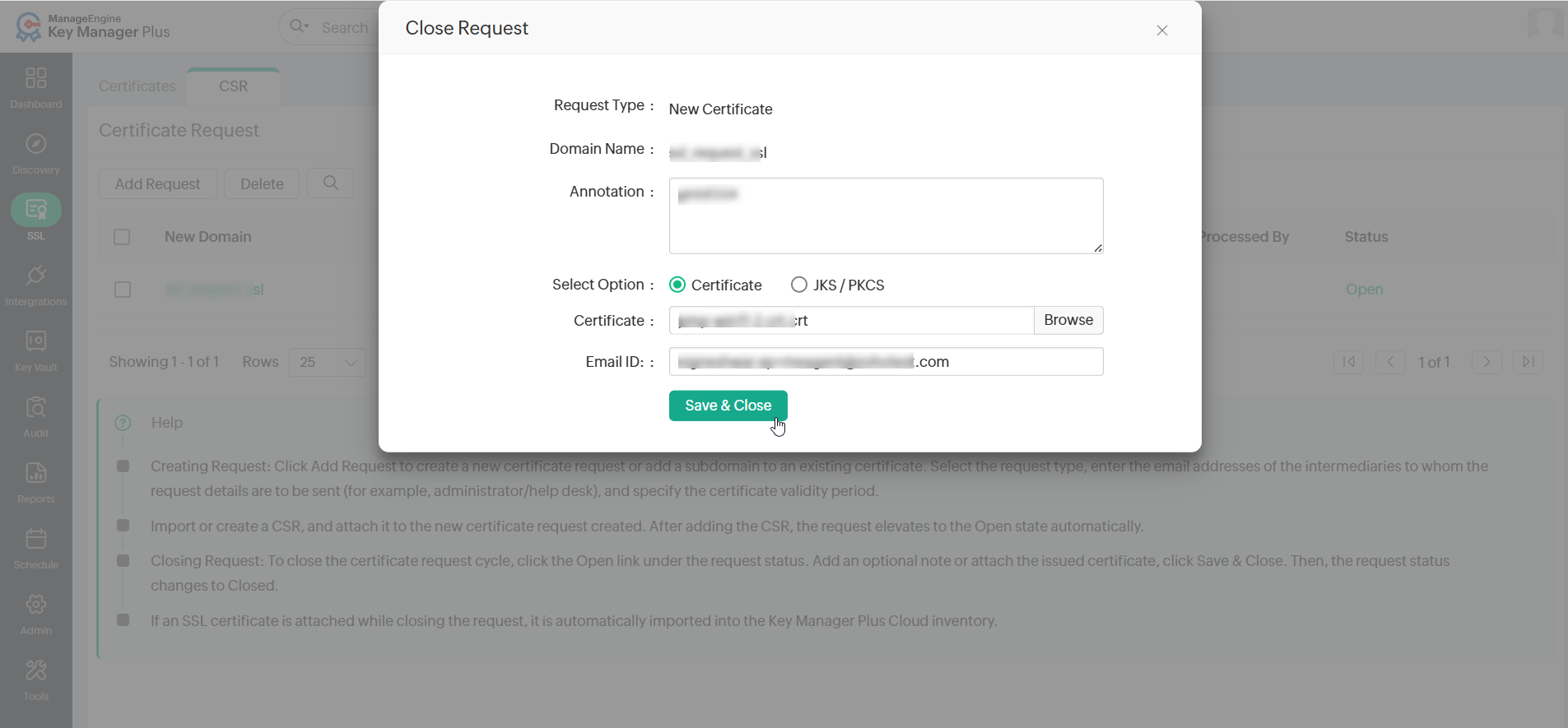
- In the Close Request window, add an Annotation (optional), browse and upload the Certificate issued (optional), and specify the Email ID of the user to whom the certificate is to be sent.
- Click the Save & Close button. Now, the request is automatically updated to the Closed state.
Additional Detail
If a SSL certificate is attached while closing the request, the certificate is automatically imported to the Key Manager Plus Cloud inventory. In addition, the issued certificate is emailed to the user who raises the request, the user who closes the request, and also to those email IDs specified at the time of closing the request.
4. Control Expiry Notification Schedules
Key Manager Plus Cloud allows customizing the periodicity of notifications that the users receive when a certificate is about to expire. To customize the notifications:
- Navigate to Admin >> Notifications >> Expiry in the GUI.
- Select the Notify about the SSL certificates expiring within checkbox and select the number of days before the expiry of certificate within which you should start receiving notifications.
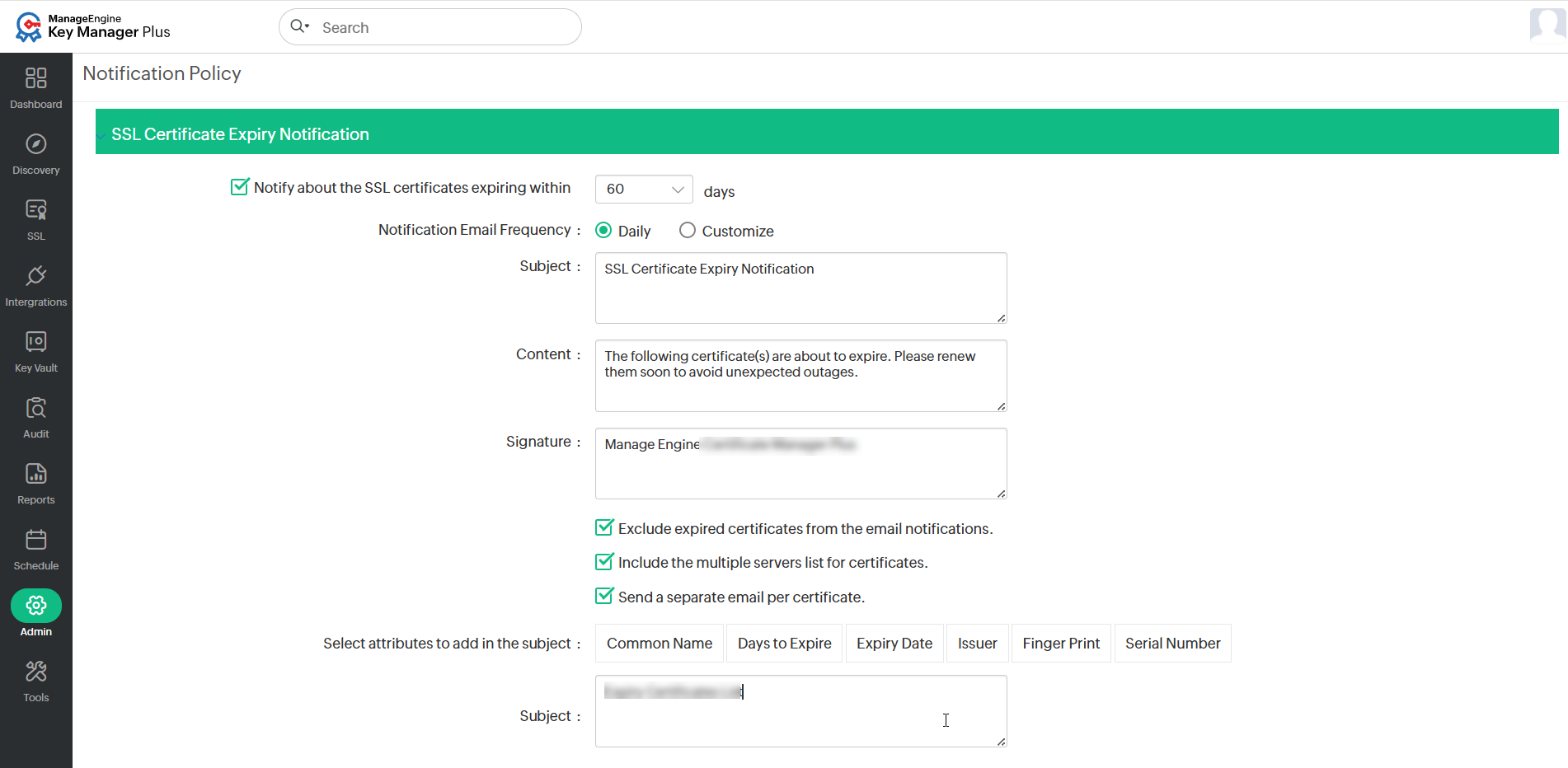
- Expand Email Notification and select the Email checkbox. Enter the required details and click Save.
Additional Detail
Users receive notifications every day after the selected date before the expiry of a certificate. For instance, if a certificate is about to expire in the last week of a month, and you select the Notify if SSL certificates are expiring within 7 days option, then, you will receive a notification that your certificate is about to expire every day of the week before the expiry of the certificate.
5. Domain Expiration
Caution
Before performing the lookup, ensure that the port 43 is open in your environment without which connection to WHOIS servers would fail.
Key Manager Plus Cloud has an in-built WHOIS look up tool that helps administrators query and obtain information about any registered domain name such as ownership details, date of registration & expiration, IP address history, and more.
To access the WHOIS look up tool,
- Navigate to Admin >> Other Settings >> Domain Expiration.
- In the window that opens, enter the domain name for which you want to obtain the details (in terms of a top-level domain or sub domain of a top-level domain).
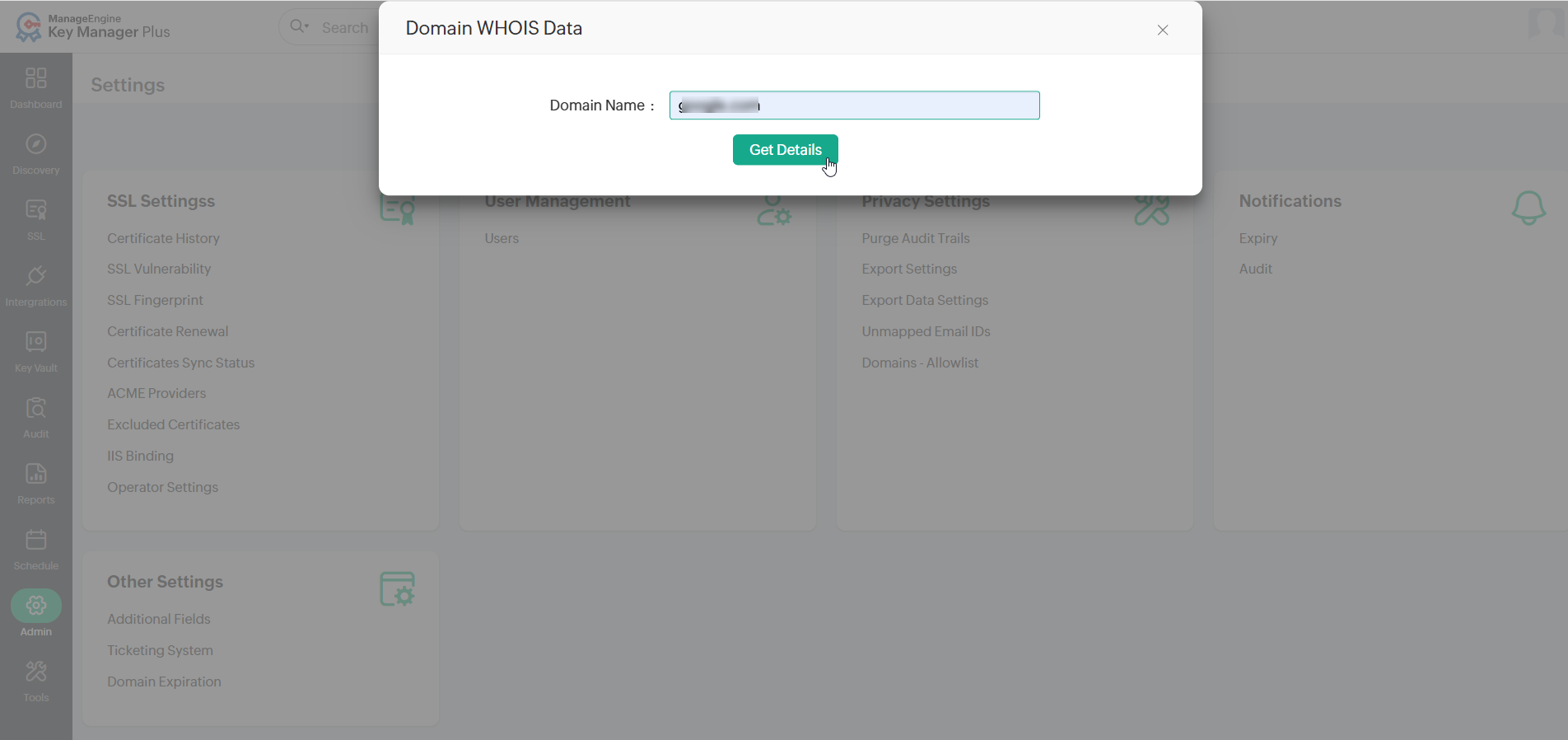
- Click Get Details. The domain details are displayed in the dialog box that appears below.
5.1 Track Domain Expiration through WHOIS Lookup
Apart from tracking certificate expiration, Key Manager Plus Cloud also helps administrators keep a tab on their expiring domain names through an automated WHOIS look up. The domain expiration details fetched through the lookup are displayed in the SSL >> Certificates tab against its corresponding SSL certificate. Also, administrators can choose to receive timely email notifications of their expiring domains by configuring it in Admin >> Notification >> Expiry window.
How does the WHOIS lookup work?
Fetching domain expiration details requires a two-stage lookup to WHOIS servers from Key Manager Plus Cloud. The first lookup provides the details of the WHOIS server with which the domain was registered by its domain registrar. The second lookup provides information about the domain such as owner details, expiration date, etc. All these operations are automated from Key Manager Plus Cloud.
Caution
Connection to WHOIS servers requires the use of port number 43. Ensure that port 43 is open in your environment, else the connection would fail, and Domain Expiration will be marked as Not Available (NA) in the Certificates tab.
6. SSL Certificate Group
Key Manager Plus allows you to organize SSL certificates into various logical groups, execute actions in bulk, and export these certificate groups as Truststore.
6.1 Create Certificate Groups
To create a certificate group within Key Manager Plus Cloud, follow the steps below:
- On the Certificates page under the SSL tab, click Certificate Group at the top-right corner.
- Click Add Group in the top menu. In the Add Certificate Group window that appears, perform the following actions:
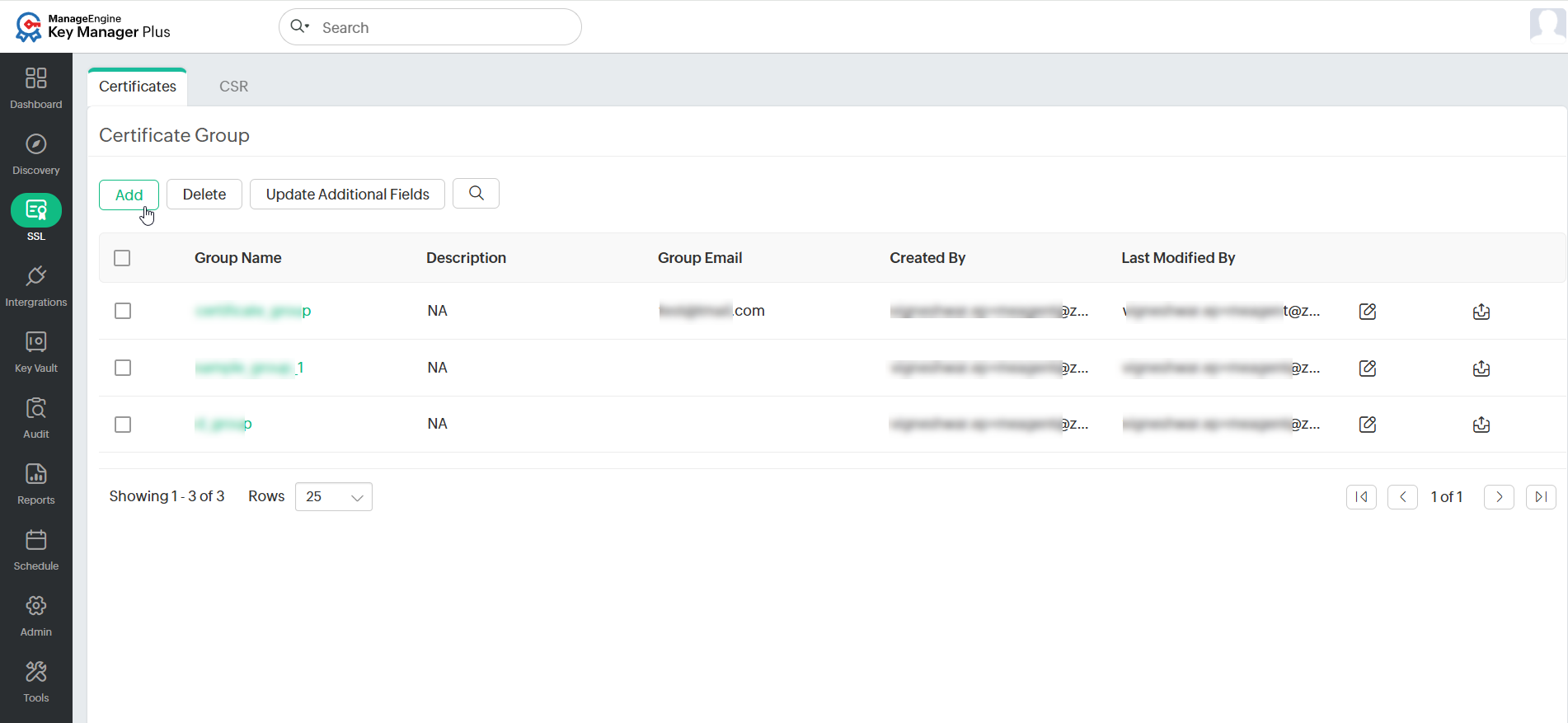
- Provide a name for the certificate group and an optional description. Exercise caution when entering the name since it cannot be changed later.
- Users can choose certificates to be added to a group in two ways:
- By Specific Certificate - Select the certificates to be added to the group individually and click Save.
- By Criteria - This serves as a dynamic method of grouping certificates. You will specify various criteria based on which the group will be created. Here, you can choose certificates based on various criteria such as issuer, common name, key algorithm, key size, key length, etc. The additional fields that are added will also be displayed in the list. You can filter the search in a fine-grained manner based on conditions such as "equals" or "does not equal", "contains" or "does not contain", "starts with" or "ends with". Click the Matching certificates button at the bottom-right corner to see the corresponding certificates.
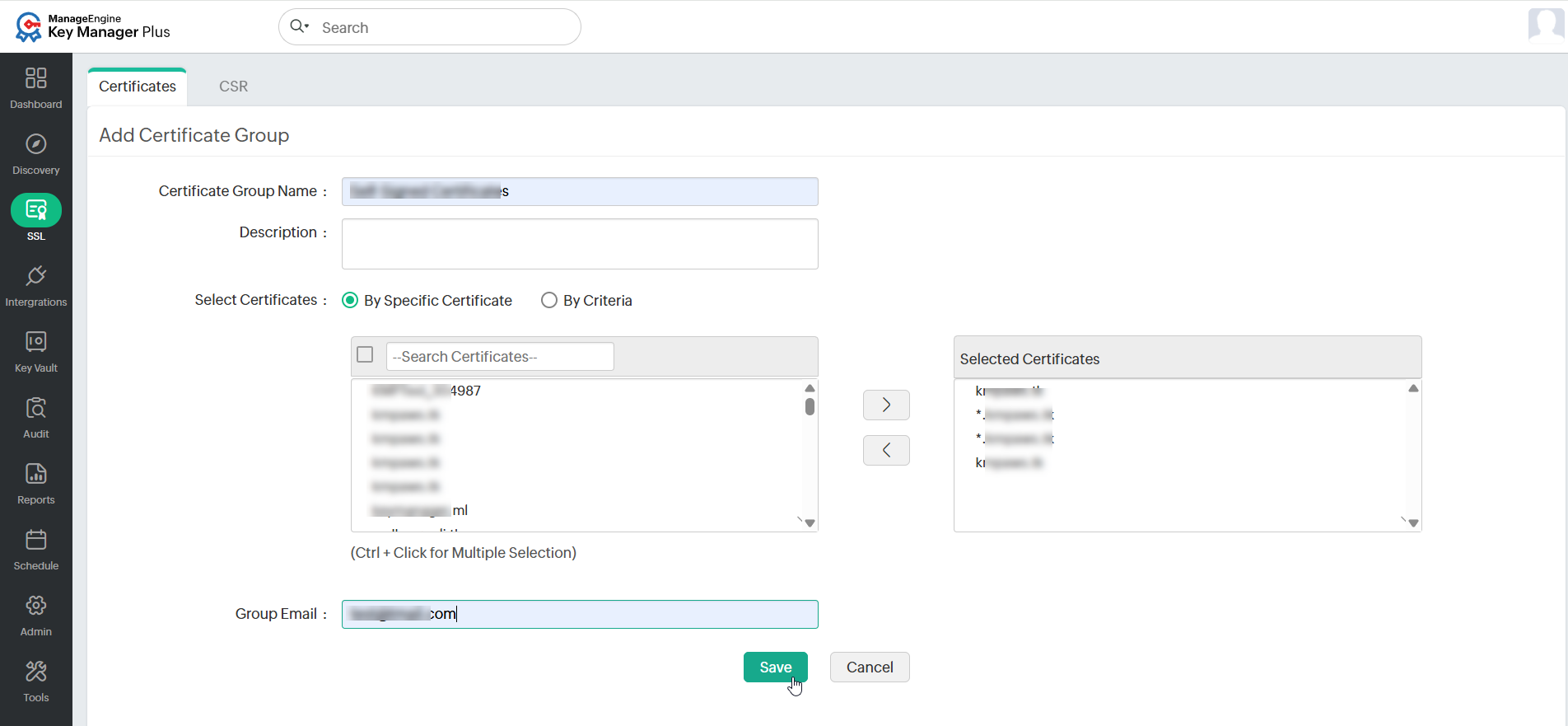
- Enter the Group Email address to receive expiry notifications, then click Save.
The certificate group is now created. To know more about the additional fields, click here.
Caution
If you choose to group certificates based on criteria, the conditions will be applied to certificates discovered in the future, and they will automatically be added to groups that match the criteria.
6.2 Edit Certificate Groups
To edit or modify the existing certificate group details,
- On the Certificates page under the SSL tab, click Certificate Group at the top-right corner.
- Click the Edit icon on the respective certificate group.
- On the Edit Certificate Group page, edit the description, certificates present in the group, filters applied to the group, and group email name.
- Click Save and confirm the changes in the pop-up message box that appears.
Caution
The certificate group name cannot be modified once it has been created.
6.3 Export Certificate Groups
To export the certificate group as a Truststore, follow these steps:
- Navigate to SSL >> Certificate Group.
- Click the Export icon beside the respective certificate group you wish to export.
- In the pop-up window that appears, enter a password in the designated field and click Export.
The certificate group will be exported as a Truststore and encrypted with the specified password.
6.4 Delete Certificate Groups
To delete a certificate group,
- On the Certificates page under the SSL tab, click the Certificate Group icon at the top-right corner.
- Select the certificate groups that you want to delete and click Delete from the top menu.
- In the pop-up dialog box that appears, confirm the action to delete the selected certificate groups by clicking OK.
7. Export a Private Key or Keystore File
Users can identify and export the private keys or Keystore files of SSL certificates stored in the certificate inventory. Also, you can export certificates in other formats such as PKCS12/PFX or PEM format. Click the Keystore icon enabled beside the certificates for which the private keys are managed using Key Manager Plus Cloud.
To export the private key or the certificate file,
- Navigate to the SSL >> Certificates tab in the user interface.
- Click the Keystore icon beside the certificate for which you need to export the private key.
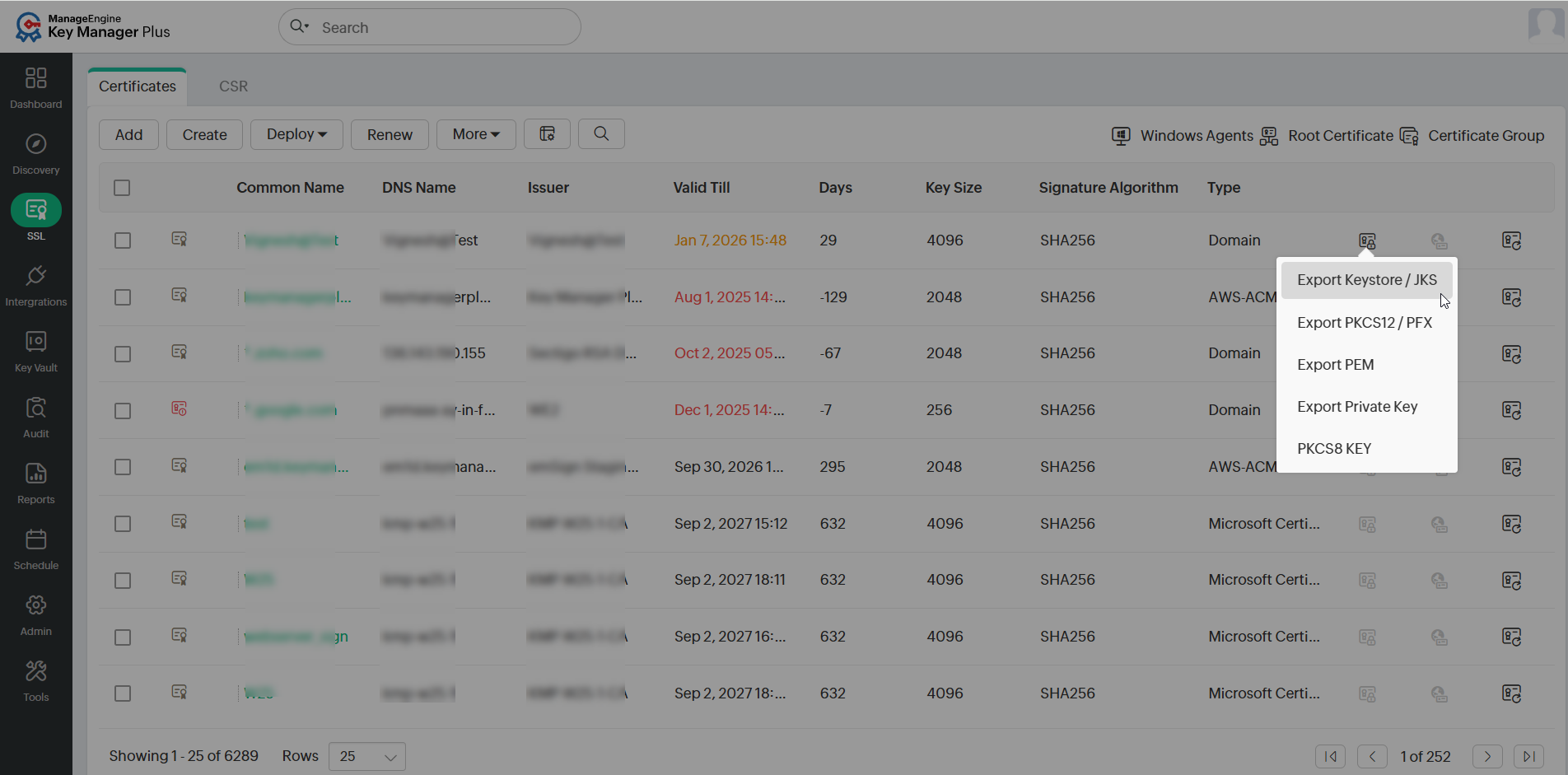
- From the dropdown, choose from the following options as per your requirement:
- Export Keystore / JKS: The Keystore file of the selected certificate will be downloaded.
- Export PKCS12/PFX: The selected certificate will be downloaded in the PFX format.
- Export PEM: The selected certificate will be downloaded in the PEM (Privacy Enhanced Mail) format.
- Export Private Key: The private key of the selected certificate will be downloaded.
The corresponding certificate will be downloaded based on the selected format.
8. Update Servers with the Latest Certificate Versions
In case of wildcard certificates or single SSL certificate deployed to multiple servers, it is necessary to keep track of servers in which the certificate is deployed and also check if the latest certificate version is in use. Key Manager Plus Cloud helps you ensure this by following the below procedure:
- Navigate to the SSL >> Certificates tab and click the Multiple Servers icon corresponding to the required certificate.
- A window opens listing the servers in which the certificate is deployed along with other information such as IP address, port, and certificate validity.
- If any of the servers listed has an older / expired version of the certificate, update it with the latest version immediately. Then, select the server and click Deploy. For detailed information about deploying a certificate, refer to this document.
- Click Add to add a new server.
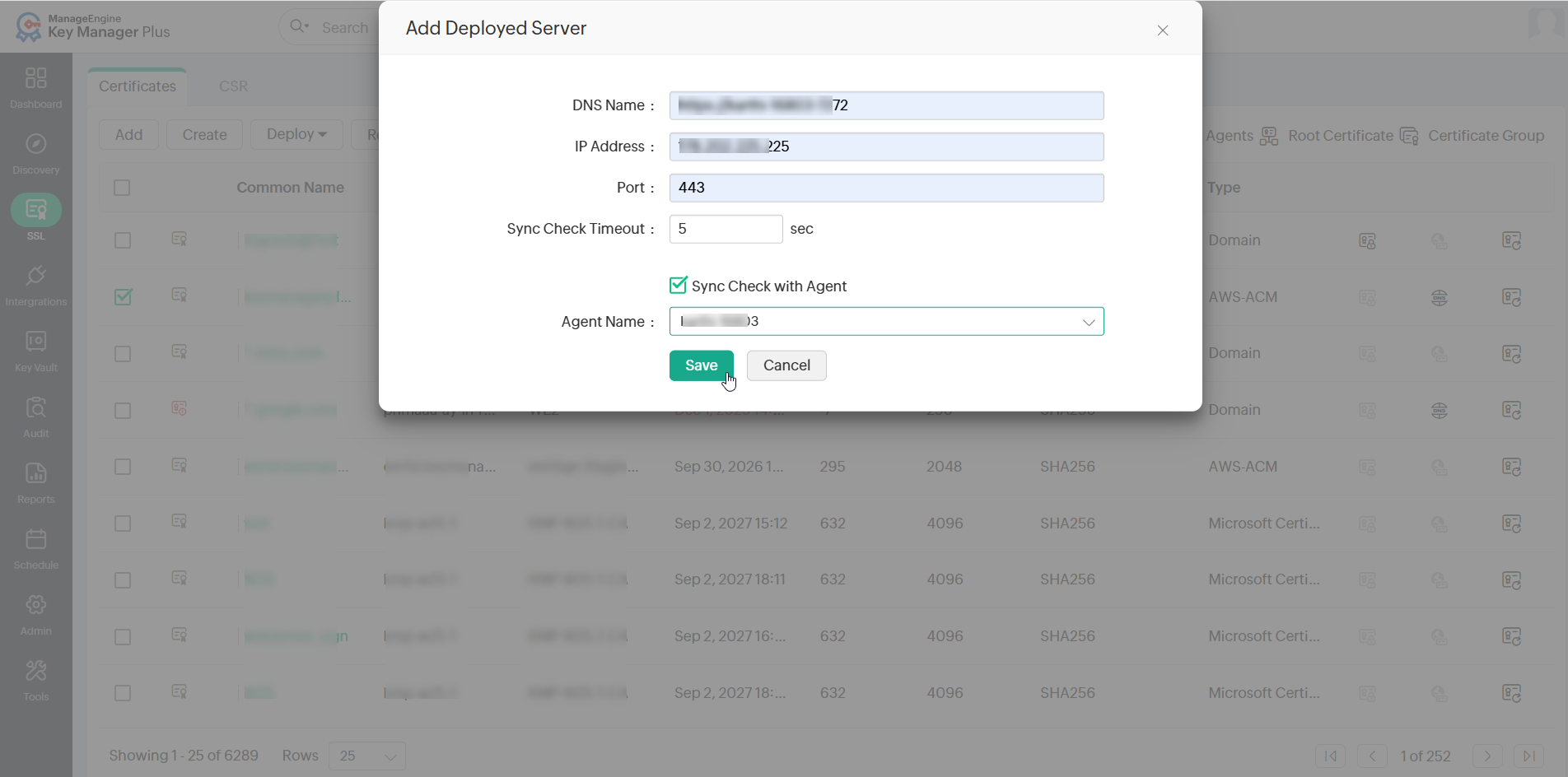
- In the pop-up that appears, mention the DNS Name, IP Address, and Port. Click Save.
- Click the Edit icon corresponding to the required server to modify the server details and click Save.
- Select a certificate and click Check Status to check the sync status of the certificate. To know more about certificate sync status, click here.
You can also edit details of a particular certificate or delete irrelevant certificates from the Certificates tab.