
Create custom functions
Last updated on:
In this page
Overview
The create custom functions page allows administrators to define and write their own scripts in Python or Deluge.These functions can later be associated with playbooks or custom widgets to perform automated actions when an alert is triggered.
You can define the function's details, specify its input and output parameters, and write the logic directly using the in-product editor. Once created, functions can be tested, saved as drafts, or deployed for active use.
Example:
An admin can create a function that sends alert data to a third-party API or opens a ticket in ServiceNow when a logon failure event occurs.
Steps to create custom functions
- Navigate to Settings > Admin > Developer space > Custom functions.
- Click on the Create Custom Function button on the top-right corner of the screen to open the configuration page. If no custom functions are available, the Create Custom Function button is displayed on the landing page instead.
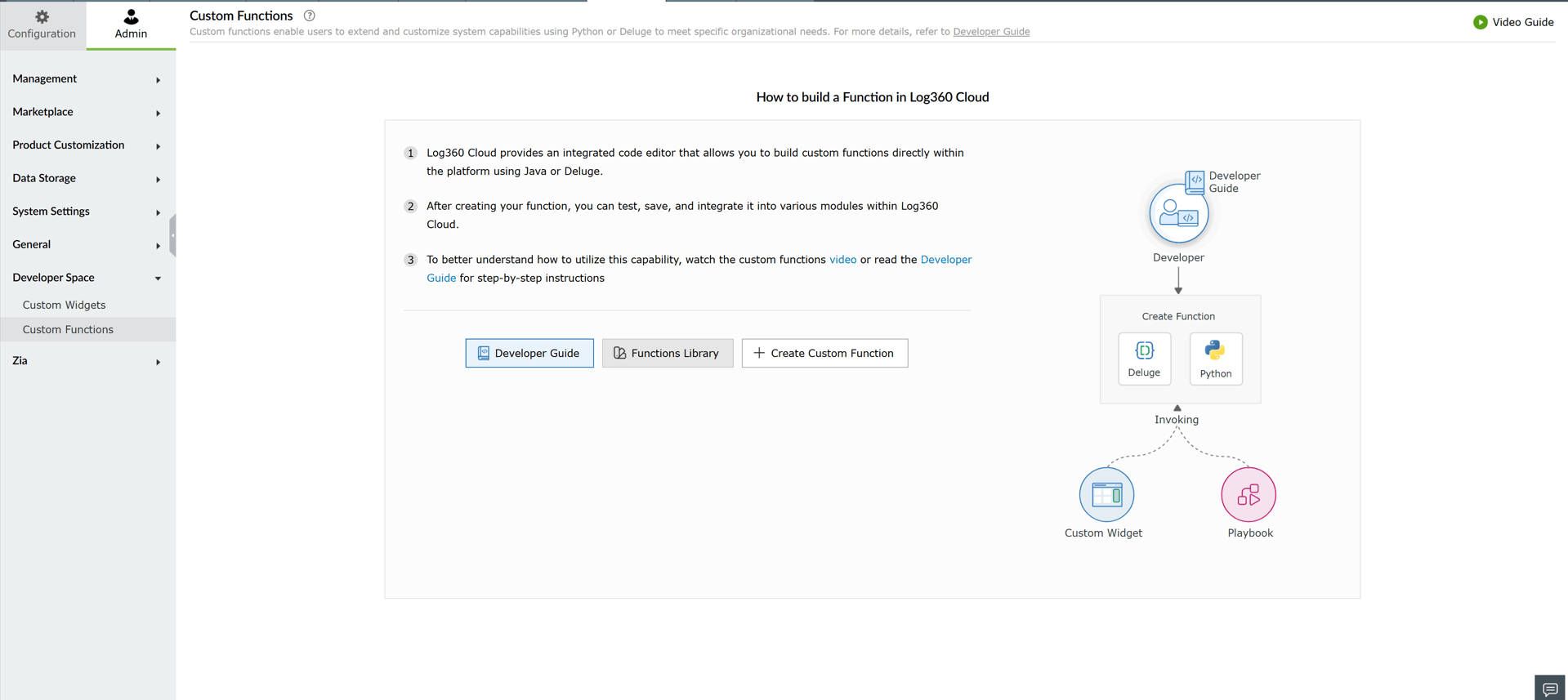
Image : Custom function configuration - Enter a Function Name and Description.
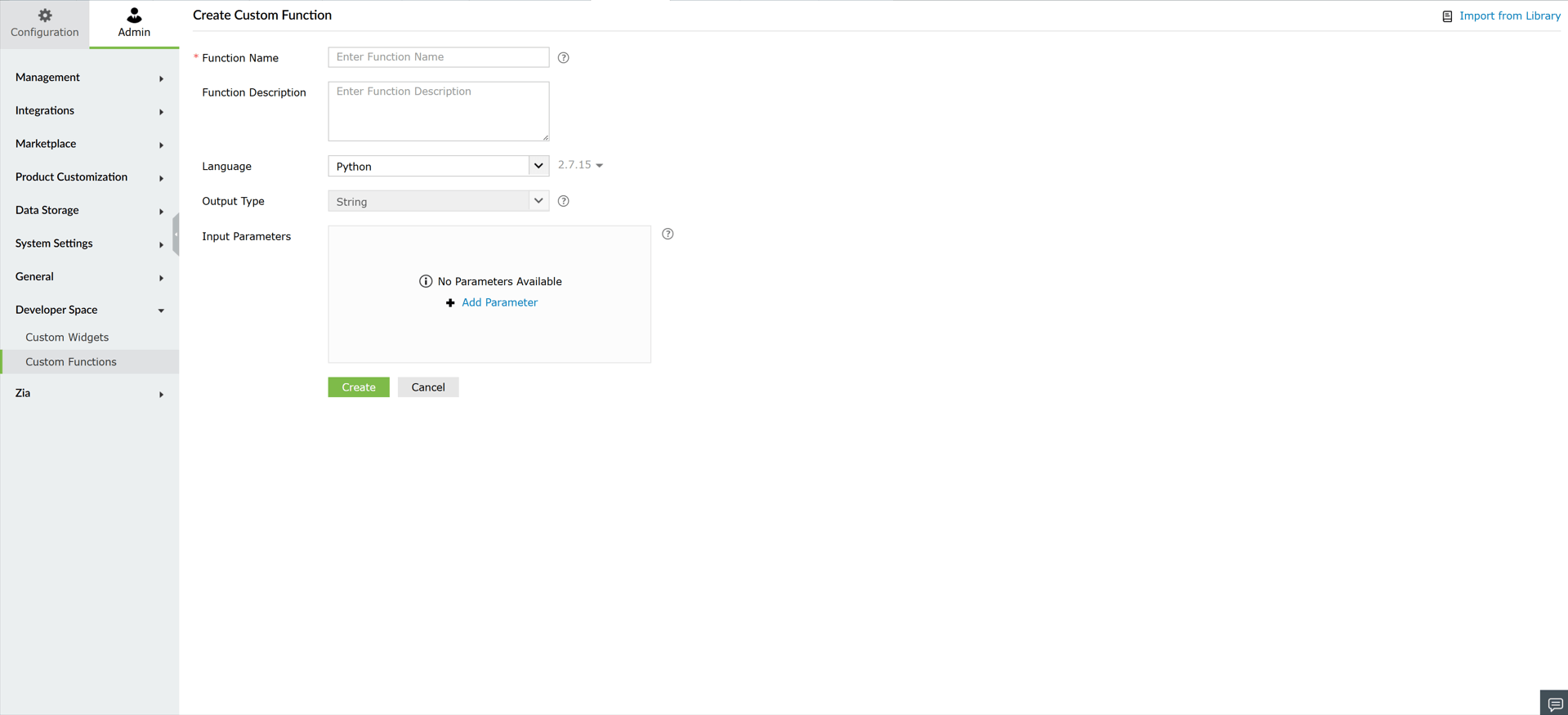
Image : Custom function configuration - Select the Language from the available options- Python or Deluge. If Python is selected, choose the version (two versions are supported). For Deluge, only one version is supported.
NOTE Changing the language or version is not allowed after entering the code.
- Select the Output Type based on what the function will return:
- String
- Map
- Specify the input parameters required for the function. These parameters carry data during execution. For each parameter, you can define the data type and an optional default value, which will be used if no input value is provided during execution.
NOTE
- Changing data type is not allowed in Python language.
- You can add a maximum of 10 input parameters per function.
- Optionally, each parameter defined here must be passed during execution for the function to run successfully.
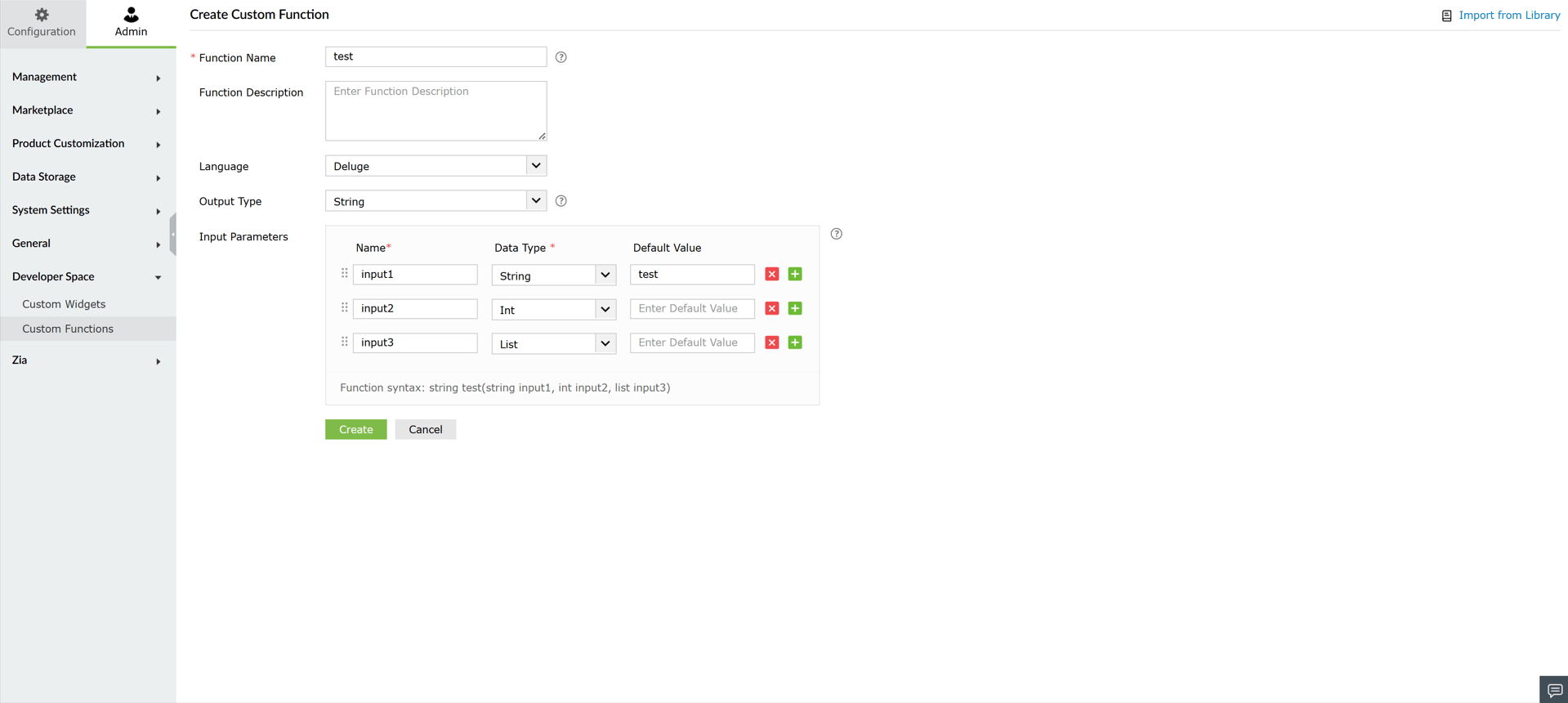
Image : Input parameters configuration - Write the function logic in the function editor. Click on Create after entering the basic details to open the function editor.
- Use the editor to write the function logic in Python or Deluge.
- The editor provides a syntax highlighting and validation. For Deluge, a syntax builder option is available to assist with predefined structures such as loops and invoke URL actions.
- Include log or print statements to display messages or debug information during testing.
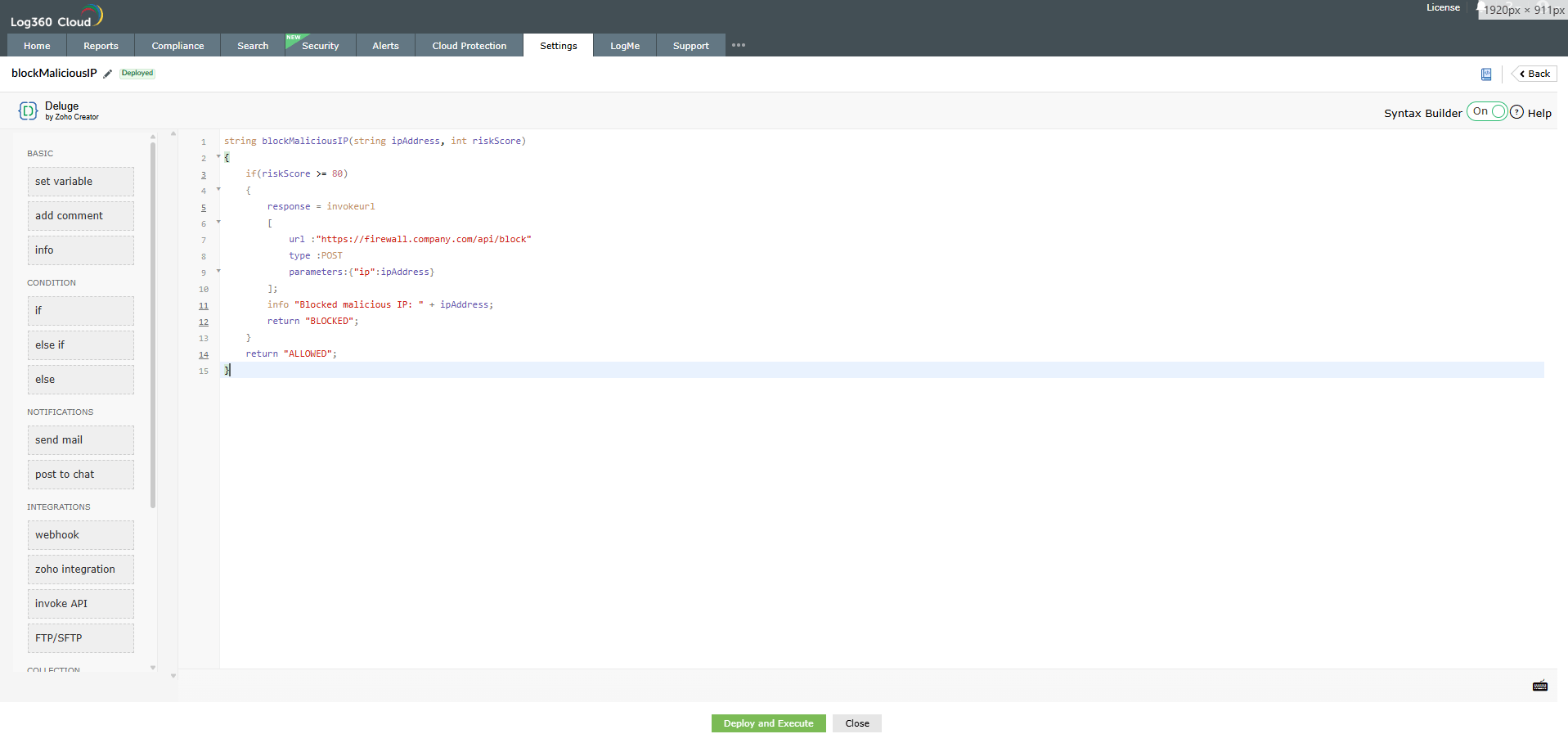
Image : Function editor view
Testing and deployment
- The Save as Draft and Execute option allows you to save the function for testing without deploying it.
- Use Execute to run the function in test mode with the defined input parameters.
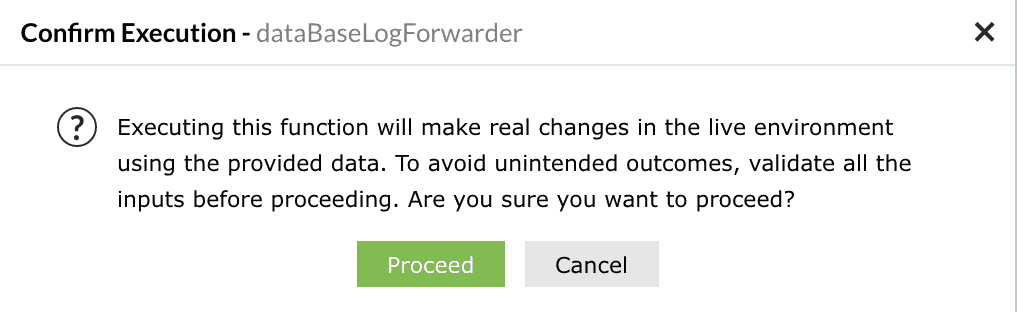
- A Confirm Execution pop-up appears. Click on Proceed.
- The Console pane slides open where the Output and Logs tabs display the execution results and debug messages.
Deploy function
- Once the function logic is validated, click Deploy to make the function available for association in playbooks or custom widgets.
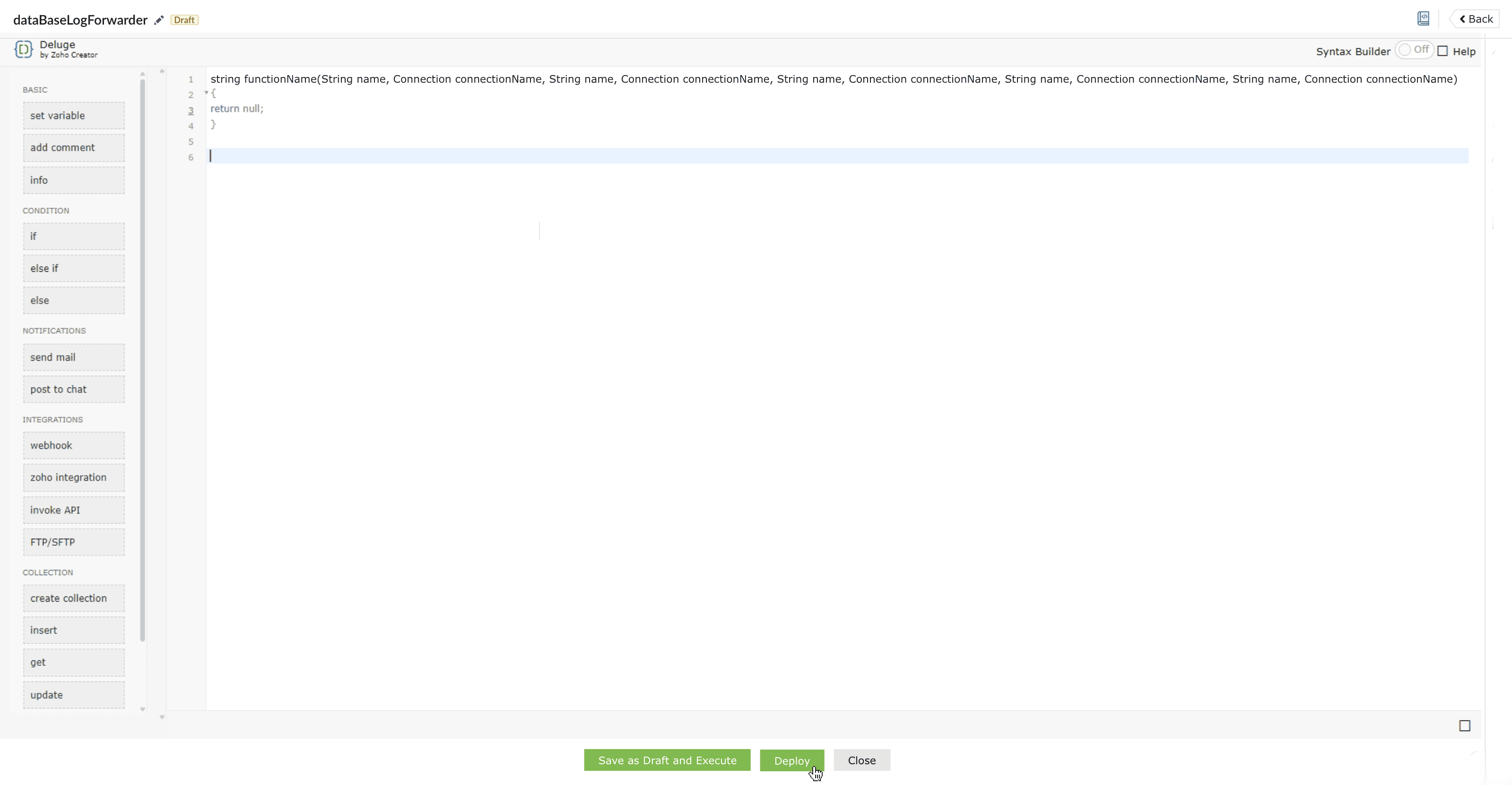
Image : Deploy button for a function code - After deployment, the function status changes to Deployed.
- Deployed functions cannot revert to draft status but can be edited if required.
- When editing a deployed function, the Save as draft option will not be available.
You can only choose to deploy the function; otherwise, the newly edited function code will not be saved.
Limitations
- Only deployed functions appear for selection in playbook associations.
- Draft functions remain in the testing stage until deployed.
Read also
This document explained how to create, test, and deploy custom functions in Log360 Cloud. For more understanding and related capabilities, refer to the below help documents: