
Functions library
Last updated on:
In this page
- Overview
- Workflow architecture
- Types of functions
- Accessing the functions library
- Function detail view
- Deploying functions
- Managing installed functions
- Function lifecycle behavior
- Key notes
- Best practices
Overview
The Functions Library is a central catalogue of reusable automation functions available in the product. These functions act as utility components that can be used across playbooks and custom workflows. The library contains:
- Built-in functions hosted and maintained by ManageEngine
- Functions bundled with installed extensions
From the Functions Library, administrators can:
- View all available utility functions
- Read each function's description, input, output, and language
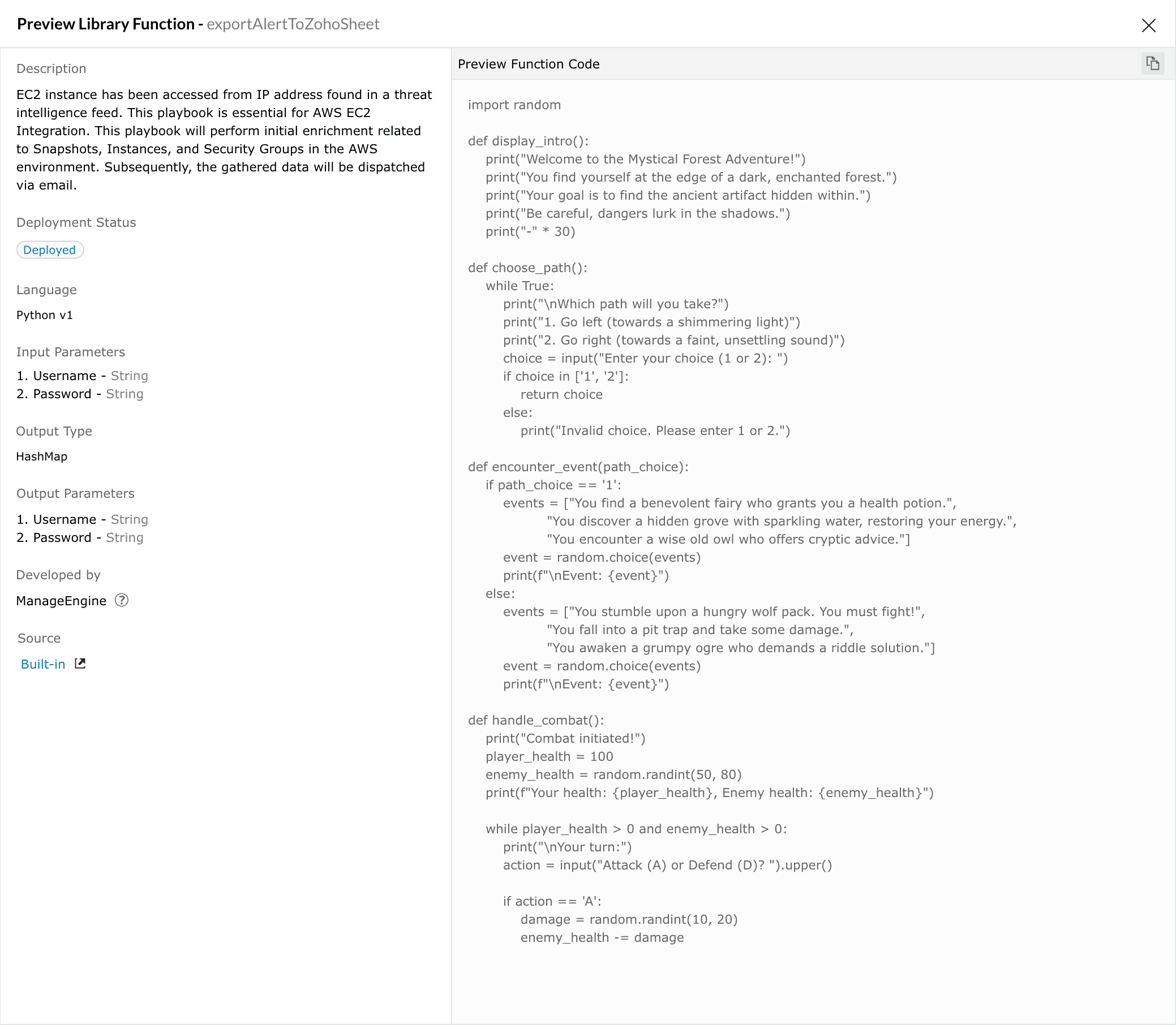
- Preview code (for built-in functions only)
- Deploy functions into their workspace
- Clone library functions to create editable custom versions
- Redeploy functions that were deleted from the workspace
Functions are designed as standardized, reusable components to help accelerate automations without requiring users to write everything from scratch.
Workflow architecture
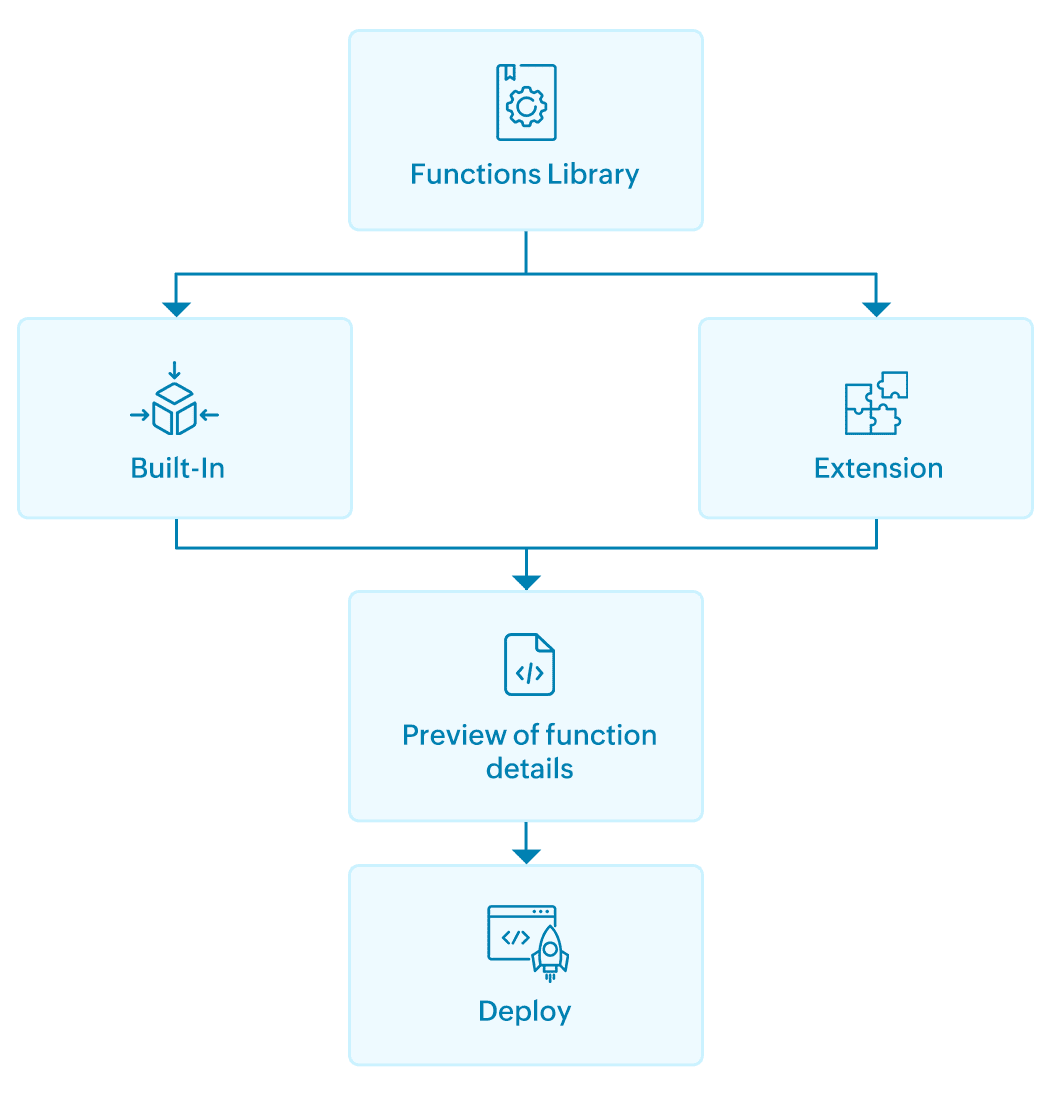
Types of functions
The library separates functions based on their origin.
Built-in functions
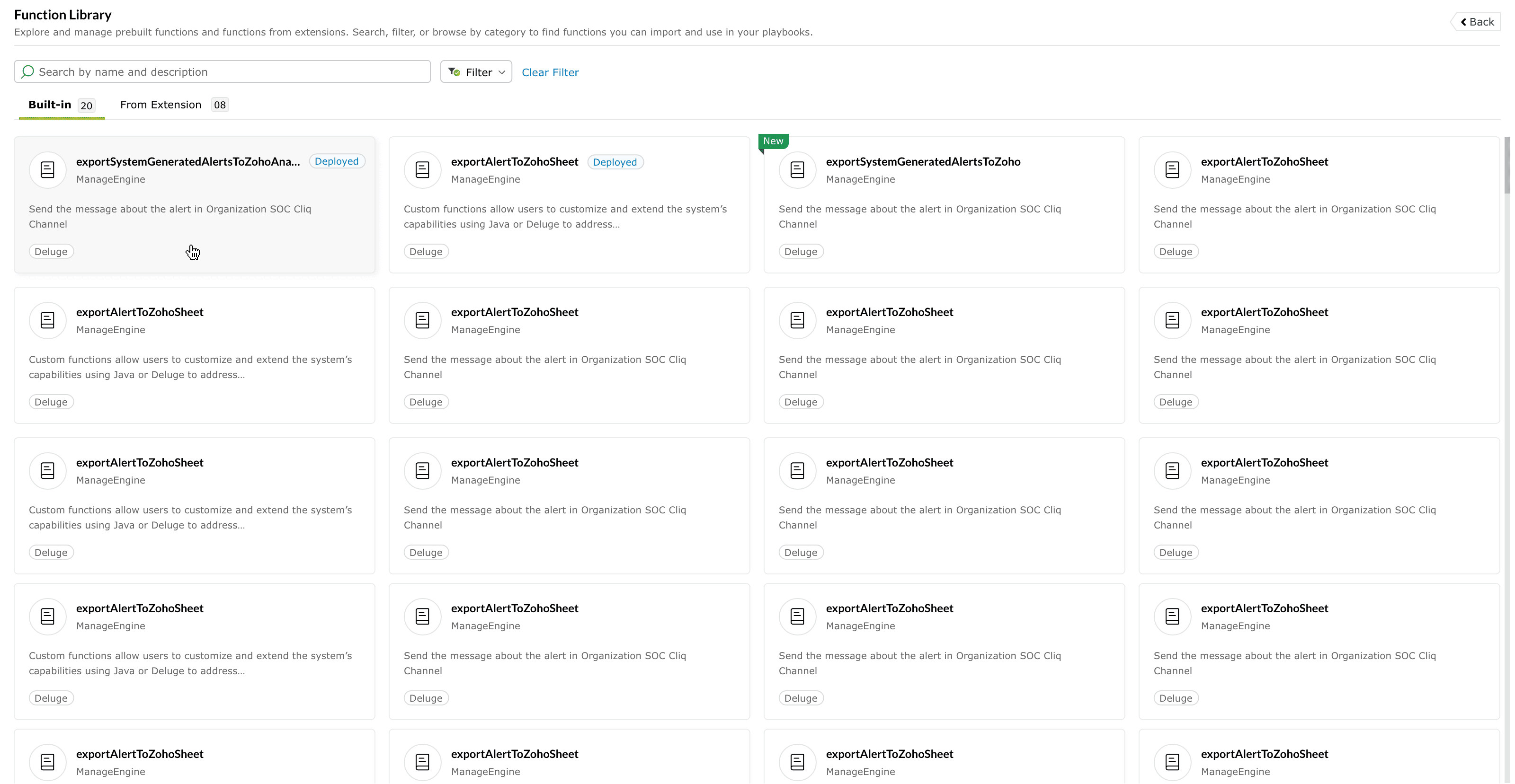
Built-in functions are hosted by ManageEngine and maintained entirely by the internal technical team.
These utility functions are commonly required across multiple integrations and playbooks, such as:
- Making API requests
- Formatting or parsing data
- Standard enrichment lookups
- Helper utilities shared across cloud, endpoint, and identity use cases
Characteristics
- Always listed under the Built-in tab in the library
- Automatically maintained and updated by ManageEngine
- Preview panel displays full metadata, including language, input parameters, output structure, and function code preview
- Can be deployed into the customer space
- Cannot be edited directly, but can be cloned to create a manual editable version
- Automatically updated when new versions are released
- Non-destructive update policy ensures no breaking changes are pushed
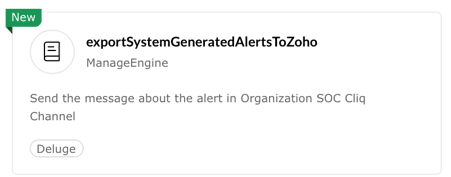
'New' label
- Newly released built-in functions display a New tag .
- Updates to existing built-in functions will be automatically deployed in the product.
Functions from extensions
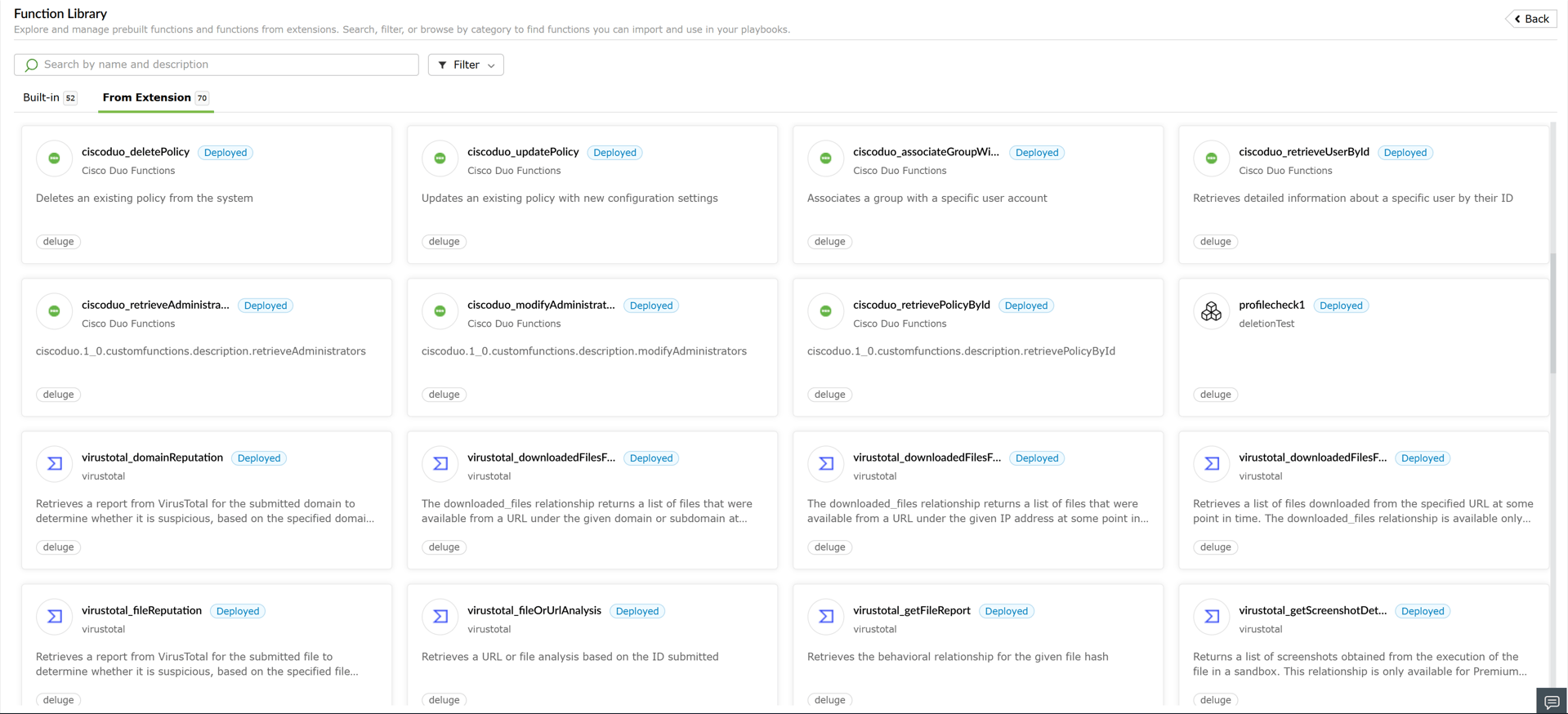
Functions from extensions originate from integrations installed through the Marketplace. When a user installs an extension, all its functions are automatically deployed into the customer space.
Characteristics
- Listed under the From extension tab
- Automatically deployed into the user environment during extension installation
- If a function is deleted by the customer, it appears again in the library as “Yet To Deploy”
- Users may redeploy deleted extension functions manually
- Code preview is not displayed for extension-based functions
- Updates occur automatically when an extension is updated to a newer version
Accessing the functions library
The Functions Library interface helps users browse, search, filter, and deploy functions.
Functions listing view
The listing view displays all available functions as tiles. Each tile typically shows:
- Function name
- Publisher
- Short description
- Language (e.g., Deluge, Python)
- Deployment status badge (Deployed shown only when deployed)
- New label (if the function is newly released)
Clicking a tile opens the detail panel.
Search and filtering options
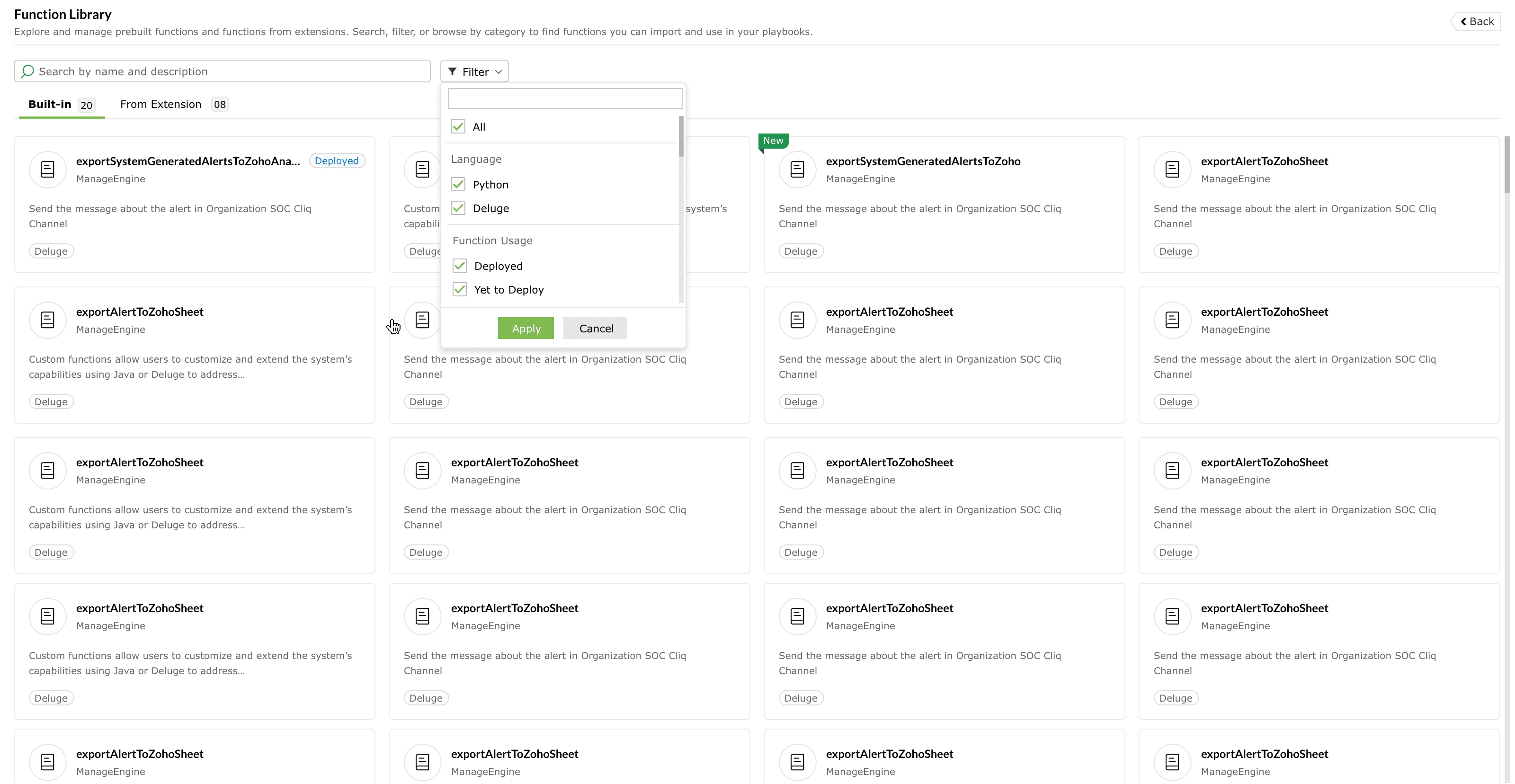
Users can refine the function list using:
Language filter
Filter functions by programming language (for example Deluge).
Function usage filter
Filter functions by their deployment status:
- Yet To Deploy: Functions available in the library but not yet deployed to the workspace.
- Deployed: Functions already deployed and active in the workspace.
Extensions filter
Show functions provided by specific installed extensions.
Keyword search
Search within:
- Function names
- Descriptions
This helps users quickly locate functions relevant to their automation tasks.
Function detail view
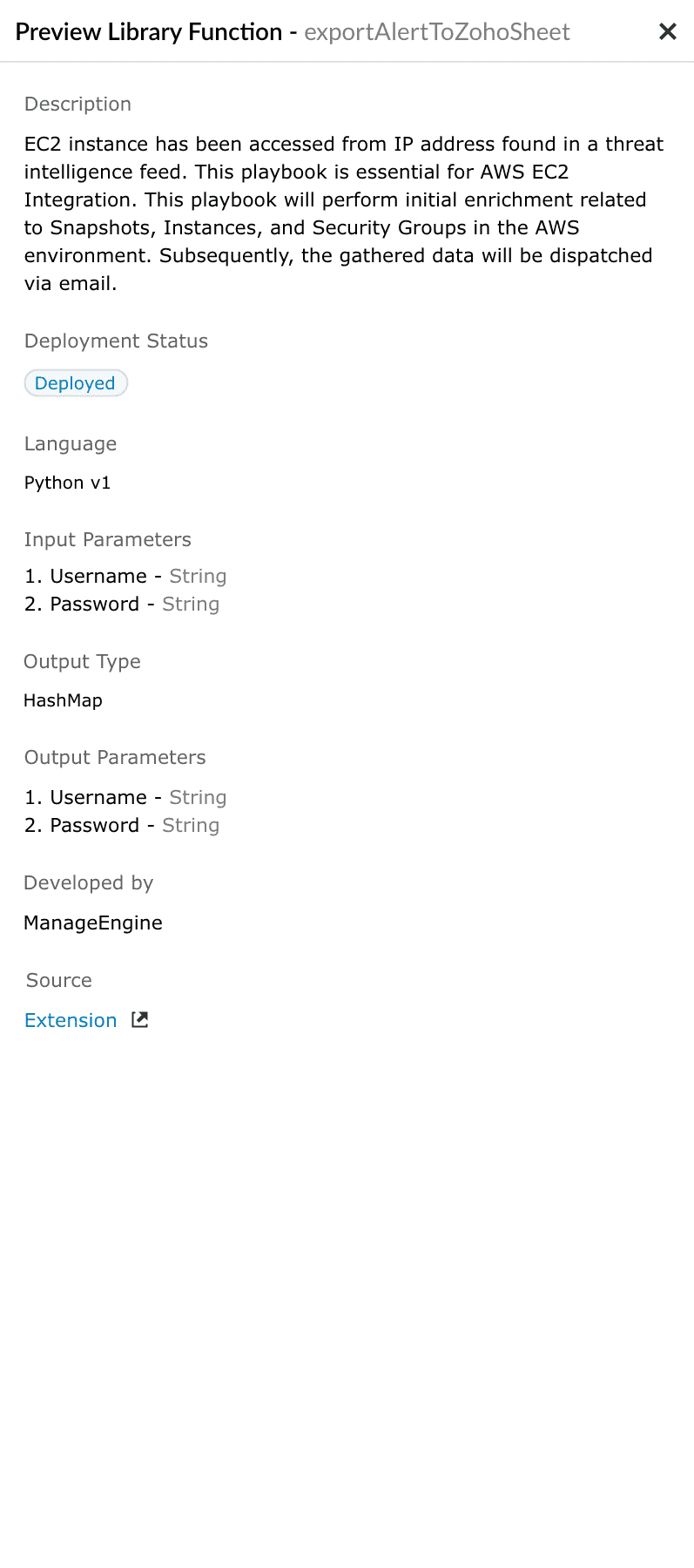
Selecting a function opens a detailed preview panel.
Description
This section provides a summary of what the function does, including its purpose and the scenarios where it is typically used.
Inputs and outputs
Displays the parameters the function accepts and the values it returns.
This includes:
- Input fields and expected data types
- Output structure and return format
Language
Indicates the underlying function execution language.
Example:
- Deluge (common for built-in utility functions)
Function code preview
- Visible only for built-in functions
- Not shown for extension-provided functions
Deployment status
Shows whether the function is already deployed into the customer workspace.
Statuses include:
- Deployed : The function is active in the customer workspace. A Deployed badge is displayed.
- Yet To Deploy : The function is available in the library but has not been deployed, or was previously deleted from the workspace.
- The New indicator shown on function tiles is an informational label, not a deployment status. It indicates that the function was recently added.
- For function updates:
- Built-in functions are automatically updated in the user workspace.
- Extension functions are updated when the corresponding extension update is installed.
Deploying functions
Functions can be deployed into the customer space where they become usable in playbooks or workflows.
There are two deployment paths:
- Deploying built-in functions
- Deploying extension-based functions
Deploying a built-in function
Built-in functions are not deployed automatically. Users can deploy them when needed.
Steps
- Open the Functions Library.
- Select the Built-in tab.
- Click a function tile to open its preview panel.
- Review the description, inputs, outputs, language, and function code.
- Check the deployment status.
- If the function is Yet To Deploy, click Deploy.
- Wait for confirmation.
- The function now appears as Deployed in your workspace.
Deployed built-in functions cannot be edited, but can be cloned.
Deploying a function from an extension
When an extension is installed:
- All its functions are automatically deployed into the customer workspace.
- If a function is removed manually later, it appears as Yet To Deploy in the library.
Steps to redeploy
- Go to the Functions Library.
- Open the From extension tab.
- Locate the required function tile.
- Select the tile and view the preview.
- Click Deploy (if available).
- The function becomes available for use.
Code preview is not available for extension-based functions.
Managing installed functions
Once deployed, functions can be cloned, updated, or deleted. To learn more about managing functions, refer to the Manage functions help document.
Cloning a function
Cloning creates a manual function, fully editable in the code editor.
Clone rules
- Built-in functions can be cloned
- Manual functions cannot be cloned again
Editing privileges
- Cloned functions are user-created
- They appear in the Custom Functions panel.
- They can be freely edited using the function editor
Updating built-in functions
When ManageEngine releases an update:
- The system automatically migrates the updated function code into the customer space.
- No user action is required
- Updates are non-destructive, meaning:
- No breaking changes
- No behavior modification that disrupts existing playbooks
If a function is Yet To Deploy, only the library version is updated.
Managing functions from extensions
Extension-based functions are updated as part of extension updates.
Extension lifecycle includes:
- Installing the extension → auto-deploys functions
- Updating the extension → updates functions
- Deleting extension functions → leaves them “Yet To Deploy” in the library
Users cannot view code for extension functions.
Deleting a function
Functions can be deleted from the customer workspace.
Steps
- Open the Custom Functions pane.
- Locate the deployed function.
- Click Delete.
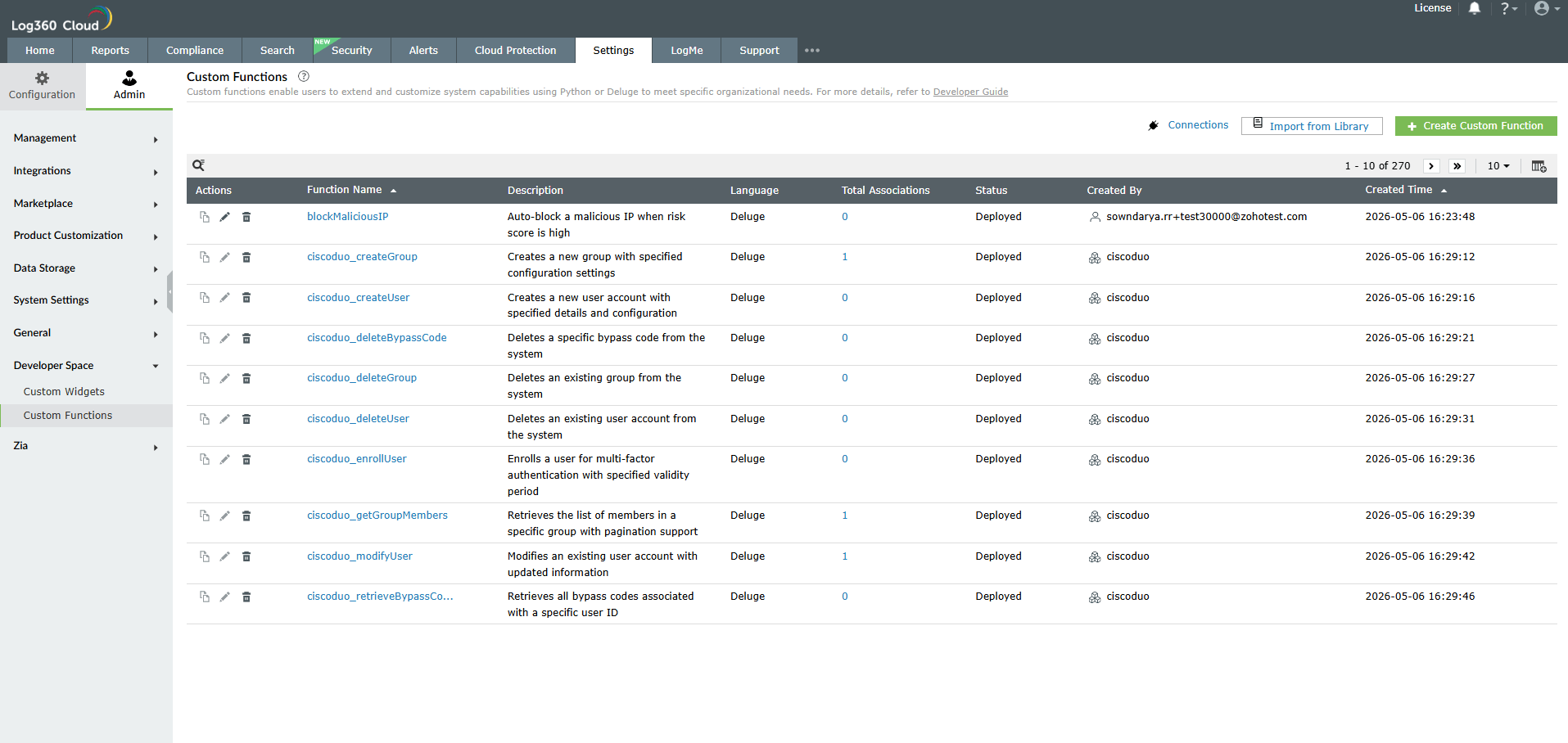
Image: Deleting a function in the product - Confirm deletion.
Delete behavior
- Deleting a built-in function sets it to Yet To Deploy in the library.
- Deleting an extension-based function also sets it to Yet To Deploy and allows redeployment.
- Manual functions (created by users) are fully deleted and cannot be recreated unless re-uploaded
Function lifecycle behavior
The complete lifecycle of a function includes:
- Library availability (built-in or extension)
- Deployment
- Use in playbooks and workflows
- Auto-update (if built-in)
- Extension update (if extension-based)
- Re-deployment (if deleted)
- Cloning for customization
- Editing (manual functions only)
The library is not a repository of reference-only code. Instead, it is a catalogue of utility components intended to be used and adapted.
Key notes
- Library functions serve as templates, not direct-edit assets
- Built-in functions show a full code preview
- Extension functions do not display code
- Updates to built-in functions are automatic
- Updates to extension functions follow extension updates
- No destructive changes are ever pushed to built-in function updates
- Functions required by playbooks must remain installed
- Deploy buttons appear only when functions are Yet To Deploy
- Users must use Clone to edit a library function
Best practices
- Deploy only the functions you plan to use
- Clone built-in functions before customizing them
- Avoid editing system-deployed code
- Review newly released functions under the Built-in tab
- Maintain a naming standard for all cloned functions
- Periodically review extension-based functions after extension updates
- Document custom changes for audit and team visibility
Read also
This page explained how built-in and extension-based functions are deployed, previewed, cloned, updated, and managed in the product. You can refer to the below help documents for additional guidance: