
Manage custom functions
Last updated on:
In this page
Overview
The manage custom functions page lists all functions created in Log360 Cloud along with their status, language, output type, version, and last modified time. From this page, administrators can edit, clone, or delete existing functions.
This page also helps identify the functions currently associated with playbooks or custom widgets, ensuring you have full visibility into all deployed scripts and their usage.
Actions available
View function details
Click the function name to open the details pane. This pane displays the function's description, input parameters and output type. You can also view the details of the associations of this function.
You can customize the columns in the details displayed by clicking on the add columns icon  . Below are the available details you can choose to add column(s) for:
- Description: Displays the description of the function added during its creation.
- Language: Shows the scripting language used to write the function (Python or Deluge).
- Associated with: Displays the module name with which the function associated with.
- Created by: Lists the user who created the function.
- Created time: Displays the timestamp when the function was first created.
- Last modified by: Shows the user who last edited the function.
- Last modified time: Displays the latest update timestamp for the function.
- Status: Indicates whether the function is in draft, deployed, or in a disabled state. Each custom function is labeled with one of the following statuses:
- Yet to Deploy:
The function has been created but not deployed. It cannot be associated with any playbook or widget.
- Deployed:
The function is active and can be associated with playbooks or widgets.
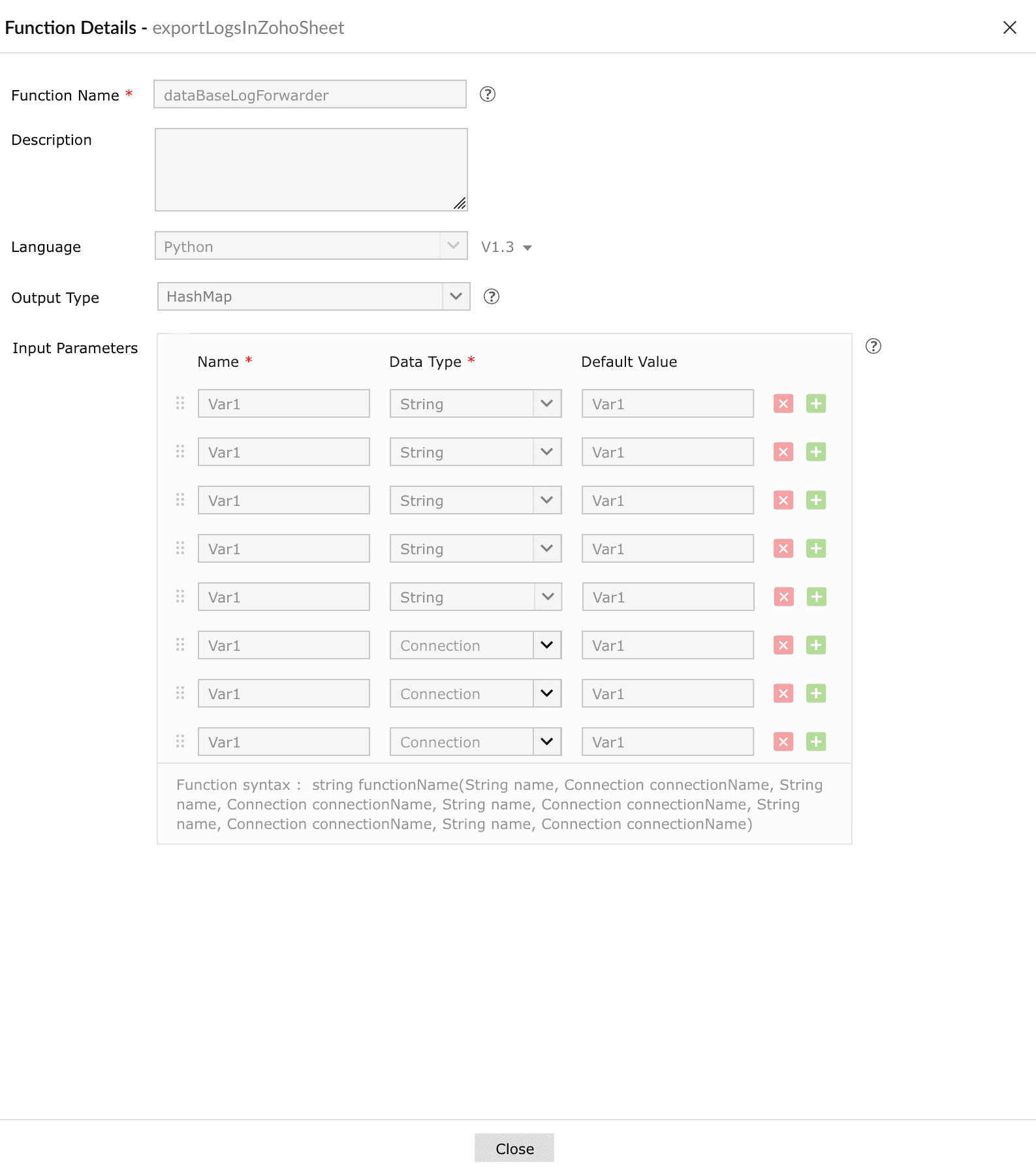
Image : Viewing the function details in the product - Yet to Deploy:
Edit a function
- Click on the Edit icon available beside the respective function.
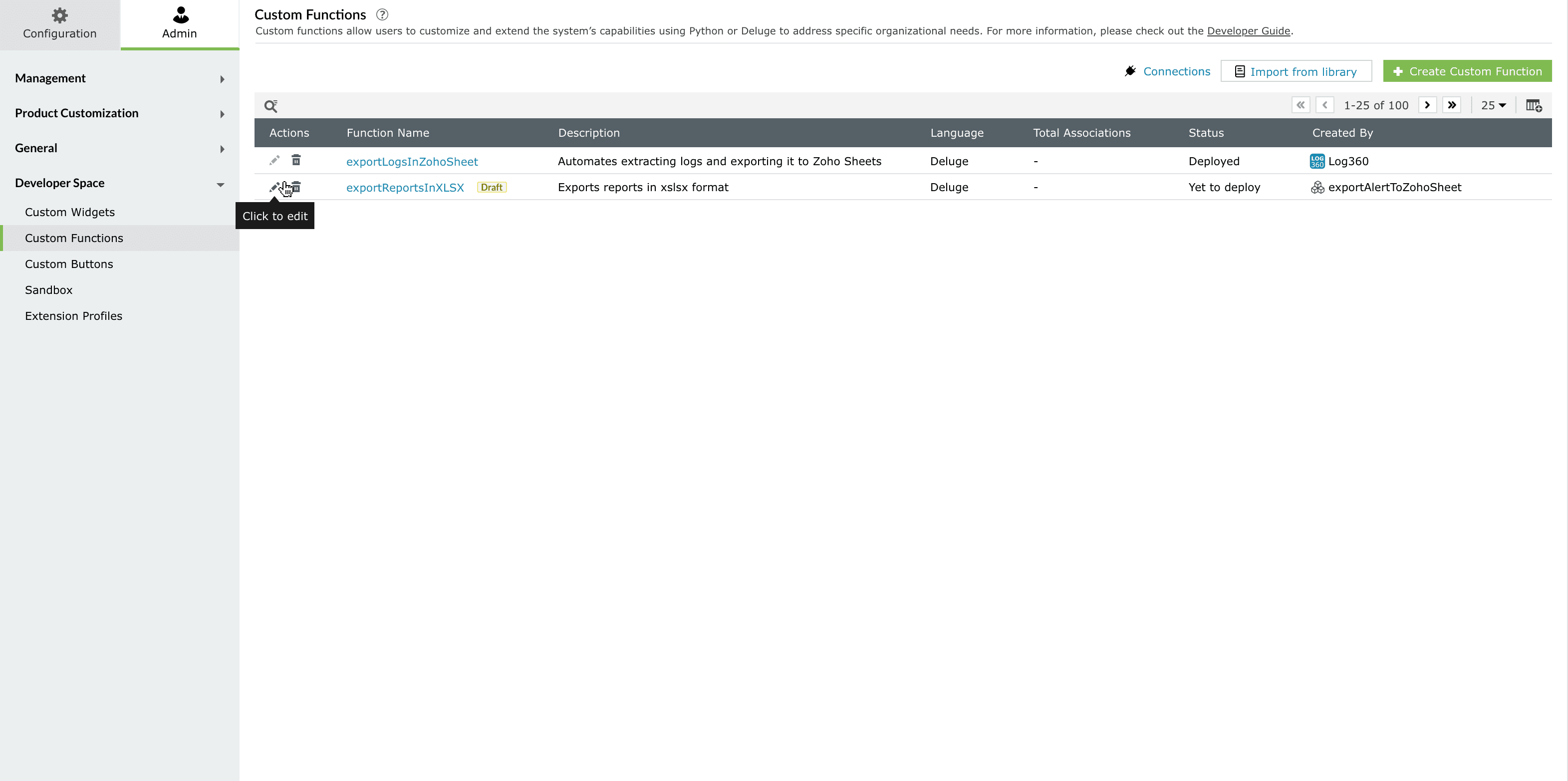
Image : Editing a custom function - Modify the name, description, inputs, or code logic in the editor. Any changes made to the name, input parameters, or output types are reflected in the code editor and take effect only after updating the function code.
- Click on Deploy and Execute to apply the changes.
Clone a function
- Click on the Clone icon
 beside an existing function.
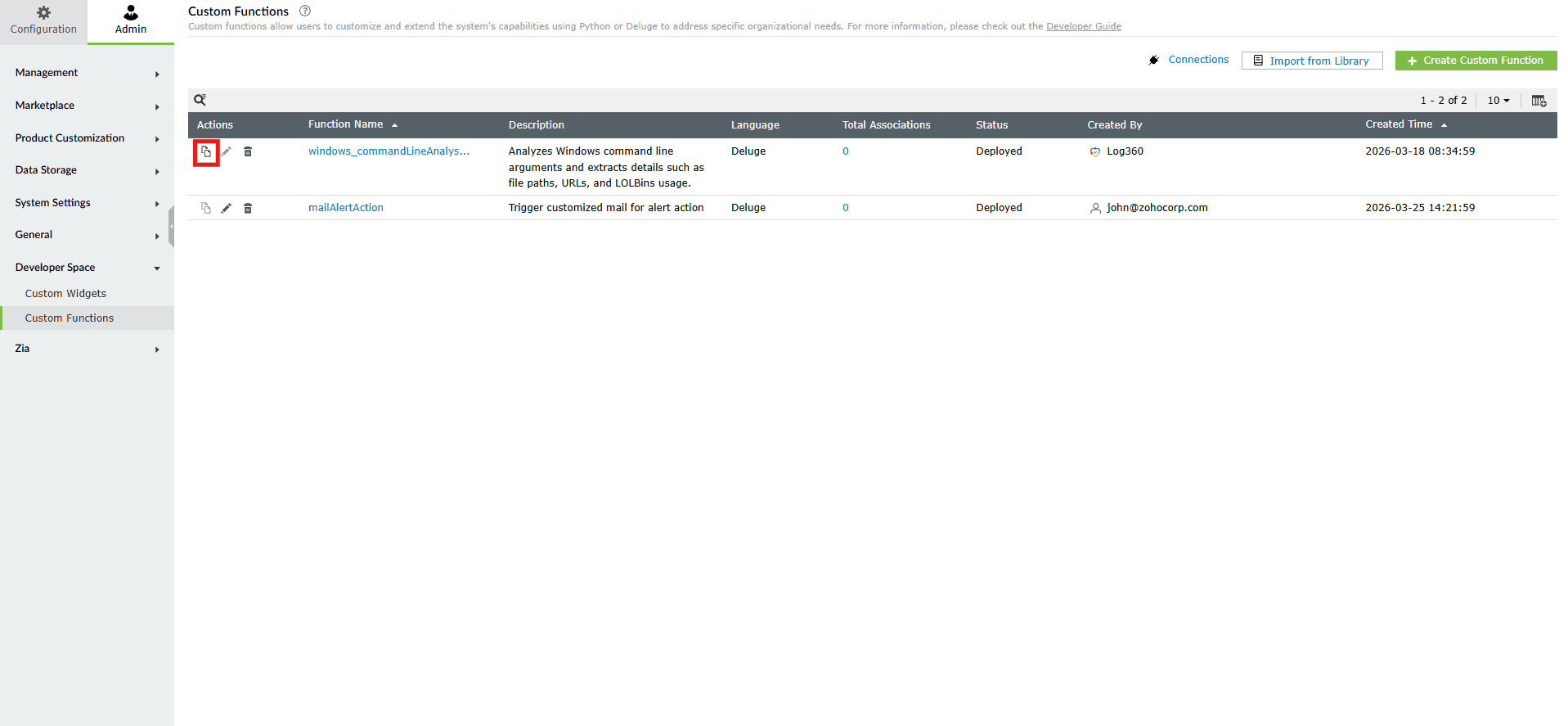
Image : Cloning a custom function - Optional- Enter a new name for the cloned function. If no change is made, the name is saved by default as " (Name of the cloned function)_Copy "
The cloned function inherits all configurations from the original, allowing you to make changes without affecting the existing one. Only library functions that are installed from the built-in section can be cloned.
Delete a function
- Click on the Delete icon
 beside the function.
 - The Confirm Deletion dialog box appears as shown below. Click on Proceed.
- In case the custom function is still associated with other modules, the below pop-up appears instead.
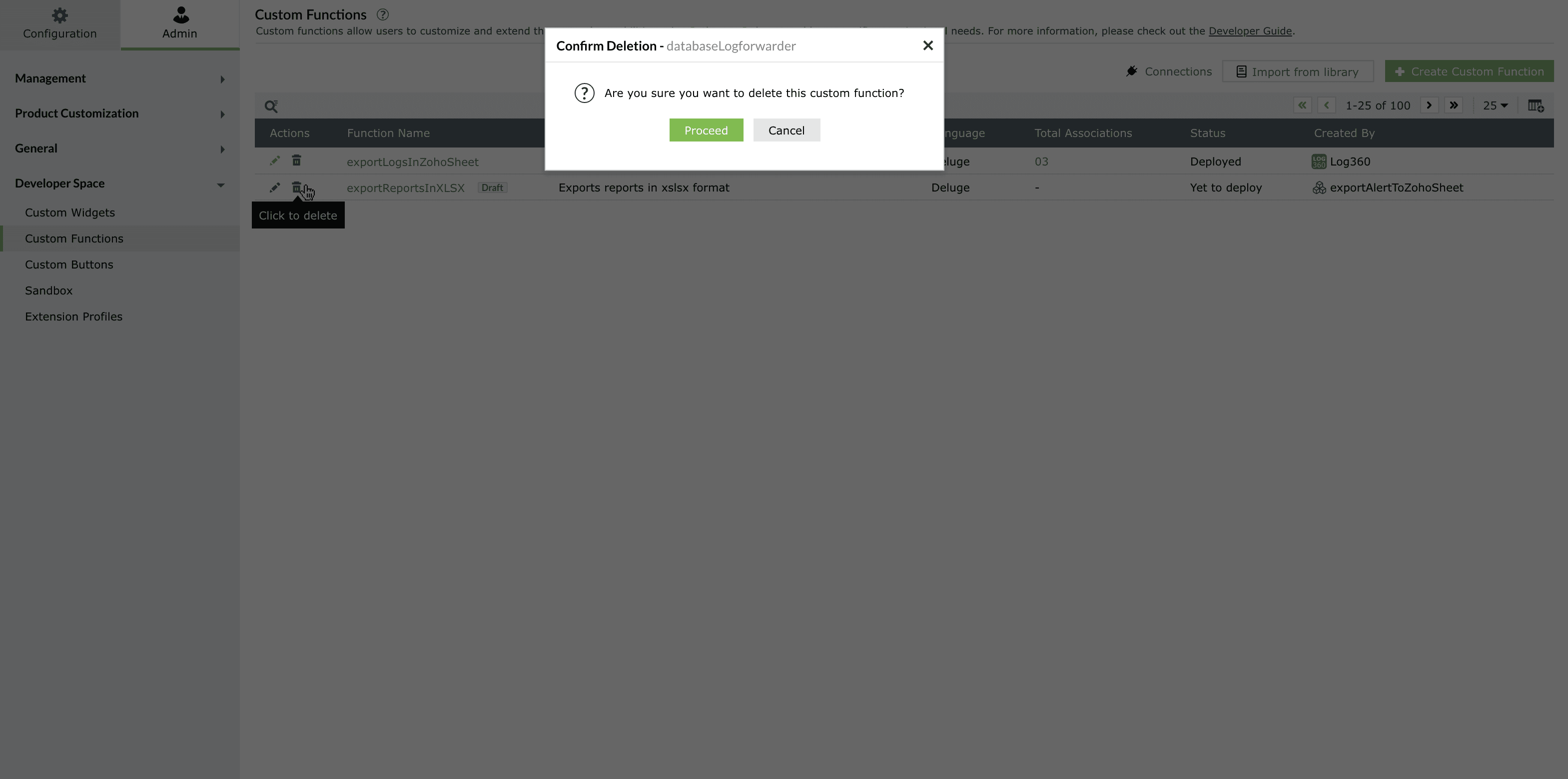
Image : Deleting a custom function - Click on Associated details. The Custom Functions Associations pane slides open displaying the list of all modules associated with this particular function.
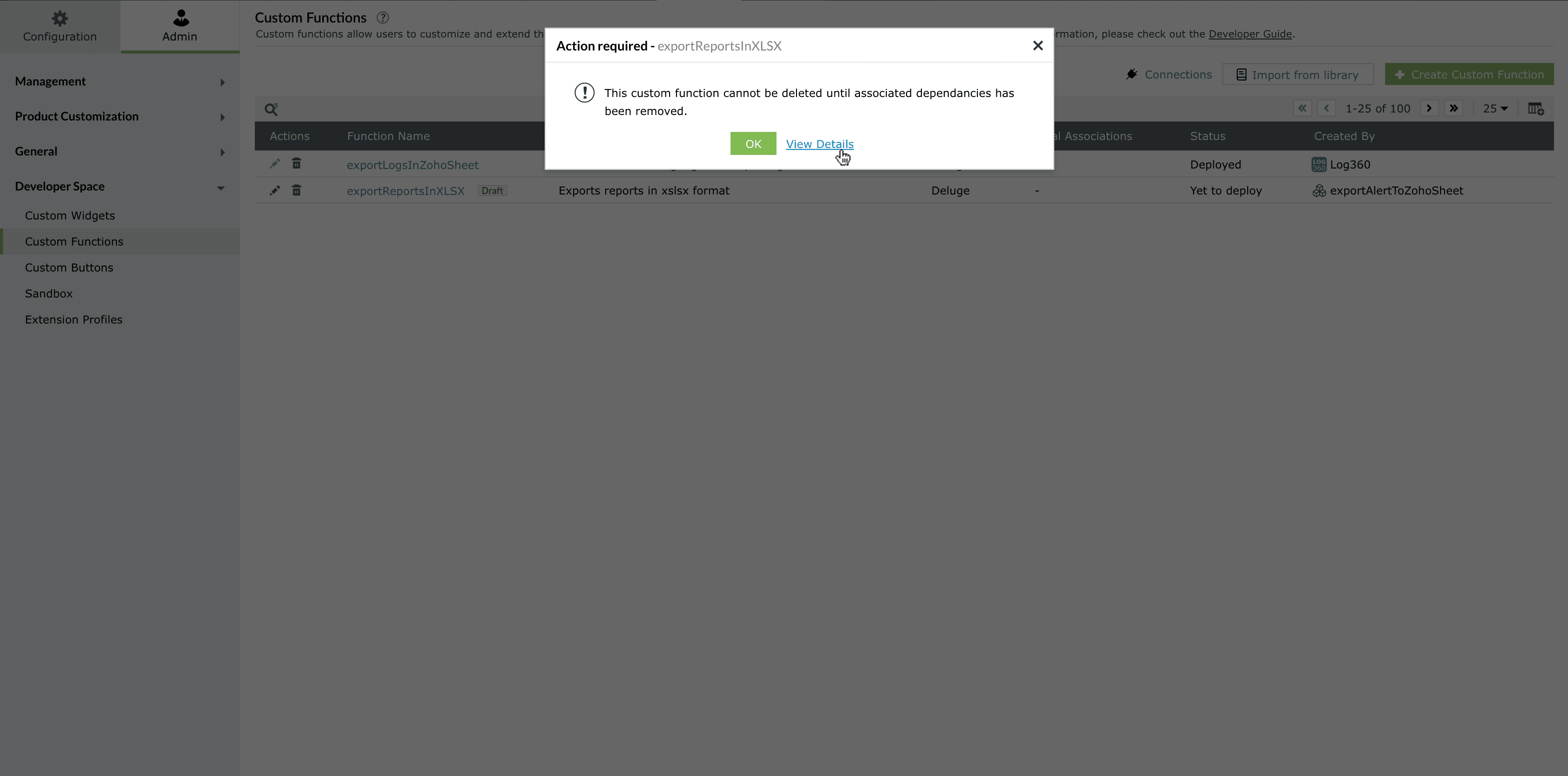
Image : Deleting a custom function
Filter and search
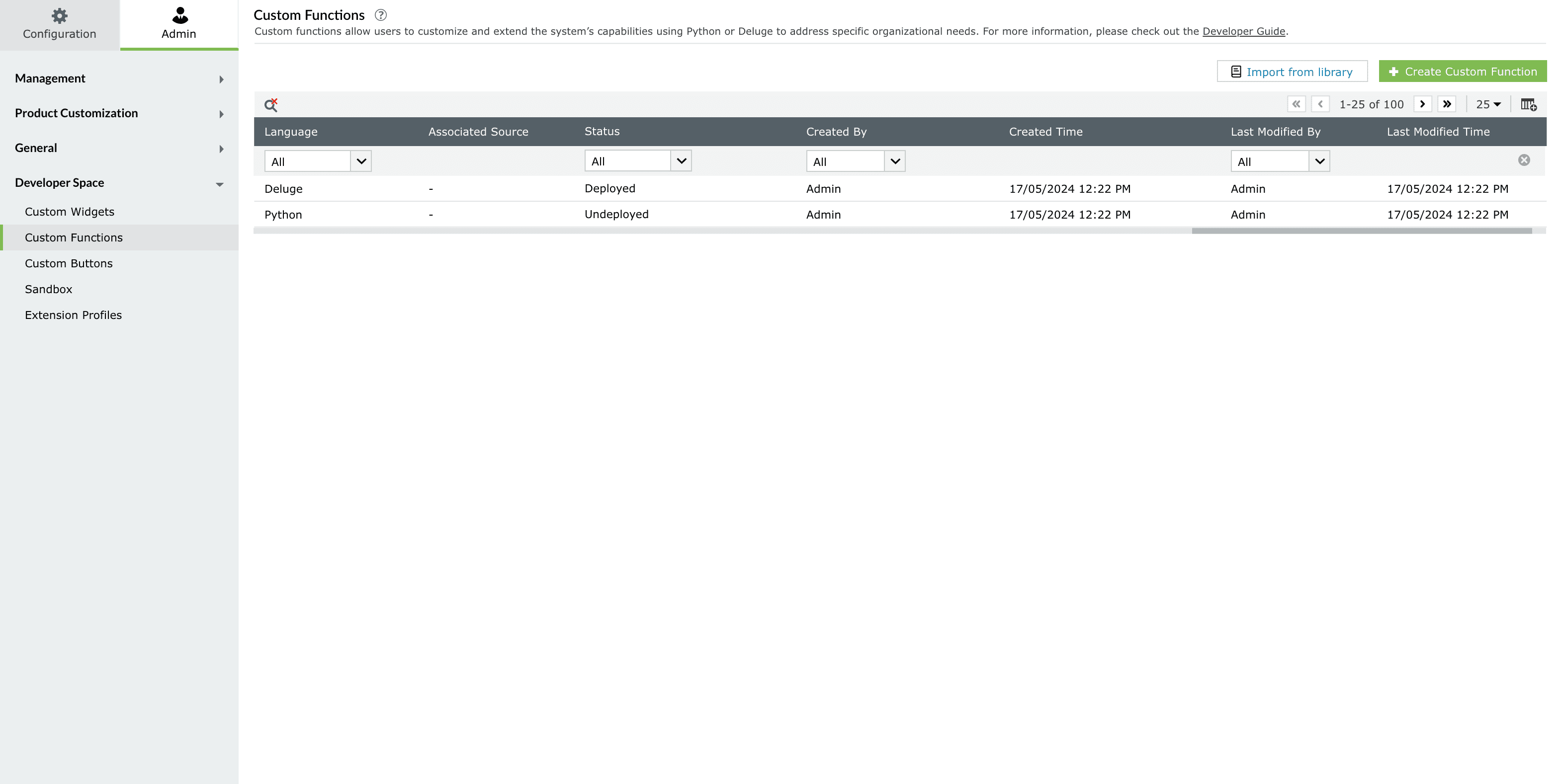
You can use the search and filter options at the top of the page to quickly locate a function based on its:
- Language (Python or Deluge)
- Status (Deployed or Yet to deploy)
- Name or Description keywords
Read also
This document explained how to manage custom functions in Log360 Cloud. For more understanding and related capabilities, refer to the below help documents: