
AI configurations
Last updated on:
In this page
Overview
To enable Zia Insights, the Investigation Agent, and Ask Zia, an AI provider must be configured within the product console. Log360 Cloud currently supports two AI service providers: Azure OpenAI and OpenAI. This page explains how to set up and integrate your preferred AI provider, covering the steps to create an Azure OpenAI resource, obtain the required credentials, deploy a model, and generate an OpenAI API key.
Pre-requisites
Before beginning the setup, ensure the following:
- You must have an active OpenAI subscription or Azure subscription with access to the Azure OpenAI service.
- The following credentials are required from your Azure portal:
- Endpoint URL
- API key
- Deployed model name
- The following credentials are required from OpenAI:
- Model
- API key
Creating an Azure OpenAI resource
If you do not already have an Azure OpenAI resource, follow these steps:
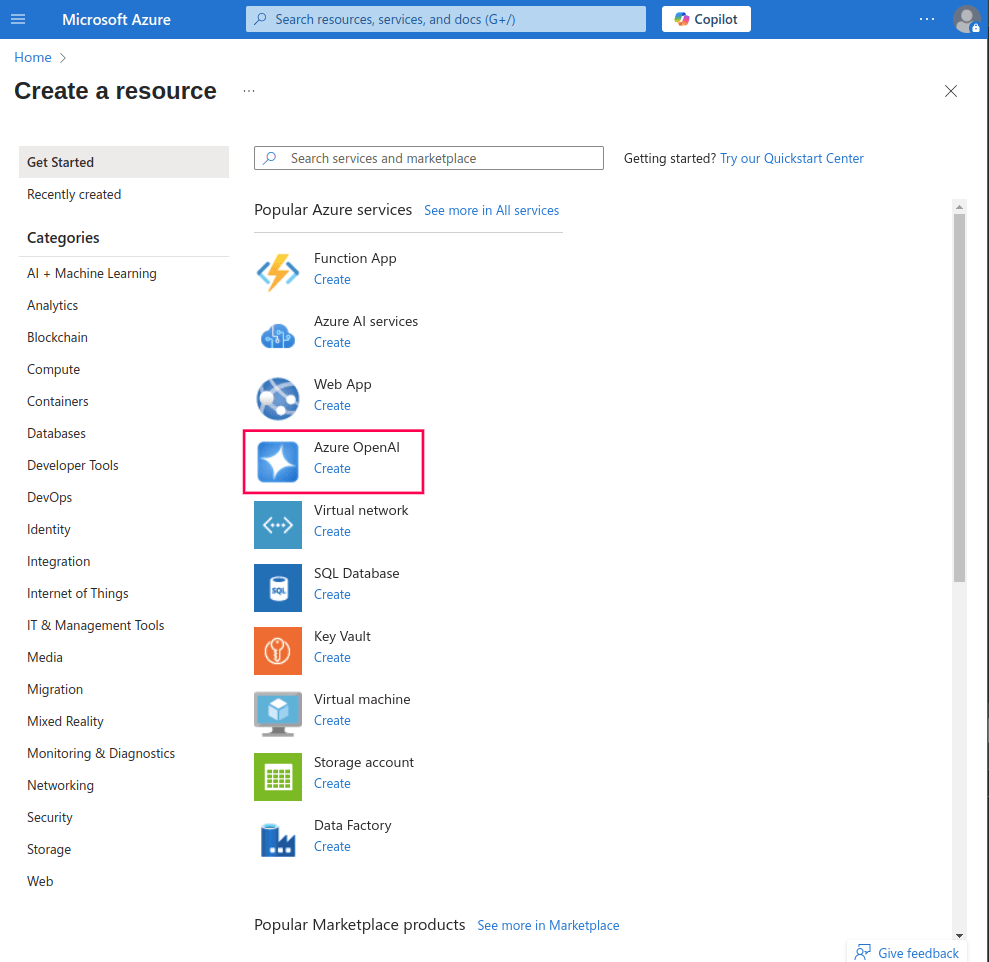
- Log in to Azure portal and click Create a resource.
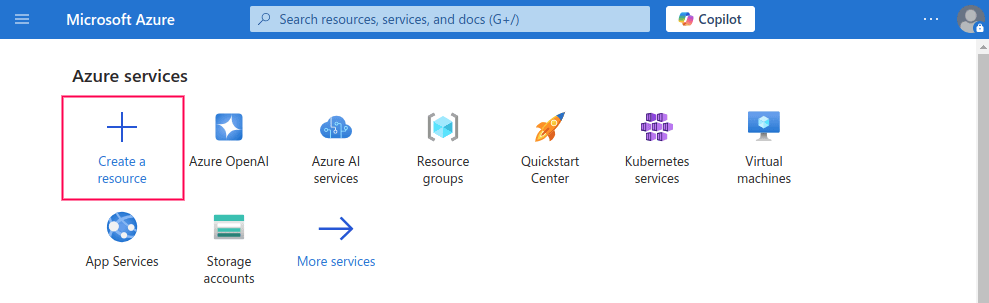
Figure 1: Creating a resource in Microsoft Azure Note If you open the Azure AI Foundry portal directly, the portal may load a different resource by default. In that case, you must manually switch to the Azure OpenAI resource you created before proceeding. To switch resources:- In the top-right corner of the Azure AI Foundry portal, click the resource selector, which displays the currently loaded resource name and region.
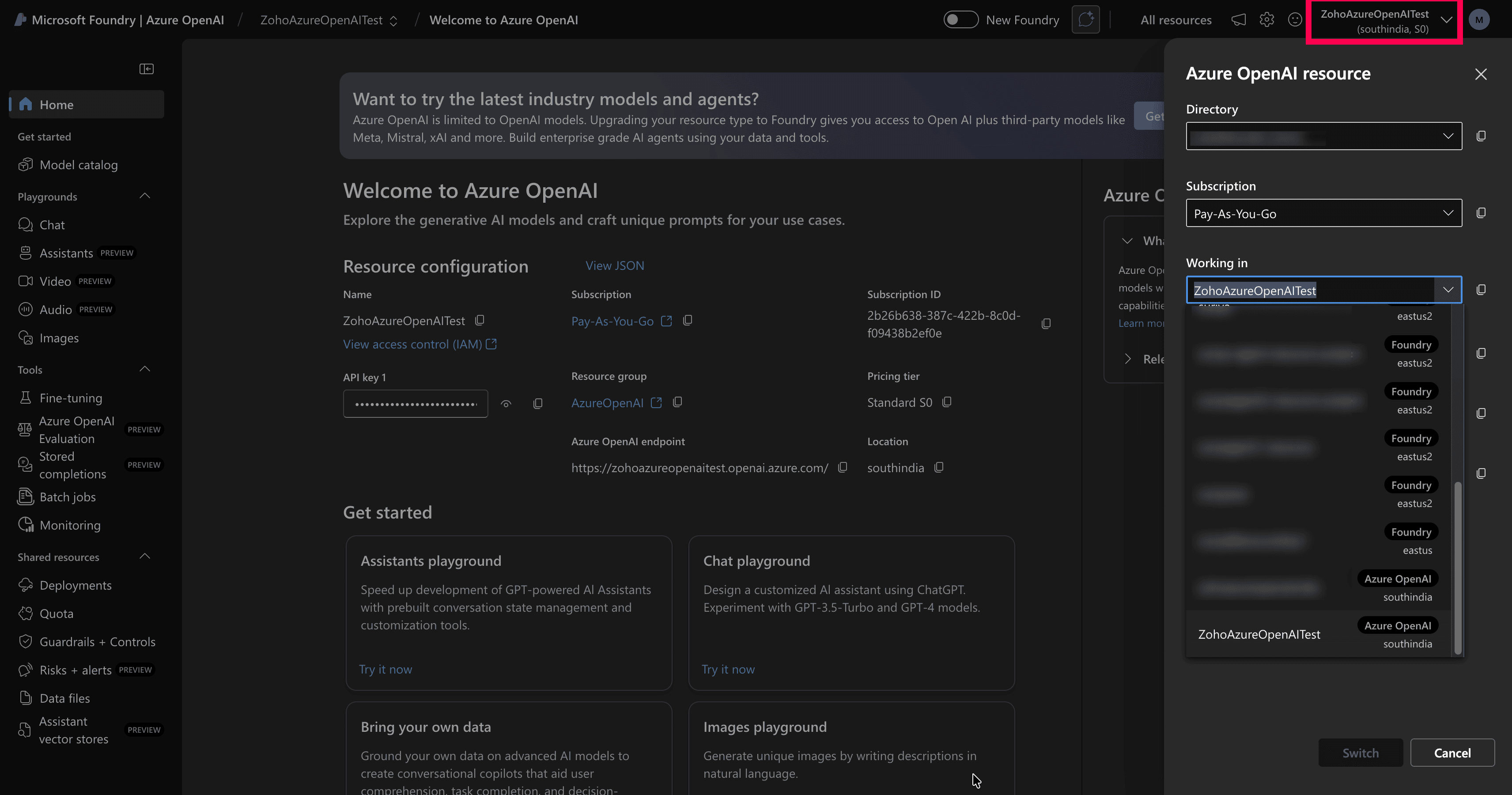
Figure 2: Locating the resource selector - In the Azure OpenAI resource pane, select the correct Directory and Subscription.
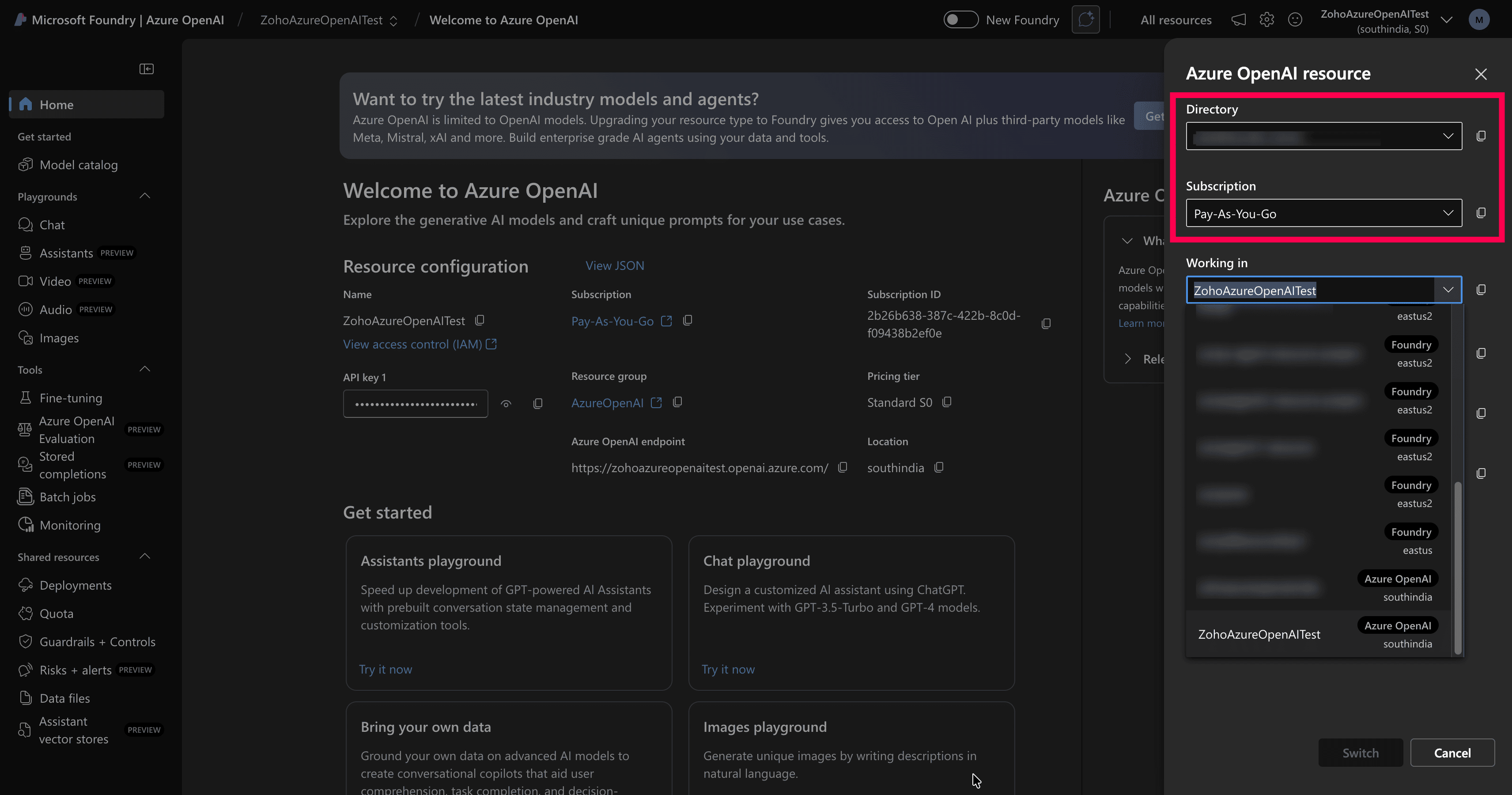
Figure 3: Selecting directory and subscription - Under Working in, choose the Azure OpenAI resource you created.
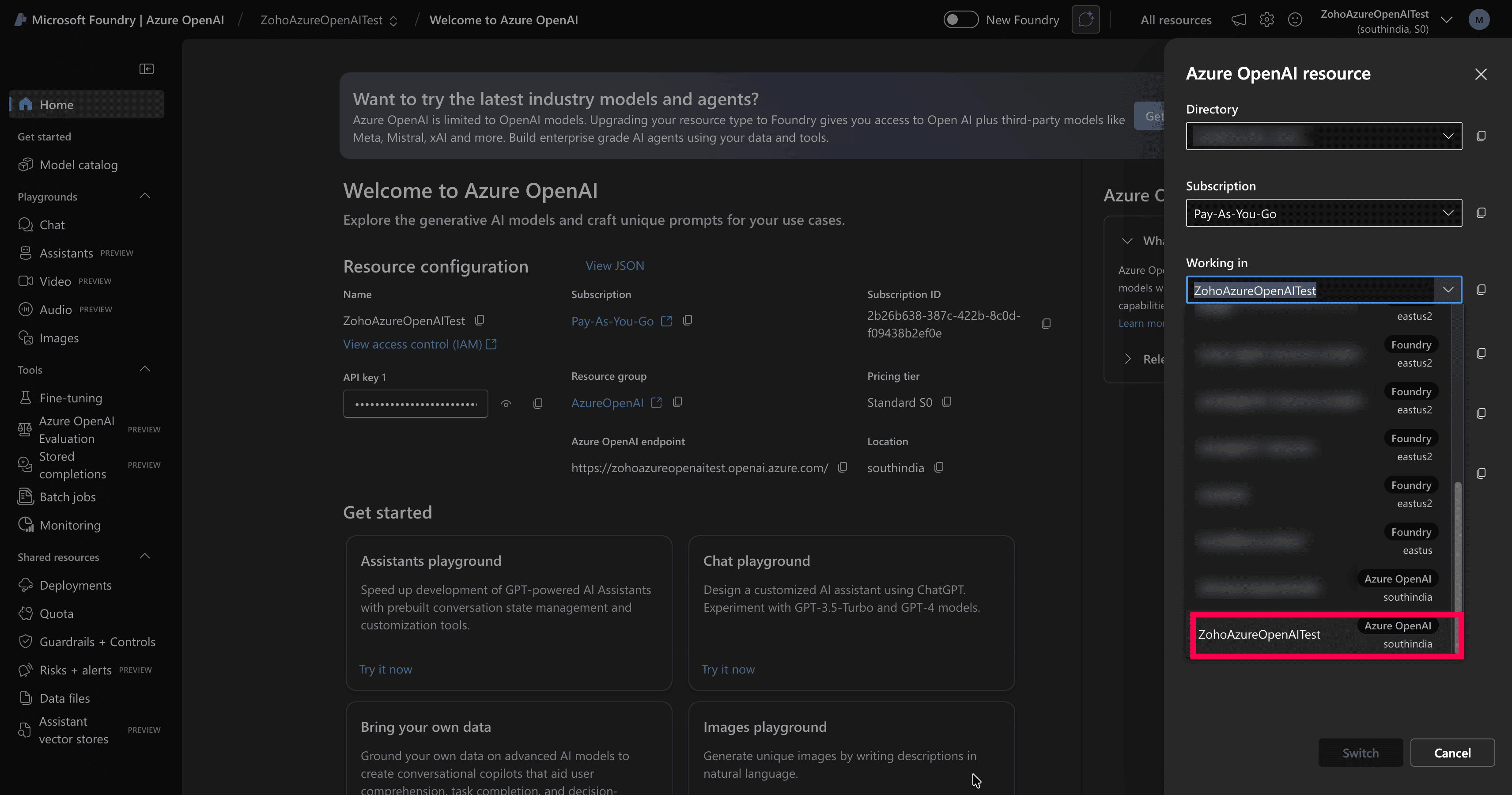
Figure 4: Selecting the Azure OpenAI resource - Click Switch to load the selected resource.
- In the top-right corner of the Azure AI Foundry portal, click the resource selector, which displays the currently loaded resource name and region.
- Select Azure OpenAI as the resource type.
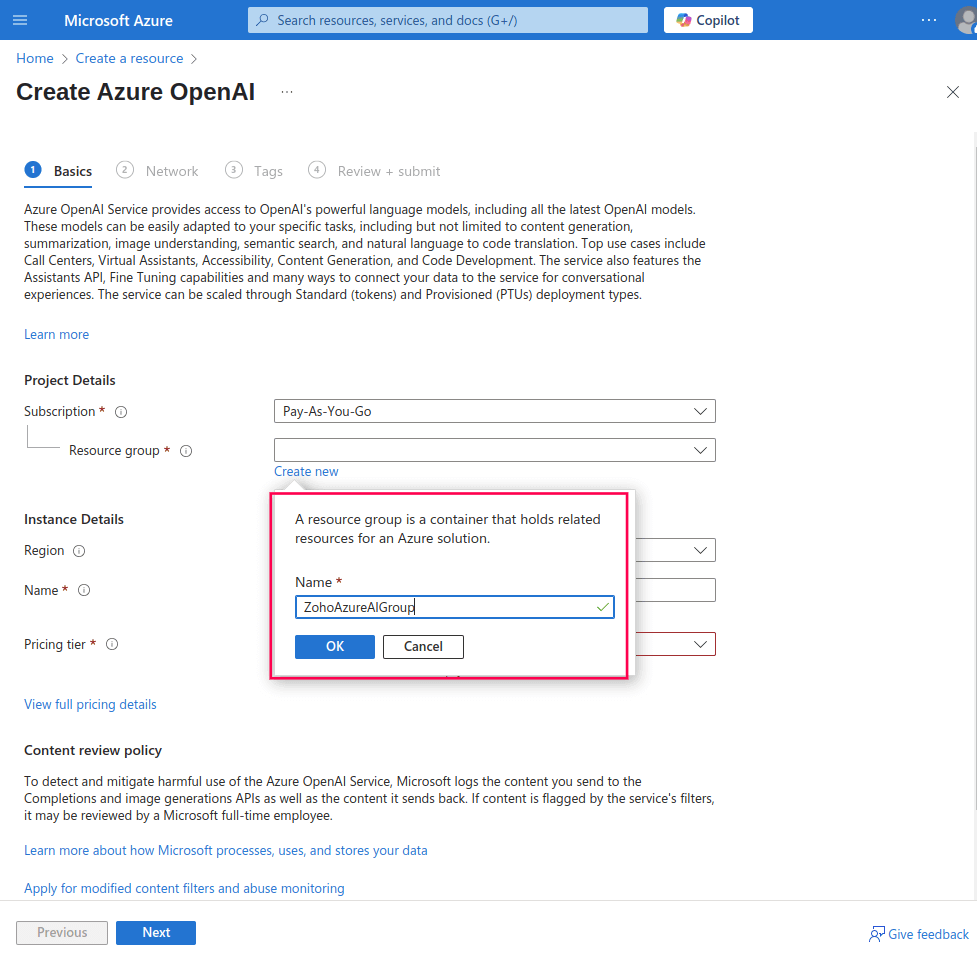
- Choose a Subscription of your choice.
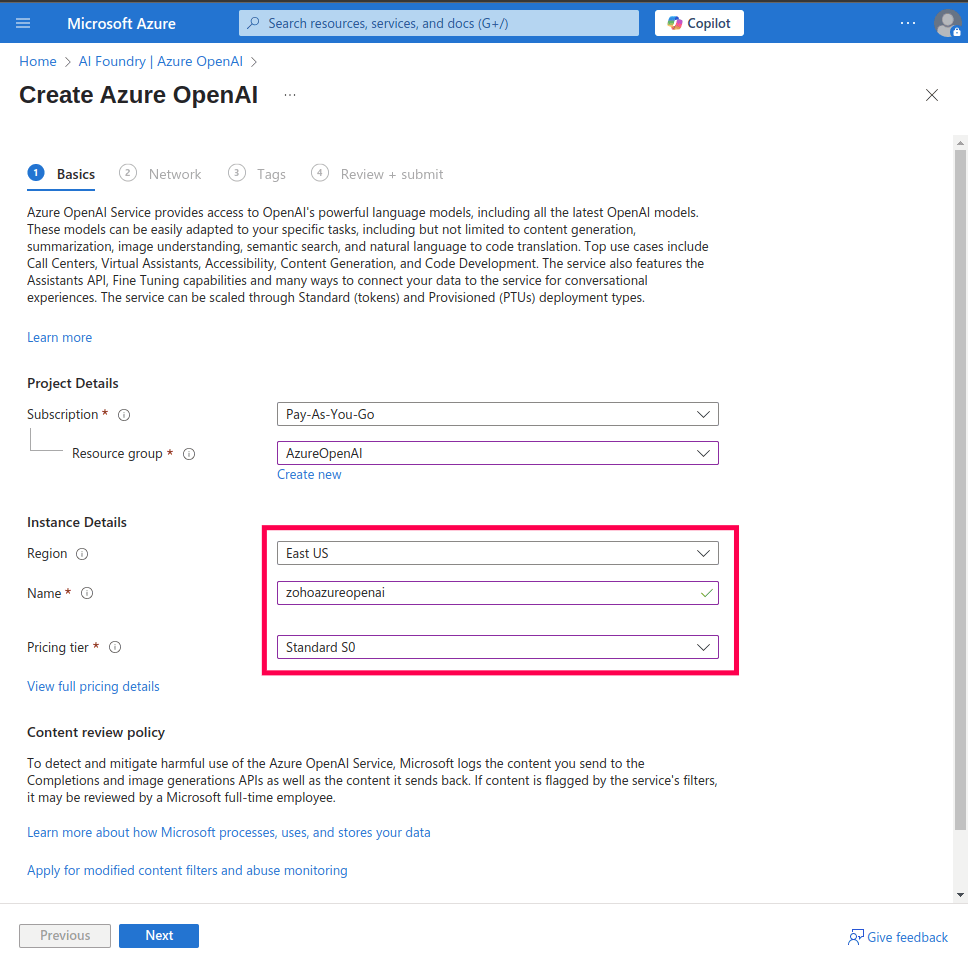
- Select an existing Resource group or create a new one.
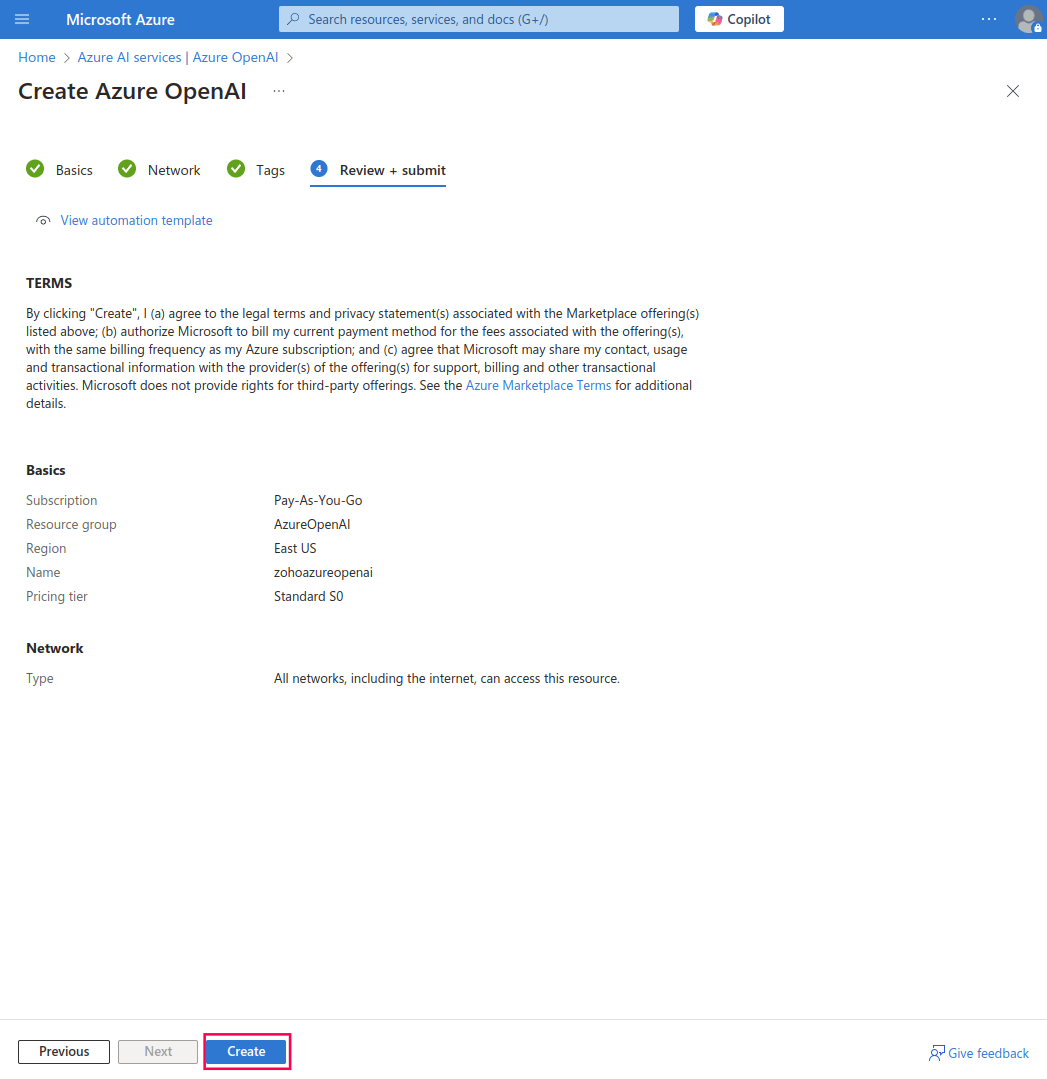
- Pick your desired Region and Pricing Tier.
- Enter a suitable Name for the resource.
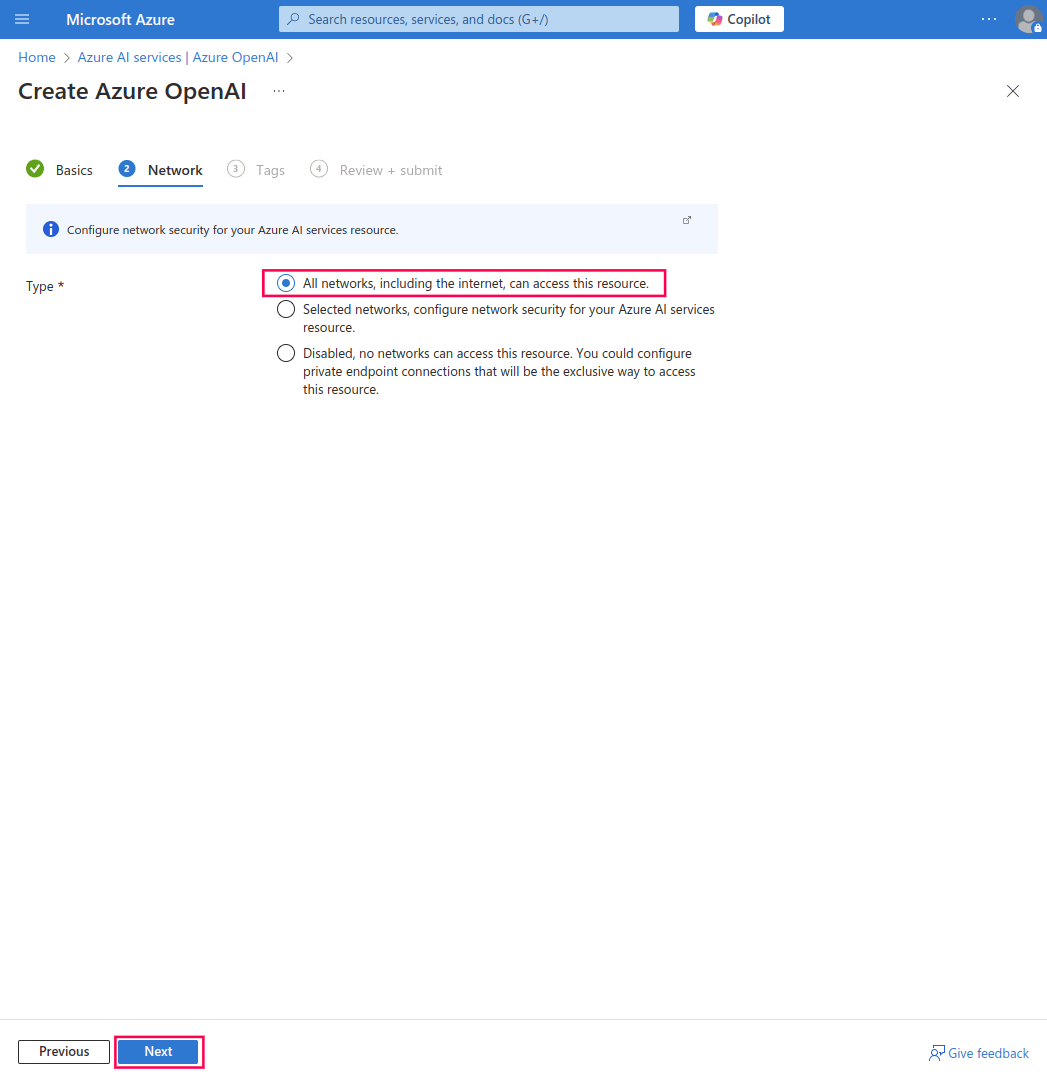
- Under Networking, select All networks, including the internet, can access this resource.
NOTE The Azure OpenAI resource must be publicly available on the internet so that Log360 Cloud can access the endpoint.
- Click Next to configure Tags (optional).
- Click Next again to move to the Review + Submit page.
- Review your settings and click Create to provision the resource.
Steps to obtain Endpoint URL and API key
If you already have an Endpoint URL and API key, skip to the next section. If not:
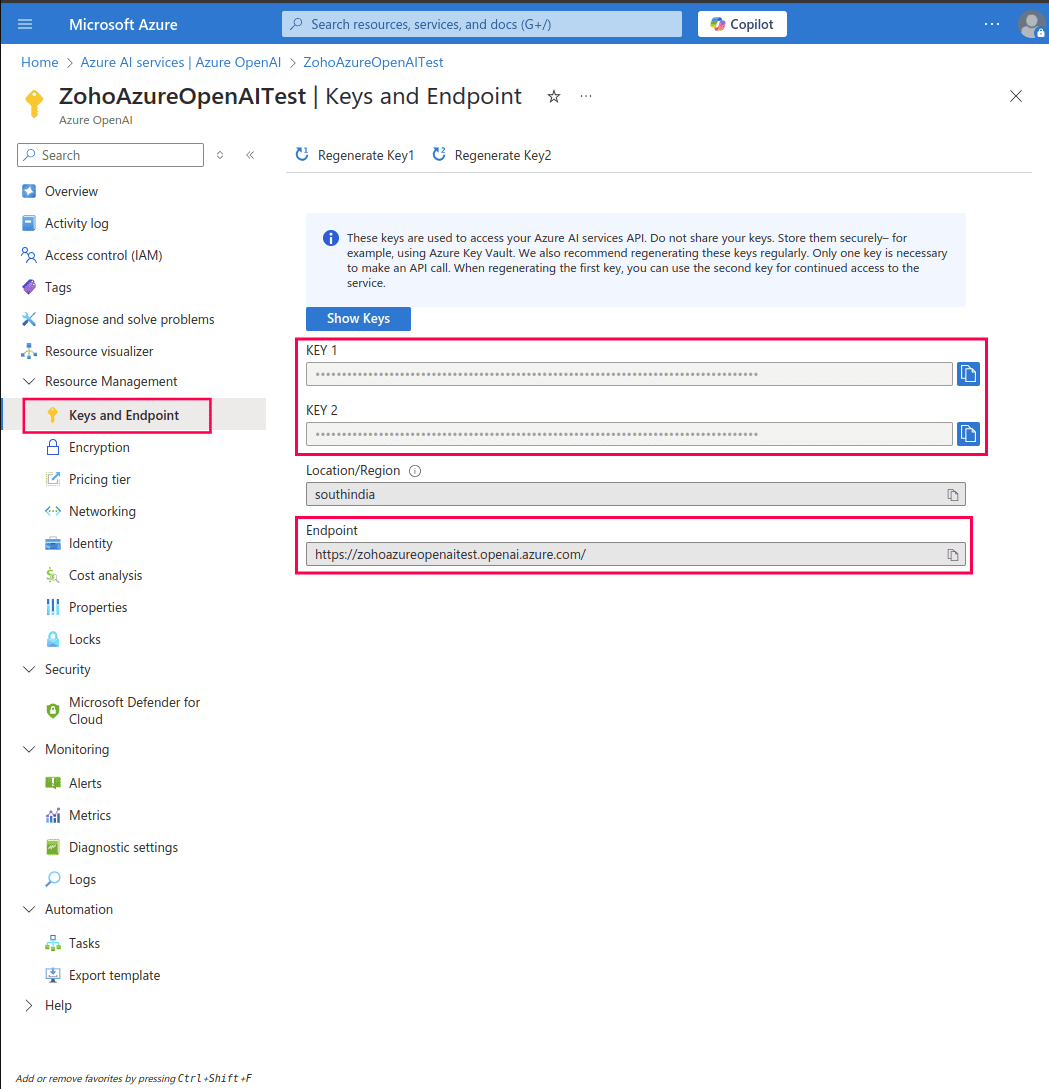
- Log in to Azure portal and navigate to your Azure OpenAI resource.
- In the left pane, under the Resource Management section, click on Keys and Endpoint. It will open Keys and Endpoint console.
- In this window, you will find the Endpoint URL and API keys for your Azure OpenAI resource. Copy these details for use in the product.
Deploying a model in Azure OpenAI
A deployed model is a version of an AI model (such as GPT-4o or GPT-4.1) that has been activated and made available for use within your Azure OpenAI resource. Log360 Cloud will interact with the deployed model to generate AI-powered insights from your logs and alerts.
If you already have a deployed model, you can directly use its deployment name when integrating with the product. Ensure that the model is one of the following types:
- The Chat Completion API model (models GPT-4o or newer). For better results, use latest available model such as GPT-4.1 or newer.
- A non-reasoning model, excluding versions like o1-preview and o1-mini
If you do not have a deployed model, follow the steps below.
Steps to deploy a model
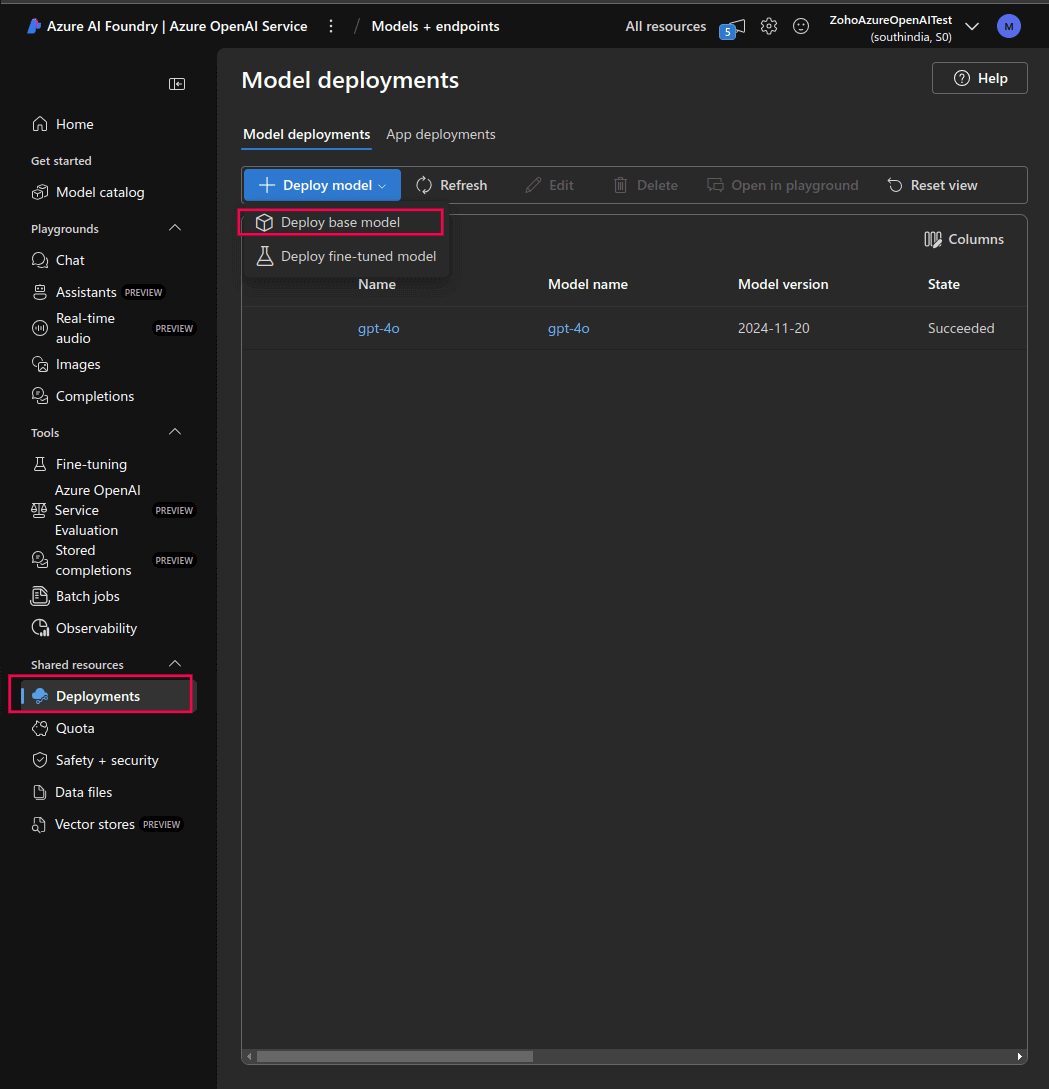
- Navigate to your Azure OpenAI resource and click Go to Azure AI Foundry portal.
- On the Azure AI Foundry portal, navigate to the Deployments section, click Deploy model, and select Deploy base model.
- Choose a model that meets the following constraints:
- Must support the Chat Completion API (models GPT-4o or newer). For better results, use latest available model such as GPT-4.1 or newer. Avoid reasoning models like o1-preview and o1-mini because they do not support system prompts.
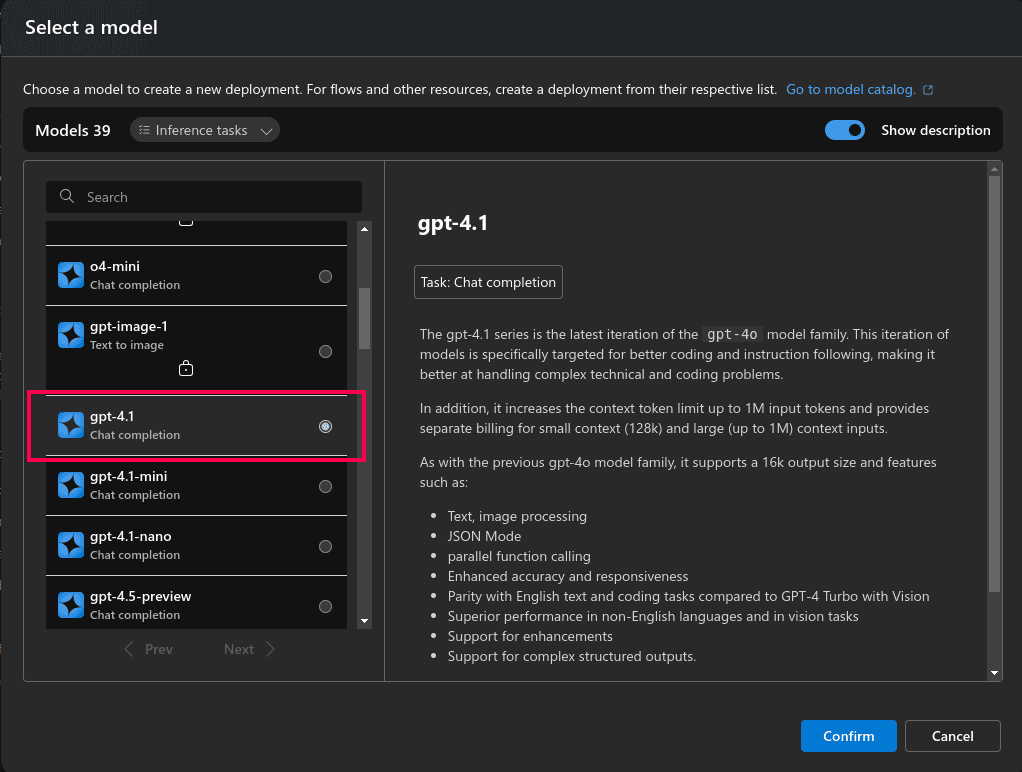
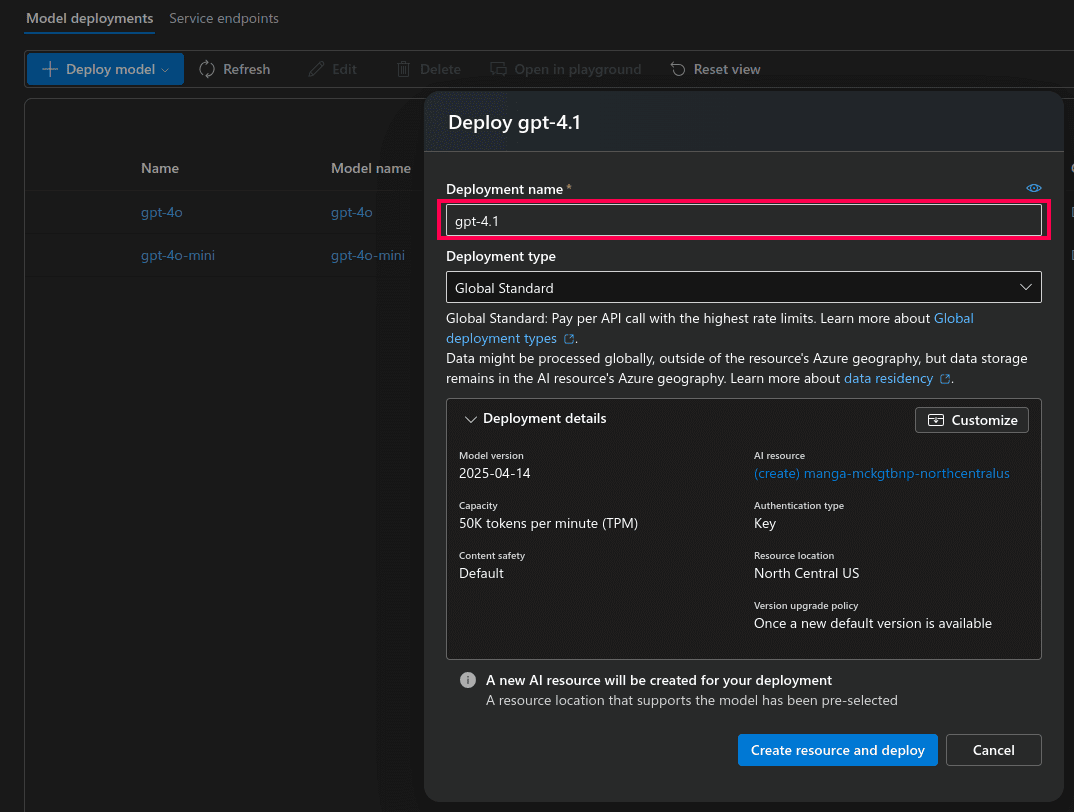
Figure 12: Available models for deployment in Azure AI Foundry portal - Enter a deployment name of your choice (defaults to the model name).
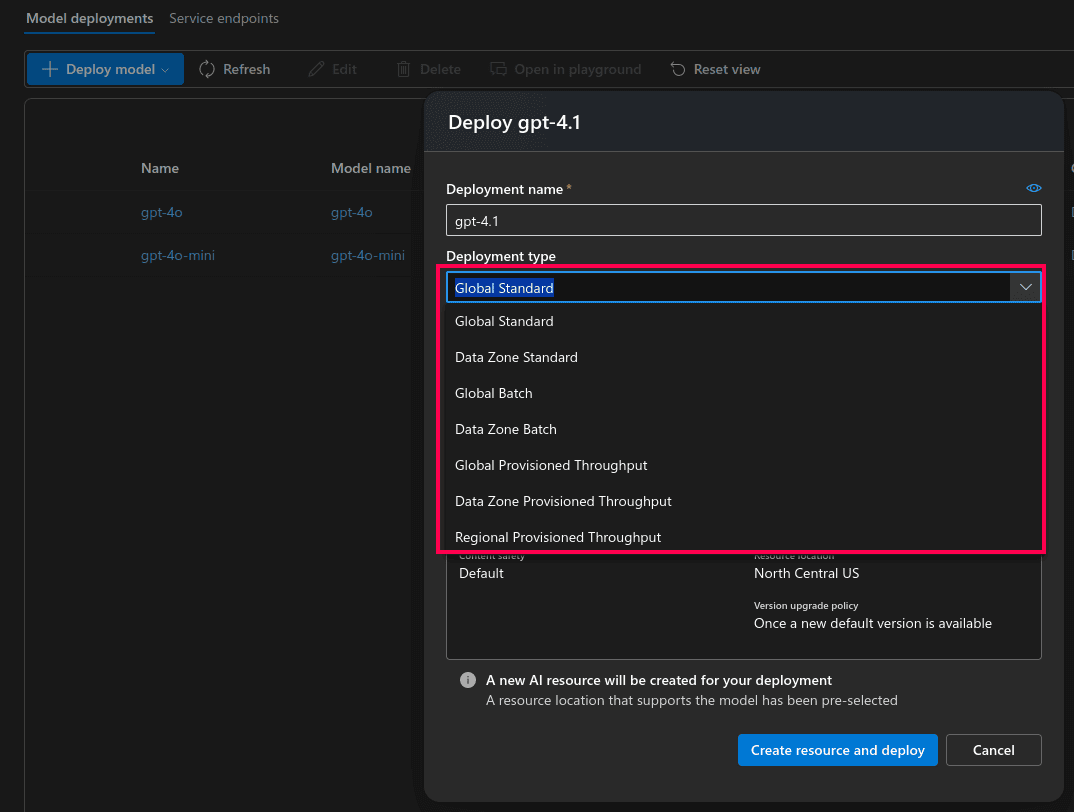
- Select the deployment type based on your data processing needs. Learn more about deployment types.
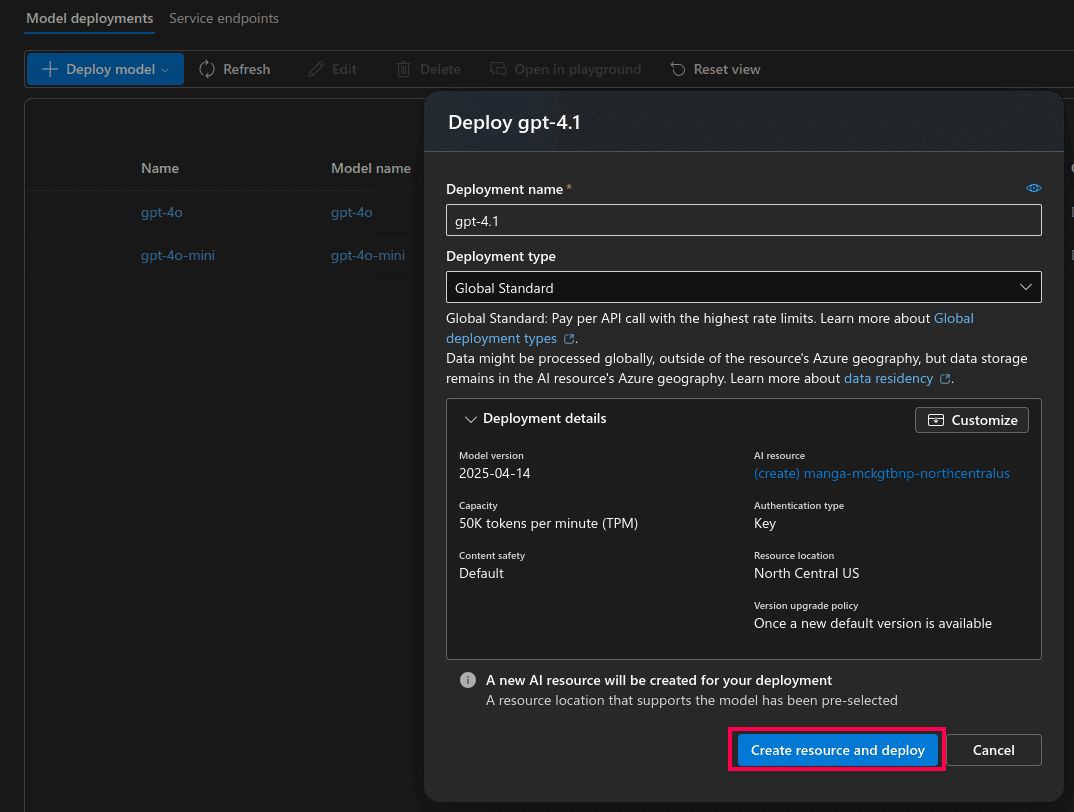
- Click Create resource and deploy to complete the model deployment.

Generating an OpenAI API key
- Log in to your OpenAI account.
- Click Create new secret key.
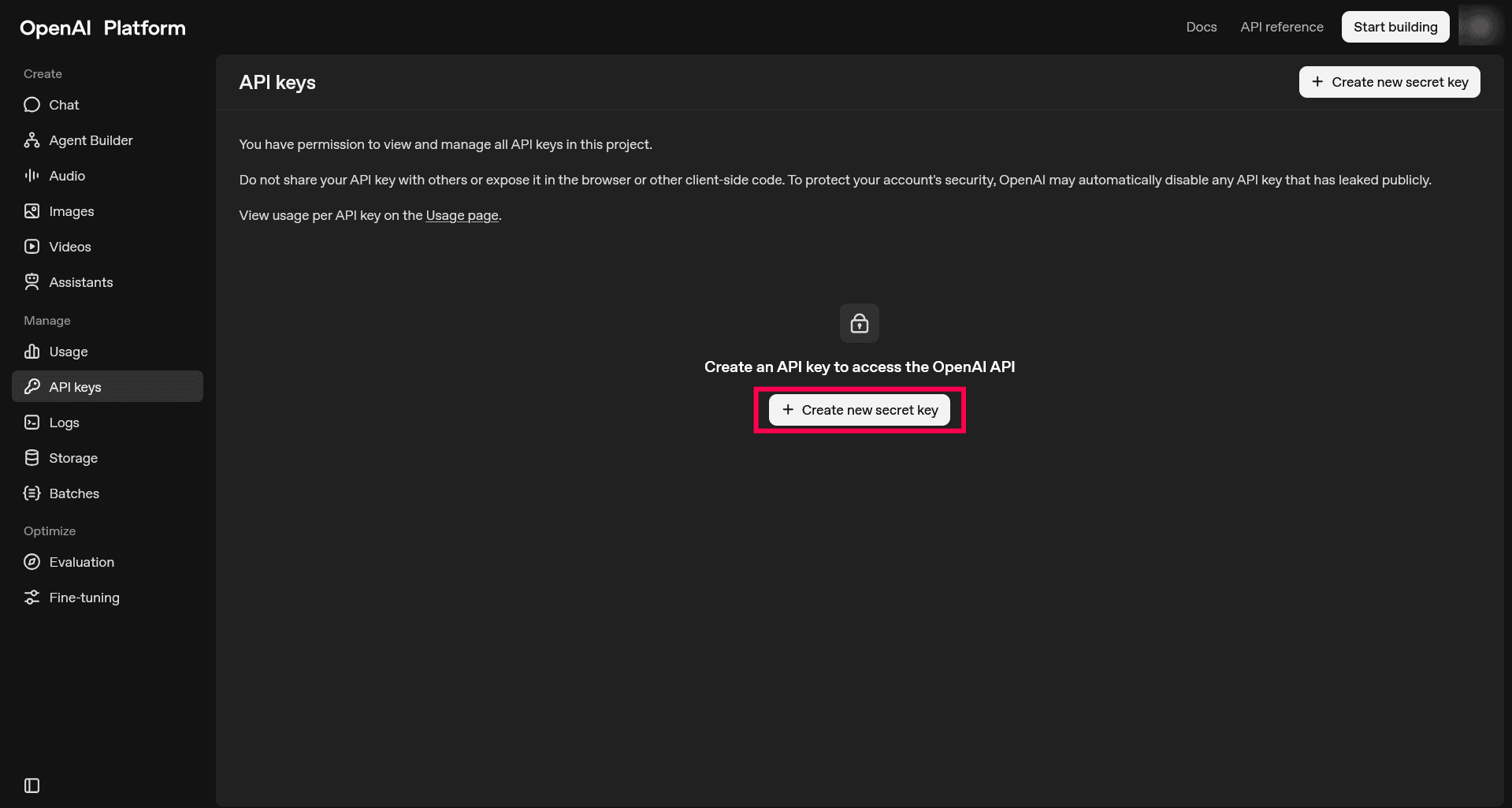
Figure 16: Creating a secret key - In the pop-up window, select the You tab.
- Enter a Name for the key (optional).
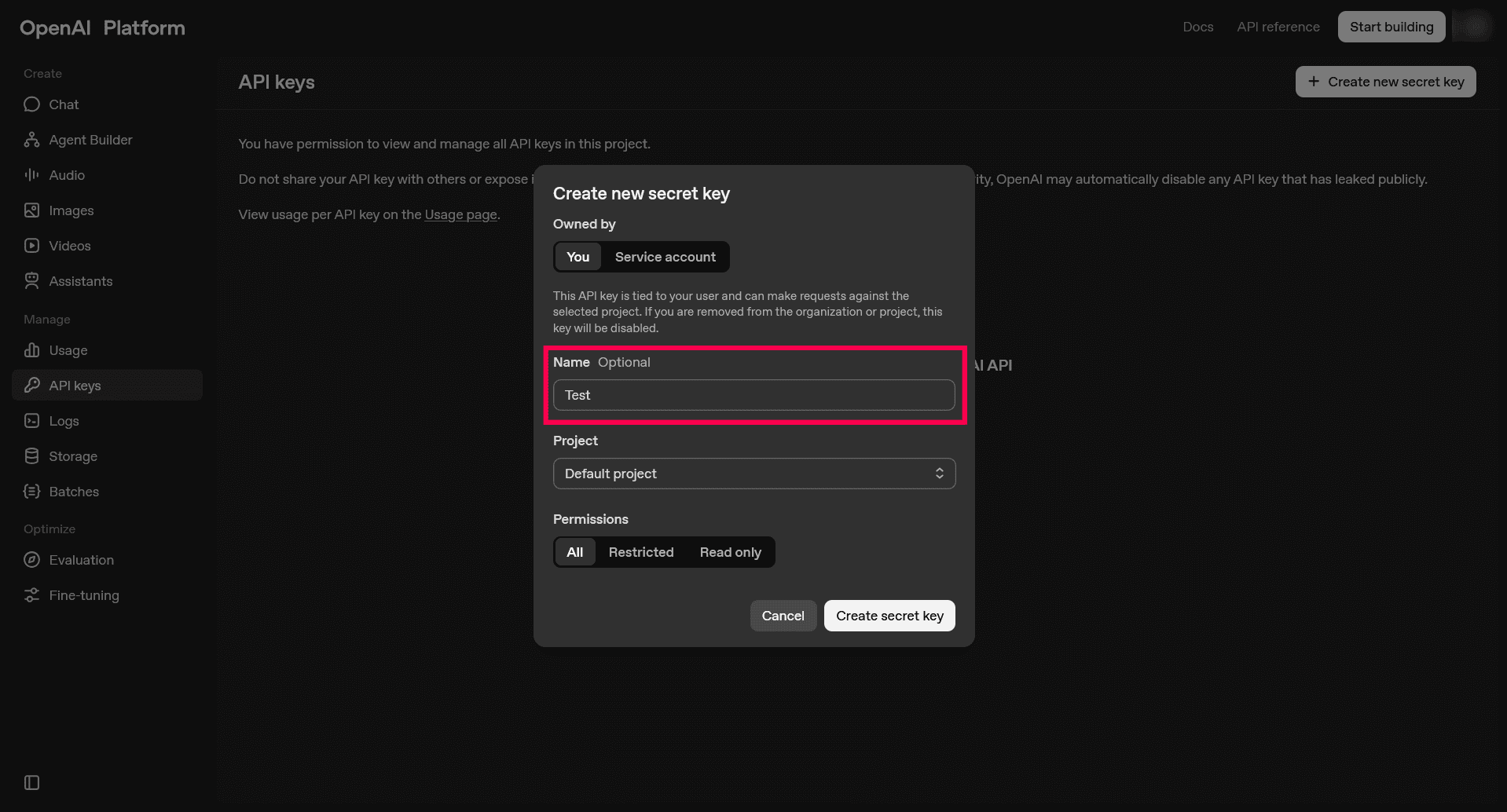
Figure 17: Entering a name - Select Default project from the Project drop-down.
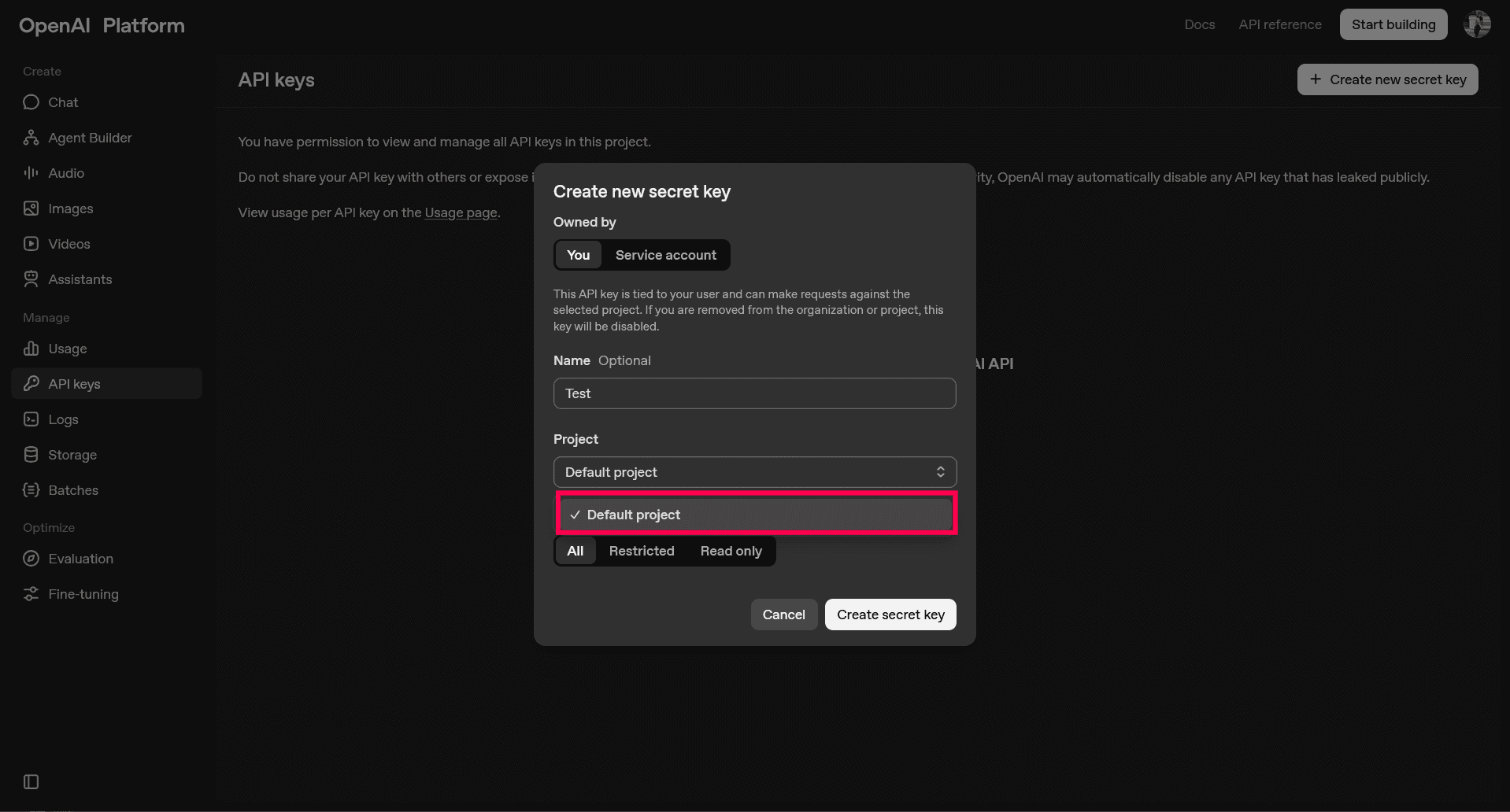
Figure 18: Selecting a project - Choose the appropriate Permissions based on your requirement.
NOTE For product integration, the key must have permission to read and write API resources.
- Click Create secret key.
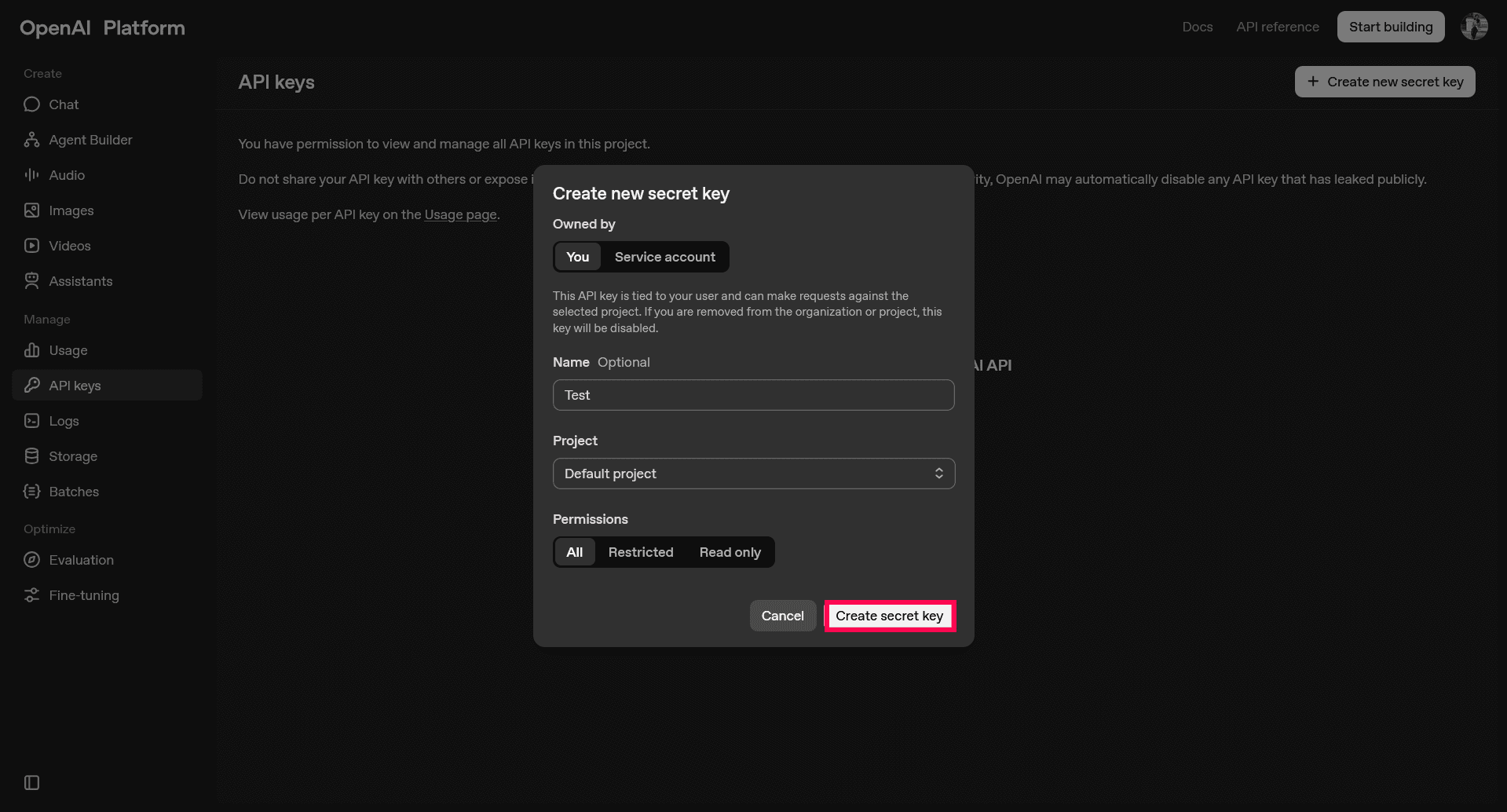
Figure 19: Creating a secret key - Copy the generated API key displayed in the Save your key pop-up.
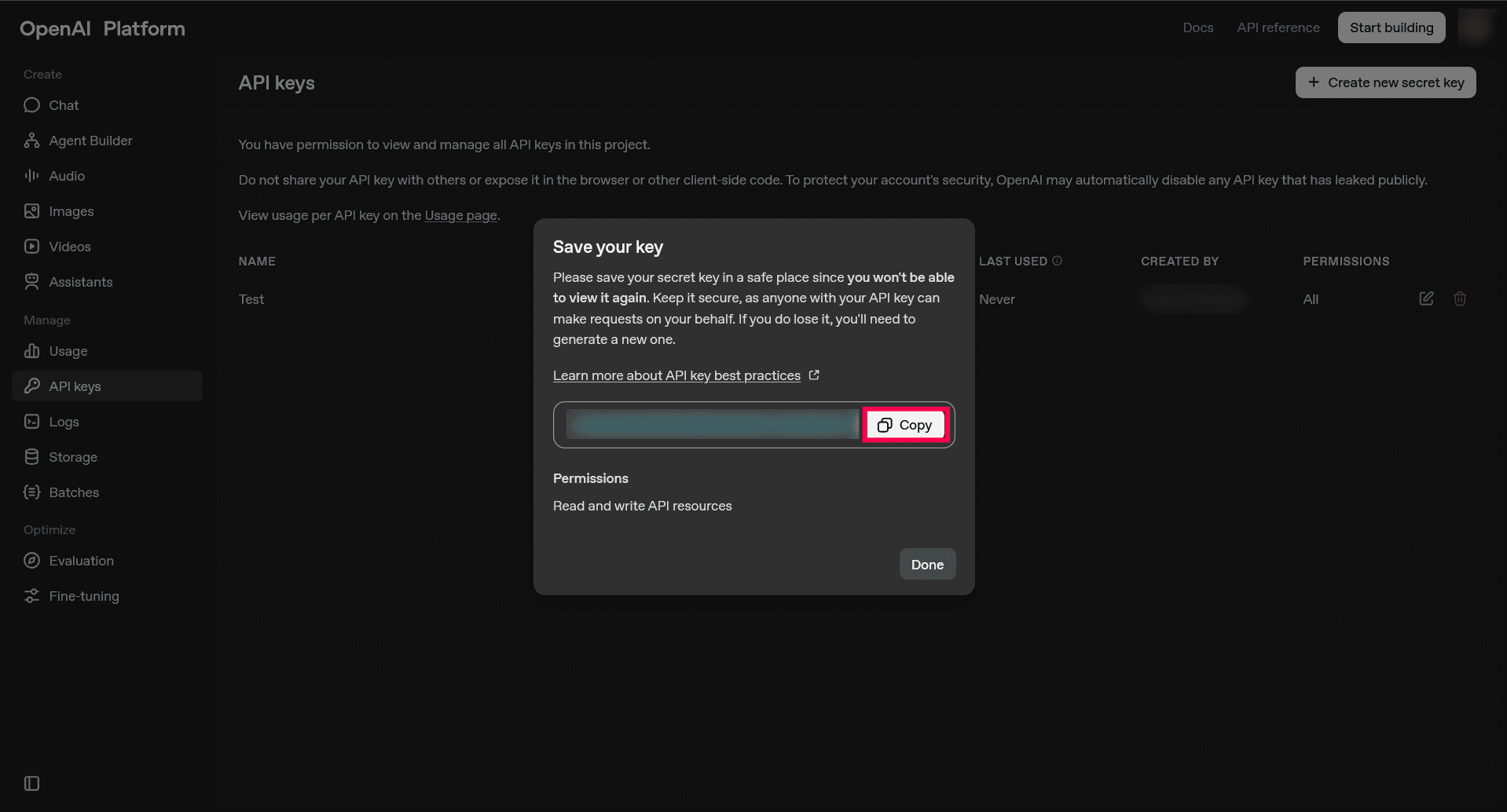
Figure 20: Copying the secret key - Use this API key in the product console when configuring the OpenAI option in Setting up Zia Insights or Setting up Investigation Agent or Accessing Ask Zia.
Read also:
This page explained the steps required to configure an AI provider in ManageEngine Log360 Cloud. To enable and use the individual Zia capabilities, refer to the following articles: