Direct Inward Dialing: +1 408 916 9890
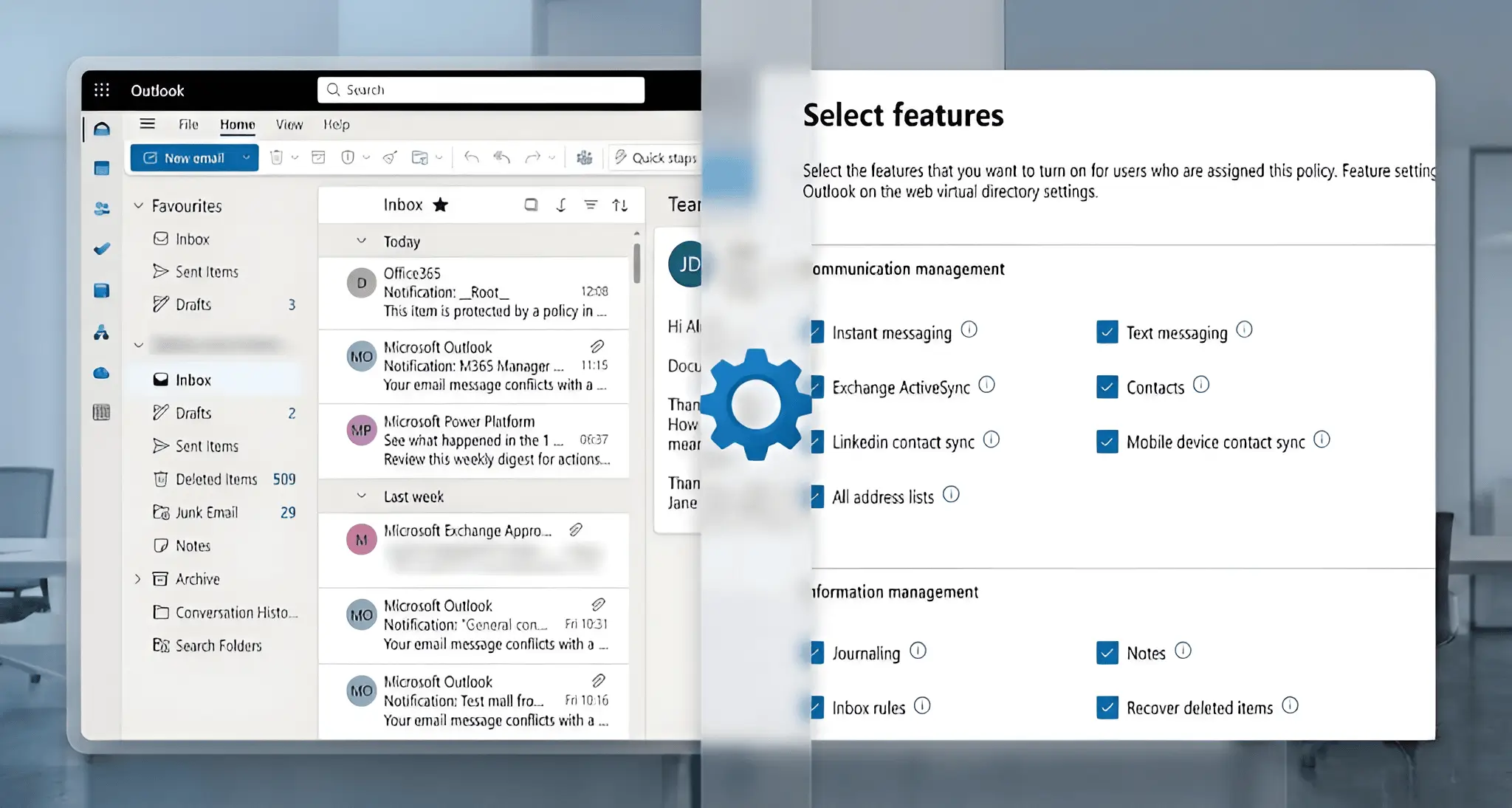
Microsoft 365 makes email accessible from anywhere. That convenience is useful, but it is also one of the easiest ways organizations lose control over sensitive data. This demands a level of control that needs to be exercised so only those who need access to sensitive data or high-level features can have them, without impacting the workflow of other employees.
An Outlook web app (OWA) mailbox policy (previously known as an OWA mailbox policy) functions as a configuration template that determines which features are available to users when they access their email via the web, without installing the Outlook app on their devices. These policies exist to control what users can do with email when they access it through a browser.
This page focuses on how OWA policies are used in organizations, what you can control with them, and how you can get your policies up and running.
Organizations typically deploy OWA policies to solve these specific business challenges:
For employees who share workstations or work in retail/manufacturing, admins create a "Light" policy.
When users access email from unmanaged or public devices, data leakage is a massive risk.
Large enterprises often need to prevent certain configurations such as adding personal Gmail or Outlook accounts.
OWA policies define what users can and cannot do inside a browser-based mailbox in Exchange Online.
In practical terms, they control whether Outlook on the web is available at all, which mailbox features appear in the browser, and how much functionality is exposed on unmanaged systems.
OWA policies do not replace Conditional Access, data loss prevention (DLP), or endpoint management. They complement them by controlling behavior inside the email client after Conditional Access has already vetted the entry.
When you create or edit an Outlook on the web policy in the Exchange admin center, settings are grouped into clear functional sections. The following sections determine how rich or restricted the browser experience is for end users:
This controls how users communicate and sync data through the Outlook client. This includes the following protocols that can be toggled:
This controls how users organize, automate, and recover mailbox data, by controlling the availability of the following actions:
This area is frequently tightened in regulated environments to reduce automation-based data risks.
This determines whether a user can change their own password from the Outlook client.
Many organizations disable browser-based password changes and instead route them through centralized self-service portals.
Controls how full-featured or minimal the Outlook on the web experience is. This controls the availability of the following options in their Outlook client:
Controls whether additional features that involve calendars and event bookings can be accessed by the user.
This includes:
These features are commonly limited for temporary users or restricted access scenarios.
You can create and apply your Outlook web app policies using the Exchange Admin Center (EAC) and Exchange Online PowerShell. In this page, we will look at how to create and apply your Outlook web app policies in one session using Exchange Online PowerShell.
Use the following syntax to create a new Outlook web app mailbox policy:
New-OwaMailboxPolicy -Name "Test"
You can modify the Outlook web app mailbox policy using the Set-OWAMailboxPolicy cmdlet:
Set-OWAMailboxPolicy -Identity "Test" -AttachmentsOnSendEnabled $false -InstantMessagingEnabled $false -CalendarEnabled $false
Use the Set-CASMailbox cmdlet to assign a specific Outlook web app mailbox policy to a user:
Set-CASMailbox -Identity user@domain.com -OwaMailboxPolicy "Test"
You can check out the following pages for more information on Outlook Web App policies, how to manage them using EAC, and how to manage them in bulk using Exchange Online PowerShell.
When an OWA policy is edited, it determines how the end user will use and perceive Outlook on their device. Whether the end user should be allowed to use all tools to get the maximum productivity, Outlook should be stripped to its bare essentials for maximum security, or there is a middle ground to find for a daily user depends on your organizational requirements. However, it is recommend you keep some pointers in mind when you customize OWA policies to your specifications so that you do not end up sacrificing the stability of your user experience for a specific goal.
When a new mailbox is created, the OwaMailboxPolicy-default mailbox policy is applied automatically unless you specify otherwise. Ensure this default policy is configured securely.
Regularly review which users are assigned highly privileged OWA policies and which users have legacy protocols (such as Exchange ActiveSync enabled) in order to prevent data leakage via unmonitored features (like file sharing).
Manage offline access settings within the policy to prevent email data from being cached on devices that might not be secure.
By applying a policy that disables everything (Calendar, Rules, File Access) the moment a departure is announced, you ensure that the user cannot export contacts or set up malicious forwarding rules—even if a session remains open.
While native admin centers and Graph PowerShell scripting can help you create OWA mailbox policies and apply them to your mailboxes, you either need a great deal of patience to make changes to mailboxes one by one or extensive knowledge of PowerShell scripting to carry out your complex and bulk operations. This is where ManageEngine M365 Manager Plus helps you simplify your Microsoft 365 administration.
M365 Manager Plus is a comprehensive administration and security solution for Microsoft 365. It is used for reporting on, managing, monitoring, auditing, and creating alerts for critical activities in your Microsoft 365 environments. Its mailbox management capabilities help you view, monitor, and modify not just your OWA mailbox policy settings, but also other Exchange Online mailbox properties like mailbox quotas, archive status, and inbox rules. You can carry out complex tasks like configuring retention policies, converting mailboxes, and more with just a series of clicks. Instead of juggling scripts or exporting raw data for manual filtering, M365 Manager Plus gives you ready-to-use reports and easy scheduling.
Handle large-scale mailbox actions—such as enabling features, updating settings, or modifying permissions—through simple, GUI-driven operations. No manual scripts, no repetitive tasks.
Access ready-made reports that cover mailbox size, activity, mailbox features, license usage, storage trends, permission assignments, and more. Get the insights you need without digging through multiple admin centers.
Set up instant alerts for critical mailbox changes, including permission updates, forwarding rule modifications, and configuration changes. Stay aware of risky or unauthorized activity as it happens.
Perform mailbox audits, configuration checks, and bulk updates without relying on cmdlets or scripting expertise. One-click actions reduce errors and make mailbox administration far more manageable.