Direct Inward Dialing: +1 408 916 9890
SharePoint Alerts is a native tool that helps keep track of your SharePoint Online and SharePoint Server activities. However, as of July 2025, the ability to create SharePoint Alerts is blocked for new tenants and will be deprecated by July 2026.
Why would Microsoft deprecate SharePoint Alerts? What can you do to ensure you still get SharePoint notifications even after the deprecation? Read this blog to find out.
The Alerts feature in SharePoint Online and SharePoint Server helps users stay informed of changes to content in their sites like lists, libraries, folders, files, or specific items. This automated notification system tracks and sends SharePoint email notifications or SMS messages whenever a change is detected.
SharePoint Alerts is being deprecated from the Microsoft 365 suite as part of Microsoft's efforts to modernize its solutions and phase out legacy tools. Since this tool is only a basic trigger-based notification system, its depreciation will pave the way for an alternative tool, Rules, to take its place. Rules can be used with Power Automate to introduce alert-based automation for SharePoint Online.
If you’ve relied on SharePoint Alerts to keep track of changes in SharePoint Online or SharePoint Server, it is time to prepare for a shift. Microsoft announced the retirement timeline for SharePoint Alerts on the SharePoint blog. With Alerts gone, admins will need to rethink how they track site activity. The good news? They will not be left without options.
Here's the timeline for the deprecation:
In 2020, Microsoft introduced Rules for SharePoint Online, bringing in the same SharePoint notification functionality in a modern UI along with new features.
These are the features that differentiate SharePoint Rules from Alerts:
SharePoint Alerts send notifications for three states: creation, deletion, and modification. Since alerts trigger on every modification, admins often avoid enabling them broadly. This limits alerts to only the most sensitive documents, leaving other important files without coverage.
On the other hand, Rules can be configured to be triggered only when the event meets a certain criteria. For example, if a specific column is modified by a set person, the alert is triggered only if the modification satisfies a given value.
You can configure SharePoint Rules to set column values automatically. For example, when a modification rule is triggered, metadata can be updated natively, such as tagging documents or logging changes.
SharePoint Rules can be integrated with Power Automate, Microsoft's low-code automation platform, to create more complex and powerful workflows. This integration allows you to trigger a wide range of actions beyond simple notifications or column value changes.
For example, when a specific rule is triggered, you can automatically start a multi-step approval process, generate a new document, or post a message to a Microsoft Teams channel.
Rules can be configured for SharePoint lists, libraries, and file types that support a column such as XLSX. Follow these steps on how to set up SharePoint email notifications with Rules:


That is how you can create a rule to get SharePoint list notifications when any change occurs.
While SharePoint Rules offer a quick way to trigger simple actions like sending an email or updating a column when conditions are met, their use is far from a full automation solution or even a complete notification solution. Here's why:
If you wished to create workarounds to counter these issues, you would need to integrate your rules with Power Automate or write custom Graph PowerShell scripts. However, configuring this can be time-consuming and requires a separate subscription.
These reasons are why some admins have not made the shift from SharePoint Alerts to Rules. Even when admins attempt to switch from SharePoint Alerts to Rules, the transfer is incomplete as many notification and reporting capabilities don’t carry over to the new workflow. This is an operational gap that ManageEngine M365 Manager Plus can fill.
M365 Manager Plus is a comprehensive administration and security solution for Microsoft 365. It is used for reporting on, managing, monitoring, auditing, and creating alerts for critical activities in your Microsoft 365 environments, which includes all of SharePoint Online as well.
Here’s how M365 Manager Plus brings SharePoint Alerts and more to your environment.
Expand on native SharePoint Rules and Alerts with fine-tuned, condition-based triggers. Unlike Rules, which trigger only at the list or library level, M365 Manager Plus enables folder- and file-level alerts, multiple condition grouping, and filtering by event type, user, or timestamp, all in a single, consolidated notification. Notifications can be delivered instantly to chosen recipients only when your chosen threshold (i.e., number of times the trigger occurs) is crossed, ensuring you only get alerted when it matters.
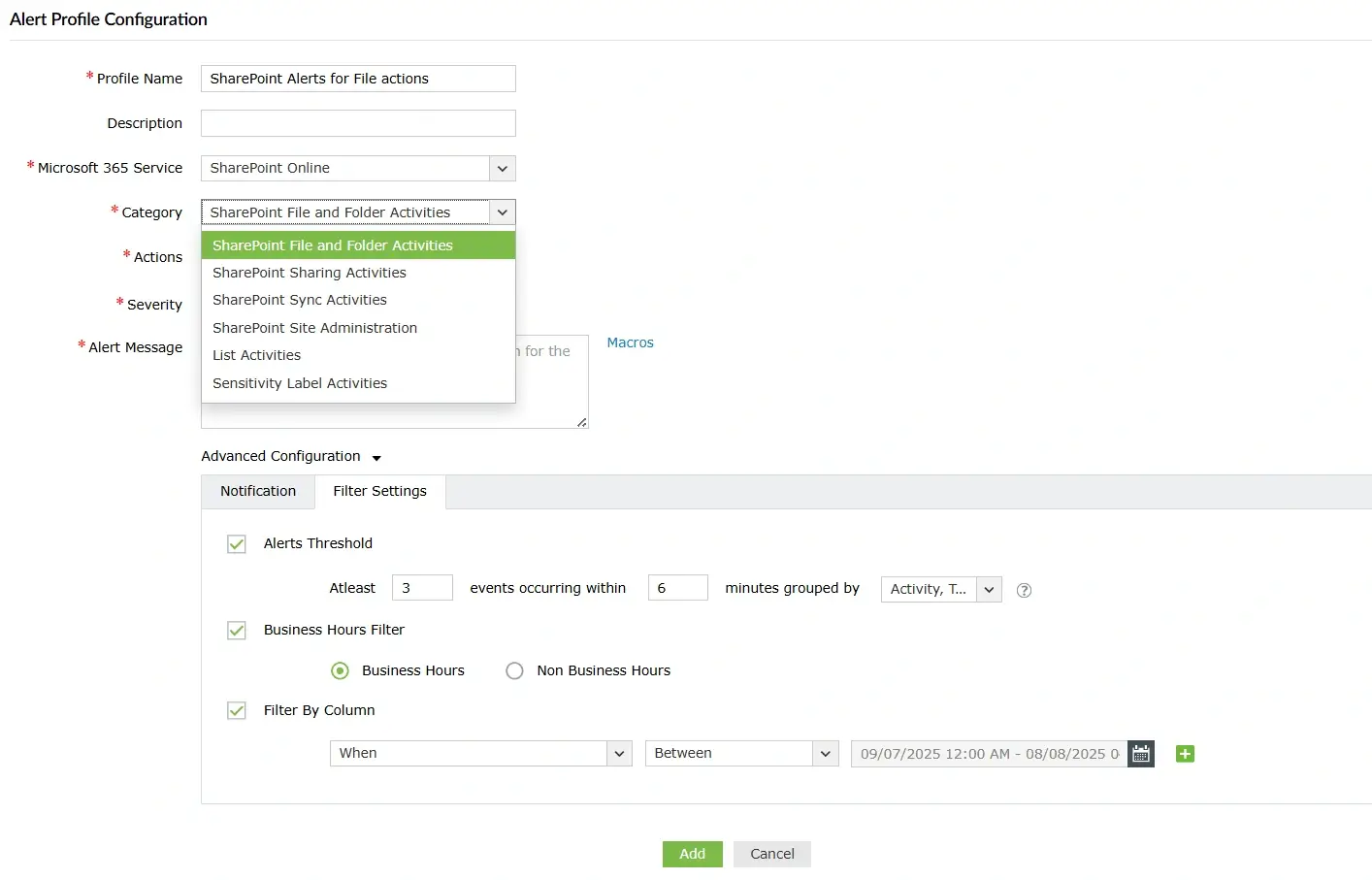
Run targeted SharePoint Online activity checks on an hourly, daily, weekly, or custom schedule without any scripting or complex setup. Choose from built-in reports like file access or permission changes, or create your own with custom views and pre-applied filters. Have them delivered automatically to your inbox or exported for compliance

There are even more benefits to using M365 Manager Plus to manage and monitor your Microsoft 365 environment:
SharePoint Alerts will sunset by July 2026. If you want granular alerts, digest reporting, and cross‑workload monitoring without rebuilding flows, M365 Manager Plus gives you that continuity today.
Download the free, 30-day trial of M365 Manager Plus to explore these features and capabilities for yourself. Contact us for a free, personalized demo to discover how to best secure your Microsoft 365 environment using these features.