

Perform account-only remote wipe on mobile devices in Exchange Online
Last updated on:In this page
When a mobile device with Exchange Online access is lost, stolen, or compromised, it becomes an immediate security risk. Exchange Online remote wipe helps contain this risk by allowing administrators to erase data from the device remotely.
There are two types of Exchange Online remote wipes: full device wipe, which erases all data from the device, and account-only remote wipe, which only erases Outlook and email data from the mobile device. Account-only remote wipes are especially relevant in BYOD environments, as they protect organizational data without affecting personal content.
This article shows you how to perform an account-only remote wipe on a mobile device in Exchange Online using the Exchange admin center, Exchange Online PowerShell, and most efficiently, with just a few clicks in ManageEngine M365 Manager Plus.
- Exchange Online
- Graph PowerShell
- M365 Manager Plus
Method 1: Account-only remote wipe mobile devices using the Exchange Online
Prerequisites
You must have the Exchange Administrator role for the account you use to sign in to the Exchange admin center.
Steps
- Log in to the Exchange admin center.
- Navigate to Recipients > Mailboxes.
- Select the user whose device you wish to wipe and click the General tab.
- Under Mobile Devices, select Manage mobile devices.
- Choose the target device and click Account Only Remote Wipe Device.
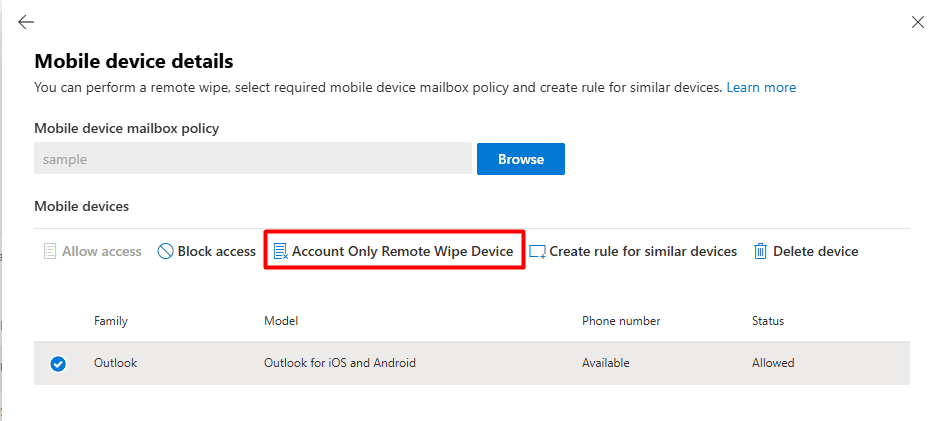
- Click Account Only remote wipe device to initiate the command. The status will change to Wipe Pending until the device connects. Once the device syncs to Exchange Online, the remote wipe will commence.

A limitation to consider
You will have to repeat the same steps for every device you wish to wipe. If you wish to offboard multiple users with an account-only remote wipe, this method can be tedious and you'll have to resort to complex Exchange Online PowerShell scripts. Or, you can try out M365 Manager Plus. With only a few clicks, you can remote wipe hundreds of devices simultaneously.
Method 2: Account-only remote wipe mobile devices using Exchange Online PowerShell (Clear-MobileDevice)
Prerequisites
Before using Exchange Online PowerShell, please verify that:
- You must have the Exchange Administrator role applied to the account you use to sign in to Exchange Online PowerShell.
- Ensure you are connected to the Exchange Online PowerShell module.
- To check if the Exchange Online PowerShell module is installed, use this script:
Get-Module -ListAvailable ExchangeOnlineManagement
- If it does not return a value, you will have to install the module. To install the Exchange Online PowerShell module, use this script:
Install-Module ExchangeOnlineManagement -Scope CurrentUser
- To connect to Exchange Online PowerShell, use this script:
Connect-ExchangeOnline
- To check if the Exchange Online PowerShell module is installed, use this script:
Using Clear-MobileDevice with AccountOnly to remote wipe a single mobile device
The Clear-MobileDevice cmdlet is used to remote wipe all data from a mobile device connected to Exchange Online via Exchange ActiveSync.
The AccountOnly parameter decides if the cmdlet performs an account-only remote device wipe where only Exchange mailbox data is removed from the device or a complete device wipe.
Use this cmdlet to remote wipe a mobile device:
Clear-MobileDevice -Identity -AccountOnly -NotificationEmailAddresses "admin@contoso.com"
After you run the cmdlet, you'll be asked to confirm whether you want to proceed with the deleting the device's data. You must respond yes to proceed with the remote wipe.
Remote wipe multiple mobile devices using Clear-MobileDevice with AccountOnly
Scenario: You're an IT admin tasked with offboarding multiple users. This includes clearing off work profiles from their BYOD devices. However, wiping these devices one at a time is inefficient.
To remote wipe multiple devices, prepare a CSV file (e.g., Devices.csv) with a column header named DeviceId and populate it with the attribute values of the devices.
Use the following script to trigger an account-only remote wipe for the listed mobile devices:
$DeviceList = Import-Csv -Path "C:\Reports\Devices.csv"
foreach ($Device in $DeviceList) {
    Clear-MobileDevice -Identity $Device.DeviceId -AccountOnly -Confirm:$false
}
Supported parameters
| Parameter | Description |
|---|---|
| -Identity | Uniquely identifies the device using its GUID, Distinguished Name, or Identity string. |
| -AccountOnly | Specifies that only Exchange mailbox data should be removed, preserving personal data. |
| -NotificationEmailAddresses | Sends a confirmation email to the specified address once the wipe is acknowledged. |
Method 3: Account-only remote wipe multiple mobile devices using M365 Manager Plus
- Log in to M365 Manager Plus.
- Navigate to Management > Exchange Online > Mobile Device Management and select Clear Mobile Device Data.
- Select Account Only Device Wipe, type in the devices you want to remote wipe or leave the field blank to get a list of all devices, and click Find.
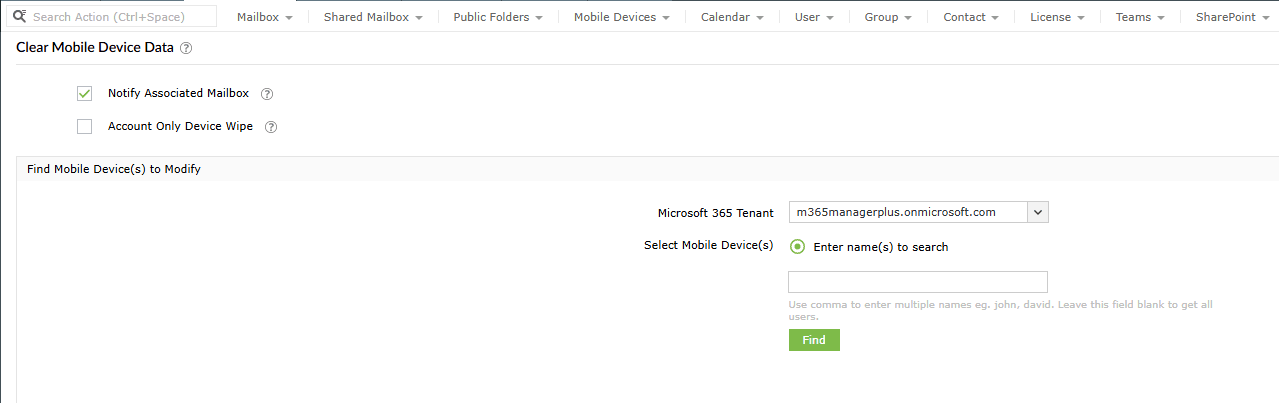
- Choose the target devices from the list and click Apply to remote wipe the mobile devices.

Manage your Exchange Online devices and more
M365 Manager Plus’ management capabilities help you view, monitor, and modify not just your mobile devices, but your Exchange Online mailboxes and their properties like mailbox quotas, archive status, and inbox rules.
Bulk mailbox management
Handle large-scale mailbox actions—such as enabling features, updating settings, or modifying permissions—through simple, GUI-driven operations. No manual scripts, no repetitive tasks.
Reports on Microsoft 365 mailboxes
Access ready-made reports that cover mailbox size, activity, mailbox features, license usage, storage trends, permission assignments, and more. Get the insights you need without digging through multiple admin centers.
Real-time alerts on mailbox changes
Set up instant alerts for critical mailbox changes, including permission updates, forwarding rule modifications, and configuration changes. Stay aware of risky or unauthorized activity as it happens.
Eliminate PowerShell complexity
Perform mailbox audits, configuration checks, and bulk updates without relying on cmdlets or scripting expertise. One-click actions reduce errors and make mailbox administration far more manageable.
Important tips
Remote wipe a device before deletion: Ensure you remote wipe the mobile device of any corporate data before removing the device from your tenant, as the device must have an active connection to receive the remote wipe command.
Verify the Exchange ActiveSync version: Account-only remote wipes require the client to have the Outlook app installed or support Exchange ActiveSync (EAS) v16.1 or later. If the client uses an older version, the wipe may fail or default to a full device wipe. You can verify this with M365 Manager Plus' Mobile Devices by Clients report.
Set alerts for abnormal remote wipes: Keep an eye out for mobile device wipes that happen at unusually high rates or outside of business hours.
Monitor wipe status: Always verify the completion of a wipe by checking if the status has changed from Wipe Pending to Wipe Successful in the Exchange admin center.
Frequently asked questions
A remote wipe protects a mobile device by erasing sensitive organizational data—such as emails and calendar entries—to prevent unauthorized access if the device is lost, stolen, or compromised.
Yes, users can perform a self-service remote wipe through Outlook on the web (OWA) by navigating to Settings > General > Mobile devices and selecting the wipe icon for their device.
Use an account-only remote wipe for a personal (BYOD) device to ensure personal data is not deleted. Use a full wipe for a corporate-owned device to restore it to the factory settings and ensure all data is permanently deleted.
Administrators can use PowerShell to loop through a CSV list of Device IDs or use M365 Manager Plus to select multiple devices and trigger a Clear Mobile Device Data task with a single click.