

How to disable Microsoft 365 users
Last updated on:In this page
Blocking sign-in for a Microsoft 365 user is a critical security measure used to immediately prevent access to organizational data without deleting the account or its associated data. Unlike account deletion, blocking sign-in for Microsoft 365 users keeps their email, files, and license assignments intact.
This article details how to block sign-in for Microsoft 365 users using the Microsoft 365 admin center and Microsoft Graph PowerShell, and how to disable multiple Microsoft 365 users in a single click using ManageEngine M365 Manager Plus, a dedicated Microsoft 365 administration tool.
- M365 admin center
- Graph PowerShell
- M365 Manager Plus
Method 1: Block sign in for Microsoft 365 users with Microsoft 365 admin center
Prerequisites
You must have the User Administrator or Global Administrator role for the account you use to sign in to the Microsoft 365 admin center.
Steps
- Log in to the Microsoft 365 admin center.
- Navigate to Users > Active users.
- Select the user you wish to disable.
- Select Sign out of all sessions and then Block sign-in if you wish to disable the user as soon as possible.
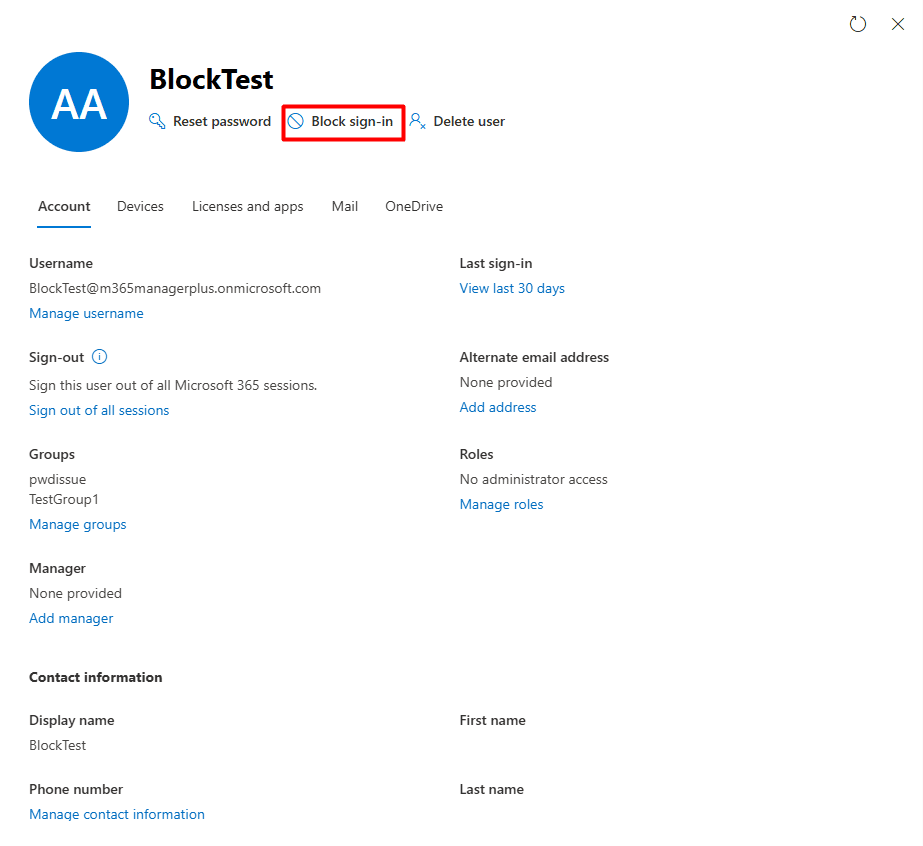
- Enable the Block this user from signing in checkbox and click Save changes.
- The user's status will now display a red "Blocked" tag.

A limitation to consider
You will have to perform the same set of steps for Microsoft 365 users you disable in the Microsoft 365 admin center. To disable multiple Microsoft 365 users, you will have to resort to complex Microsoft Graph PowerShell scripts, or you can try out M365 Manager Plus to block sign ins for Microsoft 365 users effortlessly, which would only take a few clicks with its user-friendly interface.
Method 2: How to block Microsoft 365 user accounts with Microsoft Graph PowerShell (Update-MgUser)
Prerequisites
Before using Microsoft Graph PowerShell, please verify that:
- The User Administrator or Global Administrator role is applied to the account you use to sign in to Microsoft Graph PowerShell.
- You are connected to the Microsoft Graph PowerShell module.
- To check if the Microsoft Graph PowerShell module is installed, use this script:
Get-Module Microsoft.Graph -ListAvailable
If it does not return a value, you will have to install the module.
- To install the Microsoft Graph PowerShell module, execute this script:
Install-Module Microsoft.Graph -Scope CurrentUser
- To connect to Microsoft Graph, run this script:
Connect-MgGraph -Scopes "User.ReadWrite.All"
- To check if the Microsoft Graph PowerShell module is installed, use this script:
Run Update-MgUser to disable Microsoft 365 user accounts
The Update-MgUser cmdlet in Microsoft Graph PowerShell is used to modify the properties of a Microsoft 365 user, ranging from their display name, job title, department, and in this case, account status.
The Update-MgUser cmdlet is used here with the AccountEnabled parameter to block sign in for one Microsoft 365 user account.
Update-MgUser -UserId user@domain.com -AccountEnabled:$false
To enable the Microsoft 365 user after blocking their sign-in, run the same cmdlet with AccountEnabled set to true.
Update-MgUser -UserId user@domain.com -AccountEnabled:$true
Disable multiple Microsoft 365 users in a group with Microsoft Graph PowerShell (Update-MgUser)
Scenario: A Microsoft 365 user administrator is tasked with blocking an entire department named "Shadow" for certain legal purposes.
Use the following Microsoft Graph PowerShell script to block sign in for multiple Microsoft 365 users in the group in a single run.
$users = Get-MgUser -Filter "department eq 'Shadow'" -All

foreach ($user in $users) {
    Update-MgUser -UserId $user.Id -AccountEnabled:$false
}
If you wish to disable Microsoft 365 users immediately, you can consider revoking user access tokens to sign them out of their current session.
Method 3: Disable Microsoft 365 users with M365 Manager Plus
Steps
- Log in to M365 Manager Plus, navigate to the Management tab > Azure Active Directory > User Management and select Block Users.
- Select the Microsoft 365 Tenant, enter the display names of the Microsoft 365 users you want to block sign-in for and click Find, or upload a CSV with the display names using CSV Import and click Import CSV.
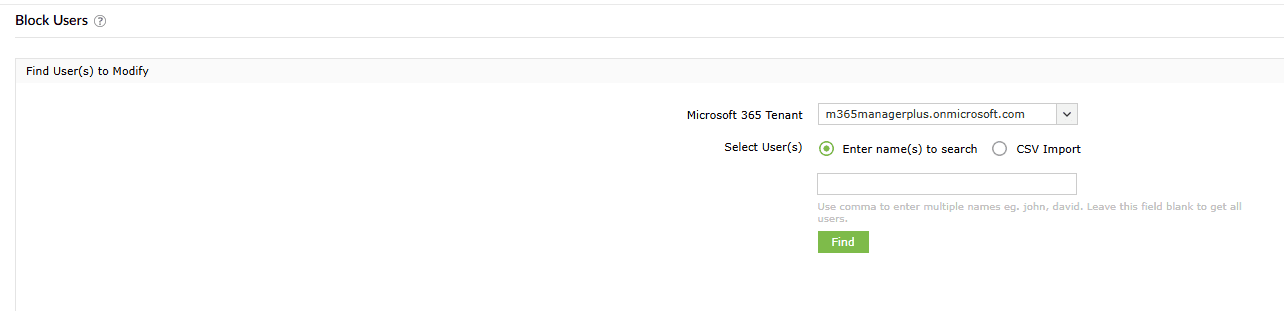
- After finalizing the list of Microsoft 365 users you want to disable, click Apply.

Streamline Entra ID user life cycle management
M365 Manager Plus provides a unified command center for managing the entire life cycle of your Entra ID users, especially during critical offboarding phases. Gain instant visibility into sign-in statuses, account risks, and orphaned objects across your tenant. View, manage, and track identity objects across your Microsoft 365 tenant from a single console without switching between multiple admin portals.
Review and manage Entra ID users and access
Easily identify users with blocked sign-ins, accounts without managers, inactive identities, and stale memberships. Assign or update account properties, revoke active sessions, set up MFA for your Microsoft 365 users, and clean up unused or risky identities directly from the same interface to maintain accountability and security across your directory.
Built-in reports for Entra ID users
Access ready-made reports covering user account status, blocked sign-in activity, password and MFA changes, license assignments, and group memberships. These reports help you quickly spot inactive users who need to be disabled, over-licensed accounts that are no longer in use, and privileged accounts that require immediate restriction, without manual data collection.
Audit Entra user changes across all services
Track changes made to user accounts, including sign-in blocks, membership updates, role assignments, license removals, and account status modifications. Audit trails provide clear visibility into who disabled an account and when, helping you meet security and compliance requirements during employee offboarding or security incidents.
Real-time alerts for critical Entra ID events
Configure instant alerts for events such as abnormal sign-in attempts on disabled accounts, new admin role assignments, user creation or deletion, and license updates. Stay informed the moment high-impact identity changes or unauthorized reactivations occur instead of discovering them during audits.
Automate Microsoft 365 user onboarding and offboarding
Automate common identity operations such as assigning licenses, updating group memberships, disabling inactive users, or enforcing ownership rules using policy-based automation. Reduce manual effort while keeping your Entra ID environment clean and controlled.
Act without replying on PowerShell
Perform reporting, audits, bulk account disabling, and corrective actions through a GUI-driven interface without relying on Microsoft Graph PowerShell scripts. This reduces operational complexity, minimizes errors, and speeds up Entra ID administration with just a few clicks.
Important tips
Revoke user sessions before disabling users: Blocking a Microsoft 365 user account can take up to 24 hours since the action only prevents new sign-ins. To kick a user out of active sessions, select Sign out of all sessions in the Microsoft 365 admin center or use the Revoke-MgUserSignInSession cmdlet.
Remove licenses from billing: Blocking sign-in for Microsoft 365 users does not automatically remove their license. You will have to remove the licenses from disabled Microsoft 365 users to stop including them in your billing cycle.
Frequently asked questions
After being blocked, Microsoft 365 users are typically signed out within 60 minutes, though full enforcement might take up to 24 hours.
Yes, unless you specifically block access to the mailbox or remove the license, the disabled Microsoft 365 user account continues to receive emails.
Block sign-in if you need to preserve data for legal discovery or if you plan to convert the mailbox to a shared mailbox. Delete the account only after all necessary data has been backed up or moved.
You can re-enable a Microsoft 365 user account by clicking on the user in the Microsoft 365 admin center and selecting Unblock sign-in. You can also run the Update-MgUser cmdlet with AccountEnabled set to True in Microsoft Graph PowerShell to reverse blocked sign ins for Microsoft 365 users.