

How to create Outlook Web App mailbox policies
Last updated on:In this page
An Outlook Web App mailbox policy (OWA policy) allows administrators to control the features available to users when they access their Outlook mailboxes via a web browser. These policies are essential for securing access to data, managing attachment settings, and enabling or disabling specific features like instant messaging or text messaging.
This article explains how to create and configure an OWA mailbox policy using the Exchange admin center and Exchange Online PowerShell.
- Exchange Online
- Graph PowerShell
Method 1: How to create an OWA mailbox policy using the Exchange admin center
Prerequisites
You need the Organization Management or Recipient Management role for the account you use to sign in to the Exchange admin center.
Steps
- Log in to the Exchange admin center.
- Navigate to Roles > Outlook web app policies.
- Click New OWA policy.
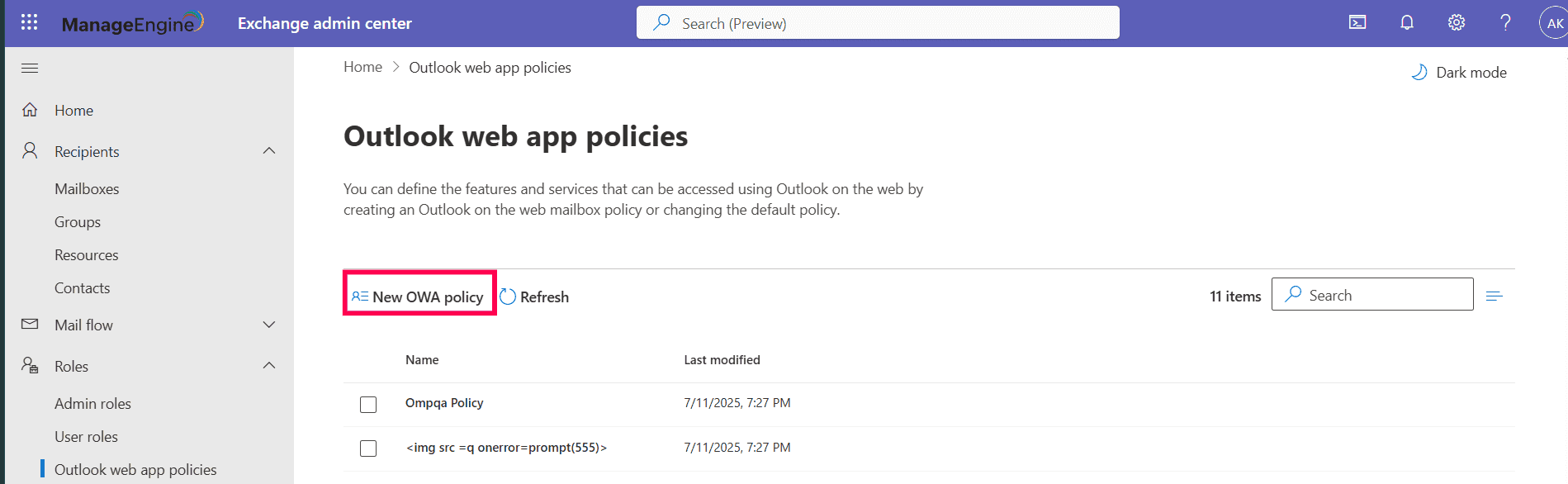
- In the window that appears, provide a Name for your policy.
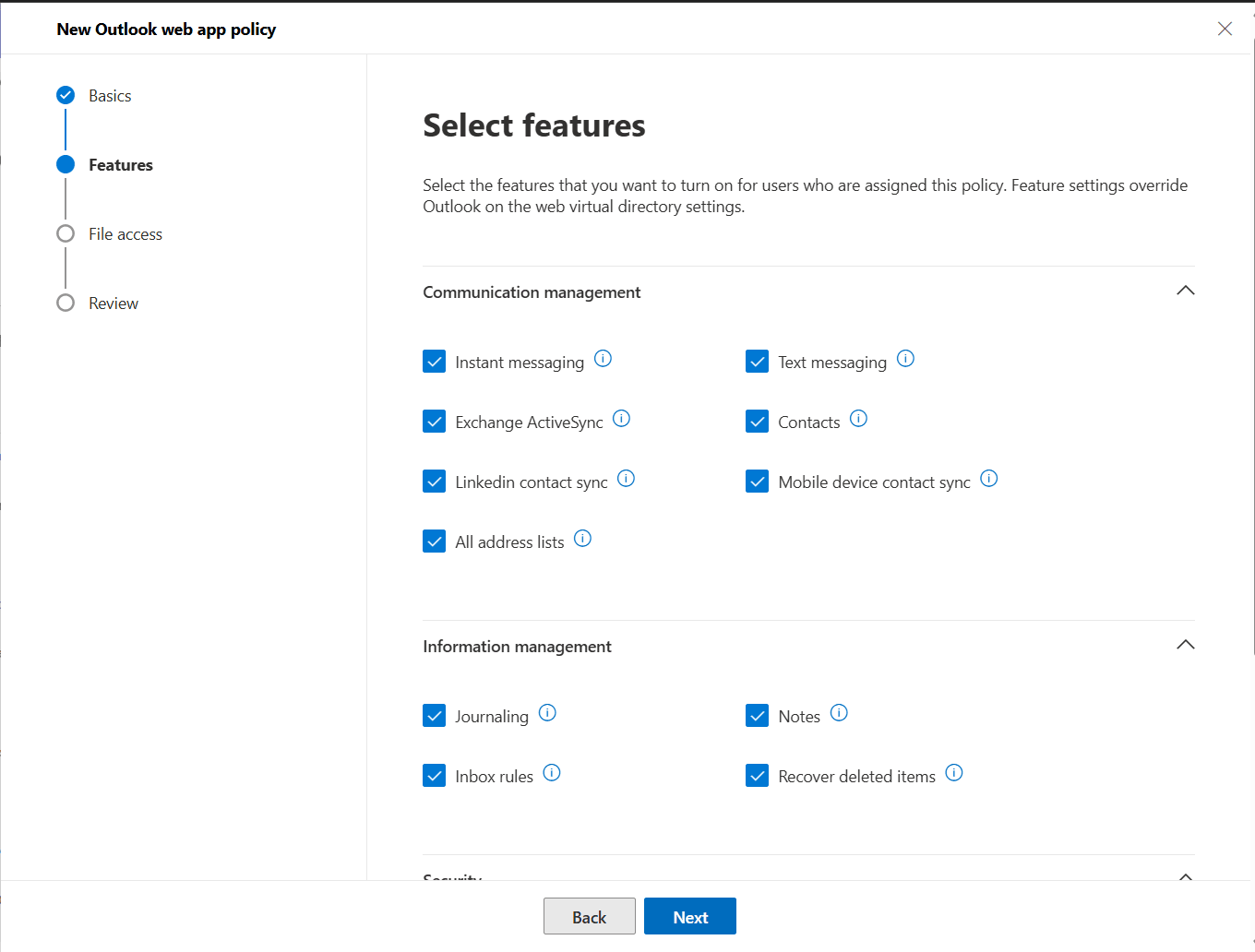
- Configure the policy settings across the available categories:
- Features: Use the checkboxes to enable or disable features such as: Instant messaging, Text messaging, Exchange ActiveSync, and Contacts.
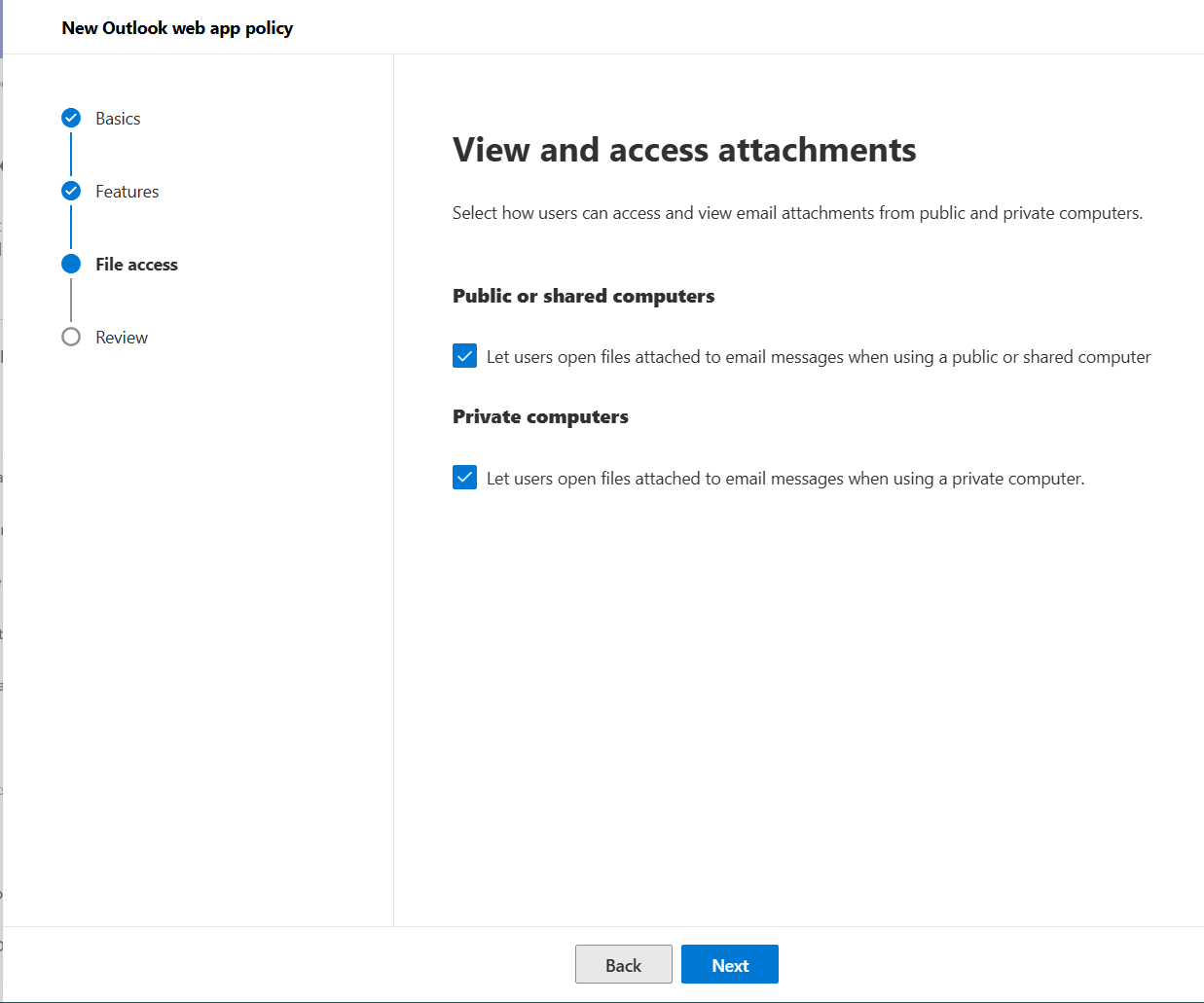
- File access: Configure how users can view and access email attachments on public or private computers. This is useful for configuring hybrid OWA mailbox policies that can be applied in your on-premises environment.
- Features: Use the checkboxes to enable or disable features such as: Instant messaging, Text messaging, Exchange ActiveSync, and Contacts.
- Click Next to review your settings, then click Create.
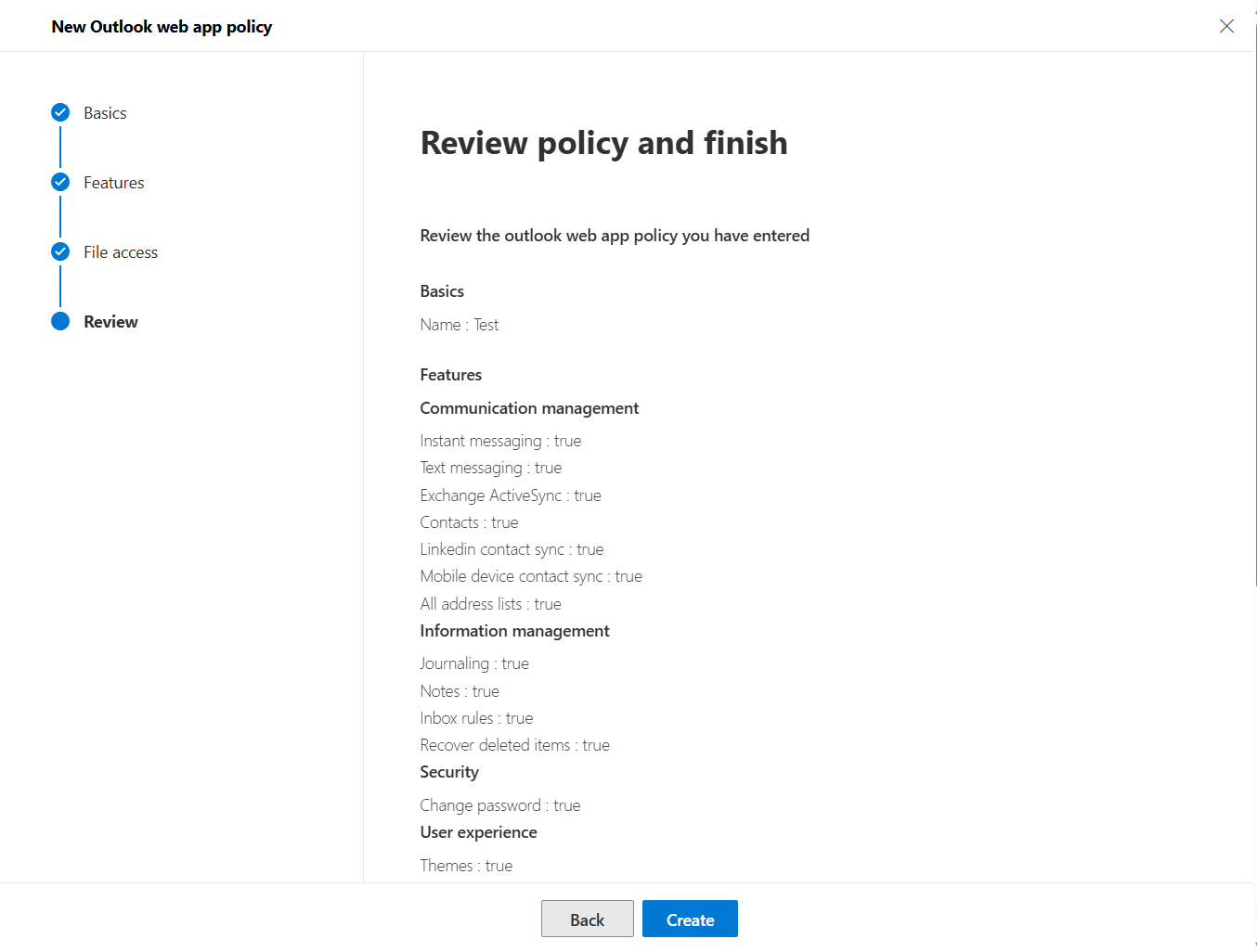


Once created, you can assign the OWA mailbox policy to your mailboxes for this to take effect.
You can edit OWA policies in Exchange Online by following these steps.
- Log in to the Exchange admin center.
- Navigate to Roles > Outlook web app policies.
- Click the OWA mailbox policy that you want to edit.
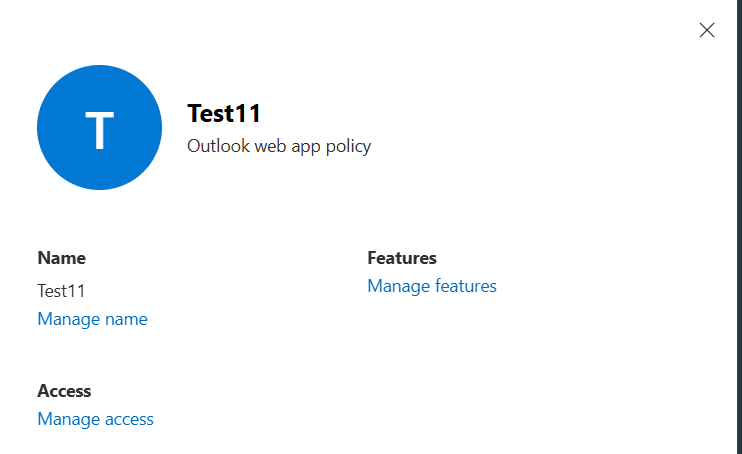
- Select Manage name, Manage access, or Manage features based on what you want to edit.

Method 2: How to create and configure OWA mailbox policy using Exchange Online PowerShell (New-OwaMailboxPolicy and Set-CASMailbox)
Prerequisites
Before using Exchange Online PowerShell, please verify that:
- The Exchange Administrator role is applied to the account you use to sign in to Exchange Online PowerShell.
- You are connected to the Exchange Online PowerShell module.
- To check if the Exchange Online PowerShell module is installed, use this script:
Get-Module -ListAvailable ExchangeOnlineManagement
- If it does not return a value, you have to install the module. To install the Exchange Online PowerShell module, execute this script:
Install-Module ExchangeOnlineManagement -Scope CurrentUser
- To connect to Exchange Online PowerShell, run this script:
Connect-ExchangeOnline
- To check if the Exchange Online PowerShell module is installed, use this script:
Using the New-OwaMailboxPolicy to create a new OWA mailbox policy
Use the following syntax to create a new Outlook web app mailbox policy.
New-OwaMailboxPolicy -Name "Test"
Using Set-CASMailbox to configure OWA mailbox policy settings
The Set-CASMailbox cmdlet can be used to edit the OWA mailbox policy to enable or disable certain Exchange Online features that allow users different ways to access their mailboxes.
You can modify the OWA mailbox policy using the Set-OWAMailboxPolicy cmdlet.
Set-OWAMailboxPolicy -Identity "RestrictedOWAPolicy" -AttachmentsOnSendEnabled $false -InstantMessagingEnabled $false -CalendarEnabled $false
Supported parameters
The following table contains parameters relevant to creating and editing OWA mailbox policies via Exchange Online PowerShell.
1. Features and user experience
These parameters control the availability of specific features within the Outlook on the web interface.
| Parameter | Description |
|---|---|
| InstantMessagingEnabled | Enables or disables instant messaging features. |
| CalendarEnabled | Controls access to the calendar module. |
| TextMessagingEnabled | Specifies whether users can send and receive text messages. |
| SignaturesEnabled | Controls whether users can create and use email signatures. |
| WeatherEnabled | Enables or disables weather information in the calendar. |
| PlacesEnabled | Enables or disables Places (location search/mapping) features. |
| DefaultTheme | Sets a default theme for users who haven't selected one. |
| DisplayPhotosEnabled | Controls whether sender photos are displayed in the interface. |
| PhishReportEnabled | Enables or disables the Report Phishing add-in/button for users. |
| PersonalAccountsEnabled | Specifies if users can add personal email accounts (e.g., Gmail, Outlook.com) to the new Outlook for Windows. |
| UserVoiceEnabled | Controls whether the option to provide feedback to Microsoft is available. |
| OfflineEnabledWin | Allows or blocks the use of the new Outlook for Windows in offline mode. |
2. File access and attachments
These parameters manage how users interact with email attachments, which is critical for data loss prevention.
| Parameter | Description |
|---|---|
| DirectFileAccessOnPublicComputersEnabled | Controls if users can open attachments directly when logged in on a public computer. |
| DirectFileAccessOnPrivateComputersEnabled | Controls if users can open attachments directly when logged in on a private computer. |
| ActionForUnknownFileAndMIMETypes | Specifies how to handle file types not explicitly defined in Allow/Block lists ( Values : Allow, Block, ForceSave). |
| AllowedFileTypes | A list of file extensions that users are allowed to save locally or view. |
| BlockedFileTypes | A list of file extensions that are blocked from being saved or viewed. |
| AllowedMimeTypes | A list of MIME types allowed for attachments. |
| BlockedMimeTypes | A list of MIME types blocked for attachments. |
| AdditionalStorageProvidersAvailable | Controls access to third-party storage providers (e.g., Dropbox, Google Drive) for attachments. |
| ClassicAttachmentsEnabled | Specifies whether users can attach local files as regular email attachments. |
3. Security and access control
These parameters enforce security boundaries and access protocols.
| Parameter | Description |
|---|---|
| ActiveSyncIntegrationEnabled | Enables or disables Exchange ActiveSync integration settings in OWA. |
| ConditionalAccessPolicy | Specifies a limited access policy (e.g., ReadOnly, ReadOnlyPlusAttachmentsBlocked) often used in conjunction with Entra ID Conditional Access. |
| ExplicitLogonEnabled | Specifies whether a user can open another user's mailbox (provided they have permissions) in a separate browser window. |
| AccountTransferEnabled | Controls QR code sign-in features (typically for mobile device transfer). |
Validation: How to ensure your OWA mailbox policies are applied
Use the Get-CASMailbox cmdlet to verify which OWA mailbox policy is assigned to a user:
Get-EXOCASMailbox -Identity <UserPrincipalName> | Select-Object Identity, OWAMailboxPolicy
Also, you can check the email apps settings of each mailbox in Exchange Online for the OWA mailbox policy applied to it.
Manage your Exchange Online protocols and more
While native admin centers and Graph PowerShell scripting can help you create OWA mailbox policies to your mailboxes, you either need a great deal of patience to make changes to mailboxes one by one or extensive knowledge of PowerShell scripting to carry out your complex and bulk operations. This is where ManageEngine's M365 Manager Plus helps you simplify your Microsoft 365 administration.
M365 Manager Plus is a comprehensive administration and security solution for Microsoft 365. It is used for reporting on, managing, monitoring, auditing, and creating alerts for critical activities in your Microsoft 365 environments. Its mailbox management capabilities help you view, monitor, and modify not just your OWA mailbox policy settings, but also other Exchange Online mailbox properties like mailbox quotas, archive status, inbox rules, and carry out complex tasks like configuring retention policies, converting mailboxes, and more with just a series of clicks. Instead of juggling scripts or exporting raw data for manual filtering, M365 Manager Plus gives you ready-to-use reports and easy scheduling.
Bulk mailbox management
Handle large-scale mailbox actions—such as enabling features, updating settings, or modifying permissions—through simple, GUI-driven operations. No manual scripts, no repetitive tasks.
Reports on Microsoft 365 mailboxes
Access ready-made reports that cover mailbox size, activity, mailbox features, license usage, storage trends, permission assignments, and more. Get the insights you need without digging through multiple admin centers.
Real-time alerts on mailbox changes
Set up instant alerts for critical mailbox changes, including permission updates, forwarding rule modifications, and configuration changes. Stay aware of risky or unauthorized activity as it happens.
Eliminate PowerShell complexity
Perform mailbox audits, configuration checks, and bulk updates without relying on cmdlets or scripting expertise. One-click actions reduce errors and make mailbox administration far more manageable.
Important tips
Secure the default OWA mailbox policy: When a new mailbox is created, the OwaMailboxPolicy-default mailbox policy is applied automatically unless specified otherwise. Ensure this default policy is configured securely.
Audit Exchange Online features: Regularly review which users are assigned to high-privilege OWA mailbox policies and which users have legacy protocols such as Exchange ActiveSync enabled, to prevent data leakage via unmonitored features like file sharing.
Control offline access: Manage offline access settings within the policy to prevent email data from being cached on devices that might not be secure.
Frequently asked questions
An Outlook Web App mailbox policy (OWA mailbox policy) is a collection of settings that controls the availability of specific features in Outlook on the web. It allows administrators to standardize settings, such as file access types and offline availability, for different groups of users without configuring each mailbox individually.
The Set-OwaMailboxPolicy cmdlet is used to configure the actual settings inside the policy (e.g., allowing or blocking instant messaging). The Set-CASMailbox cmdlet is used to assign that policy to a specific user mailbox.
You can revert a user to the default settings by running the following PowerShell command:
Set-CASMailbox -Identity user@domain.com -OwaMailboxPolicy "OwaMailboxPolicy-Default"
Yes. Instead of applying a policy, you can disable the protocol using the Exchange admin center or by using the command:
Set-CASMailbox -Identity user@domain.com -OwaEnabled $false.
No. OWA mailbox policies apply only to Outlook on the web. They do not modify settings for Outlook desktop, Outlook mobile, or ActiveSync.
Yes—but the OWA mailbox policy only affects sign-ins to Outlook on the web.
Shared mailboxes typically do not sign in directly, but if licensed or converted to user mailboxes, the policy becomes relevant.
Deleting an assigned OWA mailbox policy causes affected mailboxes to inherit the tenant’s default OWA behavior until a new policy is explicitly assigned. This may unintentionally re-enable restricted features. Always reassign users to a replacement policy before deleting one.