

How to enable Office 365 email archiving
Last updated on:In this page
Email is the primary communication channel in most organizations, and teams rely on it for reference, audits, compliance, and legal needs. But with limited mailbox space and the growing volume of communication, users eventually have to delete old emails, sometimes missing them when they’re needed most.
This is where email archiving comes in handy. The Microsoft 365 email archive feature (previously Office 365 email archive) creates a secondary, accessible mailbox without using primary mailbox space, providing users with additional storage for their old emails that would otherwise be discarded. By default, Microsoft 365 email archiving is disabled and must be manually enabled. User mailboxes licensed with an Exchange Online Plan 1 provides 50GB of archive storage, while Plan 2 and Exchange Online Archiving subscriptions offer unlimited storage via auto-expanding archiving.
This article explains how to enable Microsoft 365 email archiving for mailboxes, manage archives effectively, and streamline the process using the Exchange admin center (EAC), PowerShell, and M365 Manager Plus, a dedicated Microsoft 365 administration tool.
- Exchange Online
- Graph PowerShell
- M365 Manager Plus
Method 1: How to enable Exchange Online archiving using the Exchange Admin Center
Prerequisites
You need the Exchange Administrator role for the account you use to sign in to the EAC.
Steps
- Log in to the EAC and navigate to Recipients > Mailboxes.
- Select the user mailbox for which you want to enable Exchange Online archiving for.
- Navigate to Others and click Manage mailbox archive.
- Toggle Mailbox archive status to Enabled and provide a name for your Exchange Online archive mailbox.

Limitation to consider
This method requires enabling archiving one mailbox at a time. You have to repeat this process individually for every user if you are using the standard interface, which can be time-consuming for large organizations. To enable Exchange Online archiving for multiple users at once, use PowerShell or M365 Manager Plus' Enable Archive management task.
Method 2: How to enable archive mailbox in Microsoft 365 using Exchange Online PowerShell (Enable-Mailbox)
Prerequisites
Before using Exchange Online PowerShell, please verify that:
- The Exchange Administrator role is applied to the account you use to sign in to Exchange Online PowerShell.
- You are connected to the Exchange Online PowerShell module.
- To check if the Exchange Online PowerShell module is installed, use this script:
Get-Module -ListAvailable ExchangeOnlineManagement - If it does not return a value, you will have to install the module. To install the
Exchange Online PowerShell module, run this script:
Install-Module ExchangeOnlineManagement -Scope CurrentUser - To connect to Exchange Online PowerShell, run this script:
Connect-ExchangeOnline
- To check if the Exchange Online PowerShell module is installed, use this script:
Using Enable-Mailbox to enable Exchange Online archive in Microsoft 365
Use this syntax to enable Exchange Online archiving for a single mailbox:
Enable-Mailbox -Identity "user@domain.com" -Archive
To bulk-enable Microsoft 365 email archiving for all users without an archive mailbox, combine Enable-Mailbox with Get-Mailbox, as shown below:
Get-Mailbox -Filter {ArchiveStatus -Eq "None"} -ResultSize Unlimited |
Enable-Mailbox -Archive
Using the new Get-EXOMailbox cmdlet per Microsoft's recommendation
Microsoft recommends using Get-EXOMailbox instead of Get-Mailbox in Exchange Online. The EXO cmdlets are optimized for the cloud service, offer better throttling management, and will continue to be updated, whereas the older cmdlets are maintained mainly for backward compatibility.
Use this syntax to retrieve the users without an Exchange Online archive mailbox and enable Exchange Online archiving for them:
Get-EXOMailbox -Filter "ArchiveStatus -eq 'None'" -Properties ArchiveStatus |
Select-Object DisplayName, UserPrincipalName, ArchiveStatus
Get-EXOMailbox -Filter "ArchiveStatus -eq 'None'" |
ForEach-Object { Enable-Mailbox -Identity $_.UserPrincipalName -Archive }
Supported parameters
The following table lists key parameters commonly used with the Get-Mailbox, Get-EXOMailbox, and Enable-Mailbox cmdlets when enabling or managing Microsoft 365 email archiving. These parameters help you retrieve mailbox details, validate archive status, and automate archive mailbox enablement across your Exchange Online environment.
| Parameter | Description |
|---|---|
| Identity | Specifies the mailbox for which you want to enable the archive mailbox (e.g., UPN, GUID, Alias). Used in: Enable-Mailbox -Identity user@domain.com -Archive. |
| Archive | Enables the archive mailbox when used with Enable-Mailbox. |
| ArchiveStatus | Indicates whether the archive mailbox is enabled (Active) or disabled (None). Useful for filtering mailboxes in bulk operations. |
| RecipientTypeDetails | Filters mailbox types, such as UserMailbox. When retrieving users for archiving, use: -RecipientTypeDetails UserMailbox. |
| PrimarySmtpAddress | The primary email address of the mailbox. Helpful in reporting scenarios. |
| UserPrincipalName | The UPN of the mailbox user. Commonly used when enabling archiving through scripts. |
| -Properties | Used with Get-EXOMailbox to retrieve additional attributes such as ArchiveStatus, WhenCreated, or LitigationHoldEnabled. |
| WhenCreated | Shows the mailbox creation date. Useful for identifying newly created users needing archive mailbox activation. |
| ResultSize | Specifies how many objects to return. Use -ResultSize Unlimited for full-tenant queries. |
| Filter | Applies a query filter for retrieving users needing archive mailboxes. Example: -Filter "ArchiveStatus -eq 'None'". |
Method 3: How to enable archive mailbox using M365 Manager Plus
- Log in to M365 Manager Plus and navigate to Management > Mailbox Management and select Enable / Disable Mailbox Archive.
- Select the Enable radio button and assign an Archive Name.
- Enter the display names of the mailboxes you want to configure Exchange Online archiving for
and click Find, or upload a CSV with the display names using CSV Import and
click Import CSV.
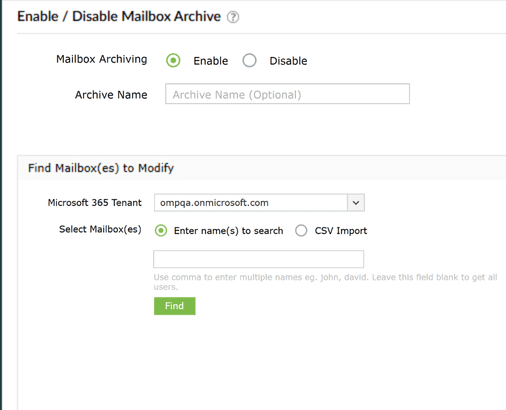
- After finalizing the list of mailboxes you want to configure Exchange Online archiving for, click Apply.

Note: You can use the Archive Mailboxes Size report in M365 Manager Plus to check the current Exchange Online archive status and size of your mailboxes.
Manage your Exchange Online archive mailboxes and more
M365 Manager Plus helps you view, monitor, and control Microsoft 365 email archive settings across your Exchange Online environment. The mailbox management capabilities in M365 Manager Plus help you view, monitor, and control archive mailboxes across your Microsoft 365 environment.
Bulk-archive mailbox management
Effortlessly enable or disable archive mailboxes for users in bulk using a simple, GUI-based action, removing the need for complex PowerShell scripts.
Reports on Microsoft 365 archive mailboxes
Generate detailed reports on archive mailbox size, growth trends, and inactive archives to optimize storage and manage costs effectively.
Real-time alerts on mailbox changes
Configure alerts to get immediate notifications when a mailbox archive is enabled or disabled, allowing you to quickly verify that the change was authorized.
Eliminate PowerShell complexity
Run detailed reports on archive mailboxes in a single click, avoiding the complexities of cmdlets like Get-Mailbox and its filtering syntax. This reduces reliance on scripting and minimizes the risk of errors.
Important tips
Use the appropriate Exchange Online license: The standard Exchange Online Plan 1 license (included in many business plans) provides only a 50GB archive. The Exchange Online Plan 2 archive size is 100GB plus auto-expanding archiving capabilities.
Use retention policies: Combine archive mailboxes with retention policies to automatically move older emails from a user's primary mailbox to their archive, keeping mailboxes lean and performant.
Frequently asked questions
Office 365 email archiving (now Microsoft 365 email archiving) provides a secondary mailbox—known as the archive mailbox—where older or infrequently accessed emails are stored automatically or manually.
Yes. To enable mailbox archive in Office 365 (now Microsoft 365), the user requires an Exchange Online Plan 2 license, or an Exchange Online Plan 1 license with an Exchange Online archiving add-on.
Yes. Archiving emails in Microsoft Outlook for Microsoft 365 helps free up space in your primary mailbox by moving older or less frequently used emails to an archive mailbox. This keeps your main mailbox smaller while still providing you with access to archived messages when needed. You can enable archiving for your Outlook users from the EAC.