

How to enable or disable Outlook on the web
Last updated on:In this page
Outlook on the web (OWA) allows users to access their mailbox from any browser without installing the Outlook desktop client. While this capability improves accessibility and productivity, certain scenarios require administrators to disable OWA for specific user mailboxes or entire groups to enforce stricter security policies or restrict temporary accounts.
This article explains how to enable or disable Outlook for users in Exchange Online using the Exchange admin center (EAC), Exchange Online PowerShell, and M365 Manager Plus, a dedicated Microsoft 365 administration tool.
- Exchange Online
- Graph PowerShell
- M365 Manager Plus
Method 1: How to enable or disable Outlook on the web using the Exchange admin center
Prerequisites
You need the Exchange Administrator role applied to the account you use to sign in to the Exchange admin center.
Steps
- Log in to the Exchange admin center.
- Navigate to Recipients > Mailboxes and click on a mailbox.
- Click Manage email apps settings under Email apps & mobile devices.
- Toggle the Outlook on the web option to enable or disable OWA for the selected mailbox.
- Click Save.

Limitation to consider
The EAC only allows you to enable or disable OWA for one mailbox at a time. You will have to use Exchange Online PowerShell or a third-party Microsoft 365 administration tool like M365 Manager Plus to disable Outlook for multiple users in a single operation.
Method 2: How to enable or disable OWA using Exchange Online PowerShell (Set-CASMailbox)
Prerequisites
Before using Exchange Online PowerShell, please verify that:
- The Exchange Administrator role is applied to the account you use to sign in to Exchange Online PowerShell.
- You are connected to the Exchange Online PowerShell module.
- To check if the Exchange Online PowerShell module is installed, use this script.
Get-Module -ListAvailable ExchangeOnlineManagement
- If it does not return a value, you will have to install the module. To install the Exchange Online PowerShell module, execute this script.
Install-Module ExchangeOnlineManagement -Scope CurrentUser
- To connect to Exchange Online PowerShell, run this script.
Connect-ExchangeOnline
- To check if the Exchange Online PowerShell module is installed, use this script.
Using Set-CASMailbox to enable or disable OWA for Exchange Online mailboxes
The Set-CASMailbox cmdlet allows you to configure client access settings for Microsoft 365 mailboxes, including enabling or disabling OWA mailbox access.
To disable OWA for a single user, run the following command:
Set-CASMailbox -Identity <UserIdentity> -OWAEnabled $false
Replace $false with $true to enable OWA.
Scenario: Disable OWA for a specific department
An IT administrator needs to disable OWA for all users in the "Interns" department to prevent them from accessing their mailboxes through any browser and ensure they can only use the approved client applications in their issued devices to do so.
You can pipe the results of the GetEXO-Mailbox cmdlet to Set-CASMailbox and disable Outlook for the selected department.
Get-ExoMailbox -Filter "Department -eq 'Interns'" |
Set-CASMailbox -OWAEnabled $false
Supported parameters
The following table contains some parameters that can be used with the Get-CASMailbox and Get-EXOCASMailbox cmdlets.
| Parameter | Description |
|---|---|
| -Filter | Filters the results based on specific properties. For this use case, it's ""Department -eq 'Interns'". |
| OWAEnabled | A boolean value ($true/$false) that indicates if Outlook on the web is enabled for the mailbox. |
Method 3: Enable or disable OWA in M365 Manager Plus
- Log in to M365 Manager Plus, navigate to Management > Mailbox Management and select Mailbox Features Settings.
- In the OWA drop-down menu, select Enable or Disable.
- Enter the display names of the mailboxes you want to enable or disable OWA for and click Find, or upload a CSV with the display names using CSV Import and click Import CSV.
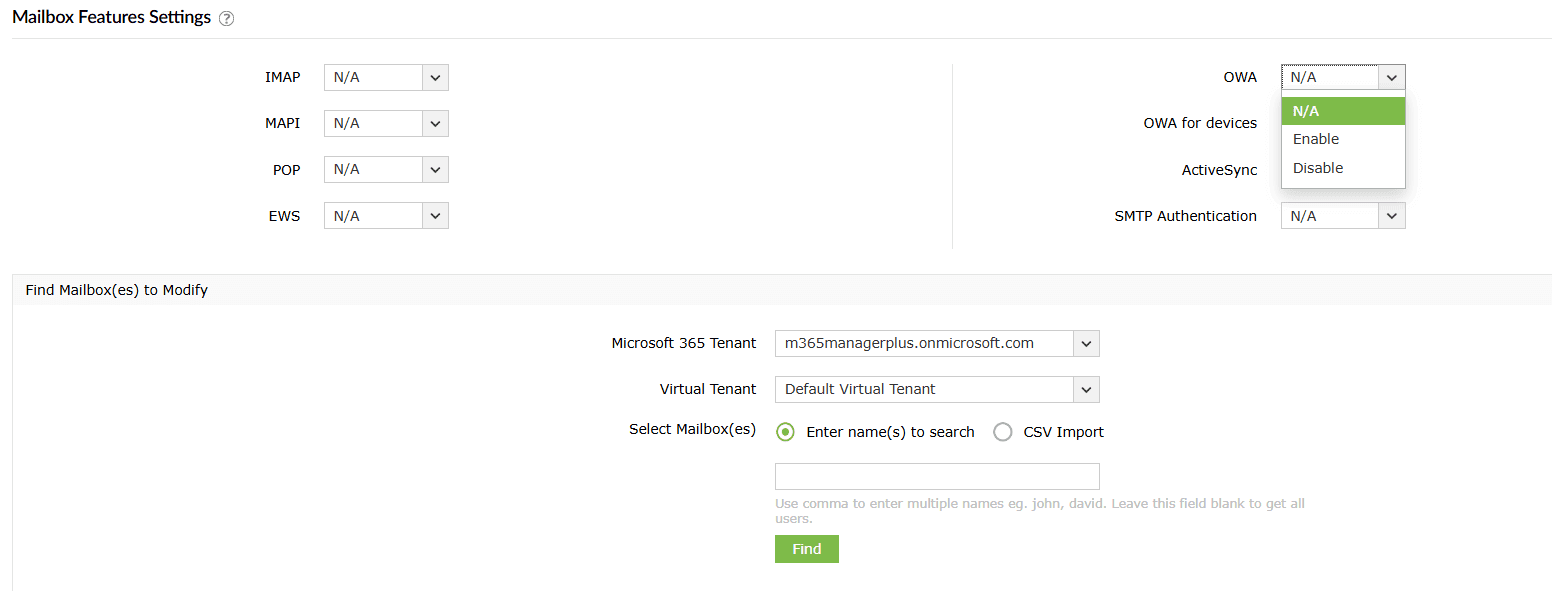
- After finalizing the list of mailboxes you want, click Apply.

Monitor your Exchange Online protocols and more
M365 Manager Plus’ mailbox management capabilities help you view, monitor, and modify not just your Outlook settings, but other Exchange Online mailbox properties like mailbox quotas, archive status, and inbox rules.
Bulk mailbox management
Handle large-scale mailbox actions—such as enabling features, updating settings, or modifying permissions—through simple, GUI-driven operations. No manual scripts or repetitive tasks.
Reports on Microsoft 365 mailboxes
Access ready-made reports that cover mailbox size, activity, license usage, storage trends, permission assignments, and more. Get the insights you need without digging through multiple admin centers.
Real-time alerts on mailbox changes
Set up instant alerts for critical mailbox changes, including permission updates, forwarding rule modifications, and configuration changes. Stay aware of risky or unauthorized activity as it happens.
Eliminate PowerShell complexity
Perform mailbox audits, configuration checks, and bulk updates without relying on cmdlets or scripting expertise. One-click actions reduce errors and make mailbox administration far more manageable.
Important tips
Secure the default OWA mailbox policy: When a new mailbox is created, the OwaMailboxPolicy-default mailbox policy is applied automatically unless specified otherwise. Ensure this default policy is configured securely.
Audit Exchange Online features: Regularly review which users are assigned to high-privilege OWA mailbox policies and which users have legacy protocols such as Exchange ActiveSync enabled to prevent data leakage via unmonitored features like file sharing.
Control offline access: Manage offline access settings within the policy to prevent email data from being cached on devices that might not be secure.
Frequently asked questions
An Outlook Web App mailbox policy (OWA mailbox policy) is a collection of settings that controls the availability of specific features in OWA. It allows administrators to standardize settings, such as file access types and offline availability for different groups of users without configuring each mailbox individually.
The Set-OwaMailboxPolicy cmdlet is used to configure the actual settings inside the policy (e.g., allowing or blocking instant messaging). The Set-CASMailbox cmdlet is used to assign that policy to a specific user mailbox.
You can revert a user to the default settings by running the following PowerShell command:
Set-CASMailbox -Identity user@domain.com -OwaMailboxPolicy "OwaMailboxPolicy-Default"
Yes. Instead of applying a policy, you can disable the protocol using the Exchange admin center or by using the command:
Set-CASMailbox -Identity user@domain.com -OwaEnabled $false.
No. OWA mailbox policies apply only to Outlook on the web. They do not modify settings for Outlook desktop, Outlook mobile, or ActiveSync.
Yes, but the OWA mailbox policy only affects sign-ins to Outlook on the web.
Shared mailboxes typically do not sign in directly, but if licensed or converted to user mailboxes, the OWC policy becomes relevant.
Deleting an assigned OWA mailbox policy causes affected mailboxes to inherit the tenant’s default OWA behavior until a new policy is explicitly assigned. This may unintentionally re-enable restricted features. Always reassign users to a replacement policy before deleting one.